
macOS
macOS High Sierra 10.13.6
macOSUpdated
| Requirement | On file |
|---|---|
| macOS | See the sheet |
| CPU | Intel 64-bit |
| Download | 4.9 GB |
An image editor has a stack of raw files open while a 4K HEVC clip renders in the background. The drive underneath is handling it all with a file system built for flash storage. High Sierra shifted the Mac’s underpinnings in ways that make that kind of concurrent load feel ordinary.
Apple File System is the quiet workhorse here. It replaced HFS+ with a modern architecture tuned for solid-state drives. Snapshotting and space sharing happen at the volume level, and directory sizing is near-instant on APFS volumes. The result is less beachballing when you browse folders with thousands of items.
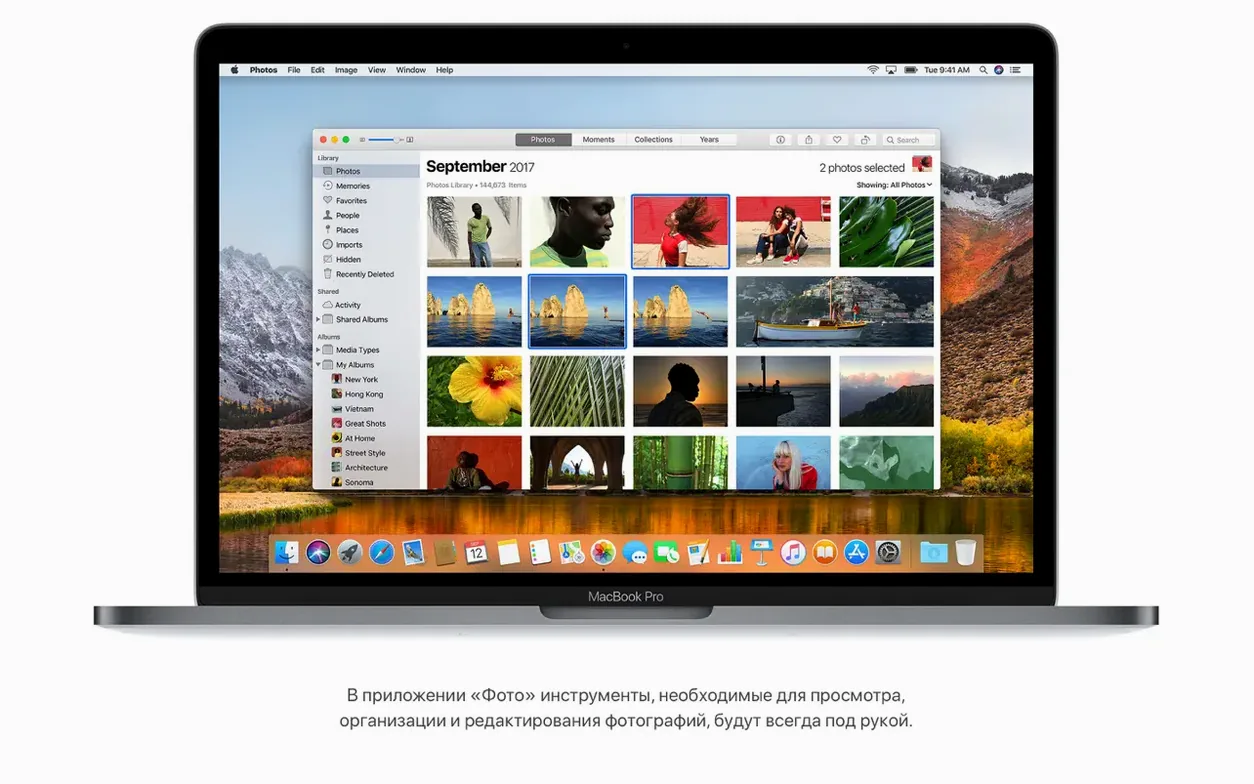
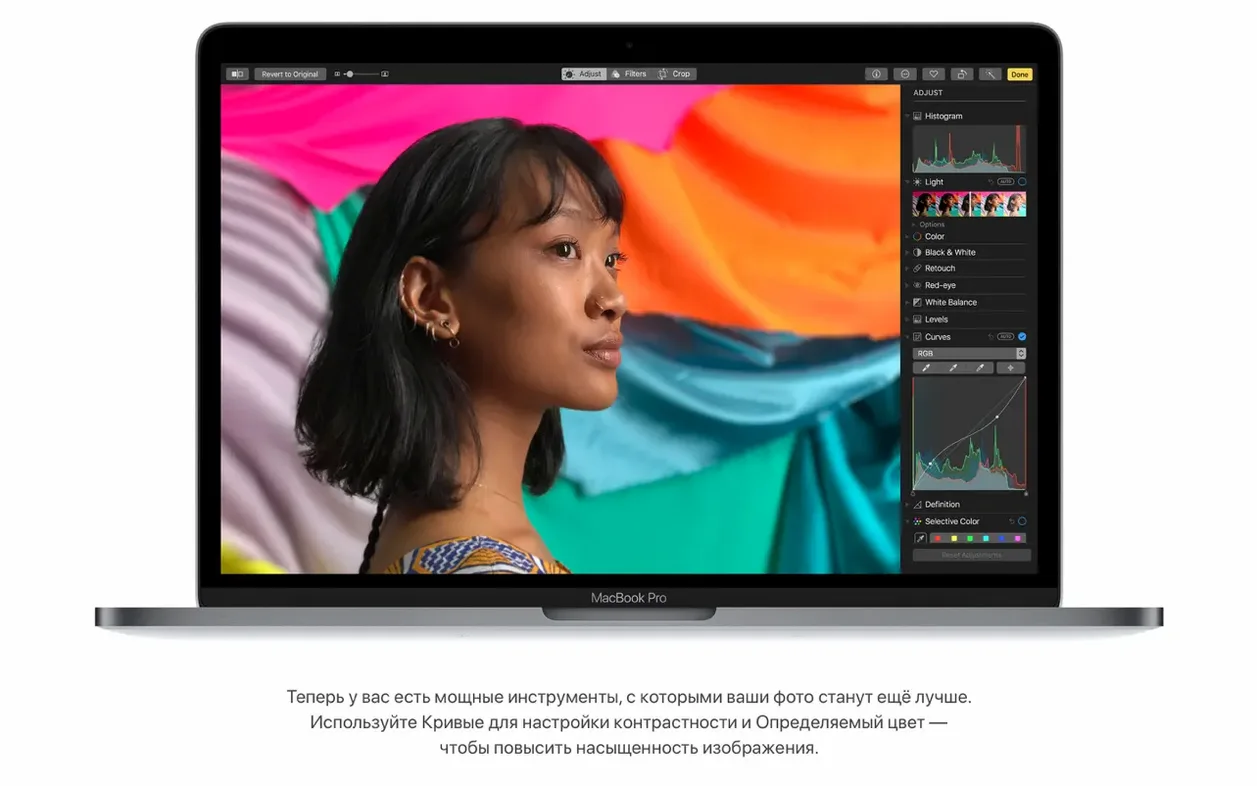
Metal 2 gives the window server and apps direct access to the GPU. That means smoother Mission Control transitions and faster draw times in creative software. Photos taps into this for its updated editing tools — Curves and Selective Color arrived in this release, letting you pull a luminosity point or shift a specific hue range right inside the sidebar-based library. On the media side, HEVC playback is hardware-accelerated on supported Macs, keeping file sizes manageable without choking the processor.
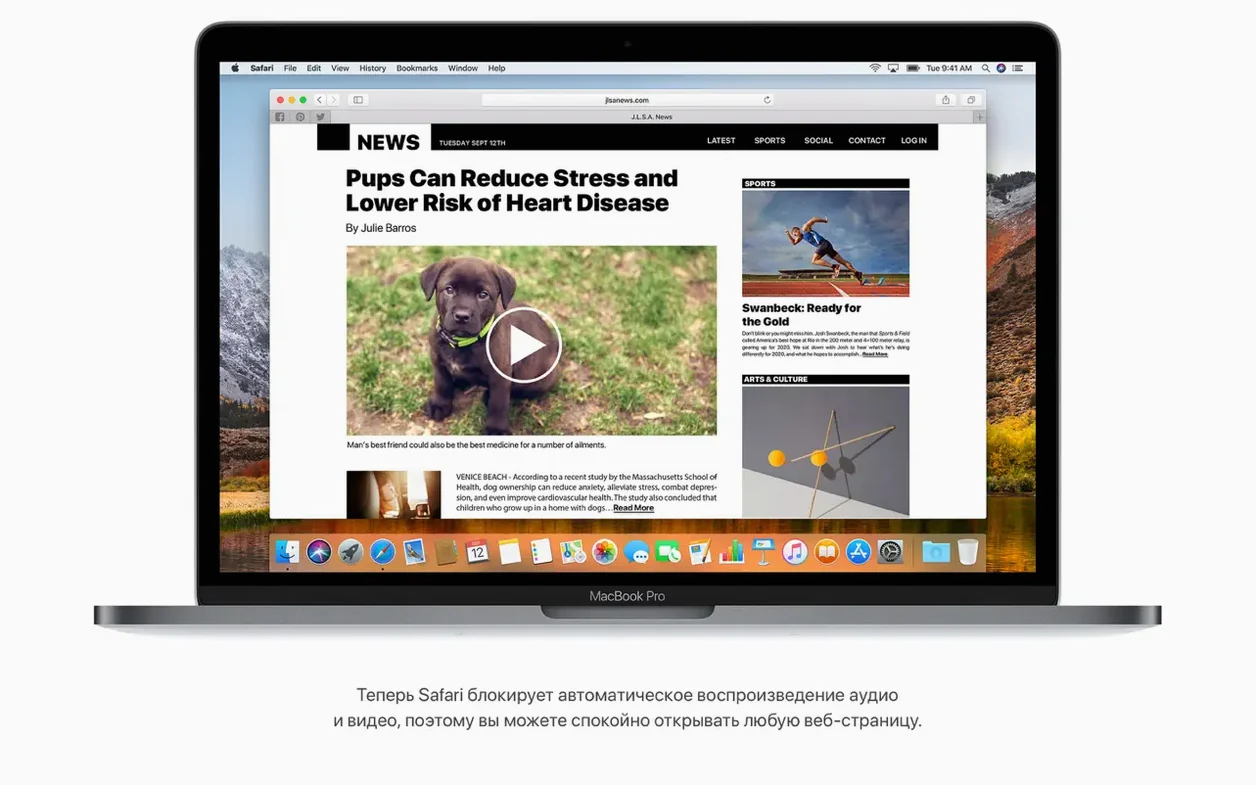
Safari gained two small but practical controls: it blocks video and audio autoplay, and it can automatically open articles in Reader mode by site preference. Mail search introduced Top Hits to surface the most relevant messages first. None of these are flashy, but they cut friction across a working day.
Assemble a Bootable Installer: Step by Step
The downloaded disk image delivers a bare installer app. Turning it into a bootable USB drive gives you a clean start path for any compatible Mac — particularly useful when you inherit a machine with a corrupted recovery partition. The process runs entirely through Terminal and requires no third-party tools.
- Format a USB drive (16 GB or larger) as Mac OS Extended (Journaled) with a GUID Partition Table in Disk Utility. Name it
HighSierrato keep the Terminal command simple. - Mount the disk image and drag the installer app — named Install macOS High Sierra — into
/Applicationsif it is not already there. The file must sit at the top level of Applications, not inside a subfolder. - Open Terminal and run exactly this string:
sudo /Applications/Install\ macOS\ High\ Sierra.app/Contents/Resources/createinstallmedia --volume /Volumes/HighSierra - Authenticate with your admin password. The script erases the volume, copies the boot files, and writes a complete installer image. On a USB 3.0 stick the whole operation takes roughly 8–12 minutes on a mid-2012 MacBook Pro.
- Reboot holding the Option key, select the orange USB icon labelled Install macOS High Sierra, and proceed with either an upgrade or a wiped-disk clean install.
The same procedure works for any Mac that meets the late-2009 / mid-2010 cutoff, letting you avoid Internet Recovery entirely when the network is slow or unavailable.
Preference Panes to Adjust Right After Installing
A few defaults in a fresh High Sierra install are worth adjusting before anything else. These are not buried in plists; they live in standard preference panes.
Finder: Show Path Bar and Expand Save Dialogs
Open Finder, press View → Show Path Bar. The bar appears at the bottom of every window, showing the full POSIX path. Dragging a folder onto a Terminal window becomes trivial. Then go to Finder → Preferences → Advanced and tick “Keep folders on top when sorting by name.” Windows-style list order snaps into place.
Trackpad: Enable Three-Finger Drag
Apple moved this option out of the Trackpad pane in later releases, but in High Sierra it lives under System Preferences → Accessibility → Pointer Control → Trackpad Options. Tick “Enable dragging” and select “three finger drag” from the dropdown. Dragging windows and selecting text without a click is genuinely faster once muscle memory kicks in.
Dock: Turn Off Recent Apps
By default the Dock shows recently opened apps in a dedicated section on the right. Head to System Preferences → Dock and untick “Show recent applications in Dock.” The Dock shrinks to pinned and running apps only — less visual noise, especially on 13-inch screens.
Energy Saver: Disable Power Nap on Desktop Macs
Power Nap wakes the machine periodically for Mail fetch and iCloud sync. On an iMac or Mac Pro plugged into mains power, the benefit is marginal and the wake cycles can interfere with overnight Time Machine drives. Uncheck Enable Power Nap in the Energy Saver pane unless you rely on push notifications while asleep.
Media Import, Crashes and Graphics Fixes in Build 17G66
Build 17G66 arrived as a smaller point release, but its fixes touched three areas that surface during a normal workday.
- Media import — AVCHD media from certain cameras no longer causes Photos to stall during import. Videographers pulling footage from Sony or Panasonic camcorders via SD card benefit directly; the bug previously required a restart or a separate copy step through Image Capture.
- Mail reliability — Moving messages from a Gmail inbox to another account inside Mail.app stopped working for some users under 10.13.5. The 10.13.6 update restored the drag-and-drop behaviour, so cross-account organisation works without round-tripping through the web client.
- AirPlay 2 in iTunes — Multi-room audio became available inside iTunes proper. Selecting multiple AirPlay 2 speakers from the output menu streams synchronised audio to different rooms, with independent volume sliders per speaker. Latency is low enough for a house-wide podcast or background music setup using older Airport Express units flashed with AirPlay 2 firmware.
Stability and security improvements in the same build hardened the kernel and the graphics stack, though Apple’s release notes did not enumerate them at the CVE level. On an ageing MacBook Air with 4 GB of RAM, the update reduced occasional WindowServer crashes tied to Metal 2 draw calls — noticeable when rapidly switching between Spaces with a dozen windows open.
Running 32-Bit Creative Tools Alongside Modern Apps
High Sierra sits at a sweet spot where it runs modern creative tools while retaining compatibility with 32-bit software that Mojave dropped. That makes it a bridge OS for certain workflows.
Photoshop for High Sierra users often keep a copy of CS6 alongside a current Creative Cloud install. CS6’s 32-bit components — particularly the installer and some older plug-ins — launch without issue here, whereas Mojave and later block them outright. Photographers editing in Lightroom Classic benefit from Metal 2 acceleration during Develop module rendering; the GPU draws sliders perceptibly faster than on Sierra, especially on Macs with Intel Iris Pro graphics.
APFS snapshots integrate with Carbon Copy Cloner and SuperDuper backup routines. A snapshot taken before a system update lets you roll the entire boot volume back in under a minute from Recovery mode, assuming the snapshot was created on the same APFS container. Time Machine under APFS uses snapshots internally, so local backups on an SSD complete faster than they did under HFS+ — the file system no longer walks the entire directory tree on every run.
Spotlight’s flight tracker became a lightweight travel tool. Typing an airline code and flight number into the search field pulls up a live status card with gate, terminal, departure and arrival times, delays, and a small route map. The data comes from Apple’s flight provider and updates in near real time, so it replaces a dedicated app for basic flight checks.
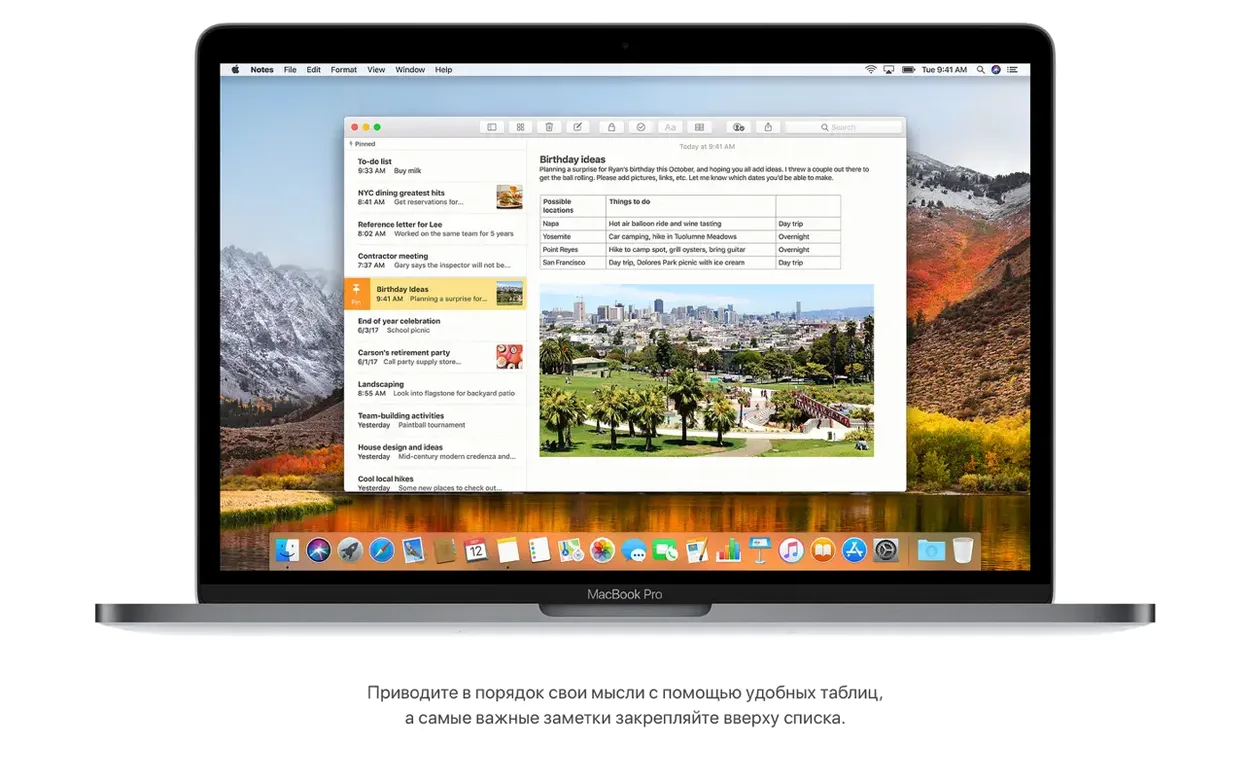
Notes gained table support in this release. A simple two-column table inside a note handles quick inventories or comparison lists without leaving the app, and the table cells sync across iCloud to an iOS 11 device running the matching Notes version. The feature is rudimentary — no formulas, no sorting — but it keeps lightweight structured data inside the same app where you already keep project notes and meeting scraps.
AirPlay 2 — multi-room audio support added for iTunes.
Stability — general security and system stability improvements.
Photos — fixes an issue where AVCHD media from some cameras was not recognised.
Mail — resolves a problem moving messages from Gmail to another account.
- macOS 10.13.5 or later
- Intel processor
- 2 GB of memory
- 14.3 GB of available storage for the upgrade
Questions on file
Does High Sierra support HEVC video editing?
Yes, HEVC playback and streaming are supported at the system level, and hardware acceleration is available on Macs with compatible Intel processors.
What file system does High Sierra use?
High Sierra introduces Apple File System (APFS), which is optimised for flash storage and includes features like snapshots and fast directory sizing.
Sign in · Create an account to add a field note.
No field notes yet. A measurement, a version, a machine — they appear after moderation.