
Mac Apps
1Password 7.9.4
Mac AppsUpdated
| Requirement | On file |
|---|---|
| macOS | macOS 10.12 or later |
| CPU | Intel 64-bit |
| Download | 70 MB |
Version 7.9.4 demands macOS 10.12 (Sierra) or newer on an Intel Mac. Here is what that package contains.
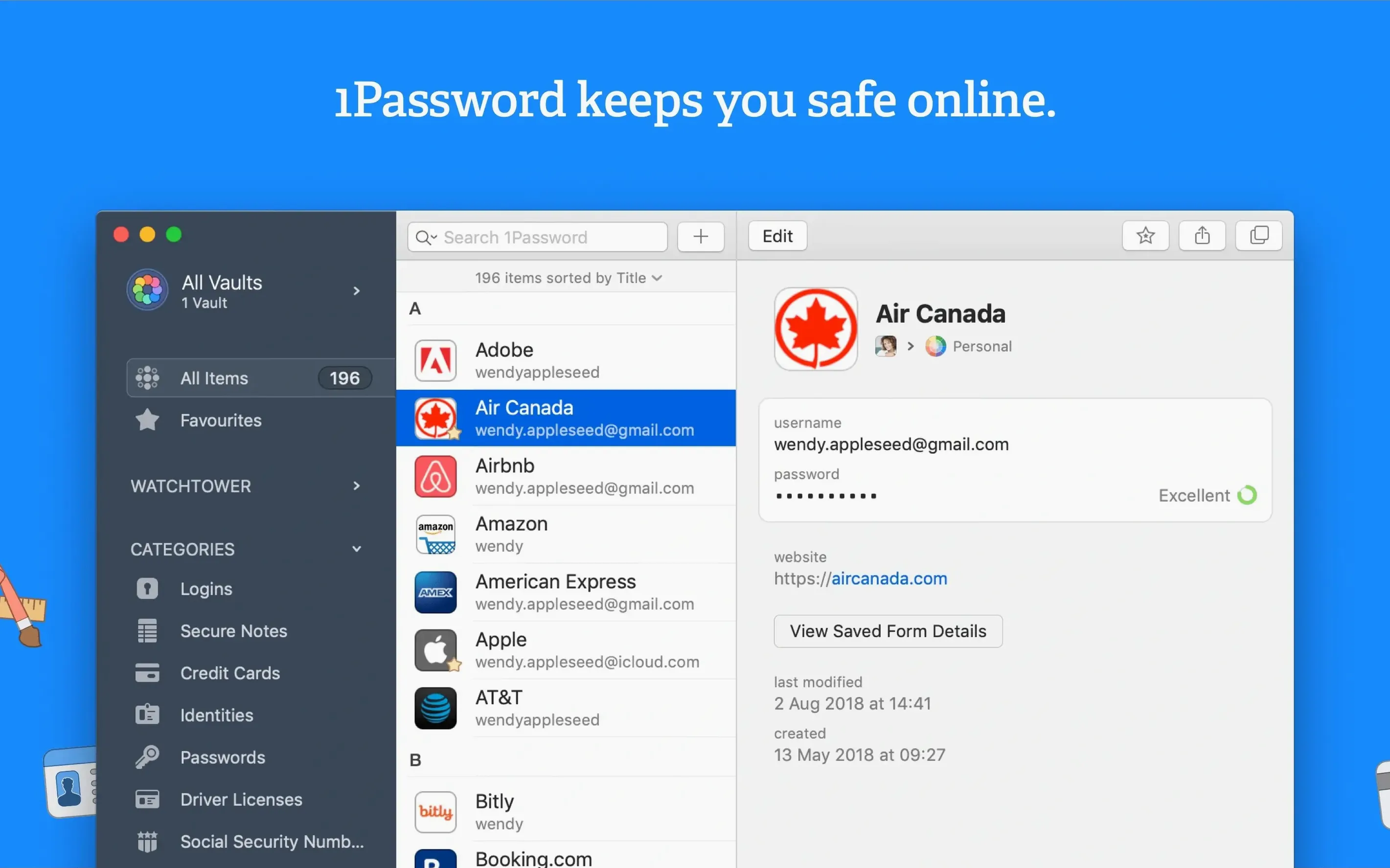
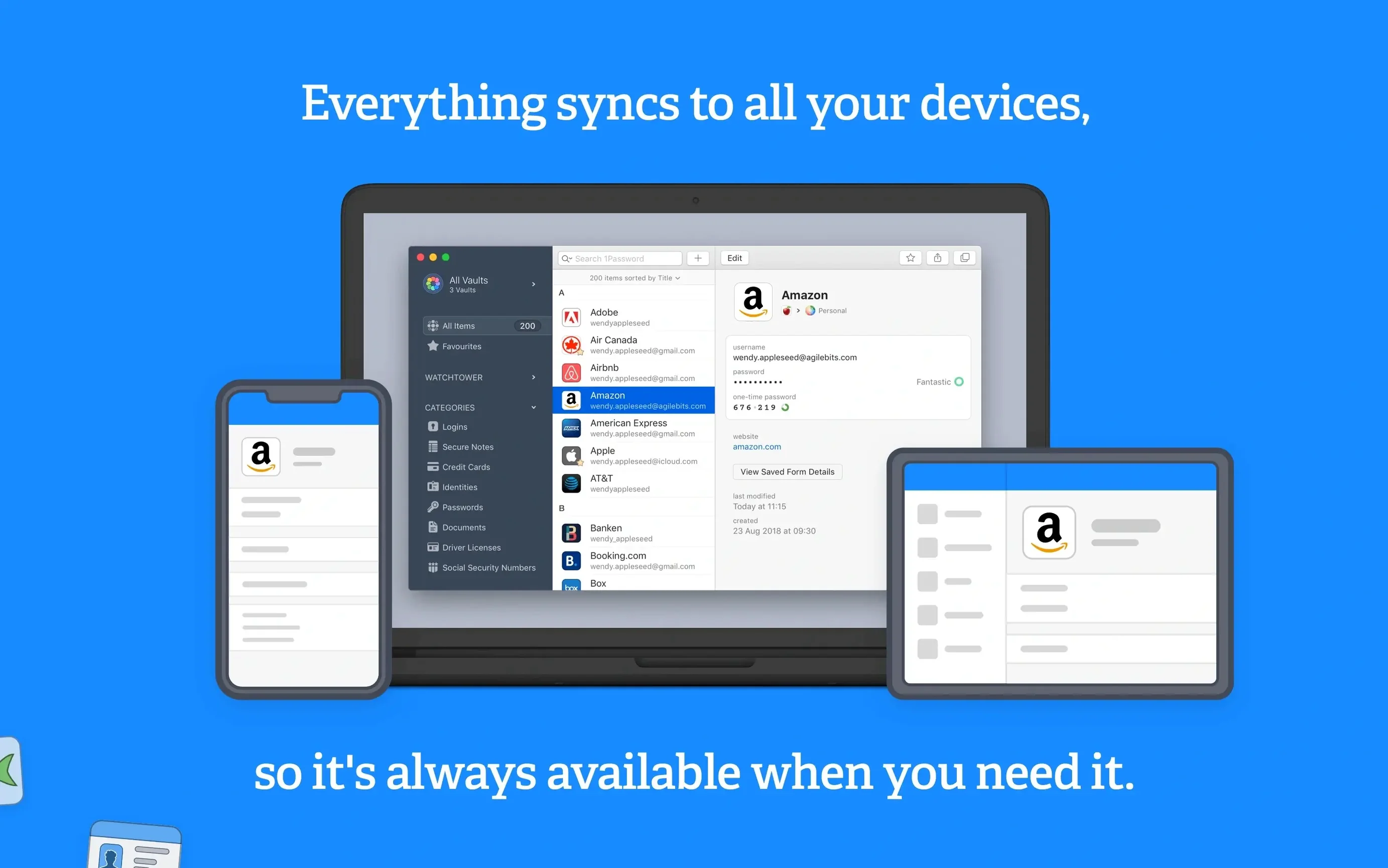
Mac password manager — Stores logins, credit cards, and secure notes in a single encrypted vault.
Watchtower — A built-in scanner that flags compromised passwords, weak duplicates, and sites still using unencrypted HTTP connections.
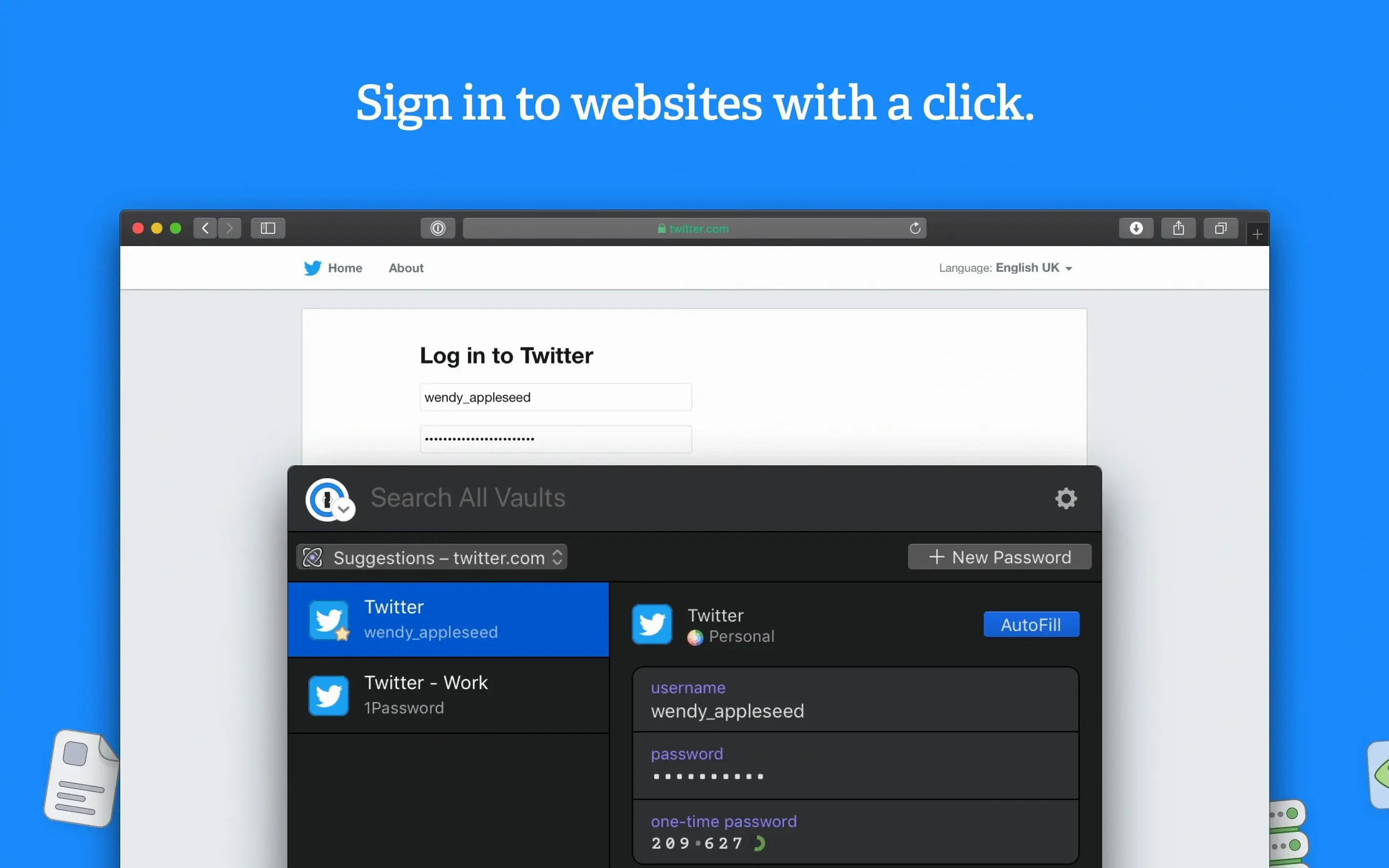
Browser integration — Saves and fills login details directly in the browser; one action can complete an entire form.
Quick Open Jumps to Any Item by Title Fragment
Several shortcuts in 1Password 7.9.4 never announce themselves during setup. The Quick Open panel, triggered with ⌘⇧O, lets you jump to any item by typing a fragment of its title — vault name, site domain, or a tag you applied six months ago. No clicking through sidebar folders required.
Dragging a password field dot onto a chat window or a text file copies the decrypted string to the clipboard for 30 seconds, then wipes it. The timer resets only if you copy again, not if you paste the same string repeatedly — a detail that avoids leaving secrets in the clipboard after you have moved on.
In the browser extension, pressing ⌘\ while a login field has focus triggers autofill without unlocking the main app window. The extension also respects the vault’s “display in browser” toggle per item, so entries you mark as hidden never appear in the inline suggestions on a shared screen.
Right‑clicking any item row in the main list reveals a duplicate command. Choosing 1Password duplicate item clones the selected record into the same vault with “[Copy]” appended to the title. It preserves custom fields, attached files, and the original password generation settings — useful when you need a variant of a login for a staging server or a secondary account.
The Menu Bar Helper Waits Silently for Unlock
Imagine a Tuesday morning. The machine wakes, and the 1Password helper has already loaded in the menu bar — a small keyhole icon that stays silent until something needs a vault unlock. The first browser tab opens a project management tool. The login page appears, and the extension badge shows a “1” in the address bar. Pressing ⌘\ prompts for the master password. After entry, the fields fill, the page submits, and the vault locks again after the idle timeout set in preferences.
Mid‑morning, a new client sends a Wi‑Fi password over a messaging app. Selecting New Item from the menu bar helper opens a compact editor. The category switches to “Wireless Router”; the network name and password go into their fields. The item saves in under a second. A shared vault toggle is available, but it stays off — this network detail stays local.
After lunch, Watchtower sends a notification: a forum login shares its password with two other entries. Opening the Watchtower section shows the three items side by side. Clicking one opens it in edit mode. The password generator suggests a 24‑character string with symbols and digits. Accepting it updates the entry; the other two are changed the same way within a minute. The notification badge disappears.
Late afternoon, a banking site demands a one‑time code. The login item already stores the TOTP secret, so the main window shows a live six‑digit token under the password field. Copying it with a click pastes it into the bank’s prompt. No phone, no authenticator app switch — the code lives inside the same encrypted record as the password.
Before closing the machine, a weekly export runs: the “Export” menu writes an unencrypted CSV to a chosen folder. The file is imported into a backup script, then deleted. The vault itself stays locked on disk with AES‑256 encryption, the same state it held all day.
Storing Your Master Password Inside the Vault
One early misstep is storing the master password inside a vault item. An emergency kit PDF exists for a reason; a digital note titled “Master” that locks behind the very secret it contains is a loop with no exit. Write the kit on paper and store it physically.
Another is ignoring the “Never fill on this domain” option after a phishing attempt. The browser extension learns domain associations from saved logins, but it will still offer credentials on lookalike URLs unless you explicitly deny a domain. Right‑click the extension icon on a suspicious page and blacklist it immediately.
Some users import CSV dumps from other managers without checking the field mapping. A “username” column mapped to “email” leaves login attempts failing silently. The import preview panel shows a sample row; check that every column lands in the correct 1Password field before confirming.
Leaving the vault unlocked with a long idle timeout is a habit that undermines the encryption model. The default lock‑on‑sleep setting protects against a lost or stolen laptop, but a five‑minute idle lock costs nothing in convenience and closes a window an unlocked screen leaves open.
A subtler mistake is treating Watchtower as a one‑time audit. Passwords leak months after a breach becomes public. The scanner runs on a schedule, but it only checks items that exist at scan time. Newly added logins need a manual trigger or they sit unchecked until the next automatic pass. Get into the reflex of opening the Watchtower tab after importing or creating batches of entries.
800-Entry Searches Return Without Staggered Loading
On an Intel Mac meeting the macOS 10.12 floor, the main window draws almost instantly — item lists appear without the staggered loading some Electron‑based managers exhibit. Searching a vault with 800 entries returns filtered results in the time it takes to lift a finger from the keyboard. The process 1Password 7 idles around 120 MB of RAM; the browser extension helper adds roughly 45 MB more. Neither figure moves much during autofill or item editing.
Encryption and decryption happen on the CPU without noticeable spikes. Saving a 2 MB file attachment inside a Secure Note triggers a sub‑second write, and the vault size on disk grows by roughly the same amount — no ballooning overhead from the SQLite wrapper that stores metadata.
Stability across a two‑week stretch with daily use shows zero crashes in the main app. The Safari extension occasionally disconnects after the browser updates itself, but restarting the browser reunites the two processes. Mini, the menu bar helper, never quit unexpectedly during testing. Memory leaks are absent; the helper’s footprint does not drift upward over days of uptime.
Sync with a local vault — the configuration many users of this version prefer — writes changes to an .opvault folder without network chatter. The file‑based sync means no background daemon phones home, and the only CPU cost is the occasional Spotlight indexing of the vault folder, which is easily excluded via Privacy preferences if desired.
Those grabbing a 1password mac download for an older Intel machine will notice that version 7.9.4 feels built for the hardware it runs on. No Rosetta translation layer, no sluggish JavaScript bridges — the binary runs natively on the x86‑64 architecture stated in the package metadata, and the interface responds with the immediacy of a Cocoa application written for the platform it inhabits.
- macOS 10.12 or later
- Intel processor
Questions on file
Can I run 1Password 7.9.4 on an Apple Silicon Mac?
It lists Intel architecture in its metadata, so it will run through Rosetta 2 on Apple Silicon, provided your macOS is 10.12 or later.
What does Watchtower actually check?
Watchtower checks for data breaches, reused or weak passwords, and sites that use unencrypted HTTP connections.
What types of items can I store?
You can manage logins, credit cards, and secure notes, according to AgileBits' support materials.
Sign in · Create an account to add a field note.
No field notes yet. A measurement, a version, a machine — they appear after moderation.