
Mac Apps
Adguard 2.20.2.2629
Mac AppsUpdated
| Requirement | On file |
|---|---|
| macOS | macOS 10.15 or later |
| CPU | Apple Silicon, Intel 64-bit |
| Download | 3 MB |
Check Compatibility Before You Start
Adguard runs on any Mac with macOS 10.15 or later, with native support for both Intel and Apple Silicon processors. It sits at the system level rather than living inside a single browser, which means its filtering applies wherever network traffic flows.
Block Ads Inside Apps, Not Just Browsers
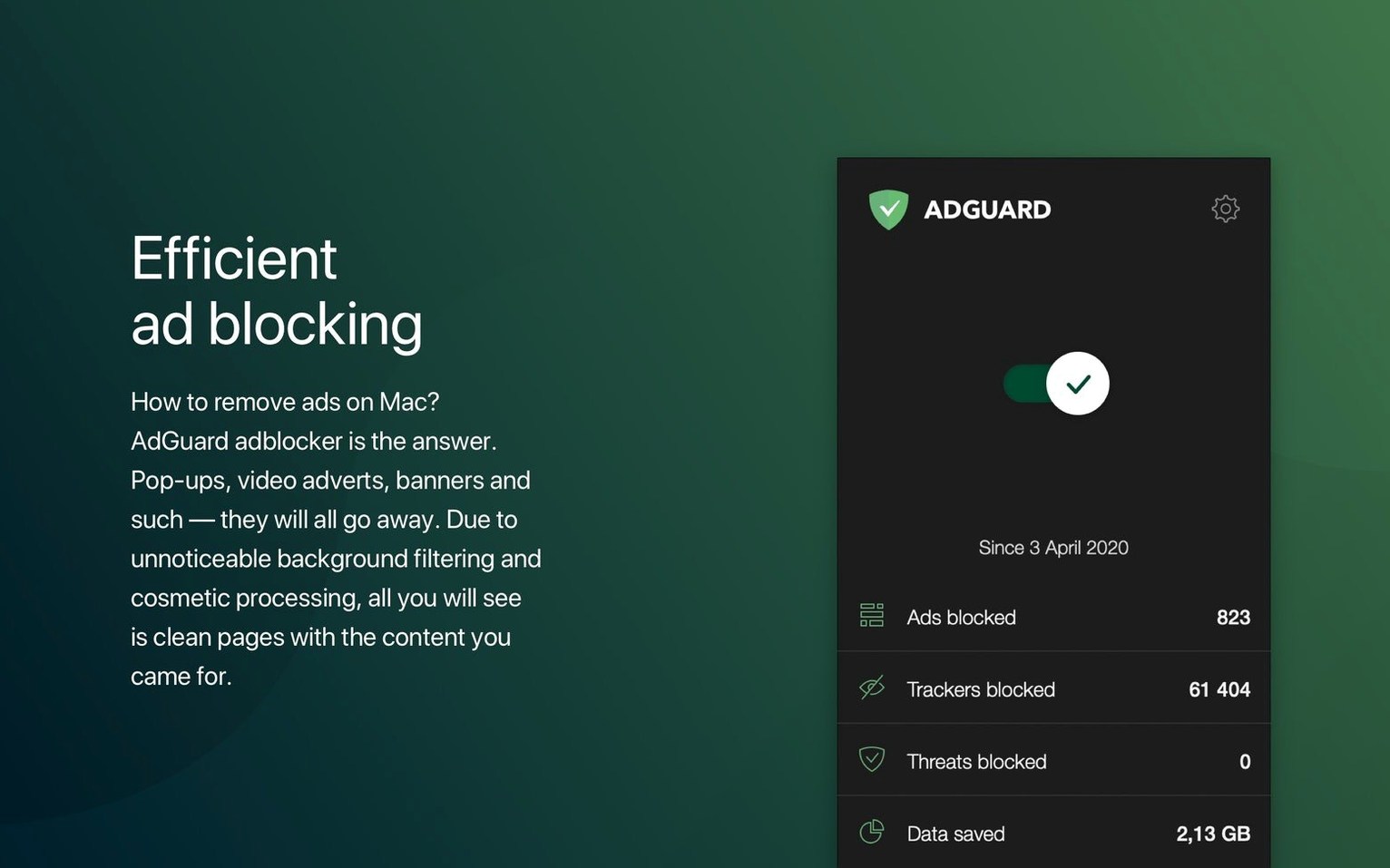
Most blockers stop at Safari or Chrome. Adguard extends its filtering to other applications, so ad panels inside a weather utility or a free media player get stripped the same way a banner on a news site would. The manual element picker lets you block specific leftovers that the standard filters miss.
Add a Spyware Filter to Your Existing Toolkit
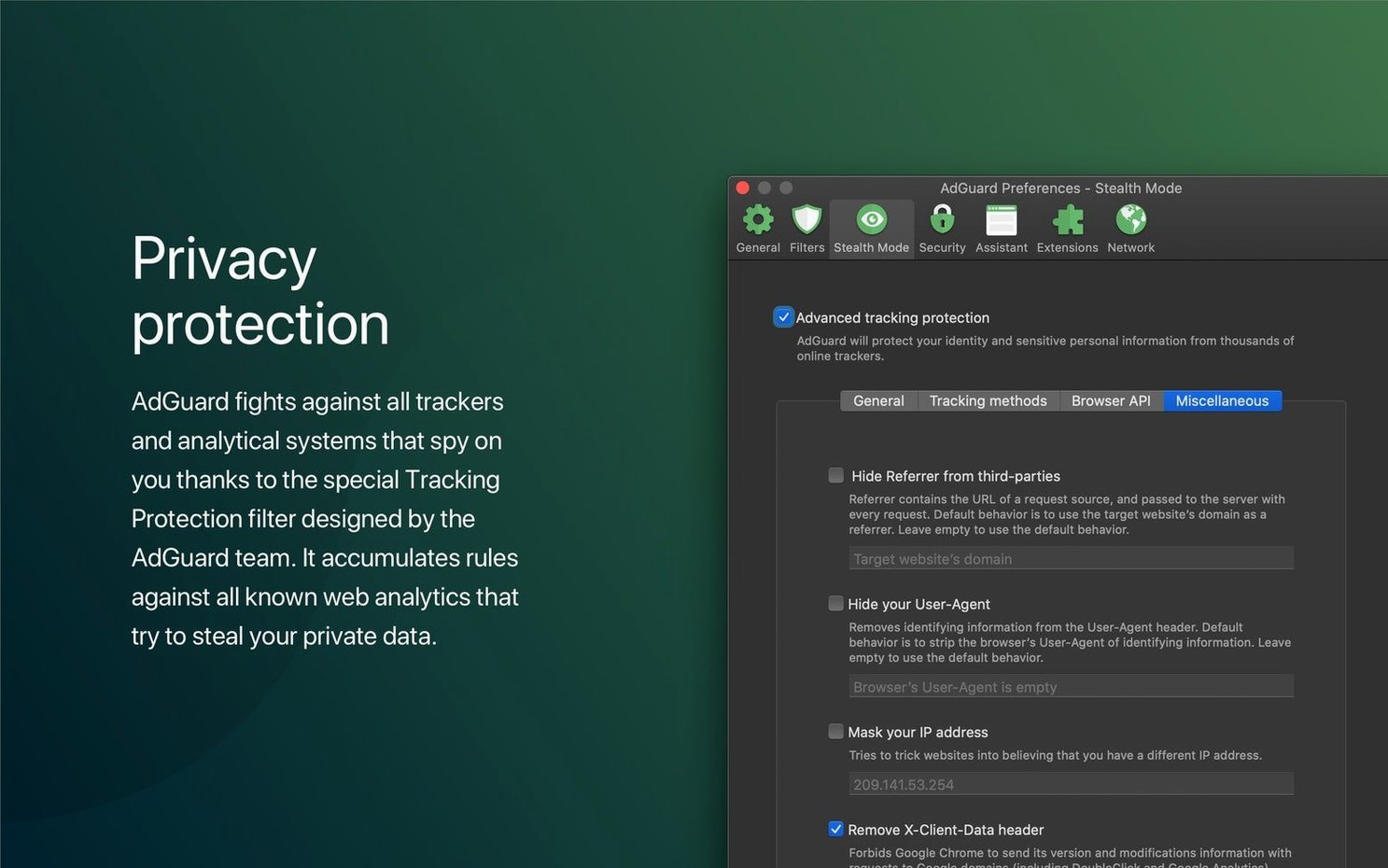
Alongside ad blocking, the app runs a spyware filter and can scan sites for dangerous activity. Tracking scripts and analytics systems that collect personal data get blocked by default, which complements the privacy settings already built into macOS without duplicating them.
Launch at Login and Two Other Filters to Personalize First
Out of the box, Adguard applies a sensible baseline, but three adjustments can make the filtering feel less generic. Open the main window and head to Preferences → General. The first thing to switch is Launch Adguard at Login — it is off by default on a fresh install. Without it, a reboot leaves network requests unfiltered until you remember to open the app manually.
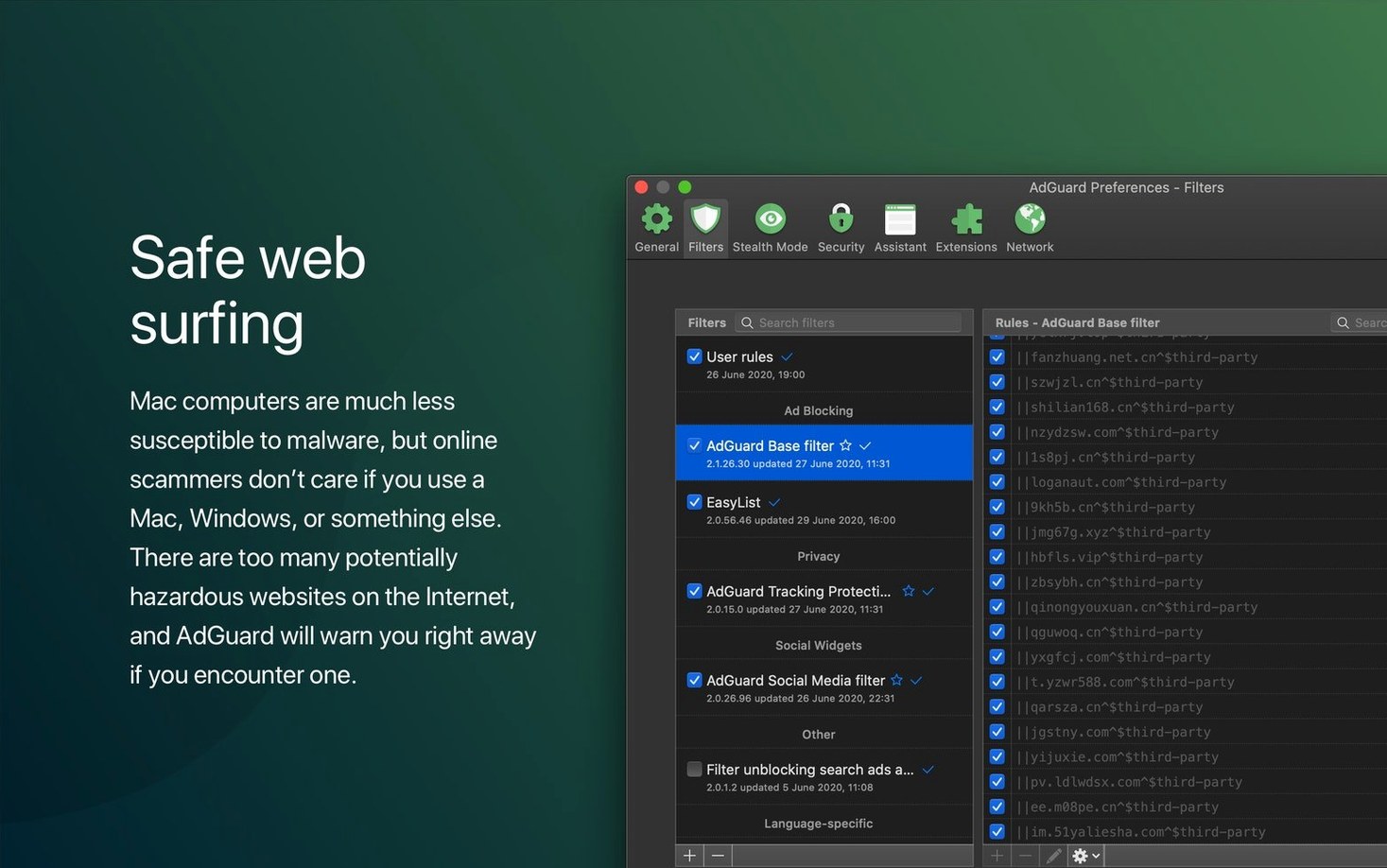
Next, go to Preferences → Filters. The default set covers most ad servers and known trackers, but the Language-specific section stays empty until you tick a box. If you spend time on German tech forums or Japanese news sites, enabling the matching filter catches region-specific ads that generic lists let through. This takes fifteen seconds and requires no ongoing maintenance — the filter updates arrive automatically.
The third adjustment lives under Network → Filtering. By default, Adguard routes traffic through a local proxy, which works for standard setups. If you already use a VPN or a custom DNS resolver, switch the filtering mode to Automatic rather than the default proxy setting. This prevents the two network layers from stepping on each other, which can manifest as stalled page loads or apps that sit on a blank screen for ten seconds before timing out.
Option-Click the Menu Bar Icon for a Live Request Feed
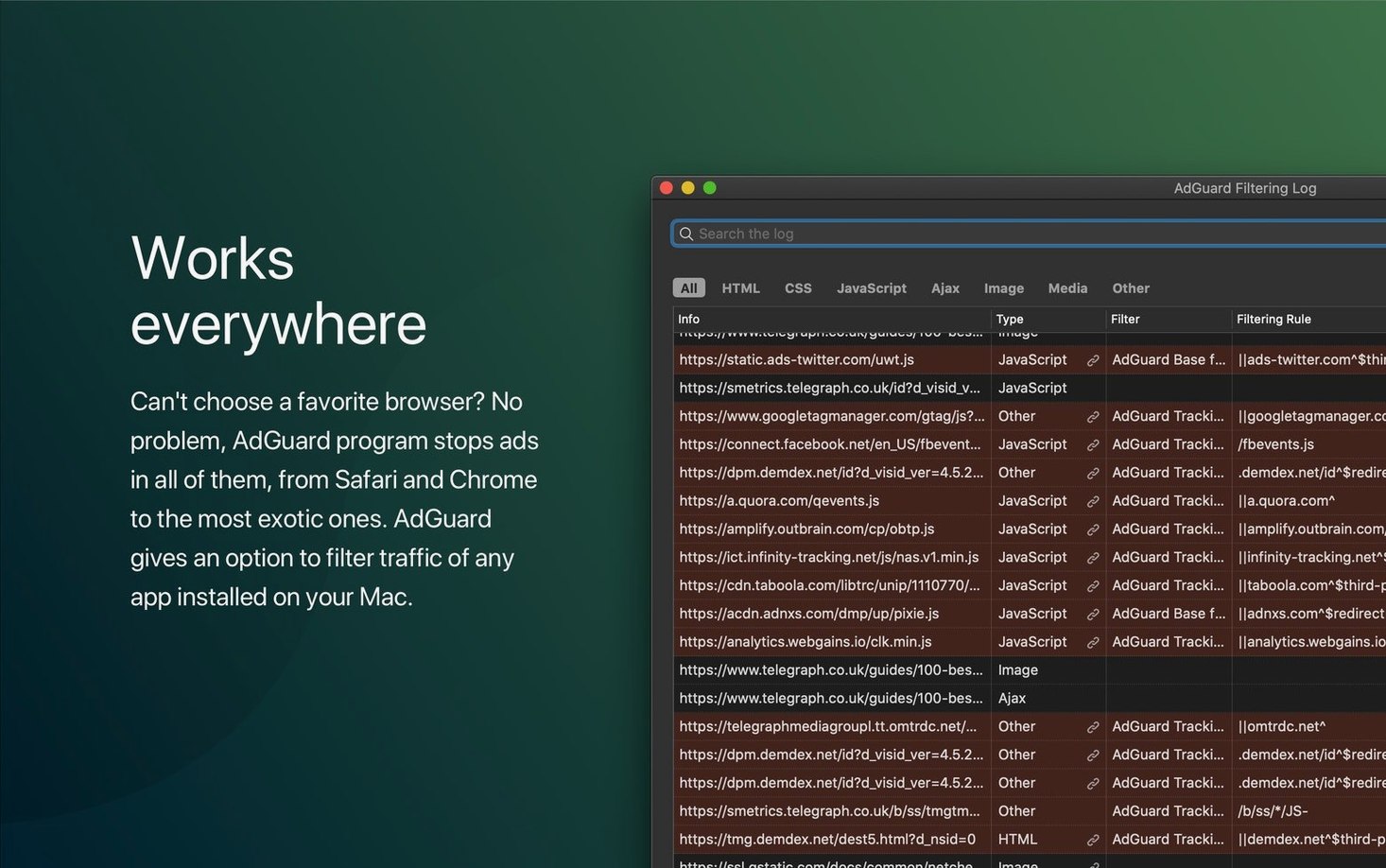
The menu bar icon holds more than an on-off toggle. Option-click the Adguard icon in the menu bar and you jump straight to the filtering log — a live feed of every request the app processes. When a site breaks and you cannot tell which rule is responsible, this view tells you in real time whether a script got blocked, allowed, or redirected through a different path.
Inside the filtering log, double-click any blocked request to open a small panel with three actions: unblock that specific URL, whitelist the entire domain, or create a custom rule. This is faster than digging through Preferences to add an exception manually, and the rule persists across sessions.
Another shortcut that rarely appears in documentation: select any text on a webpage, right-click, and choose Adguard → Block element by selector from the context menu. This opens the element picker pre-populated with the CSS path of whatever you highlighted. It works for elements that the visual picker sometimes misses, like iframes or dynamically injected containers that appear only after scrolling.
The ⌘⇧F shortcut inside the main window opens the filter editor with the search field focused. If a particular domain keeps serving ads despite three different filter lists being active, type the domain name here to see which rules reference it. From the same panel, you can add a blocking rule directly in Adguard's syntax without opening a text editor.
Stacking a Browser Blocker on Top Creates Race Conditions
The most common misstep is stacking Adguard on top of a browser-based ad blocker and then wondering why pages break. Two blockers intercepting the same requests create race conditions: one rewrites a script while the other removes the placeholder it targets. The result looks like a layout collapse — text overlapping images or blank gaps where a login form should be. Pick one. Adguard handles system-wide traffic, so the browser extension can be disabled entirely. If you prefer the extension for in-browser cosmetic filtering, turn off Adguard's HTTPS filtering for that browser to avoid double-processing.
Another frequent error involves the DNS filtering module. It blocks ad-serving domains at the DNS level before the connection reaches your machine, which sounds appealing until a legitimate service routes through a flagged domain. People enable it, then find that a banking app cannot fetch transaction data or a game launcher sits on "checking for updates" indefinitely. DNS filtering is aggressive by design. Keep it off unless you are comfortable reading the filtering log to diagnose which domain caused the break.
Beginners also overlook the Allowlist tab under Preferences. Adding a domain to the allowlist stops all filtering for that site — ads, trackers, phishing checks, everything. For a site that only needs its comment section unblocked, a targeted exception rule inside the filtering log is a more precise tool. The allowlist is a sledgehammer; the custom rule is a scalpel. Knowing which to reach for prevents regressions.
Finally, ignoring filter update intervals leads to stale blocklists. Adguard checks for updates automatically, but if your Mac spends days in sleep and wakes only briefly, the scheduler can drift. Open Preferences → Filters → Check for updates manually after a long idle period, or set the update interval to six hours instead of the default twelve if you want fresher rules at the cost of a negligible bandwidth increase.
Blocking a First-Party Sponsored Widget That Standard Filters Miss
Assume you read a regional news site daily, and after the latest adguard releases filter update, a new type of sponsored content widget has appeared between paragraphs. The standard filters miss it because the widget uses a first-party subdomain with randomised filenames. Here is the process to remove it permanently.
1. Open the site and activate the element picker by clicking the Adguard menu bar icon and selecting Block element. The cursor turns into a crosshair. Hover over the sponsored widget until the bounding box highlights the entire container — not just the image or text inside it. Click once.
2. The preview window shows the CSS rule Adguard suggests. It often proposes something overly broad, like div.article-body > div:nth-child(4), which might hide legitimate content at the same position on other pages. Narrow the selector by checking the Apply to this domain only box and tweaking the rule to target a class or data attribute unique to the widget, such as div[data-ad-slot="inline"]. Preview the change with the Preview button before confirming.
3. Click Block. The rule is saved to your User Rules list. Refresh the page to confirm the widget is gone and no surrounding content collapsed.
4. Open the filtering log with Option-click → Filtering log and reload the page again. Scroll through the log for any residual requests to the ad server that delivered the widget. If you see calls to ads.example-news.com, right-click one and choose Block domain. This stops the next variant of the widget from loading before it can render.
5. To generalise, go to Preferences → User Rules and add a pattern rule: ||ads.example-news.com^$third-party. The double pipe syntax blocks the domain and all its subdomains. The $third-party modifier ensures Adguard only applies the rule when the domain is called from a site other than itself, which prevents breakage if the news outlet also hosts legitimate content on that subdomain.
The entire workflow takes under three minutes and produces a rule set that survives filter updates and site redesigns. Export the user rules once a month via the Export button in the User Rules tab; if you reinstall macOS or move to a new machine, importing that file restores every manual tweak.
One System-Wide Filter in Place of Three Browser Extensions
A freelance web developer runs Safari for personal browsing, Chrome for client work, and an AI-powered browser for research. Each browser has its own set of extensions, and keeping three ad blockers in sync had become a chore — one would update its filter lists, another would lag, and cross-browser testing meant seeing different ad states on the same page. After switching to a single system-wide install of Adguard, the developer disabled every in-browser blocking extension.
The first week revealed a problem: the client's staging server, hosted on a .dev domain with a self-signed certificate, refused to load scripts. Adguard's HTTPS filtering was intercepting the untrusted certificate and dropping the connection. The fix was not to disable HTTPS filtering globally, but to add the entire *.client-staging.dev domain to the HTTPS Exclusions list under Preferences → Network → HTTPS Filtering. This told Adguard to pass traffic to that domain without inspection, while keeping encryption checks active everywhere else.
Six months in, the developer noticed that adguard releases had added native support for the AI-powered browser, so the filtering worked without the generic "all browsers" fallback that sometimes missed cosmetic elements. The filtering log became a diagnostic tool: when a client's analytics dashboard showed missing data, the log confirmed that Adguard had blocked the tracking endpoint, and a one-click exception for that domain restored functionality without re-enabling tracking everywhere.
The developer now runs the same setup on a MacBook Air with Apple Silicon and an older Intel iMac used for testing. Both machines run the same exported user rules file, so the custom exceptions for staging servers and analytics dashboards stay identical. The only maintenance is a monthly manual filter update check before a big project sprint, which takes about ten seconds.
Build 2.20.2.2629 is now available. The full release notes live on the AdGuard site.
- macOS 10.15 or later
- Apple Silicon or Intel 64-bit processor
Sign in · Create an account to add a field note.
No field notes yet. A measurement, a version, a machine — they appear after moderation.