
Mac Apps
ActiveDock 2.884
Mac AppsUpdated
| Requirement | On file |
|---|---|
| macOS | macOS 11.5 or later |
| CPU | Apple Silicon, Intel 64-bit |
| Download | 10 MB |
If you have ever dragged an app out of Apple’s Dock to keep it tidy, only to find it pinned there again after the next update, you already know the limits of the built-in tool. ActiveDock steps into that space as a full replacement, not just a skin. It swaps the macOS Dock and Launchpad for a single utility that gives you more say over what appears and how it behaves.
Questions that come up before installing it:
- Does it hide apps completely? Yes. You can remove specific app icons from the Dock so they never appear, regardless of whether the application is open or recently launched.
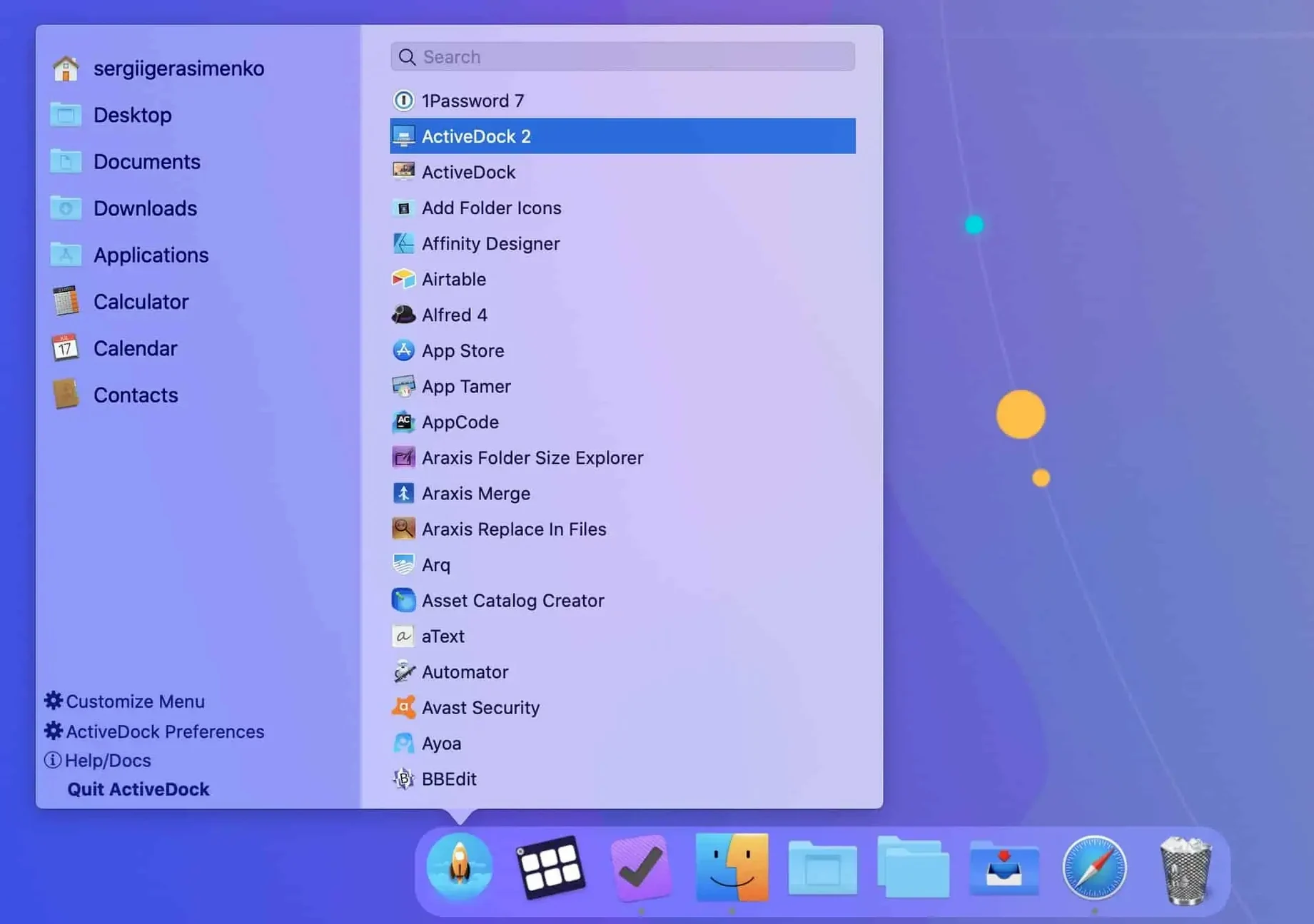
- What replaces Launchpad? ActiveDock includes its own application launcher, so you are not left without a way to browse and open apps after the Apple Launchpad is replaced.
- Can I preview windows from the Dock? Yes. Dock previews show open windows for an app, and you can manage those windows directly from the preview — switching or closing them without hunting through Mission Control.
- How far can I change the look? Appearance is fully customisable. You control the Dock’s colour, transparency, spacing, and indicator style, independent of the system theme.
- Does it handle app switching? It includes tools for switching between applications and their individual windows, which makes it a practical front-end for window-heavy workflows on a single screen.
- What macOS version does it need? macOS 11.5 or newer, on either Intel or Apple Silicon Macs.
Juggling Fifteen-Plus Apps with Window Previews
Users who juggle fifteen or more apps in a typical session feel the difference first. Designers, developers and writers who keep reference material open alongside their main tool benefit from the window previews — switching to the exact document without cycling through a stack of thumbnails in Mission Control. People who work on a single 13- or 14-inch screen where Dock space is tight tend to lean on the icon-hiding features heavily, stripping out everything except what they need for the current project.
The Start-menu-style launcher clicks with anyone coming from Windows or running Parallels regularly. Muscle memory for a typed search-and-launch flow translates directly, and the folder groups inside the launcher mean you can organise utilities, design tools and communication apps into separate sections rather than scrolling through a flat grid. If your Dock normally holds thirty icons and you still find yourself opening Spotlight to launch things, ActiveDock's approach to grouping and hiding is likely to cut that number in half.
Hide Icons You Never Click Before Anything Else
After dragging the app into Applications and launching it, a handful of adjustments make the biggest difference to daily use:
- Icon hiding rules. Open preferences and go through the list of installed apps. Tick the ones you never want to see in the Dock — updaters, background helpers, launchers for games you open once a month. This alone shrinks the visual clutter faster than any cosmetic tweak.
- Window preview behaviour. By default, hovering over a Dock icon shows a preview of open windows. Set the preview size larger than the default if you work with many documents of the same type — telling two spreadsheets apart at a glance saves clicks.
- Dock positioning and spacing. The built-in macOS Dock locks you to the bottom or sides with fixed padding. ActiveDock lets you set custom margins from the screen edge and adjust icon spacing independently, which helps on ultra-wide displays where the centre of the screen is busy and the edges are free.
- Appearance presets. Pick a dark, semi-transparent background with a muted indicator colour if you use dark mode heavily; the default indicator can blend into the background on some panels and you will lose the visual cue for open apps.
Stage Manager Interrupts the Dock Swap
ActiveDock coexists with most window managers — Magnet, Rectangle and Moom all continue to work normally because the Dock replacement does not intercept keyboard shortcuts or drag-to-snap gestures. The one interaction to note is with Stage Manager: if you rely on it, test the combination for a day, because both tools manage window visibility and the overlap in behaviour can sometimes cause a flicker when switching spaces.
On the macOS side, activedock macos integration replaces the system Dock entirely rather than layering on top, so the original Dock process is disabled while ActiveDock runs. This means third-party utilities that modify the Apple Dock — like Dock customisation tools or theming apps — become redundant and should be quit to avoid conflicts. Finder, Spotlight and Mission Control remain untouched, and you can still summon the app launcher with a hotkey or by clicking the Start-style button, which leaves the familiar ⌘-Space shortcut free for Spotlight searches alongside the ActiveDock launcher.
For users trying activedock mac on a multi-monitor setup, the Dock can be set to appear only on one display, which keeps the secondary screen clean for full-screen previews or palettes. This pairs well with setups where one monitor holds the canvas or timeline and the other runs communication tools and file browsers.
ActiveDock is built by MacPlus Software and runs with an English interface. The current release is version 2.881.
- macOS 11.5 or later
- Apple Silicon or Intel 64-bit processor
Sign in · Create an account to add a field note.
No field notes yet. A measurement, a version, a machine — they appear after moderation.