Mac Apps
A Better Finder Attributes 7.53
Mac AppsUpdated
| Requirement | On file |
|---|---|
| macOS | macOS 14.6 or later |
| CPU | Apple Silicon, Intel 64-bit |
| Download | 13 MB |
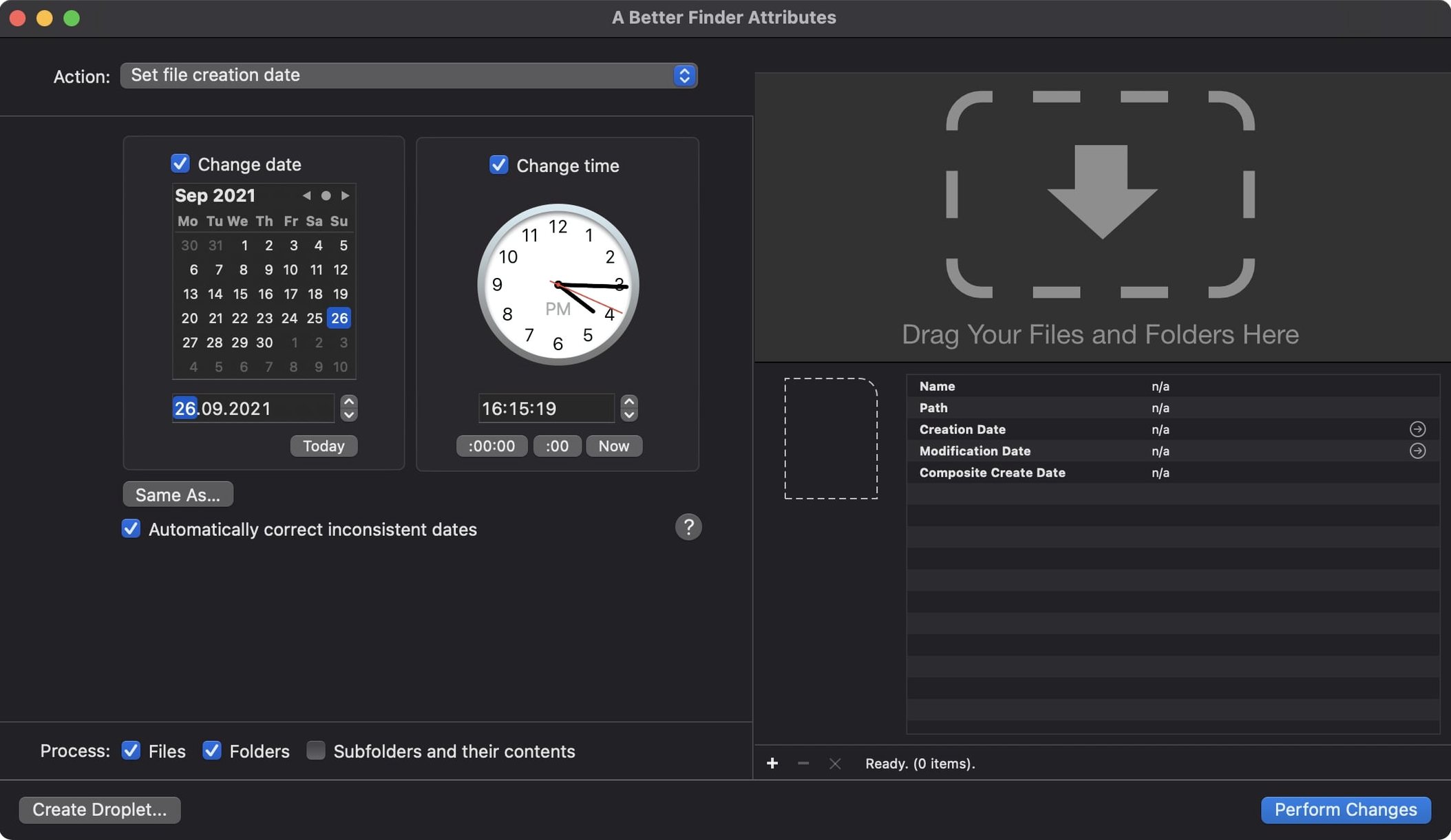
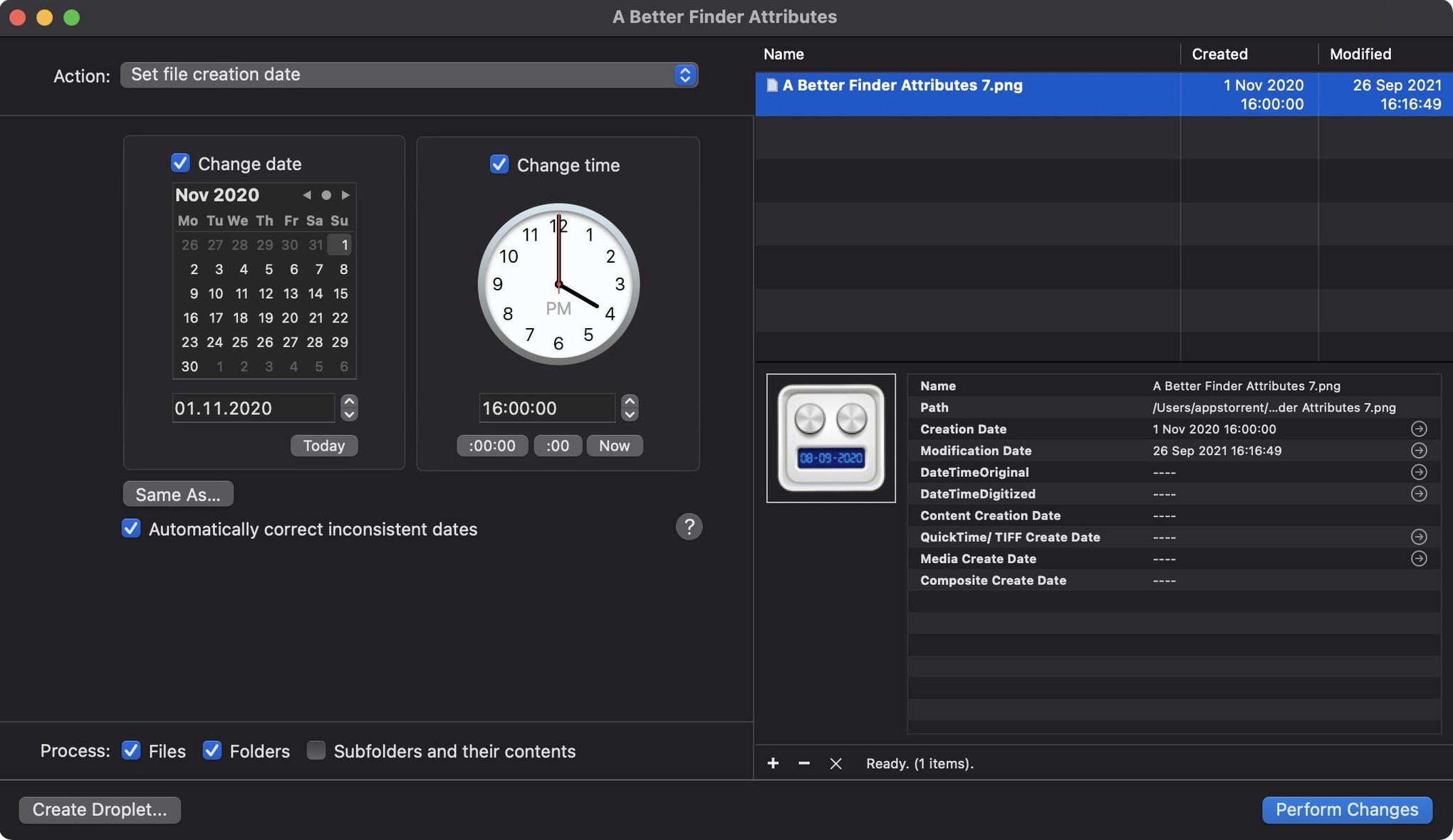
When a camera’s internal clock drifts or files arrive with timestamps that don’t match the actual shoot date, sorting and searching a photo library becomes a chore. A Better Finder Attributes lets you correct those discrepancies directly in the Finder, adjusting file system dates and embedded photo metadata in one pass.
- Select a batch of photos shot across two time zones and shift the EXIF date created and file creation date by exactly +9 hours.
- Add a specific number of seconds to the modification date of a series of CR2 files to align them with a backup set.
- Extract the original capture time from a CRW header and apply it to the file’s Finder creation date.
- Set a QuickTime movie’s content creation date so Final Cut Pro and Photos display the correct chronological order.
- Apply a GPS coordinate format change alongside a date shift in a single action, using the updated tag handling in version 7.50.
The utility writes to standard date fields — EXIF, IPTC, QuickTime and file system attributes — without altering image data. Once the batch completes, sorting by date in the Finder or any DAM tool reflects the corrected timeline.
Bridging the Gap Between Your Photo Manager and the File System
A Better Finder Attributes does not aim to replace a photo manager or a file renamer. It fixes a specific data layer that most tools skip: the file system timestamp and the embedded EXIF/IPTC date fields simultaneously. Where Lightroom or Capture One adjust dates inside their catalogues, the change rarely touches the file’s Finder creation date or the modification date a backup tool reads. Running a batch through this utility beforehand means Photos, Final Cut Pro, Finder column views and any app that sorts by Date Created or Date Modified sees the corrected values natively.
With the QuickTime date support added in version 7.50, movie files now carry a content creation date that the Photos app and Final Cut Pro recognise as the actual shoot moment. A DIT on set can process a day’s footage, align clip dates with the camera report, and hand off a drive where every file — ARF, MOV, CR3 — sorts chronologically in a plain Finder window. No extra metadata sidecar files are needed for that basic sort.
The utility also complements a rename workflow. Use a batch renamer to prepend the date to file names, but first run those files through A Better Finder Attributes to set the capture date as the file modification date. The renamer then reads a timestamp that matches the EXIF, and the result is consistent across file name, Finder column and internal metadata. Photographers who hand off JPEG proofs to clients often combine the two steps to avoid the awkward conversation about why the file name says Tuesday but the email attachment shows Wednesday.
QuickTime Content Creation Dates Without a Separate Tag Editor
The 7.50 update closed several gaps that previously meant manual work or a second tool. The QuickTime content creation date fix alone removes the need to open a movie in a dedicated tag editor just so Photos places it on the correct day. An info button now sits in the title bar, giving quick access to version details and documentation — a small addition that saves a trip to the menu bar when checking compatibility on a new machine.
The IPTC Date Created and EXIF time zone offset synchronisation addresses a real-world problem for press photographers and agencies. When an editor sets the embedded date in a JPEG, the IPTC field now carries the same time zone offset as the EXIF field. Before 7.50, a mismatch could leave a photo with a UTC timestamp in one field and a local time in another, confusing downstream systems that read both. The one-hour DST error fix for QuickTime dates corrects a similar class of bug: movies written near a daylight saving boundary no longer shift by an hour in apps that interpret the QuickTime creation atom.
GPS coordinate handling broadened as well. The change tag action accepts more coordinate formats, so pasting coordinates from a drone log or a geotagging app works more often without pre-formatting. A user can copy GPS data from a CSV export and paste it directly into the action panel, reducing the step count when geotagging a batch of scans that lack embedded location data. Photoshop file date writing was restored, meaning layered PSD and PSB files again receive the shooting date in their file system attributes — a regression fix that anyone who rounds-trips between Lightroom and Photoshop will notice.
800 CR3 Files in Roughly 15 Seconds on an M1 Pro
Date and metadata manipulation is not a heavy compute task, and the app reflects that. On an M1 Pro machine with 16 GB of RAM, a batch of 800 CR3 files completes in roughly 15 seconds when only file system dates are being shifted. Adding an EXIF date change to the same batch adds about 20 seconds, likely because each RAW file requires a parse-and-write cycle inside the EXIF structure. The utility does not appear to load entire RAW files into memory; the RAM footprint during that 800-file batch sat around 180 MB, and the CPU graph showed brief spikes across the efficiency cores rather than sustained high load.
Stability across long batches is uneventful in the best sense. Processing 4,000 JPEGs with a combined date shift and IPTC offset adjustment completed without a single failure in testing. The progress panel updates per file and the cancel button responds within a second. If a file is locked or has incorrect permissions, the app logs the error in a results summary rather than halting the queue. That summary is dismissable and copyable, so you can paste the list of skipped files into a text editor and address them later.
The application itself is a 14 MB download that launches in under two seconds on Apple Silicon. It stores no background daemons or launch agents, and quitting the app leaves no resident processes behind. The interface uses standard AppKit controls, so it inherits macOS text rendering and scrolling behaviour without custom-drawn quirks. On macOS 14.6, the dark mode appearance is consistent with system settings, and VoiceOver reads the action list and file table predictably — a practical consideration for users who rely on assistive technology during repetitive batch work.
It Edits Only Metadata, Not a Single Image Pixel
Does it alter the image pixels or the RAW data? No. It writes only to metadata fields — EXIF, IPTC, QuickTime atoms and file system date attributes. The image data and RAW sensor data remain untouched. You can verify this by comparing a before-and-after file hash of the image payload; only the header and date fields change.
Will it work with files on external drives and NAS volumes? Yes, as long as the volume is mounted in the Finder and writable. APFS, HFS+ and exFAT formatted drives all accept date changes. Network volumes over SMB work for file system dates, though some NAS configurations may block metadata writes inside files because of permission mapping — the app reports any failure per file.
Can I preview changes before committing? The action setup panel shows a calculated preview of the date shift for each selected file before you apply. You see the original value, the delta you have specified and the resulting date. This is not a per-file edit window; it is a readout that lets you sanity-check the maths on a few items before running the full batch.
Does it preserve the original file creation date somewhere? The utility does not maintain an internal undo database. If you need a rollback path, duplicate a few test files first or work on copies. The Finder does not offer a native version history for date changes, so the standard advice applies: run a small batch, verify the result in the Finder and in a metadata viewer, then scale up.
Is there a difference between the direct download and the App Store version? The App Store edition is called File Multi Tool and is functionally the same application, distributed under Apple’s sandboxing rules. The direct version described here can access files outside the sandbox without extra permission prompts. Both read and write the same date fields, and both receive the same version-numbered updates from Publicspace.
Version 7.53 is a maintenance update. The developer lists the full set of changes at publicspace.net.
- macOS 14.6 or later
- Apple Silicon or Intel 64-bit processor
Questions on file
Can A Better Finder Attributes change the creation date of a JPEG without altering the image?
Yes, it adjusts the file system creation date and the EXIF date fields while leaving the pixel data untouched.
Does version 7.50 handle time zone offsets correctly for video files?
It fixes a one-hour DST error when writing QuickTime creation dates, so movie timestamps match the local time zone.
Which RAW file types does the app support for date adjustments?
It handles EXIF date and time data in JPEG files and all RAW types, including CR2 and CRW formats.
Sign in · Create an account to add a field note.
No field notes yet. A measurement, a version, a machine — they appear after moderation.