
Mac Apps
4K Video Downloader 26.3.5
Mac AppsUpdated
| Requirement | On file |
|---|---|
| macOS | macOS 12 or later |
| CPU | Intel 64-bit |
| Download | 247 MB |
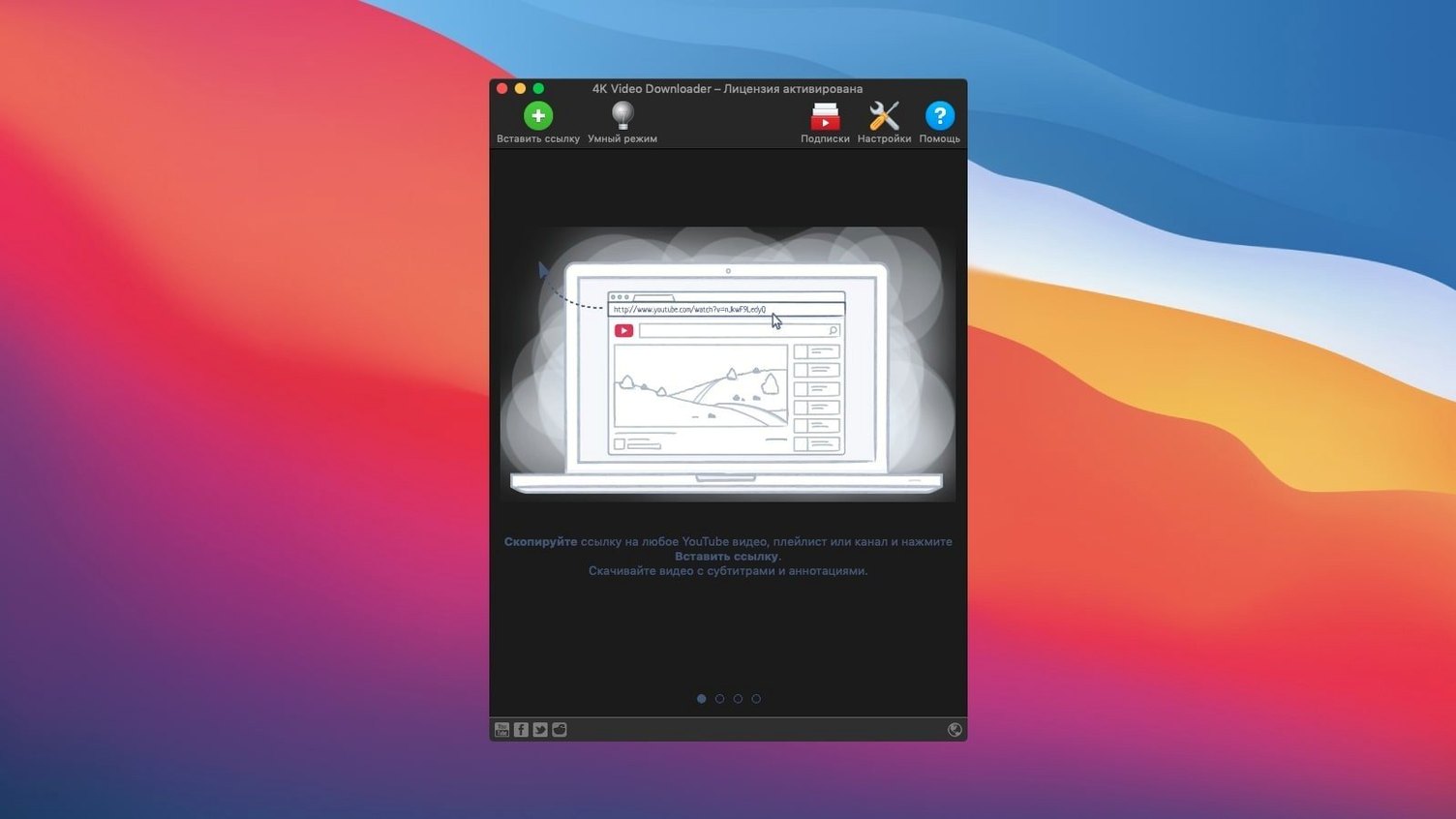
Paste a URL
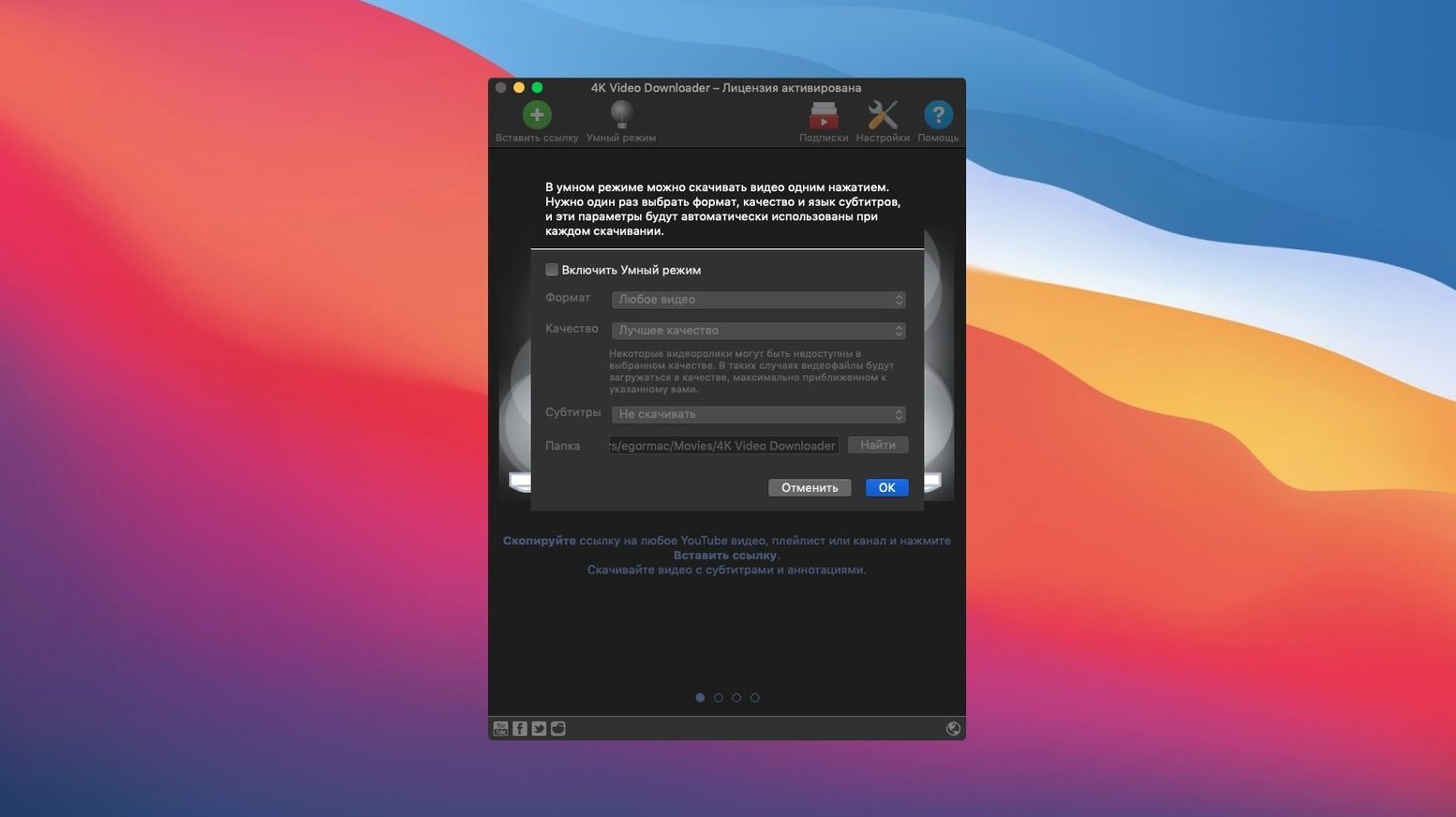
The Smart Mode feature lets you set a default format and quality once, then apply it to every download. Drop a Vimeo, Facebook, or DailyMotion link and the app grabs the video file without further prompts.
Grab a 4K stream
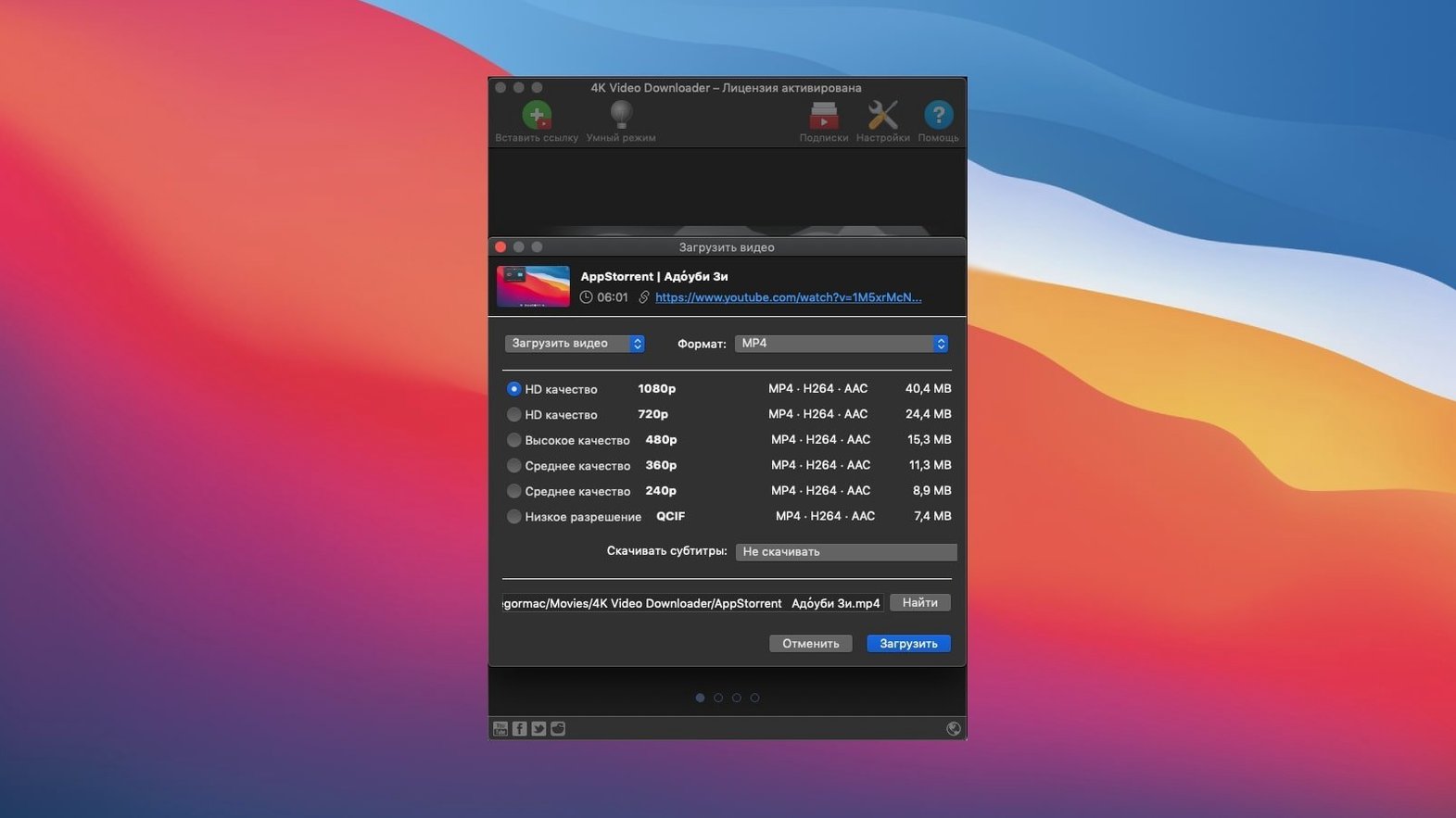
Resolution options top out at 4K, with 1080p and 720p available when the source offers them. 3D video downloads work for clips encoded that way on YouTube, giving you a standard side-by-side file you can play in any VR or 3D-capable player.
Extract audio or subtitles
Switch the format selector to audio-only and the app pulls the M4A or OGG stream directly. Subtitles download as SRT files, and playlist processing creates an M3U reference file so you can load a batch of tracks into a media player in order.
Pasting a Channel URL and Expecting a Single Video
Most early frustration with 4K Video Downloader comes from three habits, not from the app itself. The first is pasting a channel URL and expecting the clipboard to trigger a single video. Channel links open a list of available videos instead, and the download does not start until you confirm the scope. The second mistake is ignoring Smart Mode. Without it, every paste opens a format and quality prompt, which feels slow when you are grabbing twenty clips in a row. The third is assuming every resolution shown on YouTube exists as a separate file. Some 4K sources are delivered as separate video and audio streams, so the app needs a moment to parse and merge them before the file appears in your output folder.
Another common slip is changing the output folder while a queue is active. The app applies folder changes to new downloads, not to items already waiting, so users sometimes end up with half a queue in one location and half in another. If you want a clean batch, set the folder first, then paste the links. The same applies to subtitle settings: choosing embedded subtitles after a playlist has started will not rewrite files that were already processed.
Beginners also misread the M3U file. It is not a copy of the videos; it is a playlist index that points to where the files live. Deleting the MP4s and keeping the M3U leaves you with nothing playable. If you are moving a playlist to an external drive, move the media files and the M3U together, or just rebuild the list in your player.
Day-to-Day Feel: Downie, ClipGrab, and JDownloader
Three apps tend to come up in the same conversation: Downie, ClipGrab, and JDownloader. Each handles the basic job of saving a video from a web page, but the day-to-day feel differs.
4K Video Downloader vs Downie
Downie is a Mac-native downloader with a strong browser-extension workflow. It feels quicker for one-off grabs because it watches the clipboard and can hand a link straight to the app with minimal clicking. 4K Video Downloader leans more on the paste-and-confirm model. Where 4K Video Downloader pulls ahead is playlist and channel handling: the queue view, Smart Mode, and M3U output are built for people who regularly save whole series rather than single clips. Downie can do playlists, but the batch workflow is a bit less prominent. On the format side, both cover MP4, audio extraction, and subtitle grabbing well. If you live in a browser and grab the odd clip, Downie's extension feels natural. If you are building a local archive of channels or courses, 4K Video Downloader gives you the queue structure to do it without babysitting each link.
4K Video Downloader vs ClipGrab
ClipGrab is the lighter option. It handles YouTube and a handful of other sites, offers MP3 conversion, and keeps the interface to a couple of fields. There is very little to configure. That is fine when you want a song or a short video, but it gets thin when you need 4K output, playlist M3U files, or subtitle SRTs. 4K Video Downloader covers more ground: more sites, more container formats, higher resolutions when the source provides them, and a proper queue. ClipGrab also leans on conversion for audio, while 4K Video Downloader can pull an existing audio stream directly, which tends to be faster and avoids re-encoding loss.
4K Video Downloader vs JDownloader
JDownloader is a download manager first and a video tool second. It can grab from an enormous list of hosts, handles captchas, and manages large queues well. The trade-off is complexity: the interface is dense, and the extra features sit on top of a general-purpose engine that can feel heavy for someone who only wants videos and audio. 4K Video Downloader keeps the scope narrow, which makes it easier to read at a glance. For mixed hosting sites beyond video platforms, JDownloader is more flexible. For YouTube, Vimeo, SoundCloud, and the social sites in the supported list, 4K Video Downloader gives you the same result with less setup. The 4K and subtitle extraction paths are also more direct here than digging through JDownloader's plugin settings.
Saving an Entire Lecture Series or Music Channel in One Go
The clearest fit is someone building a personal media library. You find a series of lectures, a music channel, or a set of tutorials, and you save the whole channel once instead of hunting for individual clips later. The queue and Smart Mode remove the repetitive part of that job. If your internet connection is slow or metered, downloading a playlist overnight and watching locally the next day changes the experience completely. The M3U output is useful here, because you can drop the whole batch into a player in the original order.
People who travel for work or study also benefit. A long flight or a place with unreliable Wi-Fi makes streaming a gamble. Saving videos before leaving means you can watch what you need without buffering. The audio-only option matters for language learners: pulling a podcast-style audio stream from a video keeps a phone or laptop light on storage while still giving you the material. Subtitle downloads as SRT are another quiet advantage for learners, since you can read transcripts alongside the audio or load them into an app that supports spaced repetition.
Archivists and researchers get value from the format control. If a source video disappears or a channel gets taken down, a local MP4 or MKV is more stable than a bookmark. The 3D download option is niche, but for someone preserving old stereoscopic clips it is one of the few straightforward ways to get a side-by-side file without manual conversion. Editors and creators who need a reference clip or a source audio stem also use the app as a quick grab-and-place tool, especially when they want a specific resolution without running a full converter first.
Does It Run on the Latest macOS and Apple Silicon Macs?
Does it work on the latest macOS? The app requires macOS 12 or later and runs on Intel 64-bit Macs. People sometimes ask specifically about newer Mac models, and the short answer is that the Intel build covers a wide range of machines. If you are on an older macOS version, that is the main compatibility limit to check.
Will it download any video from any website? No. It supports a defined list of platforms, including YouTube, Vimeo, SoundCloud, Flickr, Facebook, DailyMotion, and Instagram. On those sites it can grab videos, audio, and subtitles. On unsupported sites, the paste action simply will not resolve the link. That is the expected behaviour, not a bug.
What is the difference between downloading and converting? When a source offers MP4 or M4A streams directly, the app saves the existing stream without re-encoding. When you ask for a format the source does not provide, the app converts. This is why audio extraction from a YouTube video can finish quickly: it is often pulling an audio stream that already exists, not transcoding the whole file.
Can it download private videos or bypass region locks? The app works with what the source makes available. If a video requires a login to view, the app cannot authenticate on your behalf. The same goes for region restrictions: if YouTube will not show the video in your location, the downloader will not magically fetch it.
Do I need another app to play the files? Yes. 4K Video Downloader saves files; it does not play them. MP4 and M4A files open in QuickTime or any standard media player. MKV files may need a player like IINA or VLC. SRT subtitles are plain text files that you can open in a text editor or load alongside a video in a player that supports external subtitles.
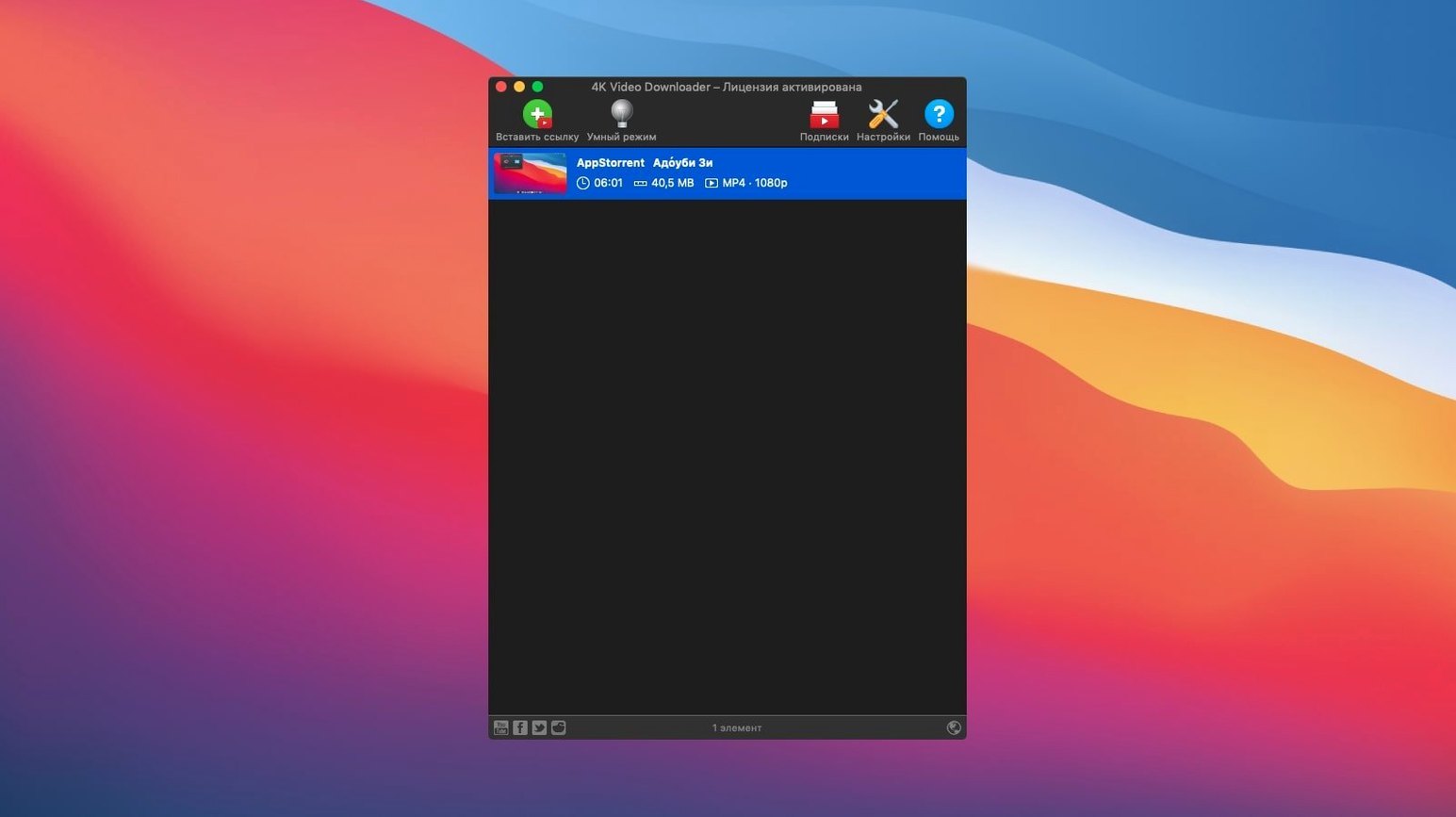
What happens when I download a playlist with two hundred videos? The app queues the items and processes them in order. You can pause, resume, or remove items from the queue. The M3U file created at the end lists the downloaded files in playlist order, which makes it easy to open the whole batch in a media player. Storage is the main thing to watch: a long playlist at 1080p or 4K can take up tens of gigabytes.
Fewer Security Prompts and a Smoother First Run
Recent updates have concentrated on making the first run smoother and the queue less intrusive. The disk image now mounts with Gatekeeper-friendly signing, which means fewer security prompts on recent macOS versions. When a prompt does appear, the documented workaround is a Terminal command rather than a multi-step preference digging exercise. For most users this is a one-time step at install, not something revisited on every launch.
The clipboard handling has become more predictable. The Paste Url action now waits more reliably for a fully resolved link before parsing, which cuts down on the occasional failure where a copied URL would not register on the first try. In practical terms, you paste once and the app starts analysing instead of sitting idle.
Playlist handling also feels steadier. The app is better at keeping the queue visible while larger channel downloads run, so you can see progress per item rather than staring at a single bar for the whole batch. Subtitle handling has stayed simple: SRT output remains a separate file by default, with the option to embed when you choose a video container that supports it. For people who download audio only, the default stream selection now leans toward M4A when available, which saves a step if you are moving files to an iPhone or iPad.
For anyone searching for torrent 4k video downloader or 4k video downloader full mac, the app itself is a direct downloader, not a torrent client. It fetches from the source site over the normal connection. The phrase download video youtube 4k describes the core use case well: paste a YouTube link, pick 4K quality, and the app handles the rest. People looking for older builds like 4k video downloader 25.1.2 or 4k video downloader crack for mac are usually trying to solve a compatibility or activation problem; to get the app running well, check that SIP and Gatekeeper settings allow installation from identified developers on macOS 12 or later on Intel.
- macOS 12 or later
- Intel 64-bit processor
Questions on file
Can it capture embedded YouTube clips on third-party sites?
Yes, the Paste URL action detects YouTube embeds on external web pages and queues the source video for download.
Sign in · Create an account to add a field note.
No field notes yet. A measurement, a version, a machine — they appear after moderation.