
Final Cut Pro Plugins
MotionVFX mInfographics
Final Cut Pro PluginsUpdated
| Requirement | On file |
|---|---|
| macOS | See the sheet |
| Download | 8 MB |
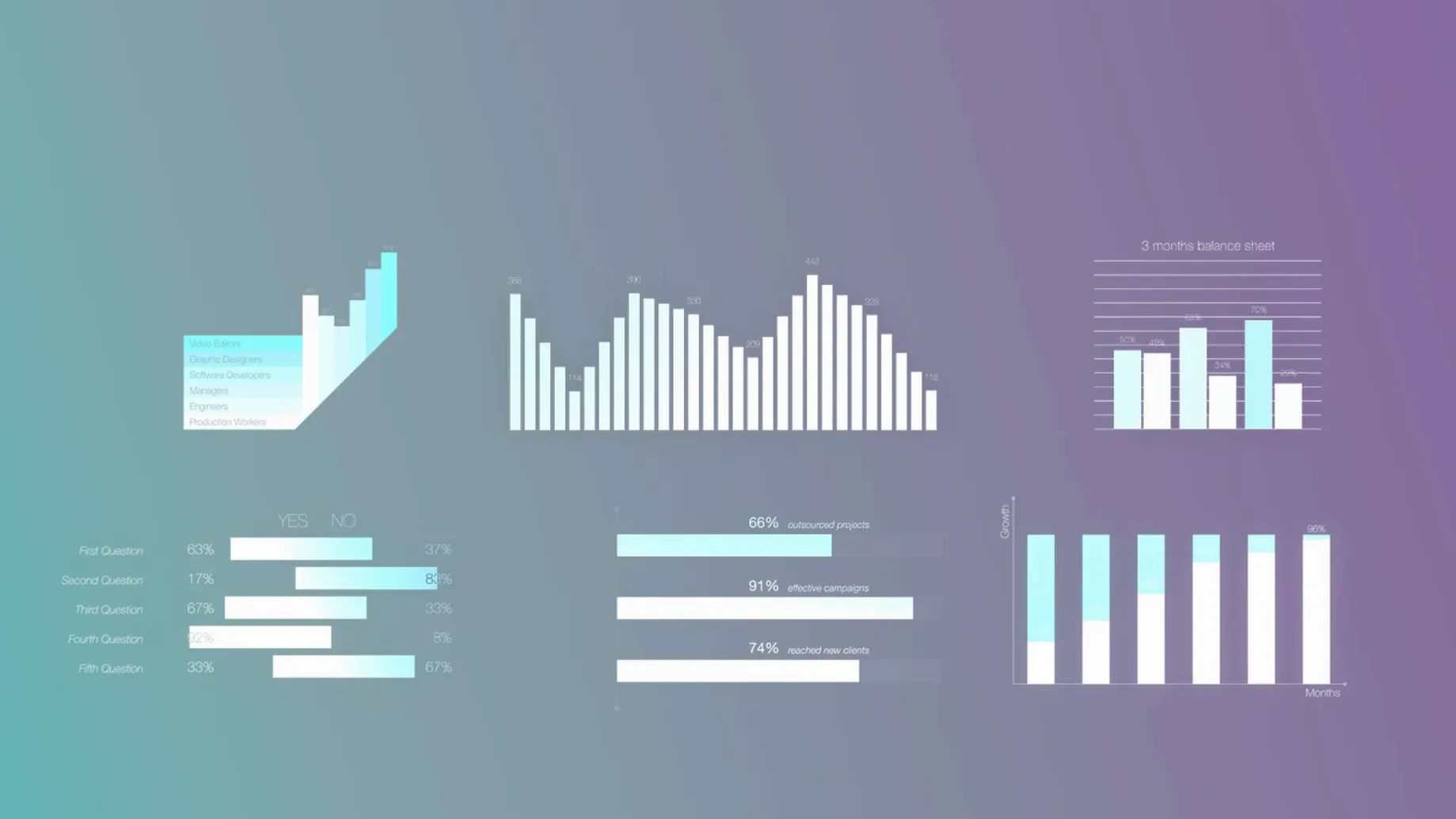
This release carries forward the existing toolkit without structural changes, keeping the focus on direct manipulation of on-screen elements. The plugin provides a set of informational captions and graphic blocks driven by number and description fields that you adjust inside Final Cut Pro. Typographic styling is baked into each template, so a change to a figure or label reflows without breaking the composition. Controls sit overlayed on the Viewer, letting you reposition, scale, and tweak values by dragging rather than digging through the Inspector. That immediacy suits projects where data points need to read clearly at a glance—quarterly figures, callout stats, or labelled diagrams. The collection lands in the Titles browser once installed, behaving like native generators.
Standard Titles That Inherit FCP Compositing
| Area | Spec |
|---|---|
| Host | Final Cut Pro |
| Install location | ~/Movies/Motion Templates/Titles |
| Architecture | Apple Silicon & Intel |
| Language | English |
Because the elements register as standard Titles, they inherit FCP’s transform and compositing behaviour, so you can stack them with footage or compound them without rendering restrictions.
Overlaying a Pie Chart on an Interview Clip
A corporate editor preparing a quarterly review has the raw Excel sheet open on a second display. She drags the pie-chart infographic from the Titles browser onto a timeline clip showing the CFO's interview. The Viewer overlays a set of on-screen handles. She pulls the segment count handle from four to five, types revenue figures directly into the floating number fields, and watches the slices redraw. The label beneath each slice accepts a short string—"Q1 Services," "Q2 Product"—and adjusts its own tracking so the text sits inside the space the shape gives it. She nudges the whole element left to balance the speaker's eyeline, then copies the title to the next clip and swaps the numbers. Five minutes, and the sequence has three different chart moments, all aligned to the same baseline because FCP's snapping guides see them as regular titles.
Everything Edits in the Inspector, No Motion Needed
The most common question is whether these behave like Motion templates or require the Motion app to edit. They do not. Every customisation happens through the FCP Inspector and the on-screen controls. You do not need Motion installed, and you cannot open these inside Motion for deeper edits—they are self-contained Final Cut Pro generator templates.
Another frequent query: do the infographics accept CSV or spreadsheet imports? They do not. Numbers and labels are typed manually into the text fields in the Inspector, one data point at a time. For a handful of callouts this is fast. For a thirty-bar chart, it becomes tedious. Think of them as graphic shells you populate by hand, not as a live data bridge.
People also want to know whether the elements scale up for 4K timelines without softening. The vector-based shapes inside most templates stay crisp at any resolution FCP supports. A few raster-based texture overlays (present on some chart backgrounds) hit their native ceiling around 3840 px wide, so pixel-peeping at 200% on a 4K monitor might reveal a soft edge. At playback speed, it goes unnoticed.
Scaling with Corner Handles Misaligns Controls
Beginners often drop a chart onto the primary storyline, then scale it by dragging a corner handle and wonder why the on-screen controls no longer align with the graphic. The correct path is to reposition and scale through the on-screen controls themselves, not through the standard FCP Transform tools. The overlay handles move the whole element and its interaction zones together. The Transform inspector moves only the bounding box, which can throw the drag handles out of registration.
A second trap: users search the Titles browser for "motionvfx" or "mInfographics" and find nothing. The plugin registers under its category name—usually "mInfographics"—inside the Titles sidebar, but it does not add a separate generator type. If you have the Generators browser open instead of Titles, you will not see them at all.
The number-formatting field accepts digits and a decimal point only. Typing a currency symbol, a percentage sign, or a thousand separator into the value box breaks the display. You format numbers elsewhere—precompose your labels if you need a "%" appended, or use the separate description field that sits below the main figure and holds any string you like.
Compound Clips Lock Layouts for Multi-Section Reuse
mInfographics cooperates with FCP's compound clip workflow in a way that saves time on multi-chart sequences. Compounding a finished infographic with its video background locks the layout, so you can duplicate the compound across several sections of a timeline and swap the internal title's values per instance without disturbing the surrounding edit. Editors who build corporate explainer timelines often keep one compound clip per chart type and re-use them across projects.
For callout-style labels placed over interview footage, the plugin pairs with FCP's built-in tracking. Apply a standard tracker to the clip underneath, pin a transform to the tracker data, then drop the infographic title into a connected storyline above it. The on-screen controls still work, and the label follows the speaker. This is not a feature of the plugin itself—just a straightforward combination of two FCP capabilities that the title templates do not block.
MotionVFX's template structure also means the elements survive a system migration cleanly. Since the installed folders sit inside ~/Movies/Motion Templates/Titles, a full Time Machine restore or manual copy to a new Mac brings them across. They do not phone home, and the lack of activation means an offline edit suite can pick them up from a USB stick without any licence dialogue appearing. Some editors searching for a motionvfx free download will find that the installer is simply a folder archive rather than a package installer, which makes it portable between machines running the same macOS release.
The typographic styling inside each template uses system fonts plus a small set of bundled typefaces that install alongside the plugin. If you later open the project on a machine without the plugin, FCP replaces the missing generator with a placeholder and shows a warning, but the rest of the timeline stays intact. For collaboration between an editor who owns the plugin and an assistant who does not, the workflow that works best is to render a ProRes 4444 pass of the finished infographic clips before handing off the library, so the assistant sees flattened video rather than missing-title alerts.
A note for those digging through file-sharing forums: a motionvfx torrent might circulate with an older folder structure that predates the current FCP template spec. Those older versions sometimes place the templates in the system-level Motion Templates directory rather than the user-level one, which can make them invisible to FCP's browser on recent macOS builds. Moving them into the correct user path usually fixes it, provided the template format itself has not changed.
- Final Cut Pro
- macOS (Apple Silicon & Intel supported)
Questions on file
Where do I place the mInfographics files after unpacking?
Move the unpacked folders into /Users/yourusername/Movies/Motion Templates/Titles. Final Cut Pro reads them from that location.
Can I edit the numbers and text inside the infographics?
Yes. Number values and description fields are customisable, and on-screen controls let you adjust them directly in the Viewer.
Does mInfographics work on Apple Silicon Macs?
It supports both Apple Silicon and Intel architectures, running natively on each.
Sign in · Create an account to add a field note.
No field notes yet. A measurement, a version, a machine — they appear after moderation.