
Video
Aiarty Video Enhancer 3.8
VideoUpdated
| Requirement | On file |
|---|---|
| macOS | macOS 11 or later |
| CPU | Apple Silicon, Intel 64-bit |
| Download | 182 MB |
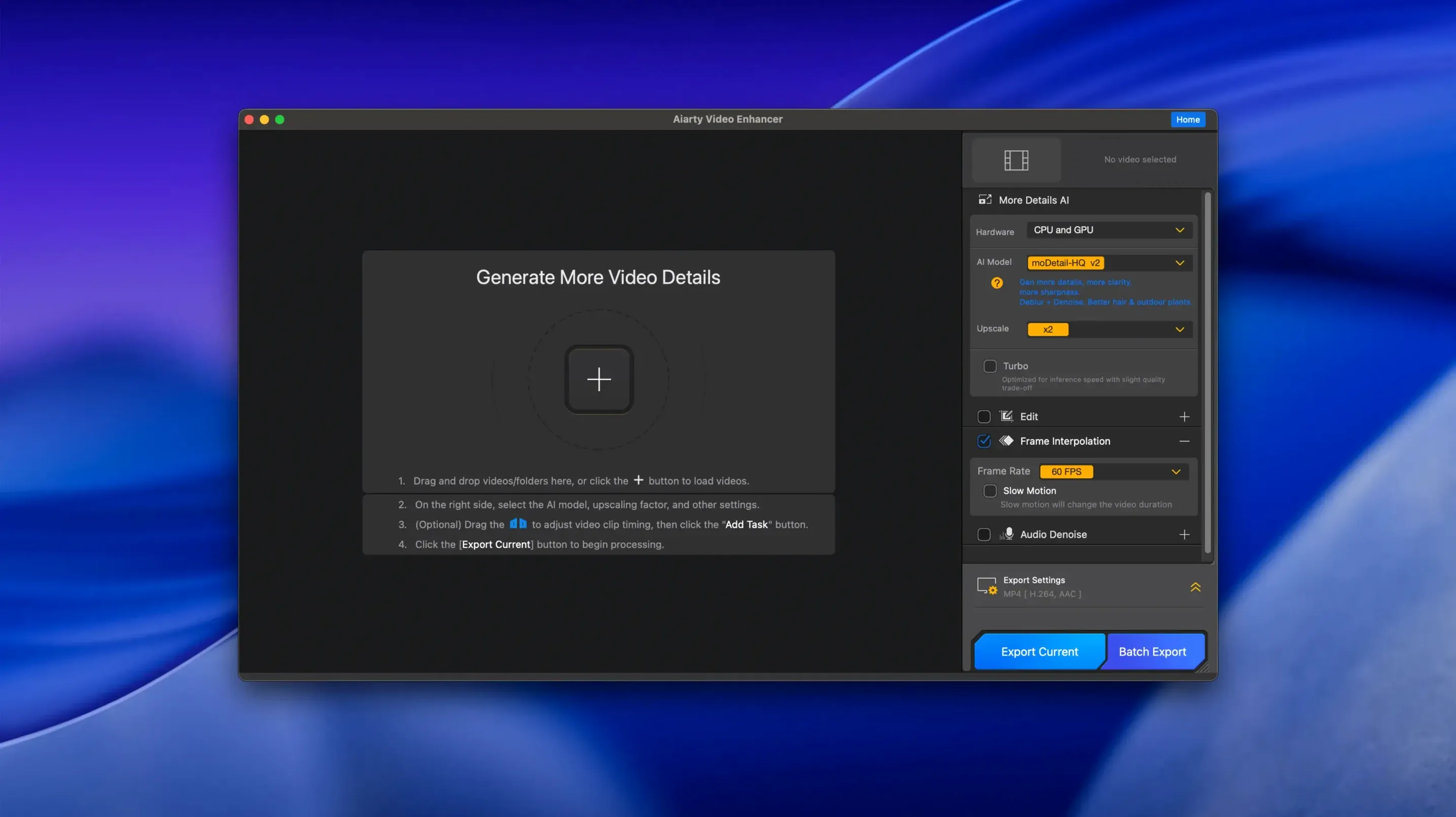
Frame interpolation generates intermediate AI frames for 8X and 16X slow motion — a feature you notice when 24 fps drone footage needs to stretch into a smooth slow pan without stutter. Aiarty Video Enhancer is a standalone desktop application from Aiarty, separate from their image upscaling line, built for video cleanup jobs that go beyond a timeline effect.
Denoising, upscaling, slow‑mo and one‑click audio cleanup
- Upscaling low-resolution footage with AI detail generation
- Denoising grainy clips and deblurring soft focus
- Brightening underexposed, low-light material
- Frame interpolation for slow motion at 8X and 16X
- Audio Denoise: one-click background removal and voice clarity improvement
Salvaging damaged SD, dim phone clips and artifact‑heavy footage
The tool targets editors working with source material that a colour grade or sharpening filter cannot salvage — think archival SD video, phone clips shot in dim rooms, or action-cam footage full of compression artifacts. The Audio Denoise module is practical for interview audio where a lavalier was not an option. MKV support arrived in version 3.8, alongside resumable exports, which helps when processing long files on a machine that might need to shut down overnight. The Mac requirements are specific: 8 GB of RAM or more, and on Intel Macs, a dedicated GPU with at least 4 GB of VRAM. That places it firmly on machines already configured for heavy rendering work.
How the denoise‑plus‑upscale pipeline separates it from Topaz and HitPaw
Three Mac apps tend to surface in the same conversation: Topaz Video AI, HitPaw Video Enhancer, and AVCLabs Video Enhancer AI. They all promise AI-driven upscaling and cleanup, but the practical differences matter once you move past the spec sheets.
Topaz Video AI brings the widest model selection — Artemis, Gaia, Iris, Nyx — each tuned for a different degradation pattern. That flexibility is genuine, but it demands time: you audition models, compare previews, and tweak parameters. Aiarty takes the opposite approach. Its models are general-purpose and applied with fewer knobs, which means you trade fine control for a shorter path from import to export. On a MacBook Pro with an M3 Pro chip, that difference translates to a render you can kick off between meetings rather than one you babysit.
HitPaw Video Enhancer overlaps heavily in feature set — denoise, upscale, frame interpolation — and shares Aiarty's simpler interface philosophy. The split comes in audio. Aiarty includes the Audio Denoise module as a first-class feature; HitPaw keeps its focus strictly visual. If you regularly clean up dialogue recorded in untreated rooms, that audio tool alone can replace a round-trip to a DAW.
AVCLabs Video Enhancer AI offers face refinement models that Aiarty does not, which is relevant for talking-head restoration where skin texture needs individual attention. But AVCLabs lacks frame interpolation at the 16X level Aiarty supports. For slow-motion work from standard-frame-rate sources, Aiarty covers a use case the others either omit or gate behind higher-priced tiers.
Workflow: restoring a low-light interview clip
Imagine a 1080p interview recorded on a mirrorless camera at ISO 6400, with a single window as the key light. The footage is noisy, soft in the shadows, and the built-in microphone picked up an air-conditioner hum. The goal is a clean 4K deliverable with intelligible audio — without leaving one application.
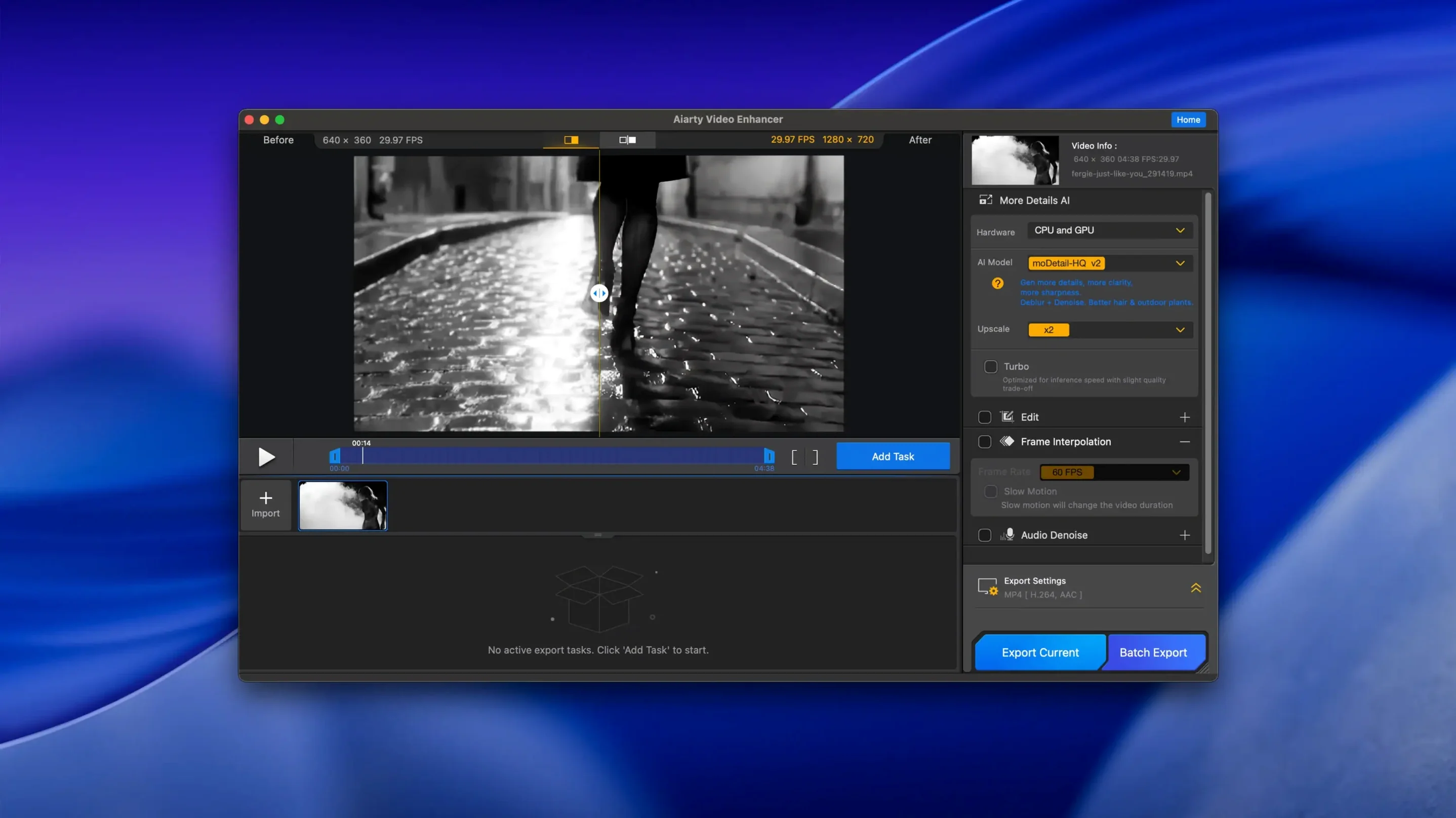
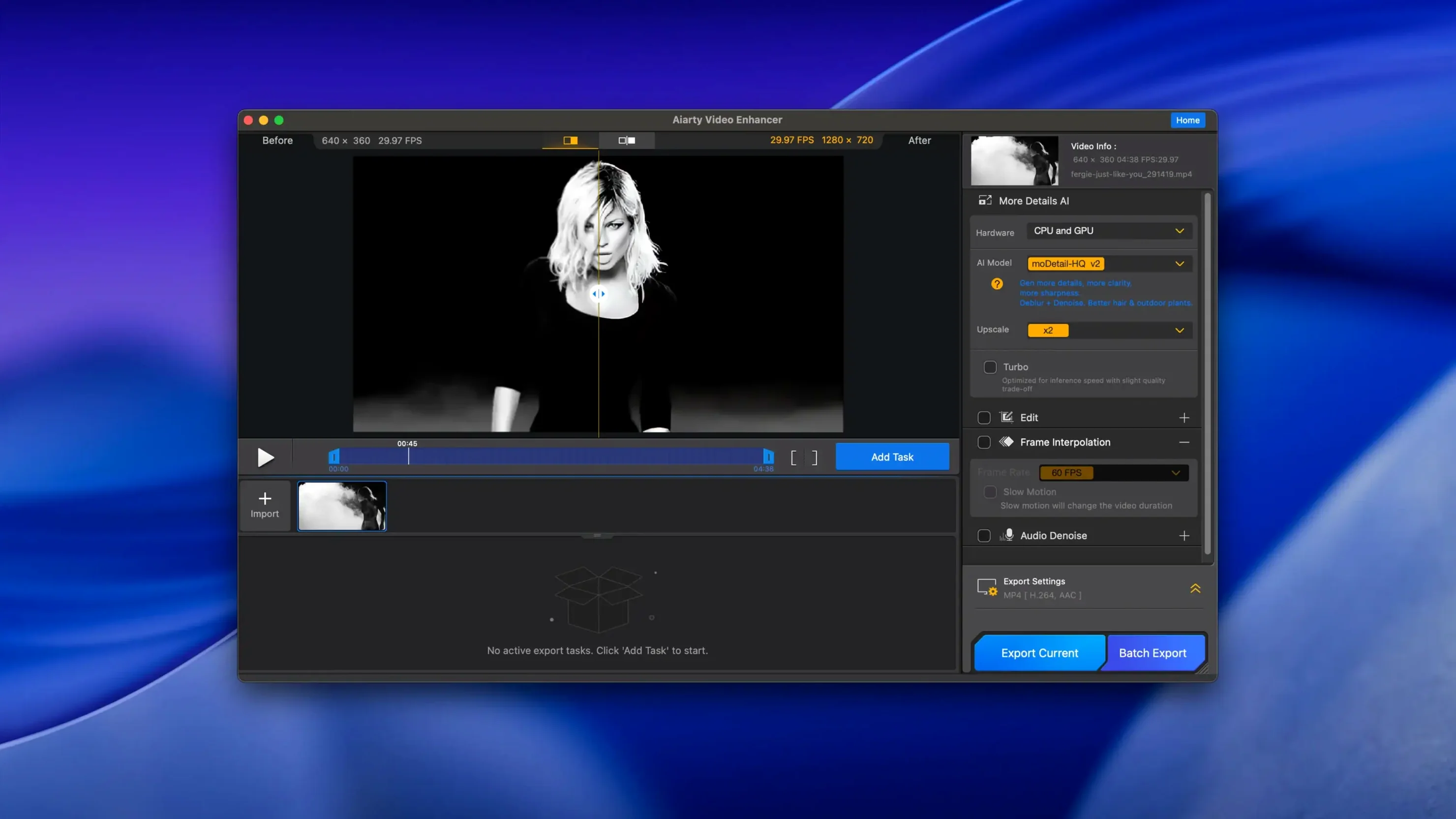
- Import and inspect. Drag the clip into Aiarty. The preview window shows the first frame; scrub to a section where the speaker's face is in shadow and the noise pattern is visible. This is your reference frame for checking denoise strength.
- Set the enhancement model. Choose the AI upscale model and set output resolution to 4K (3840 × 2160). Enable denoise and deblur. Aiarty applies both in a single pass — there is no separate denoise-first-then-upscale step. Preview a 5-second segment to confirm the noise reduction does not smear fine details like eyelashes or fabric texture.
- Fix the exposure. The low-light brightening slider lifts the shadows without blowing the window highlight. Push it until the speaker's face reads clearly, then back off 5–10 % to avoid a flat, over-processed look.
- Clean the audio. Switch to the Audio Denoise tab. Enable the module and play a section with the air-conditioner hum. The processing is adaptive — no noise print to capture. If the voice sounds thin after denoising, the module's recovery slider brings back body and low-mid presence without reintroducing the hum.
- Export settings. Choose MKV as the container (version 3.8 added this) with H.265 encoding at a bitrate around 40 Mbps for 4K. If the clip runs longer than 20 minutes and you might need to interrupt the render, resumable exports mean you can stop and restart without losing progress.
- Spot-check the result. Open the exported file and compare the same shadow frame you referenced earlier. The noise floor should be visibly lower, the upscaled detail plausible rather than painterly, and the audio free of the low-frequency drone the air conditioner introduced.
The entire workflow runs inside one app with no round-trips to an audio editor or compositing tool. That is the practical trade-off: you accept a single-model approach in exchange for keeping the pipeline linear.
Bypassing Gatekeeper via sudo spctl on first launch
First-launch friction on macOS is common with software distributed outside the App Store. After mounting the disk image, Gatekeeper may block the app. The fix is straightforward: open Terminal, type sudo spctl --master-disable, press Enter, and authenticate. Launch the app once, then re-enable Gatekeeper with sudo spctl --master-enable. On Apple Silicon Macs, Rosetta 2 must be installed — the system prompts for it automatically if it is missing.
Export stalls on Intel Macs often trace back to VRAM exhaustion. The requirement is a dedicated GPU with 4 GB VRAM or more; integrated graphics, even on a recent Intel chip, will choke on 4K renders. If you see the progress bar freeze, drop the output resolution to 1440p, close other GPU-hungry apps, and try again. On machines with exactly 8 GB of system RAM, large MKV files (above 10 GB source size) can trigger memory-pressure warnings. Splitting the source into shorter segments before import avoids the issue.
Audio-video sync drift occasionally appears in clips with variable frame rate, common with phone footage and screen recordings. Running the source through a constant-frame-rate transcode in HandBrake before importing into Aiarty resolves it reliably. The extra step is annoying, but it is a source-format problem, not a processing bug.
Frame interpolation artifacts show up most around fast lateral motion — a hand gesture across the frame, a car passing close to the lens. The AI-generated intermediate frames can produce a smeared or warped edge. Dropping from 16X to 8X slow motion reduces the artifact severity, and for clips where the effect is still visible, cutting away from the motion during the slow-motion segment hides it in the edit.
Why archival doc editors gain the most from chroma‑noise removal
Documentary editors restoring archival footage get the strongest match. SD sources from DigiBeta or MiniDV transfers carry chroma noise and interlacing remnants that general-purpose NLE filters handle poorly. Aiarty's denoise-plus-upscale pass cleans the noise floor and adds plausible detail without the plastic skin texture some AI upscalers produce. The Audio Denoise module handles the hiss and hum baked into old tape transfers in the same session.
Content creators working with phone-shot material find a practical path to 4K. A clip shot at 1080p on an iPhone in less-than-ideal light often needs denoising, brightening, and upscaling in one go. The single-pass approach means a 10-minute clip is ready inside half an hour on an M-series chip, which fits a same-day publishing schedule.
Action-camera users producing slow-motion edits lean on the 8X and 16X frame interpolation. GoPro footage at 24 or 30 fps lacks the temporal resolution for smooth slow motion, and optical-flow tools in editing software often produce warping artifacts around fast-moving edges. Aiarty's dedicated interpolation model handles these transitions more cleanly, particularly at 8X, where the frame budget is generous enough to hide occasional artifacts.
Users who need per-scene model selection or face-specific restoration will find the single-model design limiting — that group is better served by an app with a broader model library. But for editors who value a linear workflow — import, set one enhancement pass, export — the tool fits a specific niche: restoration work that must finish on a timeline, not in a lab.
Resumable exports — interrupted renders can now continue from where they stopped
MKV support — the Matroska container is now handled for both input and output
CUDA memory optimisations — reduced VRAM footprint on Nvidia GPUs
- macOS 11 or later
- Intel or Apple Silicon processor
- 8 GB RAM minimum
- 512 GB available disk space
- Dedicated GPU with 4 GB VRAM or more (Intel Macs)
Questions on file
What does the Audio Denoise feature do?
It removes background noise and improves voice clarity in a single click, making it useful for cleaning up dialogue or interview recordings.
Sign in · Create an account to add a field note.
No field notes yet. A measurement, a version, a machine — they appear after moderation.