
Video
Final Cut Pro 12.4 CS
VideoUpdated
| Requirement | On file |
|---|---|
| macOS | macOS 15.6 or later |
| CPU | Apple Silicon, Intel 64-bit |
| Download | 6.2 GB |
The 12.3 release focuses less on scale and more on precision. Four new tools, most of them machine-learning driven, handle tasks that used to require a round-trip through a dedicated compositing or captioning app; Smart Conform rounds out the list below.
- Isolate a subject without a green screen. Auto Mask recognises a person, face or moving object in a clip. Once the mask is generated, you can apply a colour correction, vignette or sharpening effect to just that selection—keeping the background untouched.
- Pull a rough cut apart in seconds. Edit Detection analyses a flattened export file, spots the original cut points and splits it back into individual clips on the timeline. Useful when the project file is lost and only a rendered master remains.
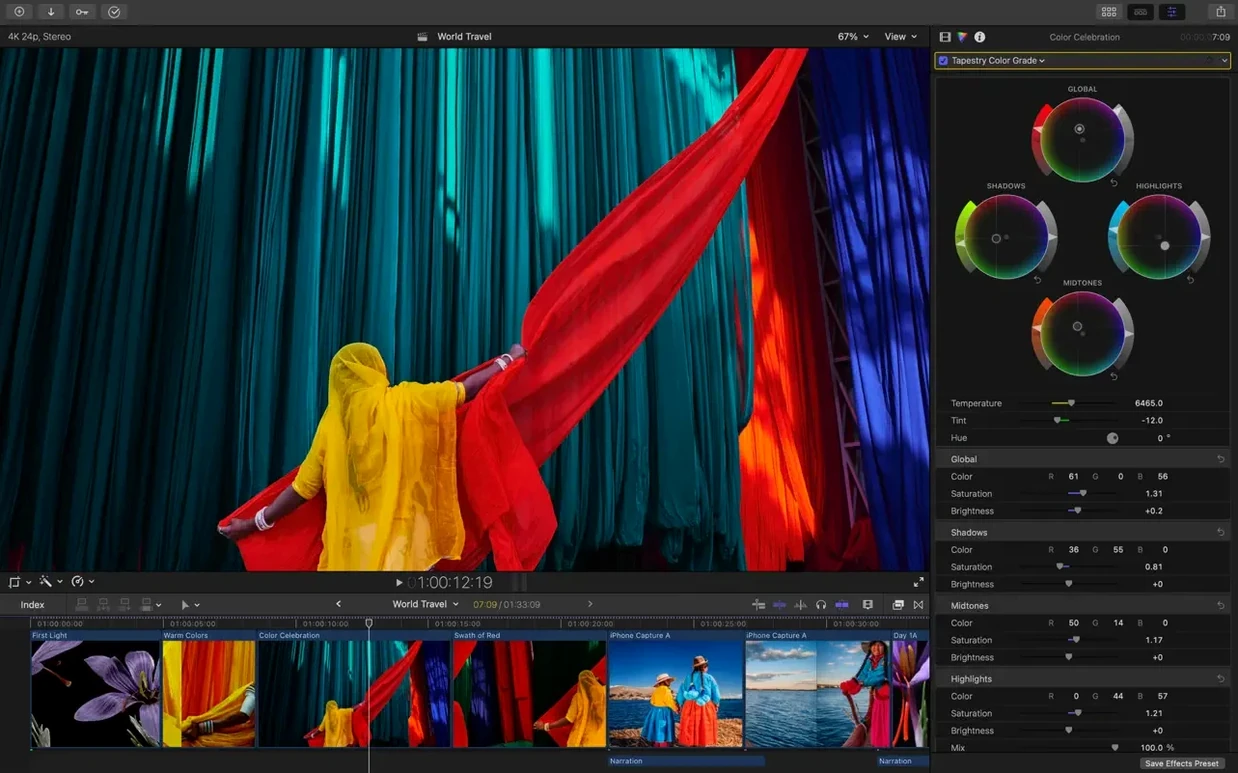
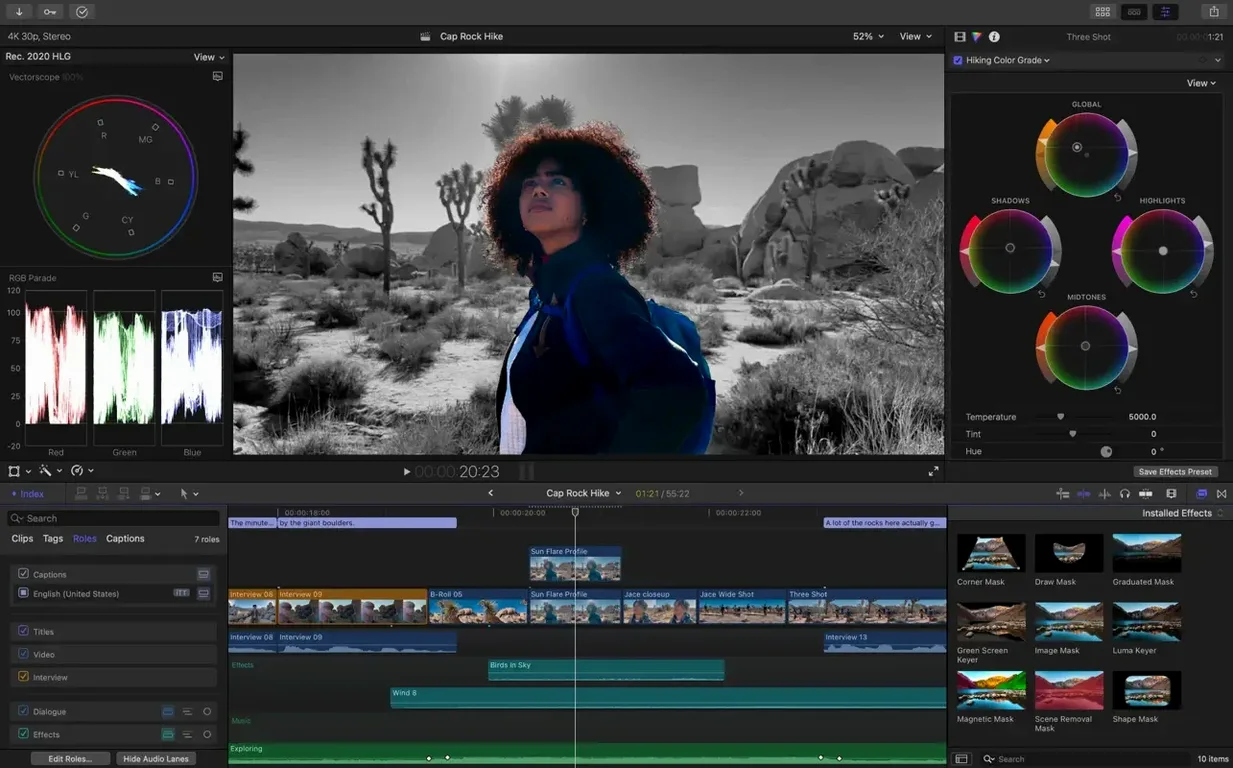
- Match colour from two different camera brands. Match Color samples the luminance and chroma values from a reference frame and applies them to a second clip. It works across SDR, Rec. 2020 and HLG colour spaces without manual curves.
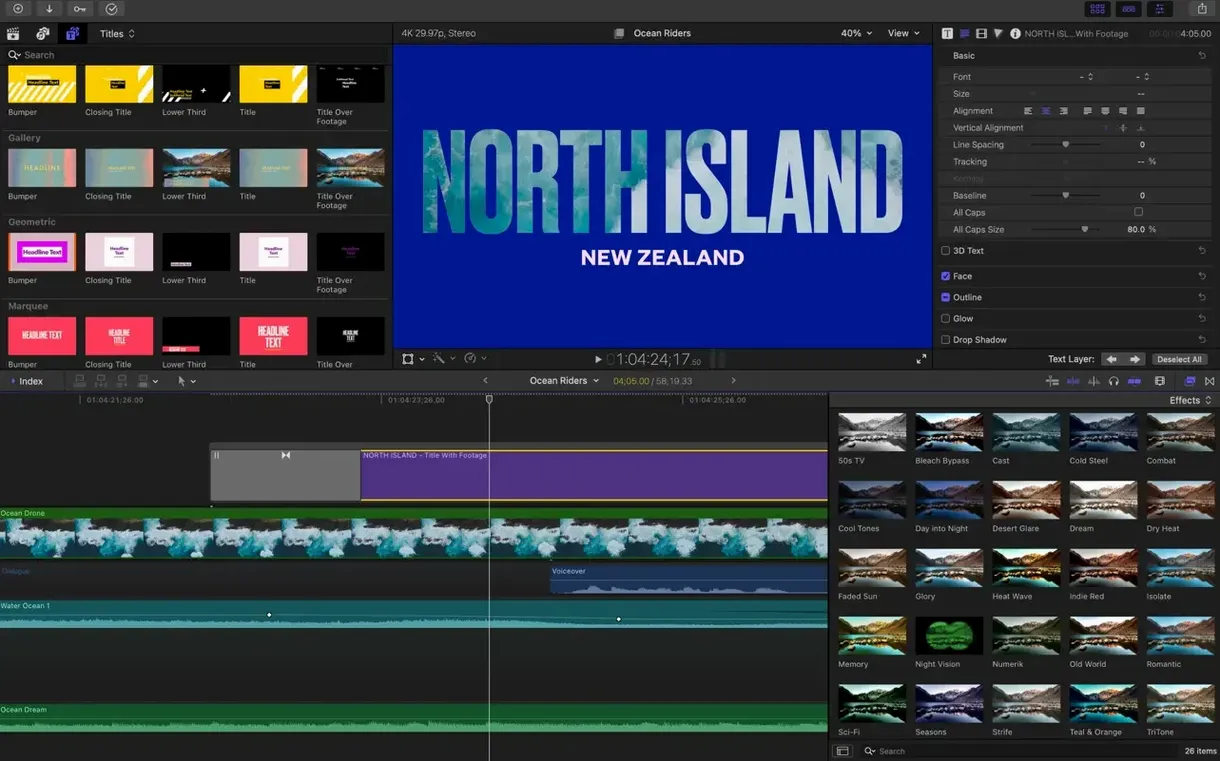
- Generate styled captions inside the project. Generate Captions creates a timed subtitle track from the spoken audio. Font, size, background and position stay editable as a title layer, and the caption file can be embedded or exported as a sidecar.
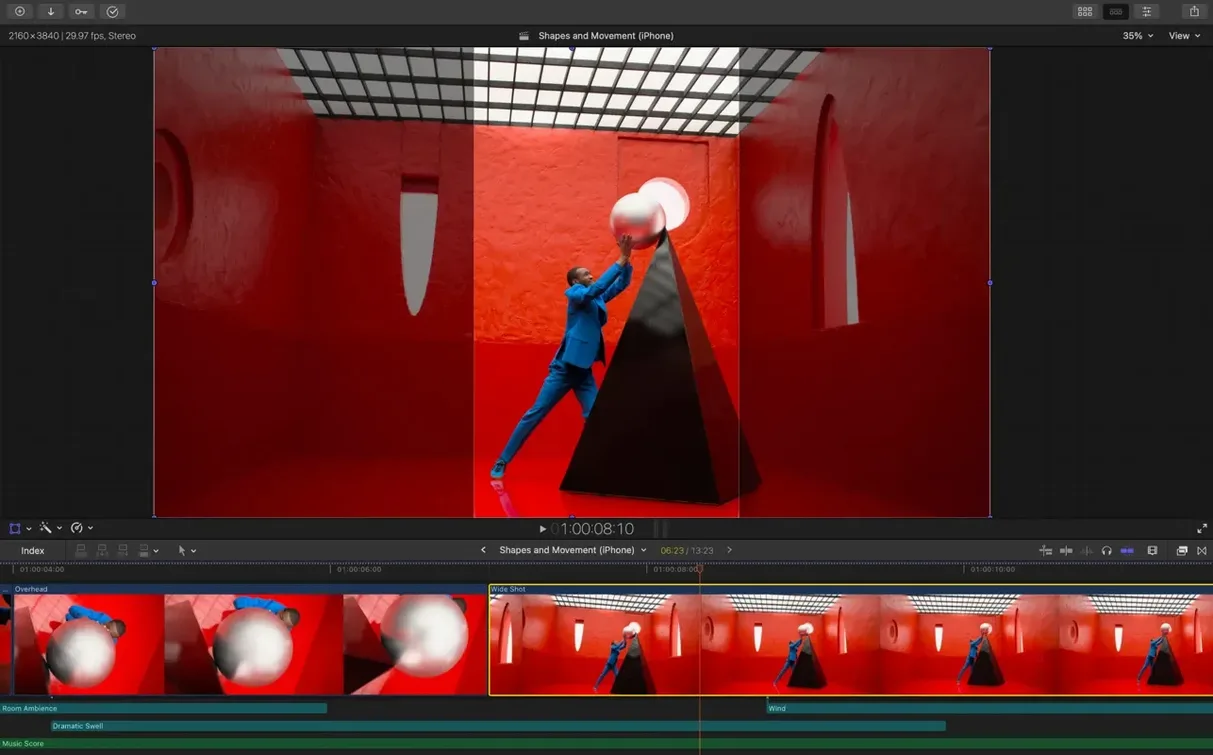
- Reformat a 16:9 timeline for vertical delivery. Smart Conform analyses the frame for the main subject and repositions clips automatically when you switch the project to a square or 9:16 aspect ratio. Manual keyframe tweaks are still possible on the generated motion path.
The library handles proxy creation in the background, and XML export remains available for sending a cut to Resolve for finishing or to Logic Pro for a dedicated audio mix.
A Workflow: Rough Cut to Captioned Vertical Deliverable
This walk‑through takes a flat, unedited 16:9 master file from a two‑camera interview shoot and turns it into a captioned 9:16 cut for social delivery — using only tools inside Final Cut Pro 12.3.
- Ingest the rendered master. Create a new library and event, then import the ProRes 422 HQ master. Because the file is a flattened export with no project, the timeline starts as a single contiguous clip.
- Run Edit Detection. Select the clip in the browser, right‑click and choose Detect Edits. Final Cut Pro analyses the file and splits it at each hard cut. After 40 seconds of processing on a 20‑minute file, the browser populates with individual subclips representing the original camera switches.
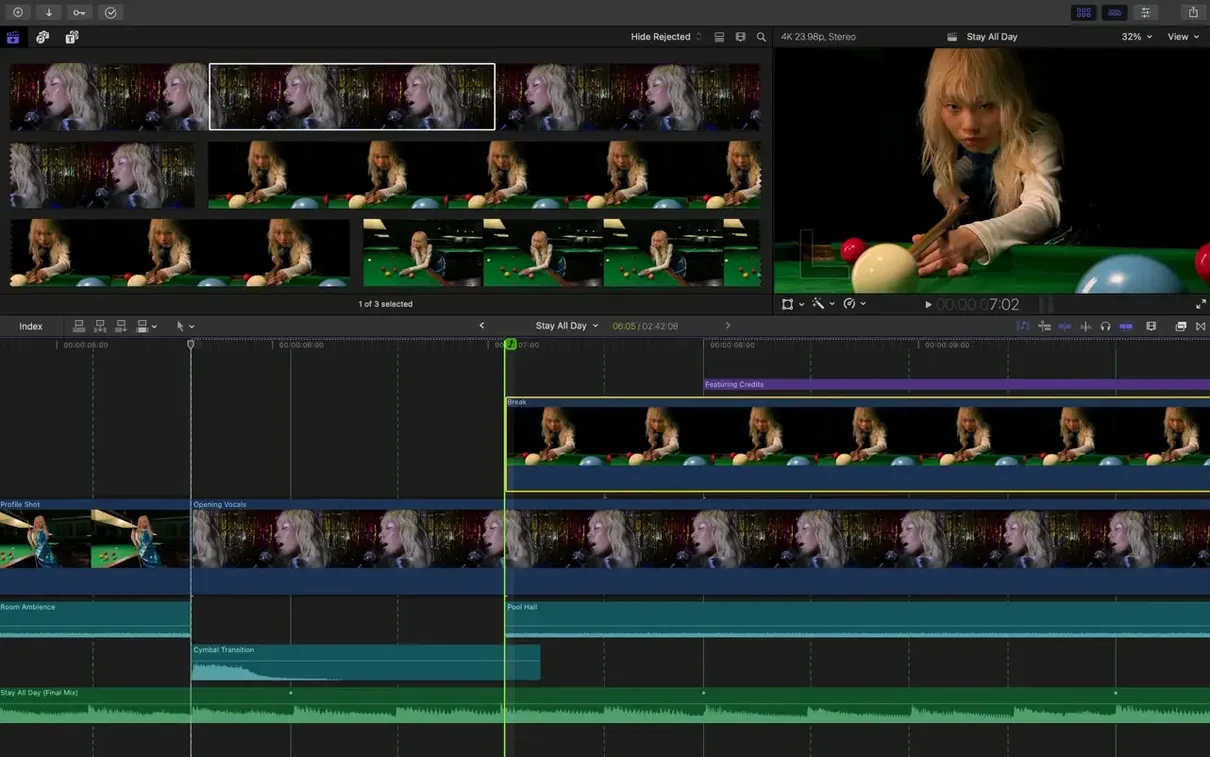
- Assemble the rough cut. Drag the detected clips into a new 16:9 project. Skim through, remove false positives where a whip pan was misread as a cut, and ripple‑delete filler questions and retakes.
- Match the two camera angles. Camera A (a cinema body shooting in a flat log profile) and Camera B (a mirrorless hybrid with baked Rec. 709) look noticeably different. Place the playhead on a well‑lit frame from Camera B, select a Camera A clip, choose Modify > Match Color, and pick the reference frame. The correction applies across all clips from Camera A in one step; fine‑tune the effect’s mix slider to 85% for a more natural roll‑off.
- Convert to vertical. Duplicate the project, rename it “Vertical Deliverable,” and change the project settings to 1080×1920, 29.97p. Enable Smart Conform. The analysis re‑centres the speaking subject in each shot. For a brief two‑shot where the algorithm hesitates between two faces, add a manual position keyframe to keep both people in frame.
- Generate captions. Select the project and choose Edit > Captions > Generate Captions. The engine transcribes the English dialogue, placing a caption role on the timeline. Open the Caption inspector, switch the style to a white sans‑serif font on a semi‑transparent black bar, and increase the font size to 36 pt for phone screens. Spot‑check the transcript around the guest’s company name; correct one misheard syllable directly in the caption text field.
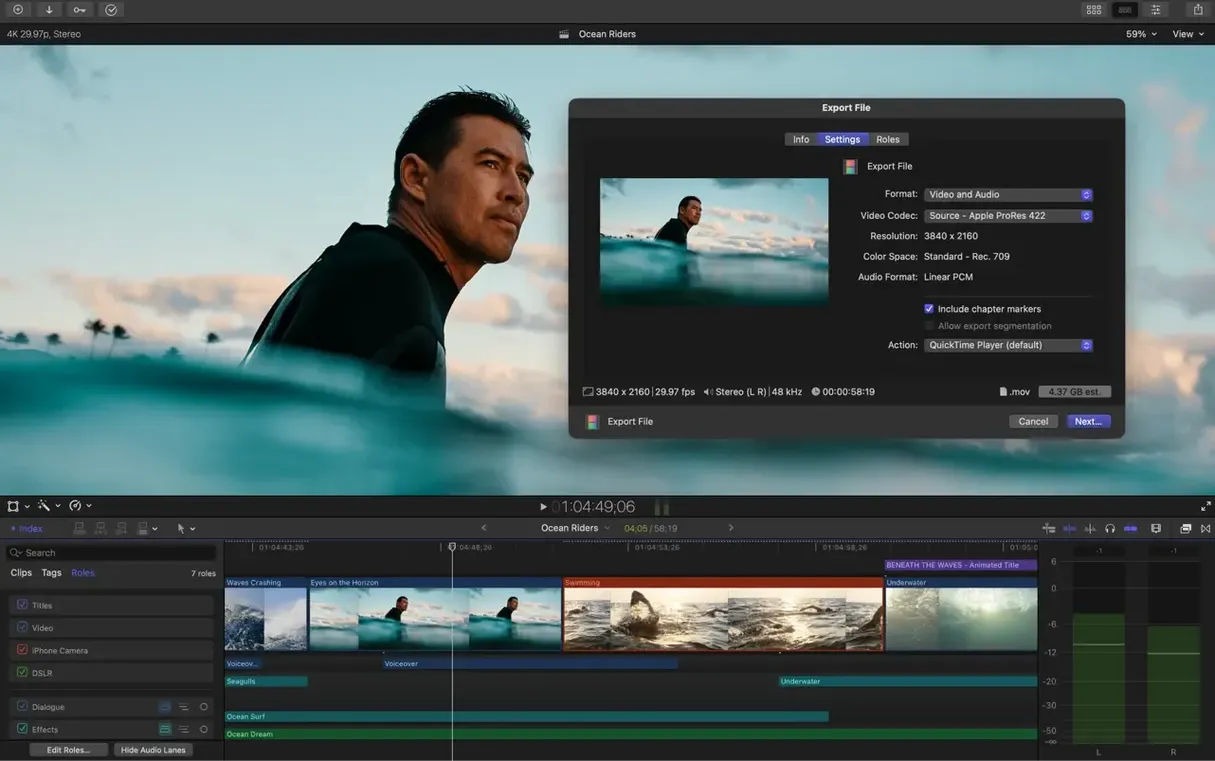
- Export for vertical platforms. Use the Share > Apple Devices 4K destination, dialled down to 1080p, with captions set to “Burn into video.” The resulting H.264 file is ready for upload.
Where Magnetic Timeline Excels vs. Track‑Based Editors
DaVinci Resolve (Blackmagic Design)
Resolve’s free tier includes a full colour page with node‑based grading, a Fairlight audio mixer, and a Fusion compositing tab. The Edit page now has a cut‑page detection tool comparable to Final Cut Pro’s Edit Detection, and its Smart Reframe feature covers the same ground as Smart Conform. Where Resolve pulls ahead is in colour management — ACES support, custom DCTLs, and scopes that run on a second display with no extra hardware. The cost is a less responsive timeline. The Magnetic Timeline in Final Cut Pro stays fluid during heavy trimming sessions, whereas Resolve’s track‑based paradigm demands more manual track targeting and sync‑lock management. For a one‑person edit team cutting dialogue‑heavy material, Final Cut Pro often feels faster at the mechanical level of trimming and slipping.
Premiere Pro (Adobe)
Premiere Pro’s transcription‑based Text Panel generates captions in a similar fashion to Generate Captions, with the added benefit of a searchable transcript window that doubles as a rough editing surface. Adobe’s Auto Reframe matches Smart Conform for aspect‑ratio changes, and the Lumetri colour panel provides direct‑on‑clip controls without leaving the timeline. The trade‑off is the subscription model and the background processes: Premiere’s media cache, peak‑file generation and auto‑save can occupy tens of gigabytes of disk space in a week of heavy work. Final Cut Pro’s library bundle keeps media management self‑contained, and proxy creation runs with lower CPU overhead on Apple silicon Macs. For editors who prefer a single‑window interface and do not need After Effects dynamic linking, Final Cut Pro offers a simpler storage story.
CapCut Desktop (ByteDance)
CapCut’s Mac app includes automatic captions, a one‑click vertical conversion, and a library of text animations that require no manual keyframing. The learning curve is near zero. However, the app lacks XML export, external audio‑role routing, and any colour‑space awareness beyond Rec. 709. A project that needs to pass through a Resolve grade or a Pro Tools mix cannot leave CapCut without a baked‑in render. Final Cut Pro remains the lightest‑weight option that can send a clean XML to a finishing suite, making it a plausible hub even when the final deliverables are handled elsewhere.
A Week in a Corporate Video Editor’s Life
A Melbourne‑based editor producing internal training content for a bank receives a drive with 90 minutes of interview footage from two Sony FX6 cameras, a lavalier audio track, and a folder of screen‑recorded software demos. The deliverable list includes a 16:9 master with burned captions, a 1:1 square cut for the intranet feed, and an XML for the colourist.
She creates a library on an external Thunderbolt SSD and imports the XAVC‑I media with “Create proxy media” checked. While proxies generate in the background, she syncs the two cameras into a multicam clip using the waveform‑matched audio. The Magnetic Timeline lets her switch angles with a single click during playback, and the connected clips keep the screen‑recorded b‑roll attached to the relevant soundbite even when she ripples the primary storyline.
After picture lock, she duplicates the project, applies Smart Conform for the square version, and runs Generate Captions on both timelines. The embedded caption track appears as a role, so the colourist can disable it during the XML round‑trip. The editor exports the 16:9 master as ProRes 422 HQ, the square cut as H.264 at 12 Mbps, and the XML with the caption role muted. The entire job — ingest to final export — completes inside five hours, with no application switching beyond a single launch of Compressor for batch encoding presets.
Fixing Auto Mask When It Grabs the Wrong Subject
Auto Mask selects the wrong subject. When the frame contains two people or a busy background, Auto Mask sometimes latches onto a high‑contrast object instead of the intended person. Drag a rough bounding box around the subject in the inspector preview. The algorithm re‑analyses its selection area and usually corrects within a few seconds. For complex shots, apply a second Auto Mask effect to isolate a different region and stack the two masks with blend modes.
Edit Detection splits on cross‑dissolves. A dissolve between two scenes can produce a tiny subclip lasting three frames. Instead of deleting each one manually, sort the browser by duration, select all clips shorter than one second, and press Delete. The remaining clips stay linked on the timeline, and you can re‑apply a dissolve where needed.
Smart Conform drifts during a moving subject. When the speaker walks across the frame, Smart Conform’s automatic motion path can lag or overshoot. Open the Transform viewer, reveal the generated keyframes, and add a linear interpolation between the start and end points. Limit the number of keyframes to four or five; the motion stays smooth with fewer control points.
Captions miss technical terms. Generate Captions may stumble on product names, acronyms or accented speech. Open the Captions inspector, scrub to the incorrect word, and type the correction directly in the caption text field. The timing stays intact, and the edit applies only to that single caption instance.
Match Color overcorrects a clip. If the matched clip looks too saturated or contrasty, reduce the effect’s mix amount to 60–70%. For finer control, add a Colour Correction effect after Match Color in the inspector stack and pull back the global saturation by 10–15%. The underlying luminance match stays in place while the chroma intensity softens.
Intel vs. Apple Silicon Compatibility and What You Actually Need
Does Final Cut Pro run on Intel Macs, or is Apple silicon required?
Version 12.3 runs on both Intel and Apple silicon Macs, provided the machine has a Metal‑capable graphics card and macOS 15.6 or later. Some features — particularly real‑time Auto Mask analysis and background proxy generation — complete noticeably faster on Apple silicon because the Neural Engine handles the machine‑learning tasks directly. Intel Macs still perform the work but rely on the GPU and CPU, so a complex Auto Mask on a 4K clip may take 20–30 seconds instead of the near‑instantaneous result on an M‑series chip.
Can I open a project from an older version of Final Cut Pro?
Libraries created in earlier versions, including Final Cut Pro 10.6 and 10.7, open in 12.3 after a one‑time library update. The update creates a duplicate of the library file, leaving the original untouched. Projects that use legacy third‑party effects may require those plug‑ins to be updated to their FxPlug 4 versions; most developers shipping FxPlug plug‑ins have released compatibility updates within a few weeks of the 12.3 launch.
Does Generate Captions work with languages other than English?
The speech‑to‑text engine supports German, Spanish, French, Japanese and Simplified Chinese alongside English. Accuracy varies by language: Japanese and German transcription benefits from a clean, close‑mic’d dialogue track with minimal background noise. The captions appear as editable text in the selected language, and the interface itself localises to the system language automatically.
What happens if my library grows too large for my internal drive?
Final Cut Pro libraries can span multiple storage locations. Media files can stay on an external drive while the library database — a lightweight bundle containing metadata, render files and analysis data — lives on the internal SSD. The “Leave files in place” import option avoids duplicating source media. For editors working with several terabytes of RAW or ProRes footage, a Thunderbolt RAID or NVMe enclosure keeps the timeline responsive without filling the Mac’s internal storage.
Version 12.4 CS ships with the developer's latest fixes and performance improvements. Release notes are published at the official Apple support site.
- macOS: 15.6 or later
- Architecture: Apple Silicon, Intel 64-bit
Questions on file
Can Final Cut Pro 12.3 create captions for social media clips?
Yes. The Generate Captions tool produces a styled subtitle track from the clip's audio, and the appearance is fully customisable within the app.
Does Auto Mask work on machines with an Intel processor?
Some machine-learning features, including object isolation in Auto Mask, require a Mac with Apple silicon. Intel Macs need a Metal-capable graphics card for general operation.
What colour spaces are supported for HDR grading?
Standard colour spaces, Rec. 2020 and HLG are supported, with colour management handled across the library.
Sign in · Create an account to add a field note.
No field notes yet. A measurement, a version, a machine — they appear after moderation.