
Video
FotoMagico 6.11.0
VideoUpdated
| Requirement | On file |
|---|---|
| macOS | macOS 14 or later |
| CPU | Apple Silicon, Intel 64-bit |
| Download | 75 MB |
A folder of great images is only half the story. The missing half is motion, sequence, and a stage that does justice to the resolution you captured. That is where a dedicated slideshow tool earns its place.
| Detail | Spec |
|---|---|
| Current version | 6.10.0 |
| Platforms | Mac, iPad |
| macOS requirement | macOS 14 Sonoma or later |
| Architecture | Apple Silicon and Intel |
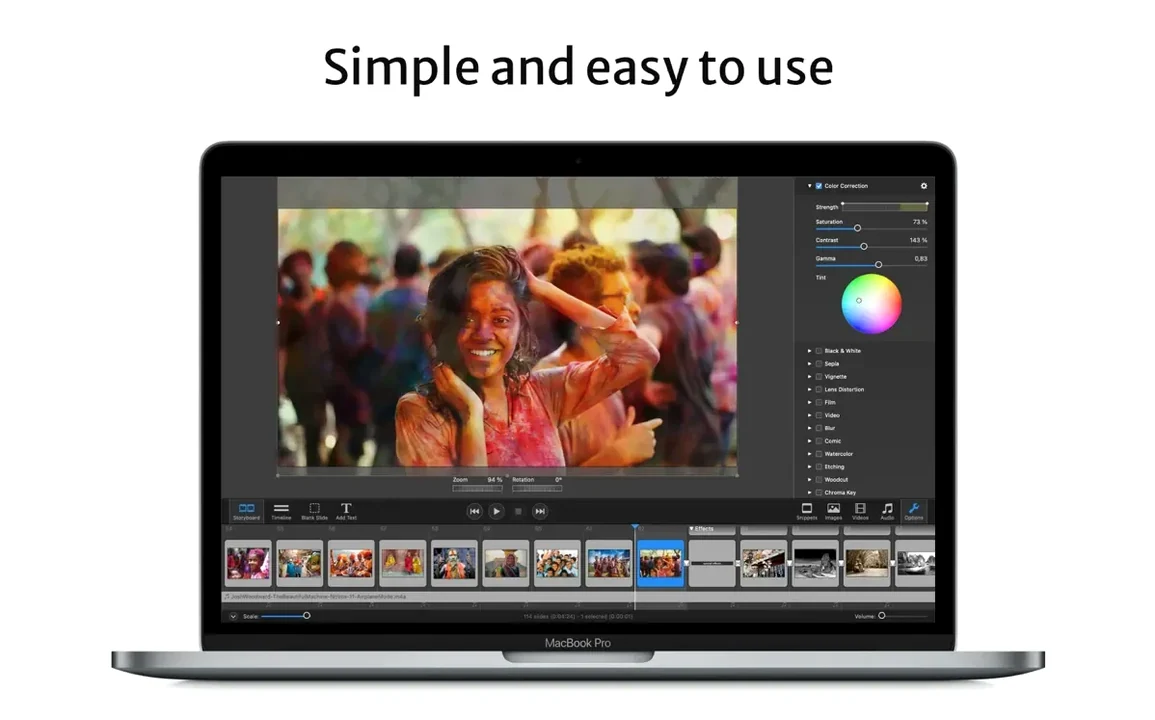
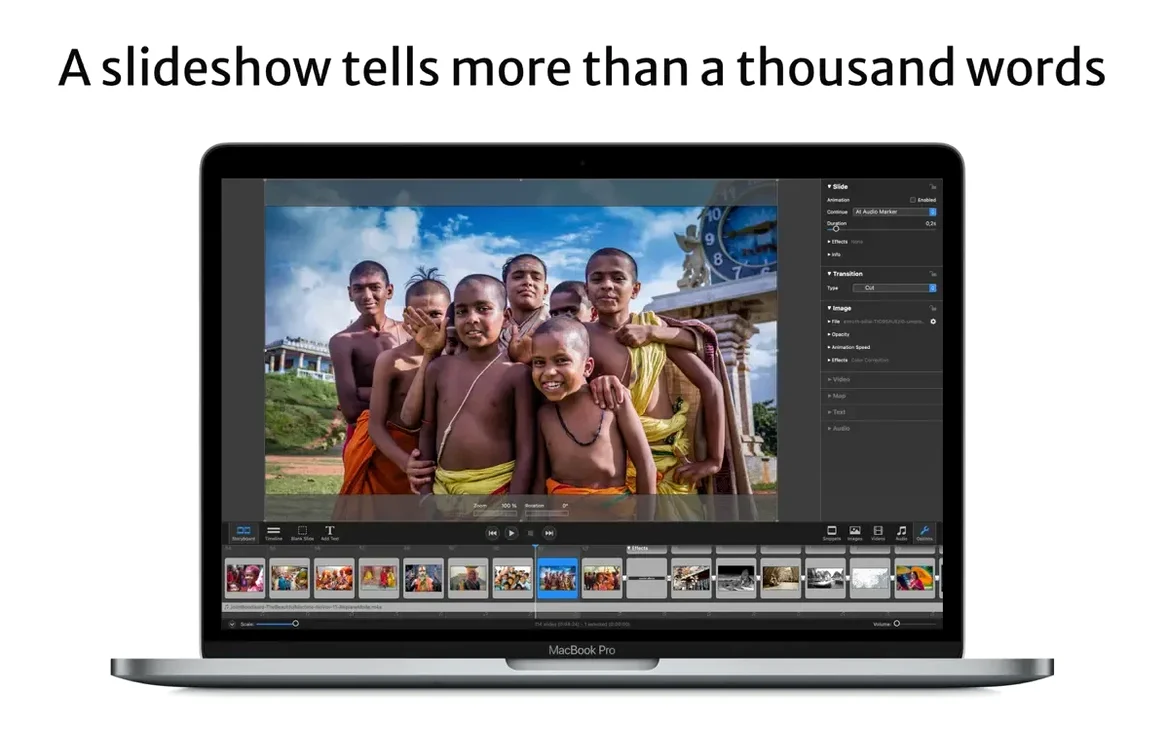
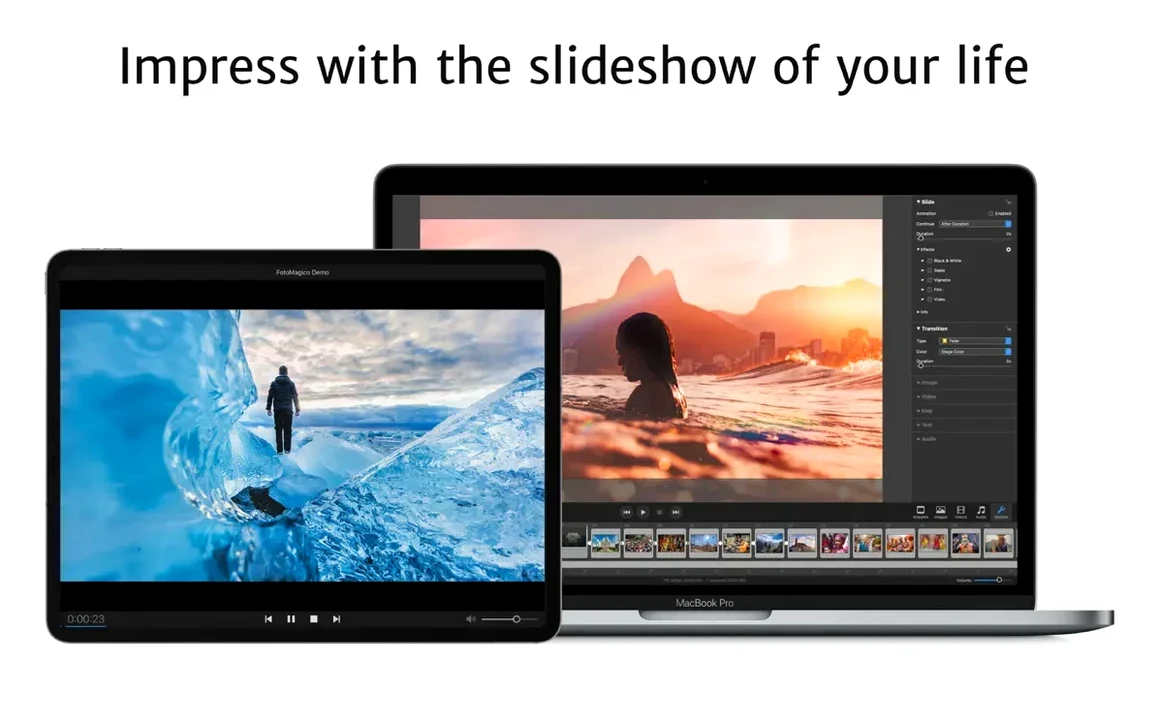
FotoMagico treats the screen as a canvas with a known pixel budget. It reads the hardware ceiling and uses the best resolution available, which means a sequence built on a MacBook Pro scales naturally when pushed to a 6K display or an HDTV. The editor handles the familiar geometry changes — resize, move, rotate, zoom — but the real difference is that every action resolves against that final output resolution, not a fixed preview window. Text captions sit directly on images and stay sharp because they are rendered at the full stage size. For distribution, the app can package a standalone player that runs on a computer without FotoMagico installed, with optional limits on view count or availability window. Direct exports to iPad and iPod are also built in, and projects stored on iCloud Drive stay in sync between the Mac and iPad versions. If the destination is a phone screen, the Instagram vertical story presets provide a quick starting aspect ratio.
The most useful conveniences are the ones you find by accident. In FotoMagico, those tend to be keyboard-focused. Holding Option while dragging a slide in the storyboard duplicates it instead of moving it — handy when you want to repeat a title card layout without rebuilding it. Double-clicking an image opens the crop and zoom controls directly on the stage, so you can set the starting frame without travelling to the inspector. On Mac, the Space bar plays from the current slide rather than the beginning, which sounds minor until you are tweaking transitions in a 120-slide sequence and no longer want to sit through the first minute each time.
Another detail that is easy to miss: the Map Assistant. It plots location data attached to photos onto a moving map slide. The control set was partially localized in 6.10.0, so the assistant now follows the app language in more places. If your images carry GPS metadata, the assistant builds a travel route with adjustable speed and zoom per stop. It is a narrow feature, but for trip recaps it removes the need to screen-record a mapping app and stitch the result into a video editor.
Comparing FotoMagico with other Mac slideshow tools comes down to how much control you want over the stage, and how the output is delivered. Apple Keynote is the obvious neighbour. Keynote handles slides well, but its rendering model is presentation-first: the canvas is a fixed slide size, and the delivery is a file that opens in Keynote. FotoMagico's canvas is resolution-aware, and the standalone player changes distribution — you can send a show to a client or family member and set it to expire after three viewings or seven days. That is a different end product from a .key file.
PowerPoint for Mac sits further away. It is strong on text-heavy decks and charts, but its image motion feels like an afterthought. The ken-burns effect in FotoMagico is a first-class tool: you can set the start frame, end frame, and easing per image, and the app keeps the full-resolution original in memory so the movement does not soften the pixels. PowerPoint compresses images into the deck, and large image counts slow the editor.
If the brief is a fast, simple photo sequence, Photos on macOS can assemble a memory movie on its own. The difference is intention. Photos picks a template, a soundtrack, and a duration for you. FotoMagico asks you to make those decisions. Neither is wrong, but they serve different situations. A quick recap of a weekend works in Photos. A client presentation or a wedding slideshow where you need to control exactly which face appears at which second sits closer to FotoMagico's model.
On the integration side, the Final Cut plugin deserves mention. After exporting a slideshow from FotoMagico, the plugin lets you drop it into a Final Cut timeline as a clip. That matters if the slideshow is a segment inside a longer film rather than a standalone piece, because it keeps the slideshow's timing and transitions intact instead of flattening it to a single video file first. The Aperture plugin follows a similar logic for still-image round trips, though its relevance depends on how long Aperture remains part of a given workflow.
Burn-to-DVD support via iDVD or Roxio Toast is a legacy path now, but it still works for the rare case where a DVD is the deliverable — a school event, a memorial, or a venue with a DVD player and no projector input. The app also exports in any QuickTime-compatible format, so the same project can become a ProRes master for a screening and an H.264 file for a USB stick handed to relatives. Screensaver export is another odd but useful route: the slideshow becomes a .saver bundle that runs when the Mac idles. It is a low-effort way to keep a show in circulation on a lobby or reception machine without anyone needing to open an app.
When you first open the app, two settings are worth changing before you build anything serious. First, set the stage size explicitly. The default may suit a 16:9 screen, but if your destination is a vertical display or an unusual stage, pick the aspect ratio before importing photos — changing it later rescales every slide, and the results are rarely what you intended. The Map Assistant's improved aspect ratio handling in 6.10.0 helps, but the more consistent path is to decide early. Second, check the autosave location. Projects can live on iCloud Drive, and the sync between Mac and iPad is reliable, but a large show with many high-resolution originals will occupy cloud space and bandwidth. If you are working on a single machine, a local project folder is lighter. The setting is not hidden, but it is easy to skip during the initial setup, and moving a project later means re-linking media.
Those who search for a fotomagico for mac workflow often overlook the standalone player until the export dialogue is open. It is worth knowing about before you plan delivery, because the view limit and expiry options change how you send the file. A show intended for a client review can be limited to two viewings, while a family album can be set to remain available indefinitely. The player is a small download and runs on machines without the editor, which makes it the practical answer to "will it open on their computer?"
Boinx has posted revision 6.11.0. The full changelog lives on the developer’s site; this is a maintenance build collecting fixes from the previous cycle.
- macOS 14 or later
- Apple Silicon or Intel 64‑bit
Questions on file
Can I control how long someone can view an exported slideshow?
Yes. The standalone player can limit the number of views or set an expiry date after which the slideshow is no longer playable.
Sign in · Create an account to add a field note.
No field notes yet. A measurement, a version, a machine — they appear after moderation.