
Mac Apps
AirBuddy 3.0-890
Mac AppsUpdated
| Requirement | On file |
|---|---|
| macOS | macOS 14 or later |
| CPU | Apple Silicon, Intel 64-bit |
| Download | 49 MB |
The Magic Handoff gesture in AirBuddy 3 turns a two-finger trackpad swipe into an instant listening mode toggle for AirPods Pro. Open the status window, find your earbuds, and swipe right over their icon to flip between Transparency and Noise Cancellation without touching the stems or opening System Settings. That single interaction captures how this utility shrinks the distance between you and the half-dozen devices orbiting your desk.
- Set the menu bar icon to the app symbol, a compact battery indicator, or nothing at all — the beta adds all three display options.
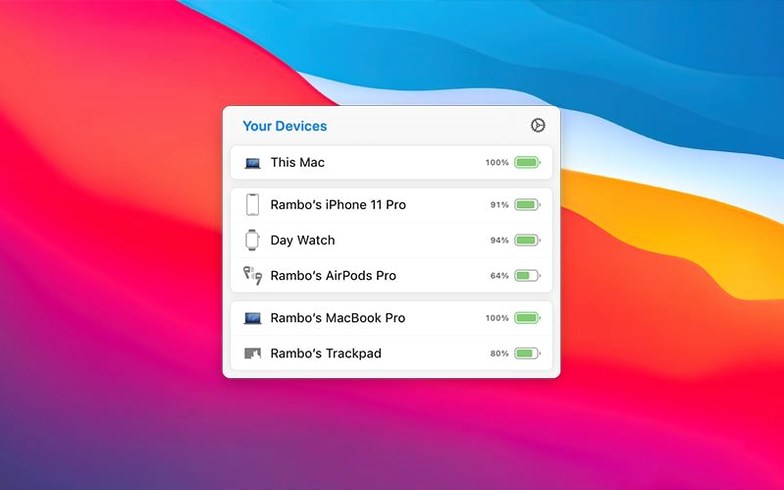
- Hover over any grouped set of AirPods, Beats, iPhone, iPad or nearby Macs to see individual charge percentages plus total listening and talk time remaining.
- Single-click an audio device to connect it; a second click brings up playback controls for the currently active source.
- Drag a peripheral from one Mac to another in the status window to hand off the connection between machines on the same desk.
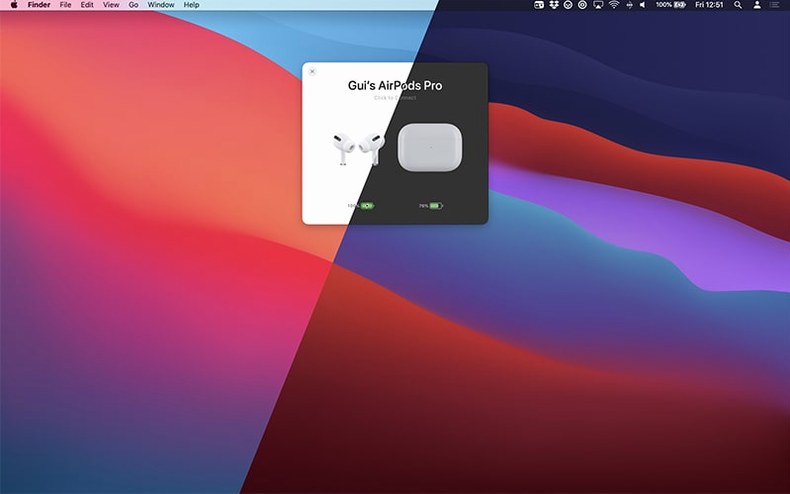
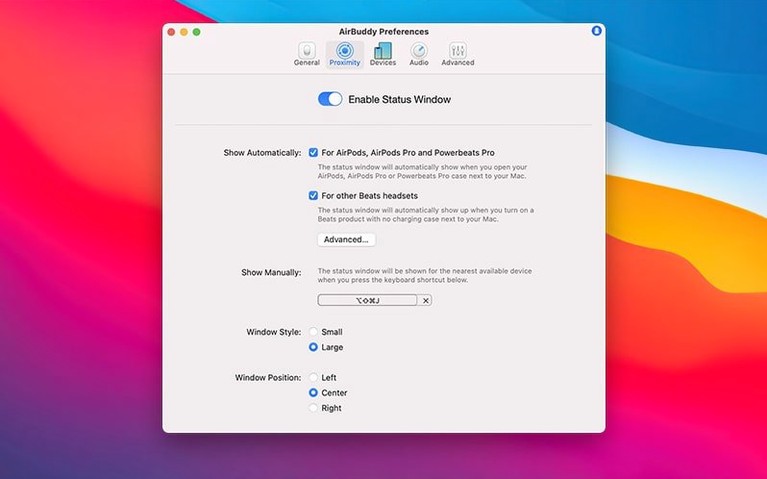
- Choose between a small floating panel or a larger status window layout depending on how many devices you track at once.
AirBuddy 3 treats nearby Apple hardware as a single, grouped inventory rather than isolated Bluetooth entries. The battery readouts update continuously, the connection logic skips the Bluetooth pane entirely, and the inclusion of iPhones and other Macs in the device view means you can check your phone’s charge from the keyboard without picking it up.
A menu bar icon that vanishes until you need it
The shift from AirBuddy 2 to AirBuddy 3 isn't a layer of extra panels — it’s a quieter, faster status check that interrupts you less. The beta builds leading to 3.0-890 introduced a menu bar icon that can disappear entirely, leaving only the battery readout or the app glyph. For anyone who keeps the menu bar clean, that option removes the last visual excuse to disable the utility.
Peripheral handoff between Macs now works through the same status window that shows headphone batteries. Before, moving a Magic Mouse meant opening Bluetooth settings on both machines. Now you drag the device icon from one Mac’s tile to another’s in the AirBuddy interface, and the connection follows within a second or two. The handoff logic accounts for which Mac currently owns the peripheral, so the transfer never creates a pairing conflict.
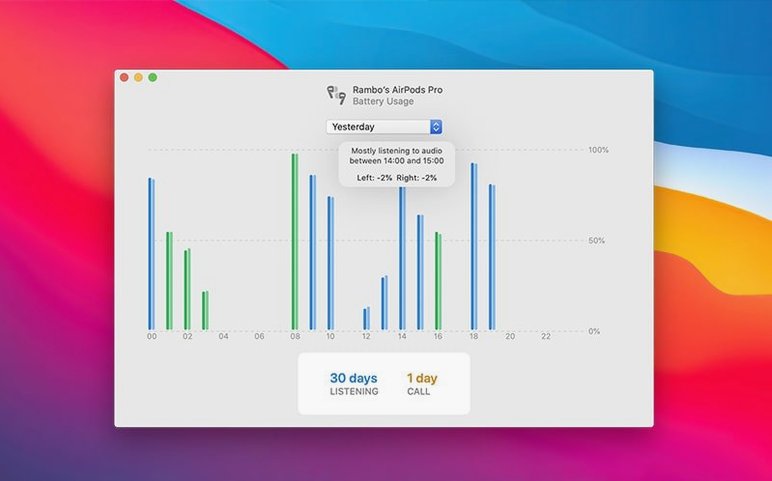
Headphone usage history moved from a single-day snapshot to a rolling view covering the last 12 hours, the last 24 hours, or the previous calendar day. The left-right drain comparison appears directly in that history panel — a small but practical detail when diagnosing whether one AirPod consistently depletes faster during calls versus music playback.
Connection modes, added in the 3.0 beta cycle, let you define exactly what happens when a specific set of AirPods links to the Mac. You can set the listening mode to Transparency, the volume to 40%, and the microphone to the Mac’s built-in input, all triggered by a single connection event. That means joining a video call no longer requires three separate adjustments after the earbuds connect.
Three switches that make AirBuddy feel invisible
Open the AirBuddy preferences pane before you do anything else. The defaults are sensible, but three adjustments make the app disappear into your workflow rather than demanding attention.
First, change the menu bar icon to the battery indicator only. The full app icon draws the eye without adding information; the compact battery readout shows percentages at a glance and takes up less space than the clock. If you prefer a zero-distraction menu bar, the 'no icon' option keeps AirBuddy running while you access everything via the keyboard shortcut or a trackpad gesture on the status window.
Second, set a global keyboard shortcut for the status window. The default is Opt+A, but that clashes with text-editing shortcuts in several apps. Remap it to a combination you never use — Ctrl+Shift+A, for instance — and the window appears instantly without interfering with your typing rhythm.
Third, configure a connection mode for your primary AirPods Pro. Name it after your typical scenario (e.g., "Desk Calls"). Set listening mode to Transparency, volume to 35%, and microphone to the Mac — not the AirPods mic — if you work in a quiet room. When you connect those earbuds next time, AirBuddy applies all three settings at once. You can create a second mode for focused listening (Noise Cancellation, 60% volume, AirPods mic off) and switch between them with two clicks from the status window.
How AirBuddy fits with other apps and macOS features
AirBuddy doesn't replace the macOS Bluetooth stack — it sits on top of it, reading the same system-level battery and connection data that the Bluetooth menu bar item accesses. The difference is presentation speed and device grouping logic. Where the system Bluetooth pane shows a flat list of paired hardware, AirBuddy clusters your AirPods case, left bud, right bud, and paired iPhone into one block. That grouping matters when you're checking six devices at once and need the information sorted, not just listed.
The utility works alongside apps like BetterTouchTool and Keyboard Maestro without stepping on their shortcut assignments. Its keyboard triggers are scoped to AirBuddy's own window, so there's no conflict with global macros. If you use an app like ToothFairy for quick Bluetooth headphone connections, AirBuddy replaces it entirely — the one-click connection and listening-mode switching cover the same ground with less setup.
Siri integration is indirect but useful. AirBuddy's status window can be triggered by a Shortcut, which means you can tie a voice command to "show my device batteries" and get the panel without touching the keyboard. The Shortcuts action passes through macOS automation, not through AirBuddy's own scripting dictionary, but it works reliably for opening and closing the status view.
For users experimenting with the affinity beta or adobe beta generative fill workflows, AirBuddy's connection modes help switch audio contexts between a MacBook and a desktop Mac without digging into System Settings. A designer moving from a MacBook Air to a Mac Studio can hand off their Magic Trackpad and AirPods Max in one drag gesture, then apply a pre-set connection mode that sets volume and listening mode for the new machine.
The airbuddy 3 device view includes other Macs on the local network, not just Bluetooth peripherals. That means your MacBook appears in the status window of your iMac, showing its battery percentage and whether it's charging. The network awareness runs over Wi-Fi through the same iCloud account pairing that Handoff uses, so there's no separate login or configuration step.
First days with AirBuddy: practical tips
On day one, resist the urge to add every device you own. Let AirBuddy discover your AirPods, your primary iPhone, and one or two Macs first. The status window gets crowded fast when six Apple devices, two sets of Beats, and an iPad all report their charge levels simultaneously. Use the device visibility settings to hide hardware you rarely need to check — an old iPhone used as a music player, for instance, or a pair of Beats that lives in the gym bag.
Position the status window on a secondary display if you have one. The larger layout shows grouped devices in a grid that stays legible even when it's open for long stretches, and keeping it off your main screen prevents it from overlapping document windows. The window remembers its last position between launches, so you set it once and it stays put.
Test the Magic Handoff gesture with a peripheral you can afford to disconnect briefly. The feature works by issuing a Bluetooth disconnect on the source Mac and a connect on the target Mac in quick succession. If both machines are awake and within a metre of each other, the transfer completes in under two seconds. If one Mac is asleep, the handoff waits until it wakes — which is fine for a mouse but confusing the first time you try it and nothing happens. Wake both machines first.
The usage history panel takes about a day to accumulate meaningful data. Check it after 24 hours of normal use: total listening time, total talk time, and the left-right drain asymmetry all appear once enough samples have been collected. If one AirPod consistently shows faster drain, it's usually because that side handles the microphone during calls. You can confirm this in the history view by comparing talk-time drain to music-only drain.
For anyone running the airbuddy beta alongside the stable release, note that beta builds often change the menu bar icon options and connection mode behaviour between iterations. The 3.0-890 stable version consolidates the airbuddy mac beta features into a single, predictable set of preferences. If you installed beta builds earlier, delete the beta version before installing the stable release to avoid preference file conflicts that can cause the status window to open blank.
Menu bar icon — choose between the full AirBuddy icon, a battery level indicator, or no icon at all.
Device grouping — peripherals now appear in relationship-based clusters instead of a flat list.
- macOS 14 or later
- Apple Silicon or Intel 64-bit Mac
Sign in · Create an account to add a field note.
No field notes yet. A measurement, a version, a machine — they appear after moderation.