Mac Apps
AlDente 1.39.4
Mac AppsUpdated
| Requirement | On file |
|---|---|
| macOS | macOS 12 or later |
| CPU | Apple Silicon, Intel 64-bit |
| Download | 12 MB |
Version 1.39.4 tidies up a visual glitch: the Popover no longer misbehaves on early macOS 27.2 betas. The core job remains unchanged — keeping a MacBook battery at a charge level you choose instead of letting it sit at 100% whenever it is plugged in.
Set a hard charge ceiling, then run calibration
- Set a charge limit. Open the menu bar icon, move the slider to a value between 20% and 100%, and leave the MacBook connected to power. The charging stops at that ceiling.
- Run a calibration cycle. Activate Calibration Mode from the app menu. It lets the battery discharge fully then recharge to 100% so the percentage readout stays accurate over time.
- Check the discharge rate. Click the menu bar icon while running on battery. The live wattage figure tells you how fast the battery drains under the current workload.
The monitoring layer
Beyond the charge cap, AlDente surfaces real-time data — current capacity, cycle count, temperature and power draw — directly in the menu bar or a compact popover. AlDente works across most Apple silicon and Intel MacBooks, and the interface ships in sixteen languages including Arabic, Simplified Chinese, Polish and Italian.
A scenario: setting up for long desk sessions
Suppose a MacBook Air spends most weekdays plugged into a Thunderbolt dock, driving an external 4K display. The factory charge management might hold at 80% for a while, then creep back to full because it detects a "regular schedule" it cannot quite pin down. AlDente gives you manual control.
Start by opening the app and dragging the main slider to 60%. That level keeps enough charge for an unplanned coffee-shop stint while staying well below the high-voltage stress zone above 80%. Next, open Preferences and enable Launch at Login — otherwise the limit resets after a restart. The menu bar icon now shows a steady "60% – Not Charging" readout within a couple of minutes of plugging in. For anyone who unplugs predictably at 17:30, there is an optional schedule: set a charge limit of 80% at 16:45 so the battery tops up just before leaving.
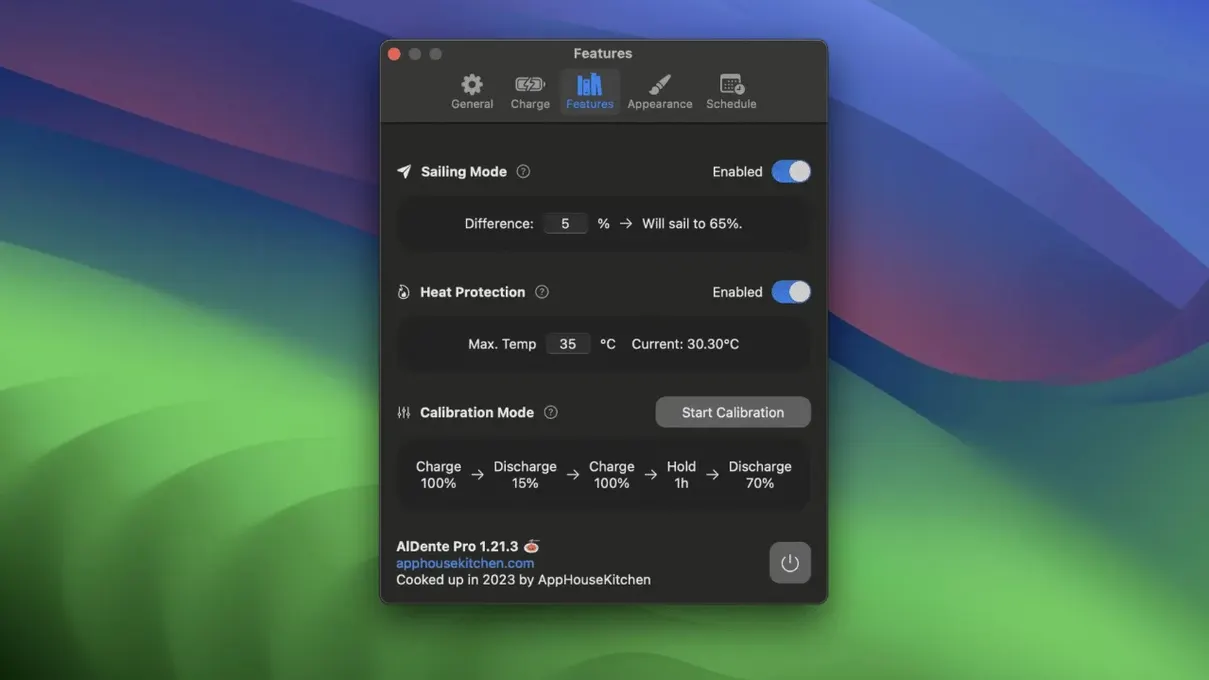
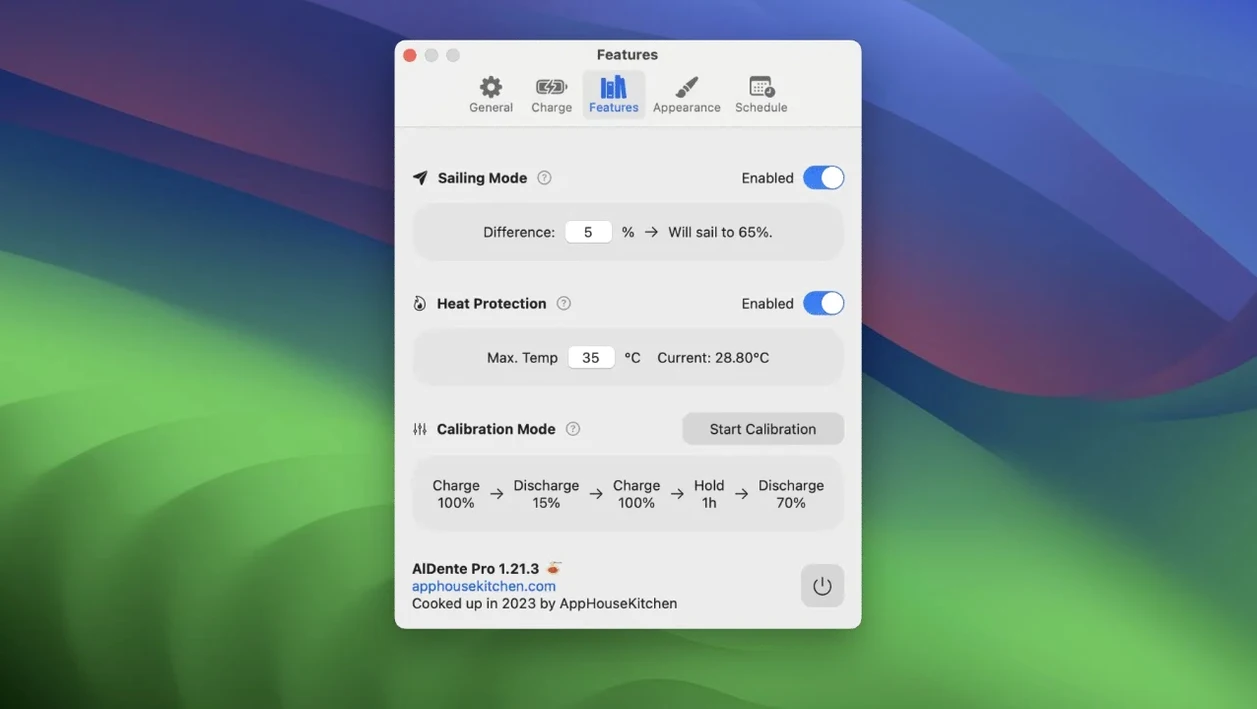
Over a month, the cycle count rises far slower than it would with a full-discharge-and-recharge loop every day. The battery temperature, visible in the popover, hovers around 28 °C instead of the 33–35 °C typical of a trickle-charged 100% pack. AlDente’s Heat Protection feature reinforces this: if the battery crosses 35 °C, charging pauses until it cools to 33 °C, regardless of the set limit.
Lock sailing mode to 100% until you unplug
Launch at Login and auto-sleep behaviour
The charge limit only sticks while AlDente is running. Head to Preferences → General and tick Launch at Login. In the same panel, decide whether the app icon should appear in the Dock or stay in the menu bar only. The menu-bar-only option keeps things tidy and prevents accidental quit attempts.
Sailing Mode sensitivity
Sailing Mode keeps the MacBook running from the power adapter once the charge limit is reached, instead of letting the battery discharge a few percent and then topping up again. In Preferences → Charging, the default "Sailing Mode Threshold" is 5%. A tighter value, such as 2%, cuts the number of mini-cycles but may cause the battery to dip below the limit more often under heavy load. If the workload peaks above 45 W on a 14-inch MacBook Pro, a 3–4% threshold is a practical middle ground.
Discharge mode toggle
By default, when the battery sits above the limit, AlDente prevents charging but does not actively drain. Enable Discharge from the menu bar icon or Preferences, and the MacBook runs purely from battery — even while plugged in — until it reaches the set ceiling. This is useful after a calibration or when you charged to 100% by mistake before a travel day and want to bring it back to 50% without unplugging.
When the menu bar icon stays stuck on “sailing”
Battery stays at 100% despite the slider
The most frequent cause is the Apple-supplied Optimised Battery Charging clashing with AlDente. Open System Settings → Battery → Battery Health, and turn off Optimised Battery Charging. AlDente cannot override it, and the two systems confuse each other. The second thing to check: on Apple silicon MacBooks, AlDente needs the Helper tool installed — the app prompts for this on first launch, but an OS update can sometimes remove it. Reinstalling from Preferences → Advanced fixes the issue in under a minute.
Menu bar icon shows an old percentage
macOS caches the battery readout independently. A quick toggle — switch the menu bar icon to a different metric in Preferences → Status Bar, then switch it back — usually forces a refresh. If the temperature reads 0 °C, the sensor query failed; restarting AlDente restores it.
Sleep wakes and the limit resets
After waking from sleep, some MacBooks briefly accept a charge before AlDente re-asserts the limit. This is a hardware-level behaviour on certain Intel models and a few M1 machines. The app cannot prevent the initial trickle, but reducing the Sailing Mode threshold to 2% minimises the overshoot. On Apple silicon Macs running macOS 14 Sonoma or later, the effect is negligible — under 0.5% drift per wake event.
Option-click to flip from charge limit into discharge
- Option-click the menu bar icon to toggle between Charge Limit mode and Discharge mode without opening the popover. The icon briefly flashes to confirm the switch.
- Right-click the menu bar icon reveals a context menu with direct access to Calibration Mode, Heat Protection on/off, and the discharge toggle — useful when the trackpad is busy with another task.
- Custom status-bar format strings. In Preferences → Status Bar, the "Custom" option lets you build a string from placeholders:
%p% (%wW)shows the percentage and live wattage together, saving a click into the popover. - Temperature unit switch. Preferences → General contains a Celsius/Fahrenheit toggle that updates both the popover and menu bar readout. AlDente remembers it across updates.
- Keyboard-driven limit adjustment. With the popover open, the up and down arrow keys nudge the charge limit slider by 1% at a time, and Page Up / Page Down jump by 10%. No mouse dragging needed for precise values.
- Hold Shift while dragging the slider snaps to 5% increments, which is quicker for rough adjustments like jumping from 50% to 80% before a meeting.
How AlDente compares with similar Mac apps
AlDente vs. Battery (by Marcel Krüger)
Battery is a lightweight utility that sets a charge limit and adds a macOS notification at the threshold. It lacks Sailing Mode, meaning the MacBook cycles between the limit and a few percent below it on every discharge-recharge round. AlDente’s sailing feature avoids those micro-cycles entirely. Battery also has no temperature monitoring and no calibration tool. For someone who wants a one-click limit and nothing else, Battery does the job, but anyone tracking battery health over months will notice the missing data layer.
AlDente vs. BatFi
BatFi offers a polished interface with a charge limiter and a schedule, similar to AlDente’s core feature set. However, BatFi does not include Sailing Mode or Heat Protection — two features that directly reduce wear on cells kept at a desk for long stretches. AlDente’s popover also surfaces live wattage and temperature without a separate window, whereas BatFi keeps the power draw readout inside its main app pane. On the monitoring side, AlDente’s sixteen-language localisation is broader than BatFi’s English-and-Ukrainian set, which matters in multi-language households or labs.
AlDente vs. Energiza
Energiza focuses on scheduled charging windows and energy cost estimation, leaning toward eco-conscious usage rather than pure battery preservation. It can stop charging at a set time but does not offer a persistent charge ceiling — once the schedule ends, the battery fills to 100% unless manually interrupted. AlDente’s static limit is better suited for a MacBook that lives on a desk 90% of the time. Energiza also omits calibration cycles and heat-based cutoffs, so it complements a battery-health strategy rather than serving as the main tool.
- Popover — fixed visual glitches that appeared in the first betas of macOS 27.2
- macOS 12 Monterey or later
- Apple silicon and Intel MacBooks
Sign in · Create an account to add a field note.
No field notes yet. A measurement, a version, a machine — they appear after moderation.