Mac Apps
Apple Remote Desktop 3.10
Mac AppsUpdated
| Requirement | On file |
|---|---|
| macOS | macOS 15.5 or later |
| CPU | Apple Silicon, Intel 64-bit |
| Download | 16 MB |
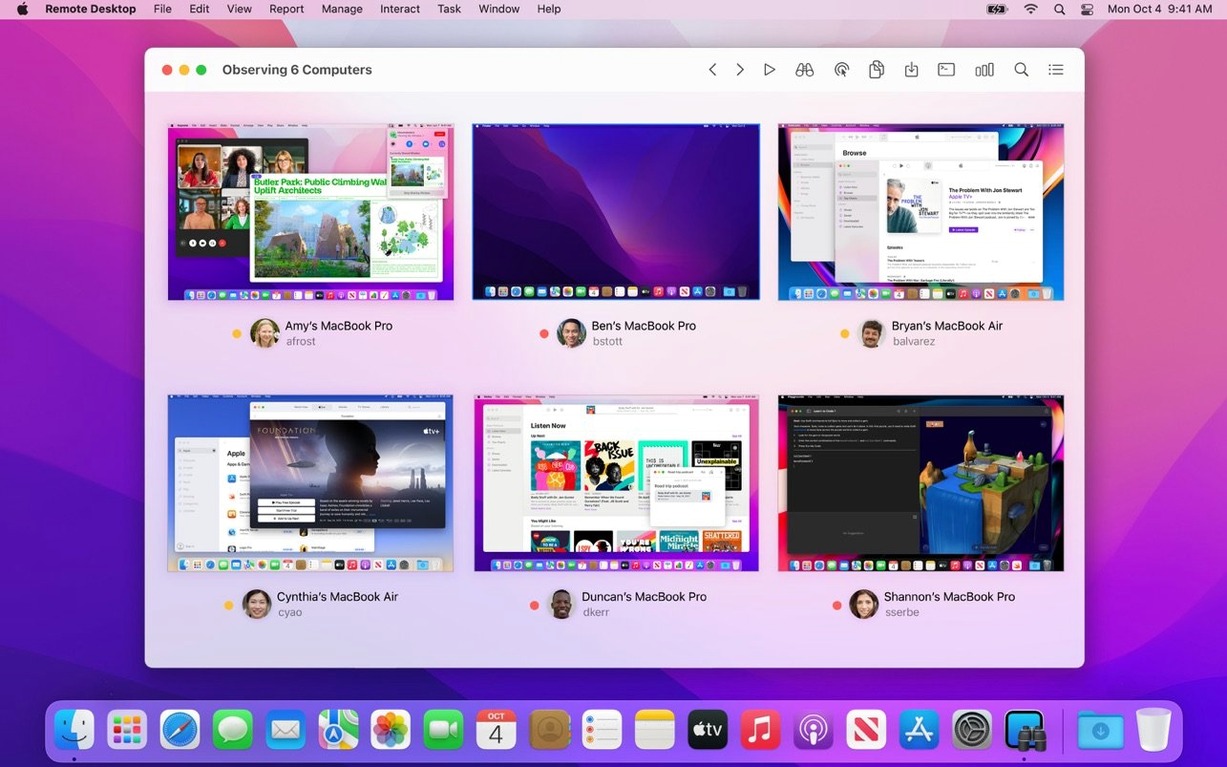
A single Mac is easy to maintain. A lab with 30 of them, spread across two floors, is a different problem entirely. Apple Remote Desktop is Apple's remote management tool designed for exactly that scenario — viewing, controlling, and administering multiple Mac computers over a local network from one administrator's screen.
Accessibility and Remote Keyboard toolbar items on Tahoe
Version 3.10 is a compatibility release built around macOS Tahoe 26. On machines running that OS or later, the update adds dedicated Accessibility and Remote Keyboard items to both the menu bar and the toolbar. A more significant addition is VoiceOver support for a remote Mac session — the screen reader can now work across the connection on a Tahoe 26 host. The release also includes the usual round of bug fixes and performance improvements.
Lock, wake, or shut down an entire lab with one command
- Classroom and lab supervision. Report user logins and application usage across every managed machine. Lock screens, sleep, wake, restart, or shut down an entire room with a single command.
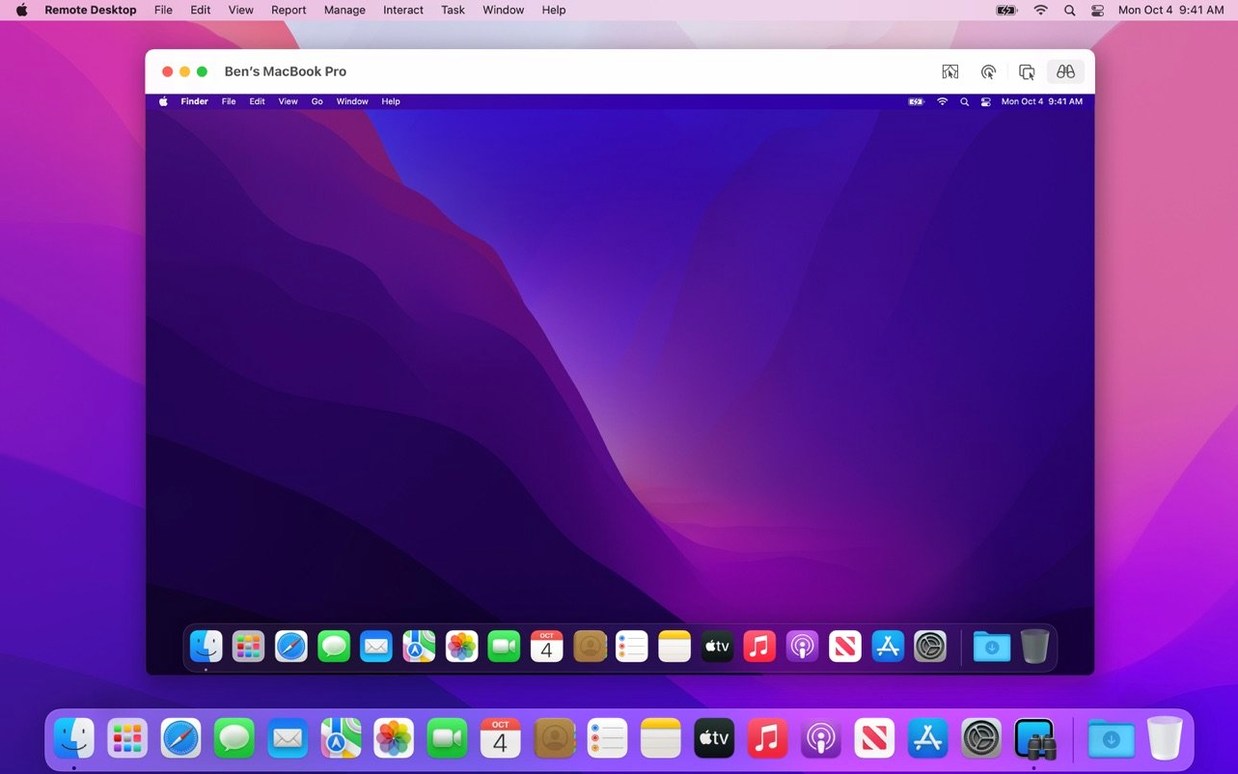
- Remote troubleshooting. Control a colleague’s Mac directly, run terminal commands, or use remote Spotlight search to find a mislaid file without interrupting them.
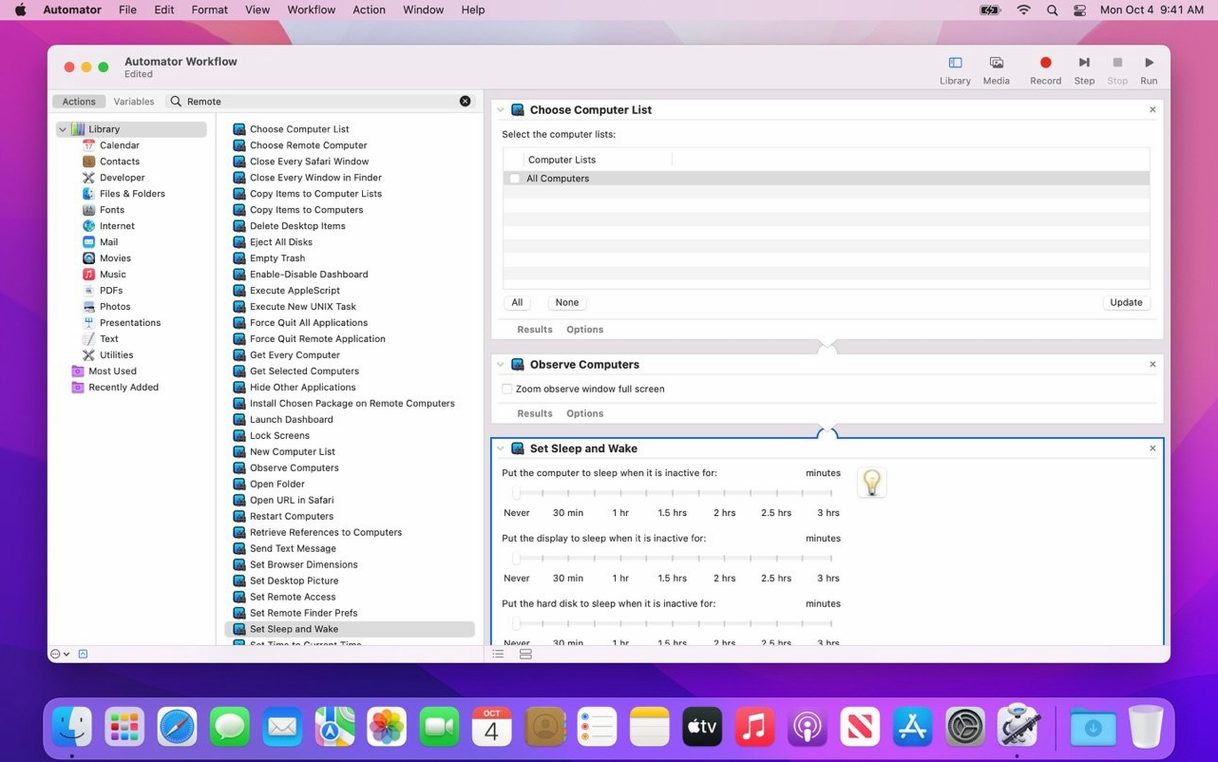
- Repetitive admin work. Automate tasks with over 40 built-in Automator actions. Drag-and-drop file transfer between machines cuts out the middle step of a shared server.
Full control requires the Remote Desktop Client on every Mac
- The Remote Desktop Client must be installed on every Mac you want to manage for full control.
- Version 3.10 requires macOS 15.5, and several of its new features only appear when the remote Mac runs macOS Tahoe 26 or later.
- The app is built for network administration, not single-machine remote access — the client setup overhead only makes sense when managing multiple computers.
Administering ten to a hundred Macs in a single session
Apple Remote Desktop is not a general-purpose screen-sharing tool. It earns its place when an administrator needs to touch ten, twenty, or a hundred Macs in a single session. The people who extract the most value tend to fall into three groups.
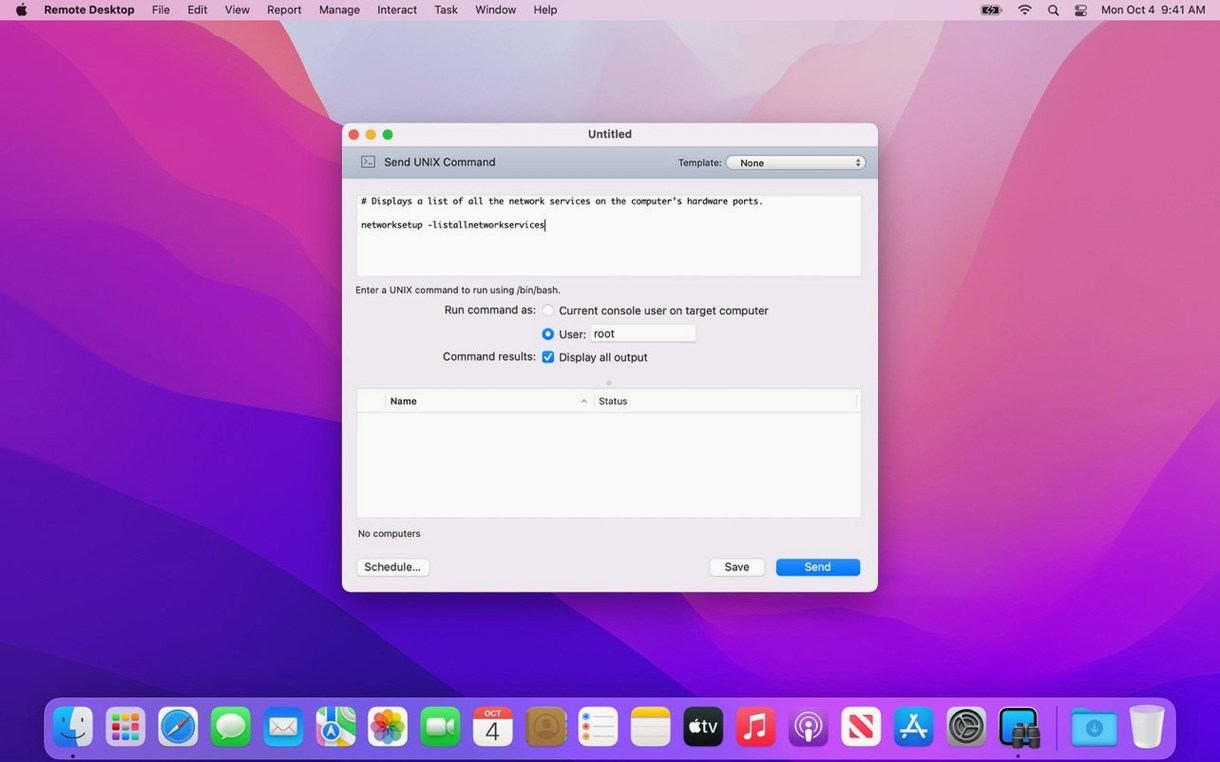
In-house IT and help desk teams are the core audience. When a support ticket reads "my screen looks odd" or "the printer is missing," remote control with copy-and-paste between machines means the fix often takes 90 seconds instead of a walk across campus. The ability to run a single UNIX command on every machine in a department — flushing DNS caches, restarting a misbehaving daemon — turns a morning of repetitive typing into one action. Curtain Mode adds a layer of privacy during sensitive maintenance: the user sees a blank screen or a lock message while the administrator works, which matters in medical labs, finance offices, and exam rooms.
School and university lab managers benefit from the reporting engine. With over 200 hardware characteristics available, a single report can answer "which iMacs still have spinning hard drives" or "how many machines dropped below 8 GB of RAM." Application usage reports show whether the statistics software the faculty bought is actually being launched. Scheduled wake and shutdown commands save power across holiday periods without asking anyone to walk the rooms.
Developers and testers running small Mac fleets — build machines, test boxes, a CI runner in the corner — use the file distribution features to push new builds and configuration profiles to several machines at once. Encrypted package copying means test builds stay off public shares. The Automator actions let a single script trigger a deploy, run a test, and gather the logs from three different Macs, all without leaving the primary workstation.
Clients not appearing in the scanner after setup
Most friction with apple remote desktop 3.10 comes down to network discovery, client configuration, or expectations about cross-platform control.
Clients not appearing in the scanner. The Remote Desktop Client runs as a background process, but it needs to be enabled on each managed Mac. In System Settings under General > Sharing, Remote Management must be turned on, and the appropriate administrator accounts added to the access list. If a machine was set up from a clean install and nobody enabled the service, it simply will not show. Bonjour discovery also relies on the local network — machines on different VLANs or isolated Wi-Fi segments may require manual entry by IP address.
Authentication loops. When a remote Mac keeps rejecting valid credentials, the culprit is often a mismatch between the administrator account specified in Apple Remote Desktop and the account authorised on the client. The client's access list is per-user, not a blanket "any admin" setting. Adding the exact short username in the Remote Management pane on each client resolves this quickly.
Sluggish remote control. Apple Remote Desktop uses Apple Screen Sharing as its underlying protocol, which adapts to available bandwidth. On a congested Wi-Fi network, dropping the colour depth and disabling the remote desktop background image makes a measurable difference. The View menu includes quality settings that let an administrator trade visual fidelity for responsiveness. Wired connections between the admin machine and key managed hosts remove the variable entirely.
VNC-only limitations. The app can connect to VNC servers on Windows, Linux, and UNIX systems, but the feature set shrinks to basic screen sharing and keyboard input. No software distribution, no reporting, no Curtain Mode, and no command execution. It becomes a straightforward VNC viewer with Apple's interface. For mixed-platform environments, this is worth knowing before relying on apple remote desktop as a single-pane solution.
Shared Screen Sharing protocol with Messages and the built-in app
Apple Remote Desktop draws on several macOS subsystems rather than re-implementing them. The remote control engine is the same Screen Sharing protocol used by the built-in Screen Sharing app and the Messages screen-sharing feature. This means an administrator can start a session in Messages for a quick look and escalate to Apple Remote Desktop when they need multi-machine commands or Curtain Mode — both tools talk to the same client service.
Automator integration is deep, with over 40 actions that cover scanning, sending files, running scripts, and pulling reports. A common workflow chains "Find Computers" with "Send UNIX Command" and "Get System Report" — Automator runs the three steps in sequence and drops the results into a folder or a CSV file. These workflows can be saved as applications and handed to tier-one support staff who never need to open the Apple Remote Desktop interface at all.
File distribution sits alongside MDM, not against it. For organisations using Apple School Manager or Apple Business Manager with an MDM solution, Apple Remote Desktop handles the ad-hoc tasks that do not suit a configuration profile: dropping a single script onto ten machines, copying a disk image to a lab before a class, or pushing an urgent patch to offline-capable machines that will install it the moment they wake. Scheduled installation for offline computers is one feature MDM typically does not replicate without a cloud relay.
Spotlight integration works remotely — an administrator can search a managed Mac's file system from the Apple Remote Desktop console without opening a full screen-sharing session. This taps into the same Spotlight index the local user relies on, so results are fast and consistent.
Tighten the scanner refresh interval before the first scan
A fresh install of apple remote desktop 3.10 download benefits from a few adjustments before the first scan runs.
- Scanner refresh interval. The default scan frequency is set in Preferences under the Scanner tab. For networks with more than 50 machines, lengthening the interval to 10 or 15 minutes reduces broadcast traffic without affecting responsiveness — a manual refresh is always available with Command-R.
- Report data location. By default, reports stay inside the app's database. In Preferences > Reports, changing the save location to a shared folder or an external drive keeps historical data accessible outside the application and simplifies backup.
- Curtain Mode behaviour. Under the Interaction pane, set whether Curtain Mode shows a solid colour, a custom message, or the administrator's contact details. Lab managers often put their desk number here — a small touch that saves confused phone calls when a screen suddenly locks.
- Task server setup. The Task Server, configured in Preferences > Task Server, handles scheduled installs and commands for computers that are asleep or offline. Enabling it on a Mac that stays powered on and on the same network ensures deferred tasks actually execute. Without a Task Server, scheduled work targeting offline machines simply waits forever.
macOS Tahoe 26 — Compatibility added
Accessibility — Menu and toolbar items added on macOS Tahoe 26 or later
Remote Keyboard — Menu and toolbar items added on macOS Tahoe 26 or later
VoiceOver — Support for remote Mac on macOS Tahoe 26 or later
General — Bug fixes and performance improvements
- macOS 15.5 or later
- Apple Silicon or Intel 64-bit Mac
Questions on file
What are the system requirements for Apple Remote Desktop 3.10?
Version 3.10 requires macOS 15.5 or later on the administrator's Mac. For full control, the Remote Desktop Client must be installed on each managed computer.
What new features does version 3.10 add?
It adds macOS Tahoe 26 compatibility, VoiceOver support for remote Mac sessions, and Accessibility and Remote Keyboard menu and toolbar items on hosts running macOS Tahoe 26 or later.
Sign in · Create an account to add a field note.
No field notes yet. A measurement, a version, a machine — they appear after moderation.