Mac Apps
AnyTrans for iOS 8.9.14
Mac AppsUpdated
| Requirement | On file |
|---|---|
| macOS | macOS 10.13 or later |
| CPU | Intel 64-bit |
| Download | 398 MB |
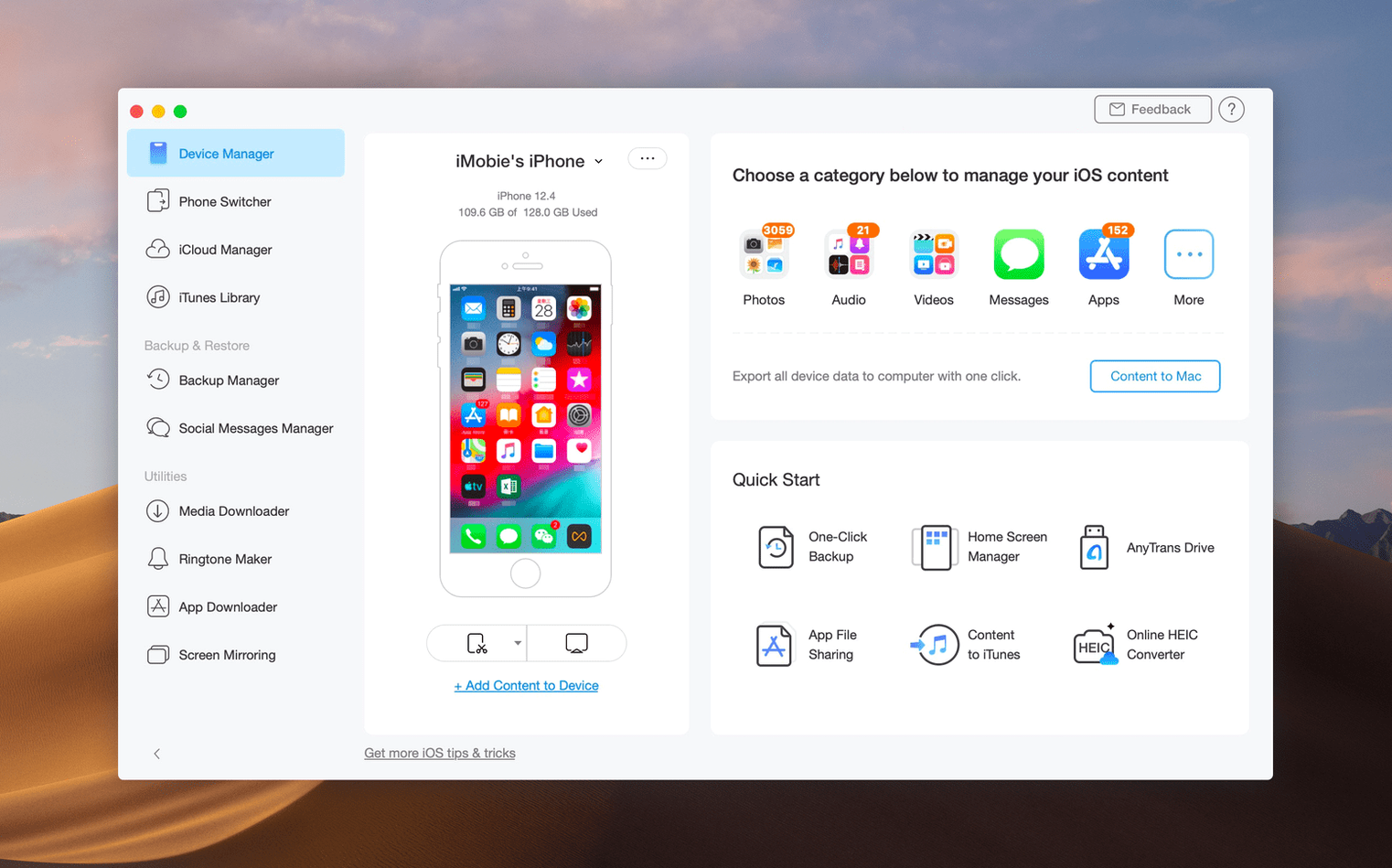
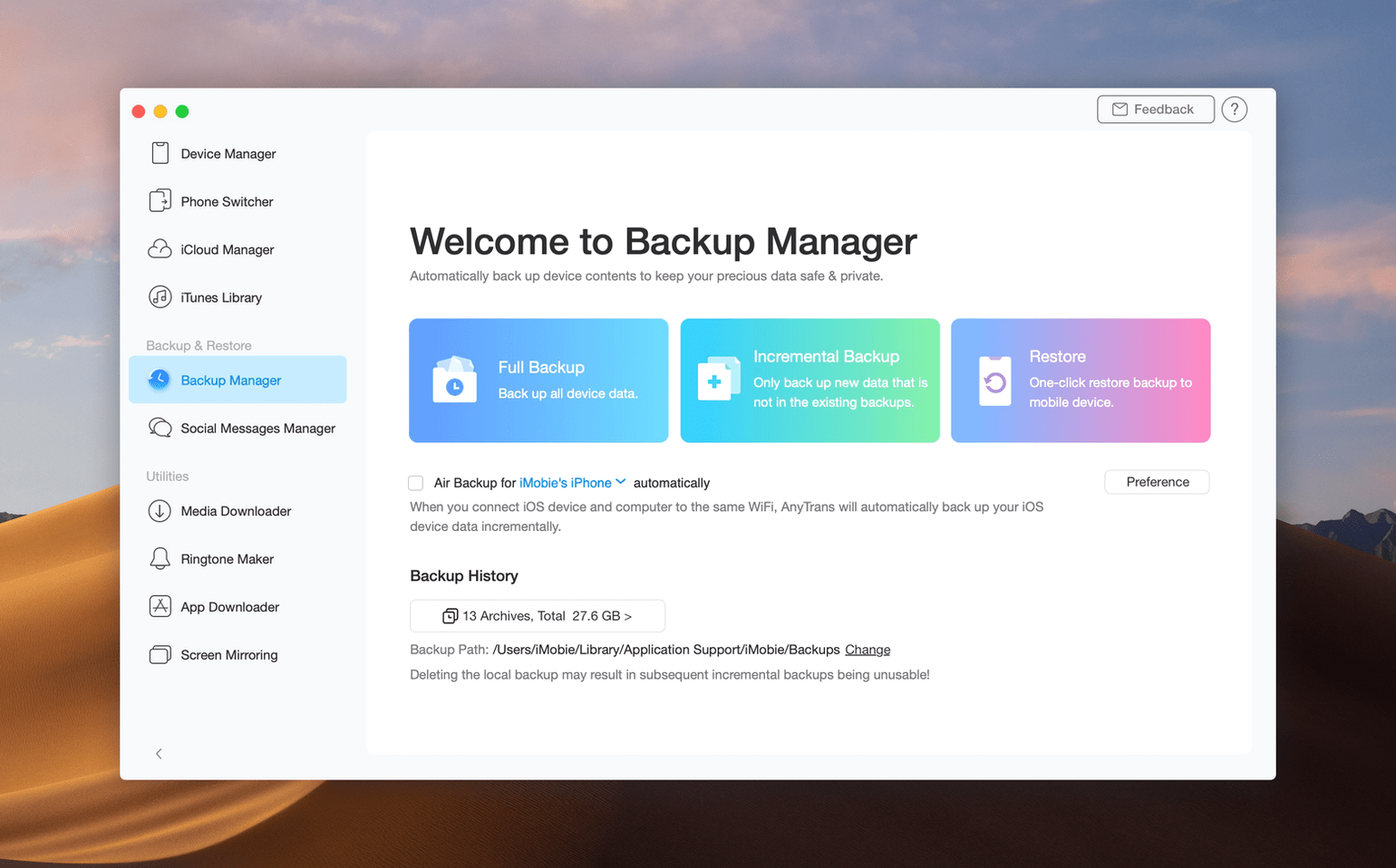
AnyTrans is a Mac application that consolidates iPhone, iPad, and iPod content management into a single USB-connected utility, handling transfers, backups, and direct device-to-device migration without requiring a full iTunes sync.
Move Content Between Devices
Select files on an iPhone and push them straight to an iPad or a Mac folder. The device manager lets you pick an exact destination for each transfer, covering photos, music, messages, and contacts.
Pull Down iCloud and iTunes Data
Log into iCloud inside the app to save files, photos, and notes locally on your Mac, or browse an existing iTunes library and extract specific tracks and playlists without a full restore.
Grab Media from Websites
The built-in downloader pulls audio and video from more than 900 sites directly into your library, ready for conversion and transfer to any connected iOS device.
Workflow: Migrating from an Old iPhone to a New One
Setting up a new iPhone usually means either restoring a full backup or starting fresh with bits and pieces pulled from iCloud. AnyTrans takes a third route, one that lets you pick exactly what moves across and leaves the cruft behind.
Start by connecting both iPhones to the Mac via USB. The device manager recognises them as two separate sources — old on the left, new on the right. Unlock both screens and trust the computer on each when prompted.
Select the old iPhone as the source. The category list populates with everything the app can read: photos, music, contacts, messages, call history, notes, calendar entries, voice memos, and even ringtones. Tick the categories you want. For most migrations, photos and messages make up the bulk, but leaving out old call logs and Safari bookmarks keeps the new device clean.
Under messages, AnyTrans offers a granular view — individual conversations with timestamps and attachment counts. You can deselect group chats that ballooned to 4 GB of memes without losing the important one-on-one threads. Same for photos: the app groups by album, so dumping the "Screenshots" folder while keeping "Favourites" takes two clicks.
Hit the transfer button and the app begins a direct device-to-device copy. The data flows through the Mac but does not land on its drive as a temporary backup. A progress bar tracks each category. The whole process for 30 GB of mixed content takes roughly 12 to 18 minutes over USB 3.0, depending on how many small files are in the message database.
When the transfer finishes, the new iPhone shows the content in the stock apps — photos in Photos, messages in Messages, contacts in Contacts. No extra app needed on the phone. The old device remains untouched, still holding all its data exactly as it was.
What About Apps and App Data?
AnyTrans does not transfer .ipa files or app sandbox data between devices. Apps redownload from the App Store on the new iPhone. For apps that store documents locally, the file manager inside AnyTrans can copy those documents to the new device if the app exposes them through iTunes File Sharing, but most modern apps sync through their own cloud accounts anyway.
Bypassing the “Trust This Computer” Dead End
Three problems come up often enough to deserve a mention.
Device not recognised after connecting. Unlock the iPhone and check for the "Trust This Computer" dialogue. If it does not appear, unplug the cable, wait five seconds, and reconnect. On the Mac side, open System Information → USB and confirm the iPhone appears. If it does, but AnyTrans still shows nothing, quit the app completely and relaunch it. Background instances sometimes hold a stale connection handle.
iCloud sign-in loops. Two-factor authentication can trip up the iCloud module. When the verification code arrives on a trusted device, enter it in the AnyTrans pop-up, then wait a full 30 seconds before clicking Continue. The app sometimes needs that pause to finalise the session token. If it loops again, sign out of iCloud inside AnyTrans, restart the Mac, and sign in from scratch.
Media downloader grabs the wrong format. The downloader defaults to the highest available resolution for video. On sites that serve multiple streams, it occasionally picks a VP9-encoded version that iOS cannot play. Before queuing a download, click the format dropdown next to the URL and select an H.264 variant — 720p or 1080p — to guarantee playback on the target device.
Picking a Side in iMazing, DearMob, and MobiMover
Three other utilities cover overlapping ground: iMazing, DearMob iPhone Manager, and EaseUS MobiMover. Each approaches iOS data management differently, and the right pick depends on which tasks dominate a user's routine.
AnyTrans vs iMazing
iMazing focuses heavily on backup architecture — automatic, scheduled, encrypted, with a deep restore engine that can extract single files from a backup image. AnyTrans matches it on manual transfers and overtakes it on cross-platform migration (Android to iPhone) and media downloading, two areas iMazing does not touch. Where iMazing pulls ahead is backup automation: AnyTrans handles backups manually, so users who want a hands-off daily snapshot to an external drive will find iMazing a better fit. For one-off migrations and granular file management, AnyTrans covers more ground with less setup.
AnyTrans vs DearMob iPhone Manager
DearMob leans into photo management — RAW conversion, HEIC handling, and album organisation are its strong points. AnyTrans handles photos competently but does not include format conversion tools. In return, AnyTrans adds iCloud account-to-account transfers and the website media downloader, neither of which DearMob offers. Someone who shoots a lot of RAW on an iPhone and edits on a Mac might lean toward DearMob. Someone managing multiple iCloud accounts across devices will find AnyTrans the more versatile tool.
AnyTrans vs EaseUS MobiMover
MobiMover pitches itself as a free transfer utility with a paid upgrade for advanced features. Its free tier covers basic photo and contact transfers, which is enough for quick jobs. AnyTrans goes further on every axis — message management, ringtone handling, iCloud integration, device-to-device migration — but does not have a free tier with comparable scope. Users who need a one-time dump of photos from an old iPhone to a Mac can get by with MobiMover. Users who migrate phones regularly or juggle iCloud and iTunes libraries get more utility from AnyTrans on day one.
The iTunes Duties AnyTrans Won’t Take Over
Does AnyTrans replace iTunes entirely? It replaces most of what people use iTunes for — transferring music, photos, and files, managing backups, and moving data between devices. It does not handle iOS software updates or restores in DFU mode. For those, iTunes (or Finder on newer macOS releases) remains necessary. Think of AnyTrans as a management layer that sits on top of the device connection iTunes provides, not a removal of the underlying framework.
Will it work with an iPad and an iPhone at the same time? Yes. The device manager shows all connected iOS devices simultaneously. You can have an iPad, an iPhone, and an iPod touch plugged in and switch between them without unplugging anything. Transfers between two devices — say, iPhone to iPad — run directly through the Mac's USB bus without involving iCloud or iTunes as middlemen.
Does the media downloader work with any site? The app lists over 900 supported sites, which covers most major video and audio platforms. It cannot download from services that require DRM licence verification (like paid streaming platforms) or sites that serve content exclusively through encrypted adaptive bitrate streams with authentication. For the typical use case — grabbing a video from a publicly accessible page to watch offline on an iPhone — it works reliably as long as the format is set correctly before queuing.
Is an iCloud account required? No. USB transfers work without any iCloud sign-in. The iCloud module is optional and only needed if you want to browse iCloud Drive, pull down photos from iCloud Photo Library, or migrate content between two iCloud accounts.
A Photographer's Saturday Clean-Up
Maya shoots food photography on an iPhone 14 Pro and stores the finished edits on an iPad Pro where she does client selects. Every few weeks, her devices drift out of sync — some RAWs only on the iPhone, some final JPEGs only on the iPad, and a handful of exported TIFFs sitting in iCloud Drive without local copies.
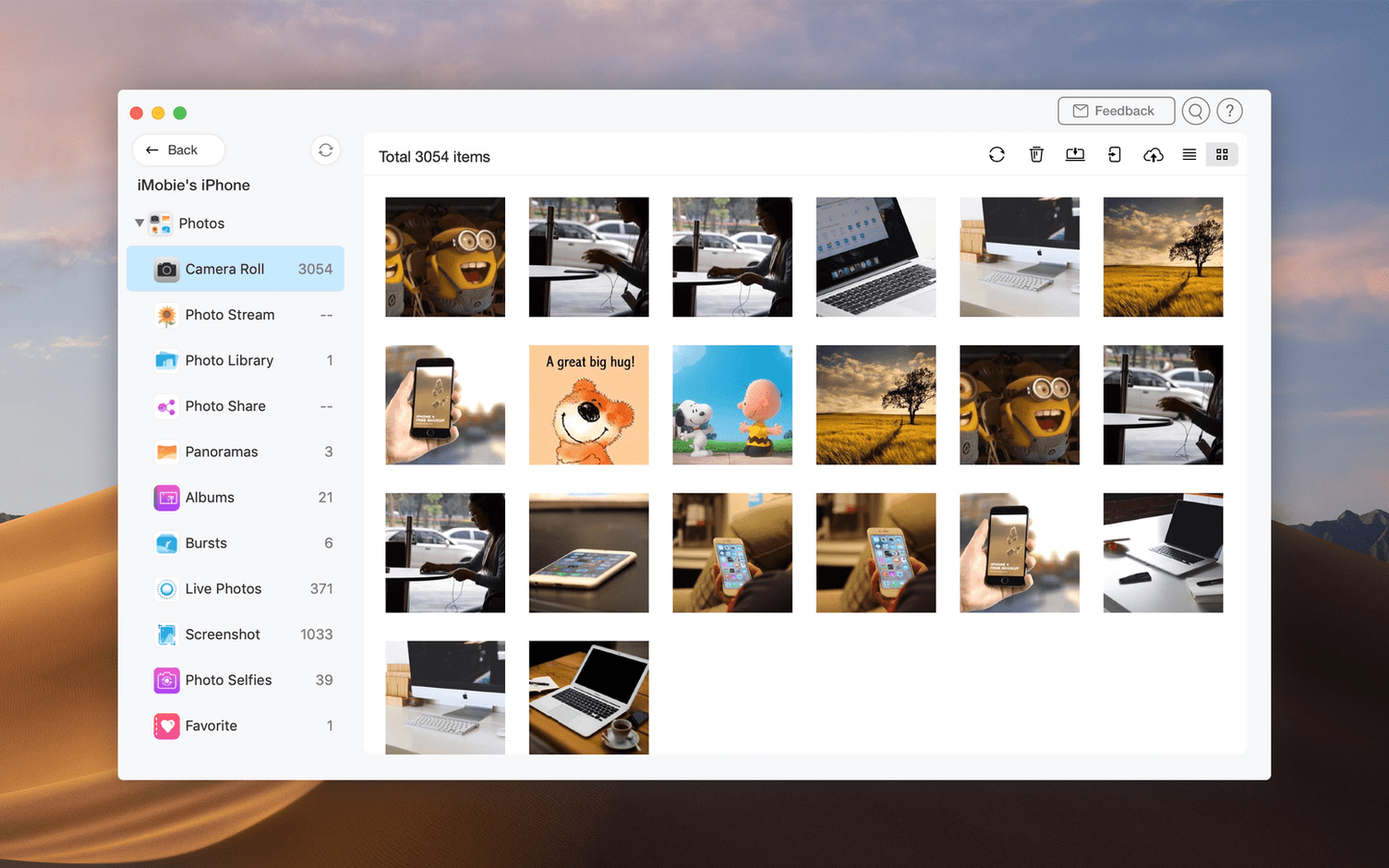
On a Saturday morning, she plugs both devices into her Mac. AnyTrans shows them side by side. She opens the photo section on the iPhone, sorts by file type, and selects only the RAWs from the last three shoots. Destination: a folder on the Mac's external SSD, not the iPad. Those RAWs are for archival, not for the client gallery.
Next, she switches to the iPad as source, navigates to the "Client Exports" album, and copies the finished JPEGs back to the iPhone — the client wants to see them on a phone screen before signing off, and AirDrop keeps timing out on 400-image batches. The transfer runs over USB and finishes in under two minutes.
Finally, she opens the iCloud module, signs in, and pulls down three TIFFs she edited on the go and saved to iCloud Drive. They land in a "Pending" folder on the Mac desktop. She drags them into the external SSD archive manually. Total time from plugging in to sitting down with coffee: about 20 minutes, and every file is exactly where she needs it.
- macOS 10.13 High Sierra or later
- Intel processor
- USB connection for iOS device transfers
Questions on file
Does AnyTrans work with the latest version of macOS?
The current version 8.9.14 runs on macOS 10.13 High Sierra and later, on Intel-based Macs.
Can I transfer data from an old iPhone to a new one with AnyTrans?
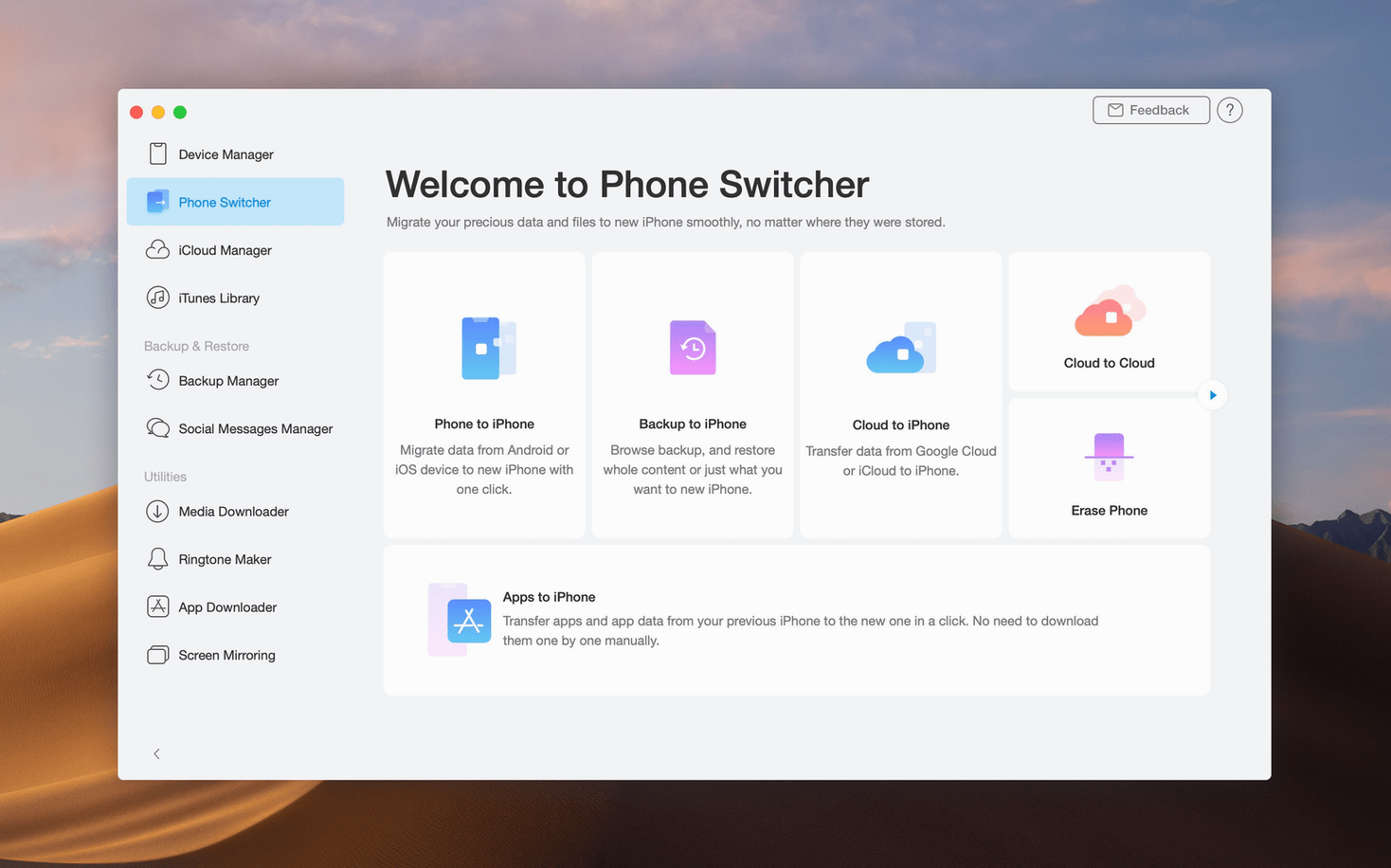
Yes, you can connect both devices to your Mac and move selected files, settings, or a full clone from one iPhone directly to the other over USB.
Sign in · Create an account to add a field note.
No field notes yet. A measurement, a version, a machine — they appear after moderation.