Mac Apps
Airflow 3.3.10
Mac AppsUpdated
| Requirement | On file |
|---|---|
| macOS | macOS 10.12 or later |
| CPU | Intel 64-bit |
| Download | 69 MB |
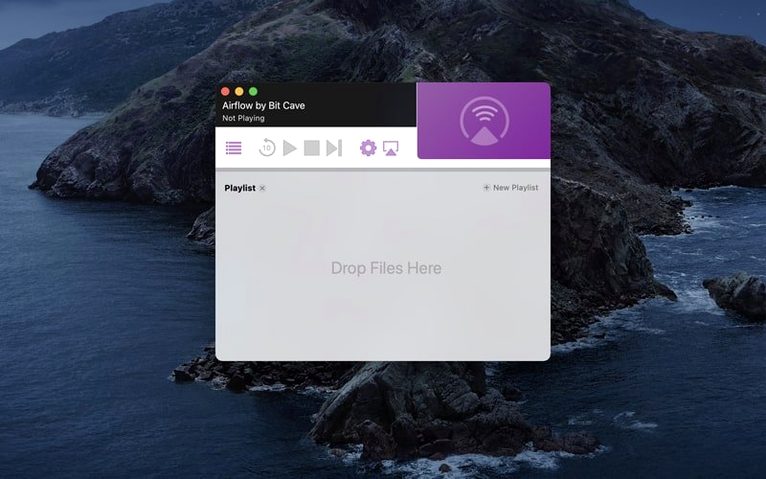
Airflow is a direct-to-Chromecast video player that pipes locally stored files from your Mac to the big screen without transcoding everything in advance. It’s built for people who have a folder of video files and a Chromecast plugged into a TV or projector, and want playback to start in seconds. Drag one or more files into the window, pick a Chromecast from the device list, and hit play. That is the entire workflow.
| Detail | |
|---|---|
| Current version | 3.3.10 |
| macOS requirement | 10.12 or later |
| Architecture | 64-bit Intel |
| Interface language | English |
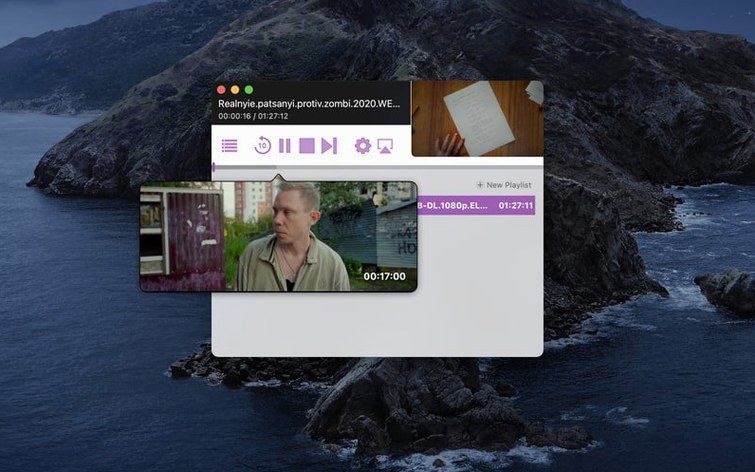
The app handles the codec negotiation quietly—if the Chromecast can play the file natively, Airflow sends it as is; if not, it transcodes on the fly. The interface stays out of the way, showing a playlist, a scrubber, and basic playback controls. There is no library management, no metadata scraping, and no media server to configure. It targets a narrow use case—get a video from the Mac to the TV with the fewest clicks—and sticks to it.
How Airflow Sits in the macOS Ecosystem
Airflow does not attempt to replace QuickTime Player, VLC, or IINA for on-screen playback. Its role is specific: it bridges local files and a Chromecast target. As a result, it coexists with other media tools rather than competing with them. A typical setup has Airflow handling the cast step while something else—Finder tags, a manual folder structure, or a dedicated media manager—organises the source files.
macOS integration is light but functional. Drag and drop works from Finder and from apps that support dragging file references, such as ForkLift or Path Finder. The standard Open With menu in Finder can route a video file to Airflow, which launches the app and adds the file to the playlist in one step. This makes it straightforward to set Airflow as the default handler for a specific file type—say, MKV—if casting is the primary use for that format. The app also registers itself with the Share menu in Finder, though the behaviour is identical to drag-and-drop: the file lands in the queue, and playback waits for a device selection.
One limitation worth noting: Airflow does not appear as a system-wide audio or video output device. You cannot select it from the macOS Sound menu or from an app’s output selector. It works strictly with files, not with system audio streams or screen mirroring. For desktop casting, Chrome’s built-in Cast feature or a dedicated screen-mirroring tool remains necessary. Airflow’s scope is file → Chromecast, and that focus keeps it simple but also sets clear boundaries.
Elmedia, VLC, and Soda Player’s Diverging Chromecast Approaches
Three apps occupy overlapping territory on macOS: Elmedia Player, VLC (with its built-in renderer), and Soda Player. Each approaches Chromecast streaming differently.
Elmedia Player is the most direct comparison. It streams local video to Chromecast, handles a wide range of codecs, and can also cast audio and stream online videos. Elmedia bundles a full desktop player—you watch on the Mac as well as cast—which makes it a two-in-one tool but also a heavier app. Airflow strips out the local player entirely. The TV is the only screen that matters. For someone who already uses IINA or mpv for desktop viewing and only wants a dedicated casting layer, Airflow’s single-purpose design feels leaner. Elmedia’s advantage is broader format support for streaming sources (YouTube, Dailymotion) and built-in subtitle download, neither of which Airflow offers.
VLC added Chromecast support several versions ago via its Renderer menu. It works, but the experience is inconsistent across releases. Some builds drop the device mid-stream; others struggle with seek latency. VLC’s strength is its codec library—it can play almost anything—but casting is a secondary feature bolted onto a full media player. Airflow treats casting as the primary function, so the queue management and device selection are front and centre. VLC requires opening the file in the player, then navigating to Playback → Renderer → device. Airflow lands on the device list with the first drag.
Soda Player was a popular alternative for Chromecast and Apple TV streaming, with a clean interface and support for torrent playback. Development stalled, and the app is no longer actively maintained. Users hunting for an airflow 3.3.10 torrent that works reliably on current macOS versions will find Soda Player increasingly unstable. Airflow 3.3.10, by comparison, runs on macOS 10.12 and later on Intel hardware and handles modern Chromecast firmware without workarounds. The torrent streaming feature that drew people to Soda Player is absent in Airflow, which stays focused on local files.
A Real-World User Scenario
Consider a university lecturer in a department that never upgraded from a 2017 iMac. The lecture hall has a projector with a Chromecast plugged into the HDMI port, and the Wi-Fi network is a separate SSID that both the Mac and the Chromecast join. The lecturer keeps seminar recordings in a folder organised by date: 45-minute H.264 MP4 files, each around 2 GB.
Before a seminar, they open Airflow, drag the day’s file from a USB-C external drive, and select the lecture-hall Chromecast from a list that usually shows only one device. Playback starts within a few seconds—no mirroring latency, no cable hunt, no audio-routing problems. The scrubber lets them jump to a specific timestamp when a student asks about a point made 20 minutes in. After the session, they close Airflow. No library to clean up, no play history to manage. The simplicity matches the rhythm of the task.
Task Workflow: Casting a Multi-File Playlist
This walkthrough covers a common scenario: queueing several short video clips for a presentation or a group viewing session, all from a single folder, with manual ordering and no interruptions.
- Prepare the source folder. Gather the video files in a Finder window. In this example, five MP4 clips ranging from 90 seconds to 6 minutes, each named with a leading number for sort order:
01-intro.mp4,02-process.mp4, and so on. - Launch Airflow. The app opens to an empty playlist and a device picker on the right side. If the Chromecast is already powered on and on the same network, it appears in the list within a few seconds.
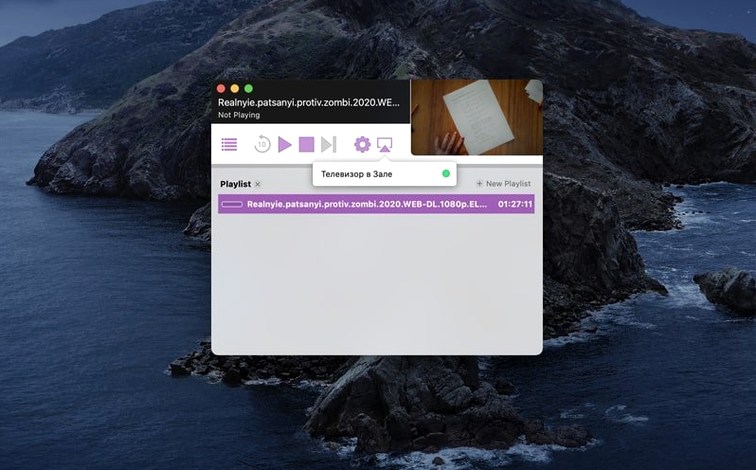
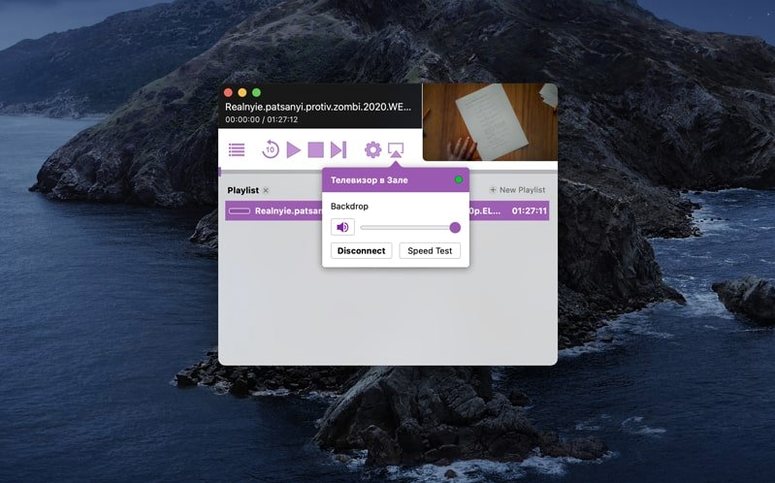
- Select the target Chromecast. Click the device name—say, “Living Room TV.” Airflow connects and shows a ready state, often with the Chromecast’s backdrop visible on the TV.
- Drag the files into the playlist area. Select all five clips in Finder and drop them onto the Airflow window. The playlist populates in the order the files were selected. If the sorting is wrong, reorder by dragging individual rows up or down within the playlist.
- Review codec compatibility. Airflow indicates next to each file whether it will direct-play or transcode. For H.264 in MP4 containers, it typically shows a direct-play badge. A stray MKV with an older codec might trigger a transcode flag, which adds a small CPU load but no manual intervention.
- Start playback. Double-click the first file in the playlist or press the play button. The TV begins playback. Airflow’s window shows a scrubber, elapsed time, and next-track preview.
- Manage the queue during playback. Add or remove files while the current clip plays without stopping the stream. Drag a late addition to the end of the queue; it slots in silently. To skip a clip, select the next one in the list and double-click—the transition takes roughly one to two seconds on a stable network.
- End the session. When the last clip finishes, the Chromecast returns to its idle backdrop. Close Airflow or leave it open for a second round. No eject step, no dismount.
- macOS 10.12 or later
- 64-bit Intel Mac
Questions on file
Can Airflow play torrent files directly?
Airflow streams video files that are fully downloaded on your Mac; it does not open .torrent files or magnet links, but you can drop a completed video file from a torrent client into the app for Chromecast playback.
Sign in · Create an account to add a field note.
No field notes yet. A measurement, a version, a machine — they appear after moderation.