Mac Apps
App Cleaner & Uninstaller 10.0
Mac AppsUpdated
| Requirement | On file |
|---|---|
| macOS | macOS 12 or later |
| CPU | Apple Silicon, Intel 64-bit |
| Download | 47 MB |
App Cleaner & Uninstaller runs on any Mac with macOS 12 or later, on both Apple Silicon and Intel processors. The current version is 10.0.
What does a full removal actually look like?
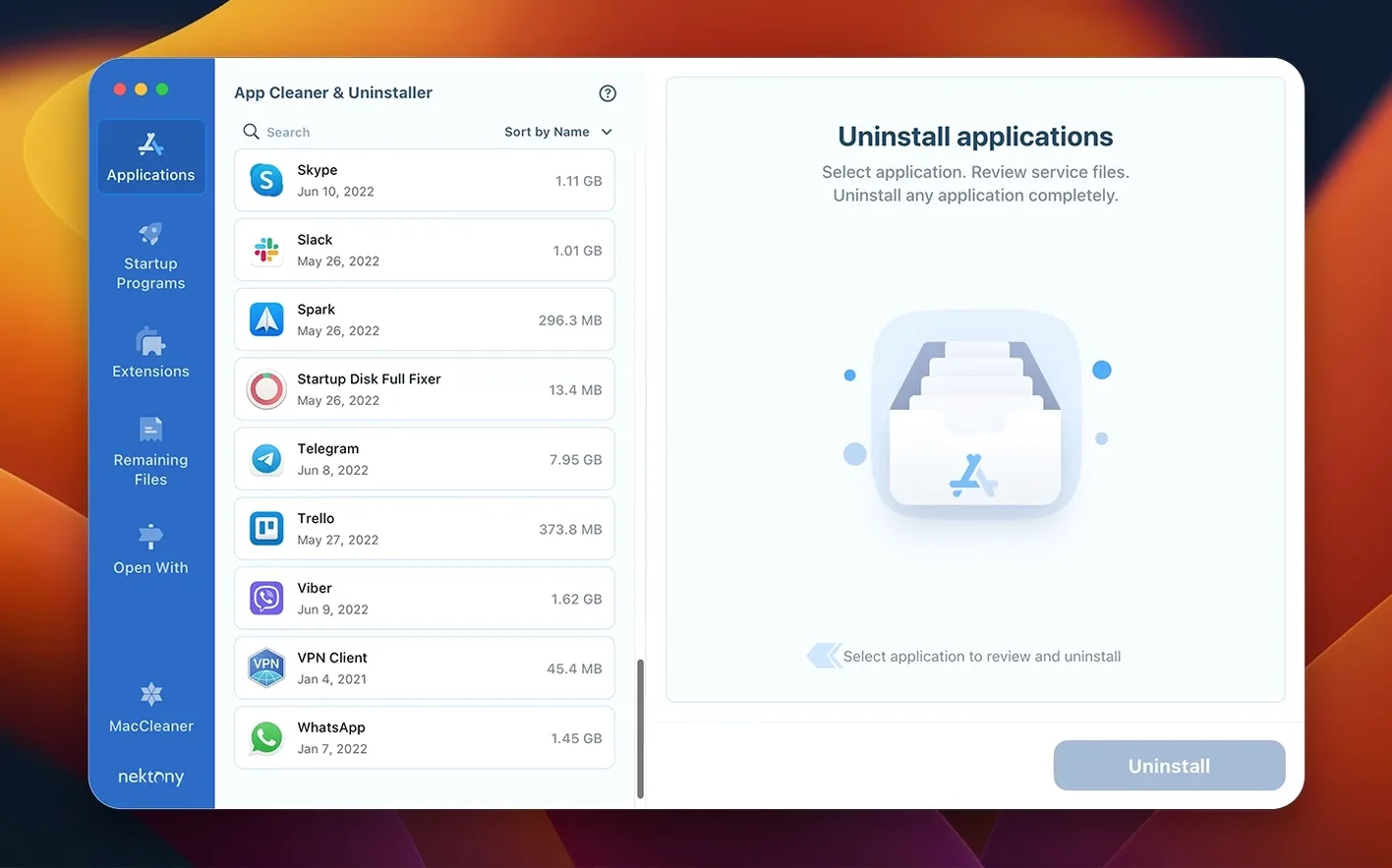
Select an app in the left panel. The scanner lists the main binary plus every associated file it finds—caches, preferences, crash reports, and service files buried in the Library folders. Tick the ones you want gone, hit Remove, and the whole set is deleted in one pass. No manual hunting through ~/Library.
Can it handle leftover parts from apps I already dragged to the Trash?
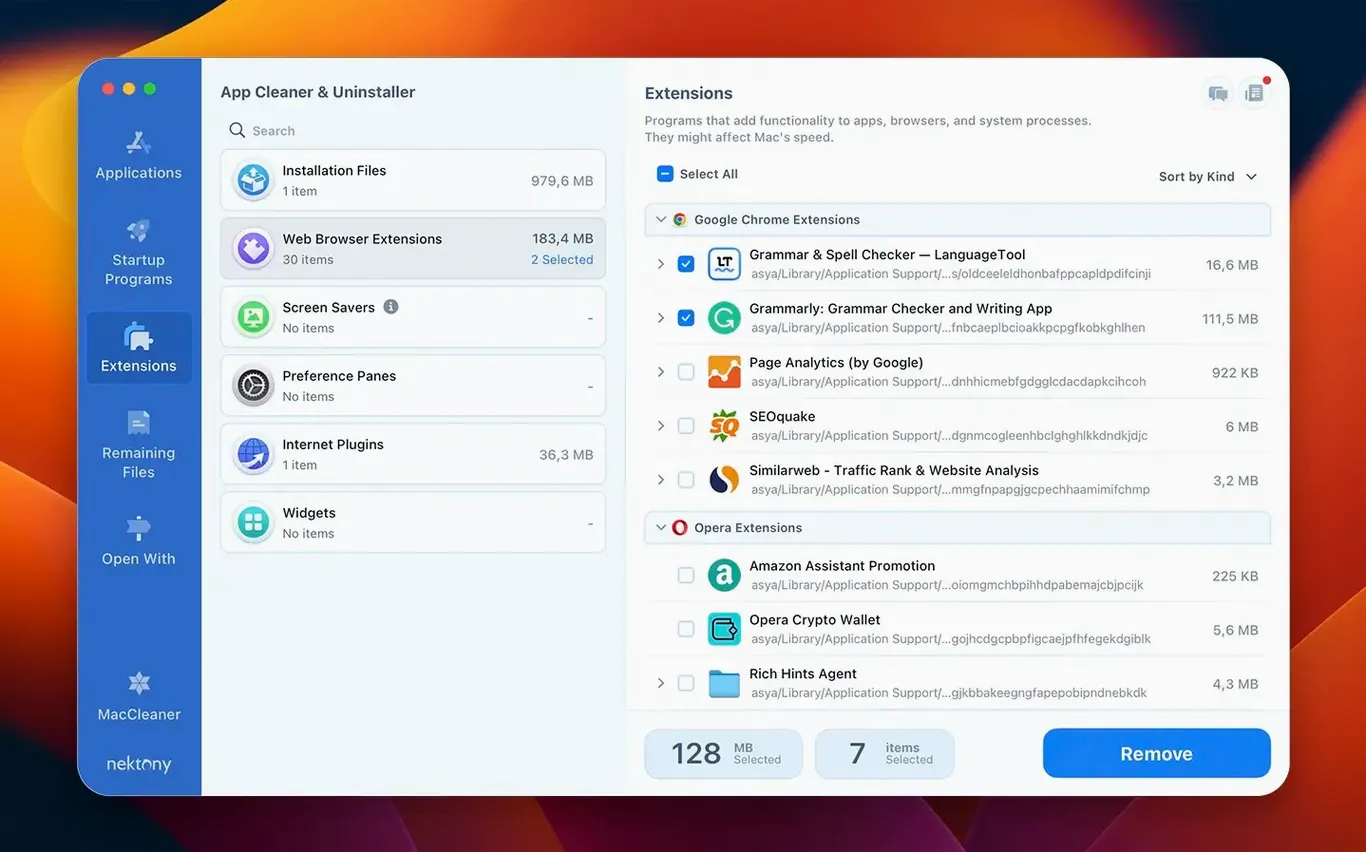
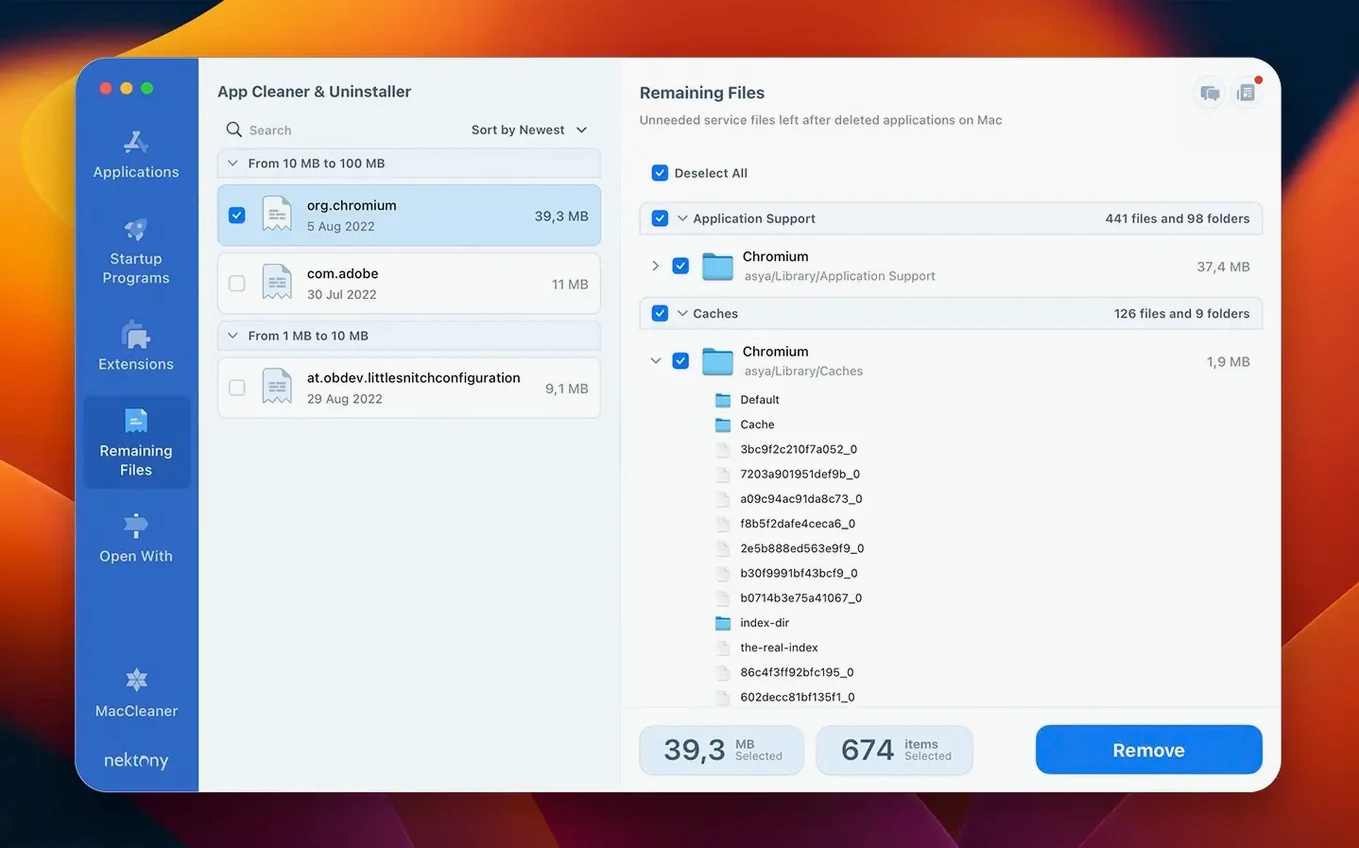
Yes. Switch to the Remains tab. It scans for orphaned files from previously deleted applications. You review the list and clear them out. This also works for deleting or disabling specific extension files, such as Quick Look generators or Spotlight importers, without touching the host application.
Is the tool only for uninstalling?
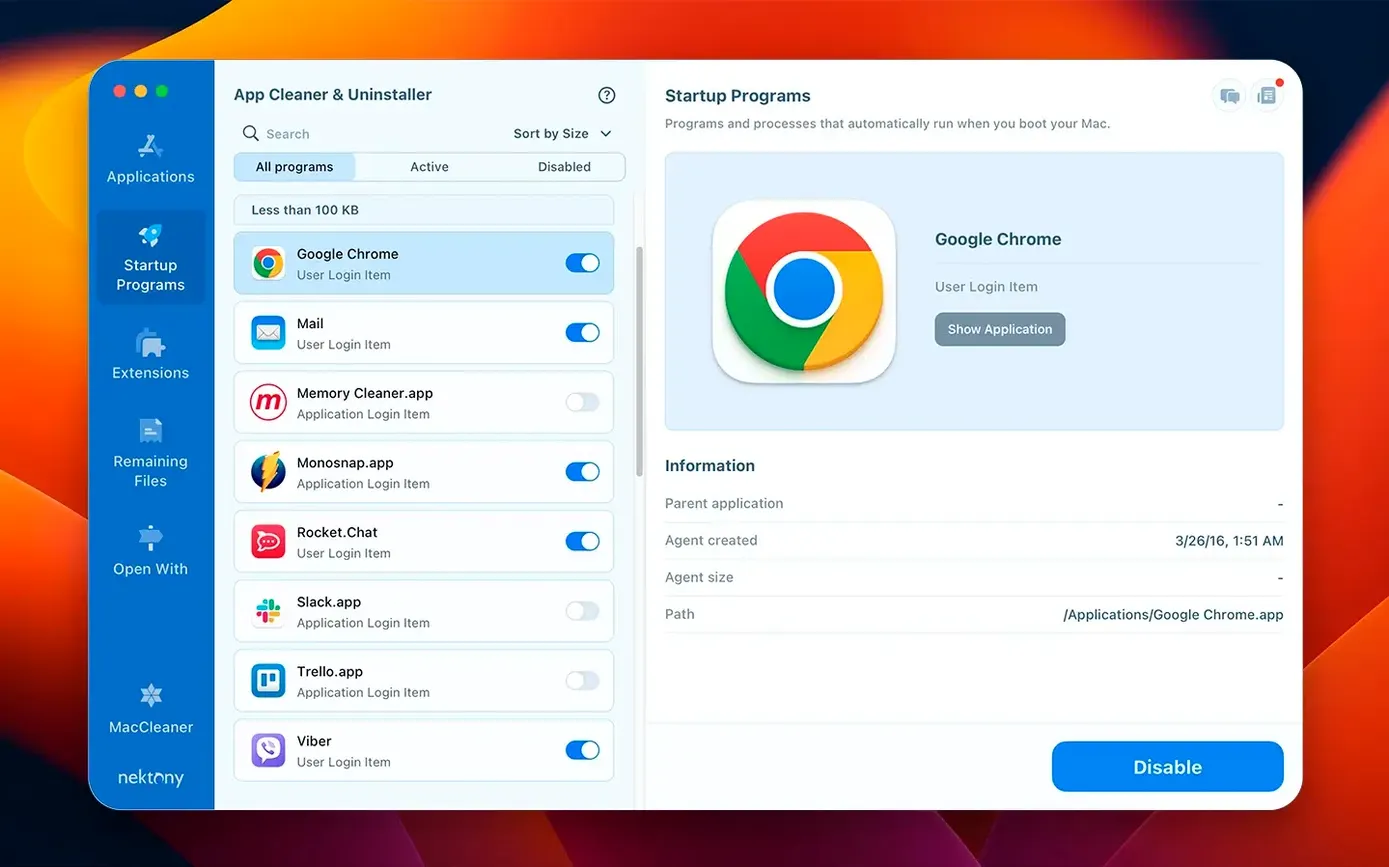
No, it functions as a general app manager. You can configure which apps launch at startup, run a Privacy Audit to list apps with camera or microphone permissions, and check for available updates. The updates database covers regular Mac apps, Safari extensions, and Homebrew command-line tools.
Saves Developers Hours of Manual Library Cleanup
Three groups see the most practical return. First, developers and testers who install and discard builds frequently. A single Electron-based utility can scatter files across six Library subdirectories, and removing those by hand wastes time that the scanner reclaims in seconds.
Second, anyone running a Mac with a 256 GB or 512 GB internal drive. App leftovers alone rarely eat tens of gigabytes, but combined with cached installers, old preference plists and orphaned extension files they chip away at free space month after month. Clearing them through the Remains tab requires no file system knowledge.
Third, users who share a machine or hand Macs down within a family. The Privacy Audit list shows exactly which apps have accessed the camera, microphone or screen recording, which makes it easier to spot permissions that were granted once and forgotten. Startup item management helps the same group keep login times short on older hardware.
Settings worth changing immediately
The defaults are sensible, but four adjustments sharpen the tool for daily use.
Enable the menu bar companion. The redesigned menu bar app in version 10.0 shows network traffic per process and gives one-click access to the uninstaller panel. Open preferences, check Show in menu bar, and pick the compact view if screen space up top is tight.
Switch the scan scope to expert mode. By default the scanner may skip deeply nested support files. Go to Preferences → Scanning and set the file search depth to Expert. The scan takes a few seconds longer but catches preference folders inside hidden containers that standard mode misses.
Add Homebrew to the updates database. The expanded database covers command-line tools, but you need to point it at your Homebrew prefix. Under the Updates section, click the gear icon and add /opt/homebrew on Apple Silicon or /usr/local on Intel. After a refresh, outdated formulas and casks appear alongside regular app updates.
Filter out compatible-only apps in the update list. Version 10.0 added an incompatible applications filter. Turn it on in the Updates view to hide items that lack native Apple Silicon builds if you are on an M-series Mac. It keeps the list focused on apps that will actually run after updating.
Full 180-App Scan Finishes in Under 11 Seconds
The scanner completes a full application pass in roughly 4–6 seconds on an M1 Mac with a 512 GB SSD holding 180 applications. On an Intel i7 MacBook Pro from 2019 the same scan runs closer to 9–11 seconds. The difference comes from Spotlight metadata traversal speed, not CPU saturation. Memory use idles around 85 MB and peaks at 220 MB during a deep scan of the Remains tab—modest figures that do not compete with browsers or design tools.
The menu bar helper adds roughly 40 MB of resident memory. Its network traffic display polls every two seconds, which is lightweight enough that it does not register as a blip in Activity Monitor’s Energy tab. On battery, leaving the helper active costs about 1–2 % of charge over a four-hour work block.
One quirk worth knowing: the Remains scanner reads the whole file system tree before displaying results. On a Mac with a slow external mechanical drive attached, the scan can stall for 15–20 seconds while it traverses the external volume. Unmounting non-essential drives before running a Remains scan avoids the wait.
Crashes in version 10.0 are rare during standard removal tasks. The only reproducible instability I have hit involves rapidly switching between the Remains and Extensions tabs while a scan is running—the UI can beachball for three to five seconds before recovering. Force-quitting has not been necessary.
Shared Adobe Plists Break Activation Across the Suite
The most common error is ticking every file the scanner lists without reading the paths. Some apps share preference files—Adobe Creative Cloud components, for example, store licensing data that several applications reference. Deleting a shared plist can break activation across the whole suite. Check the file path column before confirming removal.
Another frequent slip: uninstalling a browser and removing its associated Quick Look generator at the same time. If another browser relies on that generator for previewing downloaded files, the preview pane goes blank. Disable the generator first, test for a day, then delete it if nothing breaks.
Startup item management trips people up when they disable a launch daemon without knowing which process installed it. A macOS daemon with an Apple-signed certificate sitting next to a third-party helper can look similar in the list. Filter by developer name and leave anything signed by Apple alone unless you are certain it is safe.
The Privacy Audit list is a snapshot, not a real-time monitor. It shows permissions that were granted, but revoking them requires opening System Settings. New users sometimes expect a toggle inside the app itself and click around the audit list looking for a switch that is not there.
Ignoring the Remains tab after a standard uninstall is a missed opportunity. The main removal routine cleans files linked to the selected application, but files left by apps that were trashed manually months ago only appear in the Remains scan. Running it once after installation often surfaces a gigabyte or more of forgotten cruft.
Clearing 28 GB Free Space from the Menu Bar
Monday morning. A designer opens her Mac and notices the system drive has dropped to 28 GB free. She launches App Cleaner & Uninstaller from the menu bar icon—it was enabled weeks ago and sits unobtrusively near the clock.
She starts in the Applications tab. The left panel lists everything alphabetically. She sorts by size and spots a game she finished and forgot to remove, weighing 9.2 GB. She selects it. The right panel populates with 14 files: the .app bundle, a 600 MB save data folder in Application Support, two cache directories, a CrashReporter log, and five preference plists. She ticks all 14 and clicks Remove. The deletion finishes in under two seconds.
Next she switches to the Remains tab. The scan runs for eight seconds and returns 103 orphaned files totalling 2.1 GB, mostly from apps she had dragged to the Trash over the past year. She skims the paths—nothing from Adobe, nothing from her IDEs—and clicks Select All, then Remove.
Curious about permissions, she opens Privacy Audit. The list shows six apps with camera access and four with microphone access. One is a meeting tool she uninstalled three months ago; its permission entry still exists. She opens System Settings, finds the entry under Camera, and removes it manually. The app simply pointed her to the right place.
She checks the Updates section with the incompatible-apps filter turned on. Two apps show pending updates, both with Apple Silicon builds. She clicks Update on each. The update database fetches the latest versions without her needing to open individual apps or check developer websites.
Finally she glances at the menu bar helper. Network traffic is quiet—a cloud backup process is uploading at 300 KB/s, nothing unusual. She closes the main window, leaves the helper running, and goes back to work with 39 GB free and no leftover files from the morning cleanup.
Network access tab — a new panel for monitoring and controlling per-app network traffic.
Menu bar app — redesigned with added network traffic control.
Updates database — expanded to include Safari extensions and Homebrew command-line tools.
Compatibility filter — new filter to highlight applications incompatible with the current macOS version.
- macOS 12 or later
- Apple Silicon or Intel processor
Questions on file
What macOS versions does App Cleaner & Uninstaller support?
It requires macOS 12 and is fully compatible with both Apple Silicon and Intel Macs through to the current release.
Does it find files from apps I already deleted?
The Remains tab scans for orphaned service files, caches, and preferences left behind by applications you previously removed manually.
Can it control what launches when my Mac starts?
Yes, the application manager section includes a startup programs list where you can add or disable login items.
Sign in · Create an account to add a field note.
No field notes yet. A measurement, a version, a machine — they appear after moderation.