Mac Apps
Alcove 1.7.9
Mac AppsUpdated

| Requirement | On file |
|---|---|
| macOS | macOS 14 or later |
| CPU | Apple Silicon, Intel 64-bit |
| Download | 14 MB |
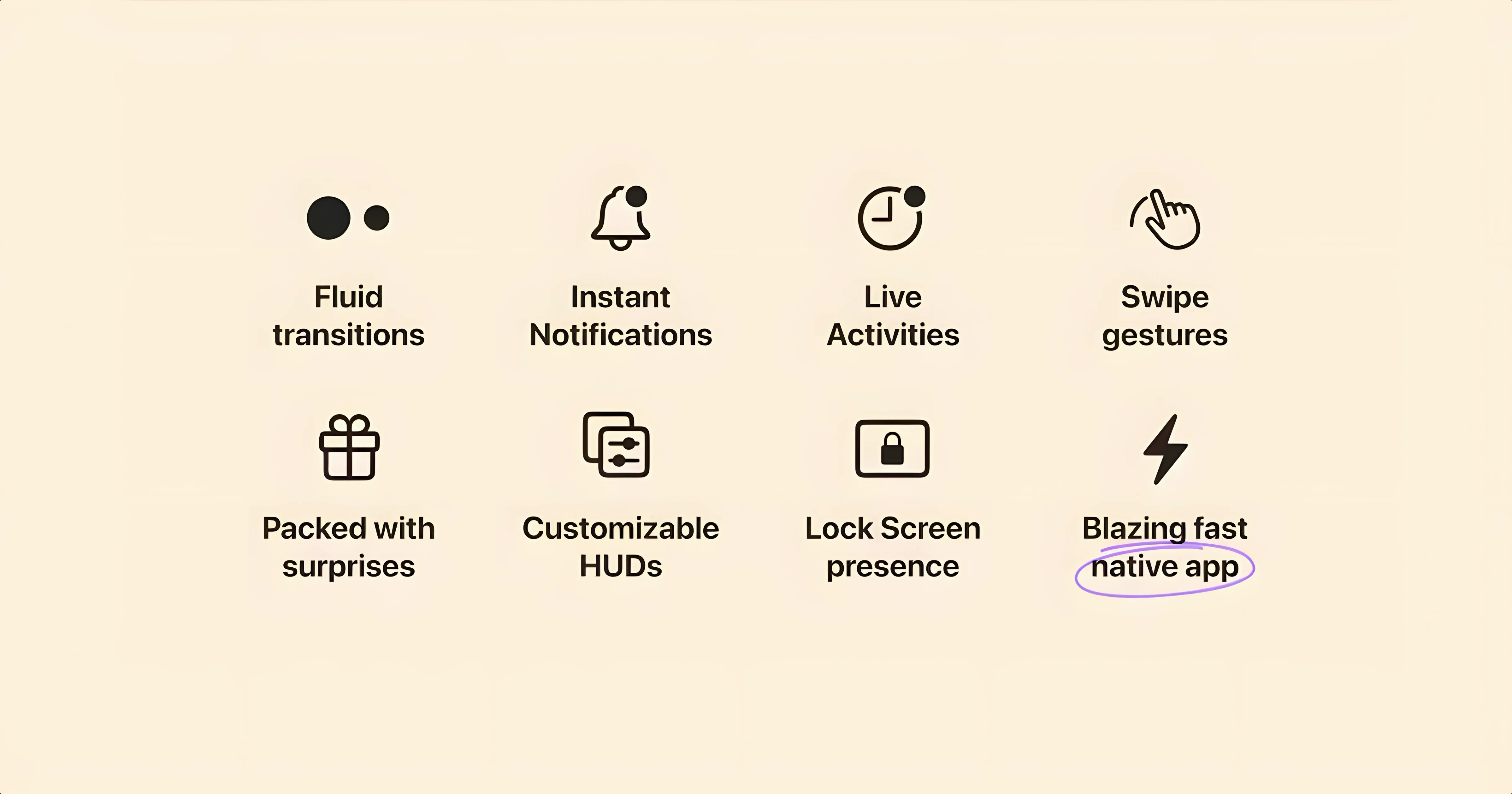
If you have used an iPhone with a Dynamic Island, the idea of a morphing black capsule that surfaces playback controls and timers is already familiar. Alcove transplants that interaction model to the Mac notch. Instead of a static cut-out, the top of the screen becomes a small interactive strip that reacts to media, notifications and system events.
Consider a straightforward task: controlling a podcast while writing. With Alcove running, the notch area shows a compact playback capsule. A click expands it to reveal a scrubber and skip buttons without pulling focus to Music or a browser tab. When a calendar alert fires, the capsule briefly switches context to show the event title and a snooze option, then returns to playback. It is one less reason to leave the keyboard and hunt for the right window.
Glanceable Controls Without a Full Player
- Keeping media controls visible without dedicating screen real estate to a full player.
- Glancing at Live Activities timers or delivery updates while working in another app.
- Reducing app-switching for quick actions like skipping a track or dismissing a notification.
Requires macOS 14 and English-Only Interface
- Requires macOS 14 or later; older systems cannot run it.
- Automatic updates should be turned off after installation to avoid unexpected changes.
- The interface is English-only at this stage.
Three Default Tweaks for Smoother Daily Use
Alcove ships with sensible defaults, but three settings make a noticeable difference in daily use. Open the app's preferences from the menu bar icon — it sits near the clock and looks like a small pill.
First, check Animation speed. The default expand and collapse transitions take roughly 400 ms. Dropping the slider to 200–250 ms makes the capsule feel snappier, especially when you are clicking it multiple times an hour. The difference is small in absolute terms but adds up when you are bouncing between a music capsule and a timer.
Second, look at Idle behaviour. By default, the capsule shrinks to a thin strip after five seconds of inactivity. Setting it to Persistent keeps the current activity visible until you click away or another event takes over. This is useful if you want a timer countdown or a calendar reminder to stay in your peripheral vision without constantly hovering.
Third, visit the Excluded apps list. Alcove hooks into any app that posts Now Playing info or triggers system notifications. If you run a tool that sends frequent but unimportant alerts — a CI monitor, a weather updater — add it here. Each excluded app removes clutter from the capsule without affecting standard Notification Centre delivery.
First days with Alcove
After dragging the app to Applications and launching it, give it permission to observe notifications. macOS prompts once, under System Settings > Notifications. Without this, the capsule will not react to calendar events, messages or third-party alerts.
Turn off automatic updates straight away. The developer pushes builds through a direct mechanism, and skipping them prevents the app from replacing itself mid-session. Check manually once a fortnight if you want to stay current — version 1.7.9 is the latest, but the developer ships small fixes regularly.
In the first day, pay attention to which interactions feel natural and which ones you trigger by accident. A common early misclick: moving the cursor to the menu bar for a different icon and brushing the capsule, which expands it. If this happens often, increase the Hover delay in preferences from zero to 0.3 seconds. The capsule then waits briefly before reacting, so incidental passes do not open it.
If you use AirPods or external headphones with media keys, test how Alcove and the system HUD coexist. The app replaces the stock volume overlay with its own compact indicator. On first use, the new overlay appears as a slim bar inside the notch area. It is less obtrusive, but some users need a few hours to stop looking for the old square HUD in the centre of the screen.
Scenario: a freelance editor's afternoon
Mara edits video for corporate clients from a home office. Her MacBook Pro runs Final Cut Pro on the main display and a reference window on a second screen. Before Alcove, checking a delivery ETA meant pulling out her phone or switching to a browser tab.
With Alcove installed, she starts the afternoon like this: a food delivery app posts a Live Activity at 12:45 PM. The capsule shows "Arriving 1:05–1:15 PM" as a small countdown next to the notch. While scrubbing through a timeline in Final Cut, she glances up and sees 12 minutes remaining — enough time to finish the current segment before the doorbell.
When a client calls via FaceTime, the capsule switches to a call duration indicator with a mute toggle. Mara clicks the capsule, taps mute for a moment to speak to someone in the room, then returns to the call. She never leaves the editing workspace. After the call ends, the delivery countdown returns automatically. By 1:10 PM, the capsule shows a checkmark and fades. Mara grabs her lunch without once unlocking her phone.
This pattern — glance, decide, keep working — is where Alcove fits. It does not replace Notification Centre or a phone. It removes small interruptions that break focus during long sessions in a single app.
Stability and Timing Refinements After Launch
The November 2024 launch introduced the core capsule, media playback and basic notification mirroring. Since then, several updates have refined everyday behaviour. Builds leading up to 1.7.9 focused on stability and interaction timing rather than new features.
One practical shift: earlier versions animated every notification into the capsule, including transient ones like "Connected to Wi-Fi." A later update added a priority filter. Low-urgency system alerts no longer expand the capsule by default, so the strip stays dedicated to user-initiated tasks. For users who found the early builds too chatty, this change made the app quieter without requiring a long exclusion list.
Volume and brightness HUD replacement arrived in a mid-cycle update, not at launch. The custom overlays sit inside the notch area rather than dead centre, which took some adjustment. Feedback from early adopters led to a size tweak in version 1.7.9 — the HUD bar is now 20 % narrower and disappears half a second faster after the last keypress. For anyone who adjusts volume often during playback, the shorter linger time means less visual obstruction.
Live Activities support has tightened incrementally. Early builds sometimes failed to restore a countdown after a higher-priority event ended. In 1.7.9, the queue behaves predictably: a notification interrupts a timer, the timer resumes, and the transition takes under 300 ms on Apple Silicon. Users on Intel Macs may notice a slight stutter during the handoff, but the capsule completes the switch without dropping the activity.
- macOS 14 or later
- Intel or Apple Silicon Mac
Questions on file
What macOS version does Alcove 1.7.9 need?
Alcove requires macOS 14 Sonoma or a later release. It runs on both Intel and Apple Silicon Macs.
What appears in the notch capsule?
Media playback info, notifications and Live Activities appear in a Dynamic Island-style capsule at the top of the screen.
Who develops Alcove?
Alcove is developed by Henrik Ruscon and launched in November 2024.
Sign in · Create an account to add a field note.
No field notes yet. A measurement, a version, a machine — they appear after moderation.