
Mac Apps
Canary Mail 5.1.0
Mac AppsUpdated


| Requirement | On file |
|---|---|
| macOS | macOS 10.15 or later |
| CPU | Apple Silicon, Intel 64-bit |
| Download | 94 MB |
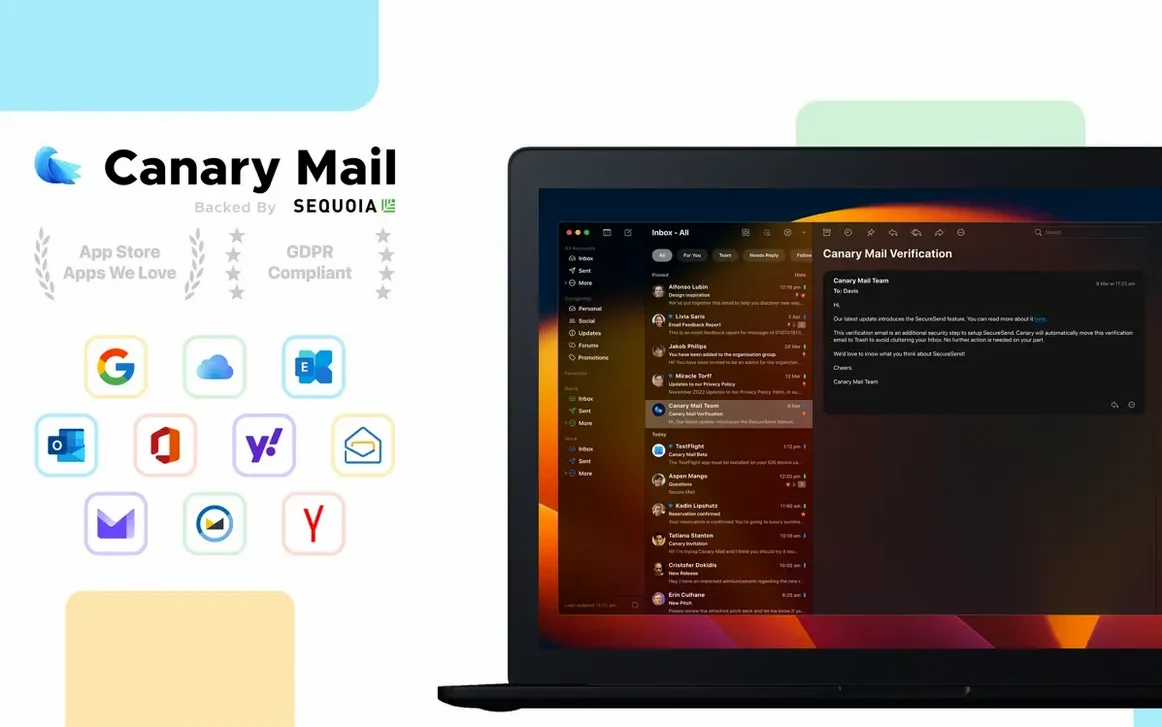
Canary Mail is a desktop email client that saves your messages and attachments directly to your Mac's drive rather than keeping them on a remote server. Version 5.1.0 runs on macOS 10.15 or later, with native support for both Intel and Apple Silicon machines, and handles Gmail, Outlook, iCloud, IMAP, and Exchange accounts within a single inbox.
Take a task like sorting through a long project thread to locate a PDF that was sent three weeks ago. Instead of scrolling, you open the attachment browser from the conversation view. It lists every file exchanged in that thread as a flat, filterable grid. You spot the document by name, preview it in a side panel, and drag it to a Finder folder. Because all mail data lives locally, the search and preview happen without waiting on server round-trips, which is noticeable on large attachments or slow connections.
While reviewing the thread, you pin a couple of key messages so they stay at the top of the list for later reference. If the project involves multiple accounts, you can assign a distinct notification sound to each one—a high chime for the work Exchange account, a short tone for the personal iCloud address—so you know which inbox needs attention before you glance at the screen. When the reply you need follows a repeated pattern, a saved template inserts the standard blocks of text and you fill in the specifics.
The interface ships in ten languages, including English, German, French, Japanese, and both Simplified and Traditional Chinese. Everything sits on your own drive, which also means the attachment browser and pinned-email list remain available offline exactly as they were when you last synced.
Canary Mail Compared with Other Mac Email Clients
Placing Canary Mail next to Spark, Airmail, and Mimestream makes its design priorities clearer. Spark pushes collaborative team features and a unified smart inbox that categorises mail automatically. Canary Mail does not attempt team sharing or algorithmic sorting. It focuses instead on local storage and encryption, which appeals when the data must stay on your own hardware rather than passing through third-party servers for classification.
Airmail shares some of the customisation spirit—both apps support snoozing, send-later scheduling, and custom actions—but Airmail leans heavily on a plugin architecture and a broader array of integrations. Canary Mail keeps the extension surface narrower and treats end-to-end encryption as a first-class function rather than an add-on. The local-attachment workflow also differs: Airmail uses server-based indexes for search, whereas Canary Mail builds its index from the locally stored mail corpus, which changes how quickly you can retrieve older attachments when offline.
Mimestream is a Gmail API–only client built with a native Swift interface. It feels lighter and more macOS-idiomatic, but it supports no encryption layer, no Exchange accounts, and no offline archive beyond what Gmail’s own cache provides. Canary Mail covers a wider account set—Gmail, Outlook, iCloud, IMAP, Exchange—and stores the full mailbox locally, so it suits people who split their time across providers and need consistent offline access across all of them.
What You Need to Know Before You Install
Does Canary Mail read or store my credentials on its own servers?
No. Authentication tokens and passwords stay on your Mac. The app connects directly to each provider’s servers using standard OAuth or application-specific passwords. When you use Canary’s own end-to-end encryption, the private key never leaves your device, and the encrypted messages pass through your existing email host in ciphertext form.
Your Server Folders Stay Exactly as They Are
Canary Mail mirrors the folder hierarchy that already exists on the server. Labels from Gmail appear as folders, and IMAP subfolders show up without renaming or flattening. You can pin, snooze, or template-reply to messages without altering the server-side organisation.
Will the local database grow uncontrollably over time?
The local mail store expands as messages and attachments accumulate. The attachment browser and pinned-email index add a small overhead. You can set per-account sync windows—such as keeping only the last 12 months of mail locally—to keep the database size in check on machines with limited SSD space.
Unified Inbox Opens in Under 4 Seconds on M1 Max
On a Mac Studio with an M1 Max chip and 32 GB of RAM, the app opens a unified inbox spanning four accounts—Gmail, iCloud, Exchange, and a self-hosted IMAP mailbox—in under four seconds. The interface stays at 60 fps while scrolling a 20,000-message list, and the energy impact reading in Activity Monitor hovers around the “Low” bracket during active use. Memory usage settles between 380 and 520 MB with the unified inbox open, rising slightly when the attachment browser renders a thread holding fifty or more files.
On an older Intel MacBook Pro from 2019, initial sync of a 15 GB Gmail mailbox pushes CPU usage to around 45 percent for roughly twenty minutes before dropping to a nearly idle baseline. Switching between the encrypted-send composer and the main window introduces no perceptible lag, and the dark composer renders inline PGP status indicators without redraw flicker. The app has not crashed during a week of normal switching among accounts, though force-quitting it once while rebuilding a large IMAP mailbox left the database intact on relaunch with no repair prompt needed. The local-first design means that searches complete in under a second even when the network link is saturated, because the index sits on the internal SSD rather than waiting on a round-trip to the provider.
- macOS 10.15 or later
- Intel or Apple Silicon Mac (64-bit)
Sign in · Create an account to add a field note.
No field notes yet. A measurement, a version, a machine — they appear after moderation.