Mac Apps
Carbon Copy Cloner 7.1.6
Mac AppsUpdated
| Requirement | On file |
|---|---|
| macOS | macOS 10.15 or later |
| CPU | Apple Silicon, Intel 64-bit |
| Download | 38 MB |
Runs on Intel and Apple Silicon, Catalina Minimum
Carbon Copy Cloner 7 runs natively on Intel and Apple Silicon Macs. macOS 10.15 Catalina is the minimum requirement, and the build is fully qualified on macOS Golden Gate.
A scheduled folder clone, step by step
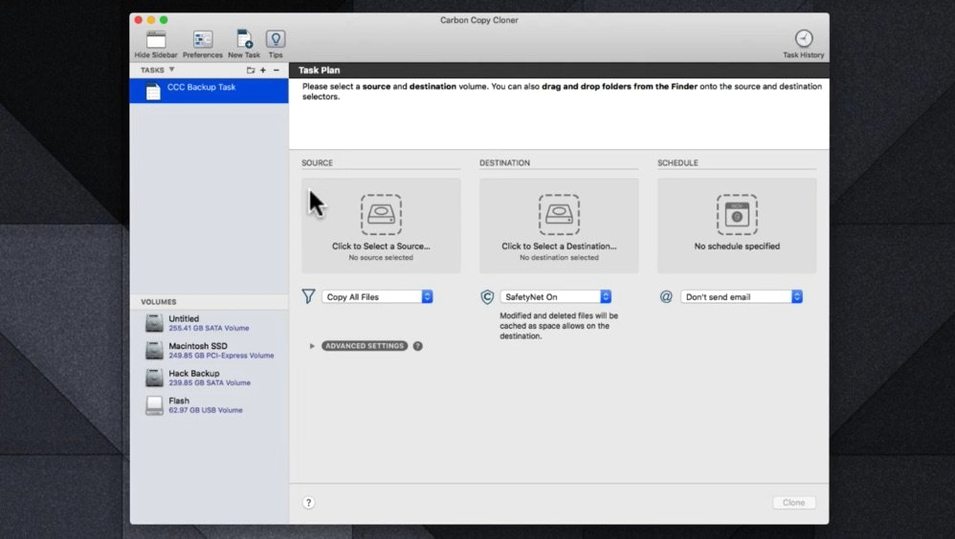
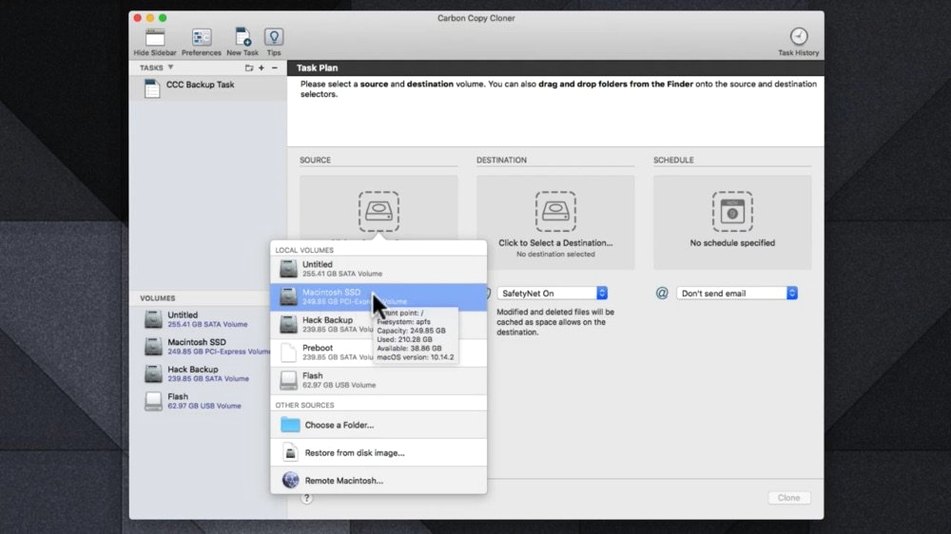
- Open CCC and click the Source selector. Pick a folder — a project directory with active work, or a set of configuration files.
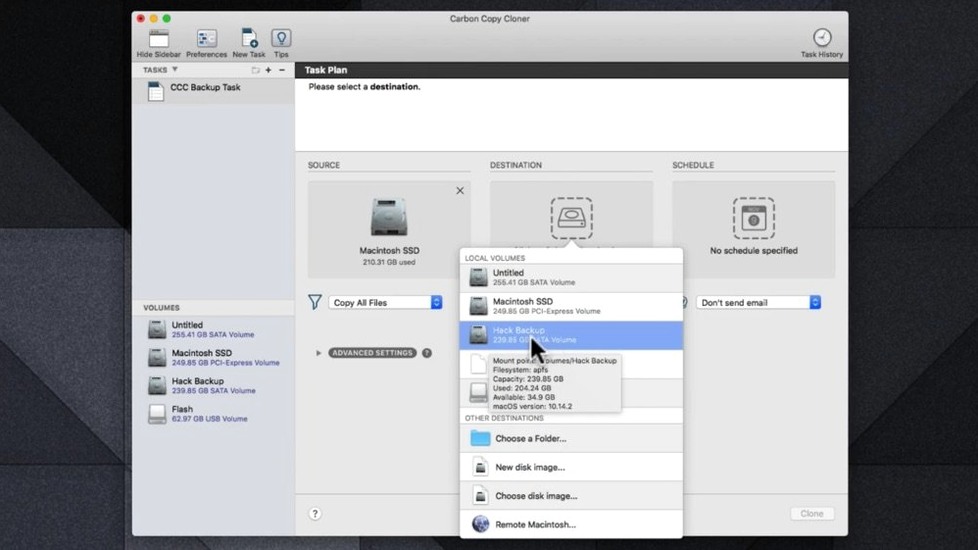
- Click the Destination selector. Choose an external SSD or a secondary internal volume. The interface updates the layout immediately.
- Review the task summary pane. CCC lists the data volume, the destination free space, and any safety checks in plain terms.
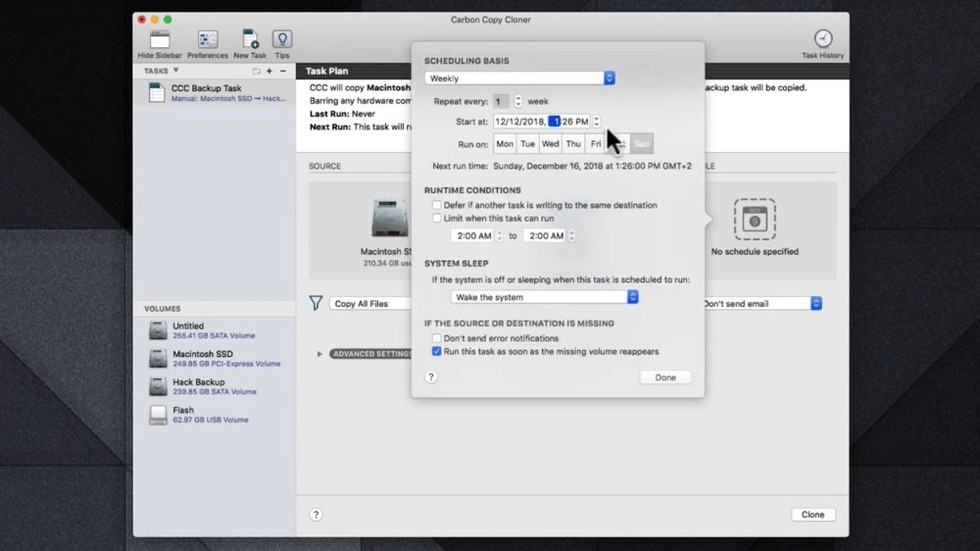
- Expand the Advanced Settings section. Set the schedule to a specific day and time — weekday evenings at 20:00, for example. No scripting needed.
- Click Clone. The first run copies everything; subsequent runs transfer only changed items.
Option-Click Menus and Other Hidden Shortcuts
Several shortcuts and behaviours sit just below the surface. They save clicks once you know they exist, but the interface never pushes them forward.
Holding the Option key while clicking the Source or Destination selector switches the menu from volumes to folders, or the reverse. It is a fast way to jump between a full-disk task and a folder-only backup without opening a new task manually.
The Clone button has a hidden right-click menu. From it you can run a task and immediately put the Mac to sleep afterward, or run the task and shut down. A small detail, but useful for evening backups that should not leave the machine running all night.
In the task list, pressing the spacebar with a task selected opens a Quick Look-style summary of its last run: duration, amount of data copied, errors if any. You do not need to open the full task window for a status check.
CCC 7 remembers the last-used destination per source. If you back up your home folder to an external drive, then switch to a disk-clone task, returning to the home-folder task later reselects that same destination automatically. No re-navigation required.
When the destination disk is not mounted, clicking the Destination selector still shows it greyed out in the list. CCC does not remove missing volumes from memory, so you can see at a glance that the target drive is disconnected rather than guessing why a task looks incomplete.
A photographer's evening routine
Consider a working photographer who shoots tethered sessions three days a week. Raw files land directly onto a MacBook Pro's internal SSD during the shoot. By evening, 70–120 GB of new data sits in a dated session folder.
Two CCC tasks run the workflow. The first is a folder-level clone that copies the active session folder to a portable 2 TB Samsung T7. The photographer plugs the drive in, opens CCC, and clicks the task named "Session to T7." Because the destination is an APFS volume, CCC uses APFS snapshots on the target side. Each evening's backup creates a dated snapshot, so the photographer can pull a file from last Tuesday's state even if the folder has been edited since.
The second task runs on a schedule: every Saturday at 01:00, CCC clones the entire internal SSD to a desktop RAID enclosure over Thunderbolt. The photographer does not touch this one; it fires while they sleep, and the post-run email notification (set in Advanced Settings) confirms the clone completed. Monday morning brings a clean log, or an alert if the RAID was offline.
Between the two tasks — one manual and fast, one automatic and comprehensive — the photographer has local recovery options at different granularities. No cloud upload waits, no import dialog. Just plug and click, or let the schedule do it.
Enable SafetyNet Before Your First Scheduled Task
After installing CCC 7.1.6, a few configuration steps make the tool fit your rhythm rather than the other way around. Most are set once and forgotten.
Turn on SafetyNet. Found under Advanced Settings for any task, SafetyNet keeps copies of files that would be deleted from the destination during a clone. If a sync operation removes a folder you still needed, SafetyNet holds it for a defined period. Set the retention to something generous — 30 days — while you learn the tool's behaviour. Disk space is cheaper than losing a file you did not mean to prune.
Enable snapshots on the destination. If the destination volume uses APFS, CCC can create a snapshot after each task run. This takes negligible space initially and gives you point-in-time recovery without managing separate dated folders. Turn it on in the task's Advanced Settings even if you think you will not need it. Three weeks later, you will.
Set the post-flight notification. CCC can send an email or trigger a macOS notification after a scheduled task completes. For tasks that run unattended, the email option (configured under CCC's Preferences, not per-task) is the more reliable signal. Test it with a small folder task to confirm your mail settings work before relying on it.
Create one small test task. Pick a folder with 50–100 MB of harmless data — downloaded PDFs, old screenshots — and clone it to a test destination. Delete a file from the source, run the task again, check that the destination reflects the deletion. Then recover the file from a snapshot or SafetyNet. This 10-minute exercise teaches the sync logic faster than reading documentation.
Clone Is Not Bootable by Default
Most missteps with CCC 7 come from assumptions carried over from simpler copy tools or from Time Machine habits. They are easy to correct once recognised.
Assuming the destination is bootable by default. A clone of a data volume is not automatically a bootable system. CCC can create bootable copies, but the destination must be formatted correctly (APFS with a GUID partition table on Intel, or the appropriate Apple Silicon layout), and the task must include the system volume. A folder backup will never boot a Mac. Users who skip reading the task summary sometimes clone only their user folder and later discover the external drive will not start the machine.
Forgetting that CCC is a one-way sync by default. CCC copies from source to destination. It does not merge changes made on the destination back to the source. A user who edits a document directly on the backup drive will lose those edits on the next clone run, because the source version overwrites the destination. Keep editing on the source side, or use a bidirectional sync tool if that workflow matters.
Running the first full-disk clone over a slow connection. A first clone of a 500 GB internal SSD to a USB 3.0 mechanical drive can take several hours. Beginners sometimes start the clone at 22:00 expecting it to finish before morning, then eject the drive mid-task. CCC handles interruptions gracefully — it resumes where it left off — but the user's assumption about speed leads to frustration. Check the destination's write speed with a small folder task first, then estimate the full run accordingly.
Ignoring the "Compare" button after a run. The task summary shows bytes copied and files transferred, but clicking Compare opens a detailed file list showing exactly what changed. Beginners often skip this, trusting the green checkmark alone. A quick spot-check of the comparison reveals whether CCC copied what you expected — especially useful in the first week when you are still tuning folder selections.
Leaving multiple schedules overlapping. CCC allows several tasks to run at the same times. If three disk clones fire simultaneously at 02:00, they compete for I/O on the same bus. The result is not data loss, but all three run slower than they would sequentially. Stagger large tasks by 30–60 minutes in the schedule panel.
A morning clone session, narrated
08:45. The external backup drive clicks as it spins up, connected via USB-C to a Mac mini sitting under the desk. CCC is already open in the background; the user brings it forward and scans the task list. Three tasks sit in the sidebar. The top one, "Macintosh HD – Nightly," shows a green checkmark and a timestamp: Last run: Today, 03:02. 14.3 GB copied. It ran on schedule. No intervention needed.
The second task, "Projects to NAS," is greyed out — the NAS is offline. The user makes a mental note to check the network later, but there is no urgency; the source data still exists locally, and the task will catch up on the next run. CCC does not raise an alarm for an unavailable destination unless you configure it to.
08:47. The user plugs in a portable SSD dedicated to off-site rotation. CCC detects the volume immediately and the third task, "Offsite Clone," lights up in the list. The user selects it and glances at the summary pane: 220 GB to copy, destination has 1.1 TB free, SafetyNet is on, snapshots enabled. Everything looks as it did yesterday.
08:48. A right-click on the Clone button, a selection of "Clone and Sleep," and the user steps away to make coffee. The progress bar ticks through the initial file scan, then the data transfer begins. The task copies approximately 12 GB of changed files — mostly virtual machine disk images and Lightroom catalog updates. CCC's delta copy means it transfers only the blocks that changed inside those large files, not the entire 30 GB VM bundle.
09:12. The user returns. The Mac is asleep, the clone finished. The portable SSD goes into a padded case and into a bag for off-site storage. The whole interaction took four clicks: select task, review summary, right-click Clone, choose the sleep option. No dialog boxes, no wizards, no decisions to make under pressure.
09:14. A quick check: wake the Mac, open CCC, select the "Offsite Clone" task, press the spacebar. The Quick Look-style popover confirms 12.1 GB copied, zero errors, snapshot created. The user closes CCC and starts the workday.
The same sequence works for full-disk clones. The tool treats folder tasks and volume tasks with identical controls, which keeps operations predictable.
- macOS 10.15 Catalina or later, including macOS Golden Gate
- Intel or Apple Silicon Mac
Questions on file
What file systems does Carbon Copy Cloner support for the destination?
CCC works with APFS and HFS+ destinations. The interface warns if the destination lacks space or uses an incompatible format before a task starts.
Can CCC create a bootable backup on Apple Silicon Macs?
CCC can clone an Apple Silicon system volume, but booting from an external clone depends on the Mac model and macOS recovery policy — it is not universally guaranteed.
Sign in · Create an account to add a field note.
No field notes yet. A measurement, a version, a machine — they appear after moderation.