Mac Apps
Canopy 2 1.0
Mac AppsUpdated
| Requirement | On file |
|---|---|
| macOS | macOS 26 or later |
| CPU | Apple Silicon, Intel 64-bit |
| Download | 11 MB |
Canopy runs on any Mac that meets a single requirement: macOS 26 or later. It supports both Intel and Apple Silicon machines natively, so there is no architecture gap to worry about. If your system can install the current macOS release, Canopy will work. Macs without a hardware notch get a floating widget positioned at the top of the screen instead.
Dynamic Island Alerts for Timers, Media, and Liquid Glass Effects
- Dynamic Island-style notifications that surface timers, live activities and system alerts.
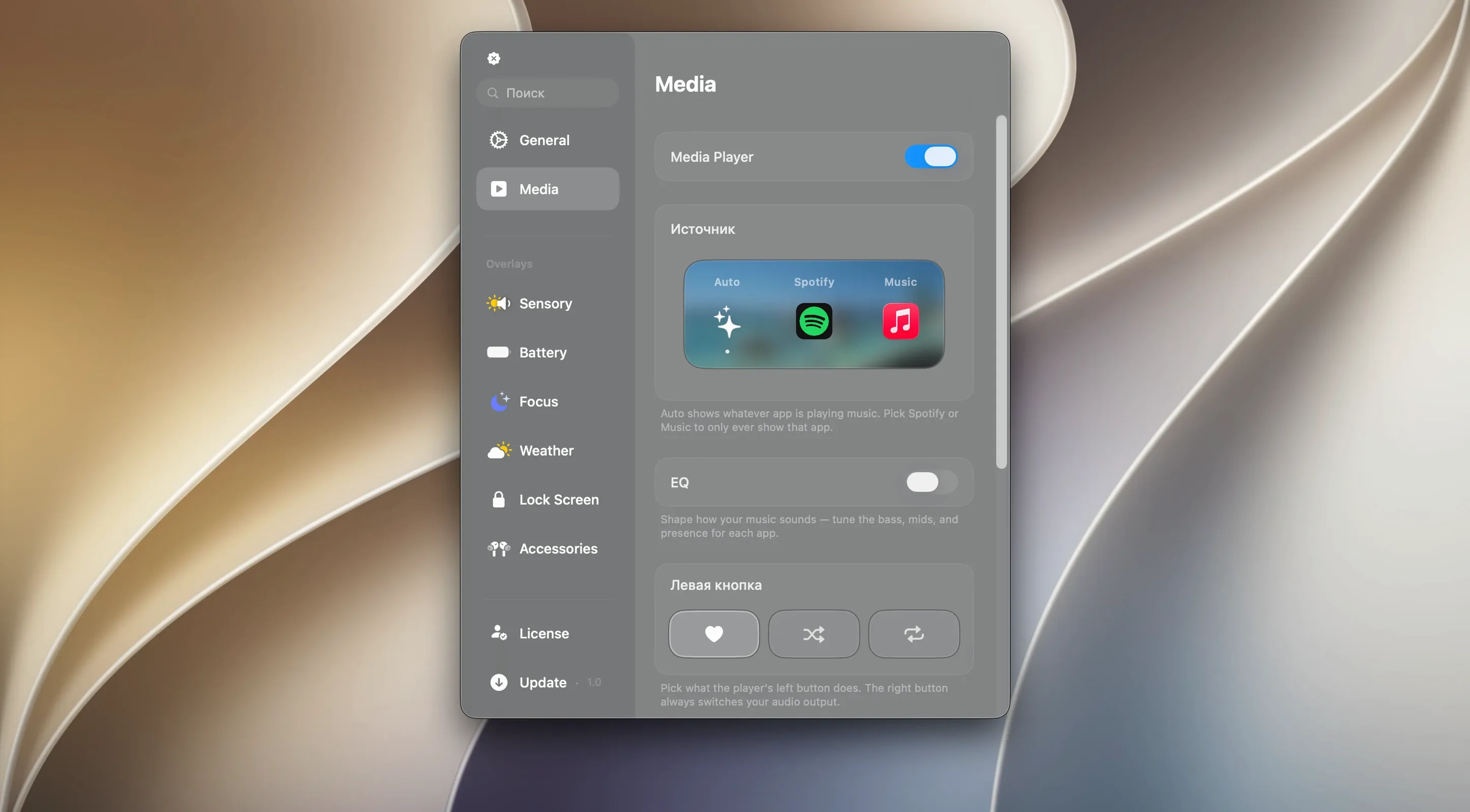
- Media controls for music and video playback directly from the island or floating widget.
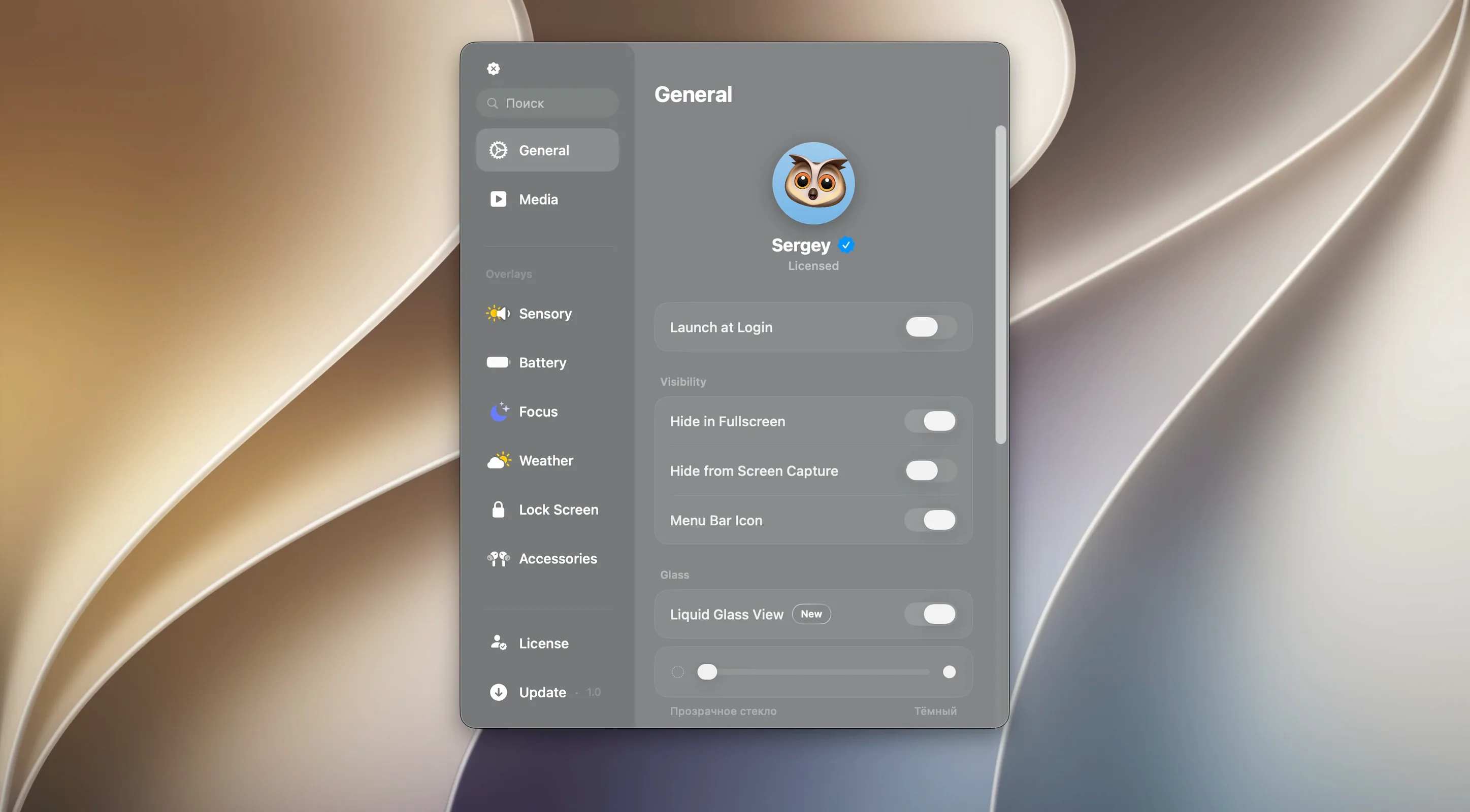
- Liquid Glass effects that match the visual language of the current macOS.
Compatibility notes
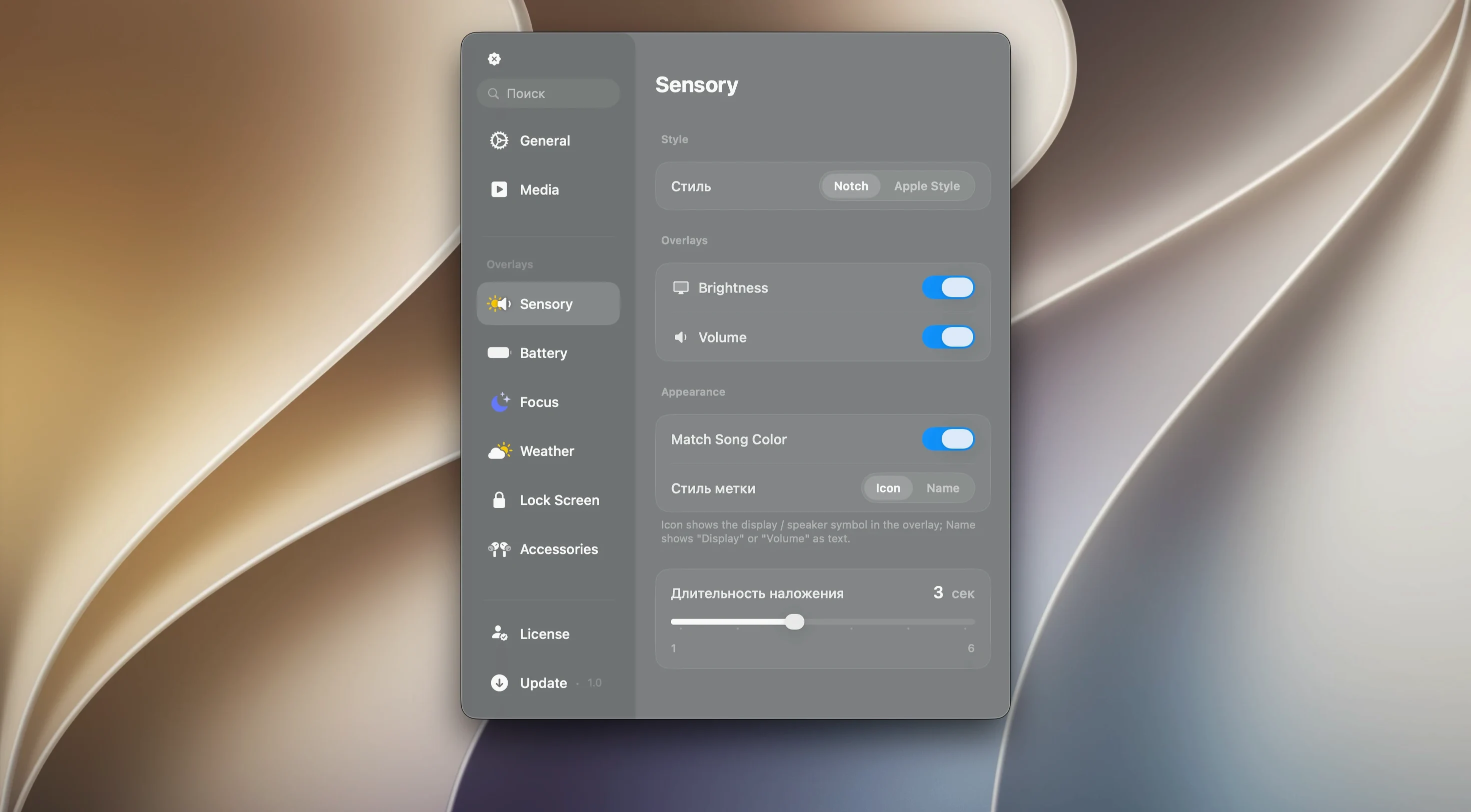
The interface is localised in English only. On notched MacBook Pro and MacBook Air models, Canopy integrates around the camera cutout. On notch-free Macs, it places a self-contained widget at the top edge. There is no separate configuration for these modes — the app detects your hardware and adapts automatically.
Single-Tap Media Controls Replace Click-and-Hold
The move to 2.1.0 tightened a few things that users had been asking about. Media controls now respond to a single tap instead of requiring a deliberate click-and-hold on the playback button — a small change that makes skipping tracks feel less hesitant. The timer panel received a visual rework: digits are larger and the progress ring uses a higher-contrast stroke, so glancing at a countdown from across the desk is actually useful now.
Notifications stack differently. Where earlier builds would queue alerts sequentially and sometimes bury a calendar reminder behind a now-playing banner, 2.1.0 groups live activities into a collapsible cluster. You see the most recent event expanded and a small badge for the rest. Tapping the badge fans them out. This alone cuts down on the feeling that Canopy is shouting at you from the menu bar.
Under the hood, the Liquid Glass rendering path was rewritten to use less GPU time during idle periods. On Intel Macs especially, the floating widget used to keep the discrete GPU awake longer than necessary; that behaviour is gone. The effect is still present — translucent, depth-aware — but it backs off when nothing is changing on screen.
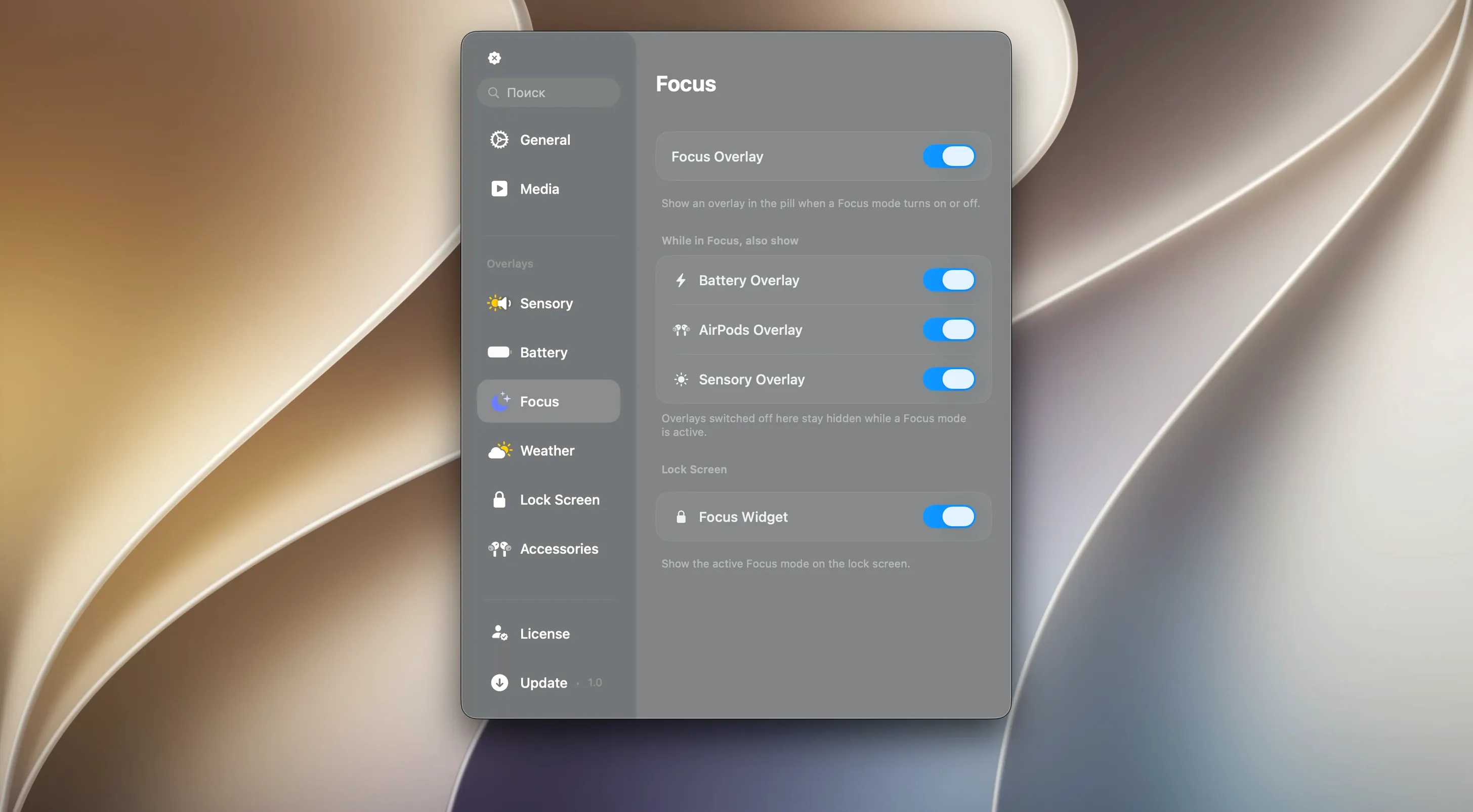
One quiet addition: the app now respects macOS Focus filters. If you have a Work focus active that suppresses entertainment notifications, Canopy will not surface a music track change banner. In previous versions it ignored Focus entirely, which made it hard to keep the island quiet during screen-sharing sessions.
How Canopy fits alongside other apps
Canopy does not replace Notification Centre or the Control Centre strip — it sits one layer above both. System alerts still arrive in the standard macOS banner position; Canopy mirrors only the ones you configure, and it adds items the system does not surface at all, such as a persistent timer or live media widget. The two coexist without stepping on each other.
With Alfred or Raycast, the relationship is complementary. Those launchers occupy the keyboard-to-action pipeline. Canopy occupies the glance-and-tap space. You might trigger a timer in Raycast and read its remaining minutes from Canopy without ever opening a window. There is no formal integration, but the workflows split cleanly: keyboard for input, island for passive awareness.
For music, Canopy talks to the system Now Playing interface, which means it works with Apple Music, Spotify, Doppler, and any app that publishes track metadata to macOS. The controls are transport-level — play, pause, skip, back — not library browsers. If you use an app like Sleeve for album art on the desktop, Canopy and that app will both reflect the same track; they read from the same source.
Shortcuts support is absent in 2.1.0, so you cannot programmatically trigger a Canopy timer or dismiss a notification from a script. The app also does not expose widgets for the macOS desktop or Notification Centre. It lives strictly as a menu-bar-adjacent overlay, which keeps its scope narrow but means you will not see Canopy data in a dashboard elsewhere.
Focus Timer Anchors a Morning of Notchless iMac Work
Consider someone who spends mornings hopping between Slack threads, Jira boards, and Zoom calls on a notchless 27-inch iMac. Notifications from a half-dozen apps compete for attention. This person sets a 25-minute focus timer in Canopy at 9:04 a.m. The floating widget appears at the top-centre of the screen — out of the way of a full-height browser window, but visible when they glance up between tickets.
At 9:17, a calendar alert pings. Instead of a standard macOS banner that steals focus, Canopy shows a compact live-activity strip inside the widget. They read the meeting title, swipe it away, and the timer resumes counting without a break. When a Spotify playlist changes tracks three minutes later, the widget shifts briefly to show artist and track name, then collapses back to the timer ring. No window pops up, no dock icon bounces.
By 10:30 the calls start. During a screen share, macOS Focus is on, and Canopy stays silent — no media banners, no timer nudges. The widget is still there, showing a static clock face, but it does not animate or pull attention. After the call, Focus switches off and the widget returns to its live state, displaying the timer they forgot to stop. They laugh, tap to dismiss, and keep going. That rhythm — glance, tap, back to work — is exactly the niche Canopy carves out on a desktop that already has plenty of apps running.
Canopy, NotchBar, and Island for Mac
Three apps orbit the same idea: bring Dynamic Island interactions to macOS. They differ in what they treat as the core experience.
NotchBar is a menu-bar extension that places controls inside the notch area on MacBook Pro and Air models. It focuses on hardware integration — brightness, volume, and a customisable shortcut strip that lives inside the camera cutout. On notchless Macs, it has no fallback; the app simply does nothing useful. Canopy takes the opposite approach by making the notch optional and providing a floating widget elsewhere.
Island for Mac is closer to Canopy in ambition. It supports notifications, media playback, and a clipboard history panel. It also runs on any Mac, notched or not. The trade-off is visual weight: Island for Mac uses larger panels with more text, which can feel heavier during quick glances. Its clipboard feature is something Canopy skips entirely — Canopy does not store or surface copied data. If clipboard access matters, Island for Mac has an edge. If you want a lighter, timer-and-media-first panel, Canopy fits better.
Both NotchBar and Island for Mac offer more granular control over panel position and size. Canopy auto-detects hardware and gives you no manual overrides. That decision cuts settings clutter but will frustrate someone who wants the widget offset by 20 pixels to clear a custom menu-bar arrangement.
On effects, Canopy is the only one of the three that renders Liquid Glass translucency tied to the desktop wallpaper depth map. NotchBar uses flat colours; Island for Mac has a frosted-glass blur. The difference is noticeable on busy wallpapers where Canopy's panel picks up colour bleed from the background in a way the others do not.
- macOS 26 or later
- Intel or Apple Silicon Mac
Questions on file
Does Canopy work on Macs without a notch?
Yes. On Macs without a notch, Canopy creates a floating widget at the top of the screen instead of integrating around a camera cutout.
What macOS version does Canopy require?
Canopy requires macOS 26 or later. It runs on both Intel and Apple Silicon Macs.
What features does Canopy include?
It provides Dynamic Island-style notifications, music controls, timer display, live activities and Liquid Glass visual effects.
Sign in · Create an account to add a field note.
No field notes yet. A measurement, a version, a machine — they appear after moderation.