Mac Apps
Hyperspace 1.8.2
Mac AppsUpdated
| Requirement | On file |
|---|---|
| macOS | macOS 15 or later |
| CPU | Apple Silicon, Intel 64-bit |
| Download | 6 MB |
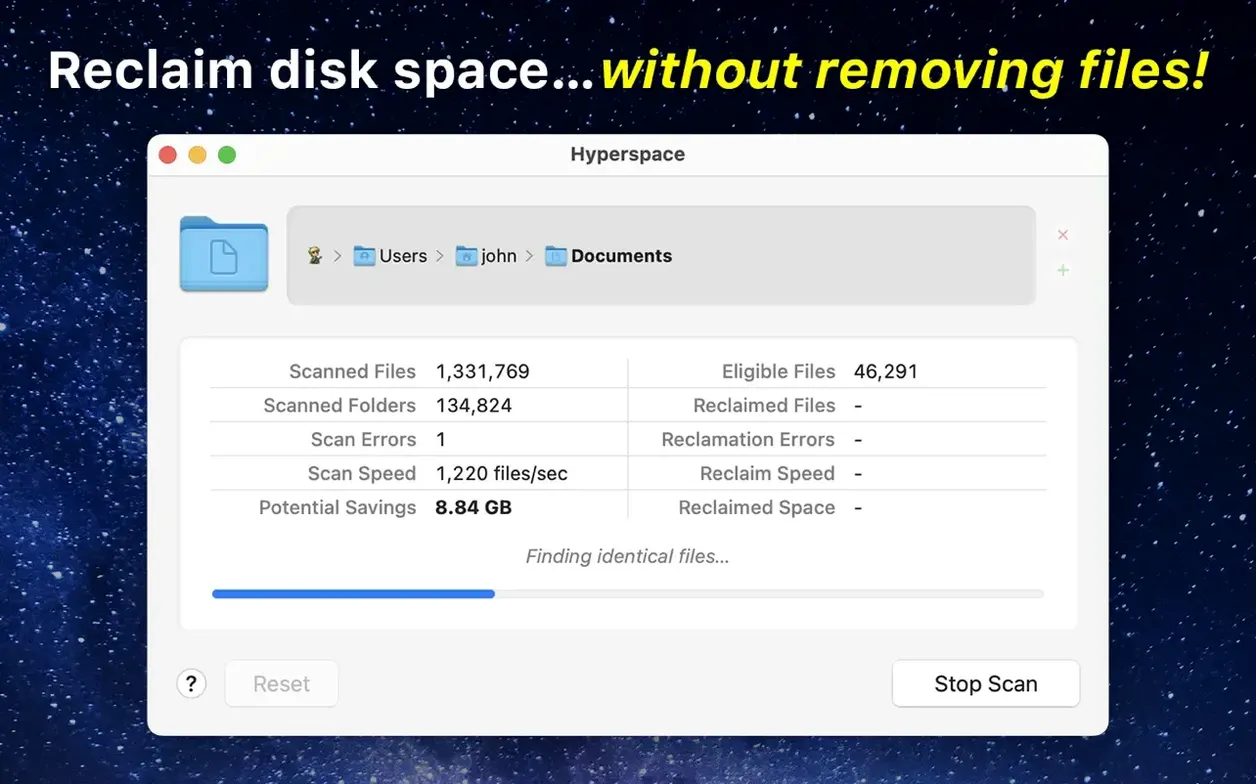
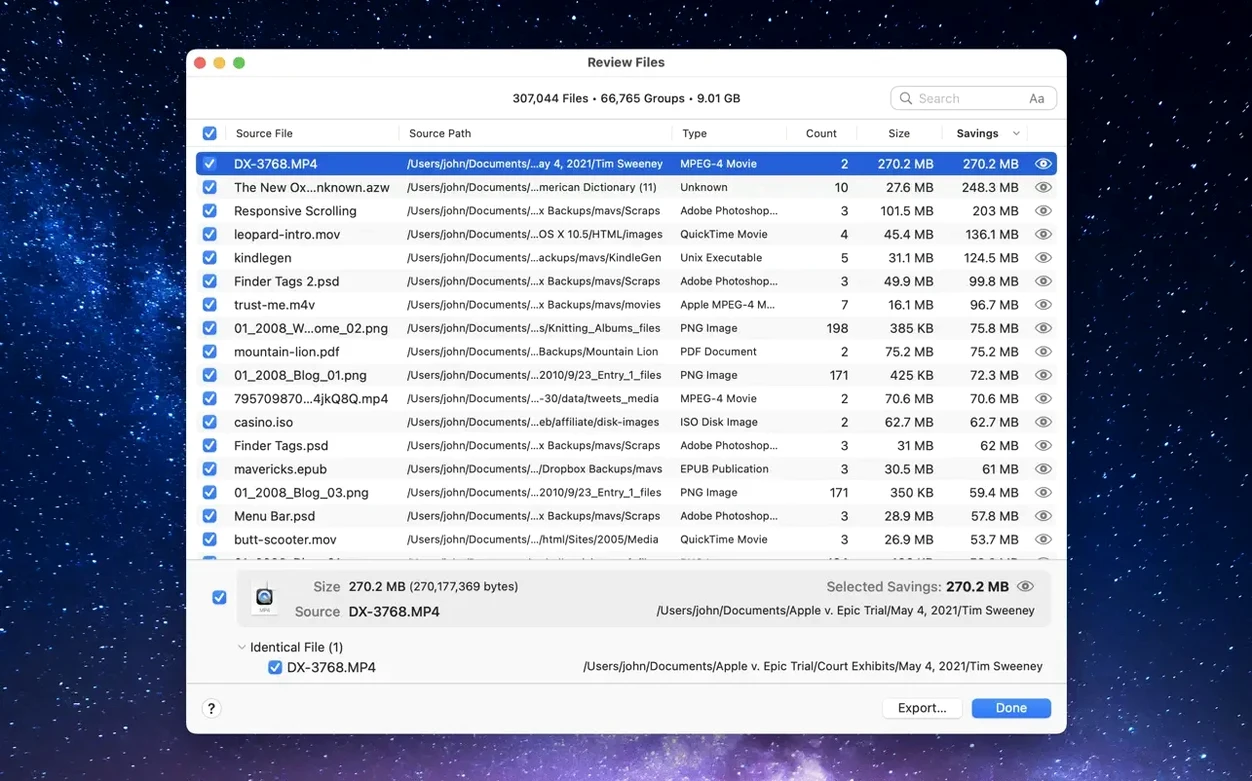
Version 1.8 requires macOS 15 Sequoia or later, and that single detail explains the entire app. Hyperspace leans on a file-system trick Apple baked into APFS years ago — the ability to make a lightweight clone that shares data blocks with the original, costing virtually zero extra space until either file diverges. Hyperspace scans folders you choose, locates files with identical byte-for-byte contents, then replaces each duplicate with an APFS clone of one survivor.
| Detail | Value |
|---|---|
| Current version | 1.8 |
| macOS required | macOS 15 or later |
| Architecture | Apple Silicon & Intel (64-bit) |
From the user’s perspective the files don’t move and don’t vanish — every icon stays exactly where it was, every filename remains intact. The Finder reports the folder size as if all copies still consumed their original blocks, but the volume’s free space tells a different story. It is the same cloning mechanism Finder uses when you press ⌘D. Hyperspace simply applies that mechanism retroactively to files that duplicated themselves through years of messy backups, scattered media libraries or unpacked archives.
First days with Hyperspace
Don’t point it at your entire home folder on day one. Start with a contained, low-stakes directory — a single Photos library, an old backup folder, or a project archive where you know duplicates are hiding. Let the scan finish, review the results panel, and watch how the volume’s free space changes in Disk Utility before and after the clone pass. This gives you a feel for the numbers without touching anything you’d panic about losing.
Keep Activity Monitor open during the first few runs. Hyperspace reads every byte of every candidate file, so a scan across tens of thousands of items will push the disk read rate high for minutes at a time. On an external mechanical drive that’s normal but slow; on the internal SSD it finishes fast enough that you won’t notice. If fans spin up, that’s the hashing work — brief, expected, harmless.
After the clone pass, resist the urge to delete the “duplicates.” The whole point is that the space is already reclaimed. Deleting a clone just removes its directory entry and frees nothing extra unless someone edited it later. Let them sit. The Finder still shows them as separate items, and that’s intentional.
Mistakes that cost time
The most frequent beginner move is scanning the entire startup volume without a filter. Hyperspace will cheerfully hash every system file, cache blob and localisation resource it finds, and the scan runs for hours while turning up thousands of tiny duplicates you cannot safely touch. Limit the first scans to folders you control — ~/Documents, ~/Desktop, external drives, media directories.
Another common slip: running the clone pass on files stored in cloud-synced folders (iCloud Drive, Dropbox, OneDrive). The clones hold locally, but the sync client may re-upload them as new objects, wasting bandwidth and, in some cases, re-duplicating the data remotely. Hyperspace works best on local-only datasets. If you must run it on a synced folder, pause the sync client first and let it catch up afterwards when you’ve confirmed everything looks right.
Beginners sometimes expect the Finder’s folder size to drop. It won’t. APFS clone accounting shows the logical size of every file as if it were a full independent copy. The only number that changes is the volume’s available space. Checking Get Info on the volume itself, or the bottom bar of a Finder window in list view with the status bar enabled, is how you confirm the reclaim worked.
When No Space Gets Freed
“No space was reclaimed.” Almost always this means the files weren’t true duplicates. Hyperspace compares contents, not names or dates. Two videos named final_edit.mp4 that differ by a single metadata atom are different files and won’t be cloned. Check the results list: if Hyperspace found zero duplicates, there genuinely were no byte-identical copies in the scanned set. Try a broader folder or a different drive.
The scan takes forever on a large external HDD. APFS clones work on mechanical drives, but the hashing pass is I/O-heavy. Let it run overnight. You can stop a scan early and the app will still offer to clone the duplicates found so far — it does not require a complete pass to act.
Files appear to be “replaced” or look different. They shouldn’t. A clone is a file-system pointer to the same data blocks. If a file’s modification date changed after the clone pass, something else touched it. Some backup utilities or media cataloguers rewrite metadata on sight and can trigger a copy-on-write divergence. If you use such tools, exclude their managed folders or run Hyperspace after those tools have finished their own passes.
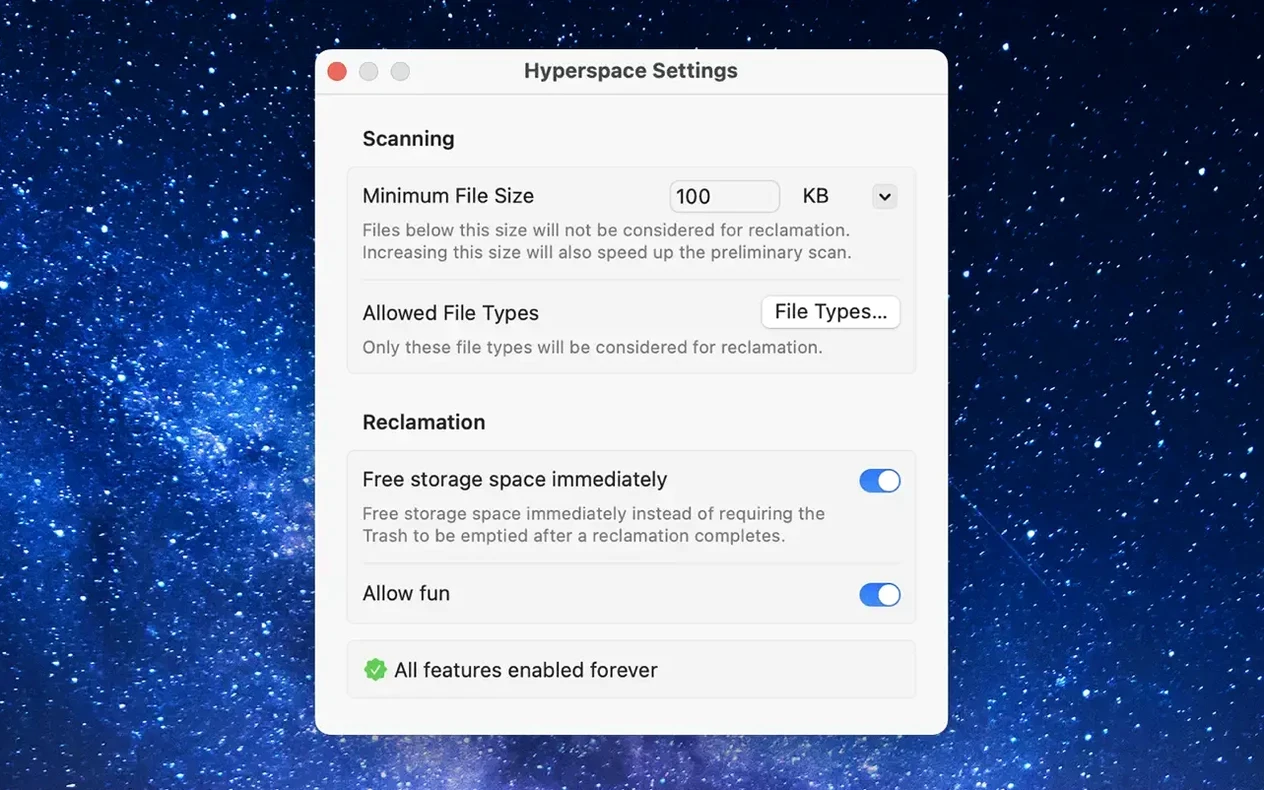
If you grabbed what someone labelled a hyperspace crack mac download, you are running an unverified binary and none of the above behaviour is guaranteed. The real app from Hypercritical LLC has no activation step and works the moment you drag it to Applications — there is nothing to crack, so if you do use a hyperspace crack mac build, just confirm it's a clean, unmodified copy of the original binary to get the same instant-launch experience.
- macOS 15 or later
- Apple Silicon or Intel 64-bit processor
Sign in · Create an account to add a field note.
No field notes yet. A measurement, a version, a machine — they appear after moderation.