
Mac Apps
iClip 5.6.2
Mac AppsUpdated
| Requirement | On file |
|---|---|
| macOS | OS X 10.10 or later |
| CPU | Apple Silicon, Intel 64-bit |
| Download | 42 MB |
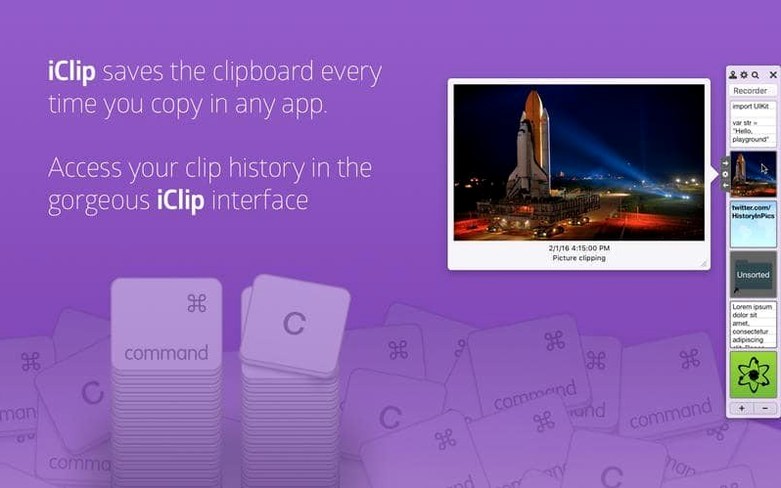
iClip runs on any Mac with macOS 10.10 or newer, on both Intel processors and Apple Silicon. It sits at the edge of the screen and records everything you copy — plain text, rich text, images, files and other content — into bins you can organise into multiple sets.
What sets it apart
- Multi-set organisation. Saved clips don't sit in one flat list. You can group them into named sets, which helps when you're switching between projects and need different collections of snippets ready.
- Scriptable actions. iClip can run scripts in AppleScript and JXA. If you need to transform a clip, send it to another app or perform a custom action on paste, you automate it directly from the clipboard manager.
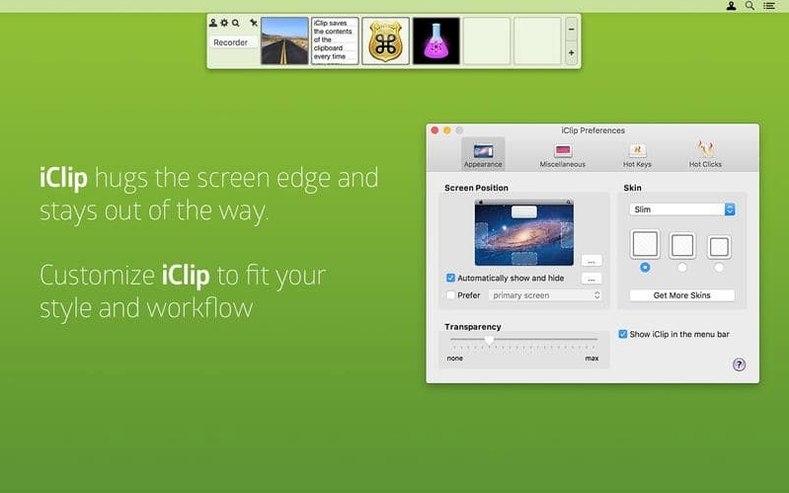
- Quick-access triggers. The app opens by moving the pointer to the edge of the screen, or with configurable keyboard shortcuts. Hovering over a clip bin shows a preview popup of its contents, and items can be dragged straight from iClip into a document.
Clip handling
Clips stay live rather than frozen in a log. Dragging works in both directions — from iClip to documents, and from the Finder or other apps into iClip bins. Version 5.6.2 tidied up the preview layer so pop-ups show the actual content instead of raw NSKeyedArchiver bplist text, and fixed file and folder clip icons on macOS Tahoe.
Single-click arrows that copy and paste from bins
iClip hides a few shortcuts that aren't obvious on day one. The arrow buttons beside each bin — left to copy, right to paste — work with a single click, and holding Option while clicking the left arrow copies a clip's content as plain text, stripping any formatting it carried over from a rich-text source.
Right‑clicking a bin offers Edit, which opens the clip in a small floating editor. You can clean up a copied address, remove tracking parameters from a URL, or trim a long paragraph before pasting it anywhere. The editor handles plain text only, so it won't break HTML or styled text by accident.
Bin labels are editable. Click the name below a bin, type something short, and you'll find clips much faster when a set grows past twenty or thirty items. The search field at the top of the iClip window filters across all bins in the active set, and it starts filtering on the first keystroke — no need to press Enter.
Setting your screen edge before the Dock steals it
Set the activation edge early. Open iClip's preferences, choose Appearance, and pick one screen edge — left or right works best on most setups, because the bottom edge can clash with the Dock. Set a short delay (0.2–0.3 seconds) so iClip doesn't pop open every time your pointer drifts to the side.
If you copy the same pieces of text repeatedly — an email signature, a support response, a code stub — pin them into a dedicated set rather than hunting through history. Create a set called "Stock", drag four or five clips into it, and switch sets with the pop‑up menu at the bottom of the iClip window. Version 5.6.2 added automatic set activation: name a set after an application (for example, Mail or Xcode) and iClip switches to it the moment you bring that app to the front.
Keyboard‑heavy users should spend ten minutes in the Shortcuts preference pane. The default shortcut for "Paste Clip #1" is empty; assigning Control‑Option‑V to it means your most recent clip pastes without opening the iClip interface at all. Pair that with the "Copy and paste clip #1" shortcut and you have a one‑key repeat‑paste loop.
In practice: a support agent's afternoon
A technical support agent handling fifteen tickets an hour keeps three iClip sets. The first, "Replies", holds six standard troubleshooting paragraphs. The second, named after their ticket system's application, activates automatically and stores customer names and ticket IDs copied during the day. The third, "Links", holds internal KB article URLs.
When a ticket comes in asking about a network‑drive sync error, the agent copies the customer's account number — iClip records it into the ticket‑system set — then drags a pre‑written diagnosis paragraph from the "Replies" set straight into the reply field. One click on the right arrow beside the relevant link bin pastes the KB article URL into the message footer. No retyping, no searching a separate snippet app, no window switching beyond what the clipboard manager handles at the screen edge.
If the agent needs to adjust a standard reply for a specific macOS version, right‑clicking the bin, choosing Edit, and changing one sentence takes less time than pasting first and editing in the ticket system. The edited clip stays until they paste it — iClip doesn't auto‑save edits back over the original unless you tell it to.
- Pop-up previews — no longer show technical NSKeyedArchiver bplist text instead of expected content.
- Stability — crashes on macOS Tahoe are fixed.
- Clip icons — file and folder clip icons display correctly again on macOS Tahoe.
- Menu bar icon — dropping items onto the menu bar icon works again.
- macOS 10.10 or later
- Intel and Apple Silicon Macs
- Interface language: English
Questions on file
What types of content can iClip store?
It records plain text, rich text, images, files and other copied content, and keeps them organised in bins across multiple sets.
Sign in · Create an account to add a field note.
No field notes yet. A measurement, a version, a machine — they appear after moderation.