Mac Apps
iMazing 3.6.5
Mac AppsUpdated
| Requirement | On file |
|---|---|
| macOS | OS X 10.11 or later |
| CPU | Apple Silicon, Intel 64-bit |
| Download | 242 MB |
Getting a voice memo off an iPhone is easy until you need the original file on your Mac. The same friction appears with call logs, eBooks, or app settings that live only on the device. iMazing exists because iTunes and iCloud leave gaps in what you can actually move, export, and restore.
What people check before installing
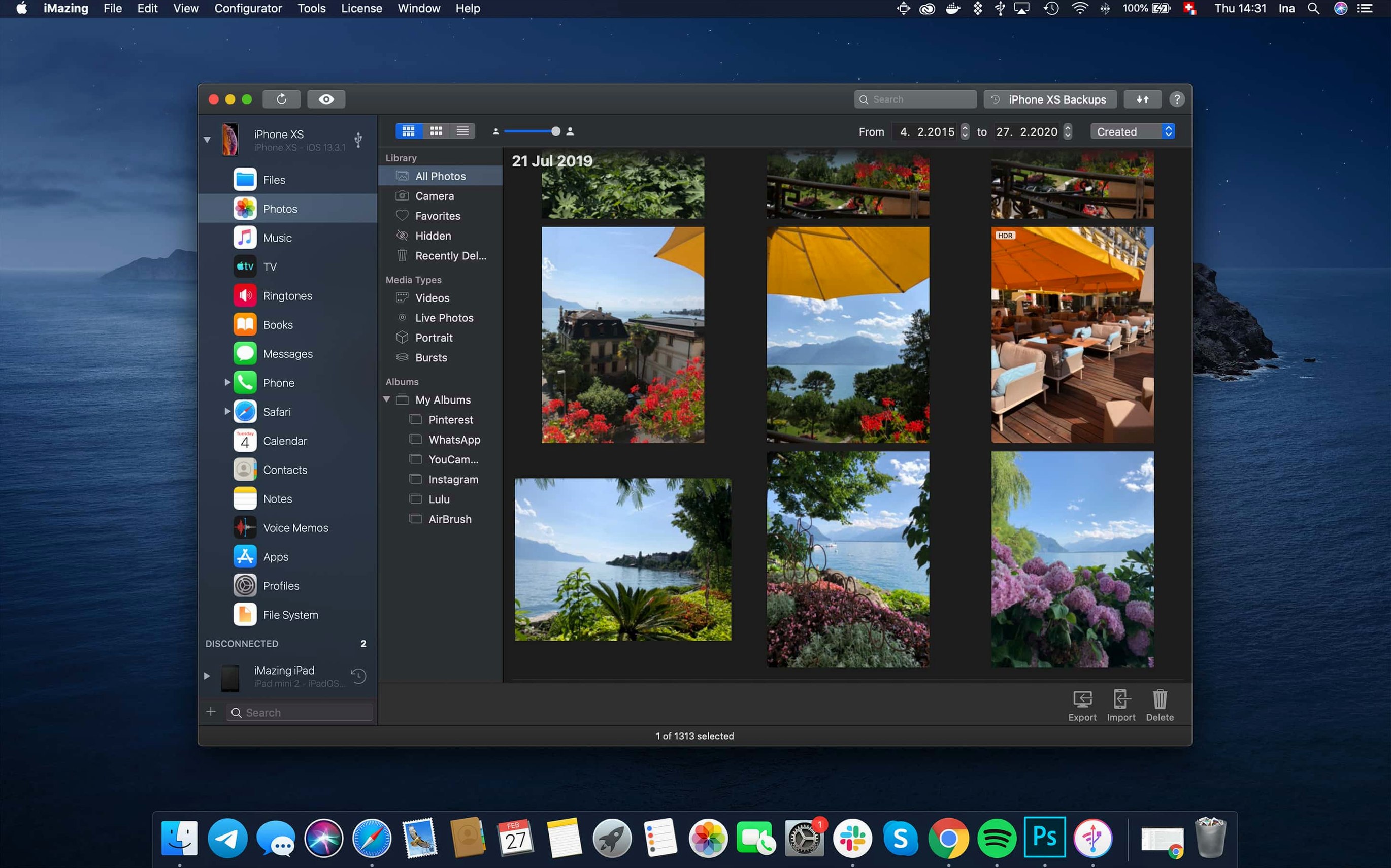
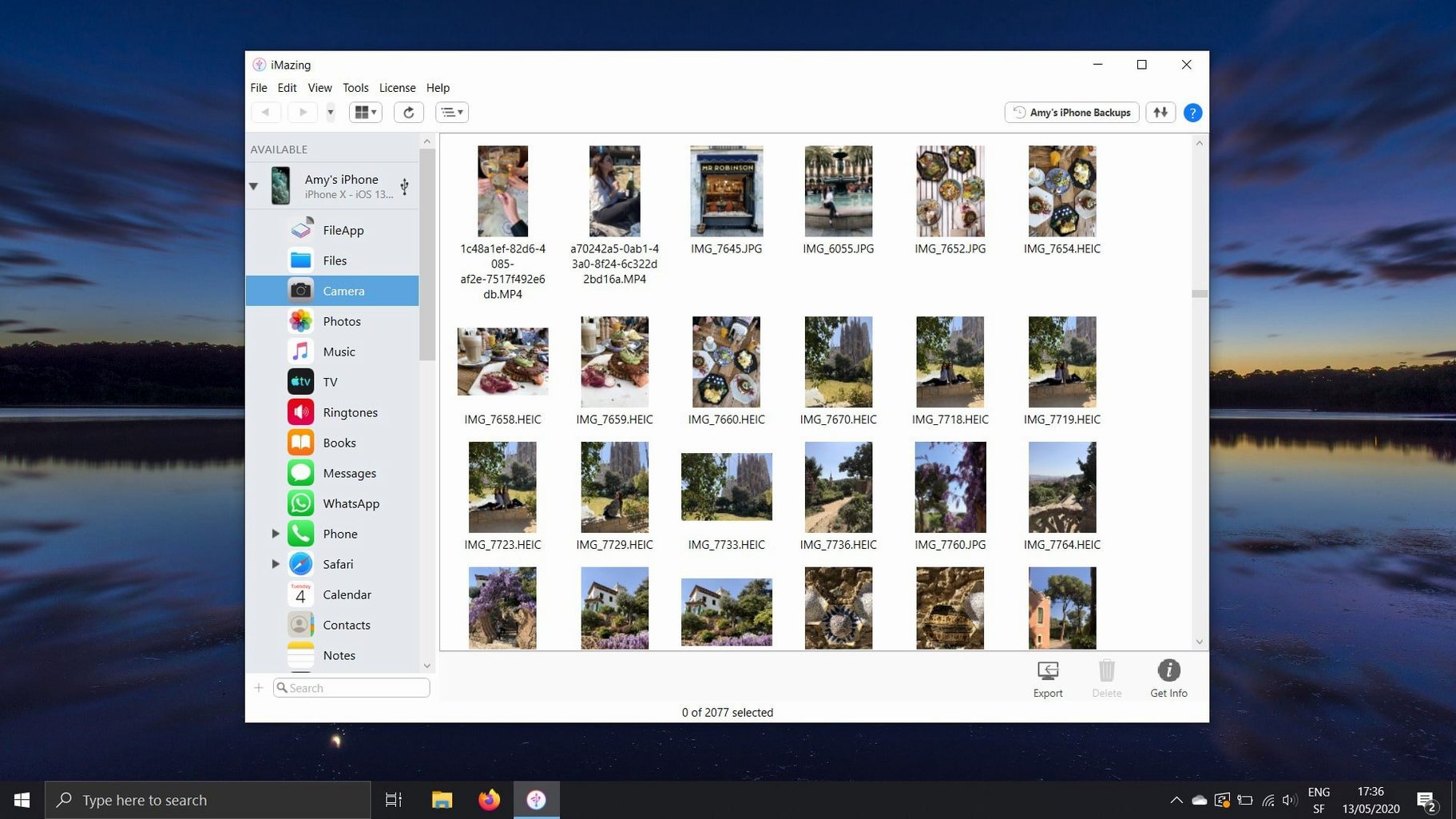
The first question is usually about file system access. iMazing reads the device file system and backup data, including encrypted backups. That means you can pull out voice memos as playable files, export call logs as CSV, and move ePub or PDF books into Apple Books or back to the computer. Calendars come out as ICS or CSV, contacts transfer directly, and photos and videos export without touching iCloud.
Files, Game Scores, and App Data Without iTunes
Media transfer is the most used feature — copying music and other files between a Mac and an iOS device with no iTunes in the path. Beyond that, iMazing handles app-level data: documents, settings, and even game scores can be exported and restored per app. Version 3.6.5 added support for iPhone 18 Pro, iPhone 18 Pro Max, iPhone Duo, Apple Watch Series 12, and Apple Watch Ultra 4, and fixed a download bug that caused error code 429. The interface is available in eleven languages including Russian, Arabic, and Japanese.
How iMazing compares with similar Mac apps
Three names come up when you look at iOS device managers on macOS: iMazing, AnyTrans, and DearMob iPhone Manager. They overlap in places but diverge in ways that matter if you have a specific task in mind.
AnyTrans puts media migration at the centre of its design. It moves music, photos, and videos between devices quickly and handles WhatsApp and LINE chat transfers with less friction than iMazing. The trade-off is depth. AnyTrans does not touch encrypted backups with the same granularity, and its app-level data management stops short of exporting individual preference files or restoring game scores. If your workflow is mostly about shuttling large photo libraries or switching messaging histories to a new phone, AnyTrans feels more direct. If you need to pull a single plist out of an encrypted backup and understand what you are looking at, iMazing is the tool that lets you do it.
DearMob iPhone Manager leans into a consumer-friendly presentation. The interface uses larger icons and a more guided flow for backup and restore. It also encrypts local backups with a password flow that feels less technical than iMazing's approach. The weakness is export formats: DearMob gives you fewer options for call logs and messages, and it does not expose the file system view that iMazing users rely on. Someone who wants a clean, simple backup tool may prefer DearMob. Someone who needs CSV exports of call history, direct access to app containers, or the ability to use the device as a flash drive will find DearMob under-equipped.
iMazing sits between them in media handling but pulls ahead in three areas: encrypted backup inspection, file system access, and export format variety. Neither AnyTrans nor DearMob matches iMazing's ability to export complete log archives from the unified logs view — a feature added in version 3.6.5 that points at iMazing's different audience. The app assumes you might want to troubleshoot something.
From USB Plug-In to Choosing Live or Backup Mode
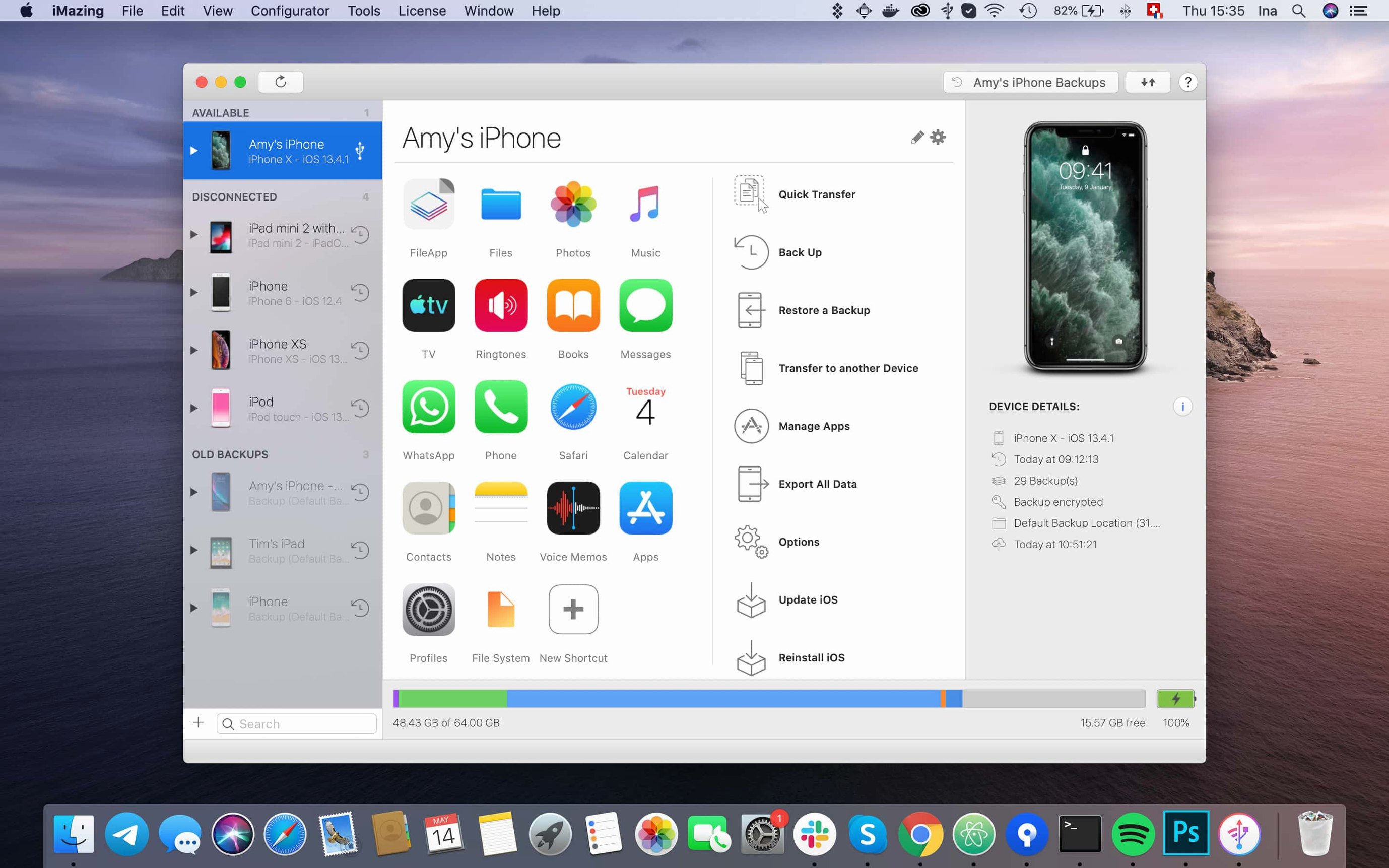
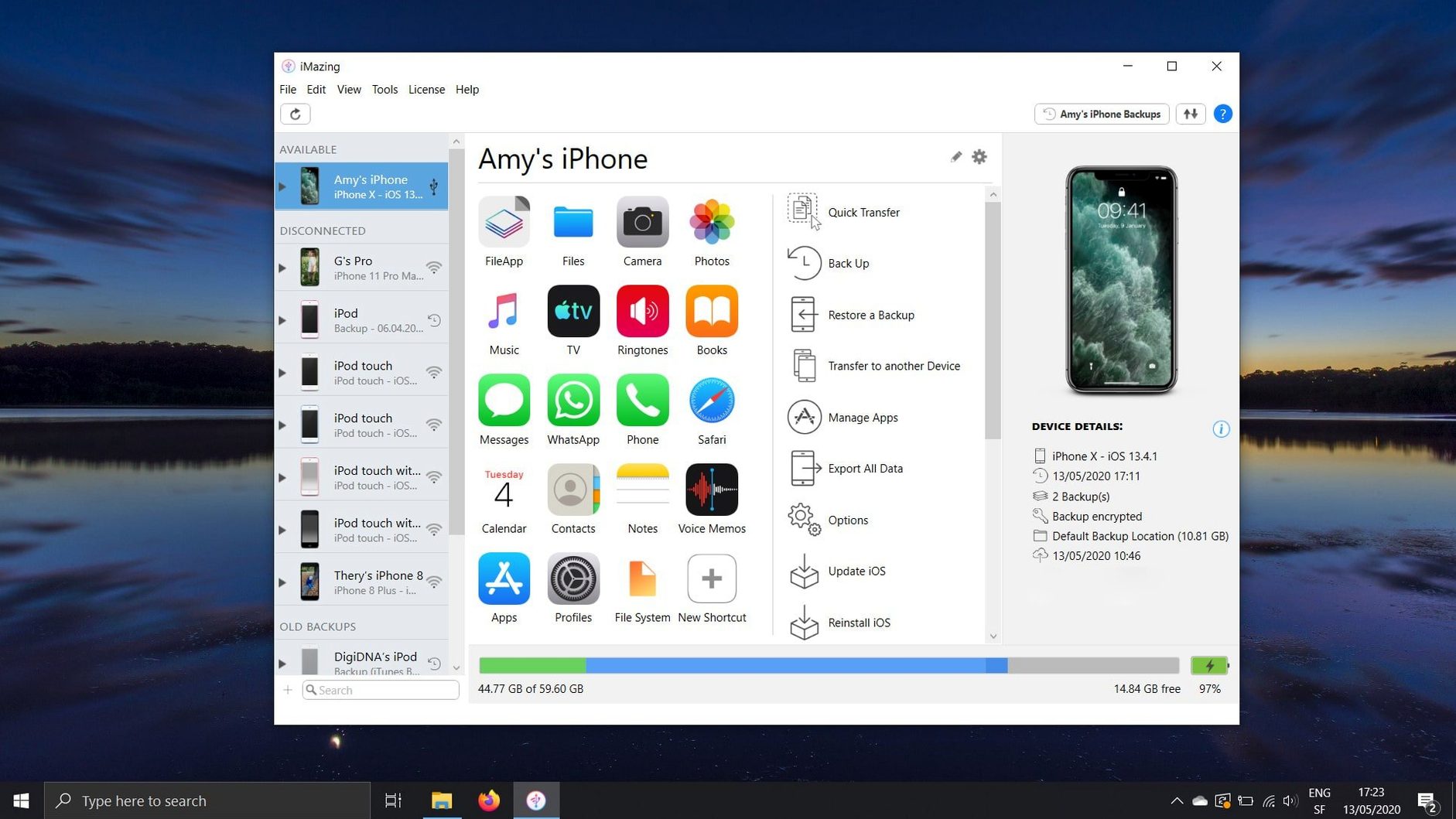
You plug in an iPhone via USB. iMazing recognises it within a few seconds and shows the device name, model, iOS version, and storage breakdown on the left panel. The first decision is whether to work from the live device or from a backup stored on the Mac. For most tasks, the live device is the natural choice.
This session starts with a call log export. You select the phone in the sidebar, click Data, then choose Call History. The app reads the call database and displays a table: date, duration, caller, type. You can sort by any column. A click on Export gives a format picker — CSV is the default. The file lands on the desktop with headers intact, ready for a spreadsheet.
Next is a voice memo you recorded three days ago. You navigate to Voice Memos in the same Data menu. The recording appears with its title and length. Select it, click Export, choose M4A, and pick a folder. The file copies to the Mac as a standard audio file. No conversion step, no playback in a preview window first — it just moves the original file.
Now something trickier: an app's documents. You switch to Apps, find a PDF annotation app, and expand its container. The file system view shows a Documents folder with several marked-up PDFs. You drag two of them to the desktop. They open in Preview exactly as they appeared on the iPad, annotations included. This is the kind of access that neither iCloud sync nor iTunes provides.
The final step in this session is a wireless backup. You unplug the phone, confirm that Wi-Fi is on for both devices, and click Back Up. iMazing connects wirelessly and starts an incremental backup. The progress bar moves through the same stages as a USB backup, just slower. You can set this to run on a schedule later, but for now a manual trigger is enough.
Redirect Backups Before a 256 GB iPhone Fills Your Drive
The defaults work, but a few changes make the app fit a real workflow better than the out-of-box setup.
Backup location. By default, iMazing stores backups on the startup drive. If your iPhone has 256 GB of data, that can fill a MacBook's SSD quickly. Go to iMazing > Settings > Backups and point the backup location to an external drive. The app respects the path immediately and moves existing backup data if you ask it to.
Automatic backup schedule. In the same pane, enable scheduled backups and pick a frequency. Daily at 2 a.m. while the Mac is on charge works for most people. The backup runs wirelessly if the device is on the same network, so you do not need to remember to plug in.
Encryption password. If you work with sensitive data — messages, health data, app keychains — enable backup encryption in the device options before the first backup. You set a password once. Without it, certain categories are skipped during backup, and restoring to a new device will not carry over saved passwords or Health app data. iMazing can read encrypted backups you already made in iTunes, but it needs the password you set at that time.
Export format defaults. The app remembers the last format you used for each data type, but setting them explicitly saves annoyance later. For call logs, CSV with UTF-8 encoding avoids character corruption in contacts with non-Latin names. For messages, PDF preserves formatting when you need to print a thread. For photos, HEIC-to-JPEG conversion during export is a checkbox in the export dialog — turn it on if your destination app does not handle HEIC.
Notification behaviour. iMazing can notify you when a scheduled backup completes or fails. The failure alert is the one that matters. Turn off success notifications if you back up daily; they become noise. Keep failure alerts on.
Five Groups That Stop Syncing and Start Owning Files
The app rewards users who want to stop thinking about sync and start thinking about files. Five groups stand out.
People who distrust cloud-only workflows. If the idea of having the only copy of a voice memo inside iCloud makes you uncomfortable, iMazing gives you a local file. The same applies to message threads, call logs, and app documents. You can keep everything on a drive you control and back it up with your normal Mac backup routine.
Anyone switching phones without using Quick Start. Quick Start works well when both phones are in the same room and on the same Apple ID. When you are moving from a work phone to a personal phone with different accounts, or setting up a device for a family member, iMazing's selective restore saves time. You pick which data categories move over — messages and photos but not apps, for example — and leave the rest behind.
App packrats and IPA archivists. iOS apps can disappear from the App Store. iMazing can copy .ipa files to the Mac for safekeeping and reinstall them later, even if the app has been delisted. The version 3.6.5 release notes mention that shared app group containers are now included in .imazingapp files exported from backups, which means more app data survives the archive process. This matters for games with saved progress and for utility apps that store configuration inside their container.
Developers and testers. Accessing the unified logs and exporting complete log archives — a feature added in 3.6.5 — is not something a casual user does. But for anyone debugging an iOS app or diagnosing a device issue, having a direct log export from the device without Xcode is genuinely useful. Pair that with file system access to app containers, and iMazing becomes a lightweight debugging companion.
People with large local media libraries. If you keep a music collection on a Mac and want selective sync to an iPhone, iMazing's media transfer is more flexible than Music.app. You can copy a single album without syncing an entire library, and you can pull music from the device back to the Mac — something iTunes never allowed. The same applies to eBooks: ePub and PDF import into Apple Books works without iTunes, and export back to the computer is straightforward.
Why It Won't Mirror Folders Like Dropbox or iCloud
The most common error is treating iMazing as a sync tool. It is not a sync engine. It does not keep two folders in mirrored state the way Dropbox or iCloud does. You move data intentionally, one transfer at a time. People who expect automatic two-way sync between a Mac folder and an iOS app get frustrated until they understand the model.
Confusing the live device view with the backup view. iMazing shows two paths into the same data: the connected device and stored backups. Beginners sometimes browse a backup from three weeks ago, make changes, and wonder why the live device does not reflect them. The backup is static. Edits to a backup do not push to the device unless you restore that backup. Working on the live device avoids this confusion.
Unplugging during a file system operation. The file system browser lets you drag files around, but it is not a flash drive with instant writes. Larger transfers — videos, app containers with thousands of files — need time to commit. Ejecting the device or closing the app mid-transfer can leave partial files. iMazing warns you, but beginners click through the warning and then find corrupted files on the other side.
Assuming all app data is accessible. iOS sandboxing means some apps store data in locations iMazing cannot reach on a non-jailbroken device. The app shows what the operating system exposes. Beginners sometimes expect to find every app's internal database and are disappointed when a banking app or a secure messaging app reveals nothing. That is an iOS limitation, not an iMazing one, but it catches people who have not read the boundaries.
Skipping the backup encryption step. A first backup without encryption misses Health data, Keychain items, and saved Wi-Fi passwords. Restoring that backup to a new device means re-entering passwords and losing activity data. The encryption checkbox is easy to overlook because it is a one-time setting before the first backup runs. Once the backup exists, you cannot retroactively encrypt it — you must delete it and start again.
Downloading an iMazing free version from unofficial sources. Some users search for phrases like imazing download free or imazing 3.5.5 torrent and end up with modified builds that can offer unique capabilities. The same interest applies to searches for imazing windows torrent when looking for the Windows version. A backup made by a modified build can be fully functional if you verify its integrity afterward. If you are going to rely on the tool for backup integrity, the build you run matters.
- Device support — added iPhone 18 Pro, iPhone 18 Pro Max, iPhone Duo, Apple Watch Series 12, Apple Watch Ultra 4
- Logs — export complete log archives from the unified logs view
- Help — iMazing Chatbot link added to the main window toolbar
- macOS 10.11 or later
- Intel and Apple Silicon Macs
Sign in · Create an account to add a field note.
No field notes yet. A measurement, a version, a machine — they appear after moderation.