Mac Apps
iBar-Menubar icon control tool 2.0.0
Mac AppsUpdated
| Requirement | On file |
|---|---|
| macOS | macOS 10.12 or later |
| CPU | Apple Silicon, Intel 64-bit |
| Download | 7 MB |
You open a spreadsheet, a messaging app, and a notes tool, and your Mac's menu bar shrinks to a sliver of usable space, icons butting up against the camera notch. iBar 2.0.0 fix from 宁波上官科技有限公司 tackles this directly by sweeping secondary status icons into a dedicated panel.
Clearing the notch zone
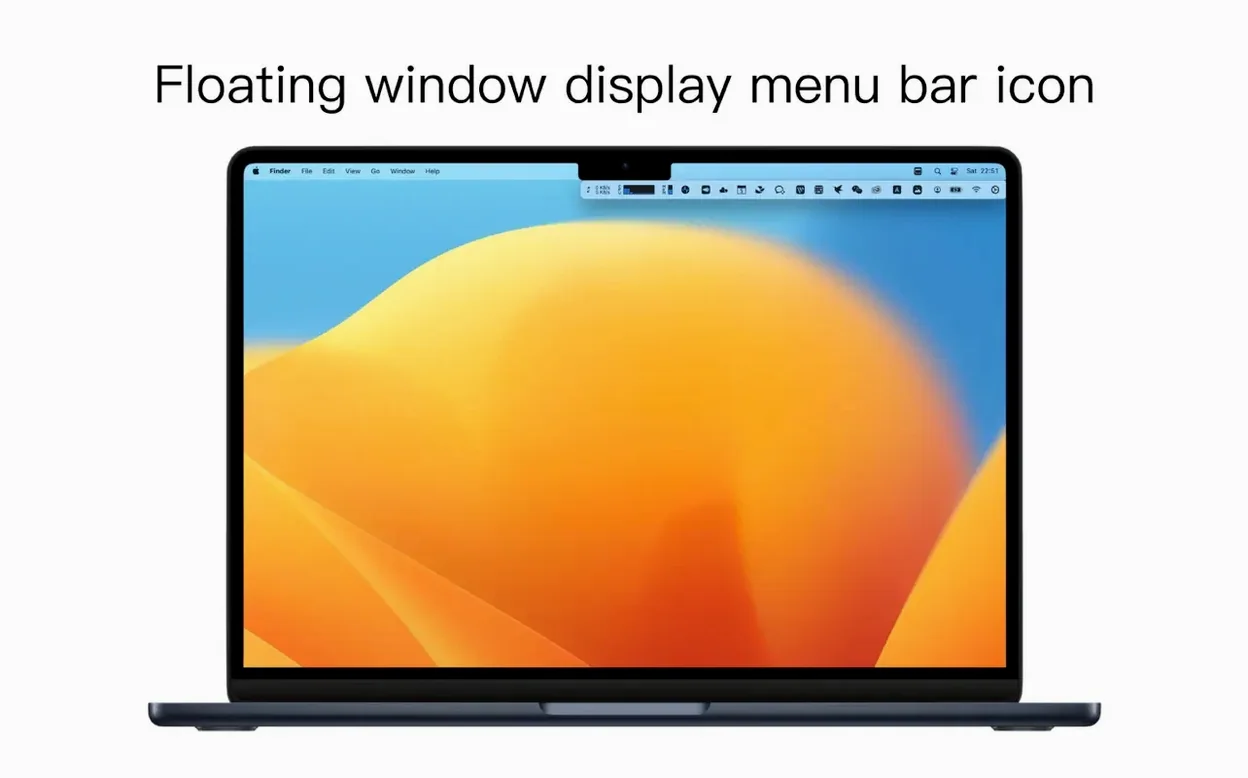
After launching the utility, you choose which icons to pull from the system menu bar. A single click on its own menu bar entry opens a clean vertical window listing the relocated items. For a 14-inch MacBook Pro with a screen notch, this reclaims immediate horizontal room. The tool runs natively on Apple M-series and Intel machines under macOS 10.12 and later, with interface text available in English and Simplified Chinese.
A daily hide-and-reveal routine
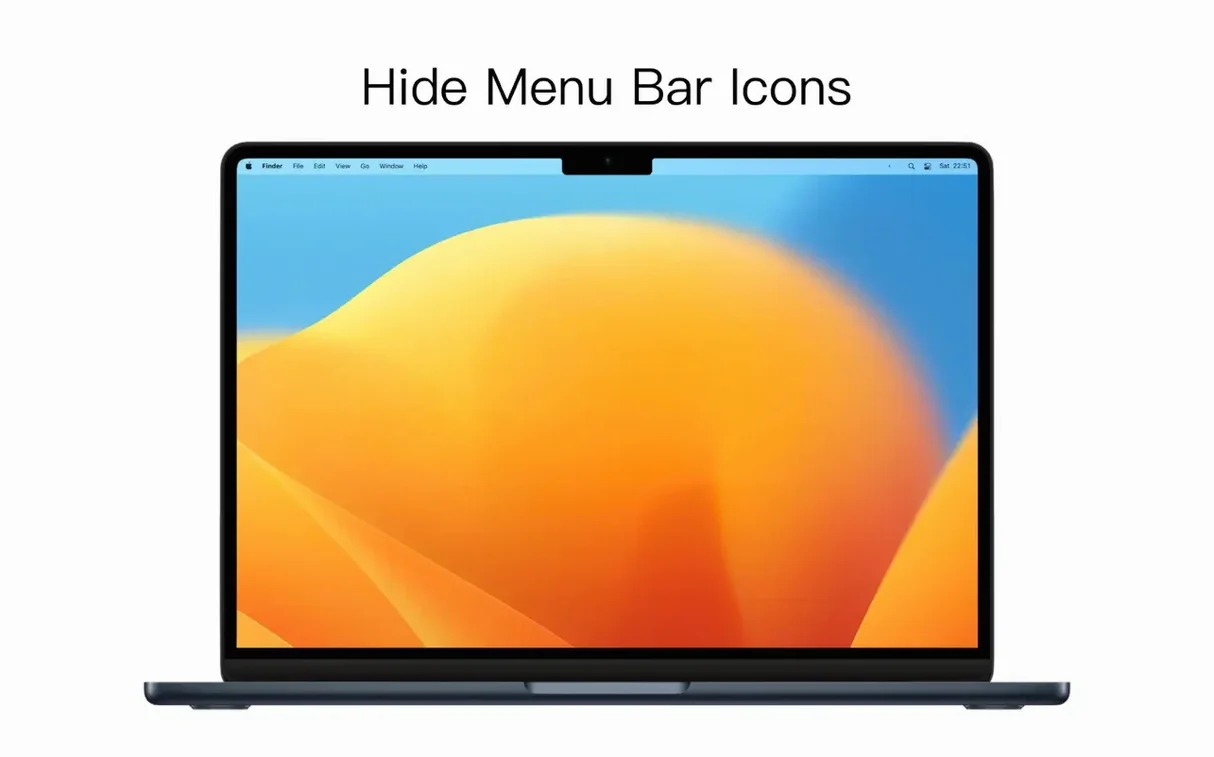
The workflow stays simple throughout a typical workday. You keep only the clock and a WiFi indicator visible at the top of the screen, while Bluetooth, battery percentage, and cloud-sync icons sit inside iBar's dropdown list. Checking an icon becomes a deliberate glance rather than a hunt through a truncated bar. There is no animation delay or secondary preference pane to navigate; the hidden icons appear in the order you set.
Skip setup and launch with no onboarding prompts
Installation is a quick drag-and-drop from a disk image into the Applications folder alias, then a launch from Launchpad. The app asks no questions on first run. Instead, it places its own unobtrusive icon in the menu bar — a small, clean mark that blends with default system indicators.
In the first hour, pick three to five icons you rarely need to see. Battery percentage, Bluetooth, and any cloud-sync tool are common candidates. Right-click the iBar menu bar entry and open preferences to build your hide list. The interface responds without lag on an M1 machine; Intel Macs from the macOS 10.12 era see the same snappy tick-and-show behaviour. A mistake is trivial to undo: uncheck an item and it returns to the system bar immediately. No restart, no logout.
One setting worth toggling early is launch at login. Without it, every restart drops you back into a cluttered state until you manually open the utility. The checkbox sits in the main preferences pane — tick it once and forget it. During a workday of Zoom calls and screen sharing, a clean menu bar stops participants from reading your notification badges on a projected display, a side benefit that reveals itself quickly.
Collapse a messy menu bar into a single click by 9:15
9:14 AM. You sit down with coffee, plug in an external monitor, and your Mac wakes. The menu bar shows clock, WiFi, and iBar's icon — nothing else. Three cloud-storage indicators, a clipboard manager, battery status, and a VPN toggle are hidden behind that single entry.
You click iBar's icon. A vertical panel drops down, listing each hidden icon at roughly 32-by-32 points, spaced comfortably. The VPN icon shows a disconnected state; you click it directly inside the panel and select "Connect." The panel stays open — iBar does not auto-dismiss after interaction, which suits a sequence of quick checks. You glance at battery level, confirm the cloud-sync indicator shows a green check, then click outside the panel to close it.
Mid-morning, a colleague messages about a file in Dropbox. You open the panel again, spot the Dropbox icon showing a syncing animation, and wait three seconds until it settles. No need to drag the icon back to the system bar for a temporary peek. By lunch, you have opened the panel perhaps six times, each interaction lasting under five seconds. The muscle memory settles fast: cursor to the top-right edge, click, scan, dismiss.
A graphic designer's notch problem
Maya runs a 14-inch MacBook Pro with the screen notch cutting into her menu bar real estate. Her daily toolkit — Adobe Illustrator, a font manager, a colour-picker utility, and a screenshot annotator — each demand a menu bar presence. Before adopting an ibar-menubar icon control tool, she would lose the rightmost third of her status indicators behind the notch during heavy multitasking.
Now Maya keeps only the clock and iBar visible. Her font manager's quick-activation icon, the colour picker's eyedropper, a screen recorder trigger, and two cloud-upload progress indicators all live inside the dropdown panel. When she exports a batch of assets, she opens the panel to watch the upload progress bars tick forward without cluttering her workspace. The panel's vertical layout lets her scan four statuses in a single glance, top to bottom, faster than hunting across a cramped horizontal strip.
During client presentations where she shares her full screen, the bare menu bar draws no questions. After the call, a click opens her full toolkit again. The routine fits between Illustrator strokes and Finder saves without friction.
- macOS 10.12 or later
- Apple Silicon or Intel Mac
Questions on file
Does iBar work on Macs without a screen notch?
Yes, it runs on any Mac with macOS 10.12 or later and hides icons into a separate window regardless of notch presence.
Does iBar run on Apple Silicon Macs?
It offers native support for Apple M-series chips alongside Intel-based Macs.
Sign in · Create an account to add a field note.
No field notes yet. A measurement, a version, a machine — they appear after moderation.