Mac Apps
Picview - Image Viewer 1.5.7
Mac AppsUpdated
| Requirement | On file |
|---|---|
| macOS | macOS 11 or later |
| CPU | Apple Silicon, Intel 64-bit |
| Download | 11 MB |
You’ve just offloaded a card with 400 RAW files and a handful of HEIC shots from a phone. Double-clicking any one of them opens a clean, borderless window that lets you arrow through the folder without importing a thing.
How does object detection work in a viewer?
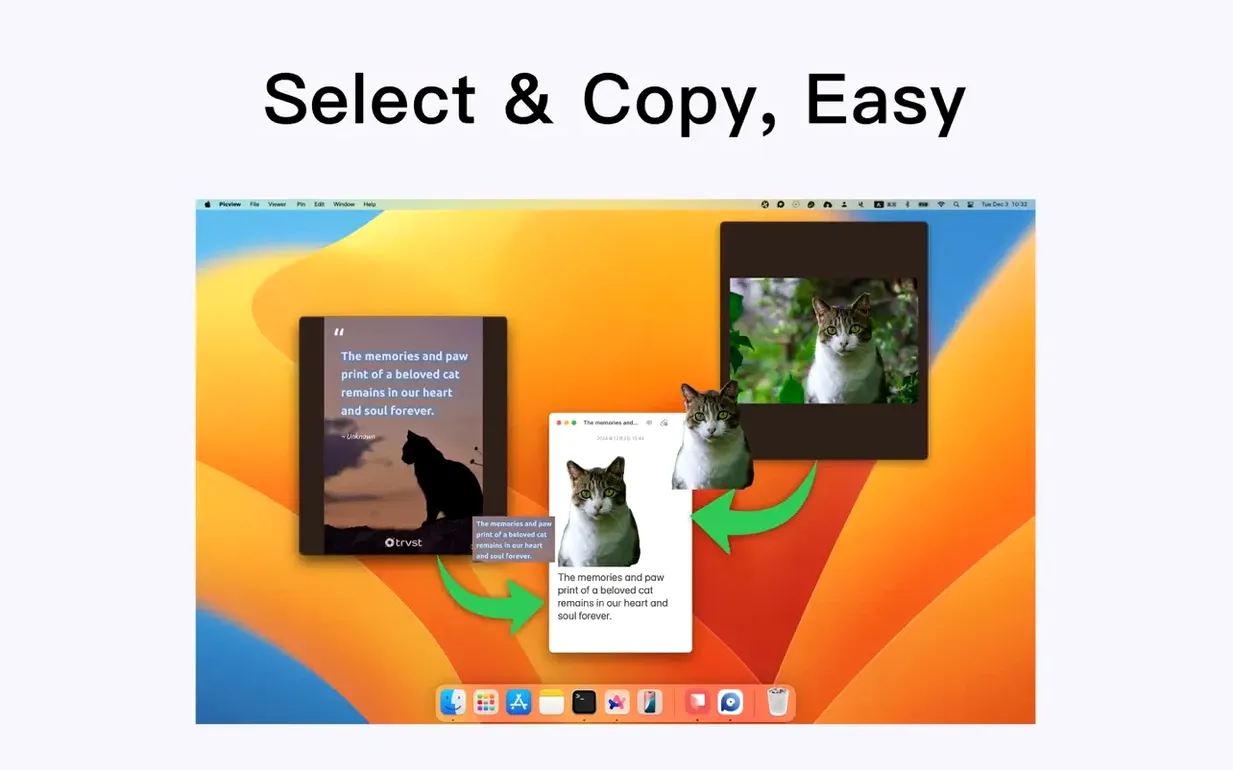
Picview can isolate the primary subject in a photo—a person, a product, a sign—and copy just that object to the clipboard, background removed. It’s a single-step extraction tool that saves a round-trip through a full editor when you only need the subject for a layout or message.
Which RAW and layered formats does it handle?
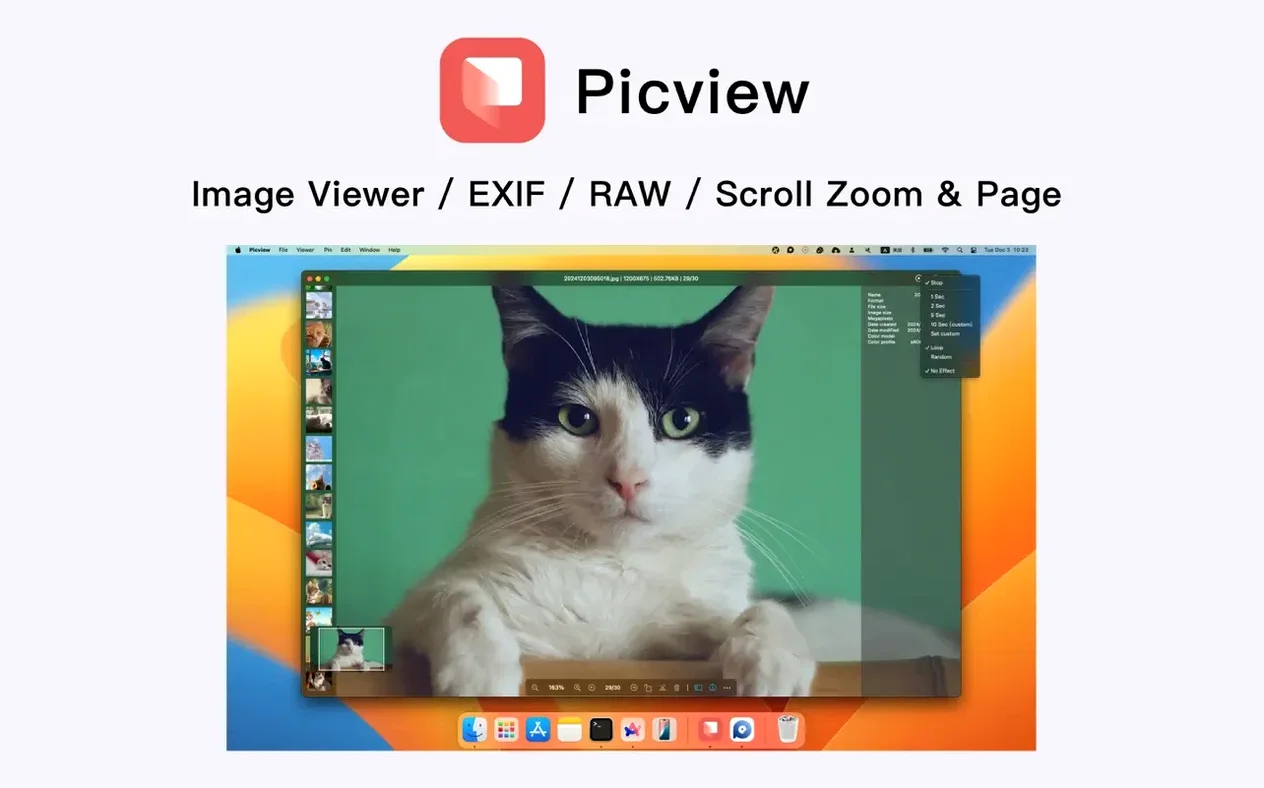
The format list runs past 30 entries, covering common camera RAW profiles, Photoshop PSD, HEIC, WEBP, and animated GIF. Layer-flattened previews for PSD files appear at full resolution, and EXIF orientation is respected on open.
Can it run a hands-free slideshow with custom timing?
Yes—the slideshow mode supports shuffle and loop. Version 1.5.7 specifically addressed a bug where a custom duration set by the user wasn’t being honoured during playback, so timed intervals now stick.
What text extraction is built in?
An OCR engine reads characters directly from an open image. You can select and copy recognised text without launching a separate utility, which is practical for pulling serial numbers or quotes from screenshots and scanned documents.
A retoucher's first pass after a shoot
A retoucher returns from a studio session with 200 TIFFs and a folder of backup JPEGs. The card hasn't been ingested into Lightroom yet—she just needs to cull obvious misfires before the client arrives. She opens the card's DCIM folder directly in Picview, sorts by file size to flag the small JPEG proxies first, then switches to capture-time order for the TIFFs. A quick arrow-key pass flags the under-exposed frames. Object detection pulls a product silhouette from one shot straight into a Slack message for the art director, no round-trip required. Fifteen minutes later the keepers are moved to a local drive and the rest deleted.
Mac App Store Sandboxing Limits in Picview
Does it insist on building a library or database?
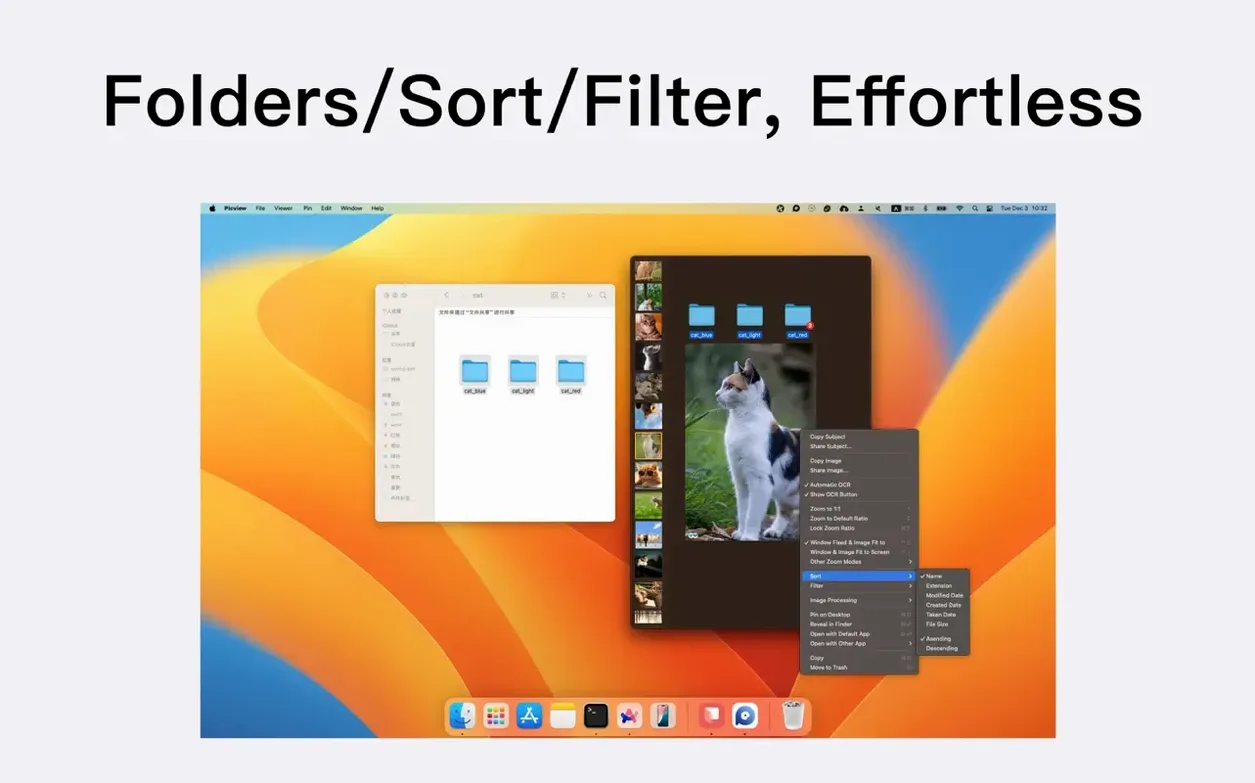
No. Picview reads files straight from the disk, one folder at a time. It does not create a catalogue, a library package, or any hidden sidecar database. You point it at a folder—including nested subfolders—and it displays what's there. Close the window and nothing persists except your last-used sort order.
Will it respect my existing folder structure?
Yes. The recursive folder view shows images from every subfolder in sequence, but the files stay where they are. No copying, no reorganisation, no renaming unless you deliberately trigger a rename operation. It works with the hierarchy you already have.
Can it open a single image without launching the whole folder?
Double-click a file in Finder and Picview opens just that image in a standalone window. Arrow keys still navigate siblings in the same directory, but you're not forced into a full-browser layout if all you want is a quick look at one shot.
Does the OCR work offline, or does it phone home?
Text recognition runs entirely on-device. No network connection is required, and no image data leaves the machine during OCR or object detection. The engine handles English and Chinese characters well; results for other scripts depend on clarity and contrast.
First days: practical things to set up
After dragging the app into Applications, a few adjustments make the first sessions smoother.
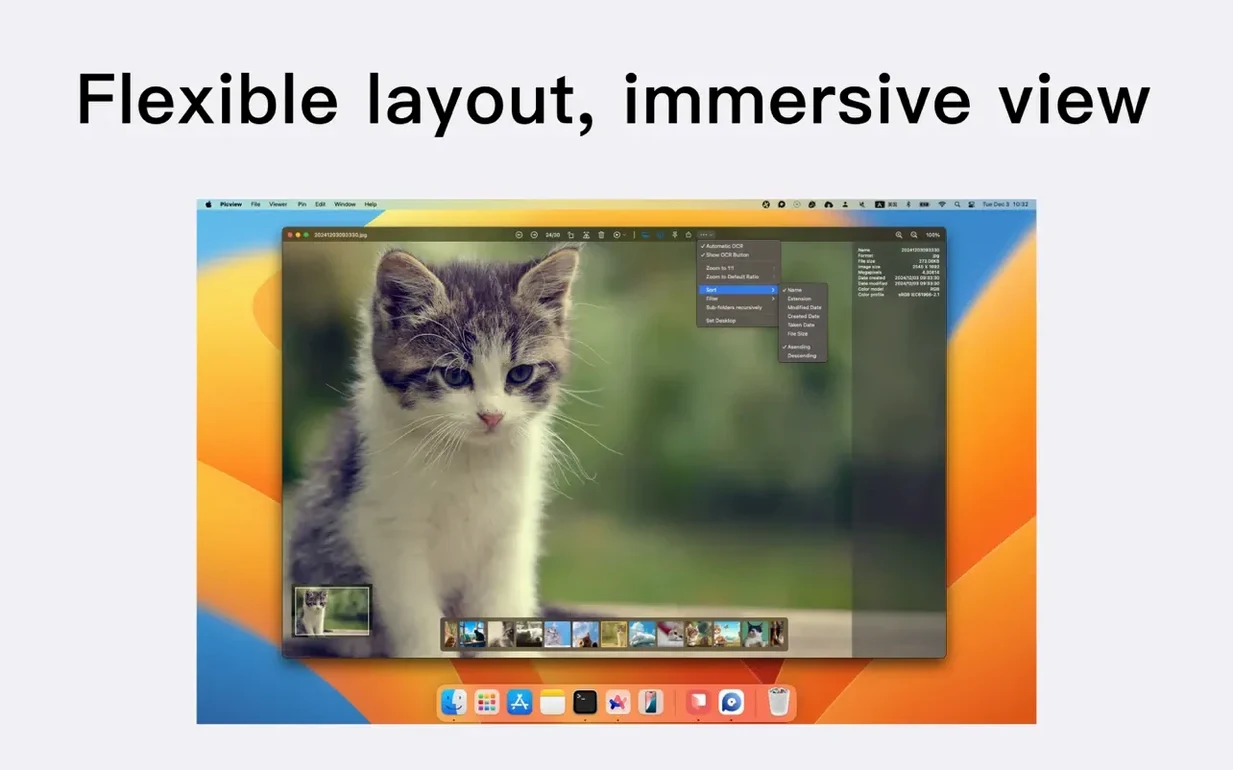
- Set a default sort that matches how you work. Photographers often prefer capture time ascending; designers scanning asset folders might want name order. The sort setting persists across sessions, so set it once in the toolbar.
- Check the slideshow duration before a client presentation. The 1.5.7 fix means custom intervals now hold, but the default is fairly short. Set a value that gives viewers time to absorb each frame—5 to 8 seconds works for review sessions.
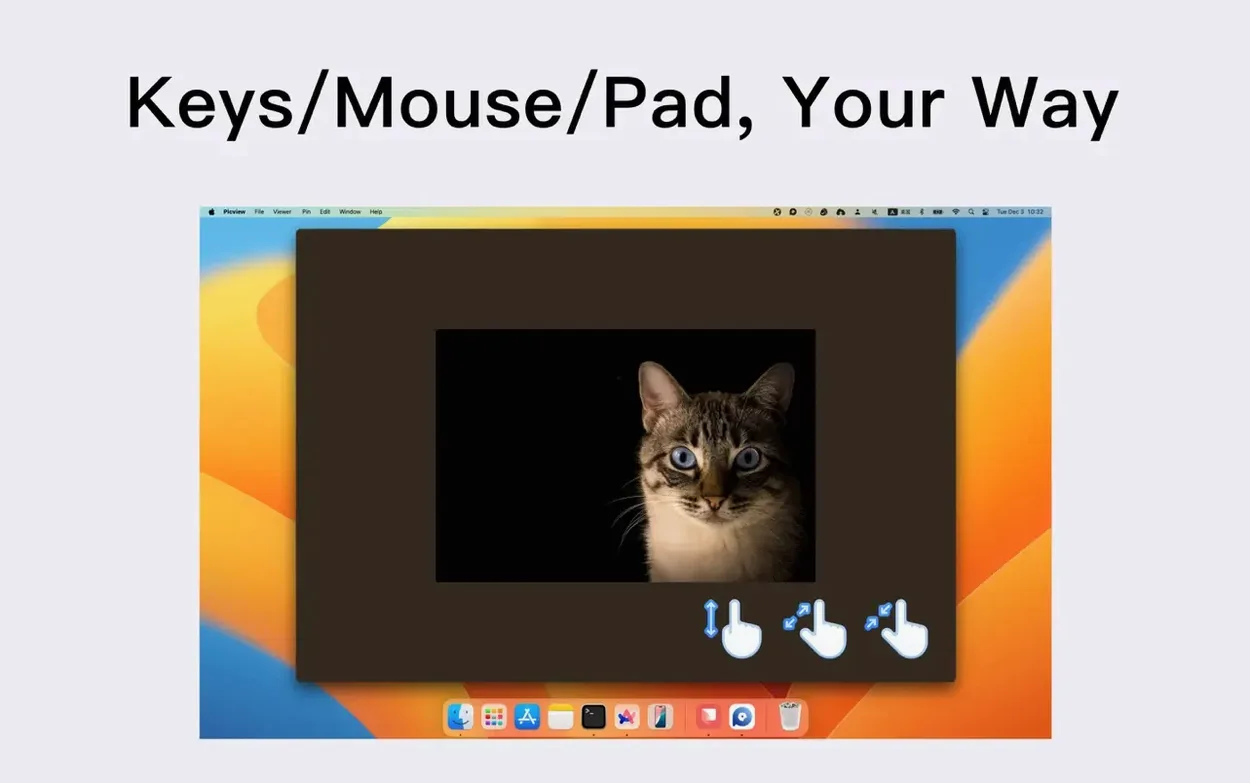
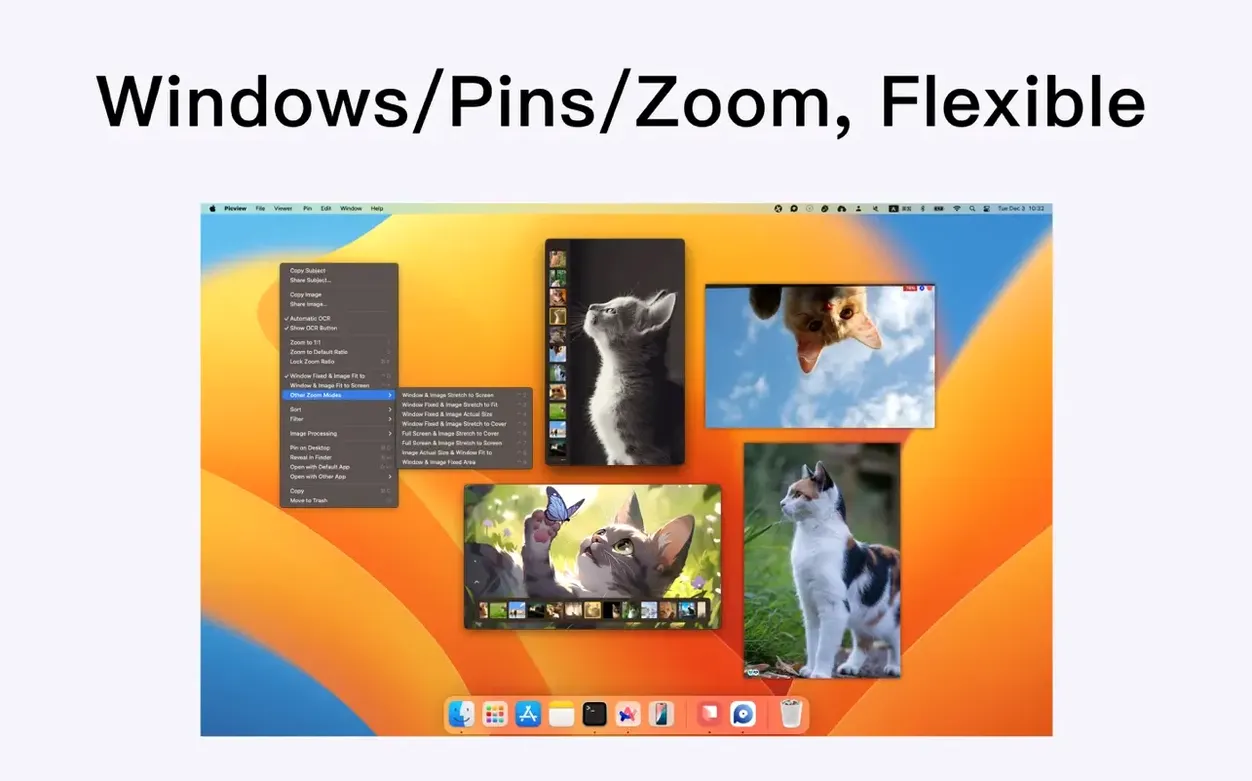
- Learn the three zoom modes. Adaptive mode fits the image to the window as you resize it; fixed-size mode keeps a constant zoom level across images. Mouse-wheel zoom with a modifier key gives precise control for checking focus on high-resolution files.
- Filter by extension when folders mix formats. If a single folder contains RAW, JPEG, and PSD, the extension filter in the toolbar isolates just the type you need. Useful when working with sidecar JPEGs next to RAW masters.
- Use the EXIF panel early to verify lens data. Open the metadata sidebar (it's in the View menu) and check that focal length, aperture, and ISO are recorded correctly before culling—especially after adapting vintage lenses or using manual aperture rings that don't communicate electronically.
- Slideshow — Fixed an issue where a custom playback duration was not applied.
- macOS 11 or later
- Apple Silicon or Intel 64-bit
Sign in · Create an account to add a field note.
No field notes yet. A measurement, a version, a machine — they appear after moderation.