Mac Apps
Permute 4.0.11
Mac AppsUpdated
| Requirement | On file |
|---|---|
| macOS | macOS 26 or later |
| CPU | Apple Silicon |
| Download | 84 MB |
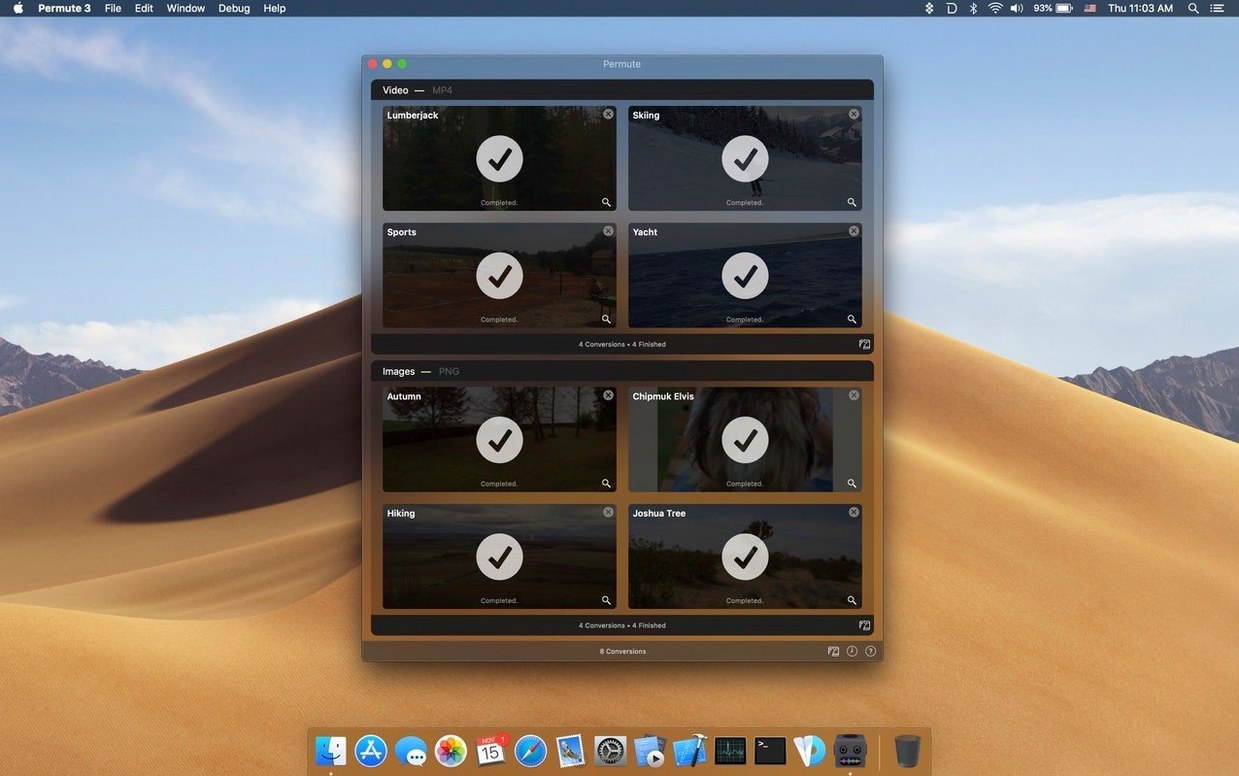
Getting video, audio, or image files into a format another device or editor can actually read is a constant friction point. Permute from Charlie Monroe Software handles this by accepting almost any media file and converting it to a useful output format with minimal clicks.
What version 4 keeps unchanged
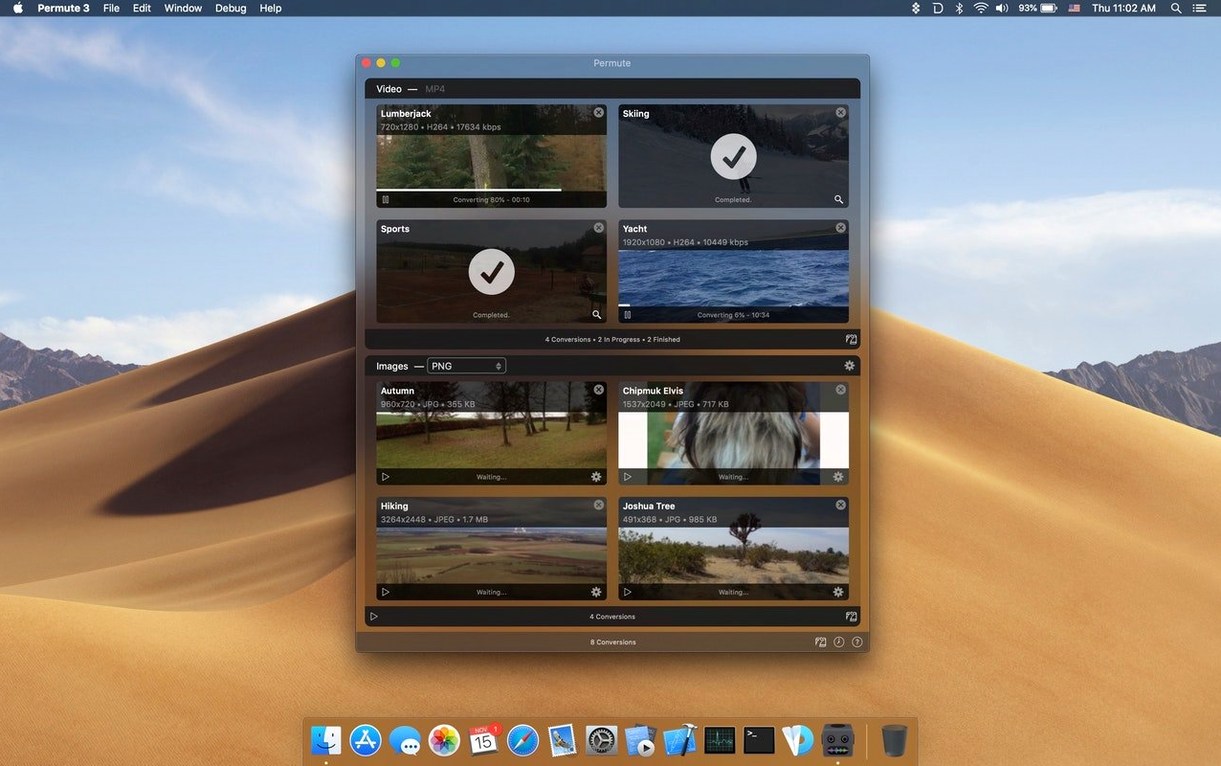
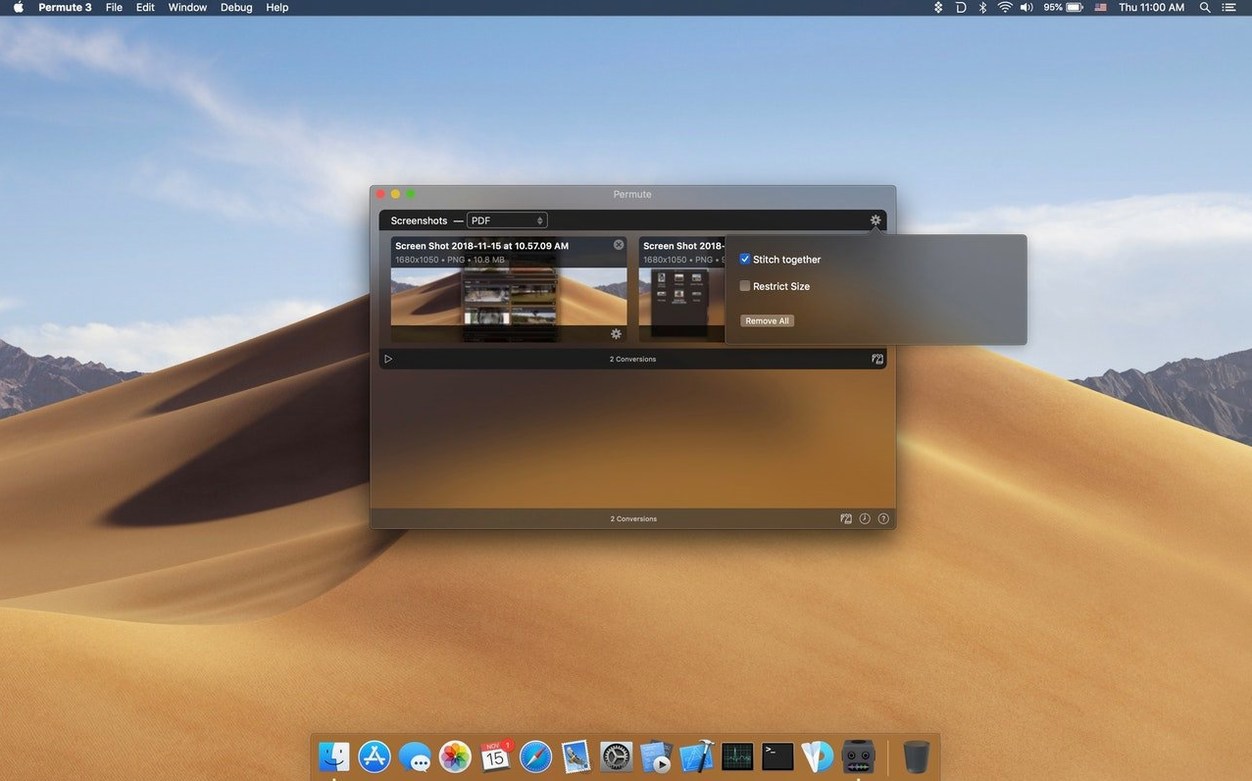
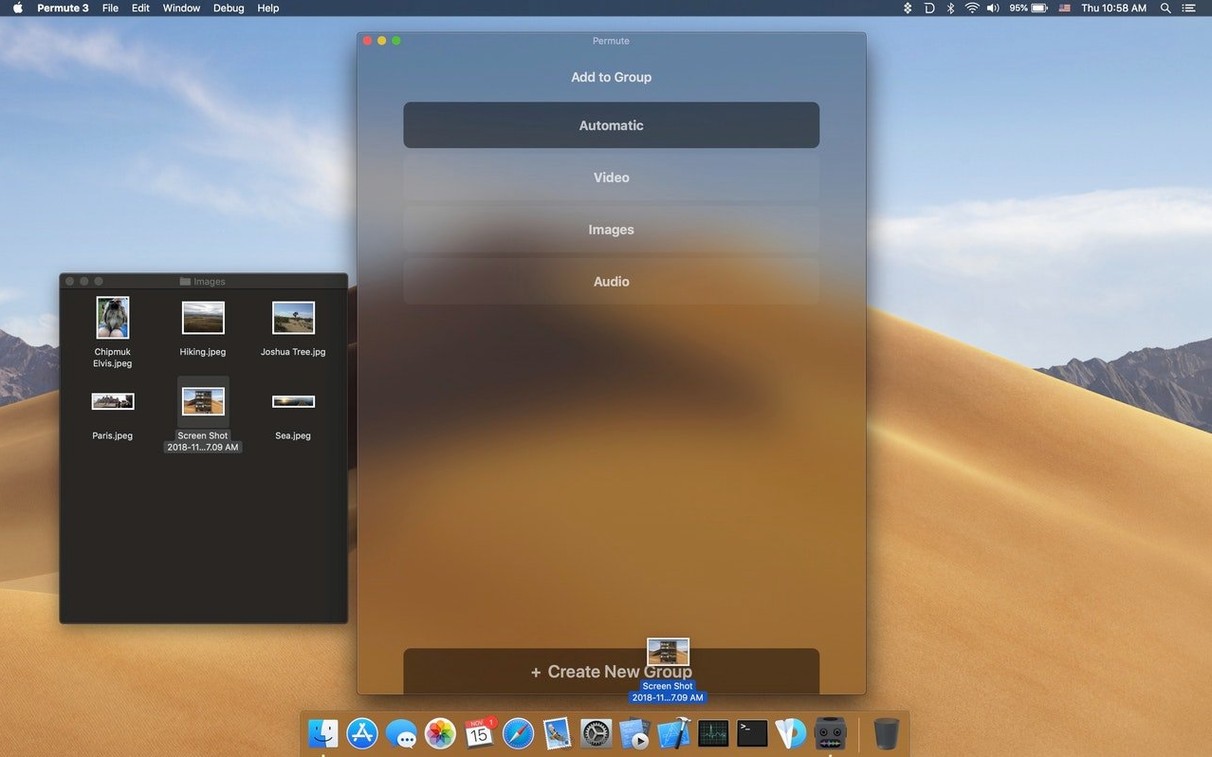
The core behaviour remains a straightforward drag-and-drop conversion engine. You feed Permute video, audio, or image files and it writes them out in a different format. The app can also merge two video files into one, and the interface still stays out of your way after you set the output preset.
Apple Silicon Only, Starting at macOS 26
Permute 4 draws a clear hardware line. The developer lists Apple Silicon as a requirement and sets the minimum macOS version at macOS 26. The interface ships in 15 languages including Russian, German, Arabic, Persian, and Simplified Chinese alongside the expected European set. Earlier Intel-based machines are not supported on this release track.
HandBrake Exposes Every Encoder Knob, Permute Hides Them
Three other macOS media converters occupy roughly the same space as Permute, each with a different emphasis. HandBrake is the perennial open-source workhorse. It exposes every knob in the video encoding chain — codec profiles, rate control algorithms, denoise filters, subtitle burn-in behaviour. Where Permute treats conversion as a one-shot preset selection, HandBrake treats it as a craft. The trade-off is obvious: a 15-minute HandBrake session can yield exactly the output you wanted, but a 15-second drag-and-drop in Permute might yield something good enough while you get on with other work.
Adapter sits closer to Permute in philosophy. Both apps prioritise drag-and-drop simplicity and cover video, audio, and image formats. Adapter leans harder into batch image processing and offers a few more esoteric output presets, but its development cadence has been irregular. Permute's tighter integration with macOS 26 features and its active single-developer maintenance give it an edge in reliability on Apple Silicon hardware.
ff·Works wraps the FFmpeg command line in a native Mac interface. It matches Permute in using FFmpeg libraries under the hood, so the underlying conversion fidelity is comparable. The difference is interface philosophy: ff·Works exposes FFmpeg's parameter flags in a structured form, which suits people who know what a CRF value of 18 means. Permute hides those parameters behind named presets, which suits people who know they want a file that plays on a 2018 Samsung TV.
Set the Video Quality Slider to Match Your Storage Limits
Permute's defaults are sensible but not tailored to your hardware or your tolerance for large files. Three adjustments repay the minute they take.
Video quality slider. Open Preferences, switch to the Video tab, and check where the default quality sits. The app ships with a middle-ground value that prioritises file size over fidelity. If you convert archival footage or anything you plan to edit later, bump the slider toward the higher-quality end. For clips destined for messaging apps or email attachments, drag it the other way and reclaim the space.
Output folder behaviour. By default, Permute writes converted files into the same folder as the source. That gets messy fast. Under Preferences > General, set a dedicated output directory — something like ~/Movies/Converted keeps originals untouched and lets you batch-clear the output folder without second-guessing what you might delete.
Post-conversion action. Permute can run a script or open a folder after each job completes. In Preferences > General, the "After conversion" dropdown includes a "Do nothing" option that prevents the app from stealing focus while you work through a queue. Set it once and forget it.
Save Time by Cloning a Custom Preset for Recurring Formats
A few habits make the first week with Permute smoother.
Build a small preset library early. The built-in presets cover common use cases, but the real time savings come from custom presets tuned to your recurring needs. Create one for "Audio extract AAC 192kbps", one for "iPad-compatible HEVC", and one for "WebP thumbnail 400px wide". The custom preset pane stores your output format, codec, resolution, and quality choices under a name you will recognise six months later. Three custom presets set up on day one will handle 80% of what lands in the conversion queue.
Test the subtitle merge workflow with a short clip. Permute can embed an external subtitle file into a video container, but subtitle track naming and character encoding quirks differ between SRT and ASS sources. Run a 30-second test conversion with a known subtitle file before queuing a two-hour film. Check that the track appears in QuickTime Player and that non-Latin characters rendered correctly.
Watch the queue, not the progress bar. Permute processes files sequentially but lets you reorder the queue by dragging items. If a large 4K file is chewing through encoding time while five small audio conversions sit behind it, drag the audio jobs to the top. They will finish in seconds and clear the queue visually.
Know where the logs live. If a conversion fails silently, open the Window menu and select "Log". The FFmpeg output shown there will often tell you exactly what went wrong — a codec mismatch, an unsupported pixel format, or a subtitle track that could not be muxed. Copying that error line makes troubleshooting faster when you search for answers.
Turning Archival AVI, HEVC, and WAV into an Edit-Ready Timeline
Consider someone cutting a short documentary from archival footage spanning three decades of formats. The project folder contains DV tapes digitised as AVI, smartphone footage in variable-frame-rate HEVC, interview audio recorded as 24-bit WAV, and a folder of scanned film stills saved as TIFF. Before any timeline work begins, all of it needs to become ProRes 422 and 16-bit AIFF.
Monday morning, they drag the entire folder onto Permute. The video presets are already configured: ProRes 422 at original resolution, constant frame rate enforced. The audio preset outputs 48 kHz AIFF. The image preset converts everything to PNG with a maximum width of 4000 pixels. The queue populates with 47 items.
By lunch, the conversions are done. Two files failed — an AVI with a corrupted header and a TIFF that was actually a misnamed PSD. The log window identified both in seconds. The editor re-encodes the AVI from the original tape capture and exports the PSD through Photoshop as a proper TIFF, then drags just those two files back into Permute. The project timeline is populated that afternoon with consistent, edit-friendly media. No command-line flags were consulted. No preset was rebuilt. The converter stayed out of the way and let the actual work happen.
- macOS 26 or later
- Apple Silicon Mac
Sign in · Create an account to add a field note.
No field notes yet. A measurement, a version, a machine — they appear after moderation.