
Mac Apps
PlistEdit Pro 1.10.0
Mac AppsUpdated
| Requirement | On file |
|---|---|
| macOS | macOS 14 or later |
| CPU | Apple Silicon, Intel 64-bit |
| Download | 11 MB |
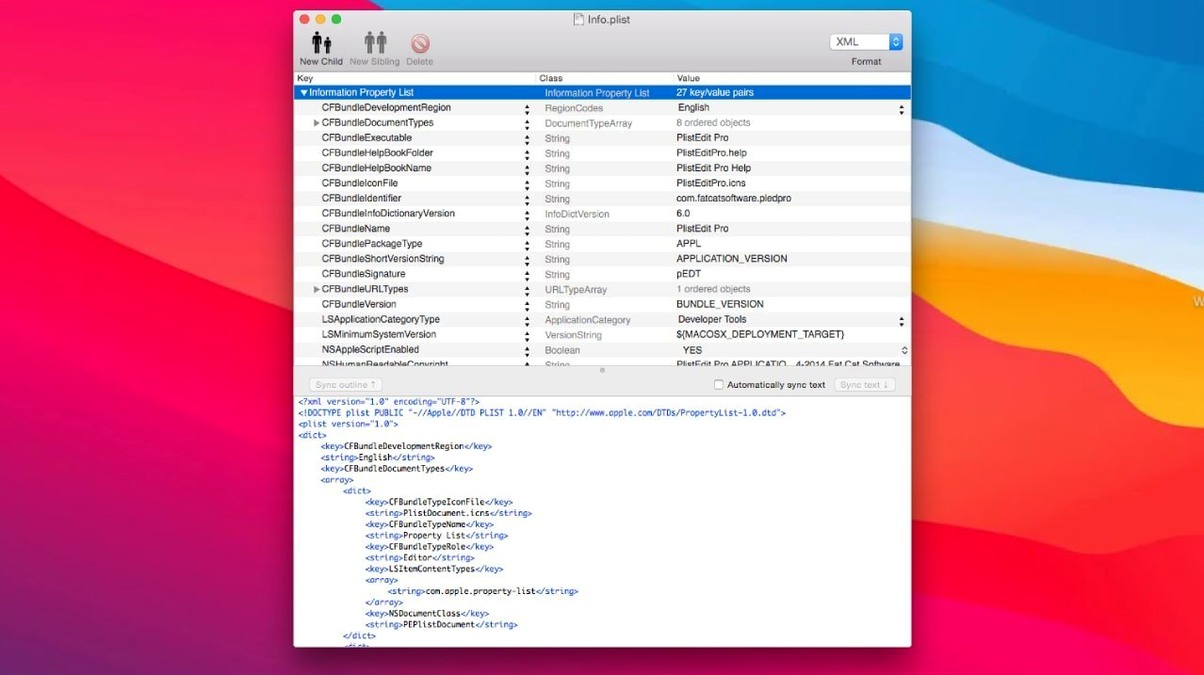
Mac and iOS developers who spend time inside property list files know the default macOS editor feels a bit sparse. PlistEdit Pro fills that gap with a dedicated plist and JSON editor that handles the format natively — showing keys, types and values in a structured browser rather than a raw text view.
How do I browse system preferences without digging through folders?
Open the Preferences Browser (found under the File menu). It lists every macOS preference domain on your machine in one pane. You can toggle between user and system domains, and the checkboxes for filtering options now sit inside a toolbar menu since version 1.1.
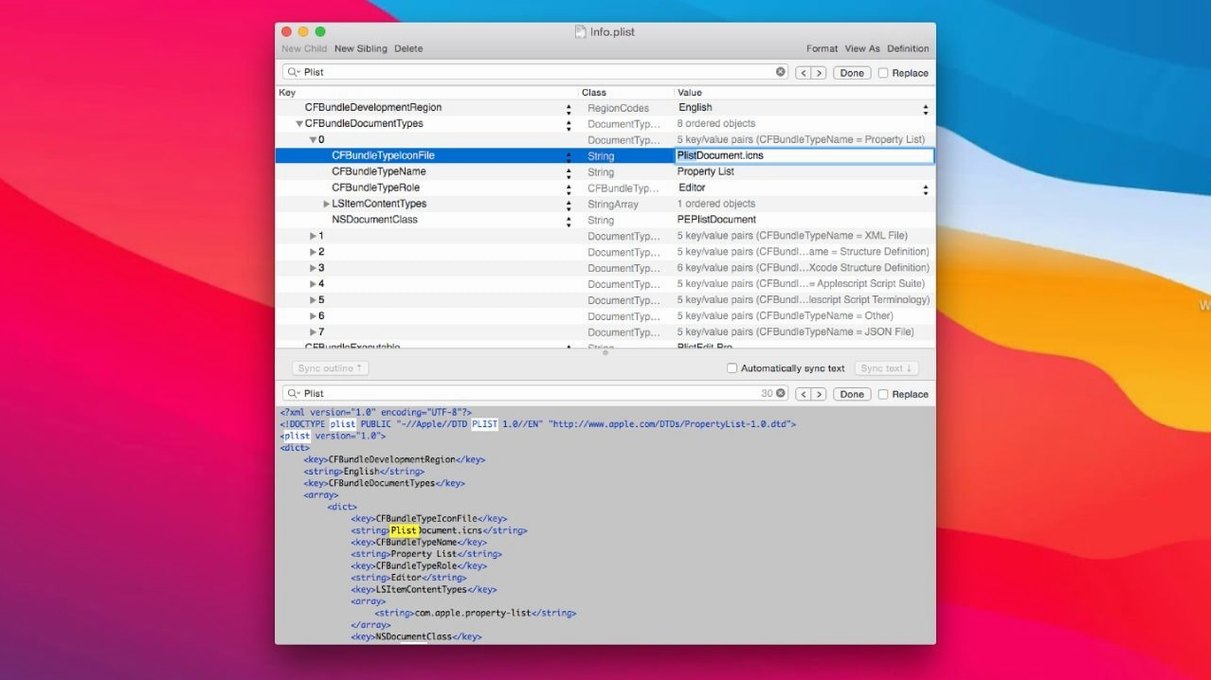
Multi-file search for hunting a key across project config folders
Use the multi-file search function. Point it at a folder of plist files and it scans for a specific key or value. If you maintain multiple configuration files for a project, this finds the needle without opening each file individually.
Does the editor support keyboard-driven workflows?
Yes. You can navigate the property list structure, add siblings, delete rows and duplicate entries entirely from the keyboard. Combined with multi-level undo, this makes restructuring complex plists much quicker than point-and-click editing.
Can I work with plist files from Terminal?
PlistEdit Pro installs the pledit command-line tool. You can open files directly from Terminal, and the tool integrates with AppleScript for automation — useful if you run a build script that needs to modify a plist before packaging.
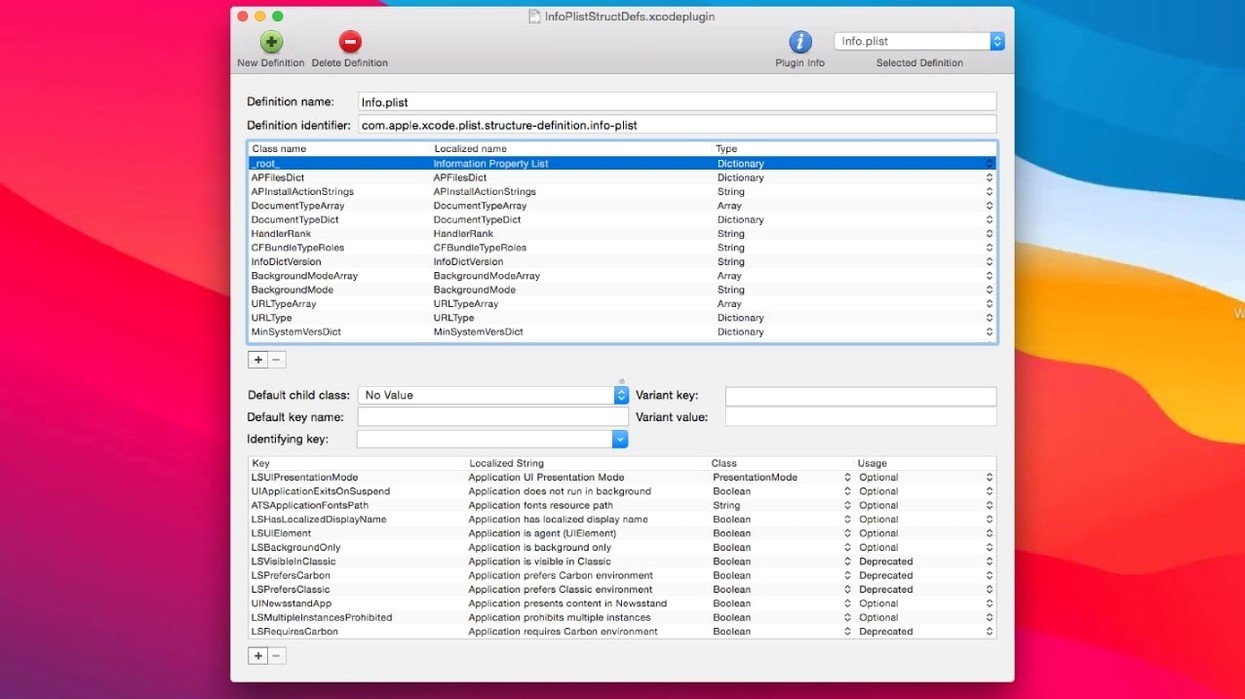
Toolbar structure pop-up for standard Apple plist keys
A few features sit just outside the obvious menu paths and repay the thirty seconds it takes to find them. One is the structure definition pop-up in the toolbar. When you open a standard macOS plist — an Info.plist, a launch agent or a preference file — the editor can load a definition that labels every key with its documented purpose instead of showing only the raw key name. The pop-up sits next to the view selector and is easy to overlook during the first few sessions.
Another hidden convenience is Option-drag reordering. Dragging a row in the outline view moves it, but holding the Option key while you drag creates a copy at the drop point. This works across files too: you can Option-drag a subtree from one document window into another and PlistEdit Pro duplicates the whole hierarchy, preserving types and nested structure.
The copy-as-format commands under the Edit menu are worth memorising. Select a key-value pair and you can copy it as a plist snippet, as JSON, or as a defaults write command ready to paste into Terminal. The last option saves a surprising amount of typing when you are testing preference changes across user accounts or writing setup scripts.
In the plain text view, Cmd-Return inserts a newline without leaving the field, which matters when you edit multi-line string values that XML would otherwise push onto one endless line. The outline view handles multi-line values in a popover, but the text view plus Cmd-Return is faster for blocks of formatted content like embedded scripts or template text.
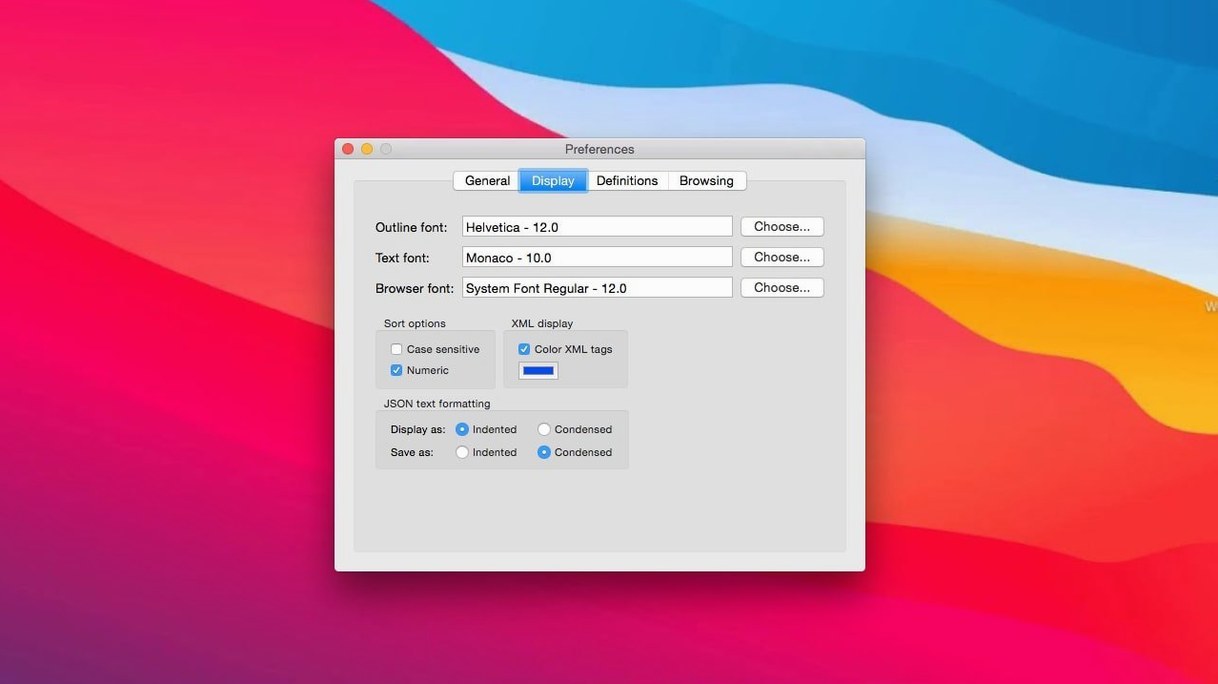
Pick a condensed monospace font for deeply nested JSON trees
After installing plistedit pro, spend ten minutes setting up the font. The default monospace face is serviceable for XML, but if you work with JSON files that nest deeply, a condensed font such as SF Mono at 11 pt fits roughly 30 percent more structure on screen without horizontal scrolling. The setting lives under Preferences > Fonts and applies separately to outline text and plain text views, so set both.
Next, pin the Preferences Browser. If you frequently check or reset application states during development, open the browser once and leave it as a separate window. The toolbar menu that arrived in version 1.1 lets you toggle between Current User and All Users domains without reopening the panel. Dragging the divider between the domain list and the key-value pane gives you a layout that suits a secondary display.
Train one keyboard shortcut early: Cmd-Opt-F for Find in Files. The multi-file search covers an entire folder in a few seconds, and the results list is clickable — double-click a match and the file opens with the key already selected in the outline. When you are hunting a misbehaving preference across a dozen plist files inside an app bundle, this shortcut alone justifies installing plisteditpro over editing in Xcode or TextEdit.
If you use version control, check the preference labelled Ask to revert when file changes on disk. Since version 1.1 this option appears as a small popover rather than a checkbox buried in a panel. When Git or another tool modifies a plist you have open, PlistEdit Pro prompts before overwriting your unsaved edits. Leave it on for the first week; you can always turn it off once the behaviour feels predictable.
Force outline mode when a missing extension shows raw XML
Snag: The file opens in plain text XML instead of the structured outline. This happens when the file extension is non-standard or missing. Fix: Use File > Open As > Property List and the editor forces outline mode for that document. If you work with a batch of files that lack the .plist extension, drop them onto the app icon instead of using the Open dialog — the app sniffs the content and usually gets it right.
Snag: Searching for a value returns nothing even though you know the string exists. The default search in plistedit pro matches against keys, not values. Fix: Open the Find panel (Cmd-F) and click the small dropdown next to the search field. Switch the scope from "Keys" to "All" or "Values". The multi-file search has the same dropdown, so check it there too if a folder scan comes up empty.
Snag: The Preferences Browser shows an empty list for a domain you know exists. Sandboxed applications sometimes write preferences into a container directory that the browser does not index by default. Fix: Open the file directly via File > Open and navigate to ~/Library/Containers/ followed by the app's bundle identifier. Once the file is open, you can bookmark its location using the Favourites sidebar if you need it regularly.
Snag: After editing a plist, the target application ignores the changes. Many apps cache their preferences in memory and only read the plist file at launch. Fix: Quit the target app before editing, or send it a signal to reload — killall -HUP AppName works for a handful of daemons, but a full quit and relaunch is the safer bet for Cocoa apps.
Auto-expand toggle to control nested dictionary collapse on load
The two settings that most affect daily comfort are font size and auto-expand behaviour. Font size is personal; the auto-expand setting controls whether the outline opens nested dictionaries and arrays when you load a file. The default collapses everything beneath the root, which is clean but means two extra clicks to reach any nested value. Under Preferences > General, switch Auto-expand items to "All" or "First level" — the latter gives you top-level keys at a glance without flooding the view on files with deep hierarchies.
If you use the pledit command-line tool, add its directory to your shell's PATH on day one. The installer places it inside the app bundle, so a typical addition to .zshrc looks like:
export PATH="/Applications/PlistEdit Pro.app/Contents/MacOS:$PATH"
Test it with pledit --help in a fresh Terminal window. Once the tool is on the PATH, build scripts and Automator workflows can open, modify and save plist files without launching the GUI. The AppleScript dictionary — viewable in Script Editor when you drag the app icon into the library — exposes commands for reading and writing values, which pairs well with the copy-as-defaults trick described earlier.
- System requirement — PlistEdit Pro 1.10.0 now requires macOS 14 or later.
- UI refresh — Interface elements updated for macOS Tahoe with version 1.1.
- Prefs browser filters — Options checkboxes relocated to a toolbar menu in 1.1.
- File-revert behaviour — The 'Ask to revert when file changes on disk' option now appears as a compact popover instead of a full dialog.
- macOS 14 or later
- Intel or Apple Silicon Mac
Sign in · Create an account to add a field note.
No field notes yet. A measurement, a version, a machine — they appear after moderation.