
Mac Apps
PullTube 1.8.6.41
Mac AppsUpdated
| Requirement | On file |
|---|---|
| macOS | macOS 11 or later |
| CPU | Apple Silicon, Intel 64-bit |
| Download | 250 MB |
Pasting a video link only to find you are offline or the source has vanished is a familiar frustration. PullTube handles the retrieval side so a local copy is ready when you need it. It processes a link from a supported site and extracts the media for offline storage on a Mac.
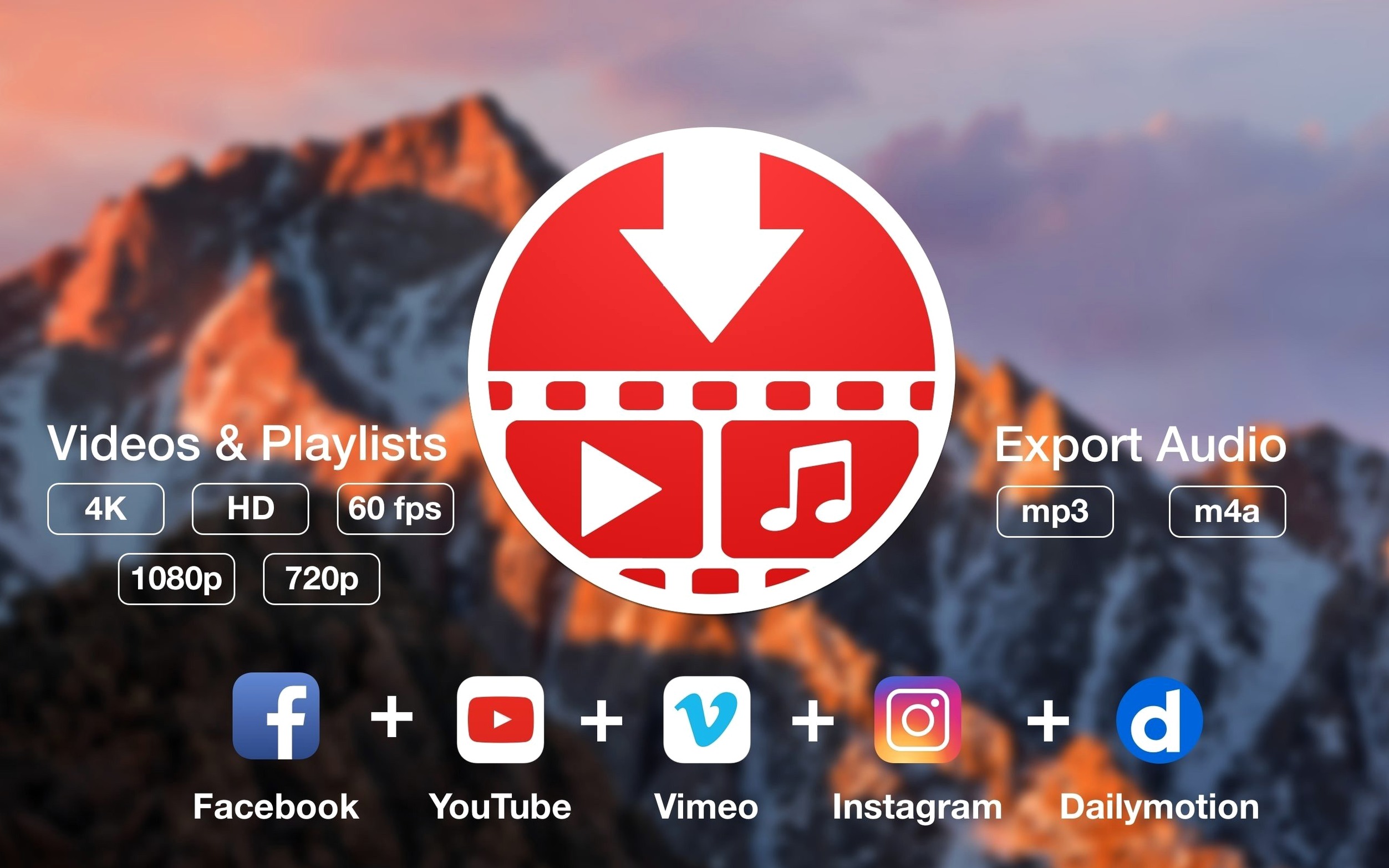
Over 1,000 supported sites and full playlist downloads
- Which sites does it work with? The developer lists support for over 1,000 websites. The named roster includes YouTube, TikTok, Twitch, Facebook, Vimeo, Instagram, Bilibili and SoundCloud.
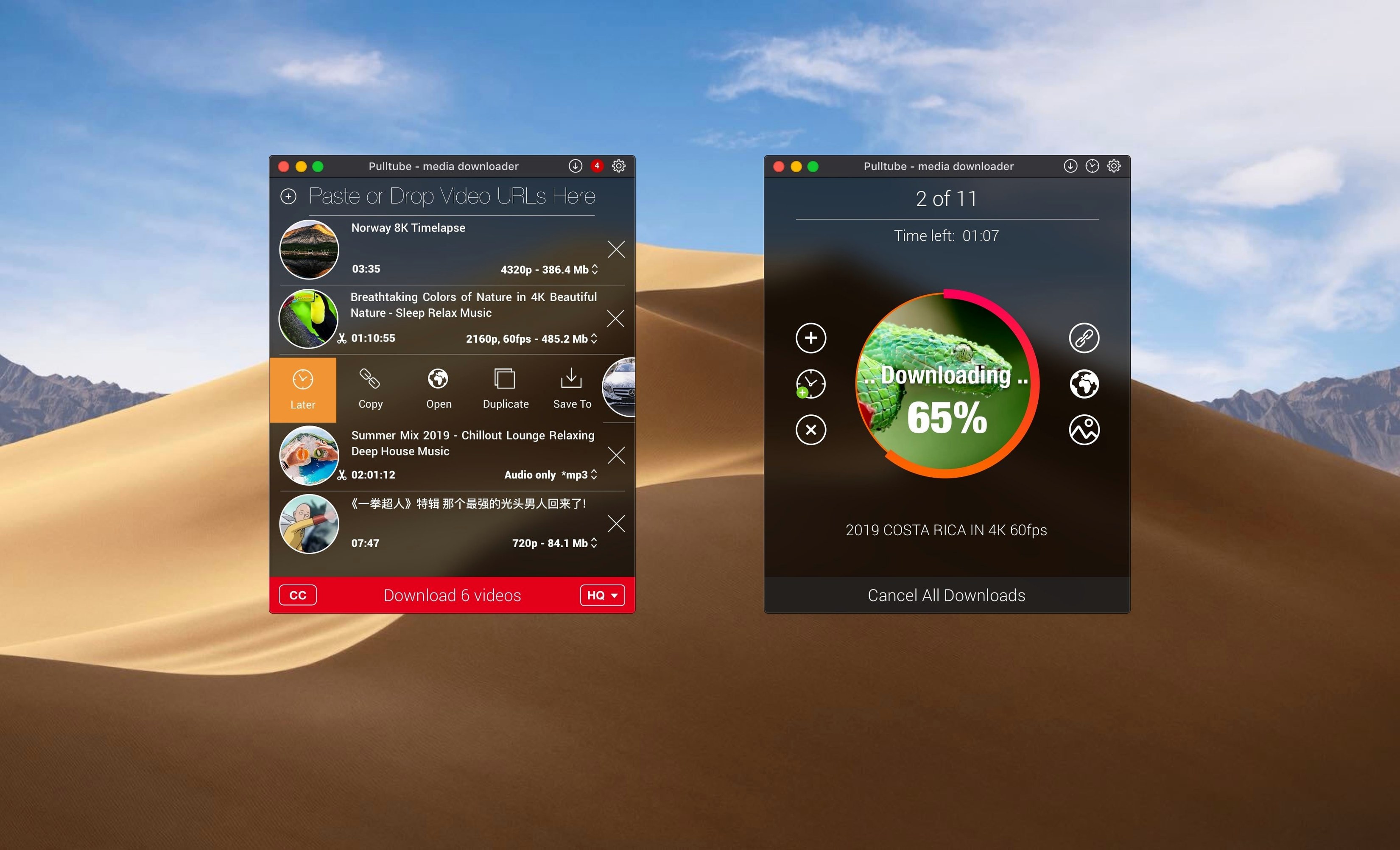
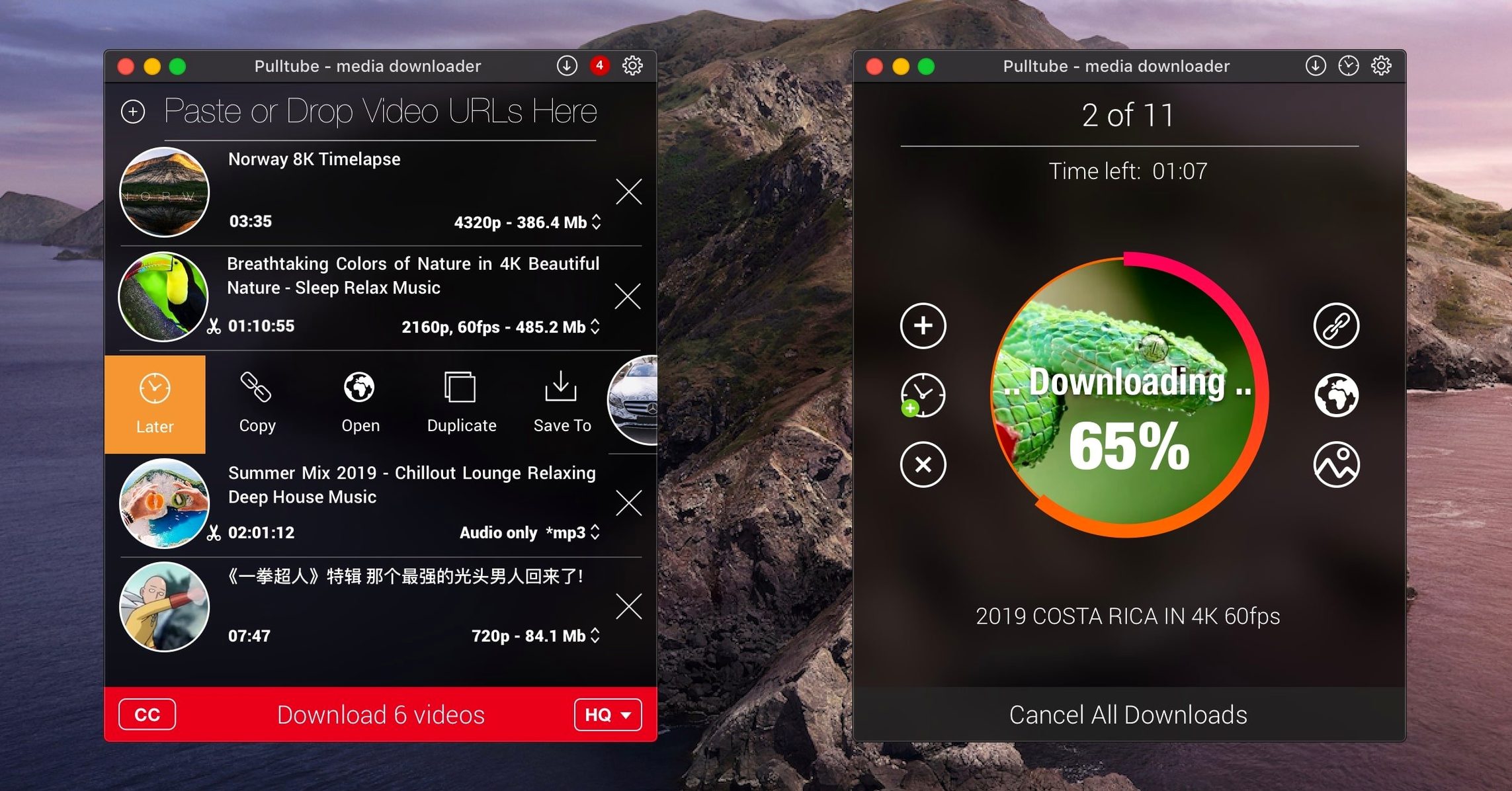
- Can it handle a full playlist? Yes. When you paste a playlist link, PullTube detects the set and can download every item in one go rather than one at a time.
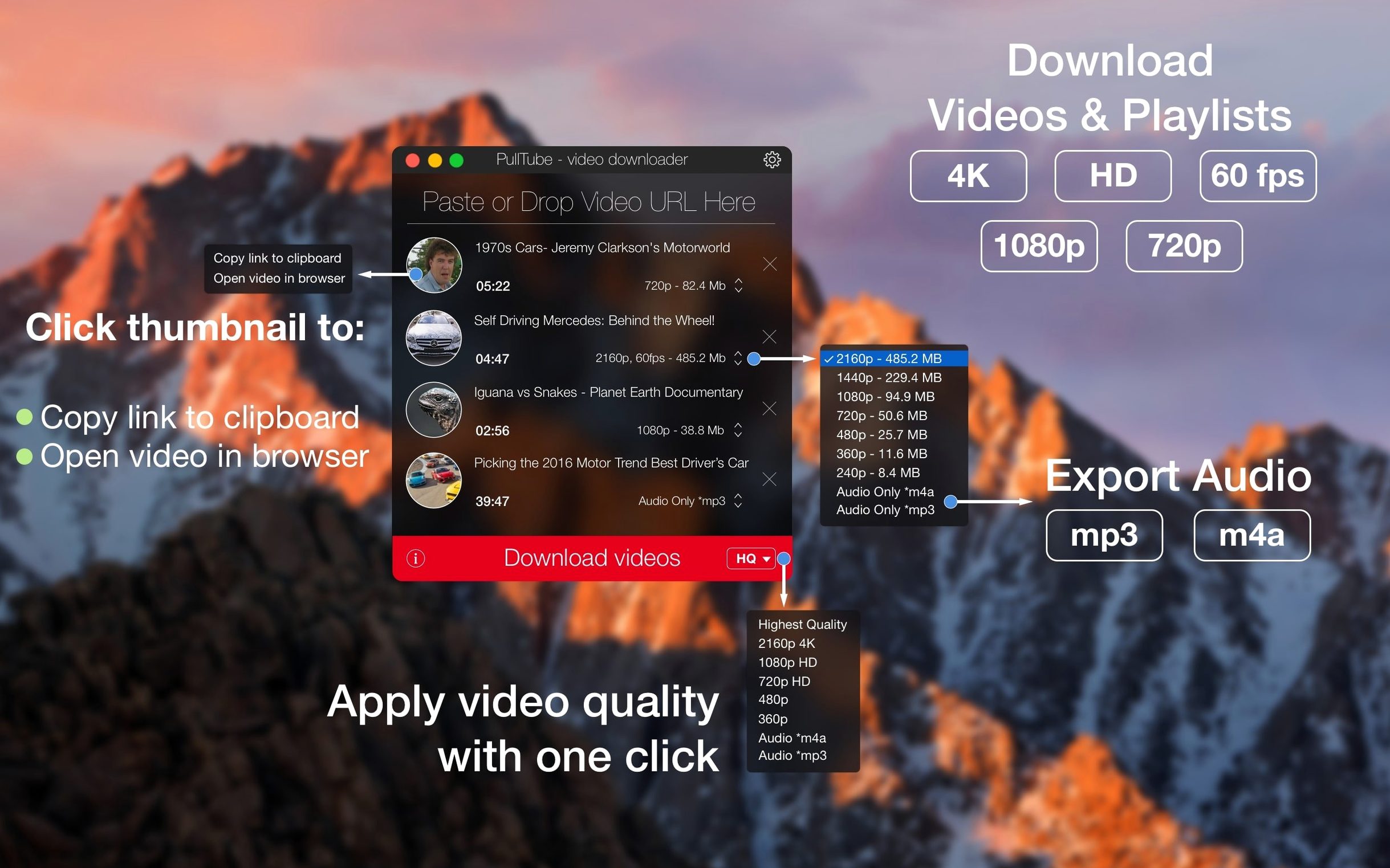
- What quality does it deliver? Output presets range from normal and HD up to 4K and the highest available stream. You can also tell the app to append quality info to the file name.
What you see before the download
After a link is pasted, PullTube fetches the video title, duration and a thumbnail. That quick preview lets you confirm you have the right clip before the transfer begins. Audio-only extraction and subtitle files are also options on services that support them.
CPU stays under 2% during a 1080p fetch
PullTube sits lightly on a Mac during everyday work. Memory use typically hovers around 140–180 MB while fetching a single 1080p clip, and the CPU draw stays under 2 % on an Apple Silicon machine once the download is underway. The app does not spawn background helpers or install a launch daemon, so there is nothing left running when you close the window. Network throughput depends on the source server, not the app itself — on a 100 Mbit connection, a 1.5 GB 4K file from YouTube finishes in roughly two to three minutes, which matches what the same connection delivers through a browser.
Stability over a working week is uneventful. The current build, 1.8.6.40, handles consecutive playlist jobs without memory creep. Force-quitting mid-transfer leaves a partial file that you can simply delete and re-download. A handful of edge cases remain: very long playlists with more than 200 items occasionally pause on one video and need a manual resume click. When a source server throttles the connection, PullTube waits rather than hammering it with retries, so the app never trips a temporary block on its own.
On Intel Macs running macOS 12, the app uses slightly more CPU during the initial link-parsing step — around 8–12 % for a few seconds — then settles into the same low draw seen on Apple Silicon. Disk activity is sequential writes, so even an older hard drive keeps up without slowing other tasks. If you set it to quit after all downloads finish, it cleans up its temp folder and leaves no loose fragments in /private/var.
Clean remux without re-encoding or watermarks
Does it embed watermarks or re-encode the file? No. PullTube remuxes the selected video and audio streams into a container — typically MP4 or WebM — without re-compressing. What you get is what the server sent. Timestamps, codec details and bitrate stay identical to the source stream. Audio extraction to MP3 or M4A uses a fast local encode step, but the video path is lossless by default.
Will it pick up the highest frame rate automatically? The app lists quality labels as the server provides them: for example, “1080p60” appears separately from “1080p30”. You choose the one you want. There is no automatic preference for 60 fps over resolution, so you need to check the label before clicking the download button.
How are subtitles handled? When a video carries embedded or sidecar subtitle tracks, PullTube offers them as separate files — usually SRT or VTT — alongside the video. You can toggle them on or off per download. Not every site exposes subtitles through its extraction endpoint, so availability varies.
Can I set a default output folder? Yes. The preferences pane lets you pin a destination folder, and the app remembers it across sessions. If you leave the field empty, it saves to your Mac’s default Movies directory.
Does the app phone home or collect analytics? Network traffic from PullTube is limited to the source servers you are downloading from and an occasional check for an update. No usage data, no telemetry, no account login.
Grabbing audio from a 34-video playlist before lunch
Imagine a Tuesday morning. You have a browser tab open with a long YouTube playlist of conference talks — 34 videos — and you want the audio tracks for offline listening.
- Copy the playlist URL from the address bar. PullTube is already running; its icon sits in the Dock.
- Click the app window to bring it forward and paste the link with ⌘V. The playlist detector fires within a second, and a list of 34 item rows fills the panel. Each row shows a thumbnail, title and duration.
- Switch the output selector at the top of the window from “Video” to “Audio”. The quality picker changes to show MP3 and M4A options. Select MP3 256 kbps.
- Confirm the destination folder at the bottom — today it points to
~/Music/Talks. Mark the checkbox labelled Append quality to filename so each file carries the bitrate tag. - Click the large round download button. The queue starts processing from the top. A progress bar appears per item, and finished entries slide into a collapsible “Completed” section below the active queue.
- After roughly 12 minutes, all 34 files are done. The app pops a notification in Notification Centre and, because you checked the preference earlier, quits itself ten seconds after the last file lands.
- Open Finder, navigate to
~/Music/Talks, and the MP3s are there — each named with the talk title and “256kbps” appended.
The whole interaction is three clicks and a paste. No dialogs, no format conversion wizards, no sign-in prompts.
Archiving 4K documentary clips from Vimeo and public broadcast sites
Consider someone who maintains a local archive of short documentary clips for a university media lab. Their sources span Vimeo, YouTube and a handful of European public broadcast sites. Quality must be the highest available — often 4K with a healthy bitrate — because clips are projected in a lecture theatre. The archivist’s weekly routine involves grabbing 15–20 new clips, renaming them with a consistent schema that includes the source and resolution, and storing them on a NAS.
They keep PullTube pinned to the Dock. Monday morning starts with a list of URLs in a plain text file. One by one, they paste each link, check the thumbnail and duration to confirm it is the correct edit, then select “Highest” from the quality drop-down. The Append quality to filename checkbox is always on, so every file lands with a suffix like “2160p”. After the batch finishes, they use Finder’s batch rename to add a source tag — “VIMEO_” or “YT_” — and drag the folder to the NAS share. The whole process, from first paste to archive commit, takes under 25 minutes for 18 clips totalling roughly 40 GB.
Audio extraction gets occasional use when a lecture series is released as video but the students only need the spoken track. PullTube’s MP3 path at 256 kbps produces files small enough for the university’s LMS upload limit, and the archivist has never had a complaint about sync drift or truncated endings. The tool fits a narrow, repetitive workflow without pushing extra features into the way — exactly what a spec-first user values.
PullTube 1.8.6.41 rolls out the dev’s current set of behind‑the‑scenes corrections so queued downloads complete without hiccups.
- macOS 11 or later
- Apple Silicon or Intel 64-bit processor
Questions on file
Does PullTube work on Apple Silicon and Intel Macs?
Yes, the developer states the app runs on both Apple Silicon and Intel Macs with macOS 11 or later.
Can PullTube download only the audio track?
Yes, it can extract audio from supported video links, which is handy for grabbing a track or podcast episode without the video file.
Which languages does the interface support?
The app interface is available in Russian, English, German, Spanish, Italian, Simplified Chinese and French.
Sign in · Create an account to add a field note.
No field notes yet. A measurement, a version, a machine — they appear after moderation.