
Mac Apps
Radio Silence 3.4
Mac AppsUpdated
| Requirement | On file |
|---|---|
| macOS | macOS 10.15 or later |
| CPU | Apple Silicon, Intel 64-bit |
Radio Silence suits anyone who wants to stop a specific app from phoning home without configuring a complex firewall. It sits quietly alongside your other tools, blocking only what you tell it to block.
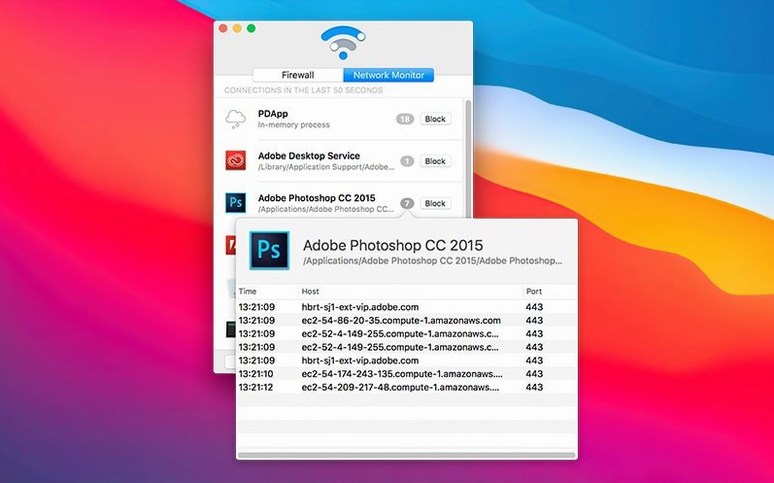
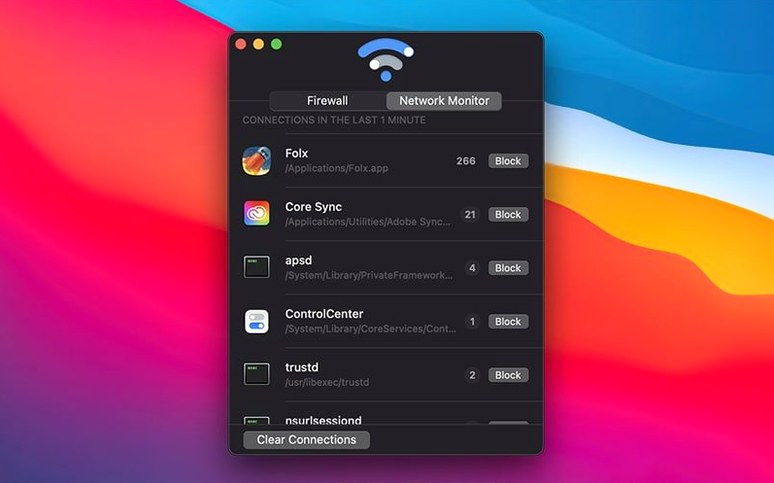
Network Monitor — A live list of outgoing connections, updated in real time. Each entry shows which app initiated the traffic, so you can spot background activity from helpers and daemons that a system-wide firewall might miss.
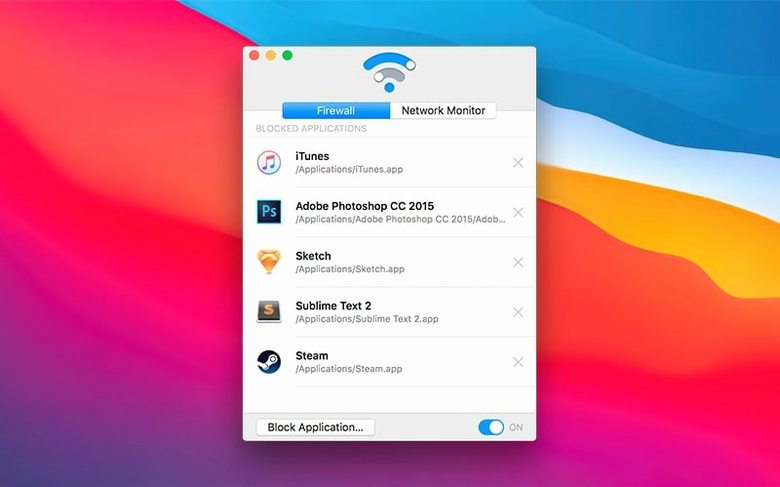
Firewall — A simple table of blocked applications. Nothing gets through once an app is on this list. The block applies to all connection attempts that app makes.
Block Application button — The quickest path to silence an app. Pick it from the list of running processes, and Radio Silence adds it to the firewall immediately.
Pause — A temporary off switch for the entire firewall. Useful when you need an app to check for an update or activate a licence, then go back to being blocked afterwards.
No menu bar presence — Radio Silence does its work without an icon in the menu bar. Once configured, it stays out of the way, consuming negligible resources.
Silencing a Layout App That Phones Home Every 15 Minutes
People who run creative tools with opaque telemetry habits tend to notice the difference first. A designer using an older copy of a layout app that now phones home every 15 minutes — blocking it means the app still works, minus the chatter. Musicians with plugin collections often see dozens of helper processes attempting outbound connections during a session. Radio Silence lets them silence those without touching the DAW.
Developers testing self-contained builds also benefit. A local server that should never talk to the outside world can be pinned down in seconds. If a dependency unexpectedly reaches a crash reporter or an analytics endpoint, the network monitor exposes it before it becomes a problem during a demo.
Users who work over metered connections — mobile hotspots, satellite links, travel SIMs — get a practical edge. Instead of relying on an app’s own preferences (which may or may not exist), they enforce a hard block. Background sync utilities, auto-updaters and media libraries that pre-fetch content stay quiet until the user explicitly pauses the firewall.
Privacy-conscious Mac owners who dislike apps that bundle analytics into their feature set find it a clean complement to system tools. macOS’s built-in firewall governs incoming traffic well, but outbound filtering requires third-party help. Radio Silence fills that gap without adding a permanent icon or a dense rules editor.
Outbound Blocking That Runs Alongside the macOS Firewall
Does it work alongside the macOS firewall? Yes. Radio Silence handles outbound blocking at the application level. The built-in macOS firewall manages incoming connections and runs independently. There is no conflict: both can be active at the same time, and Radio Silence does not touch system firewall rules.
Will it slow my Mac down? Its footprint is tiny. The app uses a kernel extension — or the modern equivalent depending on the macOS version — that filters traffic at a low level. CPU and memory usage stay in the single-digit megabytes, even with dozens of apps blocked. On a 2020 Intel MacBook Air or an M1 machine, the performance difference is imperceptible during everyday work.
Can apps still check for updates? Not while they are blocked. If an app appears on the firewall list, every connection attempt it makes is dropped — including update checks, licence validation and cloud sync. The Pause button exists precisely for this scenario: unpause, let the app do its housekeeping, then re-enable blocking.
Does it log or report my traffic anywhere? Radio Silence does not collect usage data or send telemetry. The network monitor shows connections on your screen only. Nothing leaves the machine. The developer, Juuso Salonen, has maintained this stance through several major releases, and the app’s design reflects it — there is no account, no cloud dashboard, no analytics module.
What if an app spawns a helper that does the networking? This is where the network monitor earns its keep. An app like a video editor might show zero connections in the process list, but a background render daemon or a licensing agent with a different binary name is the one actually making the call. The live monitor catches the helper, and you block it directly. Blocking the main app bundle alone is not always enough — you need to see what is really talking.
Rule-Based Interrogation vs. Silent Automatic Blocking
Three apps tend to appear in the same conversation: Little Snitch, LuLu and Radio Silence. They all do outbound filtering, but the philosophy and daily feel differ sharply.
Little Snitch offers granular, rule-based control. Every new connection can trigger a prompt, and you build a ruleset over time with domain-specific allowances, port filters and time-limited permissions. That power comes with constant decision-making, especially in the first weeks. Radio Silence takes the opposite approach: no prompts, no rules editor, just a list of blocked apps. If you want to approve some traffic for an app and deny the rest, Little Snitch is the tool. If you want to kill all traffic for three apps and never think about them again, Radio Silence is the lighter choice.
LuLu (open-source, maintained by Objective-See) sits somewhere between them. It alerts on new outbound connections and can apply blanket blocks, but it also shows process hierarchy and code-signing info. LuLu’s interface is functional rather than polished, and it requires some comfort with security terminology. Radio Silence strips that complexity away entirely. A user who finds LuLu’s alerts informative will appreciate its depth; a user who finds them noise will prefer Radio Silence.
Radio Silence does one thing with almost no interface. There is no menu bar icon to monitor, no pop-up window asking whether com.apple.geod can reach a server. The block is absolute and silent. For a subset of Mac users — those who want a radio silence app mac setup that behaves like a mute button for specific software — that minimalism is the selling point. It is not trying to be a full network analysis suite.
Guidance Through Tahoe’s Tighter Kernel-Extension Policies
Version 3.4 brought three practical fixes rather than new blocking features. The most visible is installation guidance for macOS Tahoe. Apple’s 2024 release tightens kernel-extension policies again, and the updated installer walks users through the approval steps in System Settings with clear, labelled screenshots. People who had trouble getting the firewall extension authorised on earlier 3.x releases should find the process smoother.
Installation error handling improved in the same update. Scenarios where the app launched but the network filter failed to attach — often because of a missed permission prompt — now produce a specific message instead of silent failure. The app detects missing permissions during startup and directs you to the relevant settings pane.
A troubleshooting help view now appears if the app cannot launch successfully. This view lists common failure states (filter extension not loaded, full disk access not granted for certain operations) and suggests concrete steps. It is not a generic FAQ link; it reads the actual launch state and tailors the advice. For anyone who searches for radio silence mac troubleshooting after a failed install, the built-in help covers the ground that older versions left to a support email.
A Tethered Capture Mac Where Only Three Apps Talk
A freelance photographer, Kate, keeps her 2022 MacBook Air on set for tethered capture. She runs three apps during a shoot: Capture One for the incoming files, a small utility that renames and moves images to a client folder, and a cloud backup agent that the studio’s IT team installed months ago. Over a café Wi-Fi connection with a 5 GB daily cap, she notices her hotspot draining faster than expected — 800 MB gone before the first coffee break.
She opens Radio Silence’s network monitor and sorts by data volume. The cloud backup agent is pushing every new raw file to a remote server in real time, saturating the uplink. She did not authorise that behaviour; the IT team’s config did. Two clicks later, the backup agent sits on the firewall list and the traffic stops. The renaming utility shows a trickle of activity to a licence server, which she blocks as well. Capture One stays unblocked — she needs its live-view feedback — and the rest of the shoot runs within her data budget. After the job, she pauses the firewall for 20 minutes, lets the backup sync over the studio’s wired connection, then re-enables it.
The whole sequence took under a minute and required no rule editing, no domain lists and no IT ticket. That is the scenario Radio Silence is built for: a specific problem, spotted live, solved immediately.
Installation guidance — Added steps for macOS Tahoe compatibility.
Error handling — Improved behaviour when installation errors or missing permissions occur.
Help view — New troubleshooting panel shown if the app fails to launch.
- macOS 10.15 or later
- Intel and Apple Silicon Macs
Questions on file
Does Radio Silence show which apps are connecting to the internet right now?
Yes. The Network Monitor tab lists outgoing connections in real time, making it easy to identify which apps and background processes are active.
Can I temporarily disable the firewall without removing all my blocked apps?
Yes. The pause function switches off blocking entirely until you resume it, so you can let an app through briefly without rebuilding your block list.
Sign in · Create an account to add a field note.
No field notes yet. A measurement, a version, a machine — they appear after moderation.