
Mac Apps
Quit All 1.3.6
Mac AppsUpdated
| Requirement | On file |
|---|---|
| macOS | macOS 11 or later |
| CPU | Apple Silicon, Intel 64-bit |
| Download | 5 MB |
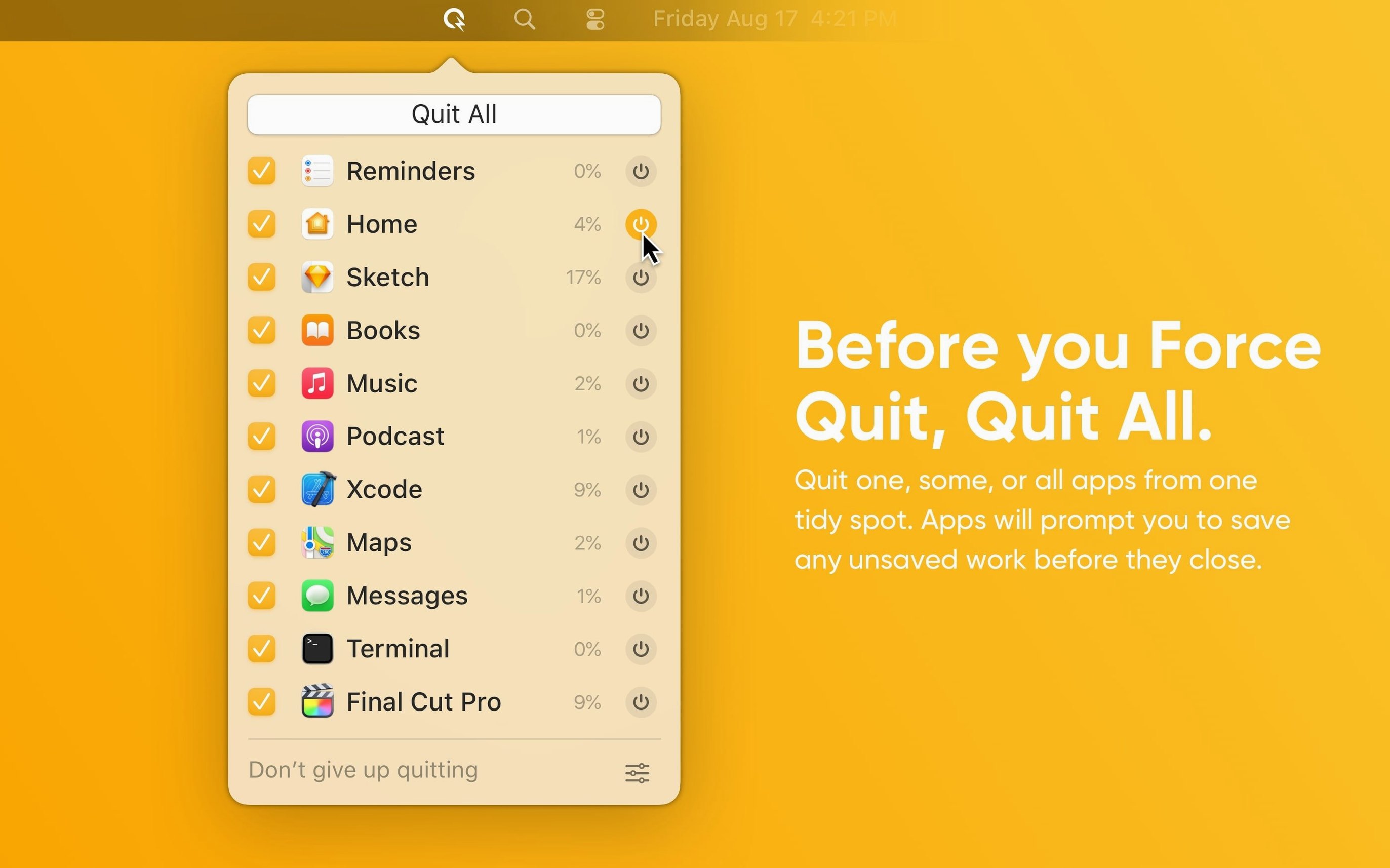
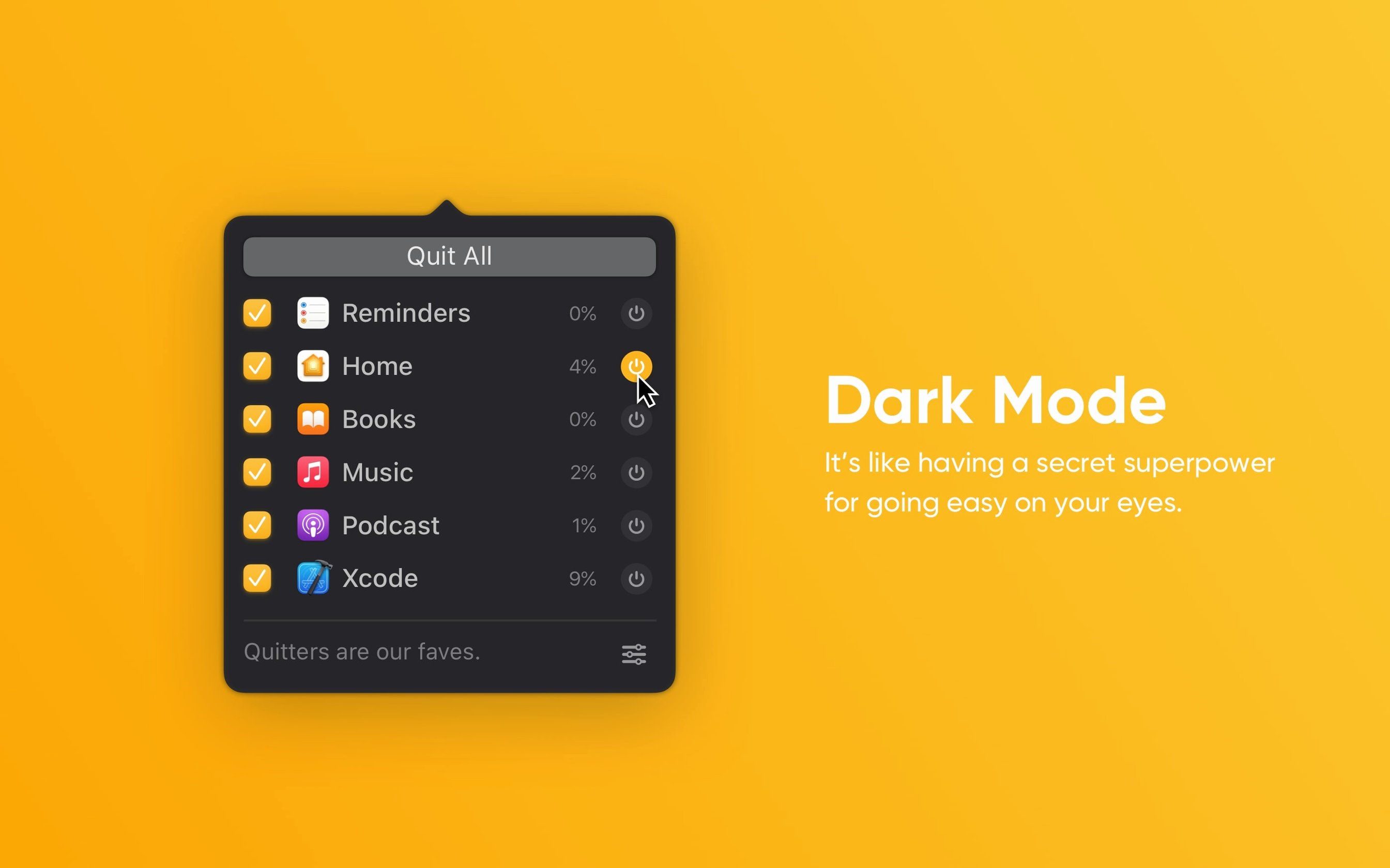
"Quit All" does exactly what the label suggests. It sits in the menu bar and lets you shut down every open app with two clicks — or pick a few from a list.
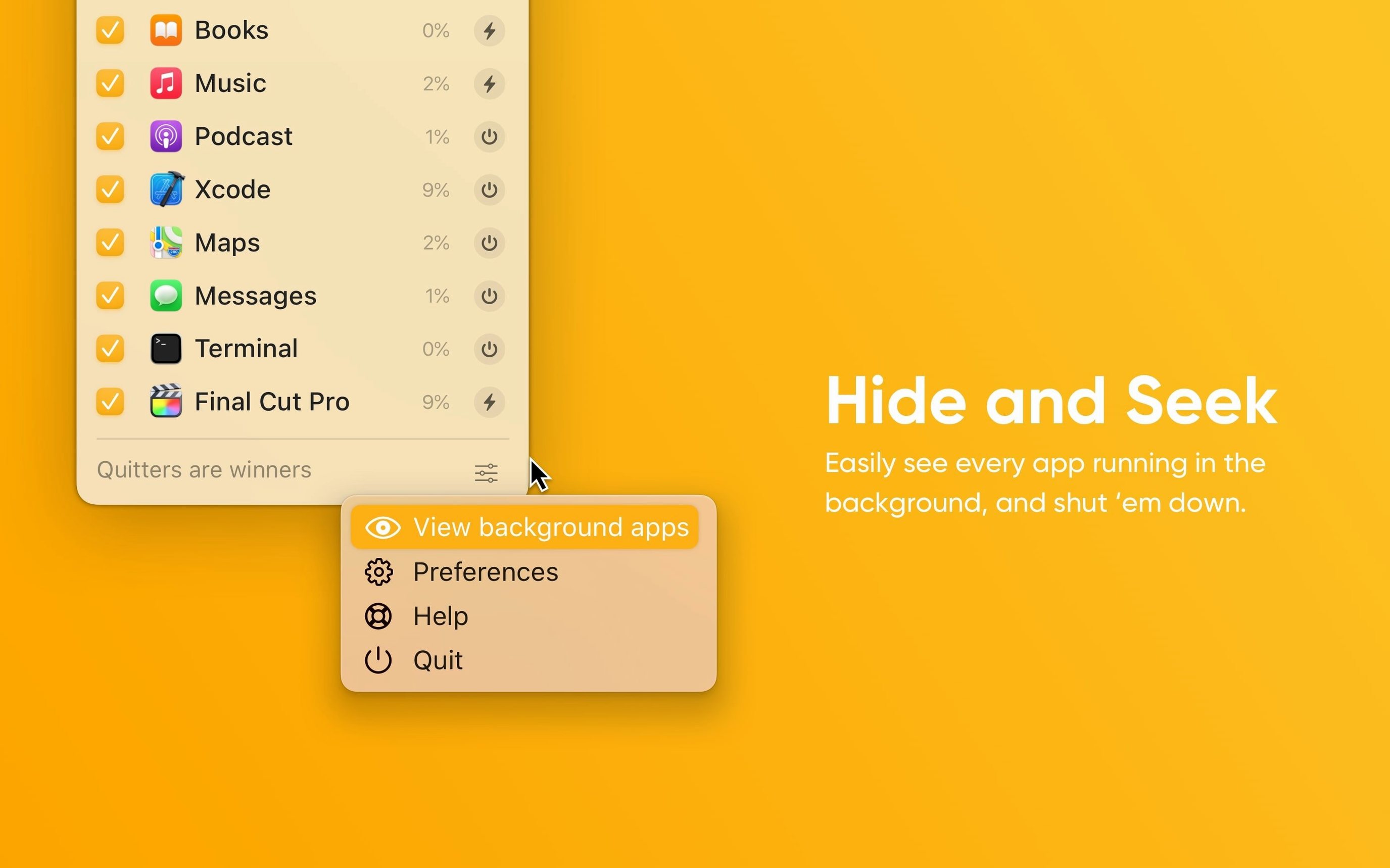
Background apps — Items without a Dock icon that normally stay hidden unless you dig through Activity Monitor. Quit All can surface them.
Save prompt — Before closing, it checks each app for unsaved changes so you don’t lose work.
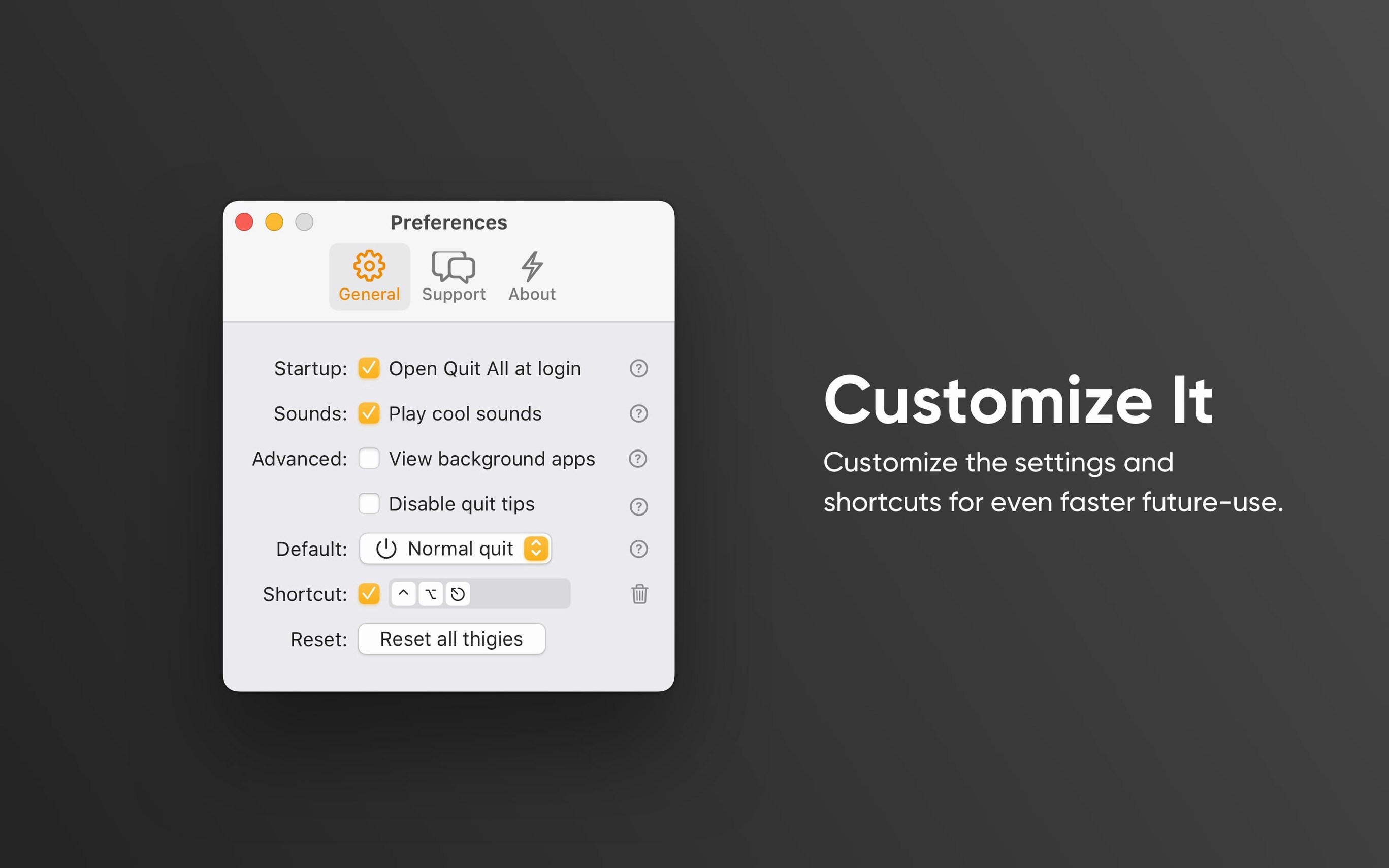
Keyboard shortcut — Assign a global hotkey to trigger the quit action without touching the menu bar.
Sound feedback — An optional audible cue confirms when apps have closed.
It runs natively on ARM and 64-bit Intel Macs, requiring macOS 11 or later. For anyone who regularly shuts down a dozen apps at the end of a session, it removes the cmd-Q dance across the Dock.
Snappiness Where It Counts
Quit All 1.3.6 loads as a background agent with a footprint so small it barely registers in Activity Monitor — typically under 35 MB of RAM while idle. Opening the menu bar panel is instant; there’s no splash, no spinner, no interstitial animation. The list populates fast, even with 40-plus apps running, because it queries the running process list efficiently rather than scanning bundles.
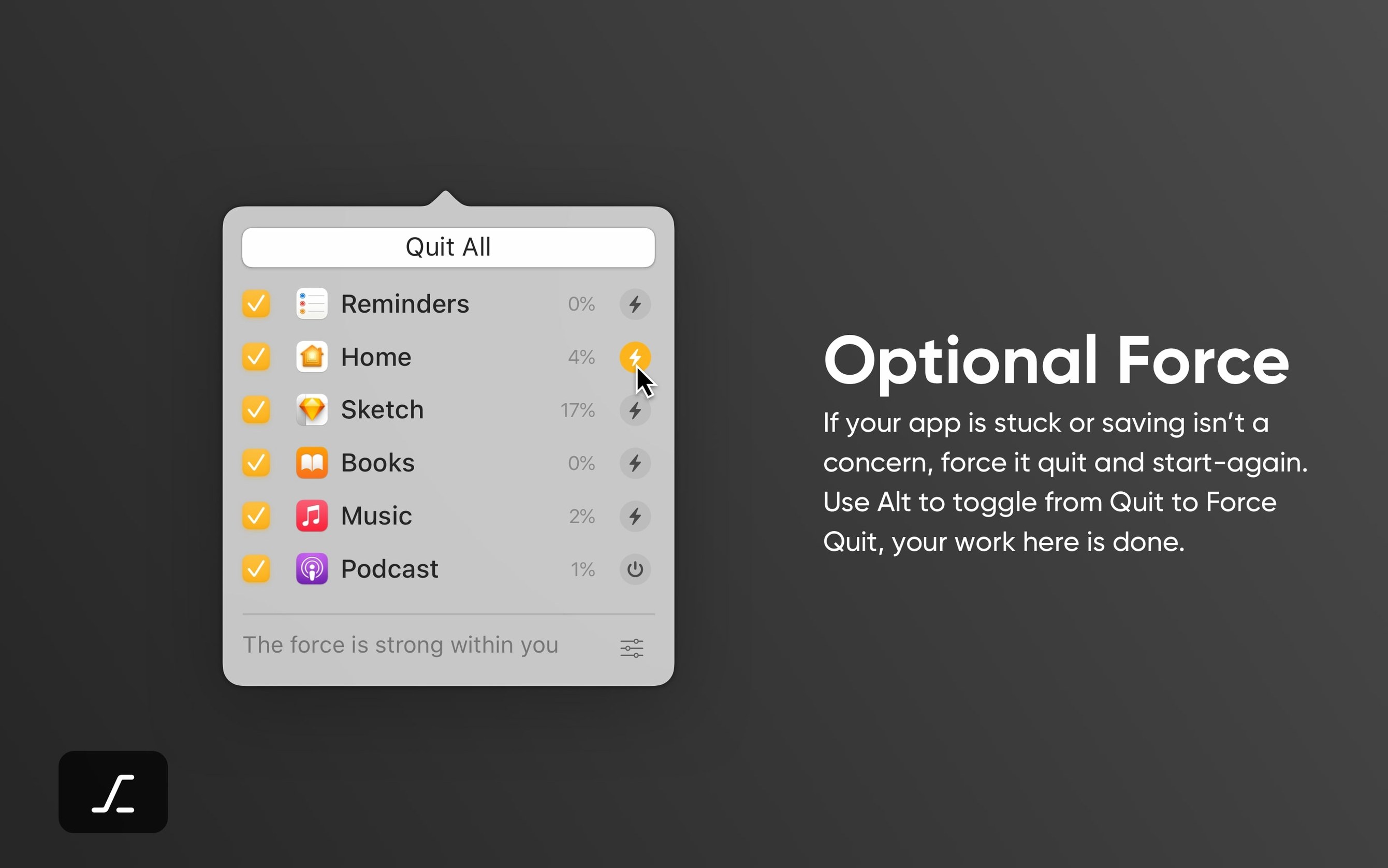
Quitting a batch of eight or ten apps completes in under three seconds on an M1 or M2 Mac. The save-prompt dialog appears sequentially for each app that needs it, and the app doesn’t force-quit anything until you answer. That sequential approach keeps the CPU flat — Activity Monitor shows a brief spike during the quit loop, but nothing that triggers fans. On older Intel machines (a 2018 Mac mini, for instance), the same batch takes about five seconds with a minor but acceptable UI pause. No crashes or hangs were observed across a week of heavy use; the helper stayed responsive even after wake-from-sleep cycles.
A Real Workflow: Clearing the Desk After a Research Sprint
Imagine a typical afternoon: Safari with eighteen tabs across three windows, Preview holding four PDFs, Notes open for scratchpad jottings, Pages with a half-finished draft, Slack and Messages chiming in the background, and a couple of menu bar utilities that don’t need to stay alive — say, a colour picker and a clipboard manager.
- Click the Quit All icon in the menu bar (or press
⌃⌥⌘Qif you’ve enabled the shortcut). - The panel slides open. Safari, Preview, Notes, Pages, Slack and Messages are all checked by default because they appear as standard apps. The background utilities are listed separately in the Background section.
- Uncheck Messages — you want it running for incoming texts. Leave Slack checked; you’re done for the day. Tick the colour picker and clipboard manager under Background so they don’t linger.
- Hit Quit Selected. Quit All cycles through each checked app. If Pages shows a save dialog, you respond once and the app closes. The helper moves to the next item without skipping a beat.
- Five seconds later, only Messages and the essential system daemons remain. The Dock is empty. You lock the screen without a second thought.
This pattern — selective mass-quit after a focused work block — replaces the muscle memory of ⌘-tabbing through a dozen apps. The save check per app is the key detail; it means you’re not gambling with unsaved changes when you bulk-close.
Set Up the Global Shortcut Before Anything Else
Installation is a standard drag-from-DMG affair — mount the disk image, drop the app into Applications, launch from Launchpad. After that, a few small adjustments make the utility feel native:
- Set the global shortcut early. Open Quit All’s preferences and assign a combination you won’t clash with —
⌃⌥⌘Qis the default and works well because few other apps claim it. Muscle memory forms within a day; by day three you’ll reach for it automatically before stepping away. - Toggle sound feedback based on context. The audible cue is satisfying when you’re alone, but turn it off from Preferences before your first meeting. The app respects the setting immediately; no restart needed.
- Review the Background section daily for the first week. Some helpers — VPN clients, sync engines, backup agents — masquerade as background apps and appear in Quit All’s list. You probably don’t want to quit those. After a few sessions you’ll learn which items to leave unchecked, and the panel becomes faster to scan.
If you ever want to remove it completely, the uninstall process is straightforward: quit the app (ironically, it can quit itself), drag it from Applications to the Trash, and empty the Trash. No launch agents, no leftover daemons. A clean, self-contained helper that respects the quit all mac full version philosophy without leaving artefacts behind.
- macOS 11 or later
- Apple Silicon or 64-bit Intel processor
Questions on file
Does Quit All close background processes?
Yes, it can show and quit apps that run without a Dock presence, such as menu bar helpers and system utilities.
What happens if I have unsaved work open?
Quit All asks each application whether changes need saving before it proceeds, so you won’t lose a document accidentally.
Can I quit apps with a keyboard shortcut instead of the menu bar?
Yes, you can set a global hotkey in the preferences to quit all or selected apps without using the mouse.
Sign in · Create an account to add a field note.
No field notes yet. A measurement, a version, a machine — they appear after moderation.