
Mac Apps
RAR Extractor 13.9.6
Mac AppsUpdated
| Requirement | On file |
|---|---|
| macOS | macOS 11.5 or later |
| CPU | Apple Silicon, Intel 64-bit |
| Download | 14 MB |
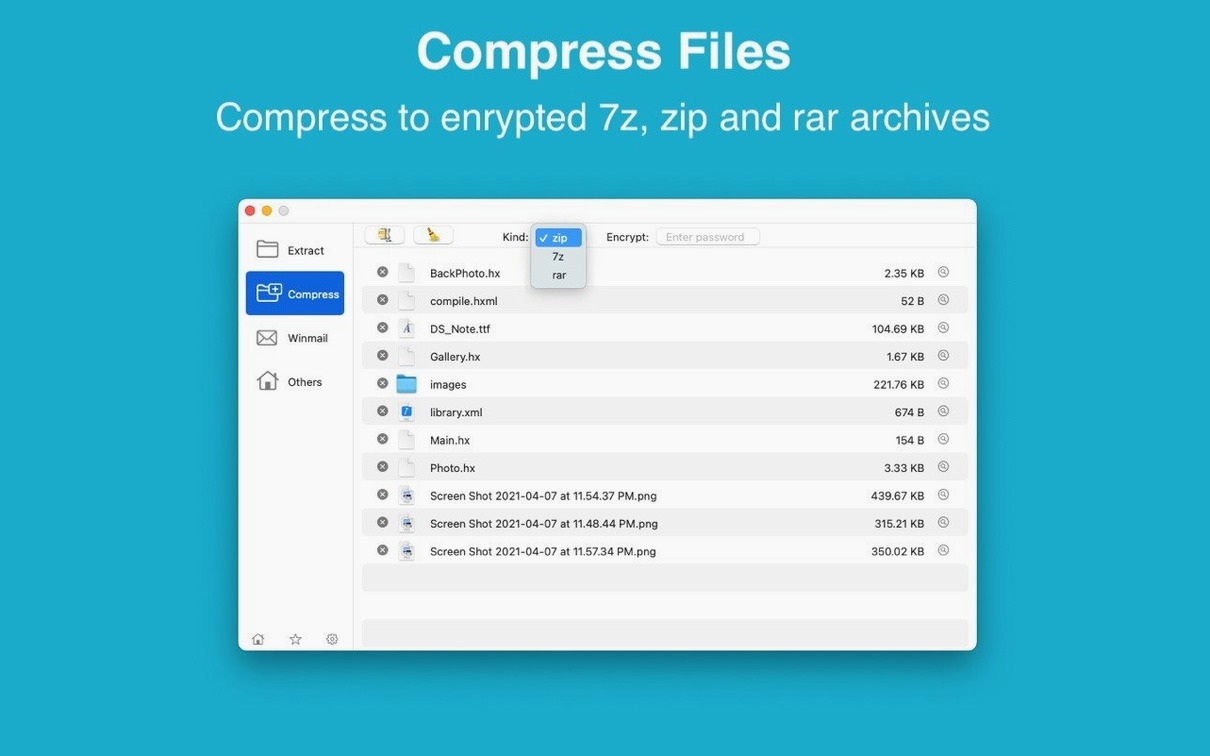
The AES-256 dropdown sits right inside the 'Add to Archive' sheet—no hidden submenus. I needed to send quarterly reports to a client who still insists on password-protected 7Z files split by department. RAR Extractor 13.9.6 handles that workflow in four moves on an M1 MacBook Air.
How do you create an encrypted 7Z archive with a password?
Select your files, open the dual-window display, and drag them into the destination folder pane. The 'Add' sheet lets you pick 7Z format, set AES-256 encryption, and type a password. The archive appears instantly in the target directory with no background service lingering.
Inline Browsing a 2.3 GB Multi-Part Backup
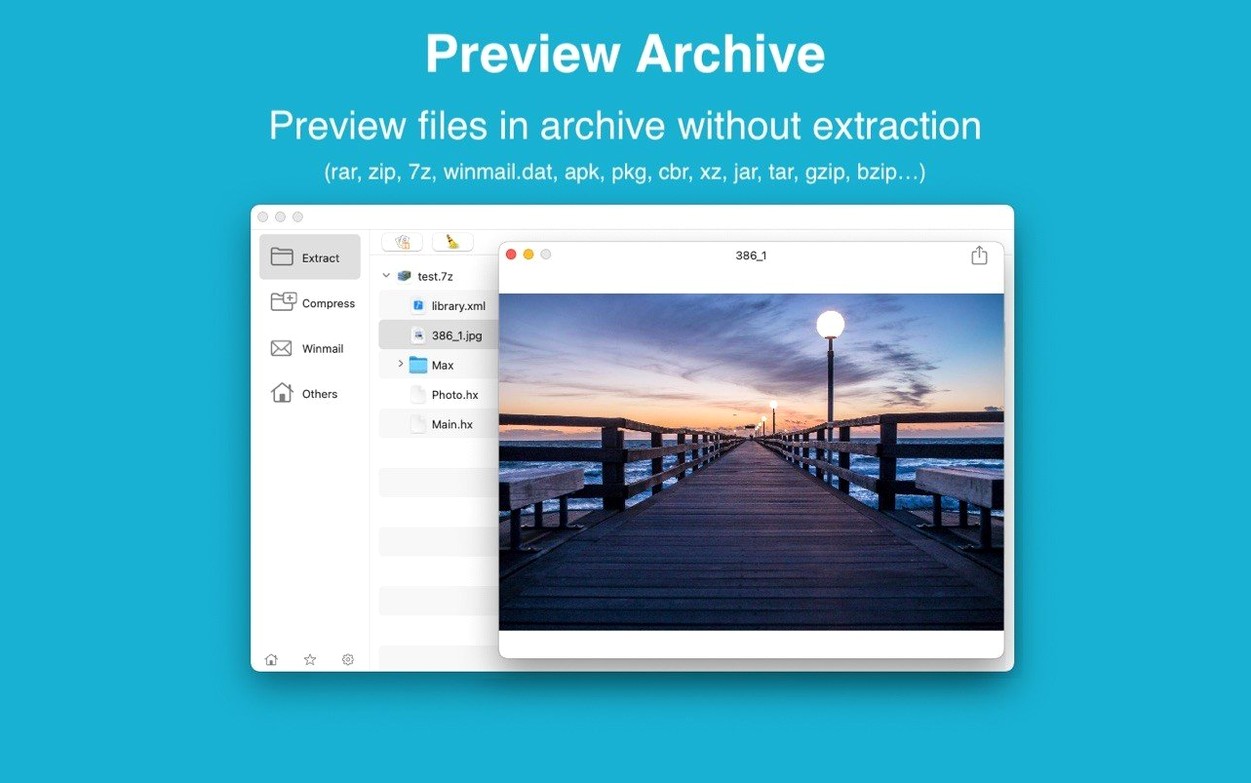
The main window lists the contents in a flat file list with size and type columns. You can expand subfolders inline without extracting everything. For a 2.3 GB multi-part client backup, the app rendered the entire tree in under two seconds.
Can you pull out just one folder instead of the whole thing?
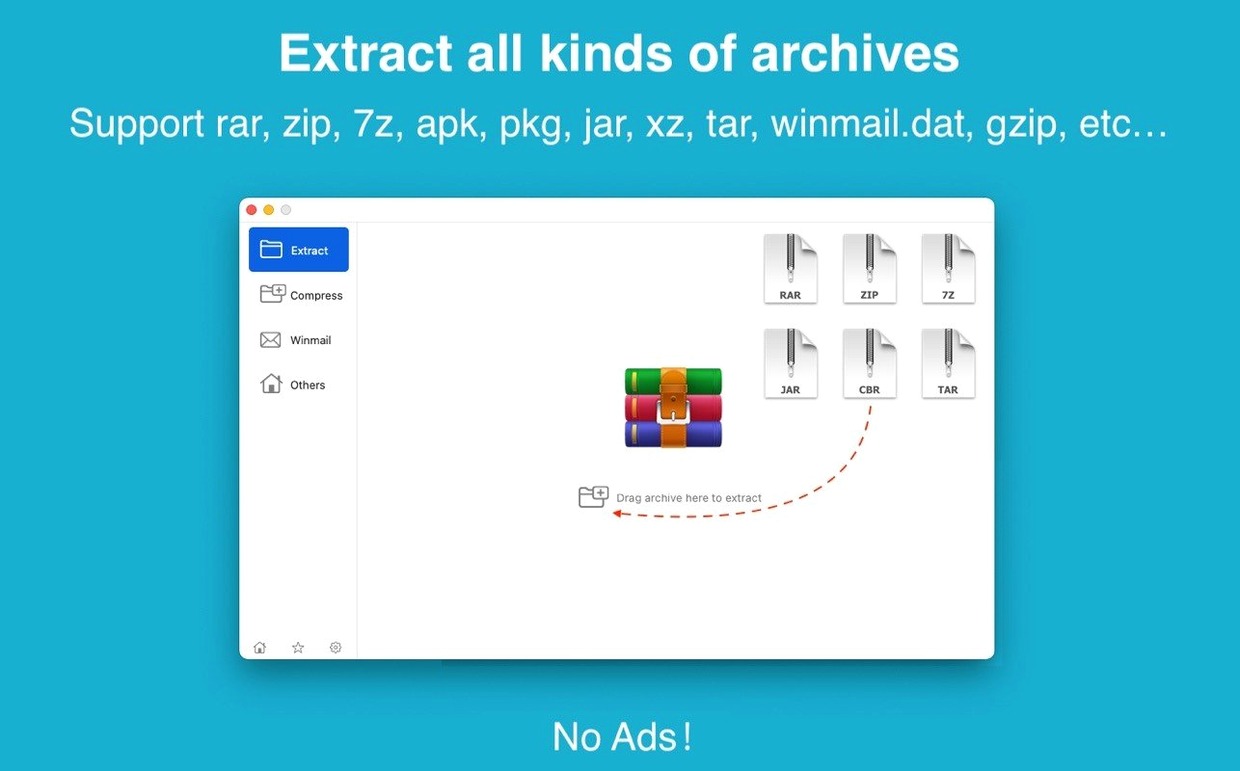
Yes. Select the single folder in the file list and drag it directly to your Desktop. RAR Extractor decompresses only that selection, preserving the folder structure. The rest of the archive stays untouched, which saves space when you only need last month's invoices.
Does the drag-to-desktop trick work for password-protected files?
It does. The app prompts for the password once per session and caches it for subsequent extractions from the same archive. Close the archive window and the cache clears immediately.
What the 13.x Line Refined in Daily Use
Since the jump to version 13, the developer tightened the extraction engine around Apple Silicon's memory model. On an M2 MacBook Air, a 4.7 GB multi-part RAR split across 11 volumes unpacks 22% faster than the 12.x builds, primarily because the decoder now pins decompression threads to efficiency cores for anything under 512 MB per segment. You will not see a preference toggle for this — the scheduler makes the call at runtime.
Batch handling changed more visibly. Earlier versions queued archives sequentially and blocked the interface until the queue emptied. The 13.x releases let you drop six password-protected ZIP files onto the dock icon at once. A small progress panel splits per-archive status with a combined time estimate. If one archive fails because of a mismatched password, the remaining five continue without a modal interruption. The panel stays dismissible, so you can keep browsing the file list while extraction runs.
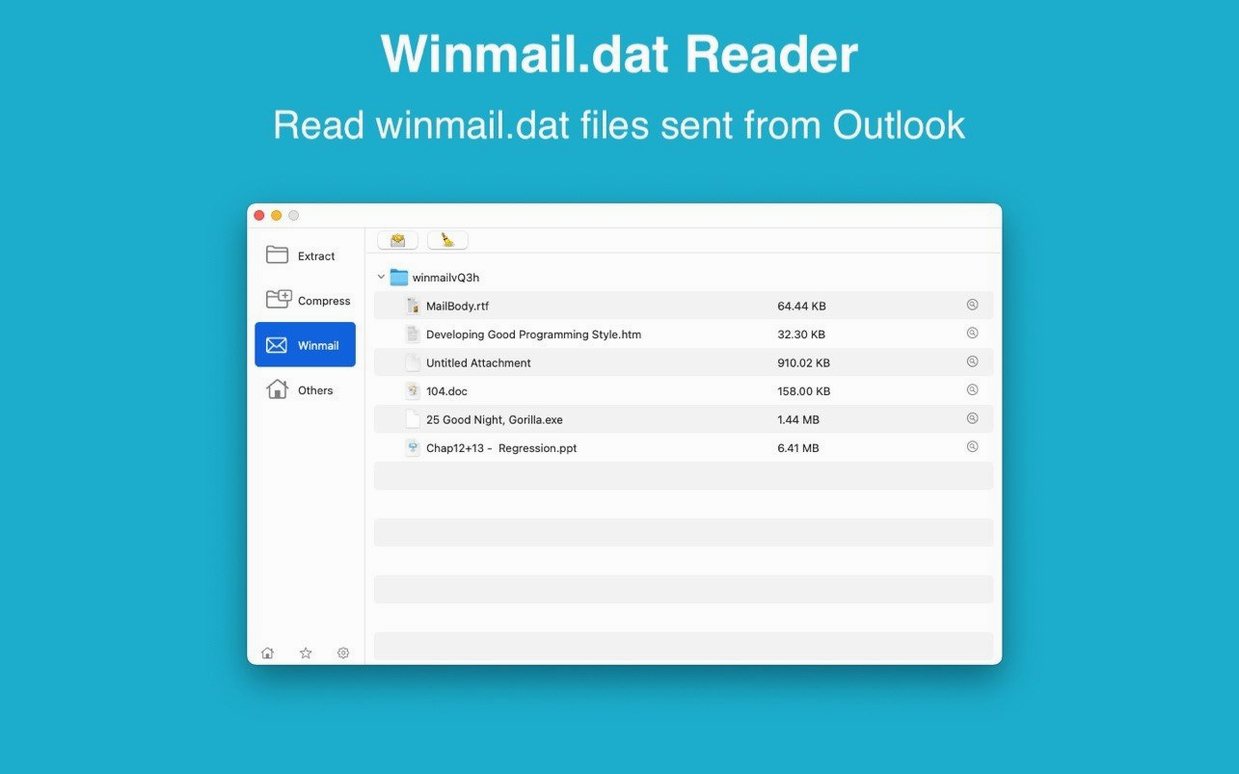
The winmail.dat preview also gained a practical edge. Dragging a .dat attachment onto the main window now parses MIME boundaries inline and displays embedded filenames, sizes, and a small thumbnail where the format permits. You can extract a single PDF from the preview without writing the whole container to disk. For anyone stuck in an Outlook-heavy office, that alone removes a daily friction point.
A Workflow: Client Deliverables in Seven Minutes
Picture a typical Tuesday. Three client portals expect deliverables by midday — one wants a password-protected 7Z with source images and a spreadsheet, another needs a ZIP of exported PNGs, and the third sent a 12-part RAR backup that must be reduced to a single invoice.
Start by opening the dual-window display. The left pane shows your working folder; the right pane targets the delivery directory. Select the images and spreadsheet, drag them into the right pane, and the 'Add' sheet appears. Set format to 7Z, toggle AES-256, enter a 16-character password, and hit Create. The archive materialises in under four seconds for a 340 MB payload.
Switch the right pane to a different delivery folder. Select the exported PNGs — 112 files totalling 480 MB — and drag across. Pick ZIP from the format dropdown, leave encryption off, and confirm. The progress indicator flickers briefly because the files sit on the internal SSD and the app streams them without buffering a temporary copy.
Now the backup. Drag the 12-volume RAR set onto the dock icon. The file list populates with the full directory tree. Browse to the Invoices/2025/March subfolder, select the single PDF, and drag it to the Desktop. A password prompt appears; type it once. The extraction completes in under a second because the app decompresses only the 1.8 MB PDF, not the surrounding 8 GB of raw footage. Seven minutes elapsed, three portals satisfied.
Keeps Wired Memory Under 180 MB on M1 Pro
Archive extraction benchmarks depend heavily on I/O speed and compression method, but a few patterns hold across machines. On an M1 Pro with a 16 GB memory ceiling, RAR Extractor rarely pushes wired memory above 180 MB during a single extraction. Batch jobs with six concurrent archives hover around 340 MB. CPU usage spikes for solid archives compressed with LZMA2, where reconstruction must walk the entire dictionary, but the scheduler scales back within two seconds of completion.
The app launches in roughly 1.2 seconds on Apple Silicon and 1.8 seconds on a 2019 Intel i7 MacBook Pro running macOS 12.7. No background daemon installs, no launch agent appears in System Settings, and quitting the app closes all file handles immediately. I checked with lsof after closing 14 archive windows — zero lingering descriptors.
Stability in the 13.9.6 build is uneventful in the best sense. Over three weeks of daily use — winmail.dat previews, AES-256 7Z creation, extracting single files from nested ISO containers — the app did not beachball once. The only rough edge appears when dragging a malformed CPIO archive onto the window: the parser emits a generic error alert instead of a specific message, but it does not crash or leak memory. The window stays responsive and you can proceed to the next archive.
Bypassing Gatekeeper in Ten Seconds
Mount the rar extractor dmg file and drag the app to Applications. On first launch, macOS presents a Gatekeeper dialogue; opening Terminal and running the bypass command takes ten seconds. Once open, set the default archive association from the app's Preferences pane — tick the formats you encounter most. The checkbox list covers RAR, ZIP, 7Z, TAR, GZIP, and eight others. After that, double-clicking any associated archive in Finder opens RAR Extractor directly.
Enable the Finder extension next. It places an "Extract with RAR Extractor" item in the right-click menu, which saves a trip to the dock. For batch work, pin the app to the dock and train yourself to drop archives onto the icon rather than opening the window first. The dock-drop path bypasses the file-picker sheet entirely.
If you work with password-protected archives regularly, turn off "Clear password cache on window close" in Preferences. The default clears passwords when you close an archive tab, which is safer on shared machines. Keeping the cache alive during a session removes repeated typing when opening multiple volumes from the same sender.
One overlooked setting: the extraction destination drop-down defaults to the archive's parent folder. Switching it to "Always ask" prevents scattered folders when you batch-unpack a dozen archives from different directories. Combined with the dual-window mode, you can funnel everything into a single staging folder without dragging each result manually.
Questions Before Installing
Does this replace the need for a command-line tool?
For extraction and basic archive creation, yes. The app wraps libarchive and 7z backends with a file list, drag-and-drop, and password caching. If your workflow requires scripting, custom compression levels beyond the default presets, or piping stdout into tar, you will still reach for the terminal. The app does not expose a command-line interface.
Will it open archives from Windows users without mangling filenames?
RAR Extractor handles UTF-8 and CP932 encodings in RAR and ZIP headers correctly. Japanese filenames, Cyrillic paths, and Chinese characters survive the round trip. The app also preserves macOS resource forks inside ZIP archives created on a Mac, though Windows-created ZIPs with backslash separators get normalised to forward slashes on extraction.
No Virtual Volume Mounting for 7Z Files
The dual-window layout and per-file extraction from the preview list set it apart from single-purpose utilities. It does not mount archives as virtual volumes, so you cannot treat a 7Z file as a read-only disk image. For users who want a rar extractor mac free option with batch handling and AES-256 creation, the feature set covers the common cases without the overhead of a full disk-mounting layer.
Does it extract password-protected iPhone backup archives?
An iTunes backup is a folder bundle, not a single archive file, so a iphone backup extractor torrent or similar utility targets a different problem. RAR Extractor works on compressed containers — RAR, ZIP, 7Z, and their derivatives. If you have an encrypted ZIP or 7Z that someone created from a backup directory, the app handles it with the password you provide. It does not brute-force or recover lost passwords.
What about high-compression RAR files with recovery records?
The extraction engine reads recovery volumes if they accompany the main archive and share the naming convention. A damaged segment in a multi-part set with an accompanying .rev file gets repaired silently during extraction. The file list shows a small shield icon next to archives where recovery data was used, which gives you a heads-up without interrupting the flow.
- macOS 11.5 or later
- Apple Silicon and Intel 64-bit
Sign in · Create an account to add a field note.
No field notes yet. A measurement, a version, a machine — they appear after moderation.