Mac Apps
ProPresenter 7.16.3
Mac AppsUpdated
| Requirement | On file |
|---|---|
| macOS | macOS 10.15 or later |
| CPU | Apple Silicon, Intel 64-bit |
| Download | 207 MB |
Who uses ProPresenter
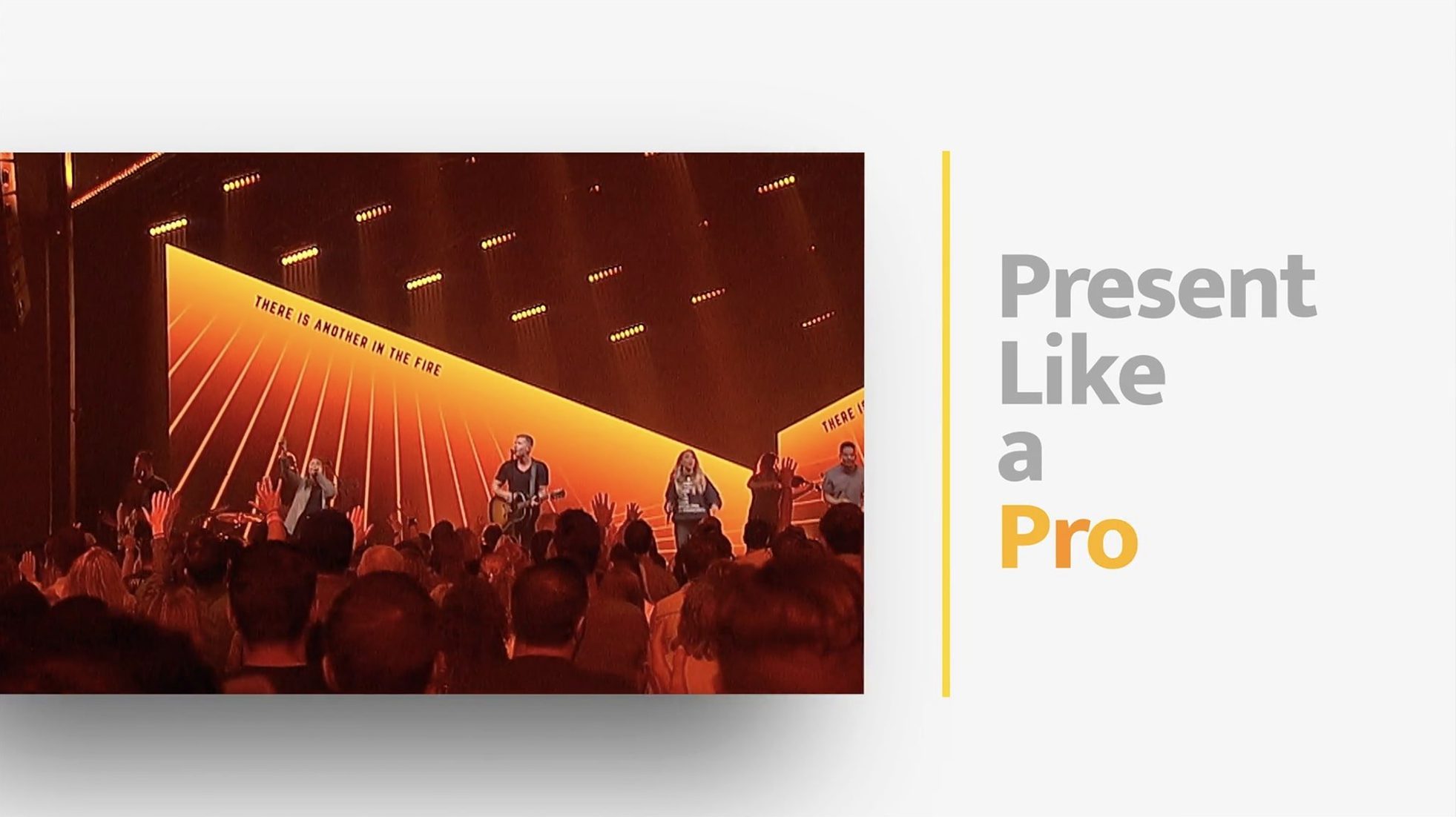
Originally developed for houses of worship, ProPresenter has grown into a workhorse for conference AV teams, broadcasters, and touring productions. Any venue that runs multiple screens, confidence monitors, and a livestream simultaneously falls inside its wheelhouse.
Juggling main feed, stage timers and lobby screens at once
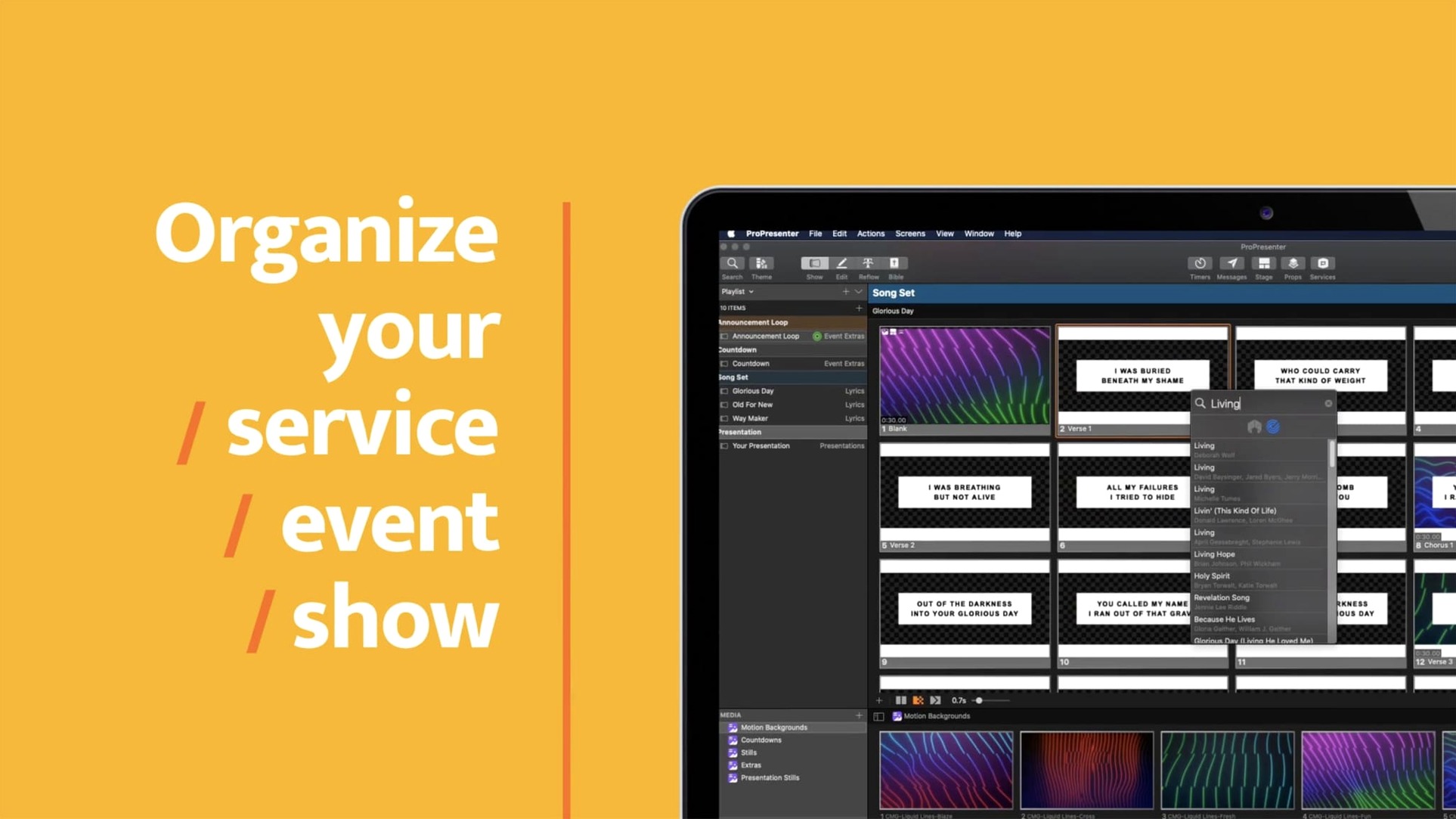
Version 7.16.3 runs on macOS 10.15 and later, on both Intel and Apple Silicon. The core engine juggles several output channels at once: a main projection feed, separate stage displays with timers, lobby and overflow screens, and a dedicated online event feed — all from a single machine.
Which media types does it control?
HD video playback, multi-camera streaming and recording, and audio playback are all built in. The software can also pipe a moderated Twitter feed onto screens and share its output with other compatible Mac applications via system-wide channels.
How do operators run a show?
Day-to-day control comes from the Mac interface or the ProPresenter Remote app, which lets a tablet handle slide advances and cue triggers. The setup expects someone comfortable with routing signals; it is not a single-screen clicker.
ProPresenter alongside other Mac presentation tools
A few applications claim the same stage-and-stream territory on macOS. The differences are rarely about one missing feature; they are about which compromises a team can live with during a live show. Here is how ProPresenter 7.16.3 sits beside three alternatives operators commonly evaluate.
ProPresenter vs. Keynote
Apple Keynote ships free with every Mac, handles beautiful builds and transitions, and demands almost no training. For a single-screen pitch deck or a classroom lecture, it is the lighter tool. Where it stops is the moment a second display needs independent content. ProPresenter addresses multiple outputs — stage display, lobby feed, online stream — as first-class channels, each with its own layout. Keynote mirrors or extends; it does not route separate confidence-monitor data. Video playback inside Keynote is also presentation-first: a clip runs as a slide element, not as a background layer that persists across cue points. ProPresenter treats video as a layer that can span multiple text slides without restarting. The trade-off is interface complexity. Keynote opens in seconds and makes sense by slide three. ProPresenter expects the operator to understand libraries, playlists, and output mapping before the first cue fires.
ProPresenter vs. QLab
QLab dominates theatre, dance, and devised performance; its cue-based timeline, OSC integration, and scripting depth exceed what ProPresenter aims to do. Where QLab sequences a show as a vertical stack of audio, video, and lighting cues, ProPresenter organises content as a song library with arrangements. For a worship set or a conference session with spontaneous reordering, ProPresenter’s library-and-playlist model is faster to adjust mid-show. QLab can trigger slides, but it was not built for on-the-fly text editing on a confidence monitor or pulling a moderated Twitter feed onto a lower third. ProPresenter’s slide editor — with eight content layers, scripture import, and live text reflow — is a different category of tool. QLab licencing also ties to specific Mac hardware in ways that matter for backup machines; ProPresenter allows installation on multiple Macs that a team might rotate through a venue.
ProPresenter vs. PowerPoint (Microsoft 365)
PowerPoint for Mac handles the widest range of corporate templates and remains the default in most boardrooms. It runs presenter view on a second screen and supports basic video embeds. The gap widens when a show requires three or more distinct outputs, or when lyrics and scripture need to appear on a confidence monitor with a countdown timer while the audience sees only the background. PowerPoint’s multi-display logic tops out at two views. ProPresenter’s slide editor also layers text, graphics, live video, and props independently — eight layers per slide, each with its own opacity, blend mode, and animation. For a lyric-driven service where the same background spans five songs and the operator changes only the words, ProPresenter reads that structure natively. In PowerPoint, the operator manages full-slide duplicates. ProPresenter’s approach reduces slide count and gives the operator fewer objects to chase during a live moment.
First days with ProPresenter on a Mac
The initial hours after installing version 7.16.3 shape whether a team trusts the software under pressure. A few deliberate steps early on prevent the common scramble ten minutes before doors open.
Map outputs before importing content
Open Preferences and go to the Displays tab first, not the library. Assign each physical screen to a named output slot — Audience, Stage, Lobby — and set their resolutions. ProPresenter does not autodetect which screen is the confidence monitor; it waits for the operator to tell it. Doing this before importing a single graphic means every test slide lands where it should.
Build one song completely
Importing an entire song library in the first hour leads to a mess of half-configured arrangements. Take one song — perhaps a four-verse hymn or a contemporary track with a bridge — and build it fully. Apply a background, set text formatting, add a stage-display layout, and test the arrangement. This single finished item becomes the template; every subsequent song copies its look. The time invested in that one item pays back across the next forty imports.
Learn the clear commands
ProPresenter uses a layered display model. Clearing the foreground text does not clear the background video. Clearing all layers does not reset the stage display. In the first practice session, run through each clear command — Clear Text, Clear Background, Clear All, Clear to Logo — and watch what happens on every output. Knowing the difference between Clear Text and Clear All prevents a black screen during a spoken segment. Write the keyboard shortcuts on a sticky note taped to the monitor; live operators forget them under adrenaline.
Set up a backup trigger method
The ProPresenter Remote app works over a local network. Networks fail. In the first two days, configure a wired backup: a USB foot pedal or a simple MIDI controller mapped to slide advance. Test it during a full run-through. When the tablet disconnects mid-service — and it will at some point — the operator reaches for the foot switch without breaking eye contact with the stage.
Building a lyric-driven service: start to finish
This workflow assumes a typical Sunday setup: three songs, a scripture reading, and a sermon with points displayed on screen. The operator runs one Mac connected to a projector, a stage monitor, and a livestream feed.
Step 1 — Gather assets. Collect the song lyrics, the scripture passage, and the sermon notes as plain text files. Grab the background video loop and a 16:9 still image for the sermon title card. Put everything in a single folder on the desktop named after the event date.
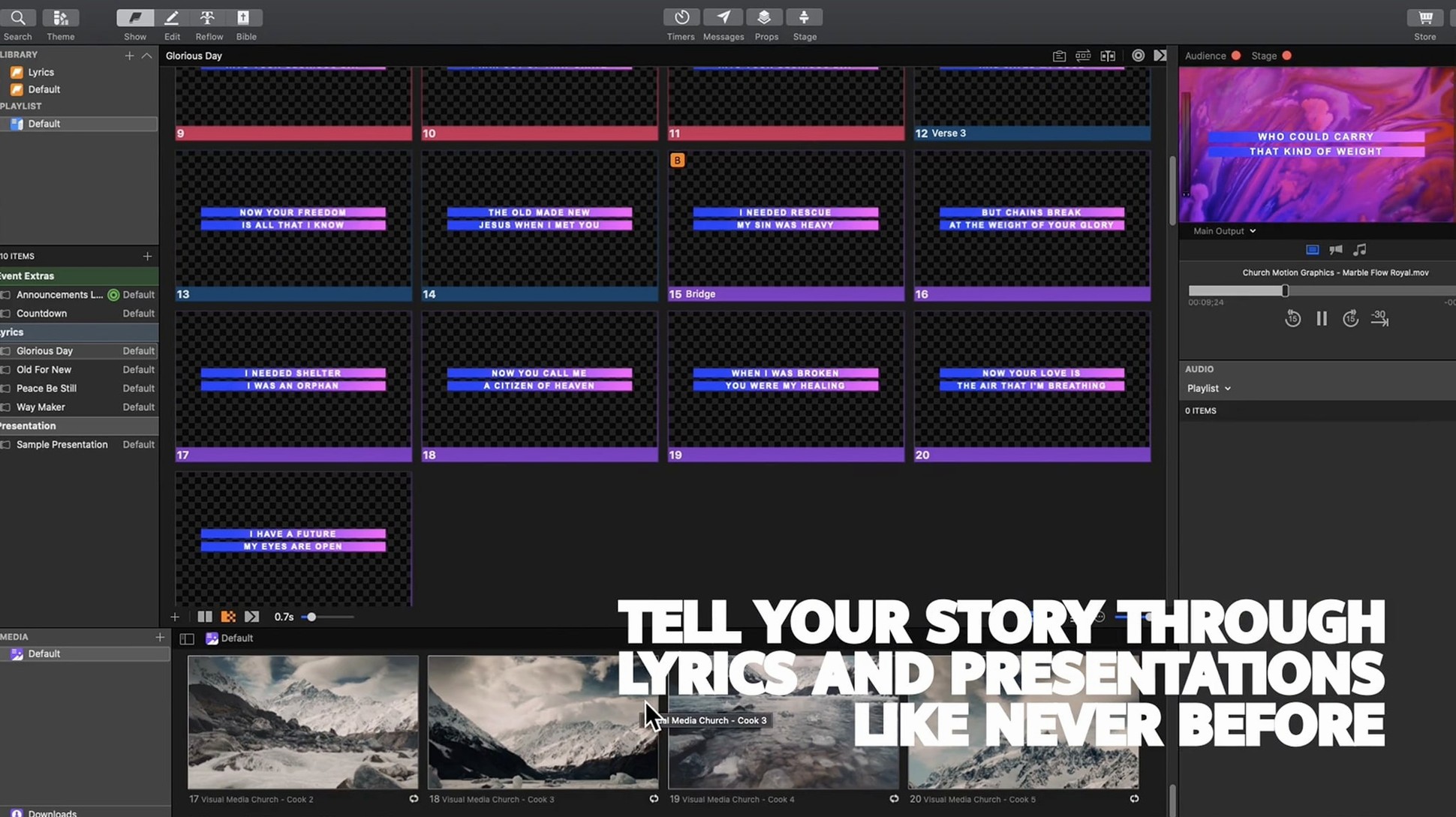
Step 2 — Create the playlist. In the Library panel, right-click the playlist area and choose New Playlist. Name it with the date and service time. Drag the playlist to the top of the sidebar so it appears first in the show view.
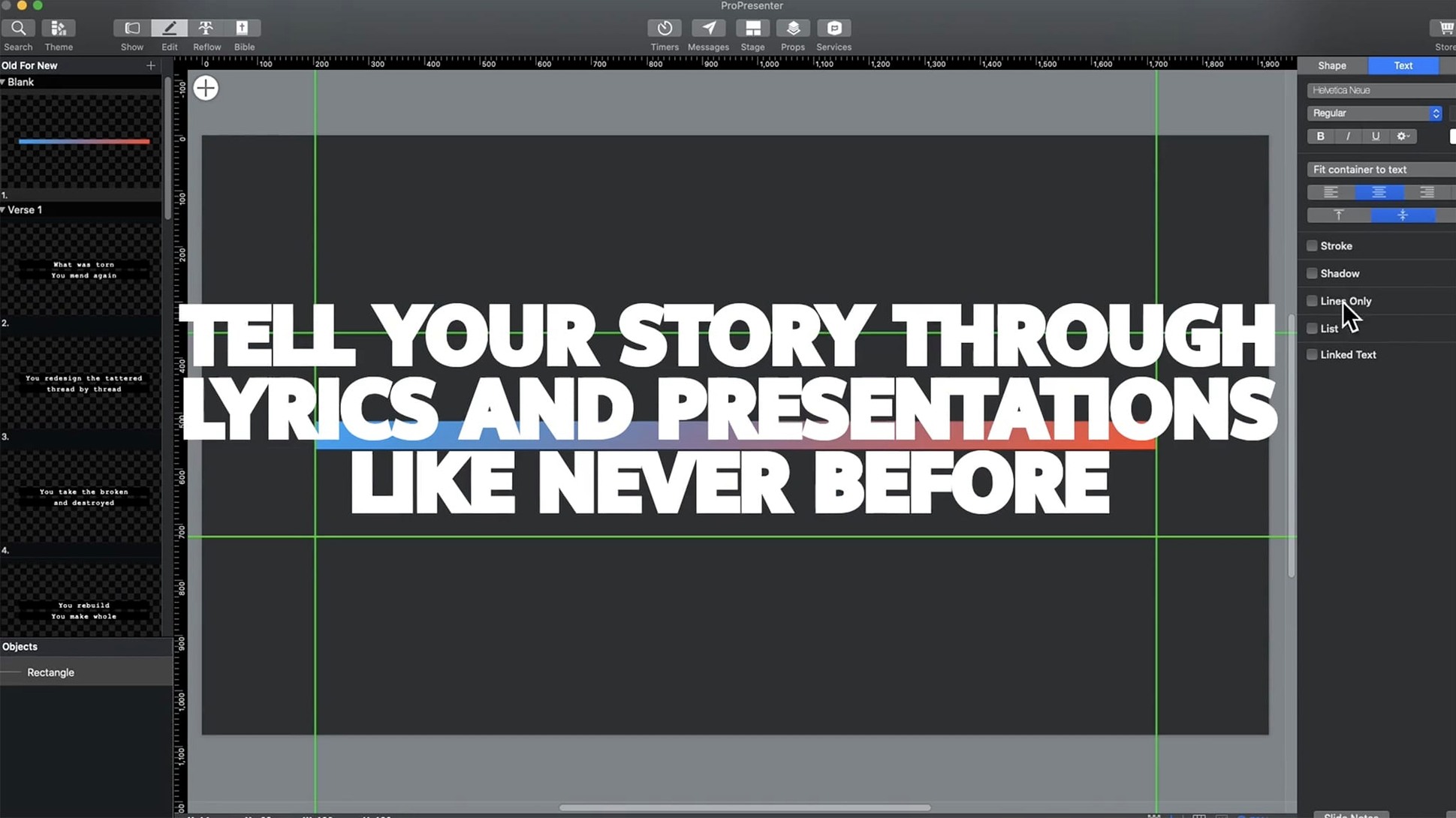
Step 3 — Build the songs. For each song, click the plus sign in the Library, select New Song, and paste the lyrics into the text area. Click the Arrange button and split the text into slides by verse and chorus — ProPresenter’s auto-break function gets it roughly right; manual adjustment is still needed for orphan lines. Apply the same background video loop to all three songs. Set the stage display to show the next two lines plus a countdown clock.
Step 4 — Prepare the scripture slide. Import the passage via File > Import > Scripture. Select the translation from the dropdown. ProPresenter breaks the text into verses automatically. Adjust the text size so the passage fits on one or two slides without scrolling. Apply a different background still to signal a shift from music to reading.
Step 5 — Build the sermon deck. Create a new presentation in the Library, not a song. Add slides for each sermon point: title, point one, point two, point three, closing. Use the slide editor’s text box tool to place words over the title-card background. Keep animations minimal; a live operator cannot chase complex builds while the speaker ad-libs.
Step 6 — Assign cues to the playlist. Drag each item into the playlist in running order: Song 1, Song 2, Scripture, Song 3, Sermon. Add a blank slide between items where a spoken transition happens — black slides give the operator breathing room.
Step 7 — Test with all outputs live. Start the playlist from the top and click through every slide while watching all three outputs. Check the stage display timer resets between songs. Confirm the livestream feed sees the lower-third lyrics but not the confidence-monitor data. Fix any slide that overruns the text bounding box.
Step 8 — Save and lock. Save the document. Right-click the playlist and choose Lock to prevent accidental reordering during the service. The operator now has a linear show that can still jump to any song if the speaker changes the order on the spot.
Inside a typical session
The Mac has been running ProPresenter since 8:15 AM. The playlist for the 9:30 service sits open on the main display. A 27-inch monitor shows the operator interface; the projector feeds the audience screen to the left; a small stage monitor faces the band, showing lyrics in white on black with a countdown clock in the corner.
The operator arrives at 8:00 AM and performs a cold boot of the Mac. Launching ProPresenter takes about twelve seconds on the Apple Silicon machine. The first check is the output routing: Preferences > Displays confirms the projector is still mapped to Audience and the stage monitor to Stage. A quick-play of the first song’s opening slide verifies the background video loop is rendering at 60 frames per second with no dropped frames.
At 8:30 AM, a band member asks to swap the second and third songs. The operator unlocks the playlist, drags Song 3 above Song 2, and re-locks it. No slide editing required — the arrangements travel with the songs. The stage display layout updates automatically because it is tied to the song template, not to individual slides.
By 9:25 AM, the pre-service loop is running: a subtle motion graphic with the church logo, triggered from the Library’s Media Bin. The operator has the playlist in Show view, with the first slide of Song 1 selected but not yet live. A foot pedal sits under the desk, mapped to the spacebar. The ProPresenter Remote app on an iPad mini mirrors the show view; a volunteer in the back row uses it to follow along and act as a spotter for any slide mismatches.
At 9:30 AM, the music director nods. The operator clicks Song 1, slide 1. The audience screen fades from the pre-service loop into the song background. The stage monitor displays the first verse lyrics. The countdown clock starts. As the band plays, the operator advances slides on the downbeat of each verse — timing learned from the rehearsal the previous Thursday. Between songs, a quick Clear Text command drops the lyrics while the background video continues to run, leaving a clean look for the spoken transition.
During the scripture reading, the operator switches the stage display to show only the reference and a static timer. The livestream encoder, receiving a dedicated NDI feed from ProPresenter, shows the scripture text as a lower-third overlay without the stage monitor elements. The operator watches the livestream on a secondary browser window to confirm the feed is clean.
The sermon runs seven slides. The speaker pauses on point two for an unscripted story. The operator stays on the current slide and does not advance; the background still holds, and the audience sees no awkward blank. When the speaker signals the closing, the operator fades to the logo slide stored in the Clear to Logo shortcut. The livestream director fades to black independently. The operator saves the log file — ProPresenter records every slide trigger with a timestamp — and puts the Mac to sleep. Total session runtime: just under two hours. Missed cues: zero.
Why your band still sees the audience lyrics
Leaving the stage display unconfigured. A fresh install of ProPresenter sends the same audience feed to every connected screen by default. The newcomer opens a song, sees lyrics on the projector, and assumes all is well. Meanwhile, the band sees the same lyrics over the background video, with no countdown timer and no next-line preview. The fix takes thirty seconds in the Displays preferences but requires the operator to know the setting exists. Walk into the venue early and physically look at every screen before the audience arrives.
Importing PowerPoint files and expecting fidelity. ProPresenter can import PPTX files, but the conversion is approximate. Fonts shift, animations flatten, and grouped objects sometimes reorder themselves. A beginner drops a twenty-slide corporate deck into ProPresenter ten minutes before the presentation and discovers the title text has jumped to the bottom of slide four
- macOS 10.15 or later
- Intel or Apple Silicon Mac
Questions on file
Can ProPresenter drive more than one screen?
Yes. It can simultaneously manage a main audience display, stage confidence monitors with timers, lobby and overflow room feeds, and a separate output for online streaming.
Does it include video and audio tools?
It handles HD video playback, multi-camera streaming and recording, and audio playback without external routing software.
Is there a remote control option?
The ProPresenter Remote app allows an operator to advance slides and trigger cues from a mobile device.
Sign in · Create an account to add a field note.
No field notes yet. A measurement, a version, a machine — they appear after moderation.