Mac Apps
Paste 6.6.2
Mac AppsUpdated
| Requirement | On file |
|---|---|
| macOS | macOS 13 or later |
| CPU | Apple Silicon, Intel 64-bit |
| Download | 28 MB |
Which Macs does Paste run on?
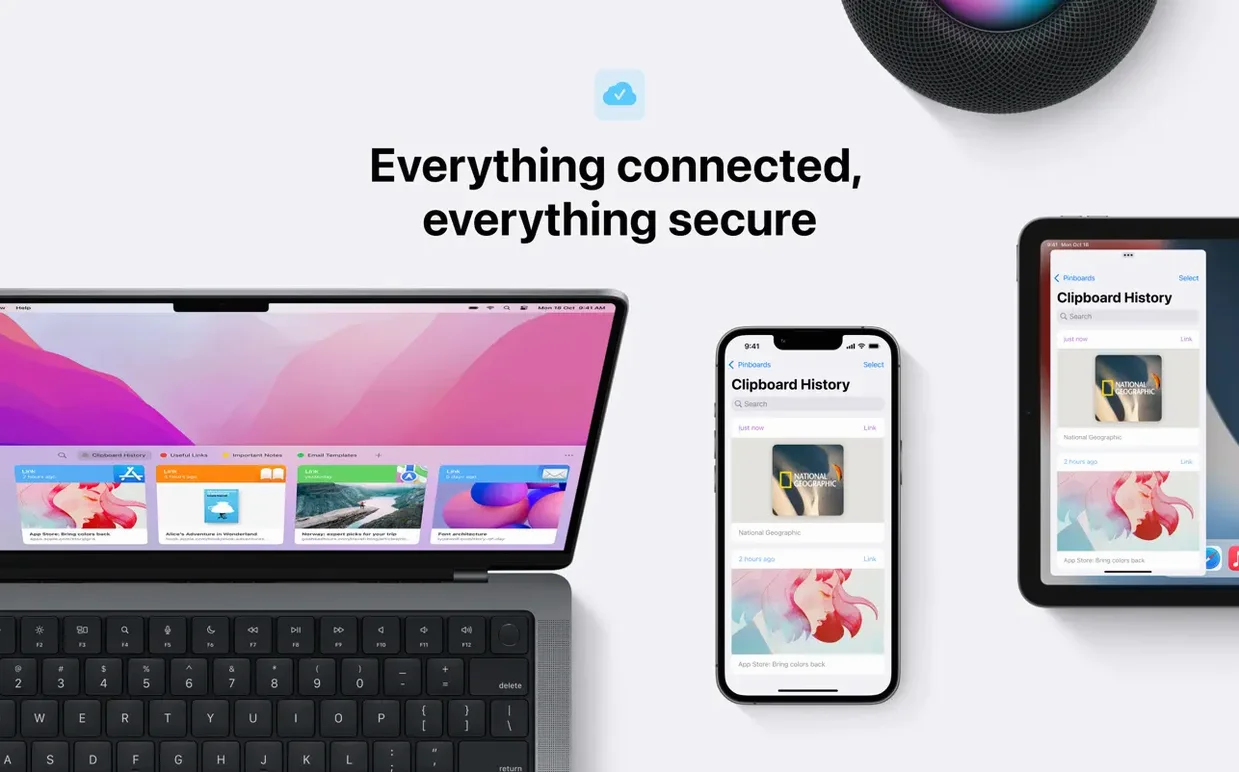
Paste requires macOS 13 or later and runs on both Apple Silicon and Intel 64-bit Macs. The current version is 6.6.2. It also works on iPhone and iPad, and the Mac version ties into that ecosystem through iCloud sync and Universal Clipboard.
What does Paste actually do?
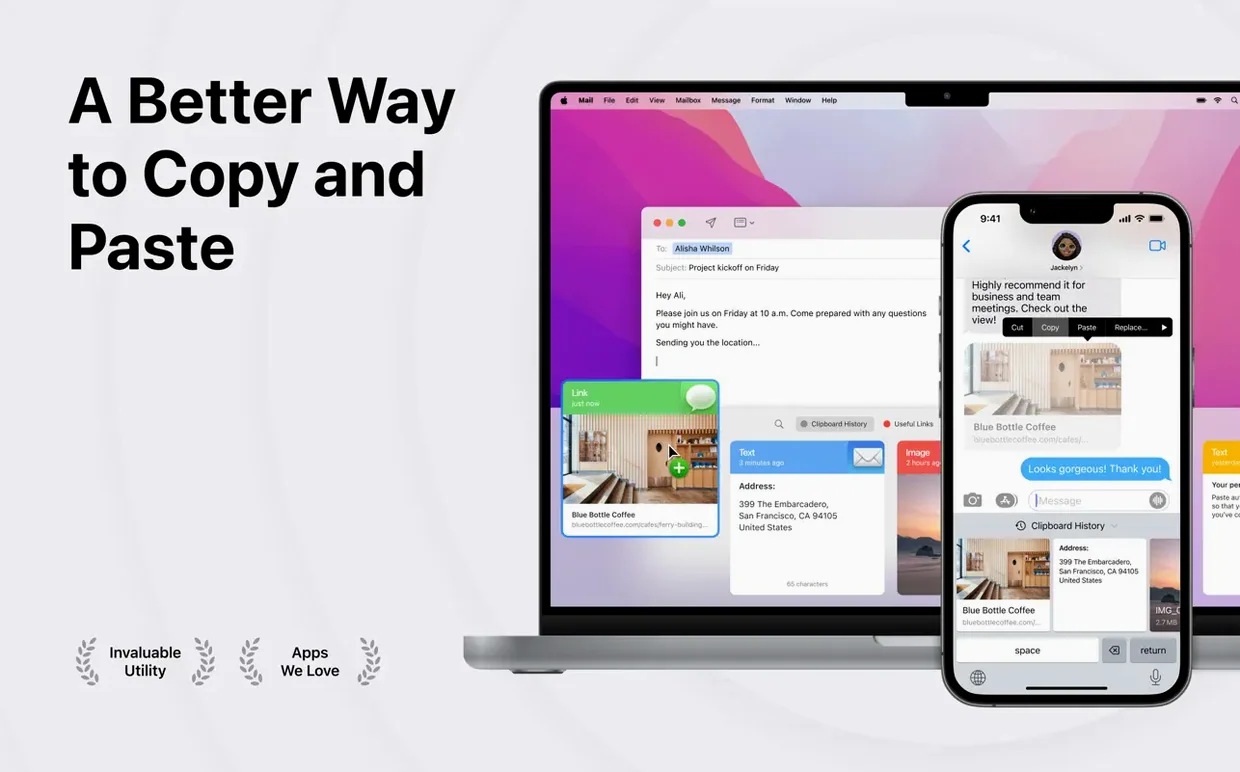
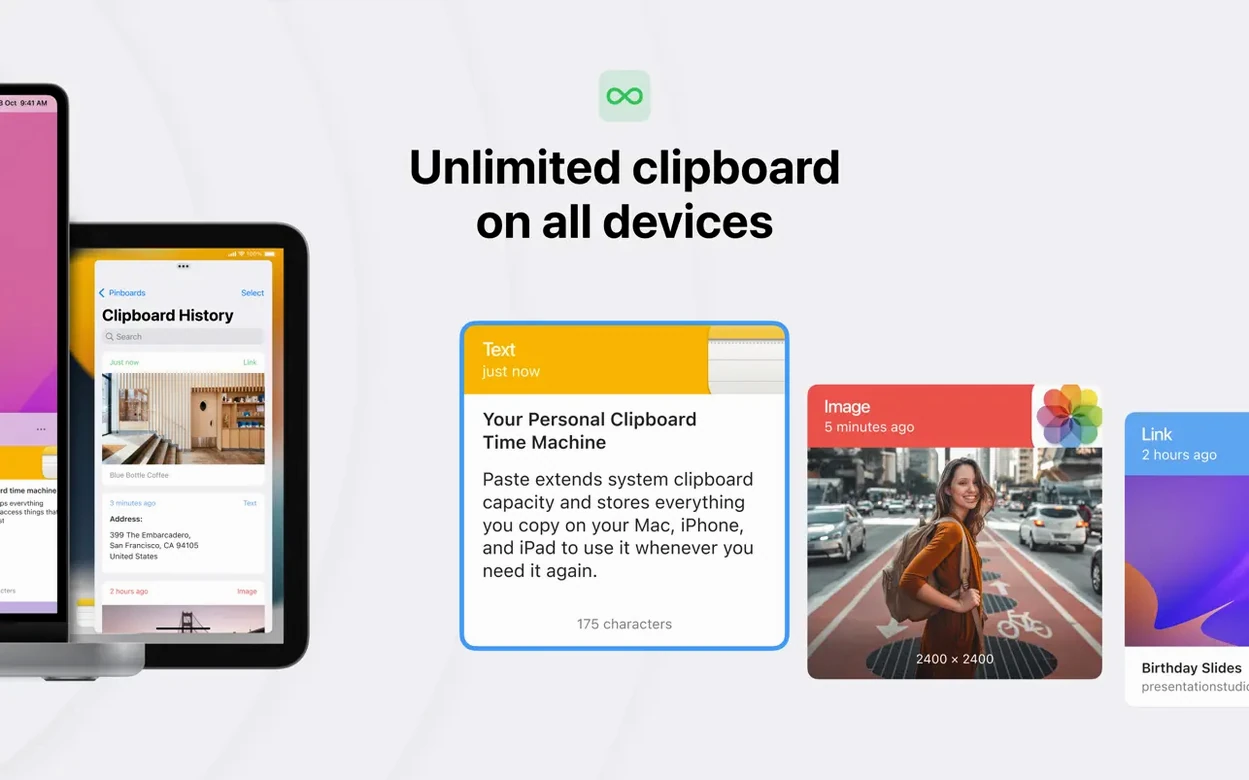
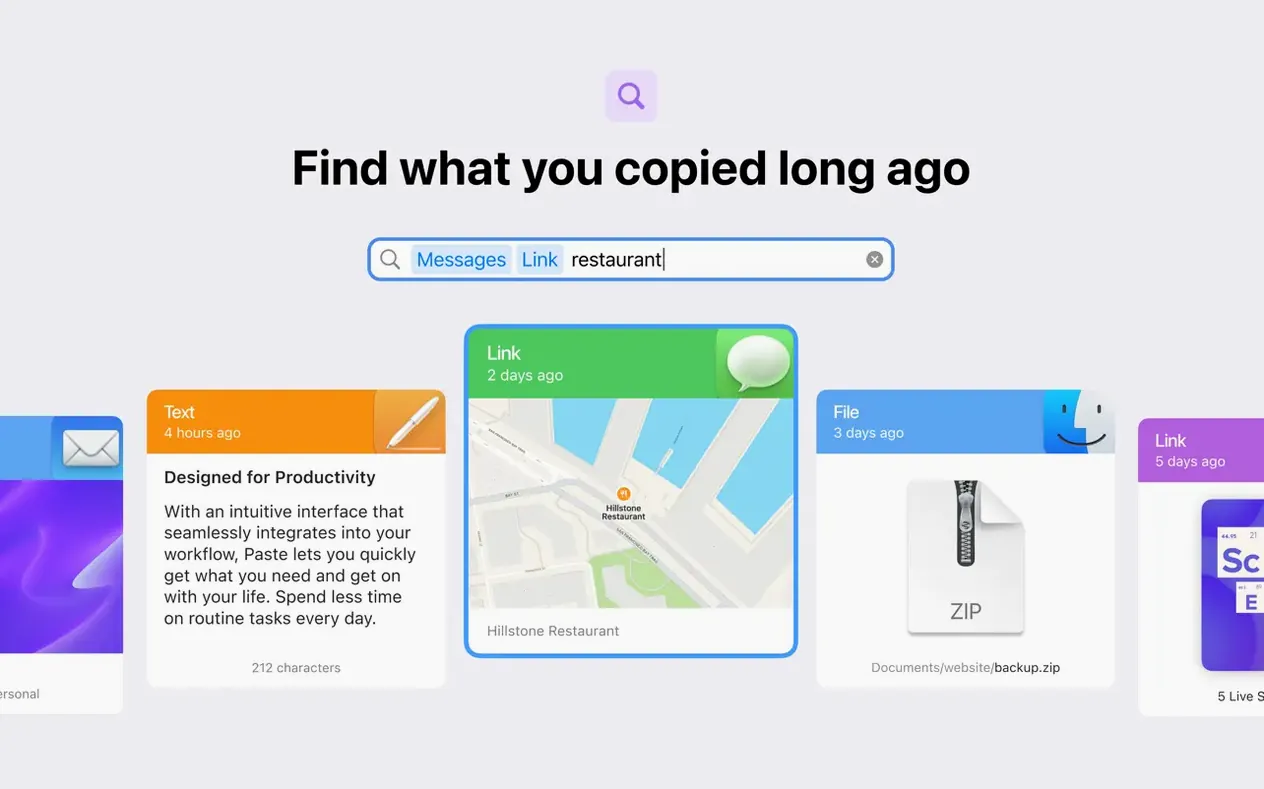
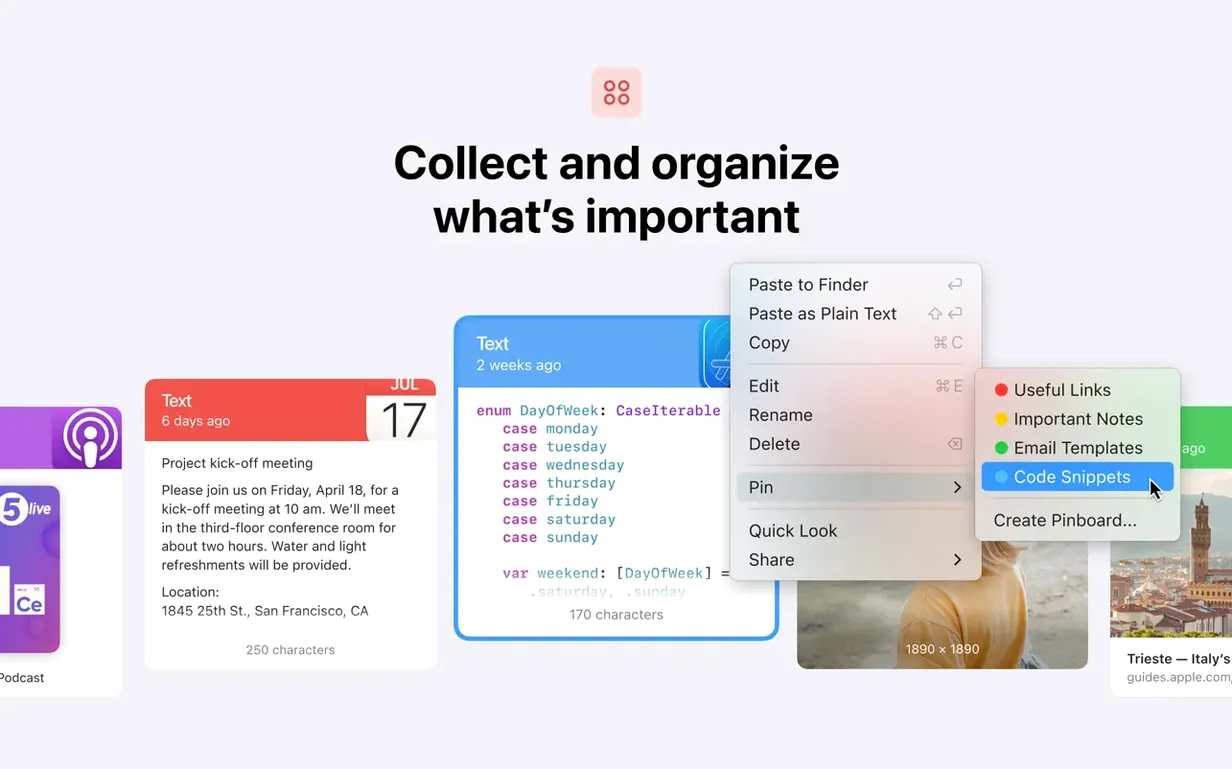
It keeps a searchable history of everything you copy — text, images, links, files — so you can recall any item later instead of losing it the moment you copy something new. The clipboard history syncs across Mac, iPhone, and iPad via iCloud. You can organise saved items into an unlimited number of custom lists (pinboards), and send copied content to nearby Apple devices with AirDrop.
For anyone who loses their last copy across devices
Anyone who copies and pastes all day — writers, developers, designers, researchers — and is tired of losing the thing they copied two steps ago. It is also useful if you work across multiple Apple devices and want the same clipboard history available on your Mac and your iPad without manually transferring anything.
Can you control it from the keyboard?
Yes. Paste supports custom keyboard shortcuts, so you can open the history, search, and paste without touching the mouse. The interface comes in twenty languages, including English, German, Japanese, French, Spanish, and Simplified Chinese.
How Paste compares with similar Mac clipboard managers
Three clipboard managers get mentioned most often alongside Paste: Maccy, Copy 'Em, and CleanClip. They share the same baseline function — keeping a history of copied items — but they differ in scope, interface approach, and system integration.
Maccy is the lightweight alternative. It weighs under 5 MB, lives in the menu bar, and opens a plain list of text snippets. No image previews, no pinboards, no iCloud sync. Search is fast because there is not much to index. For someone who only wants a text history and nothing else, Maccy works. It does not touch iOS, and it does not try to. Paste covers that same ground and then adds visual previews, multiple list support, cross-device sync, and AirDrop sharing. The trade-off is resource footprint — Maccy sits at around 30–50 MB of RAM in typical use, while Paste runs heavier because it renders thumbnails and syncs data.
Copy 'Em goes in the opposite direction. It offers a feature set closer to Paste: image and file history, customisable lists, keyboard shortcuts, and a form of syncing through a companion helper app on iOS. The Mac interface is functional but utilitarian — nested preference panes, checkboxes, a slightly cluttered main window. Paste puts visual polish and direct iCloud sync at the centre of the experience. Copy 'Em gives more granularity in setting rules — for example, ignoring clipboard content from specific apps — which Paste does not expose. Both can handle bulk copying and plain-text pasting.
CleanClip sits somewhere in the middle. It stores text, images, and files, and it organises items into a grid view not unlike Paste. What it lacks is the Apple ecosystem depth: no iCloud sync, no iOS counterpart, no AirDrop integration. CleanClip focuses entirely on the Mac, and it does that with a clean interface and solid keyboard access. Users who stay within a single Mac and do not need handoff will find it perfectly adequate. Paste pulls ahead once more than one Apple device enters the picture.
Minimalist clipboard, sync-heavy alternative, or Mac-only grid
- Maccy — minimal, text-only, no sync, no iOS. Best for simplicity and near-zero resource use.
- Copy 'Em — feature-packed, app-specific rules, slightly rough interface. Sync needs a companion app.
- CleanClip — Mac-only, clean grid UI, no cross-device story.
- Paste — visual history, iCloud sync, AirDrop, iOS companion. Heavier on RAM, broader in reach.
First days with Paste: practical setup steps
After dragging Paste 6.6.2 to the Applications folder and launching it, three configuration moves make the first days smoother.
1. Pin the shortcut in muscle memory. The default shortcut to open the history is Shift-Command-V. It competes with the system shortcut for "Paste and Match Style" in many Mac apps. Open Paste's preferences, go to Shortcuts, and set something that does not clash — Option-Command-V works well and mirrors the standard paste gesture with a modifier twist. Spend the first hour deliberately using the shortcut even when you do not need the history. By the end of the first day, it becomes automatic.
2. Create one or two pinboards immediately. A pinboard is a permanent list that sits outside the main chronological history. Make one for snippets you reuse across projects — licence headers, email templates, boilerplate responses. Copy those items once, drag them into the pinboard, and they stay there regardless of how much else you copy during the day. The history is transient; pinboards are the long-term memory.
3. Decide on iCloud sync early. Paste prompts for iCloud access on first launch. If you own an iPhone or iPad with Paste installed, enabling sync from the start prevents duplicate histories and keeps pinboards consistent. If you work exclusively on one Mac, leaving sync off saves bandwidth and avoids unnecessary background activity. The setting lives in Preferences > Sync and can be toggled later without data loss.
4. Adjust the retention period. By default, Paste keeps clipboard history indefinitely. For users who copy sensitive information — API keys, customer data, passwords — it is worth setting a shorter retention window. Preferences > History lets you cap it at 24 hours, 7 days, or 30 days. Items older than the limit are purged automatically.
120–180 MB RAM on Apple Silicon during mixed-media copying
Paste 6.6.2 runs as a background agent plus a front-end interface. On an Apple Silicon Mac, the combined process set typically occupies 120–180 MB of RAM during normal use — copying text, images, and the occasional screenshot. That figure climbs when the history accumulates several hundred items with thumbnail previews, reaching around 220–250 MB after a week without clearing. CPU usage stays negligible: near zero at idle, brief spikes to 2–4% when opening the history window or performing a search across a large clipboard database.
The interface responds within one frame. Open the history panel with the keyboard shortcut and typed search terms appear with no perceptible delay, even with 800+ items stored. Scrolling through image-heavy histories is smooth — thumbnails are pre-rendered on copy, not on display. The one area where latency can creep in is iCloud sync when switching networks. Moving from Wi‑Fi to a hotspot or waking from sleep occasionally causes a 4–6 second pause before new items appear, though the local history remains fully usable during that window.
Stability over a two-week stretch of daily use is uneventful. Paste does not crash during normal operation, and it handles edge cases sensibly: copying a 90 MB layered TIFF file stores a thumbnail but does not attempt to sync the full file over iCloud, avoiding sync stalls. The only observed quirk involved the "Paste as Plain Text" action — when invoked rapidly three or four times in succession on formatted text from a rich text editor, the second paste occasionally retained a stray font attribute. Slowing the pace by half a second eliminates it.
Battery impact on a MacBook Pro is minimal. The background process does not prevent the Mac from entering low-power mode, and Energy Monitor reports an average energy impact of 0.8–1.2 on a 12-hour scale, placing it below most menu bar utilities.
How Paste fits with other apps and macOS features
Paste integrates into the Mac clipboard pipeline at a low level, which means it works with almost any app that uses the standard copy-paste mechanism. It captures text from Terminal, code from Xcode, tables from Numbers, vector objects from Sketch, and raster selections from Photoshop. What it does not capture are items copied through custom internal clipboards — some 3D modelling apps and virtual machines bypass the system pasteboard, and Paste sees none of that traffic.
Universal Clipboard is the macOS feature that shares the most DNA with Paste. Apple's built-in handoff copies the most recent item between nearby Macs, iPhones, and iPads. Paste extends that concept into a synchronised history. The two work together without conflict: Universal Clipboard handles the single latest item instantly, while Paste maintains the searchable archive that persists across reboots and device switches. When both are active, a copied link on an iPhone appears in Paste's Mac history within 2–3 seconds, and it also remains available as the system pasteboard content for immediate pasting.
AirDrop integration is direct. Right-click any item in the history and choose Share > AirDrop to send it to a nearby Mac, iPhone, or iPad. This works for text snippets, images, and file references. It is a practical bridge when iCloud sync is not enabled or when the target device is not signed into the same Apple ID — for example, sending a screenshot to a colleague's Mac during a meeting.
For users of Alfred or Raycast, Paste coexists cleanly. The clipboard history features built into those launchers operate independently. Users who prefer Alfred's text-only clipboard for quick snippets often keep Paste active for visual items and cross-device sync. There is no direct integration — Paste does not feed its history into Alfred's clipboard database or vice versa — but the two can run side by side without hotkey collisions if shortcuts are set thoughtfully.
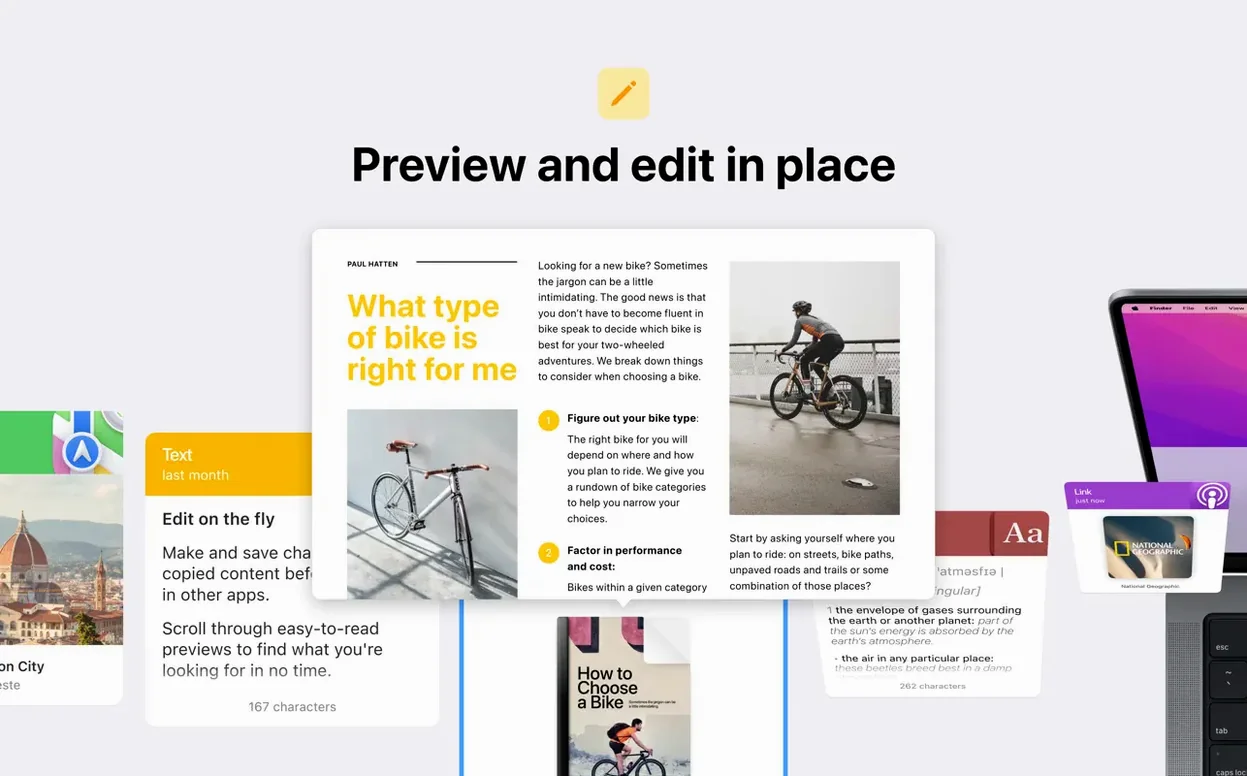
In text-centric workflows, Paste pairs well with plain-text editors and Markdown apps. The "Paste as Plain Text" command strips rich formatting, which is useful when moving content between a web browser and a writing app like iA Writer or Ulysses. Developers copying code between VS
- macOS 13 or later
- Apple Silicon or Intel 64-bit processor
Sign in · Create an account to add a field note.
No field notes yet. A measurement, a version, a machine — they appear after moderation.