Mac Apps
Pacifist 4.1.4
Mac AppsUpdated
| Requirement | On file |
|---|---|
| macOS | macOS 10.14.6 or later |
| CPU | Intel 64-bit |
| Download | 38 MB |
Version 4.1.4 adds macOS Tahoe support, more accurate asset catalog extraction, and several bug fixes. Before you install, a few things to know.
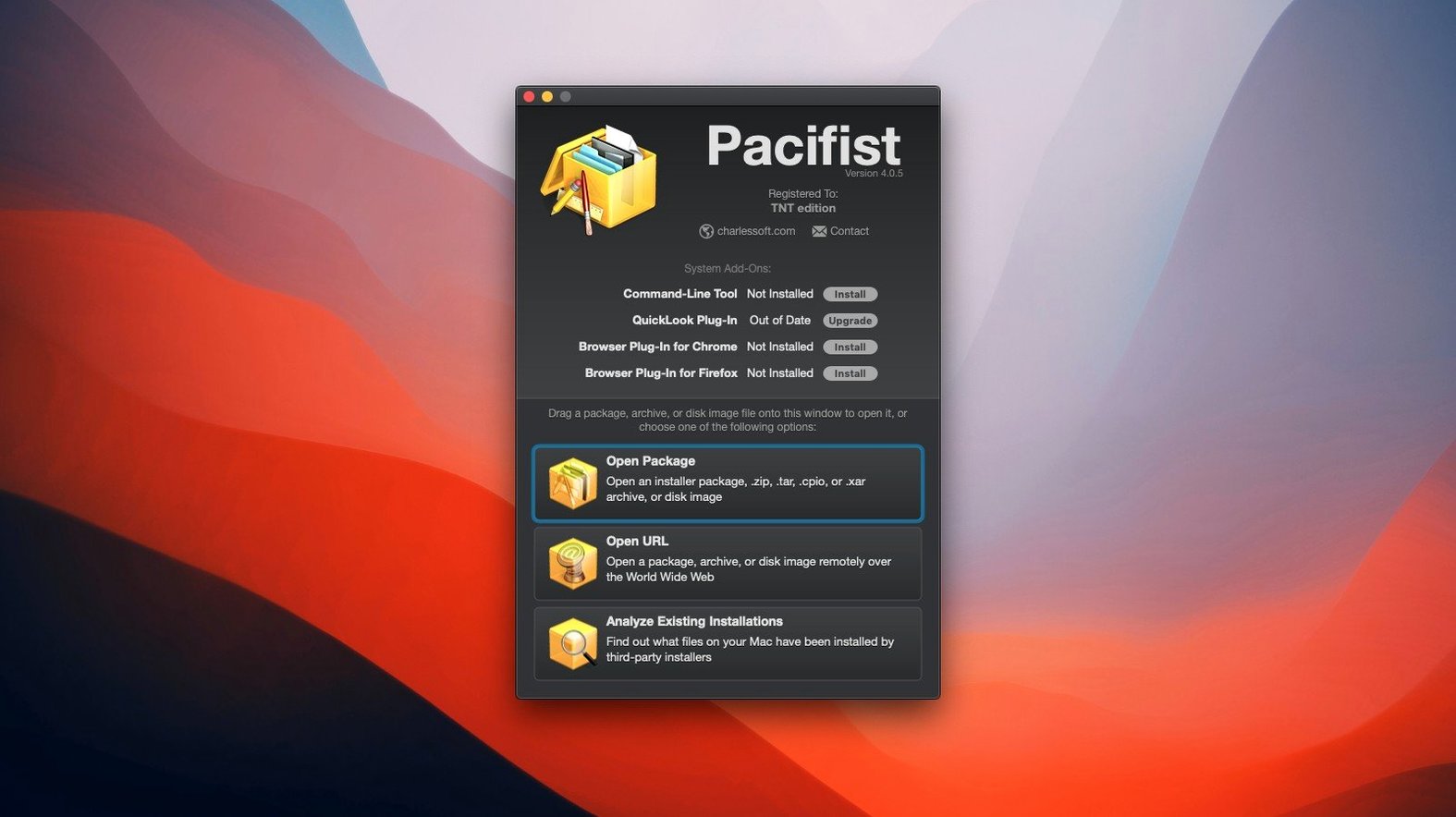
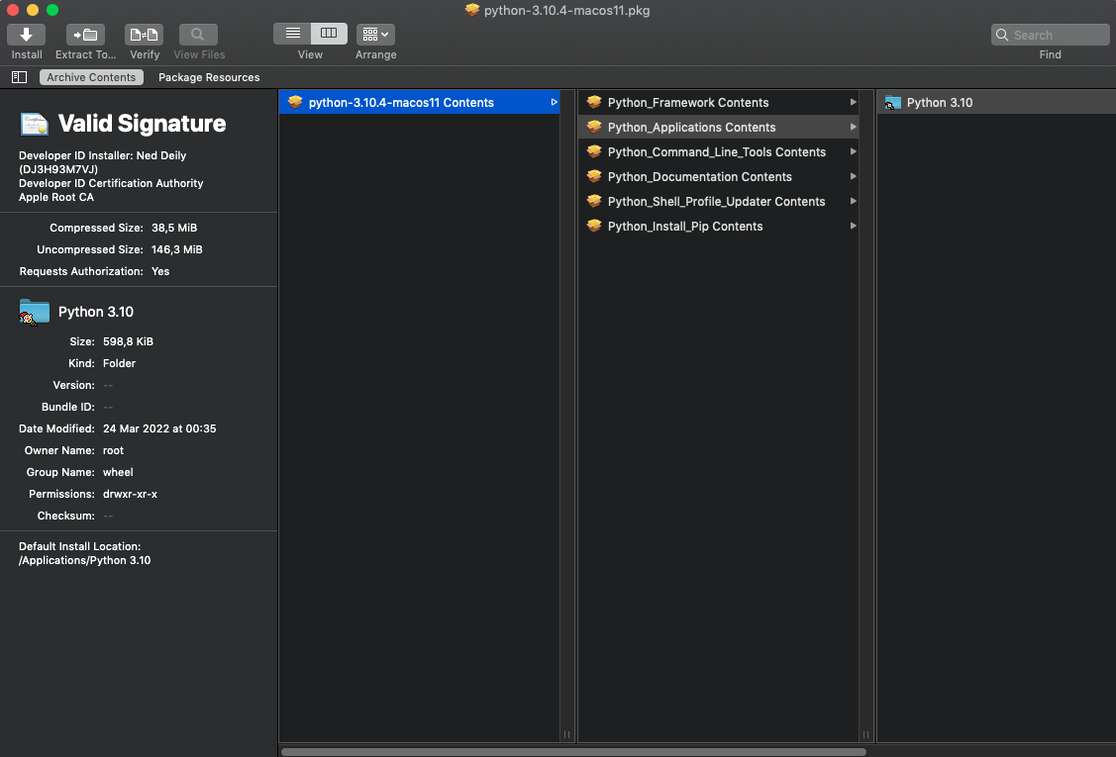
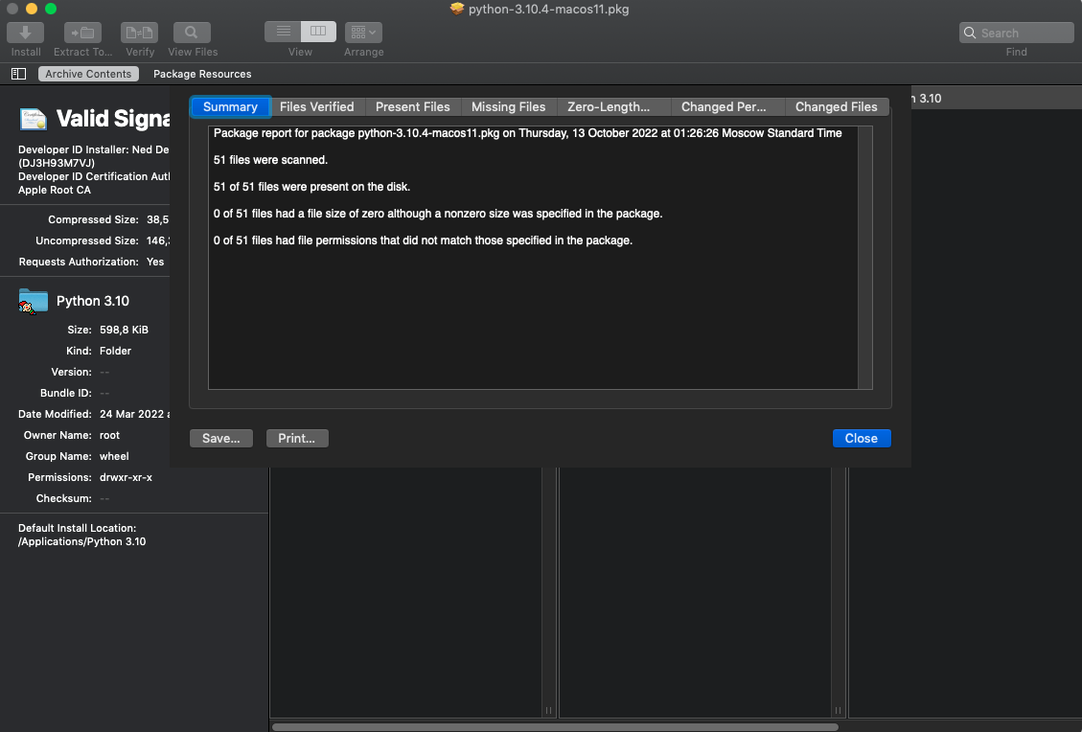
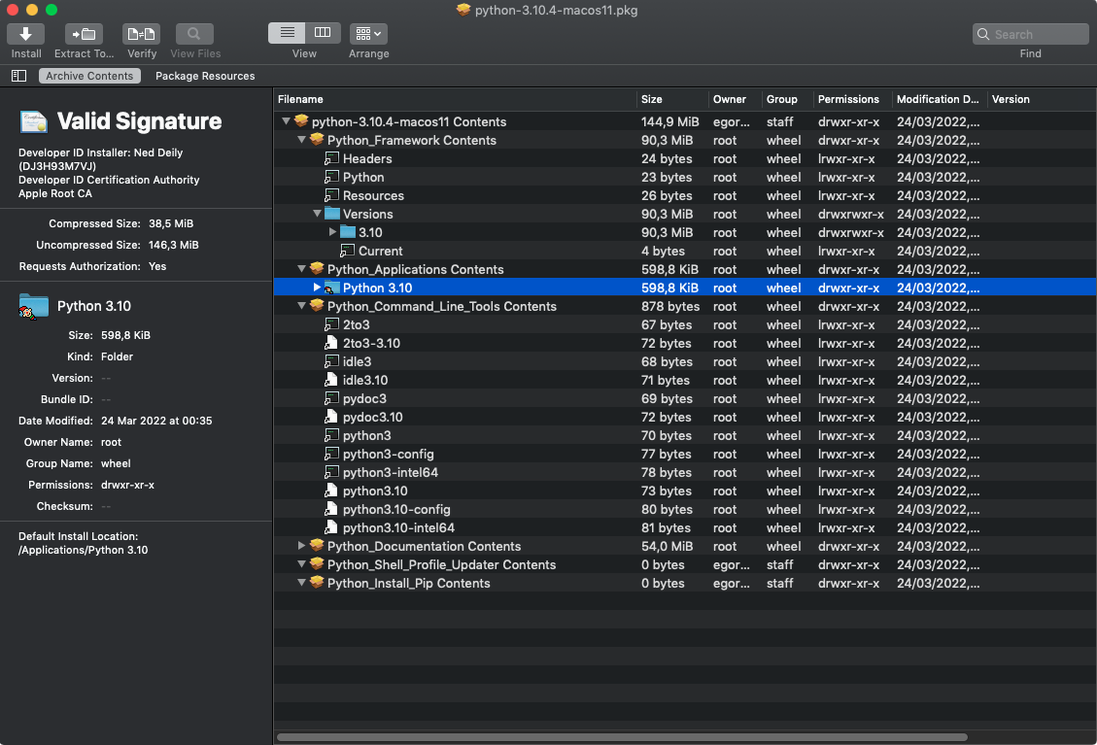
Package inspector — Opens macOS .pkg files so you can see every file and script an installer would place on your system, before you commit to the install.
Archive extraction — Pulls individual files or folders from .dmg, .zip, .tar, .tar.gz, .tar.bz2, and .xar archives without expanding the whole thing.
Selective download — For some archive types, downloads a single file over HTTP instead of the full archive. Saves bandwidth when you only need one component.
System requirement notes — The current build lists compatibility with macOS 10.15 through 11.x on CharlesSoft's site, though the stated minimum is 10.14.6. Intel only; no native Apple Silicon binary.
How Pacifist fits into the macOS ecosystem
Pacifist sits in a gap that Finder and Archive Utility leave wide open. Finder can mount a .dmg and show its contents, but it cannot peer inside the .pkg files that populate that disk image. Archive Utility decompresses .zip and .tar archives in one shot — no browsing, no partial extraction. Pacifist bridges both worlds.
When you pair it with macOS Spotlight, the workflow tightens further. Drop a .pkg onto Pacifist, search for a specific filename in its toolbar, and you have the file's absolute install path in seconds. The app also complements Terminal for administrators who need to verify what a package actually installs before scripting a silent deployment. If you use Quick Look in Finder, note that the Quick Look plug-in is not active in the current 4.1.4 build — the main window is where all inspection happens.
For users who work with legacy Mac software distributed as .pkg files, Pacifist often becomes the default opener in place of Installer.app. You set that in Finder's Get Info panel once, and every .pkg you double-click opens for inspection rather than triggering an install you may not want. That single change shifts the default behaviour of macOS from "trust and run" to "inspect first."
Restoring a missing system font: a worked example
macOS updates occasionally remove or displace fonts that older documents reference. Suppose a Keynote file from 2018 throws a "font not found" warning for ITC Avant Garde Gothic, which shipped with an older version of macOS but vanished after an upgrade. You do not want to reinstall the entire OS from a backup. Here is how Pacifist gets the single font back.
Locate the installer. If you kept the "Install macOS Mojave" or "Install macOS Catalina" app in your Applications folder, right-click it and choose Show Package Contents. Navigate to Contents/SharedSupport/ and find the InstallESD.dmg file. Mount it in Finder.
Open the payload. Inside the mounted ESD volume, locate the Packages folder. The system fonts typically live inside BaseSystemResources.pkg or Essentials.pkg. Drag that .pkg file onto Pacifist's window. The package contents appear in a familiar file-tree view within a few seconds.
Find the font. Type "Avant Garde" into Pacifist's search field. The match appears with its full install path — usually /System/Library/Fonts/ or a subfolder for supplementary typefaces. Select the font file and click "Extract To…" in the toolbar. Choose your desktop or a staging folder.
Install and verify. Open the extracted .ttf or .otf file in Font Book and click Install Font. Restart Keynote. The document opens without the missing-font warning. Total time from search to fix: under five minutes, no full OS reinstall, no third-party font download.
The same pattern works for missing printer drivers, colour profiles, and Audio Unit plug-ins that Apple bundles with the OS but that later updates strip away. In each case, Pacifist turns a monolithic system installer into a granular parts catalogue.
Settings to change after a fresh install
Out of the box, Pacifist works, but three preferences make daily use noticeably smoother.
Extraction destination. Open Preferences and set the default extraction location to your Desktop or a dedicated "Extracted" folder inside Documents. The default is a temporary folder that can be hard to locate from Finder. A visible destination means you never lose extracted files.
File listing granularity. In the View menu, enable "Show Package Contents as Flat List" when you need to scan a large .pkg for a file whose folder hierarchy you do not know. Switch back to the hierarchical view for installers where you do know the path structure. Toggling this based on the task saves a lot of scrolling.
Open safe files automatically. Under the General tab, check "Automatically open safe files after extraction." This applies to common types like .plist, .txt, and .rtf files. When you extract a single configuration file to inspect it, it opens immediately in your default editor instead of requiring a manual Finder double-click.
Extracting .car Assets No Longer Corrupted After Tahoe
The Tahoe-era update introduced by 4.1.4 — macOS Tahoe compatibility and asset catalog accuracy — is not just a maintenance note. It fixes a real extraction problem that affected developers and designers.
Before 4.1.4, extracting .car (compiled asset catalog) files from .pkg packages could produce images with incorrect colour profiles or missing @2x and @3x variants. The parsing logic misidentified certain asset catalog structures that Apple changed in recent SDKs. For someone pulling icon resources from a macOS installer to inspect new system artwork, the extracted PNGs could appear washed out or at the wrong resolution. Version 4.1.4 corrects the asset catalog parser so multi-scale images come out with the right dimensions and colour data intact.
The miscellaneous bug fixes in this release also addressed a crash that occurred when opening malformed .xar archives with deeply nested directory structures. In previous versions, a corrupt signature block in a .xar would beachball Pacifist until force-quit. The 4.1.4 build handles that gracefully, logging the error and showing the archive contents up to the point of corruption.
For anyone using pacifist mac os on a machine that straddles the Intel era and newer hardware, the continued Intel-native build means Rosetta 2 handles the translation on Apple Silicon. Extraction speed remains practical for packages under 2 GB, though very large .pkg files — full OS installers — take longer to index than they would with a universal binary. That is the main friction point in day-to-day use: patience with large payloads, compensated by the precision of what you get out.
- macOS support — Updated for macOS Tahoe.
- Asset catalog parsing — Greater accuracy when extracting images from asset catalogs.
- Stability — Miscellaneous bug fixes.
- macOS 10.14.6 or later (build listed for 10.15–11.x)
- Intel processor
- English interface
Questions on file
What file formats can Pacifist open?
It handles macOS .pkg package files, .dmg disk images, and .zip, .tar, .tar.gz, .tar.bz2, and .xar archives.
Can I extract just one file from a large archive?
Yes. You can extract individual files or folders from supported archives, and some formats let you download a single file over HTTP without pulling the full archive.
Sign in · Create an account to add a field note.
No field notes yet. A measurement, a version, a machine — they appear after moderation.