Mac Apps
One Switch 1.35.4
Mac AppsUpdated
| Requirement | On file |
|---|---|
| macOS | macOS 10.15 or later |
| CPU | Apple Silicon, Intel 64-bit |
| Download | 7 MB |
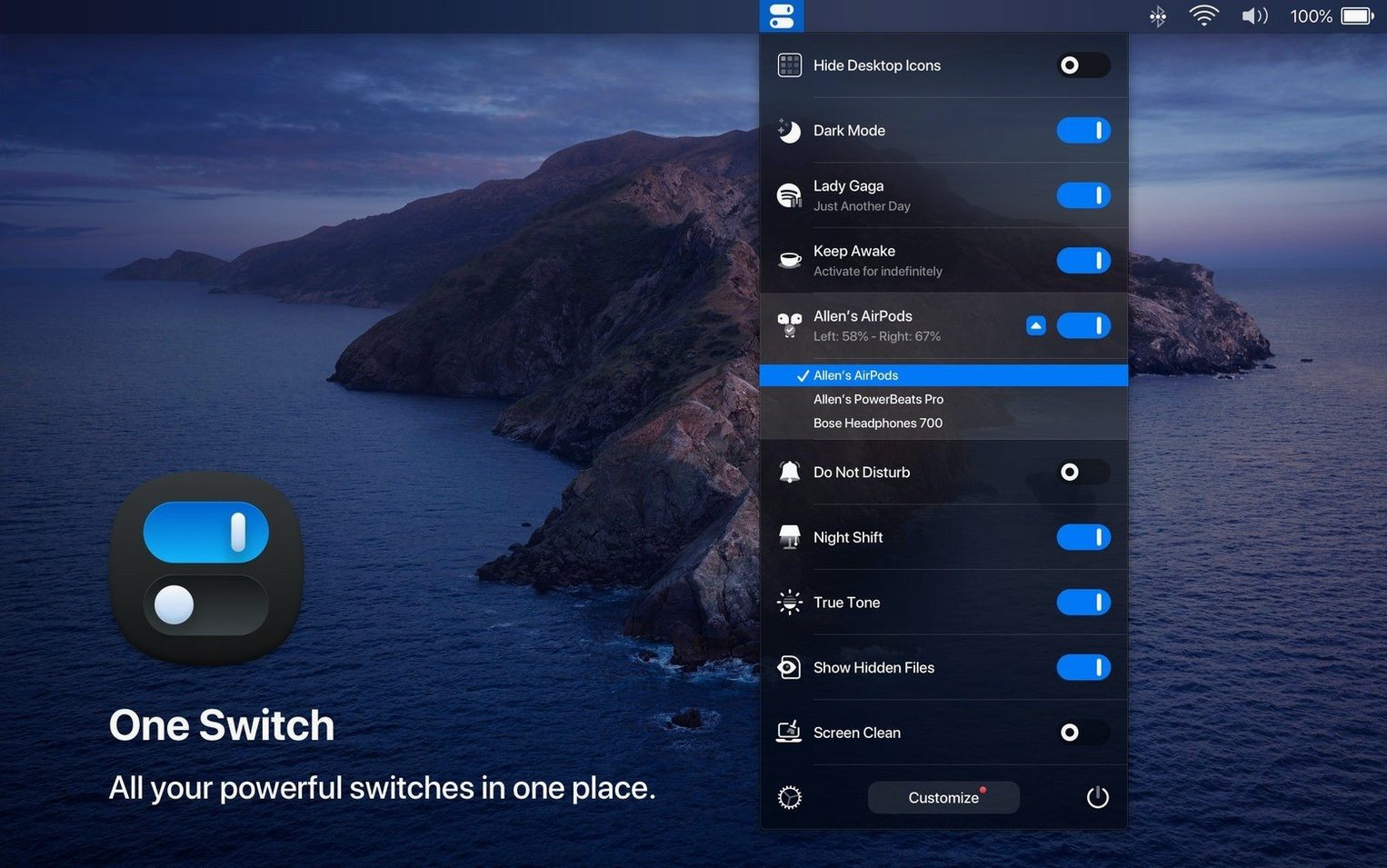
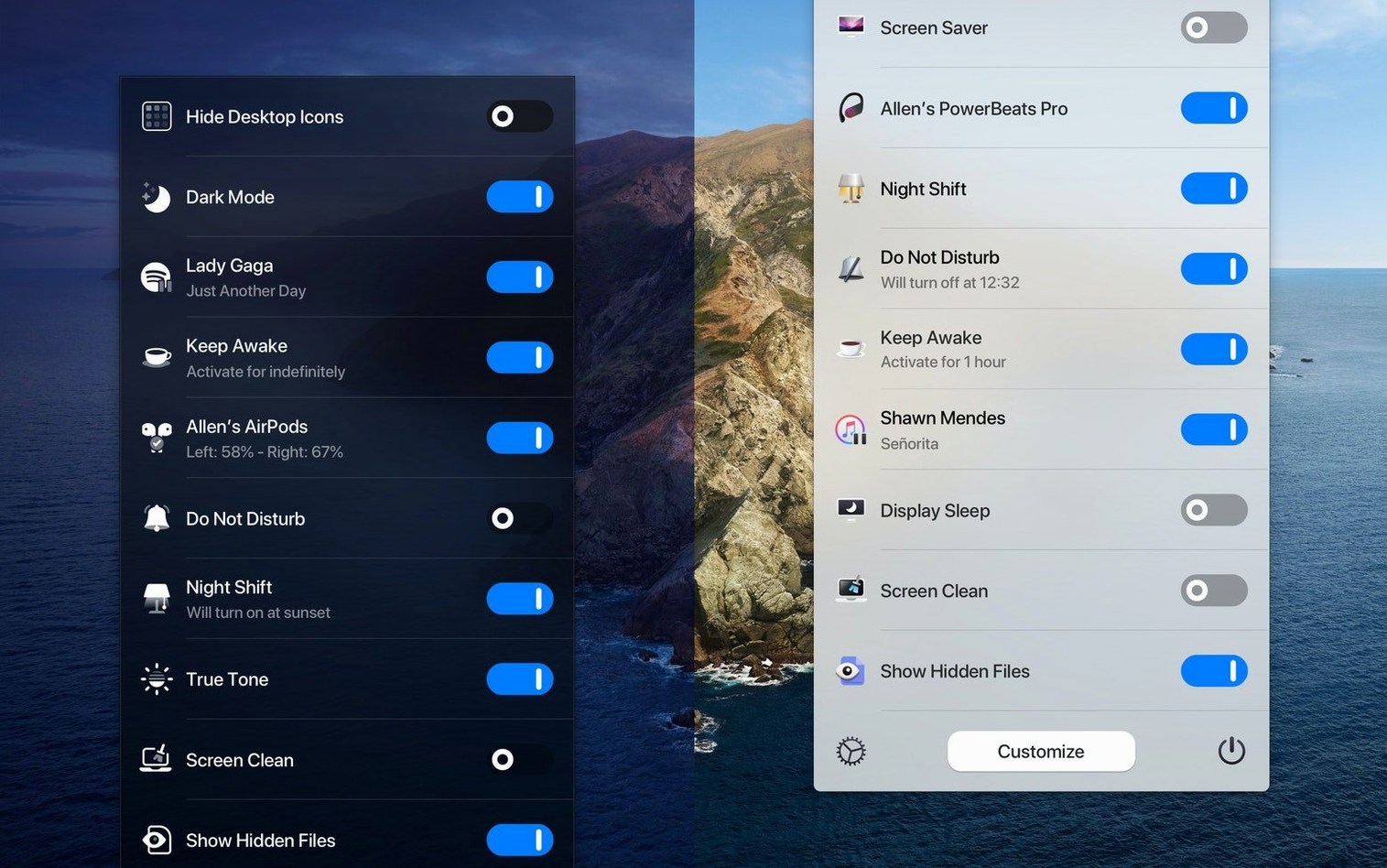
One Switch is a menu bar utility that replaces several system toggles and small utilities with a single dropdown of switches.
Does One Switch run on my Mac?
It needs macOS 10.15 or later and runs on both Intel and Apple Silicon Macs. Version 1.35.4 is the current release listed for macOS.
Which switches are included?
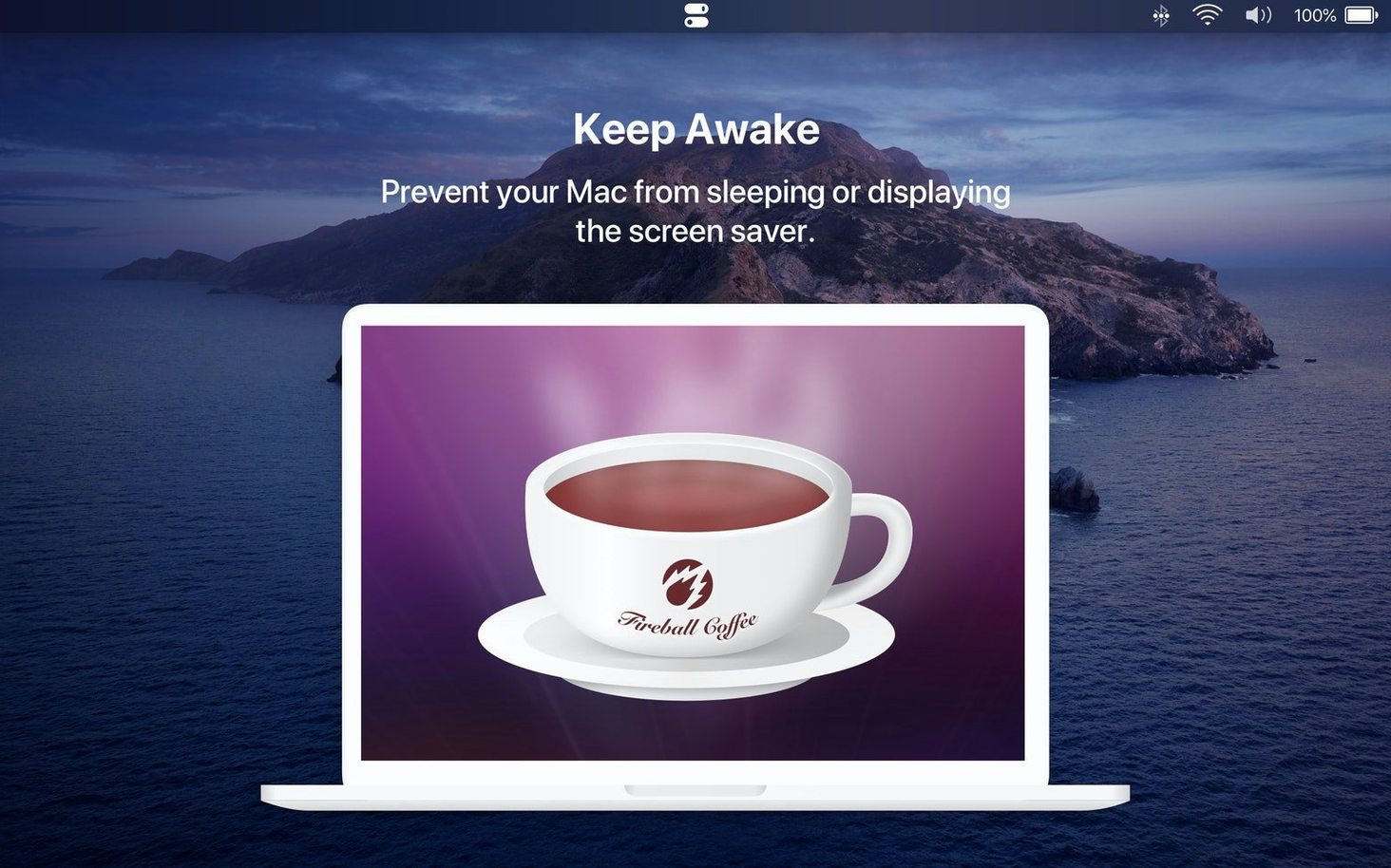
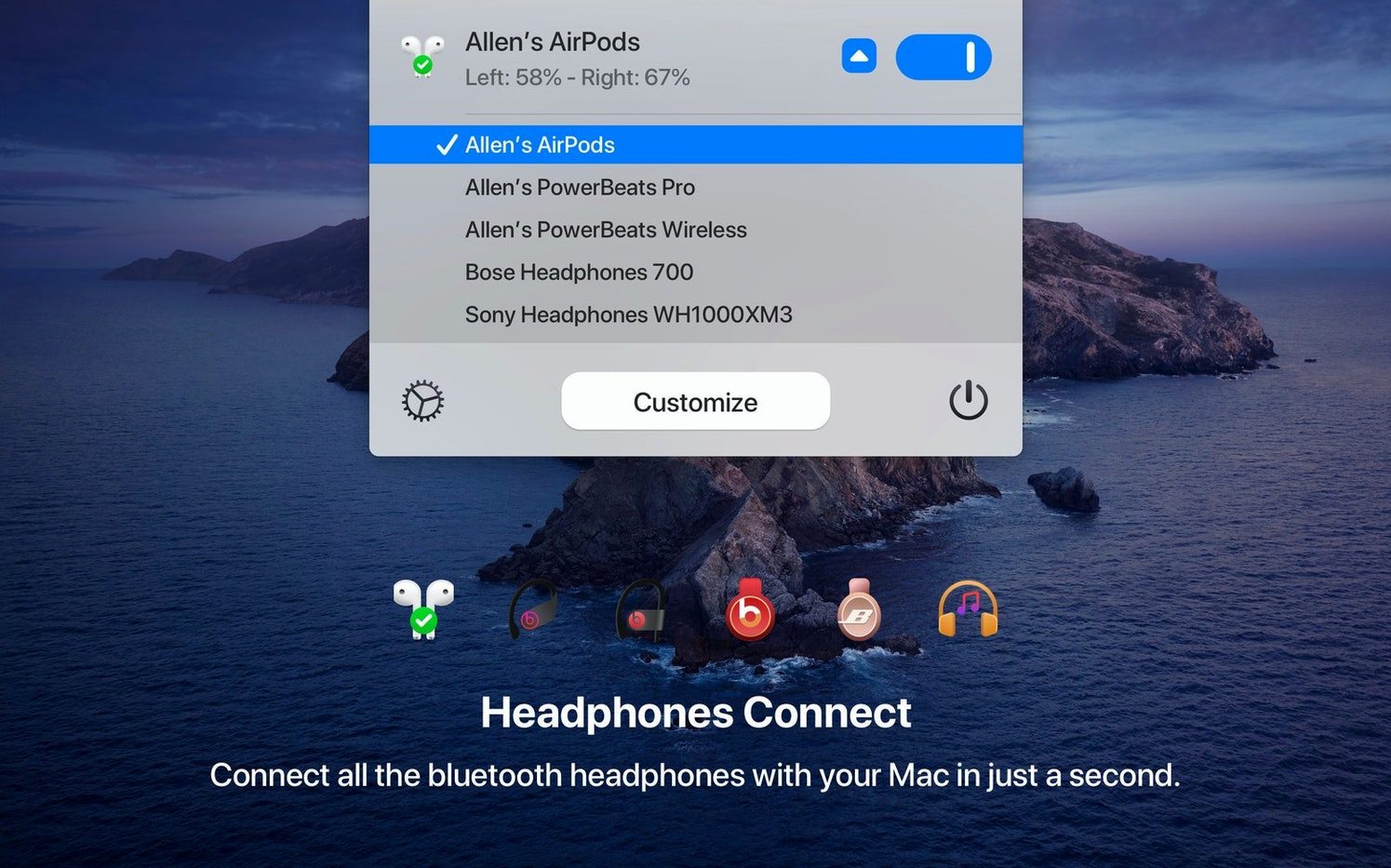
The app controls Light and Dark appearance, Do Not Disturb, desktop icons, screen saver, sleep, AirPods connection and notifications. You can hide switches you rarely use and keep only the ones you want in the menu bar.
Can it automate appearance switching?
Yes. One Switch can switch between Light and Dark appearance manually, and it can automate the change during the day.
Why use one menu bar tool instead of separate apps?
It folds several settings and small utilities into a single menu bar entry. That means fewer background helpers and a shorter path to common macOS controls.
First days with One Switch: what to set up straight away
Out of the box, the menu bar dropdown shows every switch the app ships with. That is seven items. Most people do not need all of them every day, and a crowded list slows you down. Open preferences and untick three or four switches you rarely touch. The dropdown shortens instantly.
Next, pin the switches you do use to muscle memory. The order in the dropdown matches the order in preferences — drag rows to rearrange them. Put Dark Mode and Do Not Disturb at the top if you toggle those several times a day. The app remembers the order across restarts.
If you plan to use the automatic Light/Dark schedule, set it early. The scheduler lives under the appearance switch preferences and respects a custom time range you define. It does not follow the macOS system schedule, so check that the two do not fight each other. On an M2 MacBook Air with macOS 14, leaving both active caused a brief flash at the crossover point — one schedule flipped the appearance, then the other flipped it back a minute later. Pick one scheduler and disable the other.
Option-click to flip switches without opening the menu
Several shortcuts are not obvious from the interface.
- Option-click any switch to toggle it without closing the dropdown. This is handy when you want to flip two or three switches in quick succession — for example, hiding desktop icons and enabling Do Not Disturb before a presentation.
- Right-click the menu bar icon for a compact list that skips the icons and shows only switch names. On smaller screens, this shaves a few millimetres off the menu width.
- Sleep and screen saver switches accept a keyboard shortcut if you assign one in System Settings. One Switch itself does not manage hotkeys, but macOS lets you assign a shortcut to any menu bar item via System Settings > Keyboard > Keyboard Shortcuts > App Shortcuts. Target the exact switch name as it appears in the dropdown.
- The AirPods connection switch works only when at least one paired AirPods set is nearby and awake. If the switch is greyed out, open the AirPods case or put them in your ears. The app polls for nearby devices; it does not maintain a persistent Bluetooth scan in the background.
Hiding desktop icons doesn’t move or delete files
The most common slip is treating the desktop icons switch as a file manager. Hiding icons does not move, delete or organise anything — it simply toggles a Finder setting. Users who hide icons and then wonder where a downloaded file went need to show icons again or look in Finder directly. The files were never moved.
Another mistake is assuming the Do Not Disturb switch mirrors the Focus mode in Control Centre. It does not. One Switch controls the older Do Not Disturb flag, not the newer Focus profiles introduced in macOS Monterey. If you use a custom Focus schedule, the switch may appear out of sync with what Control Centre shows. Test the behaviour before relying on it during meetings.
Some users position a rotary switch in their mental model of the app — expecting a single master toggle that flips multiple settings at once. One Switch does not offer grouped or composite actions. Each switch is independent. Switching Dark Mode on does not enable Do Not Disturb. The name “One Switch” refers to the single menu bar access point, not a unified control.
Fix a greyed-out switch by granting Accessibility permission
Switch stays grey and does nothing. The most frequent cause on Apple Silicon Macs is a missing Accessibility permission. One Switch needs permission to control system settings. Go to System Settings > Privacy & Security > Accessibility and check that One Switch appears and is toggled on. If it is listed but unresponsive, remove it with the minus button, then re-add the app from the Applications folder.
Menu bar icon disappears after a macOS update. macOS sometimes resets menu bar item visibility after a point update. Launch One Switch again from the Applications folder. If the icon still does not appear, check System Settings > Control Centre and scroll to the bottom for “Menu Bar Only” items. One Switch should be listed and set to show.
Automatic appearance switching stops working. This usually happens after the Mac wakes from sleep on battery power. The scheduler pauses to conserve energy and does not always resume. Toggle the schedule off and on in preferences to restart it. If the problem repeats, set the time range a few minutes wider — very tight windows (under five minutes) sometimes get skipped when the Mac is under load.
High CPU usage in Activity Monitor. On rare occasions, the Bluetooth poll for the AirPods switch can spike. Disable the AirPods switch in preferences if you do not use wireless earbuds regularly. The rest of the app idles near zero percent CPU.
- Languages — added multilingual support including German, Italian, Japanese, Korean, Portuguese, Russian and Spanish.
- macOS 10.15 or later
- Intel and Apple Silicon supported
Questions on file
What macOS version does One Switch require?
One Switch requires macOS 10.15 or later and works on both Intel and Apple Silicon Macs.
Can I choose which switches appear in the menu bar?
Yes, the app can be configured to show selected switches and disable rarely used ones.
Sign in · Create an account to add a field note.
No field notes yet. A measurement, a version, a machine — they appear after moderation.