Mac Apps
NotchNook 1.6.12
Mac AppsUpdated
| Requirement | On file |
|---|---|
| macOS | macOS 14 or later |
| CPU | Apple Silicon, Intel 64-bit |
| Download | 41 MB |
Stability refinements for file shelf and widgets
Version 1.6.2 fix arrived without headline features, concentrating on stability refinements under the hood. The update tightens interactions with the file shelf and widget containers, making the notch area more predictable during extended use. If you rely on the notch as a persistent control strip, this build removes small friction points you may have noticed in 1.6.1.
Always‑visible transport controls and 30 interface languages
- Musicians and sound designers who want transport controls always visible, without pulling focus from a DAW or editor.
- Multi-language setups: the app speaks 30 interface languages—from Arabic and Hebrew to Hindi and Vietnamese—so it fits into localised workflows without awkward gaps.
- Intel Mac users who often get left out of notch-aware utilities; NotchNook runs on both architectures.
- Widget builders: the shelf accepts custom widgets, turning dead screen space into a glanceable status panel.
- Live Activities followers who want sports scores or delivery timers pinned to the notch, mirroring the iOS behaviour on a MacBook.
macOS 14.6 baseline and blank scrubber risks
- macOS 14.6 is the baseline; earlier systems cannot load the extension that drives the notch overlay.
- Music controls depend on the active media source—background apps that block metadata will leave the scrubber blank.
- File shelf items are shortcuts, not a Finder replacement; dragging a folder onto the shelf creates a link, not a copy.
A day with the notch turned into a dashboard
Alex runs a small video production outfit from a co-working space in Footscray. The MacBook Pro is the hub: Final Cut for edits, Logic for sound, Slack and Messages pinging constantly, and a dozen Finder windows open to client drives. Before NotchNook, the menu bar was a cemetery of tiny icons competing for the same strip of pixels, and checking the calendar meant swiping to a different desktop or fishing out the phone. The calendar widget alone changes the morning ritual. A glance at the notch before the first coffee shows the 9:15 call with a colourist and the 11:00 client review—no dock click, no menu bar spelunking.
During a render that chews through 14 minutes of ProRes, Alex doesn't want to bounce between apps just to pause a track or check how long the export has left. The notch shows the elapsed time from Final Cut's share window as a Live Activity, and the music scrubber sits right underneath, tied to Apple Music. One flick opens the tray, one tap skips a track. The file shelf holds the current project folder and a shortcut to the shared deliverables drive; dragging a fresh export onto the shelf means it's reachable from any space without minimising the timeline. By mid-afternoon, the notch has absorbed half the micro-tasks that used to fracture attention across three displays.
Loading the collapsed pill and expanding with a trackpad gesture
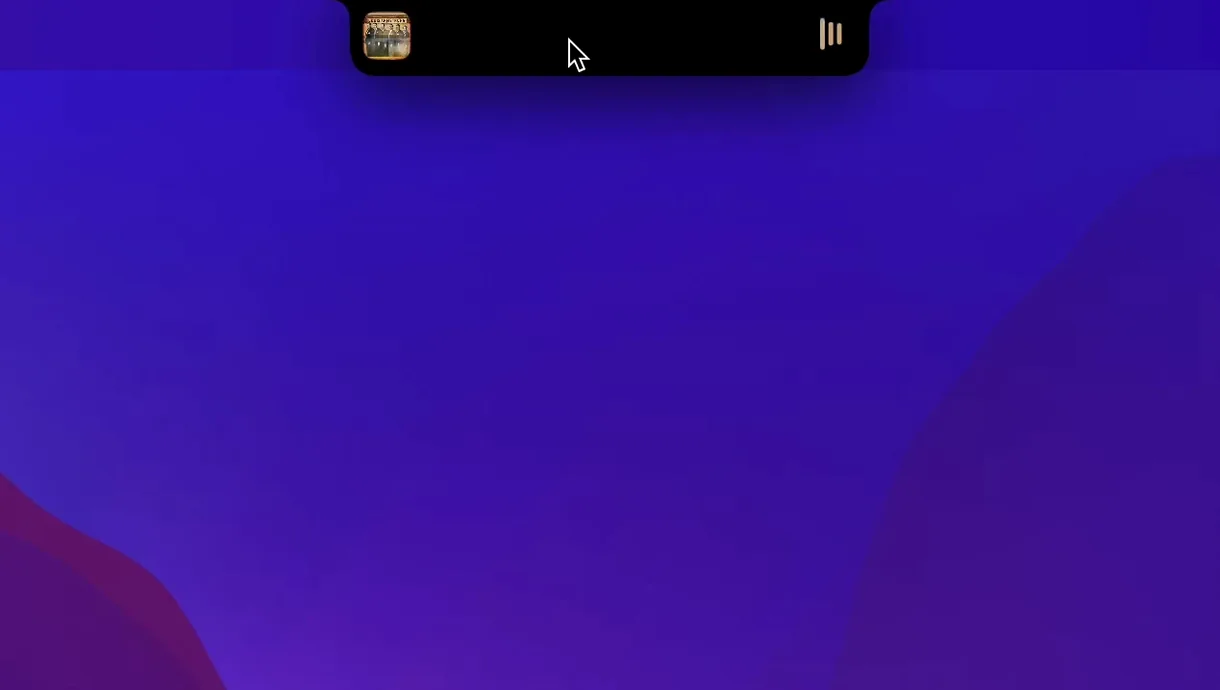
8:40 — Set up the workspace. Alex opens the MacBook and logs in. NotchNook loads as a background agent; the notch area expands slightly to show a collapsed pill. A quick downward trackpad gesture on the notch opens the full panel. Calendar is already pinned as a widget, populated from the system Calendar app. The 9:15 meeting reminder sits in the tray without a banner interrupting the desktop.
9:00 — Pre-meeting prep. Alex drags a folder from the desktop named Client_X_Rev3 onto the notch area. It snaps into the file shelf as a shortcut. A second drag adds the project's After Effects project file. The shelf now lists four items: two folder shortcuts, the AE file and a PDF brief. All four survive a restart because they're written to the app's preferences.
10:30 — Music amid the crunch. With Final Cut open on display one and a spreadsheet on display two, Alex swipes down on the notch to reveal the media scrubber. The current track shows album art, artist name and a draggable progress bar. Tapping the forward button jumps to the next song. The gesture takes less than a second; the mouse never leaves the timeline.
12:15 — Live Activity check. A food delivery is on the way. The delivery app pushes a Live Activity to the notch showing "Driver arriving in 8 min." It updates without Alex touching anything. The same area earlier showed a Final Cut export progress bar. When the export finished, the activity cleared itself automatically.
14:00 — Calendar glance. A single downward swipe opens the calendar widget. Alex sees the 15:30 call and a deadline marker for Thursday. No need to open the full Calendar app or click the date in the menu bar. The widget is read-only, which is enough for time-of-day awareness.
16:45 — Clean up. Alex removes the completed project folder from the file shelf by right-clicking the shortcut and choosing "Remove from Shelf." The original folder on the external SSD stays untouched. The shelf holds only the two items still relevant for the evening edit.
All of this happens without a single trip to the Dock or Launchpad. The notch becomes a passive dashboard that Alex checks between tasks, and an active strip when a gesture is convenient. Memory usage hovers low because the widgets update on a timer, not continuously; the app's agent doesn't compete with media engines for CPU time.
Overlay anchored to notch geometry, not the camera module
Does it mess with the actual notch hardware or the camera? Not at all. NotchNook draws an overlay anchored to the notch geometry, but it doesn't touch the camera, the ambient light sensor or the True Tone module. The camera still works as normal for FaceTime and Photo Booth. The overlay respects the system menu bar; when a menu extends across the notch area, the app steps back and lets the system draw the menu text on top.
Will it work on a MacBook without a notch? It installs on any Mac running macOS 14.6 or later—Intel or Apple silicon—but on a screen without a physical notch, the pill appears as a floating panel near the top centre of the display. The experience is similar, though the visual anchor point that the hardware notch provides on a MacBook Pro or Air is missing. Desktop Mac users with standard rectangular displays still get the tray, widgets and shelf; they just lose the "tucked into the notch" illusion.
Can I move files off the shelf onto a different Mac? The shelf stores shortcuts, not the files themselves. If you sync the app's preference file between machines, the shortcuts appear, but they'll be broken unless the target folder paths exist on both Macs. Handoff doesn't apply. It's best to treat the shelf as a per-machine launcher.
Does it read my calendar data? It reads from the same Calendar database that the system uses, via Apple's EventKit framework. No data leaves the machine. The widget shows events from the default calendar; you can't pick a subset of calendars in version 1.6.2 fix, so if you have fifteen shared calendars, all visible events will appear.
What happens to battery life? The widget refresh cycle is conservative—typically every few minutes for the calendar and on-demand for the shelf. Live Activities push updates from their source apps; NotchNook just mirrors them. If you run a Live Activity that updates every second, the battery impact is the same as having that app open directly. On an M2 MacBook Air used for writing and light browsing, the difference is negligible.
Menu bar organisers who treat every pixel as functional
People who live in the MacBook's menu bar ecosystem—those who already use Bartender or Hidden Bar to wrangle icons—tend to take to NotchNook fastest. They're used to reclaiming screen real estate and treating every pixel as functional. The notch goes from dead space to the most efficient strip on the display, and the fact that it collapses when not in use means it doesn't steal the menu bar's job.
Multi-discipline creatives who jump between audio, video and communication tools benefit from the unified media scrubber. Instead of finding the Music app or a web player tab, they swipe and control whatever is playing. The scrubber supports system-level media, so it works with Apple Music, Spotify, VLC and most web players that expose metadata to the Now Playing widget.
Users who work in two or more languages appreciate the localisation depth. The interface switches cleanly between right-to-left scripts like Arabic and Hebrew and left-to-right scripts like Hindi or Vietnamese. For bilingual professionals toggling between English and another language, the app follows the system language preference without requiring a separate setting.
People who want the notch to work like an iPhone Dynamic Island will find the closest analogue on macOS. Live Activities from iOS apps that have Mac counterparts—delivery trackers, sports score apps, timer utilities—appear in the notch area with the same compact and expanded views. It's not a one-to-one copy of the iOS behaviour, but the principle of "glanceable information attached to the notch" carries across.
Full‑screen apps intercepting the swipe‑down gesture
The panel won't open on a specific desktop space. NotchNook registers itself as a universal overlay, but some full-screen apps that use a private rendering path can intercept the gesture. If a swipe down on the notch does nothing, exit full-screen mode, then try again. In Spaces preferences, uncheck "Displays have separate Spaces" if you use multiple monitors and the panel appears on the wrong screen. The app binds to the primary display; on a MacBook with an external monitor, the notch overlay lives on the built-in screen only unless you mirror.
A widget shows stale data. The calendar widget refreshes on a timer, not in real time. If you add an event on another device and don't see it, wait up to four minutes or toggle the widget off and on from the NotchNook settings pane. The shelf updates immediately on drag-and-drop but doesn't watch for filesystem changes, so if you rename a linked file, the shortcut label stays as it was.
Music scrubber shows nothing or gets stuck on one track. This usually happens when the active media source doesn't push metadata to the system's Now Playing interface. Web players in browsers that block autoplay or use a custom audio pipeline can stay invisible to NotchNook. Switching to a Safari tab playing audio usually fixes it, because Safari shares metadata more readily. If the scrubber freezes on a track that finished minutes ago, click the music icon inside the NotchNook tray to force a refresh of the media session.
The file shelf disappears after a restart. Version 1.6.2 fix addressed a bug where shelf items wouldn't persist if the app quit abruptly. If you're still losing shelf items, check that the disk the shortcuts point to mounts before NotchNook launches. Shortcuts to volumes that aren't available at launch get pruned silently. Keeping shelf items on the boot drive avoids the issue.
Notch area feels too sensitive or not sensitive enough. The gesture detection uses a hit area slightly larger than the visible pill. If you trigger the panel accidentally while aiming for a menu bar item, you can adjust the activation delay from the app's preferences. Setting it to "Long" requires a deliberate half-second hold. If the panel feels sluggish, check whether another app is injecting an overlay—some screen recording utilities and menu bar organisers conflict. Quit the suspect utility and relaunch NotchNook to see if responsiveness returns.
- macOS 14 or later
- Apple Silicon or Intel 64-bit processor
Sign in · Create an account to add a field note.
No field notes yet. A measurement, a version, a machine — they appear after moderation.