
Mac Apps
Navicat Premium 17.3.12
Mac AppsUpdated
| Requirement | On file |
|---|---|
| macOS | macOS 11 or later |
| CPU | Apple Silicon, Intel 64-bit |
| Download | 333 MB |
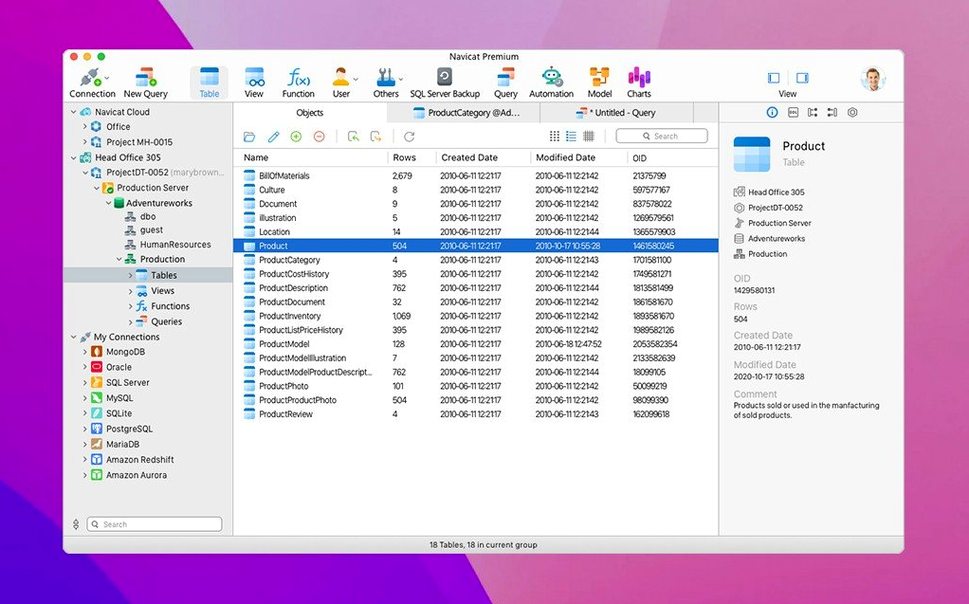
Managing a mix of MySQL, PostgreSQL, and SQLite instances usually means hopping between three different admin tools. Each has its own connection setup, its own query editor, its own quirks. Navicat Premium collapses that into one macOS application where you connect to multiple database types side by side.
Connect to Several Database Types
Set up connections to local and remote servers across MySQL, MariaDB, PostgreSQL, SQLite, Oracle, and SQL Server from a single connection pane. Once added, each database opens in its own tab or window, keeping production and staging clearly separated.
Build and Run Queries
The built-in query builder helps construct SELECT, INSERT, and UPDATE statements without typing all the syntax by hand. For raw SQL work, the editor handles multiple connections at once, and a database-wide search tool finds objects across schemas quickly.
Move and Sync Data
Import and export tables in XLS, CSV, TXT, DBF, and XML formats. Data migration and synchronisation tools transfer schema and records between different database types, with MySQL InnoDB backup and restore available for point-in-time recovery tasks.
Launch to Three Tabs in Under Four Seconds
On a Mac with an M-series chip, Navicat Premium 17.3.8 launches in under four seconds with a half-dozen saved connections. The interface stays responsive even while a long-running query executes in one tab and you flip to another to edit a view. Memory pressure is moderate: with three active connections — one PostgreSQL, one MySQL 8, one local SQLite file — the process sits around 380–420 MB of RAM. That figure climbs when the data modelling tool is open with a large schema diagram, but rarely enough to trigger swapping on a 16 GB machine.
SSL and SSH tunnel connections add a tiny bit of latency during the initial handshake, but once established they feel as snappy as a local socket. Background synchronisation jobs run in a separate thread and do not block the query editor. The scheduler uses launchd under the hood, so scheduled backups and data syncs survive a reboot without keeping the GUI open. One thing to watch: the auto-save feature for query tabs is conservative by design — it writes to disk every two minutes, which can produce a flurry of tiny I/O operations if you have twenty unsaved editor tabs open across multiple connections.
Visual Query Builder Syntax Shifts Between Targets
New users coming from single-database tools often trip on the same handful of points.
- Assuming all tools work identically across database types. The visual query builder, for instance, generates syntax that needs small adjustments between PostgreSQL and MySQL. A window function written for MySQL 8 will not run against an older MariaDB instance, and the error message does not always point to the clause that needs rewriting.
- Forgetting to set the correct character set on import. CSV files with UTF-8 data can produce garbled characters if the import wizard defaults to latin1. The fix is a single dropdown change on the second screen of the wizard, but it is easy to click past.
- Running data synchronisation without previewing the diff first. The sync tool shows a side-by-side comparison before it executes, yet a surprising number of people skip straight to the sync step and then wonder why a production table lost a column. Always preview.
- Confusing the SQL Minifier with a formatter. The Minifier strips whitespace and comments for compact storage; it does not pretty-print. Beginners sometimes click it expecting tidier code and end up with a single long line.
- Not labelling connections clearly. With a dozen MySQL hosts in the list, distinguishing “Production (read-only)” from “Staging (rw)” by connection name alone saves a mistake that is far too easy to make at 11 p.m.
Database-Wide Search with Command-Shift-F
Several features sit one click away from where most users look, and they make daily work noticeably smoother.
- Command-Shift-F opens the database-wide search without reaching for the mouse. Type a table or column name and it returns matches across all schemas in the active connection.
- Middle-click a connection tile in the left pane to open it in a new tab without disturbing the one you are already working in.
- Drag a .sql file onto the query editor to load its contents instantly. This works even when the editor is docked in split view.
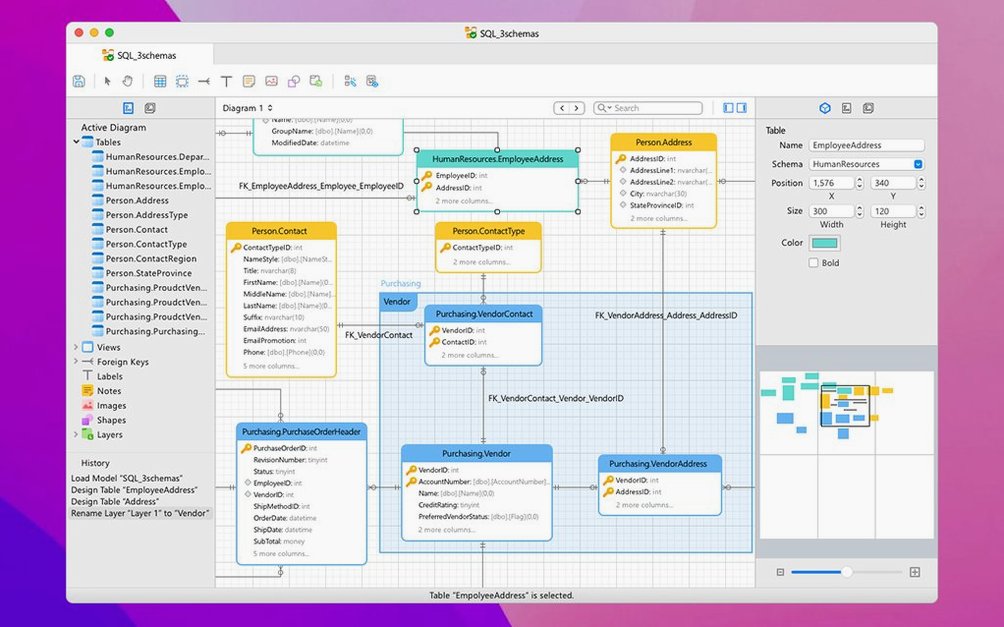
- The ER diagram tool auto-aligns tables when you press the “auto layout” button, but holding Option while clicking it applies a force-directed layout that often produces a more readable arrangement for schemas with more than thirty tables.
- Right-click a cell in a data grid and choose “Copy as SQL INSERT” to get a ready-made statement with the row’s values. The same menu offers CSV, TSV, and JSON copy formats.
- The SSH tunnel configuration stores private key passphrases in the system keychain when you tick “Remember password.” macOS Touch ID then unlocks them on each connection attempt, which is quicker than pasting from a password manager every time.
Switching Between PostgreSQL, Redis, and MySQL in One Window
Consider a backend developer maintaining a service that uses PostgreSQL for transactional data and Redis for session caching, with a legacy MySQL 5.7 database still running customer records. She opens Navicat Premium at 9 a.m. and all three connections are listed in the left pane, colour-coded by type. The MySQL connection uses an SSH tunnel through a bastion host; the key passphrase comes from the keychain without a prompt.
A support ticket arrives: a customer order shows the wrong currency. She selects the PostgreSQL connection, opens a new query tab, and writes a SELECT that joins orders, currencies, and customer profiles. The auto-complete suggests column names after the table alias and a dot, so she types cu. and sees cu.currency_code immediately. The query returns 12 rows in 140 ms. She spots the stale exchange rate, writes an UPDATE, and tests it in a transaction block before committing.
Later, she needs to check whether the same customer’s session data in Redis holds a cached version of the old rate. She clicks the Redis connection, opens the console, and types GET session:48291. The value is plain JSON, so she copies it, switches to a scratch SQLite database she keeps for quick data munging, and pastes it into a text field. SQLite’s JSON1 extension functions let her unpack the nested structure with a single query. She stores the corrected session payload in a note and flushes the old key from Redis in the same tab.
Before lunch, a scheduled data sync job that she configured the previous week runs automatically: it pulls new customer sign-ups from MySQL 5.7 into a PostgreSQL analytics table. She glances at the scheduler log in Navicat Premium — 342 rows transferred, zero errors, completed in 1.8 seconds. The whole morning used one application, no window juggling, and the query history in each tab means she can re-run the session-checking sequence tomorrow without reconstructing it from memory.
Navicat Premium 17.3.12 ships with the developer's latest round of small refinements and stability work across all supported database engines.
- macOS 11 (Big Sur) or later
- Apple Silicon or Intel 64‑bit processor
Questions on file
Can Navicat Premium back up a PostgreSQL database?
The dedicated MySQL InnoDB backup feature is specific to that engine. For PostgreSQL and other database types, you handle backups via the export tools or your own pg_dump workflow.
Sign in · Create an account to add a field note.
No field notes yet. A measurement, a version, a machine — they appear after moderation.