
Mac Apps
Musify 5.3.0
Mac AppsUpdated
| Requirement | On file |
|---|---|
| macOS | macOS 10.12 or later |
| CPU | Intel 64-bit |
| Download | 68 MB |
DJs cataloguing deep cuts from MixCloud, students pulling lecture clips from SoundCloud, and anyone who prefers an offline library will recognise the niche Musify fills. Version 5.3.0 keeps that core—downloading and converting audio—without altering the tool's established scope.
What the 5.3 release cycle delivered
The developer published no change notes for this release. What we see is a maintenance-level update: the supported macOS baseline stays at 10.12 on Intel Macs, the format roster remains MP3, M4A and WAV, and the source list is unchanged—YouTube, Spotify, SoundCloud, Facebook, Instagram, MixCloud, Bandcamp, Freesound, Audioboom and Veojam. Batch MP3 conversion and metadata preservation carry over from prior builds, and wired transfers to iOS and Android devices still work. For a point release with no feature bulletins, the message is quiet stability.
Multi-source batching from YouTube, Bandcamp, and Freesound
The YouTube-to-MP3 pipeline remains the most visible workflow, but Musify's multi-source support is what sets it apart from single-site rippers. You can queue up tracks from Bandcamp and Freesound in one session, convert them as a batch to M4A or WAV, and keep the original tags intact. The Gatekeeper bypass step during installation is unchanged, and the interface stays English-only. On a facts-only reading, 5.3.0 is the same capable offline-audio tool it was, just current.
Pasting a URL and picking a format in a single window
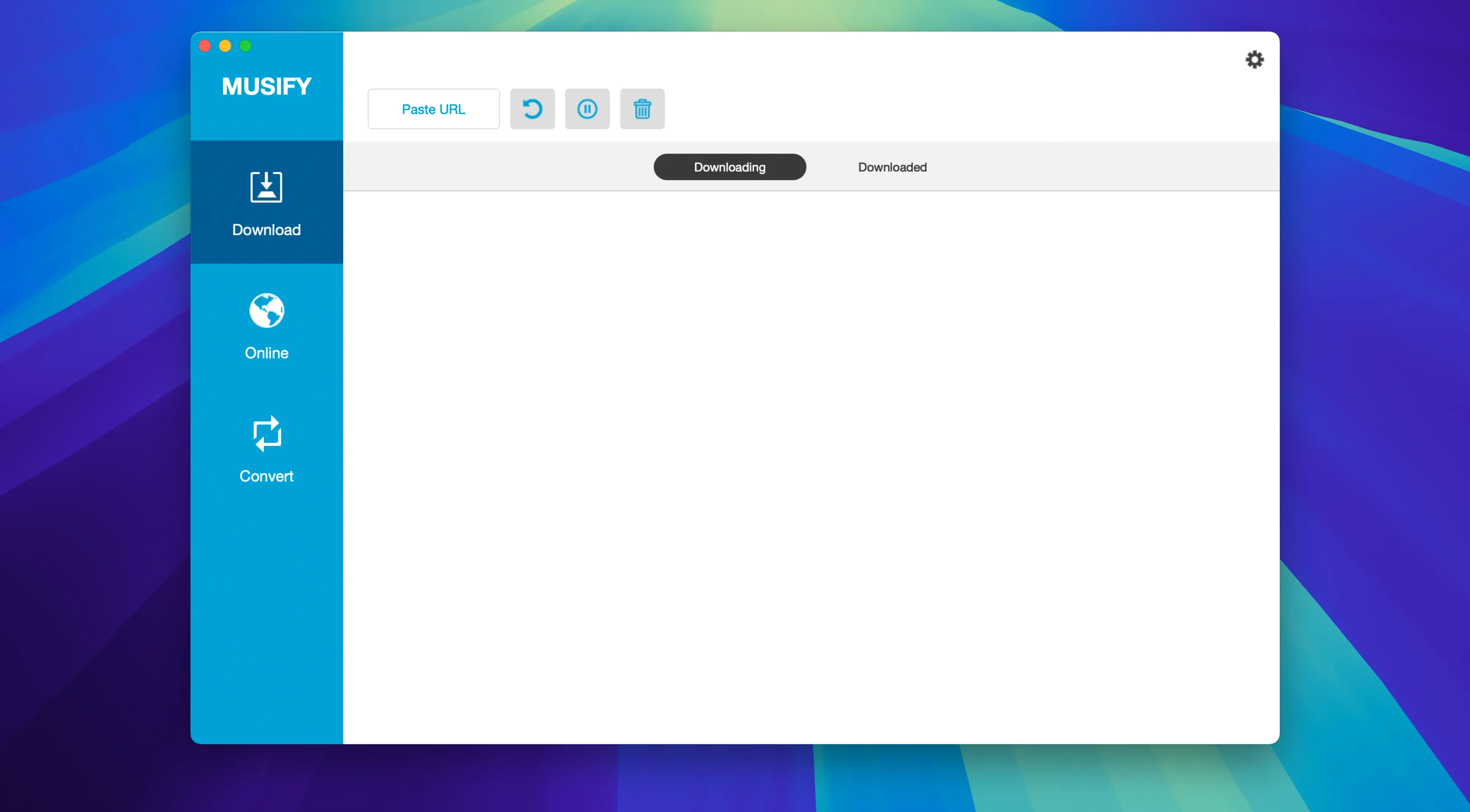
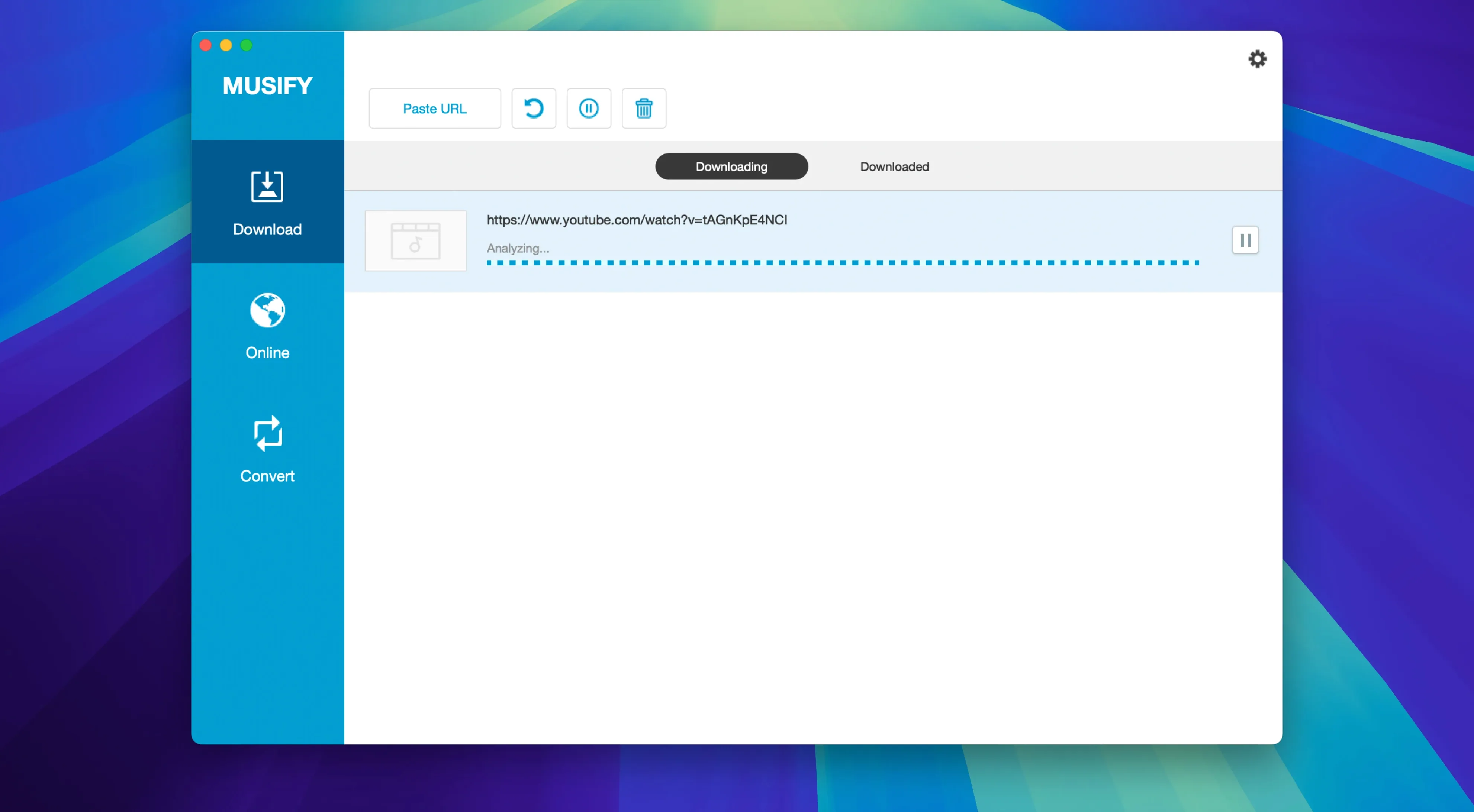
You launch Musify and land on a single-window interface with a URL field at the top and a format selector on the right. The first move is almost always the same: find your source. Say you want the new album that dropped on Bandcamp this morning. You copy the album page URL, paste it into the field, and hit Enter. Musify parses the page for about four seconds, then lists every track on that page as a separate line item with a checkbox.
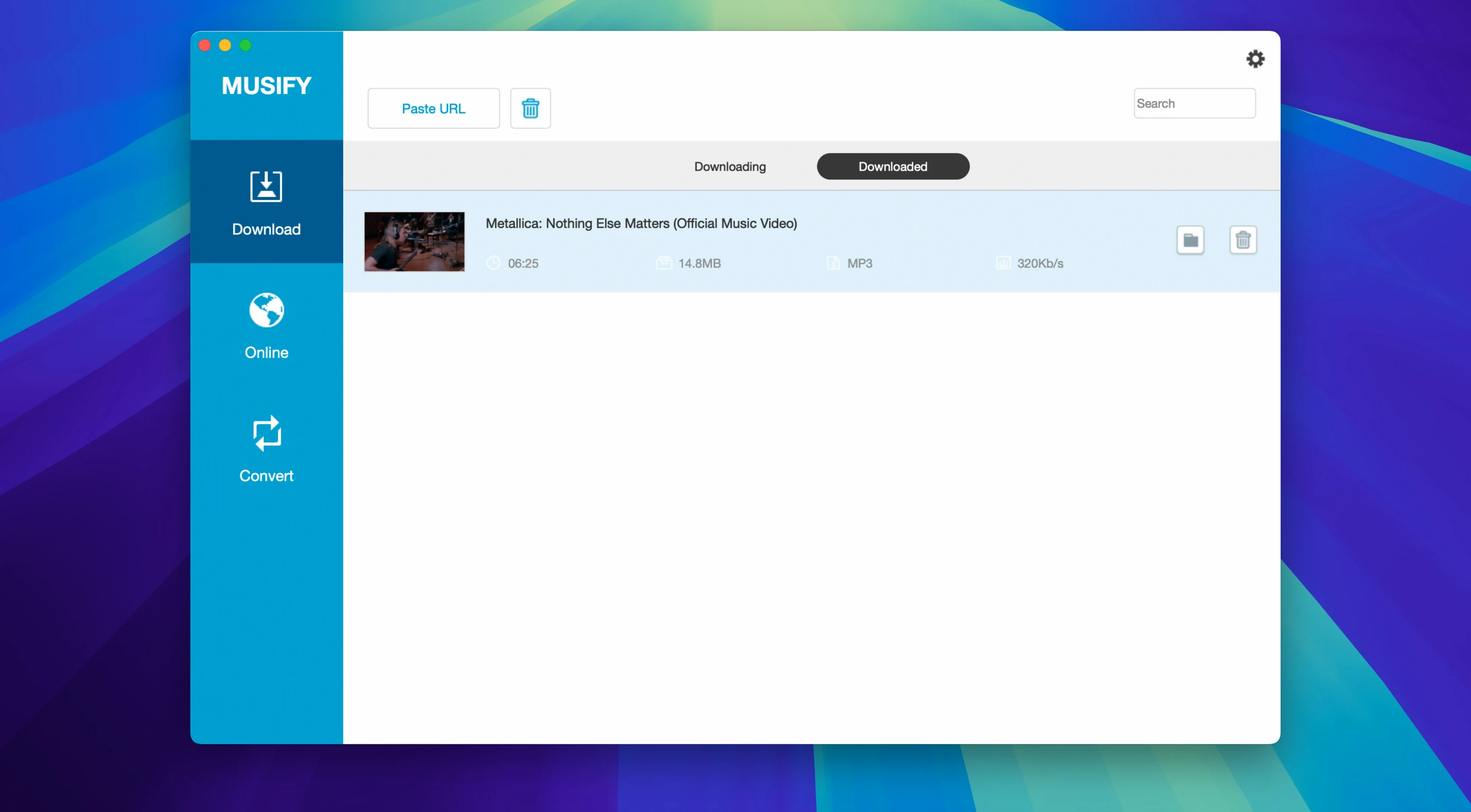
Before you hit download, you choose your format. The dropdown offers MP3, M4A, and WAV. For a Bandcamp album where the source is already lossy, M4A at 256 kbps is a practical middle ground. You select it, check all tracks, and click the download button. A progress bar fills per track, and the metadata—artist, album, track number, artwork—pulls through automatically. Five minutes later, the album sits in your designated output folder, tagged and ready for your phone.
Batch conversion follows a similar rhythm but starts from local files. You drag six WAV stems into the conversion pane, set the output to MP3, and let Musify churn through them in parallel. The original files stay untouched; new MP3 versions appear alongside them. The whole session—from paste to finished files—runs without a settings detour, which is exactly what a tool built for throughput should deliver.
Grabbing a SoundCloud live-set first dance as WAV at 10 pm
Consider a mobile DJ who gets a text at 10 pm: the couple added a first-dance song, and it exists only as a live session recording on SoundCloud. The DJ opens Musify, pastes the SoundCloud link, picks WAV to preserve whatever fidelity the upload holds, and downloads the track in under a minute. While that finishes, she queues a backup playlist from YouTube—twelve tracks the client mentioned months ago but never confirmed. Musify grabs the full playlist in one pass, converts everything to MP3, and tags it with the original uploader names so she can sort by source later.
She transfers the new files to her iPad over USB before midnight and runs a quick metadata check. The SoundCloud track kept its title and uploader tag; the YouTube batch arrived with consistent album-level grouping because Musify treated the playlist as a unit. No manual renaming, no re-encoding. For someone who works on a clock, the value sits in that gap between "song requested" and "song playable offline."
Offline-first listeners, band-to-fan archivists, and content recyclers
Musify rewards three kinds of users in particular. First, offline-first listeners—people who keep local libraries on ageing MacBooks or iPods and treat streaming as a discovery layer, not a permanent home. They benefit from the multi-source reach: a Bandcamp purchase here, a Freesound sample there, a YouTube deep cut that will never appear on a DSP, all funnelled into one folder with clean tags.
Second, audio tinkerers who work with sound files daily. Podcast editors pulling interview clips from Facebook or Instagram, sample makers scraping Freesound and Audioboom, language learners archiving short clips for transcription. The batch converter saves them from opening a DAW or Audacity just to change a container format. Third, collectors with large playlists on YouTube, Spotify, SoundCloud or Bandcamp. The playlist download function turns what would be an hour of manual copy-paste into a single operation. These users tend to value format choice (M4A for space, WAV for editing headroom) and metadata hygiene, both of which Musify handles without fuss.
Forgetting the format selector and ending up with a lossy MP3 transcode
The most common slip is ignoring the format selector before starting a download. Musify defaults to MP3, and a first-time user who wanted WAV will end up with a lossy transcode from an already-compressed source—stacking artefacts that cannot be undone. Always set the format after pasting the URL, not before the next session.
Another frequent error: assuming all 1000-plus supported sites behave identically. A YouTube playlist downloads as a structured batch; a Facebook video post sometimes resolves as a single audio stream, even if the page suggests multiple clips. Beginners who do not preview the parsed track list before clicking "download" may end up with one long file instead of five separate ones. A quick glance at the track list window prevents that.
Beginners also skip the output folder check. Musify writes to a default location inside the user's Music directory. Someone who reorganised their drive and moved their old library may not notice the app is still sending files to the old path until they try to find them. Setting the output folder on first launch saves a scavenger hunt later. Finally, iOS transfers over USB assume the device is unlocked and trusted. A locked iPhone halts the transfer with no prominent warning; the app simply waits. Unlock the phone and tap "Trust" before initiating the transfer, and the files move without a hiccup.
- macOS: 10.12 or later
- Architecture: Intel
- Language: English
Questions on file
Which audio formats can Musify 5.3 convert files to?
It converts files to MP3, M4A, and WAV, and can process multiple MP3 files at once in a batch.
Does Musify preserve metadata when downloading tracks?
Yes, the app preserves the original metadata such as artist name and track title during the download and conversion process.
Can I transfer converted music to my iPhone from Musify?
Yes, Musify supports transferring music directly to both iOS and Android devices after conversion.
Sign in · Create an account to add a field note.
No field notes yet. A measurement, a version, a machine — they appear after moderation.