
Mac Apps
Movavi Video Converter 22.5.0
Mac AppsUpdated
| Requirement | On file |
|---|---|
| macOS | macOS 10.13 or later |
| CPU | Intel 64-bit |
| Download | 79 MB |
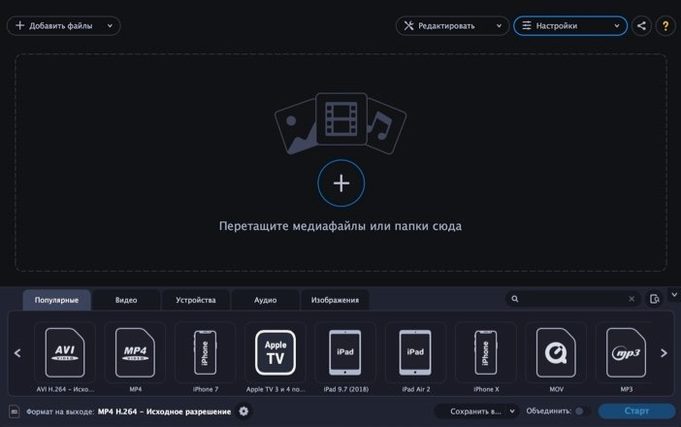
A folder full of footage from a borrowed camera, none of it opening in your editor. An audio file that every player refuses. The frustration isn't the media itself — it's the container. Movavi Video Converter strips that problem down to a single window. Drag in almost anything — MKV, AVI, WMV, MOV, MP4 — and pick an output format that your software or device actually understands. It handles video, audio, and still images from the same queue.
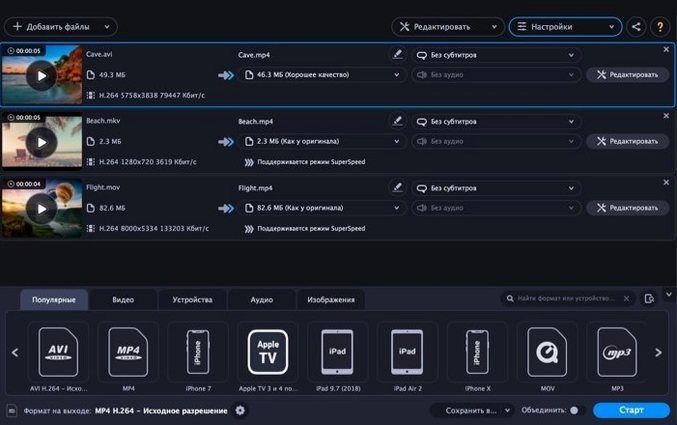
Version 22.5.0 sits squarely on Intel Macs running macOS 10.13 or later. The codec support is broad on input: MPEG, WebM, AAC, FLAC, M4A, MP3, OGG, Opus, WAV, WMA, and more. SuperSpeed mode is present for cases where re-encoding can be bypassed entirely, saving time when only the wrapper needs changing. Batch conversion pulls from a selected folder, so you queue dozens of files without babysitting each one.
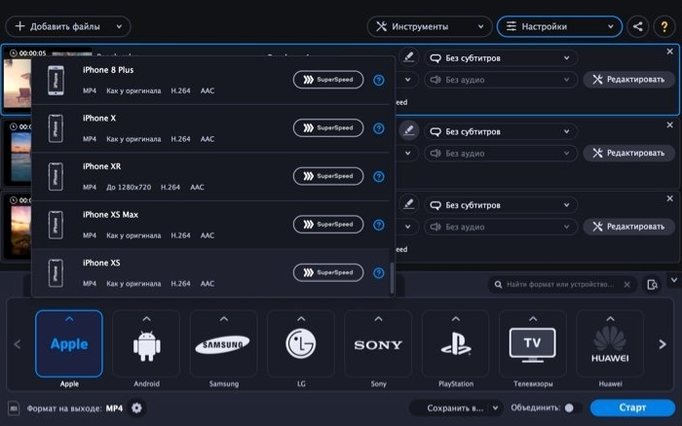
What hasn't changed is the practical, menu-driven structure that's been there for years. Device profiles for Apple, Samsung, Nokia, and Sony hardware are still built in — useful when you know the destination but not the ideal bitrate or resolution. The interface runs in thirteen languages, including English, German, Japanese, Simplified Chinese, and Korean.
Nothing new landed in this release. That's the story, and it suits the tool. A converter that stays stable across macOS updates is worth more than one chasing features. If your workflow depends on predictable output and a format list that covers what cameras and voice recorders actually produce, the current build does what the label says.
Hasty Format Picks Sidestep Codec and Bitrate Defaults
Most first-time problems aren't bugs — they're assumptions about what the conversion pipeline actually does. The biggest one: choosing an output format without checking the codec and bitrate defaults. Movavi picks sensible presets, but "MP4" alone doesn't tell you whether the video codec is H.264 or H.265, or what audio bitrate is in play. A file that plays fine on a MacBook might stutter on an older Samsung TV because the profile wasn't matched to the device. Use the device profiles section — it exists precisely to skip that guesswork.
Another common misstep is treating SuperSpeed mode as a universal fast-forward button. It only works when the source and destination share the same codec — changing the container without re-encoding. Dragging an MKV with H.264 video into an MP4 profile often triggers SuperSpeed. Dragging the same MKV into a preset that forces H.265 won't. The button greys out, and the conversion runs at normal speed. Beginners sometimes cancel the job, thinking the app has frozen, when it's simply doing a full re-encode.
Batch conversions trip people up too. Adding an entire folder without filtering means stray audio files, cover art JPEGs, and subtitle tracks all land in the queue. The app converts them obediently — and you get a pile of output files you didn't want. Check the file list before hitting Convert, and use the format filter dropdown to narrow what gets pulled from a folder.
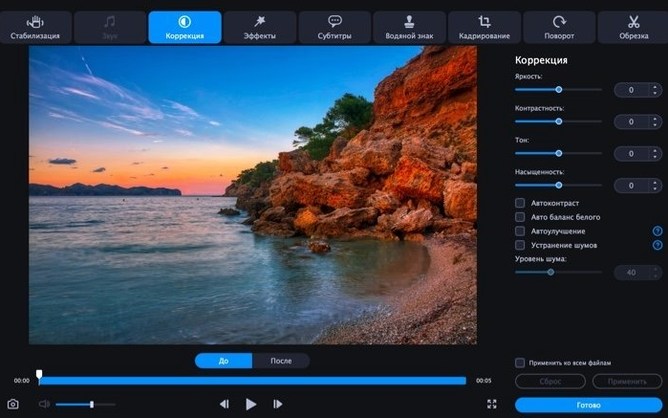
Finally, the built-in editing tools — trim, crop, rotate, subtitles — apply before conversion, not after. Beginners sometimes convert a full-length video, then look for a trim function on the result. The cuts need to happen in the preview window while the source file is still queued. Once the output file exists, the original editing context is gone.
Test a 30-Second Clip First to See Output Naming
Before converting anything serious, run a small test file through three or four output presets. A 30-second clip is enough. Check how the app names output files — by default, it appends a suffix like "(Converted)" rather than overwriting the original. That's safe, but it means your folder fills up fast if you're doing iterative tests. Decide early whether you prefer that naming convention or want to set a dedicated output folder in preferences.
The SuperSpeed indicator deserves attention on day one. When you select an output format, watch the area below the file list — if the conversion qualifies, a green "SuperSpeed" label appears. No label means a full re-encode. This distinction matters when you're queuing a hundred clips. A SuperSpeed batch might finish in minutes; the same batch with re-encoding could run for an hour or more on an older Intel Mac.
Set up your device profiles early. If you regularly move video to an iPhone or a Sony PlayStation, find the matching preset, test it once, and note its codec choices. You can then clone that profile's settings as a custom preset, tweaking only what you need — perhaps a slightly higher audio bitrate or a different frame rate. Custom presets save substantial time once you've verified they work on the target device.
Check the audio extraction workflow too. Dropping a video file and selecting MP3 or AAC as the output format strips the audio track without extra steps. But if the source has multiple audio tracks — a commentary track, a different language — the app defaults to the first one. There's no track selector in the main interface, so you'll need to extract the correct track elsewhere if the first one isn't what you want. This catches people out with MKV files from Blu-ray rips that carry several audio streams.
4K on Older Intel Macs: Playback, Not Real-Time Renders
Does it handle 4K video on an older Intel Mac? Yes, but temper expectations around speed. The app reads 4K H.264 and H.265 sources and can output at the same resolution. On a MacBook Air from 2017 or a dual-core iMac, a full 4K re-encode will be slow — that's a hardware limitation, not a software one. SuperSpeed helps if the codec doesn't change. If you plan to convert 4K material regularly, test a short clip first to gauge whether the throughput works for your deadlines.
Will it convert a whole folder without me clicking each file? Yes. Use the Add Folder button, and every compatible media file inside — including those in subfolders — appears in the queue. You can then select all, assign one output format, and start the batch. The queue processes sequentially, and the app doesn't lock up during conversion; you can still browse the interface and check progress per file.
Does it preserve subtitles from MKV files? Only if you embed them using the subtitle editor before conversion, or if you're converting to a format that carries subtitle tracks natively, like MKV to MKV with the same codec. Converting MKV to MP4 typically drops subtitles unless you hardcode them into the video frame using the built-in subtitle tool. Soft subtitles — selectable tracks — usually don't survive a format switch.
Can I queue conversions and shut my Mac later? There's no built-in "shut down when complete" option. The queue runs until it's done or until you stop it. If you need to leave it overnight, adjust Energy Saver settings in macOS to prevent sleep, and disable the screen saver. Some users set a timer in System Preferences to shut down at a specific time, estimating from a test run how long the full queue will take.
What's the difference between this and the one on the Mac App Store? They're the same application from Movavi, but the distribution channel differs. The Mac App Store version lists macOS 11.0 as its minimum. The standalone build covered here — version 22.5.0 — runs on macOS 10.13 and later, which keeps it viable on older Intel machines that can't upgrade past Catalina or Mojave. If someone has downloaded a Movavi Video Converter torrent or a Movavi Mac torrent, they're typically getting the standalone build, not the sandboxed App Store variant. The feature set is identical; the system requirements are not.
Shrinking MOV Dailies for Client Previews on a Tablet
Consider someone who shoots on a mirrorless camera that records MOV files with H.264 video and LPCM audio — clean, big, and incompatible with the cheap Android tablet they use to show previews to clients on location. They have twenty clips from a morning shoot, totalling about 16 GB, and an hour before the client meeting.
They mount the SD card, drag the folder into Movavi Video Converter, and filter the view to show only MOV files. They pick the Samsung tablet profile from the device list — the app sets the resolution to 1920×1080, switches the video codec to H.264 in an MP4 container, and drops the audio to AAC at 128 kbps. SuperSpeed doesn't engage because the audio codec is changing from LPCM to AAC, so a full re-encode is needed. They queue all twenty files and start the batch.
While the conversion runs, they use the trim tool on the first clip in the preview window — cutting the wobbly start and end of each take before it reaches the tablet. The edits apply to the output without altering the original SD card files. Forty-five minutes later, the batch finishes. The clips are now a collective 2.1 GB, small enough to transfer over USB to the tablet's internal storage. The client sees the morning's work over coffee, without a laptop in sight.
- macOS 10.13 or later
- Intel processor
Sign in · Create an account to add a field note.
No field notes yet. A measurement, a version, a machine — they appear after moderation.