
Mac Apps
Mp3tag 1.14.1
Mac AppsUpdated
| Requirement | On file |
|---|---|
| macOS | macOS 10.14 or later |
| CPU | Intel 64-bit |
| Download | 13 MB |
A folder full of untitled tracks, missing artists, and blank album art isn't just messy — it makes your library unsearchable. Mp3tag is a Mac-native tool that puts that right by giving you direct control over the metadata inside your audio files.
Fix tags across entire albums
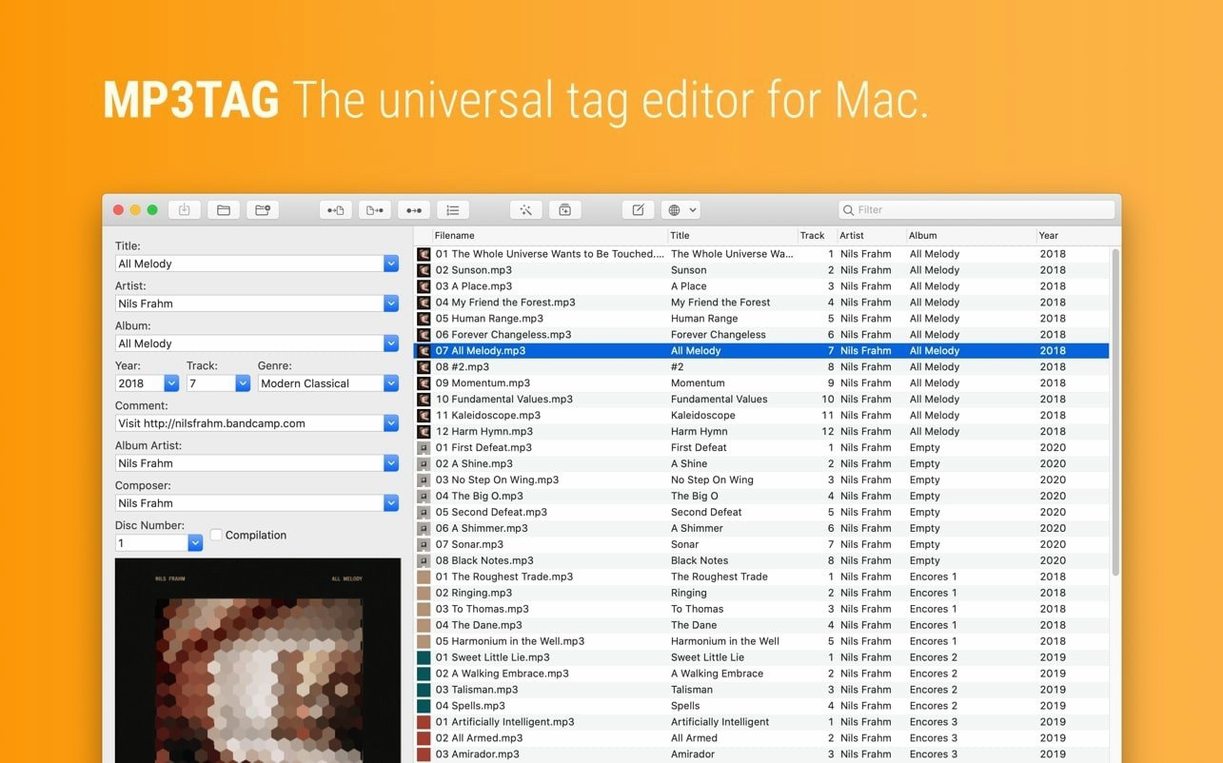
Select a batch of files and edit fields like title, artist, album, year, track number and genre at once. The app writes the changes directly into the file headers, not a sidecar database.
Pull data from online sources
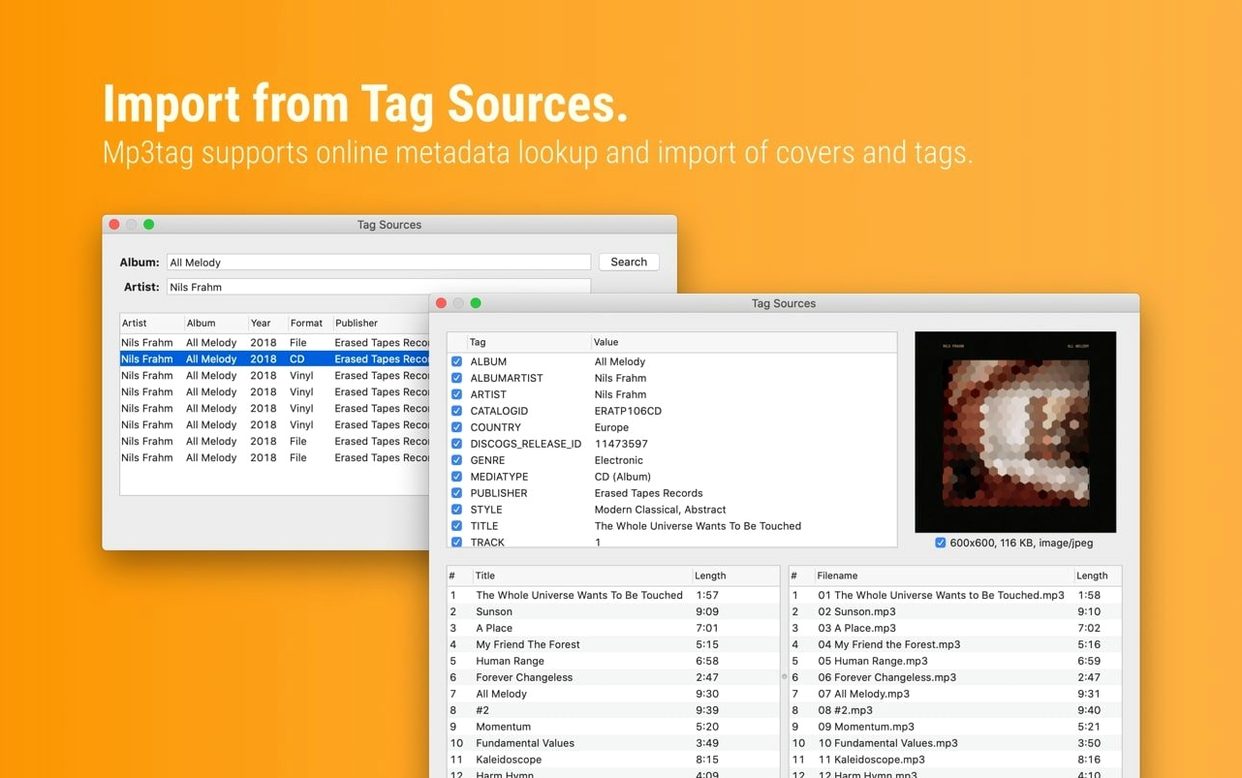
Query Discogs or MusicBrainz for correct tagging information and cover art. The search returns structured results, and you can preview matches before applying them.
Rename files from their tags
Build naming patterns that use tag fields to rename files — for example, track number, artist and title — so filenames match the embedded metadata consistently.
Switch to ID3v2.4 for Sonos and Android playback
Out of the box, Mp3tag writes ID3v2.3 tags to MP3 files. That works for most players, but if your library lives on devices or apps that prefer ID3v2.4 — newer Sonos firmware, some Android music players, certain streaming setups — the mismatch causes silent failures where tags simply don't show up. Switch it before you tag anything.
Open Mp3tag › Settings › Tags › Mpeg and set the ID3v2 version to 2.4 UTF-8. While you're there, enable Write ID3v1 only if you still use hardware that strictly needs it; otherwise leave it off to avoid stale duplicates embedded in the file.
Three other settings I change immediately on a fresh install:
- Cover size limit. Under Settings › Tags › Cover, set Maximum size to 1200 px and Image quality to 85. MusicBrainz occasionally returns 3000 px scans that add 3–4 MB per file. The resample keeps artwork crisp on a 4K display without bloating the library.
- Filename illegal character replacement. In Settings › Rename, set the replacement for
/and:to a dash or underscore. macOS allows:in Finder names but POSIX paths don't — renaming files with colons creates files you cannot move via Terminal or rsync. - Case conversion defaults. Under Settings › Actions, define an action group with Case conversion › Mixed case so you can normalise ALL-CAPS tags from ripped CDs with one menu pick later.
Tag a test folder first — edits save instantly with no undo
Mp3tag writes changes immediately to disk — there's no save button and no undo queue beyond the single Edit › Undo step. On day one, that is the feature you need to respect most.
Work on a copy first. Drag ten albums — not your whole library — into the file list. Tag them, rename them, run an action group. Open a few files in another app (Music, VLC, or a Finder Get Info preview) and confirm the tags stuck. Only then scale up.
Let the Tag Sources preview do the heavy lifting. When you pull data from Discogs or MusicBrainz, Mp3tag shows a comparison grid: existing tags on the left, fetched tags on the right, with mismatches highlighted. Tick only the fields you actually want to overwrite. Accepting every field blindly replaces your carefully curated genre tags with whatever a random Discogs contributor typed eight years ago.
Build a safety action group. Create an action that exports the current tag state to a CSV file before any bulk operation. Use Actions › New › Export with the fields %_filename%|%artist%|%album%|%title%|%track%. Run it on a selection and you have a plain-text fallback if something goes sideways.
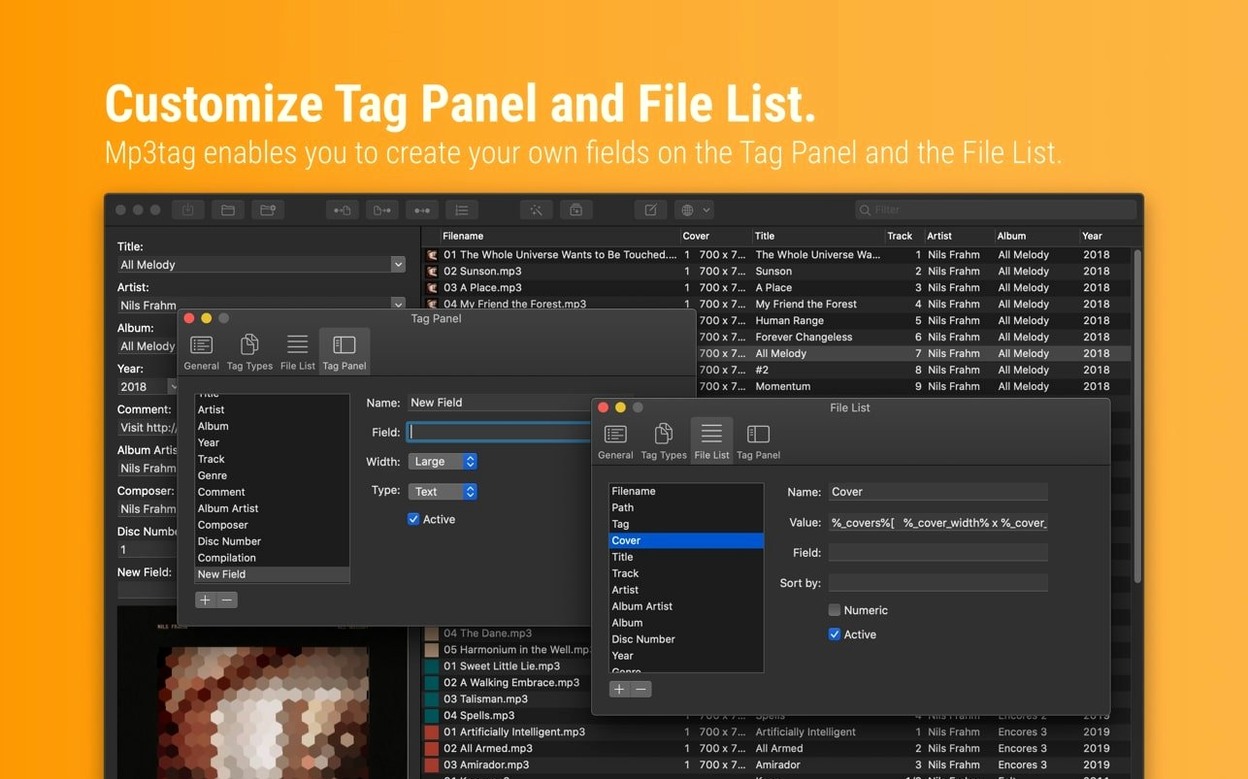
Understand how the Tag Panel and file list interact. Selecting multiple files and editing a field in the Tag Panel writes that value to all selected files. Selecting one file shows its individual tags. The small indicator dot next to a field's label turns orange when selected files have different values for that field — a quick visual check before you accidentally homogenise disc numbers across a compilation.
If you're coming from the Windows version, note that the Mac build stores its configuration in ~/Library/Application Support/Mp3tag/. Export your action groups and export configurations from a previous Mac install by copying that folder.
A real workflow: fixing a ripped CD from scratch
You rip a CD with XLD or dBpoweramp and end up with a folder of WAV files named 01 Audio Track.wav through 12 Audio Track.wav. No metadata. Here's the full path through Mp3tag.
Step 1: Load and identify
Drag the folder into Mp3tag. The file list populates with the twelve tracks and empty tag columns. Select all, then Tag Sources › MusicBrainz. Enter the album name or the artist. MusicBrainz returns release matches with track counts and cover art thumbnails. Pick the one that matches your disc's track durations (visible in the file list's Length column).
Step 2: Write the core tags
In the preview grid, enable Title, Artist, Album, Year, Track, Disc number and Cover. Leave Genre unchecked — MusicBrainz genres are broad and you probably have your own system. Click OK. All twelve files now carry correct metadata and embedded cover art.
Step 3: Rename the files
With all files still selected, open Convert › Tag – Filename. The format string %track% %title% produces filenames like 01 First Song.wav. For a cleaner folder, use %artist% — %album%/%track% %title% with the option to create directories from the pattern enabled — that moves the files into an artist-album subfolder in one pass.
Step 4: Convert tags for MP3 encoding
If you later encode these WAVs to MP3 with a separate encoder, the RIFF tags in the WAV files won't carry over. Before encoding, select the files, run Convert › Tag – Tag with the format string that copies all fields, and Mp3tag will rewrite them. Or — simpler — encode first, then drag the resulting MP3 files into Mp3tag alongside the tagged WAVs, select matching pairs, and use Convert › Tag – Tag to copy metadata from the WAVs to the MP3s in one operation.
Step 5: Apply finishing actions
Create an action group that chains three operations: Case conversion › Mixed case on the Title field (fixes stray capitalisation), Replace to swap & for & if your player chokes on ampersands, and Remove fields to strip the MUSICBRAINZ_ALBUMID and other extended tags if you don't use them. Save the group and run it with one click.
How Mp3tag fits with other apps and macOS
Mp3tag is not a player and not a library manager. It does one thing — metadata — and hands the files back to your ecosystem. That makes it a good complement to tools that are weak at batch tagging.
With Music (formerly iTunes). Music stores metadata both in its internal database and, optionally, in file headers. When the two drift apart — after moving files outside Music, for instance — Mp3tag edits the file headers directly. On next launch, Music reads the changed tags and updates its database. The direction matters: tag in Mp3tag first, then let Music absorb the changes. The reverse — editing in Music and expecting Mp3tag to reflect it — requires a Music library re-scan.
With Finder and Spotlight. Mp3tag writes standard ID3 and MP4 atoms that Spotlight indexes natively. After tagging a batch, the new artist and album values appear in Spotlight searches within seconds. You can also use Finder's Get Info panel to verify tag writes — the More Info section shows the same fields Mp3tag edited.
With file-sync tools. Because Mp3tag modifies files in place, tools like rsync, ChronoSync or cloud sync clients see them as changed files and re-upload them. If you sync a tagged library to a NAS or cloud storage, expect a one-time re-upload of every file you touched. Run the bulk tagging session before the overnight sync, not after.
With encoding pipelines. XLD, fre:ac and similar encoders can write basic tags during conversion, but they rarely handle embedded cover art resizing or multi-value fields cleanly. A common pattern: encode with minimal tags, then do the metadata pass in Mp3tag where the action groups and tag-source lookups live.
With DJ software. Rekordbox, Serato and Traktor read ID3 and MP4 tags for library display, but each has quirks — Serato reads BPM from the TBPM frame, Rekordbox uses a proprietary database. Mp3tag's decimal BPM fix in version 1.14.1 means MP4 files now carry fractional tempo values (like 128.5) that survive round-trips through encoders. Tag BPM in Mp3tag before importing into your DJ software, and verify one track in the DJ app's browser to confirm the field mapping.
Kid3, Meta, and Yate handle formats Mp3tag skips
Three other tag editors occupy the same space on macOS, each with a different philosophy.
Kid3 is the closest direct alternative. It handles the same file formats plus a few niche ones (Monkey's Audio, True Audio, WavPack with APE tags) and runs on Linux and Windows, too. Its interface is less polished than Mp3tag's — a dense three-pane layout with more visible fields but a steeper learning curve. Kid3 can embed lyrics from online sources, which Mp3tag does not do natively. Where Mp3tag pulls ahead is batch renaming flexibility and the action group system: Kid3's scripting is powerful but requires writing JavaScript or Python snippets, while Mp3tag's action groups are built from a GUI with dropdowns and format strings. For someone tagging FLAC albums and MP3 singles in a mixed library, both work. For someone who wants to build repeatable tag-cleaning workflows without code, Mp3tag is the faster pick.
Meta (by Nightbirdsevolve) takes the opposite approach: it prioritises visual polish over batch throughput. The interface shows a single album at a time with large cover art, and it excels at quick one-off edits — fixing a track title, pasting a better cover image — with a native-Mac feel that uses NSToolbar and standard sidebar navigation. Meta cannot query Discogs or MusicBrainz, has no action groups, and bogs down when you select more than a few hundred files. It is a tag editor, not a tag processor. If your library is already well-tagged and you need to touch up a track here and there, Meta feels lighter. If you are staring at a 40 000-file library with inconsistent genres and missing covers, Mp3tag is the tool that actually finishes the job.
Yate (by 2ManyRobots) sits between the two but leans toward power users. It supports scripting in AppleScript and JavaScript, can monitor folders for new files and auto-tag them, and handles WAV and AIFF with ID3 chunks — a rare feature. The interface uses a spreadsheet-style grid with configurable columns, which makes sense for large catalogs but
- Crash fix — Resolved a crash on macOS 27 when adding action groups in the Action Groups window.
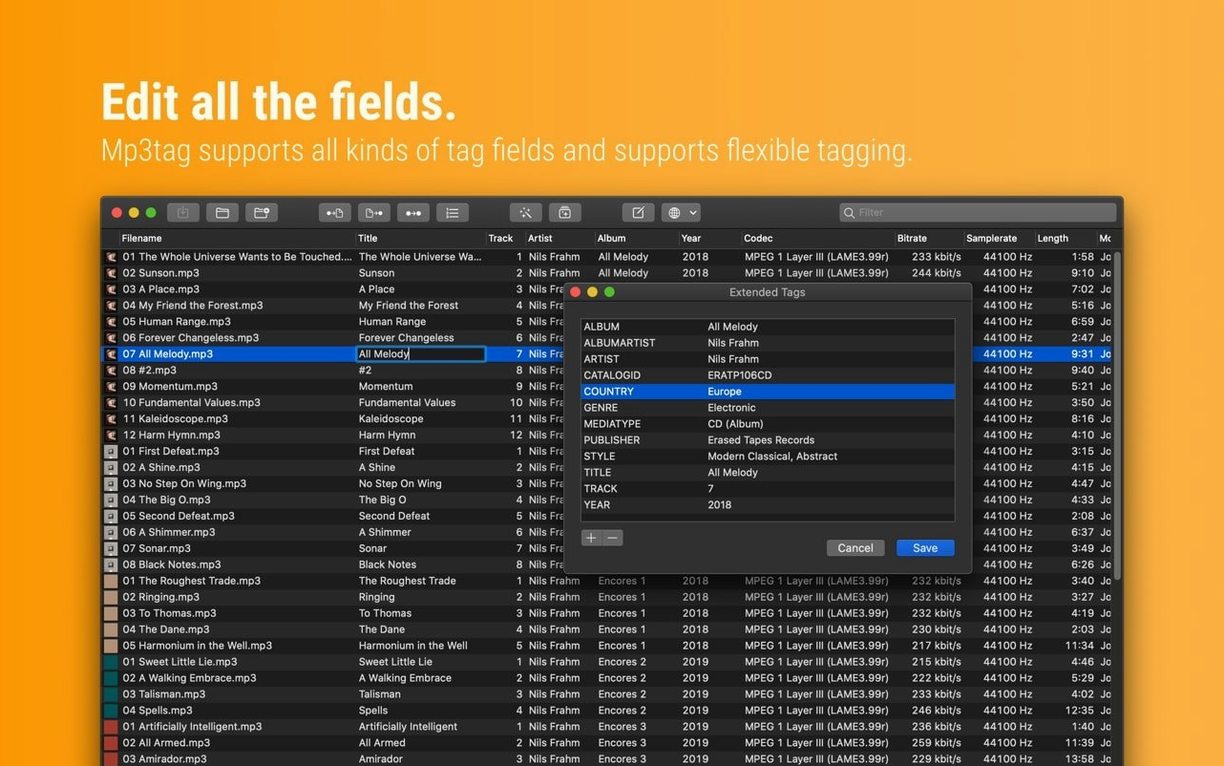
- Tag Panel — Cover changes are no longer discarded if the Extended Tags window is opened before saving.
- Saving logic — Unsaved Tag Panel edits are now preserved when using Cover Search, Tag Sources, Converters, Auto-Numbering or Actions before saving.
- MP4 precision — Decimal BPM values are no longer incorrectly truncated to integers when writing MP4 tags.
- macOS 10.14 or later
- Intel (64-bit) or Apple Silicon Mac
Questions on file
Which audio formats does Mp3tag support on Mac?
It handles MP3, MP4, M4V, FLAC, OGG, OPUS, AIF, DSF, MPC and WAV files.
Can I adjust the cover art embedded in my files?
Yes, you can change the image size and format of embedded cover art directly within the app.
Does Mp3tag work on Apple Silicon Macs?
Yes, version 1.14.1 runs natively on both Intel 64-bit and Apple Silicon Macs.
Sign in · Create an account to add a field note.
No field notes yet. A measurement, a version, a machine — they appear after moderation.