Mac Apps
Multitouch 1.48
Mac AppsUpdated
| Requirement | On file |
|---|---|
| macOS | macOS 10.15 or later |
| CPU | Apple Silicon, Intel 64-bit |
| Download | 9 MB |
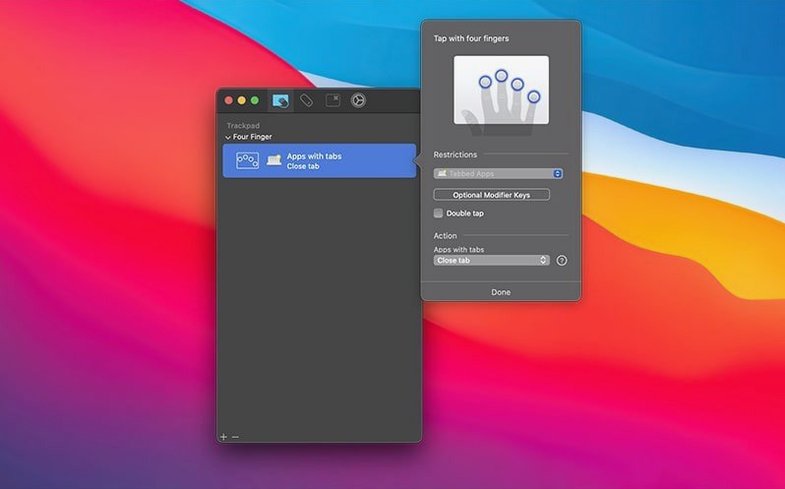
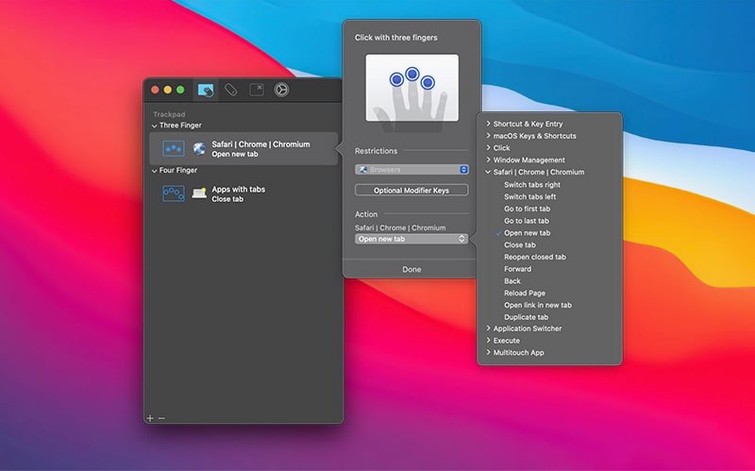
Three-finger click set to paste is one of the first assignments a user might reach for. From there, the mapping expands outward: a four-finger tap cycles browser tabs, a five-finger click fires a recorded keystroke sequence that reformats plain-text notes into a structured email draft. Multitouch sits in that gap between what Apple’s built-in gesture controls offer and what a keyboard-driven launcher handles, catching inputs that would otherwise go unused.
| Detail | Spec |
|---|---|
| Current version | 1.48 |
| macOS minimum | 10.15 |
| Architecture | ARM, x86 64-bit |
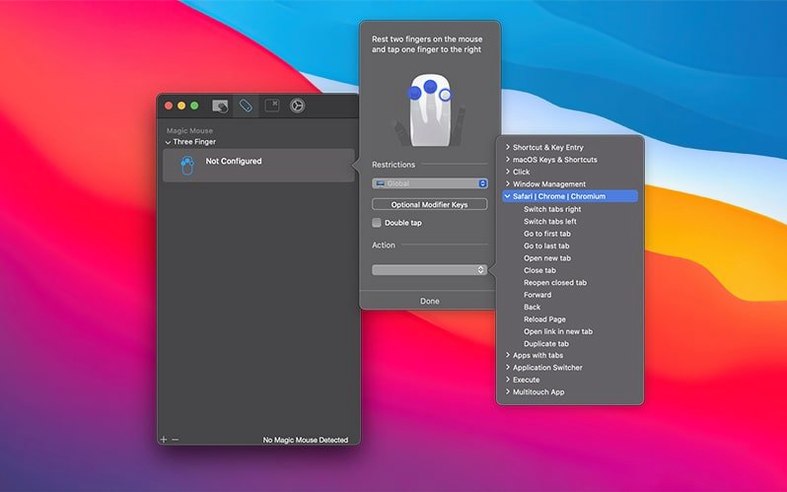
| Hardware | Any trackpad or Magic Mouse |
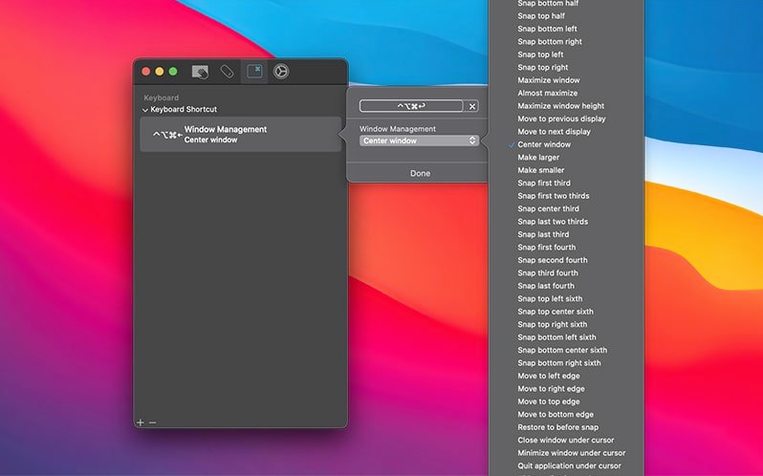
Gestures can be bound to keyboard shortcuts, inserted text strings, or shell scripts. The keystroke recording replays a sequence with no timing delays, which suits menu navigation that expects rapid input. A hyper-key conversion is also available: one physical key remapped to a combination of all standard modifiers, freeing up shortcuts that rarely conflict with other apps. Because the utility runs on both Apple Silicon and Intel Macs and asks only for 10.15 or later, it slots into setups where a gesture overlay complements tools like launchers and clipboard managers without duplicating their work.
Multitouch Beside Other Gesture Tools
A few Mac utilities occupy the same neighbourhood. BetterTouchTool covers gestures, window snapping, key remapping and a long list of other functions. That breadth means it can replace three or four single-purpose tools, but the interface carries the weight of all those features. Multitouch stays narrower: it only deals with trackpad and Magic Mouse gesture assignments. The preference pane reflects that, with less scrolling to reach the setting a user wants.
Swish is another comparison point, built specifically around window management with two-finger swipes and pinches. It reads gestures differently — a pinch on a window title bar triggers snapping, a two-finger swipe sends a window to a half of the screen. Swish feels immediate for tiling but does not touch browser-tab control, keystroke macros or hyper-key remapping. Someone who wants gestures purely for window layout might stop there. Adding Multitouch on top fills the gap for actions that fall outside window arrangement.
Jitouch, a long-standing option, also maps gestures to keyboard shortcuts and app-specific actions. Its character-recognition feature — drawing a letter on the trackpad to trigger an action — has no equivalent in Multitouch. In daily use, Jitouch’s drawing-detection can be hit or miss depending on trackpad size and finger speed. Multitouch avoids recognition problems by sticking to taps, clicks and swipes, which are simpler for the system to distinguish.
A Copy Editor’s Afternoon
Consider a copy editor working through a 30-page manuscript in a browser-based content system. The workflow repeats the same twenty actions: accept tracked change, reject tracked change, insert comment, find next, toggle between the style sheet and the chapter, copy the current paragraph reference to a log file.
With Multitouch, a four-finger click rejects a tracked change. A five-finger tap inserts a standard “verify with author” comment. A three-finger swipe left moves to the next change. A three-finger swipe right triggers a recorded keystroke that switches to the style-sheet tab, copies the highlighted rule number, switches back and pastes it. The hands stay on the keyboard and trackpad, never reaching for the mouse. Over three hours, the rhythm settles in: read, tap, swipe, read, click. The gestures become background noise to the editing itself.
Gesture Response Without Perceptible Lag
Gesture recognition lands with no perceptible lag. A three-finger click fires its assigned shortcut in the same beat as a system gesture would — the difference is what the command does, not how fast it responds. The keystroke player replays a sequence instantly, which works for opening menus and navigating dialog boxes that need rapid input. Slower, timed playback is not an option here; the utility assumes quickfire input is what users want.
Stability in version 1.48 is uneventful, which is what a background input utility should aim for. The recent fix targeting window-unminimise behaviour is the kind of edge case that creeps up after weeks of use, and it no longer triggers. The menu bar icon size adjustment suggests attention to details that would otherwise sit slightly off on a Retina display.
Memory use sits under 70 MB during a normal workday. CPU draw stays flat when no gestures are active. During a burst — recording a long keystroke sequence, then replaying it — the processor barely registers a flicker. The utility loads a single login item and no background daemons that persist after quitting. For a tool that watches every touch input, the system impact is low enough that it cohabits comfortably with screen recorders, clipboard managers and window managers all running at once.
- Menu bar icon — size adjusted.
- Window management — fixed a case where unminimising all minimised windows did not complete properly.
- macOS 10.15 or later
- Apple Silicon or Intel Mac
- Any built-in or external Apple trackpad, or a Magic Mouse
Questions on file
Can Multitouch insert text directly into an application?
Yes, there is an option to insert a predefined text string via a gesture, which can be used for pasting boilerplate or frequently used phrases.
How do recorded keystrokes work in Multitouch?
The app records a sequence of keystrokes and replays them in exact order with no timing delays inserted between each key press.
Does Multitouch support running scripts?
Yes, gestures can be configured to run scripts, allowing a finger tap or swipe to trigger custom automation routines via the shell.
Sign in · Create an account to add a field note.
No field notes yet. A measurement, a version, a machine — they appear after moderation.