
Mac Apps
MouseBoost Pro 5.3.0
Mac AppsUpdated
| Requirement | On file |
|---|---|
| macOS | OS X 10.11 or later, macOS 12.3 or later |
| CPU | Apple Silicon, Intel 64-bit |
| Download | 17 MB |
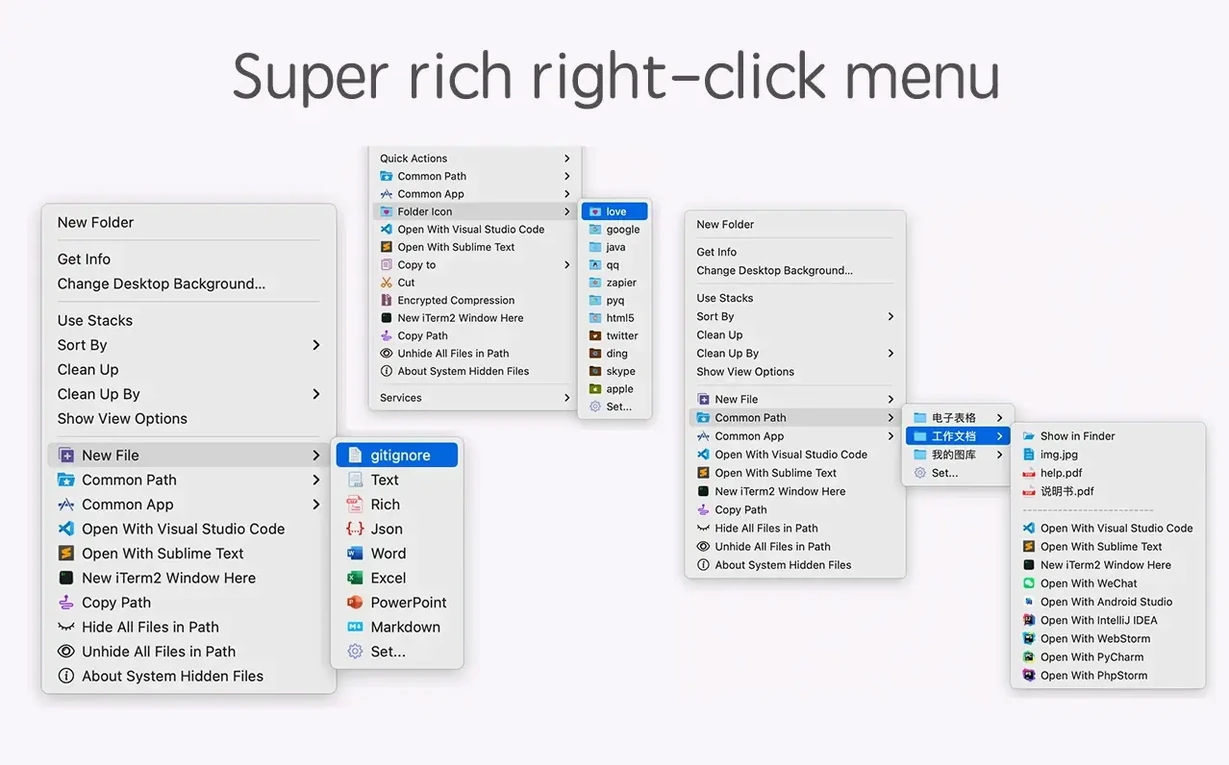
macOS Finder is capable, but its contextual menu often lacks shortcuts for developers, writers, and anyone who creates the same file structures repeatedly. MouseBoost Pro fills those gaps by adding custom actions directly to the right-click menu, cutting down the small manual steps that accumulate over a working day.
Runs on El Capitan Through Apple Silicon Macs
| Version | 5.2.8 |
| Developer | Shrek |
| Minimum OS | macOS 10.11 (El Capitan) |
| Architecture | Intel & Apple Silicon |
| Interface | English |
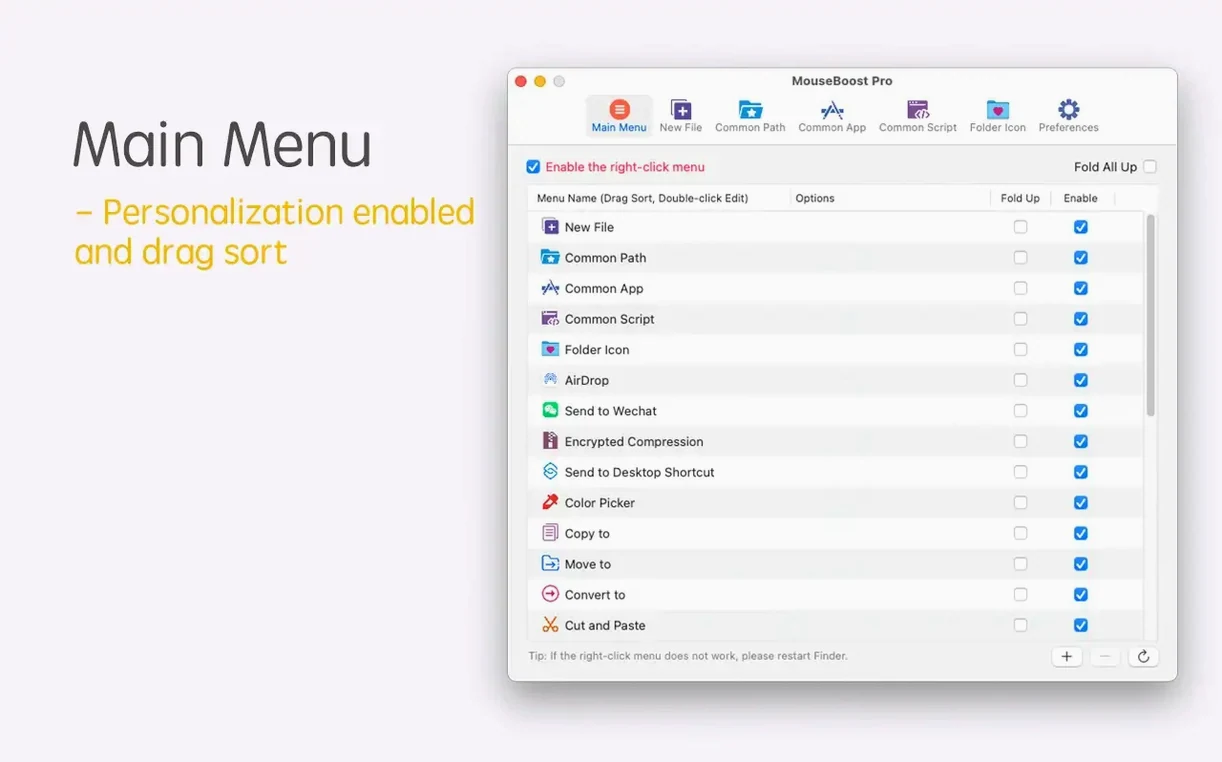
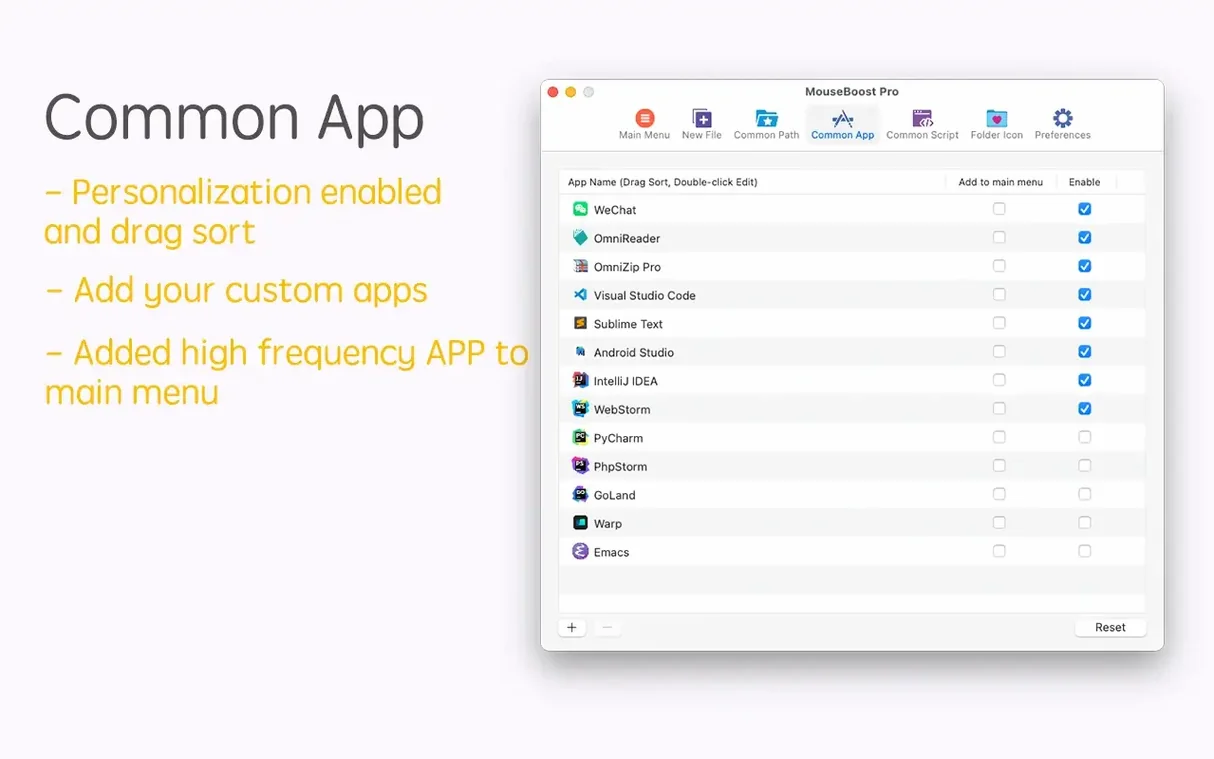
The utility runs on any Mac still on OS X 10.11 or newer, with native support for both Intel and Apple Silicon processors. The interface is in English. Once installed, it sits quietly as a system extension. Right-click a file, a folder, or empty space in Finder and a new menu tier appears. From there you can copy a file path, launch iTerm2 into the current directory, open a project in VSCode or Sublime Text, or toggle hidden files on and off. Batch rename gains extra precision in 5.2.8 — you can insert text at a set position or pull names from a list — and a quick preview now renders folder trees at a chosen depth. File utilities handle MD5, SHA1 and SHA256 checksums, and compressed archives can be created with encryption if needed.
Right-Click an Empty Folder to Create Files Instantly
A few MouseBoost Pro conveniences sit right in the menu but don't announce themselves. Knowing they exist changes how you reach for the tool.
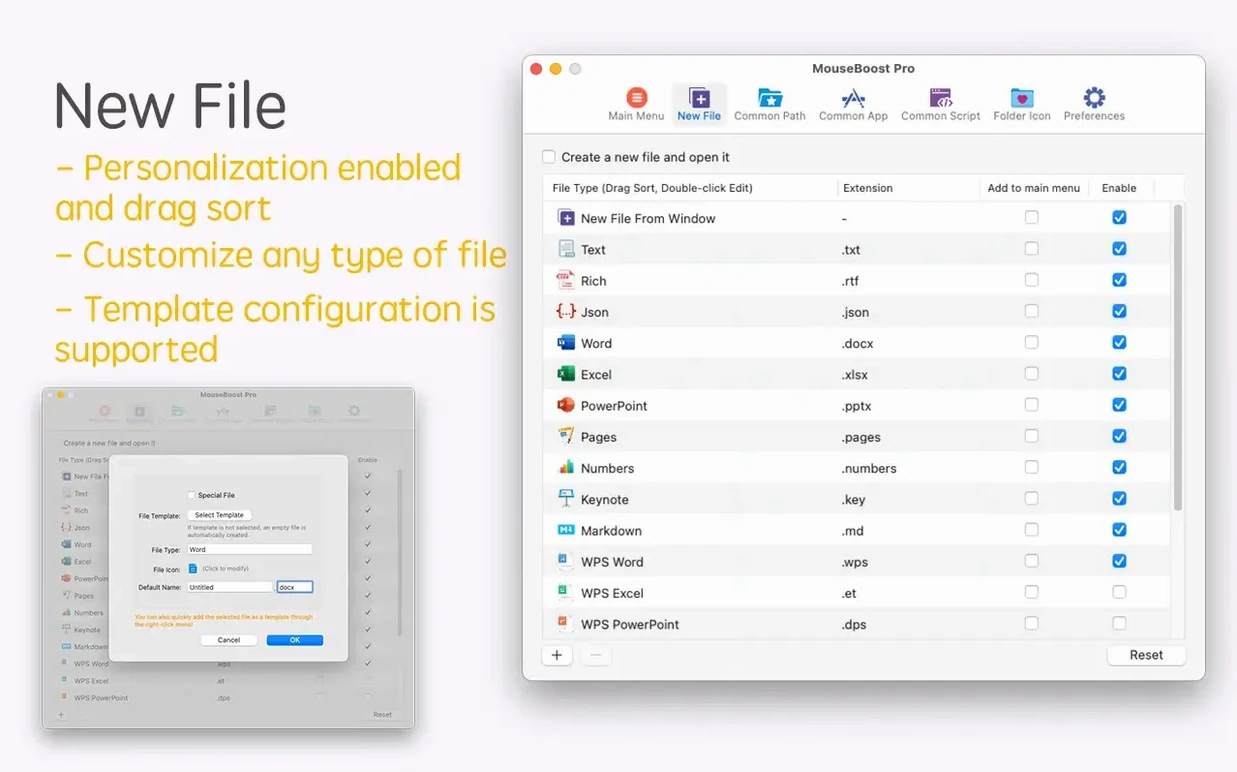
- Right-click empty space inside a folder — not on a file — and the New File submenu still appears. The created file lands in that folder with no drag-and-drop required. This works on the Desktop too.
- Hold Option while right-clicking a compressed archive. The menu shows an extra entry to extract to a folder named after the archive, skipping the default behaviour that dumps contents into the current directory.
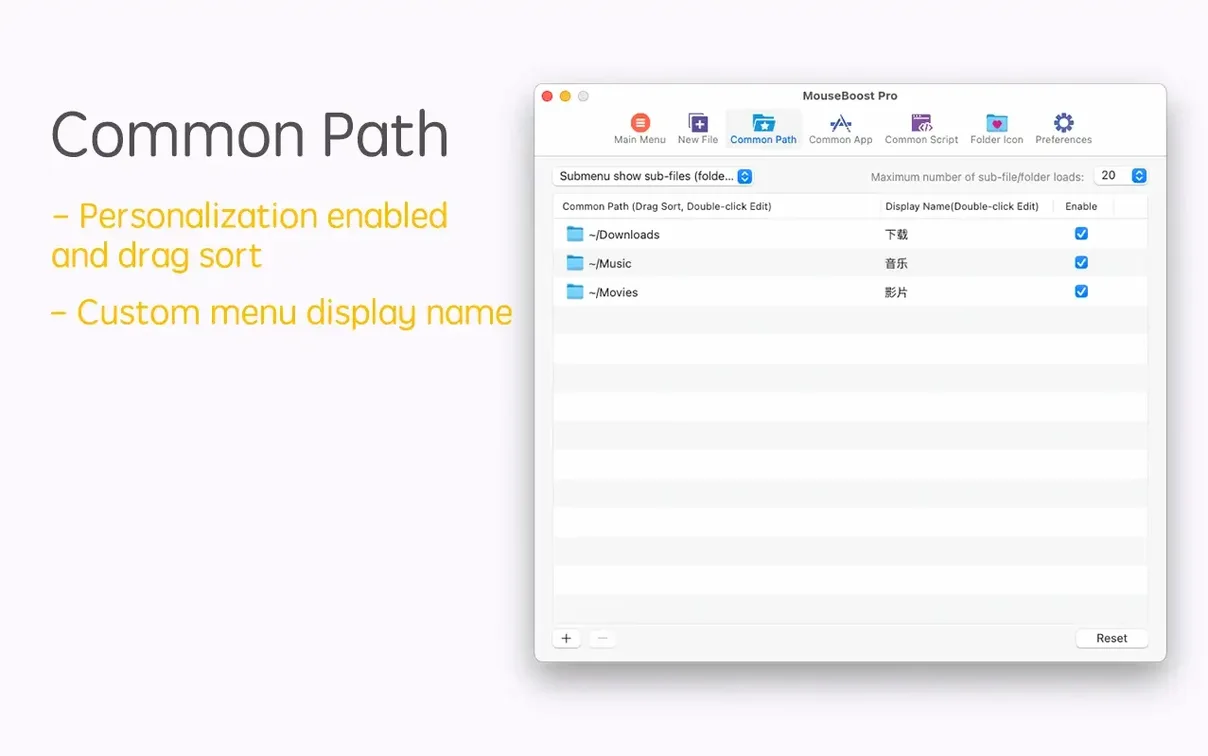
- Path copying has three modes, not one. A short-press on the Copy Path item copies the POSIX path. Right-click Copy Path itself (or use a submenu if configured) and you get UNIX, HFS, or Windows-style paths. The Windows path option is useful when writing documentation for cross-platform teams.
- Terminal and editor shortcuts are directory-aware. Right-click a folder and choose Open in iTerm2 — the shell starts in that exact directory. Do the same on a file and the shell opens in the file's parent folder. VSCode, Sublime Text, and Emacs follow the same logic.
- File hashing works on multiple selections. Select five files, pick File Checksum, and all five hashes appear in one window. No loop, no external terminal, no pasting one filename at a time.
- Quick Preview for folder trees (new in 5.2.8) respects the depth limit set in preferences. Set it to 3 and a deep node_modules folder won't choke the preview panel.
MouseBoost Pro, iRightMouse, and Path Finder Side by Side
Three apps occupy roughly the same corner of macOS: MouseBoost Pro, iRightMouse, and Path Finder. They overlap in places, but the emphasis differs enough to matter depending on what you do all day.
MouseBoost Pro vs iRightMouse
iRightMouse also extends the Finder right-click menu — new file creation, file management, terminal shortcuts, archive tools. Where they diverge: iRightMouse leans toward general file operations and includes a built-in image converter and batch rename with a different parameter set. MouseBoost Pro pushes further into developer territory. The direct shortcuts to iTerm2, VSCode, Sublime Text, and Emacs are present here and absent in iRightMouse. The multi-format path copy (UNIX / HFS / Windows) is a MouseBoost Pro detail that iRightMouse doesn't match. iRightMouse offers a few more image-specific tools, but MouseBoost Pro has the deeper batch rename logic — the text-insertion-at-position and rename-from-list features added in 5.2.8 go beyond iRightMouse's current rename panel.
MouseBoost Pro vs Path Finder
Path Finder replaces Finder entirely with a dual-pane file browser. It includes many of the same utilities — checksums, batch rename, hidden file toggles, terminal shortcuts — but wraps them in a different windowing model. Path Finder suits people who want a whole new file manager. MouseBoost Pro suits people who want to stay in Finder and add capabilities without changing the environment. The trade-off: Path Finder gives you more file-management muscle overall, but it's a heavier lift. MouseBoost Pro works from the standard Finder window you already have open, with almost no interface weight of its own.
Where MouseBoost Pro fits
If your day involves moving between Finder, a code editor, and a terminal, MouseBoost Pro removes the intermediate steps. The other two apps can do some of this, but neither bundles exactly this set of programmer-facing shortcuts into a right-click extension that stays out of sight otherwise.
A workflow: from a blank folder to a documented project scaffold
Suppose you're starting a small data-processing script. You need a folder, a few placeholder files, a quick hash of a reference CSV, and the whole thing opened in VSCode with a terminal ready. Here's how that flows with mouseboost pro doing the heavy lifting.
- Create the project folder. Right-click on the Desktop, pick New File > Folder from the MouseBoost submenu. Name it
throughput-parse. - Scaffold the files. Right-click the empty folder, choose New File, and create
parse.py,requirements.txt, andREADME.mdin sequence. The files appear instantly, zero text-editor save dialogues needed. - Drop in a reference data file. Drag
sample.csvinto the folder from a Downloads location. Right-click it, pick File Checksum > SHA256. Copy the hash intoREADME.mdso downstream users can verify the file. - Open the workspace. Right-click the folder, choose Open in VSCode. The editor launches with the folder as the workspace root.
- Bring the terminal along. Right-click the same folder in Finder (or from the Desktop while VSCode loads), choose Open in iTerm2. The shell is already at the project path. Run
python3 -m venv venvand you're coding.
The whole sequence takes under a minute. No Finder → Terminal → cd typing. No “Save As” dialogues for empty placeholder files. The mouseboost pro right-click menu carries the context across tools without breaking stride.
Developers, Designers, and Power Finder Users
Not every Mac user needs 30 extra right-click actions. A few profiles stand out where the utility clicks into daily use almost immediately.
- Developers who live in Finder and iTerm2 side by side. The directory-aware terminal and editor shortcuts save dozens of
cdcommands per week. If you switch projects often, the right-click → open-in-editor pattern becomes muscle memory fast. - Technical writers and documentation specialists. Copying a path in three formats, grabbing file checksums for release notes, and quickly generating boilerplate file structures are tasks that repeat across document sprints. MouseBoost sits right where those tasks happen.
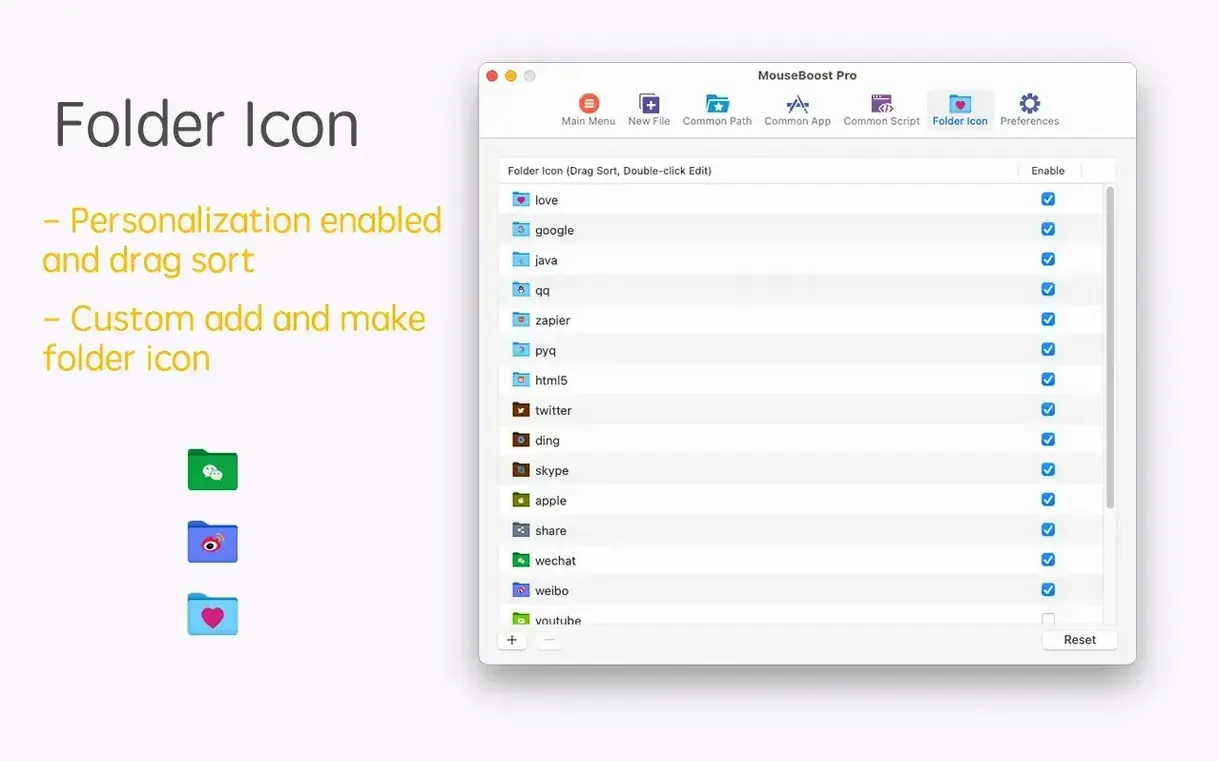
- Designers managing asset folders. Hiding and showing specified files helps when client-facing folders need cleaning up. Changing a folder icon from the right-click menu — no manual
.icnspaste into Get Info — speeds up asset handoff prep. Batch rename with list support handles sequences of exported frames or icon sizes without a separate renaming utility. - Anyone who creates the same file types repeatedly. The custom file type creation means you can add a
.conf, a.env, or aDockerfiletemplate to the new-file menu. Right-click, pick the type, and the file exists. No TextEdit blank-document dance.
Users who rarely leave the Finder and don't touch a terminal or code editor may only use a fraction of what the software offers. The subset that makes sense for them — new file creation, encrypted compression, permanent delete — still works, but the full toolkit rewards those who bridge Finder with other Mac apps throughout the day.
MouseBoost Pro 5.3.0 [MAS] lands with a handful of practical additions and fixes:
- Image stitching — New grid layouts for joining images, with a control for how many images appear per row and the ability to add or remove images from the stitch.
- Pinned screenshots — Mouse wheel zoom now works on screenshots you have pinned to the screen.
- Formats — AVIF image support added. Fixed an aspect-ratio distortion bug that occurred when converting SVG images.
- Compatibility — Improved interface rendering and macOS 27 compatibility.
- OS X 10.11 or later, macOS 12.3 or later
- Apple Silicon and Intel 64-bit
Sign in · Create an account to add a field note.
No field notes yet. A measurement, a version, a machine — they appear after moderation.