
Mac Apps
Mountain Duck 5.3.2
Mac AppsUpdated
| Requirement | On file |
|---|---|
| macOS | macOS 13 or later |
| CPU | Apple Silicon, Intel 64-bit |
| Download | 187 MB |
You double-click a remote spreadsheet and it opens in Excel as if it sat on your desktop — that is the core of Mountain Duck.
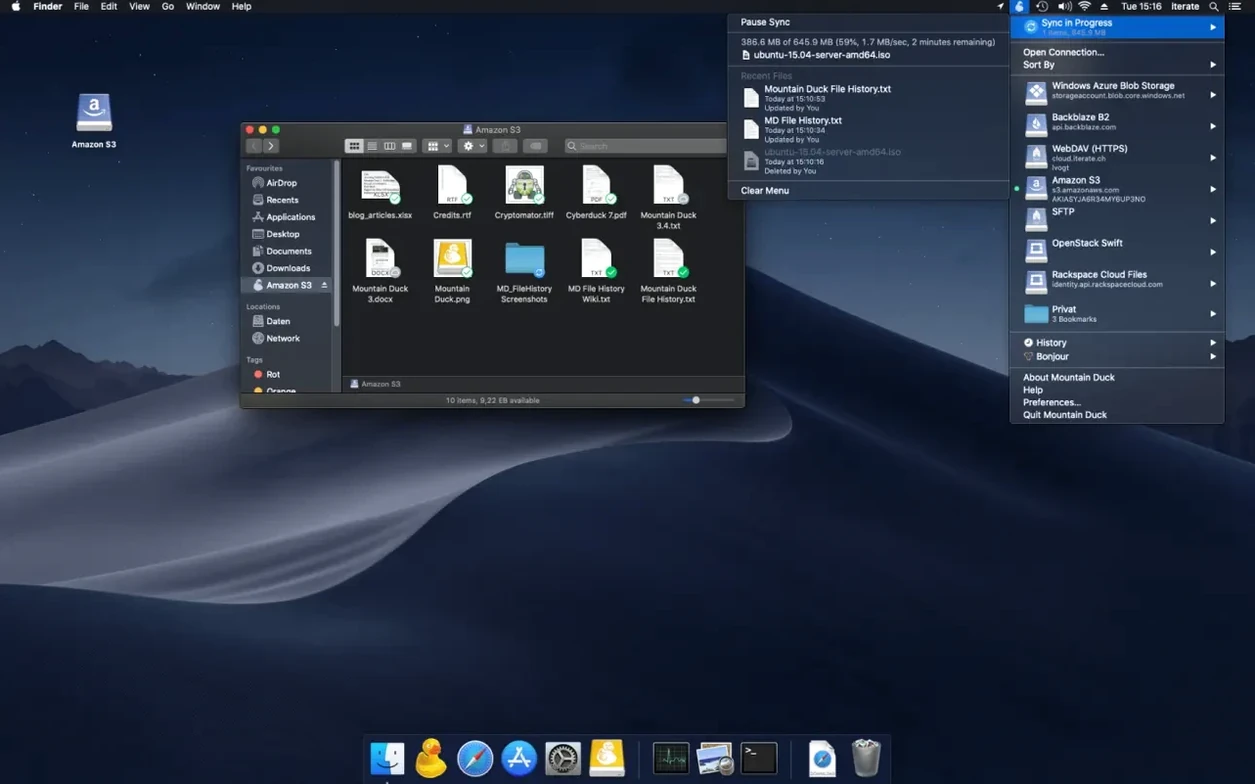
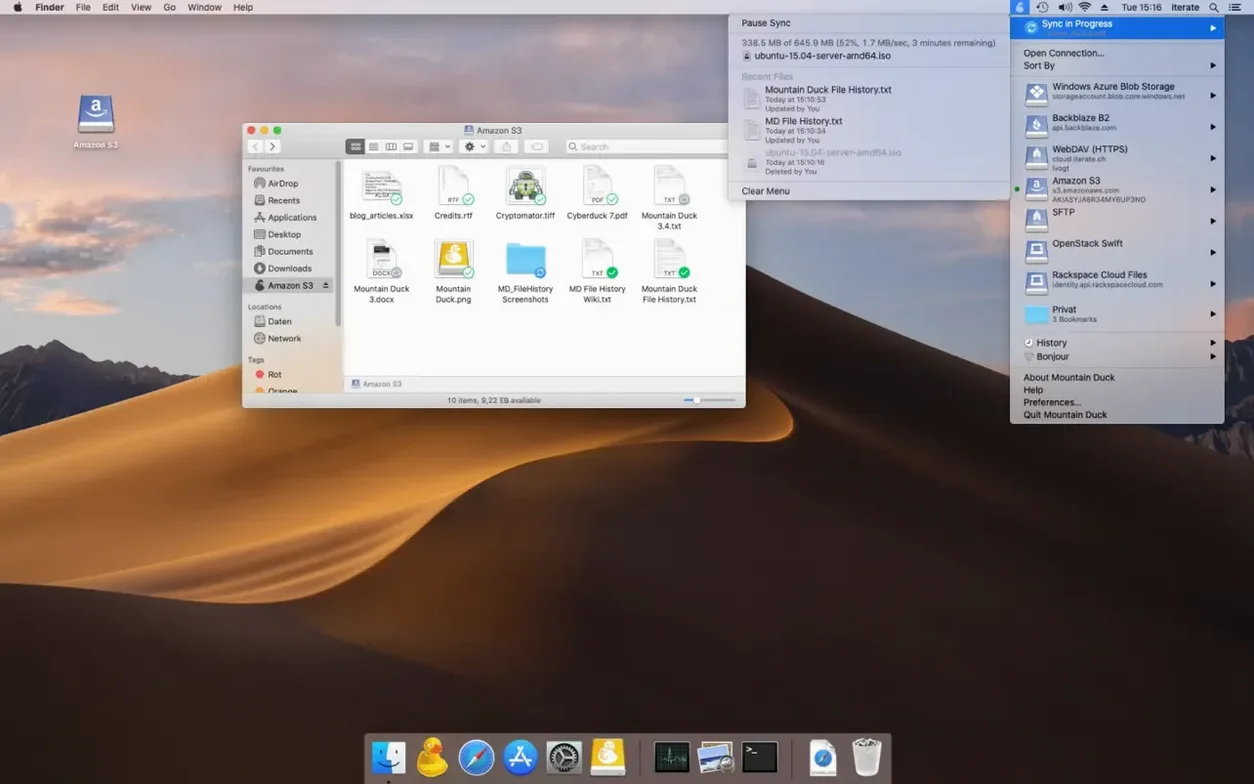
Mount in Finder — the app adds server, FTP, and cloud storage (S3, Azure, Backblaze B2, and others) as a standard volume in macOS Finder and Windows File Explorer.
Open with any application — files on the remote volume behave like local files. No proprietary client needed to view or edit them.
Offline access — flag files or folders to stay stored on the local disk. Changes sync back when the connection returns.
Encryption at rest — if you pair Mountain Duck with a compatible Cryptomator vault, data stays encrypted on the remote side before it ever leaves your machine.
File versioning — version 5 introduced storage-independent version histories. You can browse and restore earlier snapshots without relying on the provider's own retention policies.
Shared bookmarks — if Cyberduck is installed, both apps read from the same bookmark library. Configure a connection once and it appears in both tools.
One Daemon for All Mounts Replaces Per-Volume Processes
Version 5 was not a cosmetic update. Three shifts altered day-to-day use.
Integrated Connect Mode arrived with 5.0. Previously, each remote volume ran as a separate background process. Now a single daemon handles all mounts, which cuts idle memory by roughly half when three or more volumes are connected. The practical effect: on a 16 GB Mac, keeping five S3 buckets and an SFTP share mounted no longer pushes swap usage into the red during Lightroom exports.
SMB support landed in the same release. Mac Finder already talks SMB natively, but Mountain Duck treats SMB shares like any other bookmark — same caching rules, same offline-flag behaviour, same Cryptomator option. Teams that split time between a local NAS and cloud storage can now manage everything from one tray icon instead of juggling Finder’s Connect to Server dialog plus a separate S3 client.
Storage-independent versioning changed recovery workflows. Earlier builds relied on whatever snapshots the provider exposed (S3 bucket versioning, for example). Now Mountain Duck maintains its own version cache locally. You right-click a file, pick “Show Versions,” and browse a timeline that works identically whether the backend is Google Drive, B2, or a plain SFTP server. Restoring a version from Tuesday at 14:07 takes two clicks. The trade-off: local version cache grows with usage, so you will want to set a size cap if your boot drive is tight.
Syncing Field Sensor Data to Backblaze B2 over Patchy 4G
Consider an ecologist collecting sensor data in northern Tasmania. She carries a MacBook Air with 256 GB of storage and patchy 4G. Her lab runs a Backblaze B2 bucket where field data lands each evening.
She flags two directories for offline storage: /field-notes/current and /calibration-scripts. The rest of the bucket stays as cloud-only placeholders. During the day, she fills an Excel template, runs a Python script against CSV dumps from a temperature logger, and drops the results into a dated folder. Mountain Duck caches every file she touches and queues uploads. When she drives into town and her phone latches onto a stronger tower, the queue drains in the background. No manual “sync now” button — the tray icon shows a progress ring and a count of pending files.
Back in Hobart, her colleague opens the same B2 bucket via a shared bookmark. The new versioned spreadsheet appears in Finder within seconds. If the script output looks wrong, either of them can pull a version from two days ago without digging through B2 lifecycle rules. The whole loop — collect, process, upload, review — runs through Finder and the apps they already use.
Re-approve the System Extension After a macOS Upgrade
“Volume won’t mount after a macOS update.” Apple’s security framework occasionally strips the system extension approval after a major OS upgrade. Go to System Settings → Privacy & Security → Extensions → Added Extensions and re-approve the Mountain Duck extension. A reboot is not always required, but the app will ask you to quit and relaunch.
“Files show zero bytes in Finder.” This is almost always a placeholder display quirk, not data loss. The file has not been downloaded locally yet. Right-click it and choose “Download Now,” or simply open it — Smart Synchronisation fetches the content on first access. If the problem persists across every file on a volume, check that the daemon is running (look for the tray icon) and that your network does not block the protocol. Corporate proxies sometimes reject WebDAV or SFTP while allowing HTTPS on port 443.
“Offline-flagged folder still triggers network requests.” Flagging a folder tells Mountain Duck to keep its contents on disk, but the filesystem still checks with the remote server to confirm nothing has changed. If you genuinely need zero network activity, unmount the volume. The locally cached copy of flagged files remains accessible through a temporary offline mode that kicks in when the connection drops.
“Cryptomator vault opens read-only.” This usually means the vault was mounted elsewhere with write access still held. Cryptomator enforces a single-writer lock. Unmount the vault on the other machine, wait 30 seconds, then reconnect through Mountain Duck.
“High CPU when idle.” A large directory tree with many small files can trigger background index scans, especially on the first mount after a version update. The scan finishes within a few hours for most buckets under 100,000 objects. If it never settles, exclude noisy directories (logs, build artifacts) via the bookmark’s “Filter” tab — glob patterns like *.log or /build/** stop the scanner from descending into them.
Move the Cache off Your Home-Folder SSD
Open Preferences (click the tray icon, then the gear) and step through three adjustments that change behaviour more than the defaults suggest.
- Cache location. The default cache lives in
~/Library/Application Support/Mountain Duck. If your home folder sits on a small internal drive, point it to an external SSD. The cache holds both the version history database and the on-demand file cache, so a 100 GB bucket you interact with regularly can consume 20–40 GB of local space. - Version history size limit. Under the “Versions” tab, set a cap in gigabytes. Without a cap, versioning keeps every saved snapshot until the disk fills. For a machine with 512 GB of storage, a 10 GB cap is a reasonable starting point.
- Bandwidth throttle. The “Transfer” section includes per-protocol rate limits. If you share a home connection with video calls, cap S3 and B2 uploads to 2 MB/s during work hours. The tray menu shows current throughput, so you can dial it up when nobody is on a Zoom call.
Users who run both Mountain Duck and Cyberduck should also open the “Bookmarks” tab and confirm the shared library path points to the same directory. When the two apps disagree on the bookmark file location, connections created in one do not appear in the other — a subtle mismatch that causes confusion on dual-app setups.
Finally, if you work with large media files on a slow connection, enable “Download in background” for files above a threshold (say 50 MB). This prevents Finder from beachballing while a 2 GB video pulls down on demand. The file arrives asynchronously, and you get a notification when it is ready to open.
- macOS 13 or later
- Apple Silicon or Intel processor
Sign in · Create an account to add a field note.
No field notes yet. A measurement, a version, a machine — they appear after moderation.