Mac Apps
Nook X 2026.10.24
Mac AppsUpdated

| Requirement | On file |
|---|---|
| macOS | macOS 13 or later |
| CPU | Apple Silicon, Intel 64-bit |
| Download | 36 MB |
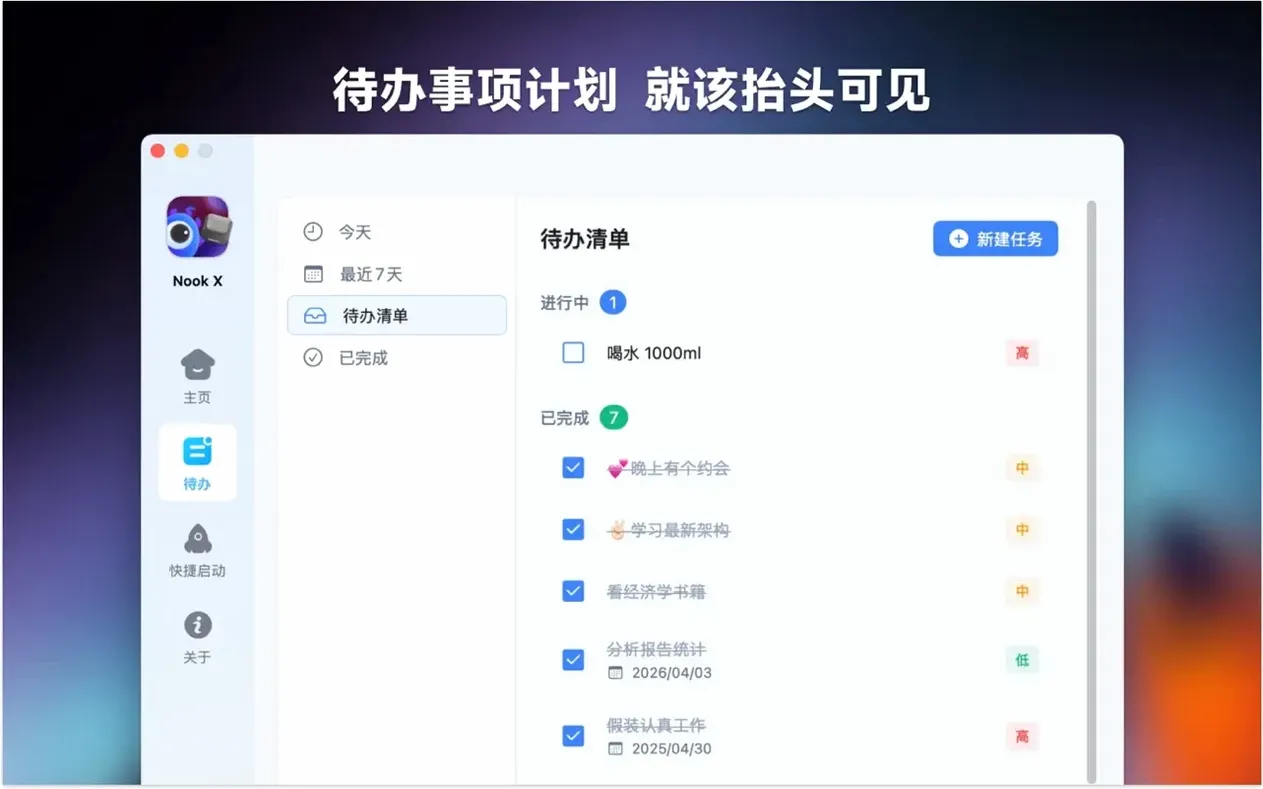
You're sorting out a Friday afternoon when a half-formed idea arrives while your hands are on the keyboard. You open Nook X, hit voice input, and say: 'Remind me to send the revised calibration notes to the lab team before four.' The app turns that into a task without you leaving the desk.
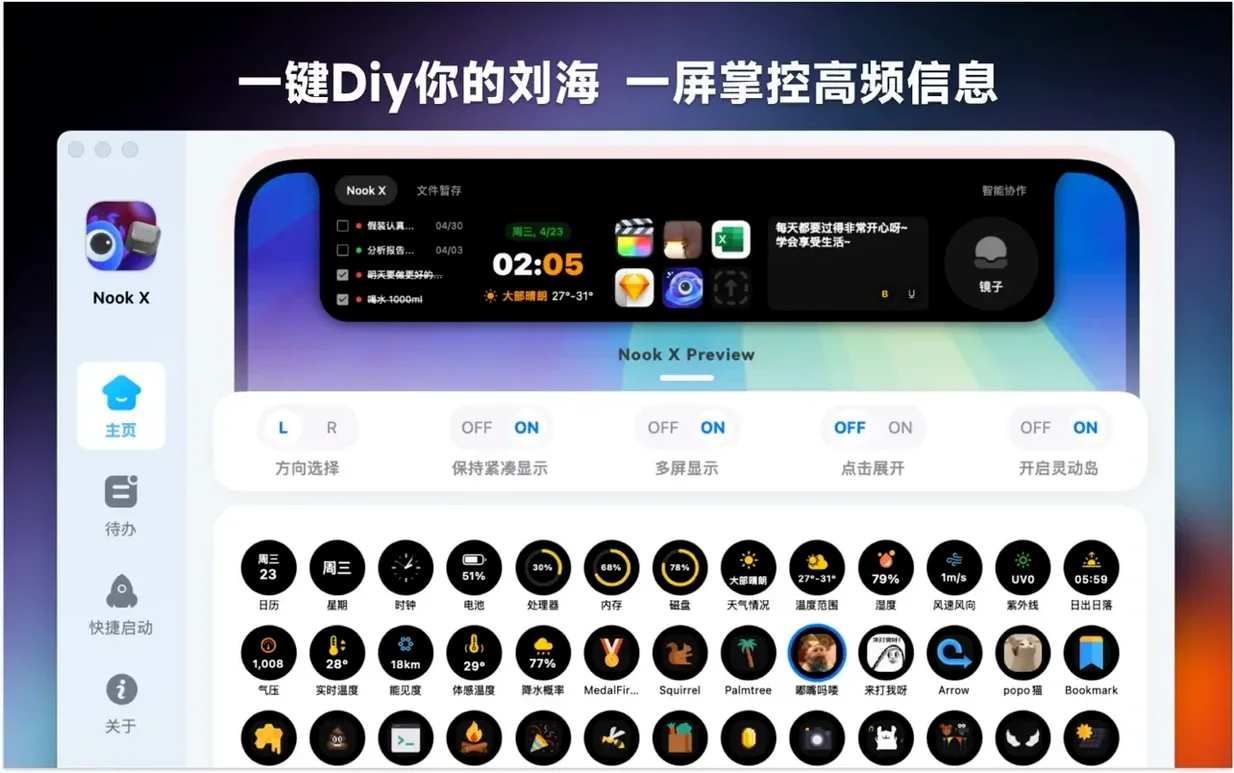
Next you ask the chat to expand the reminder into a short checklist. Nook X creates the entries, and you tick off what's already done. The same panel searches for songs by lyrics when you only remember one line from a track playing earlier. If the song is in your library, the built-in player handles common audio formats and karaoke mode shows the text in time with the music.
Everything sits in one window, so switching between a task list, a lyric search and a chat thread doesn't mean juggling three apps. Voice input works for quick entries, while typed input suits longer instructions.
Ignoring Voice Input Splits One Tool Into Three
New users often treat Nook X as three separate apps glued together, rather than one tool where parts talk to each other. The first mistake is ignoring voice input entirely. Typing every task and every chat query works, but voice input is faster for short reminders that pop into your head mid-workflow. A two-second spoken note becomes a task without switching windows or breaking concentration.
Another pattern is creating tasks manually in the task pane instead of letting the AI assistant generate them from a chat. You can type or speak a messy stream of ideas, ask the assistant to extract action items, and Nook X builds the list in one move. Beginners often duplicate effort by writing the list themselves first, then retyping it into tasks.
Users also overlook karaoke mode's timing controls. The lyrics panel syncs automatically with most tracks, but dragging the timeline marker to adjust sync for older or live recordings is not obvious at first. The setting lives in a small handle on the lyric bar, and people miss it for weeks.
Finally, some treat the song-search-by-lyrics field as a standard search box. Typing a partial line with a misremembered word often still finds the track, because the index tolerates fuzzy matching. Expecting exact phrasing leads to false misses.
Pre-Install Considerations
Does Nook X replace my current music player?
Not fully. The built-in player handles common audio formats and works well for focused listening sessions where lyrics matter. It doesn't manage large libraries with smart playlists, ratings or cloud sync the way dedicated players do. Think of it as a lyrics-first player for the tracks you already have, not a replacement for your entire music workflow.
From Prompts to Structured Task Lists
The assistant answers factual questions, translates text between several supported languages, generates ideas from prompts, and converts chat content into structured task lists. It doesn't browse the web or access external databases. Voice input feeds directly into it, so you can speak a question and get a text reply in the same pane.
Does the app require an internet connection?
AI chat features need connectivity. Task management and local music playback with lyrics work offline. If you lose connection mid-session, the assistant simply stops responding until the network returns, while the rest of the app continues normally.
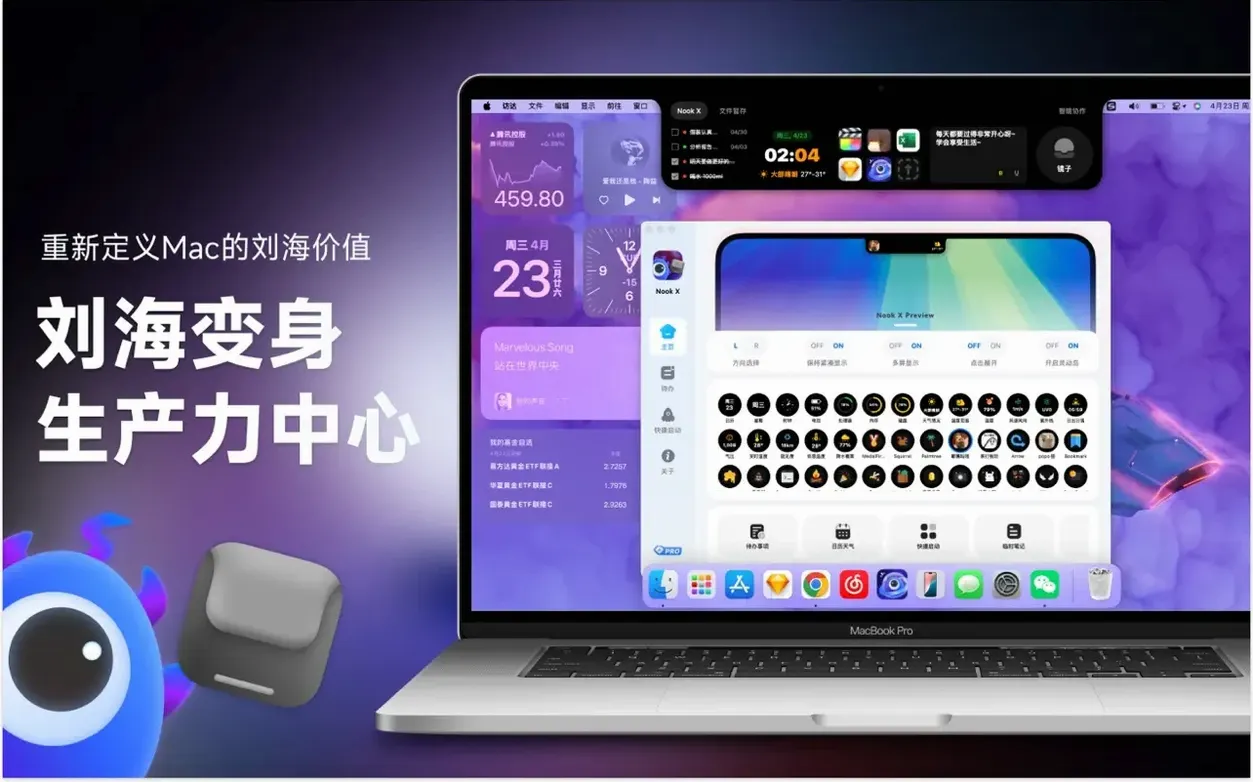
How does Nook X use the notch area?
The app positions its interface to make use of the space around the notch on MacBook models that have one. Controls, menus and panels arrange themselves so the notch does not obscure content. On Macs without a notch, the layout uses standard window framing.
Auto-Send Voice for Instant Action
Open the preferences pane right after installation. The first change worth making is enabling voice input auto-send. By default, voice input waits for you to confirm the transcribed text before acting on it. Flipping this setting sends the text immediately after you stop speaking, which cuts a step from quick task creation and chat queries.
Next, set the default task priority. The app assigns medium priority to new tasks unless you specify otherwise. If your workflow demands high-priority defaults for everything captured on the fly, change it once here instead of adjusting every entry.
Adjust the lyrics display size. Karaoke mode defaults to a medium font size that works on most screens, but on a 14-inch MacBook Pro the text can feel cramped. Bumping it up one or two steps makes reading lyrics at a glance easier without crowding the panel.
Check the hotkey for quick voice input. The default combination is configurable, and assigning a single key or an easy two-key chord that doesn't conflict with other apps saves reaching for the mouse when an idea strikes. The hotkey activates the voice input even when Nook X is in the background.
How Nook X Compares with Similar Mac Apps
Nook X versus NotchNook
NotchNook focuses entirely on turning the notch into a utility tray: clipboard history, shortcuts, file drops. It doesn't include a music player, lyrics, AI chat or task management. Nook X covers fewer system-utility angles but adds three productivity and entertainment tools that NotchNook doesn't attempt. If you want a notch-based app launcher and clipboard manager, NotchNook fits. If you want notch-anchored task capture with AI and music, Nook X is the choice.
Nook X versus Alcove
Alcove also uses the notch area, adding a small set of widgets: calendar, timer, media controls for system audio. It integrates with Apple's Now Playing but doesn't include its own player or lyrics engine. Task management and AI chat are absent. Nook X is heavier in scope, with its own audio playback, karaoke lyrics, and a full chat assistant. Alcove stays lighter and feels more like a notch accessory than a workspace hub.
Nook X versus traditional task managers with AI
Dedicated task managers like Things or Todoist now include AI features for natural language entry and smart suggestions. None of them include a music player or lyrics search. Nook X doesn't match their project hierarchies, tagging systems or collaboration features. The trade-off is clear: you gain music and lyrics tools alongside tasks, and you give up deep task organisation. For a user who wants to capture, listen and query in one window, Nook X makes sense. For managing fifty projects with dependencies, a dedicated task manager still wins.
Three Carry-Over Tasks Before 9:30 AM
It's 9:20 on a Tuesday. You sit down with coffee and open Nook X. The interface settles around the notch on your MacBook Pro, showing the task list from yesterday. Three items still need attention: finalise the sensor calibration document, reply to the logistics team about shipment dates, and pick up a replacement filter for the lab extraction unit.
You highlight the calibration task and type a quick note into the chat pane: 'Break this into sub-steps for a technical writer.' The assistant returns four numbered actions within seconds. You tap the 'create tasks' button, and the sub-steps appear in your list with links back to the original parent item. One less thing to structure manually.
A Slack notification interrupts. The logistics team confirms the shipment arrived, so you speak into the hotkey-mic: 'Mark logistics reply as done.' The task gets a checkmark. Voice input caught every word, no correction needed.
You decide to take five minutes. The built-in player has a folder of instrumental tracks you keep for focus breaks. You pick one, and the lyrics panel fills with text in sync. Halfway through, you remember a song you heard yesterday but only recall one line: 'static on the wire.' You type it into the search field. Nook X finds the track in your library immediately, even though the actual line was 'static on the line.' The fuzzy match worked.
Back to work. You ask the assistant to translate a short German email from a supplier into English. The translation appears in the chat thread, accurate enough to understand the gist. You copy it, paste it into your mail client, and carry on.
By 10:15, the task list is shorter, the reply is sent, and you've listened to two tracks without leaving the app. No juggling windows, no switching contexts.
Nook X requires macOS 13 or later and runs on both Intel and Apple Silicon Macs.
- macOS 13 or later
- Apple Silicon or Intel 64‑bit processor
Questions on file
Can Nook X turn voice input into tasks?
Yes. You can dictate a reminder or task and Nook X will create it from the chat.
Does Nook X show lyrics automatically?
It includes a karaoke mode that shows song lyrics in time with playback, and it can search for songs by a lyric fragment.
What macOS version does Nook X need?
Nook X requires macOS 13 or later and supports both Intel and Apple Silicon Macs.
Sign in · Create an account to add a field note.
No field notes yet. A measurement, a version, a machine — they appear after moderation.