Mac Apps
NotchBox 1.1.71
Mac AppsUpdated

| Requirement | On file |
|---|---|
| macOS | macOS 13 or later |
| CPU | Apple Silicon, Intel 64-bit |
| Download | 7 MB |
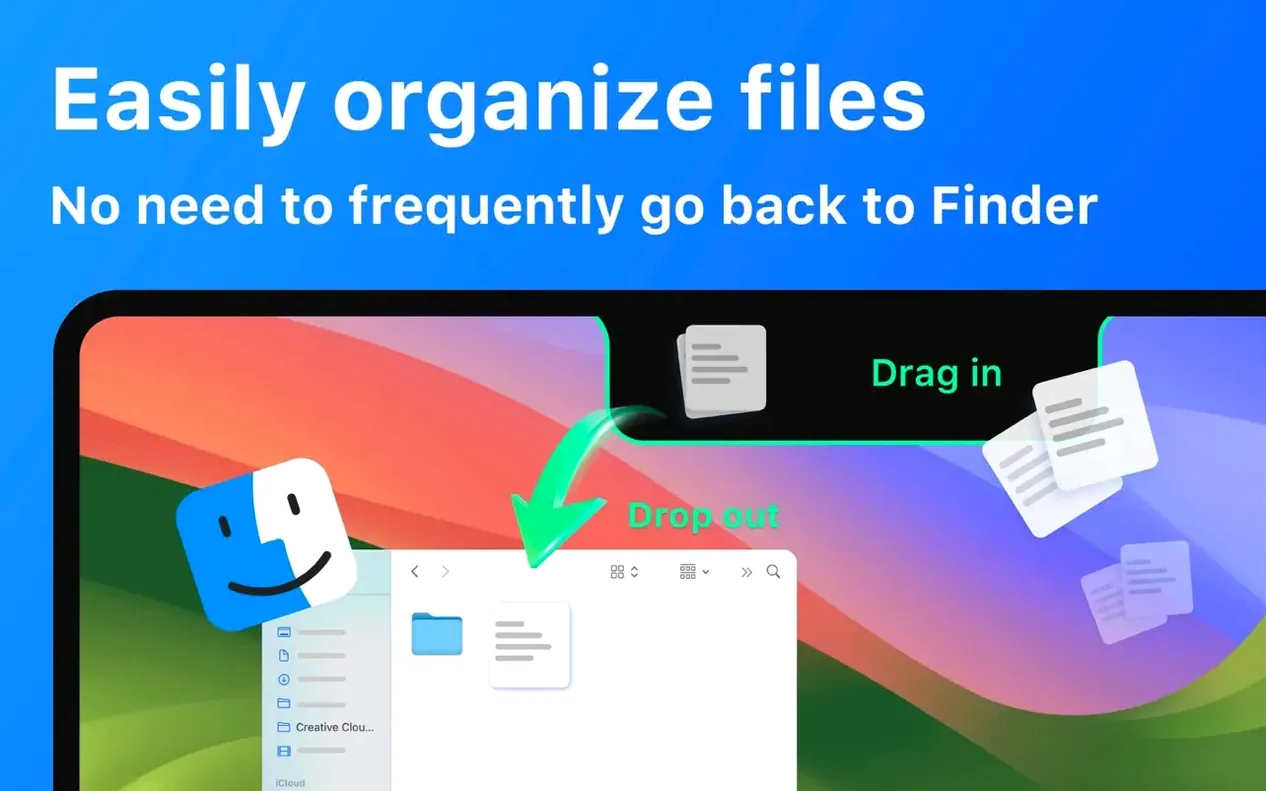
You drag a PDF over the camera housing on a MacBook Air, and the file sits there as a temporary shelf item while you finish a report. That is the basic pattern behind NotchBox: the notch becomes a small drop zone and a readout for the things you would otherwise fish out of the menu bar.
macOS 13 and Apple Silicon Readiness Check
- Check the operating system. NotchBox requires macOS 13 or later.
- Check the processor. The build covers both Intel 64-bit and Apple Silicon Macs.
- Open the app and look at the notch area. Date and time appear, along with calendar events and upcoming meetings.
- Drag a file onto the notch for temporary storage, or use the same area for AirDrop sharing.
- Open the camera mirror view for a quick self-check before a call, and pull up clipboard history from the same panel.
What you get is a compact utility rather than a full menu bar replacement. The feature list is focused: calendar readout, clipboard access, file shelf, AirDrop, and a camera mirror. The interface ships in Russian, English, German, Arabic, Vietnamese, Indonesian, Spanish, Italian, Traditional Chinese, Korean, Portuguese, Thai, Turkish, French, Hindi, and Japanese.
Daily Drag-and-Drop Power Users
Not all Mac users will feel the same pull toward a notch utility. The people who stick with NotchBox tend to share a few habits.
First, anyone who moves files between apps or folders many times a day. A designer dragging exported assets into a Slack thread, a researcher collecting PDF snippets into a report, a developer pulling screenshots into a bug tracker — these are the workflows where a temporary shelf on the notch saves real friction. You skip the trip to the Desktop or a Finder window, and the file sits there until you drop it somewhere else.
Second, users who keep an eye on multiple small data points without wanting them in the menu bar. The calendar readout and meeting preview work for people who glance at their next event before switching contexts. The Wi‑Fi speed and signal strength indicators appeal to anyone who troubleshoots network quality while on a video call. The countdown timer suits cooks, presenters, and pomodoro-style workers who want a visual anchor near the camera.
Third, MacBook Air and 14‑inch MacBook Pro owners who feel the notch is unused screen real estate. On larger 16‑inch screens the notch is proportionally smaller and less noticeable; on a compact display it sits dead centre, and NotchBox gives it a job.
If you rarely drag files, live inside a single full‑screen app, or prefer a completely clean top edge, the utility may feel like visual noise rather than a helper. That is fine — the app does not try to be everything to everyone.
Figma, Notion, and Music in the Notch
Imagine a Tuesday morning. You have three things open: a Figma file, a Notion page for meeting notes, and Apple Music playing through the MacBook speakers.
- You glance at the notch. The date reads 14 Oct and the time 9:42. Below it, a small calendar badge shows your 10:00 stand‑up.
- You need a colour swatch from the Figma canvas in your notes. You export the swatch as a PNG to the Desktop, then drag the file straight onto the notch. It sits there, name visible on hover.
- You switch to Notion, grab the PNG off the notch, and drop it into the page body. The file copies out; the shelf clears.
- Mid‑morning, you want a quick self‑check before a client call. You click the notch panel and tap the camera mirror view. Hair adjusted, call joined.
- During the call, your internet flickers. A glance at the notch shows Wi‑Fi signal at 2 bars and download speed hovering around 12 Mbps. You switch to a closer access point.
- After the call, you copy a link from the chat. Later, you need it again — you click the notch, open clipboard history, and find the URL three entries back.
- Before lunch, you set a 25‑minute timer for a focused writing block. The countdown runs inside the notch panel. When it hits zero, a small chime sounds.
- A colleague sends a file over AirDrop. You drag it from the notch to a project folder; the transfer finishes without opening a Finder window.
The session never feels like you are using a separate app. NotchBox sits at the edge of attention and only becomes active when you reach for it.
Treating the Notch Shelf as Permanent Storage
A few patterns show up in the first week of use. Most are easy to correct once you see them.
- Treating the notch shelf as permanent storage. Files dragged to the notch stay there only for the session or until you replace them. Losing a file because you restarted the Mac is a common early frustration. Think of it as a clipboard for files, not a folder.
- Overloading the notch with every available widget. NotchBox can show date, time, calendar, Wi‑Fi stats, clipboard history, and more simultaneously. Turning everything on at once makes the area cramped and harder to scan. Most experienced users keep two or three readouts active and hide the rest.
- Ignoring the panel click zones. The notch area is small, and the touch targets for different functions sit close together. New users sometimes trigger the camera mirror when they wanted clipboard history, or vice versa. Slowing down the first few clicks helps build muscle memory for where each function lives.
- Forgetting that AirDrop requires both devices to be awake and nearby. Dragging a file to the notch and expecting it to reach a sleeping iPhone will not work. The receiving device must be unlocked and within range — the same rules as standard AirDrop.
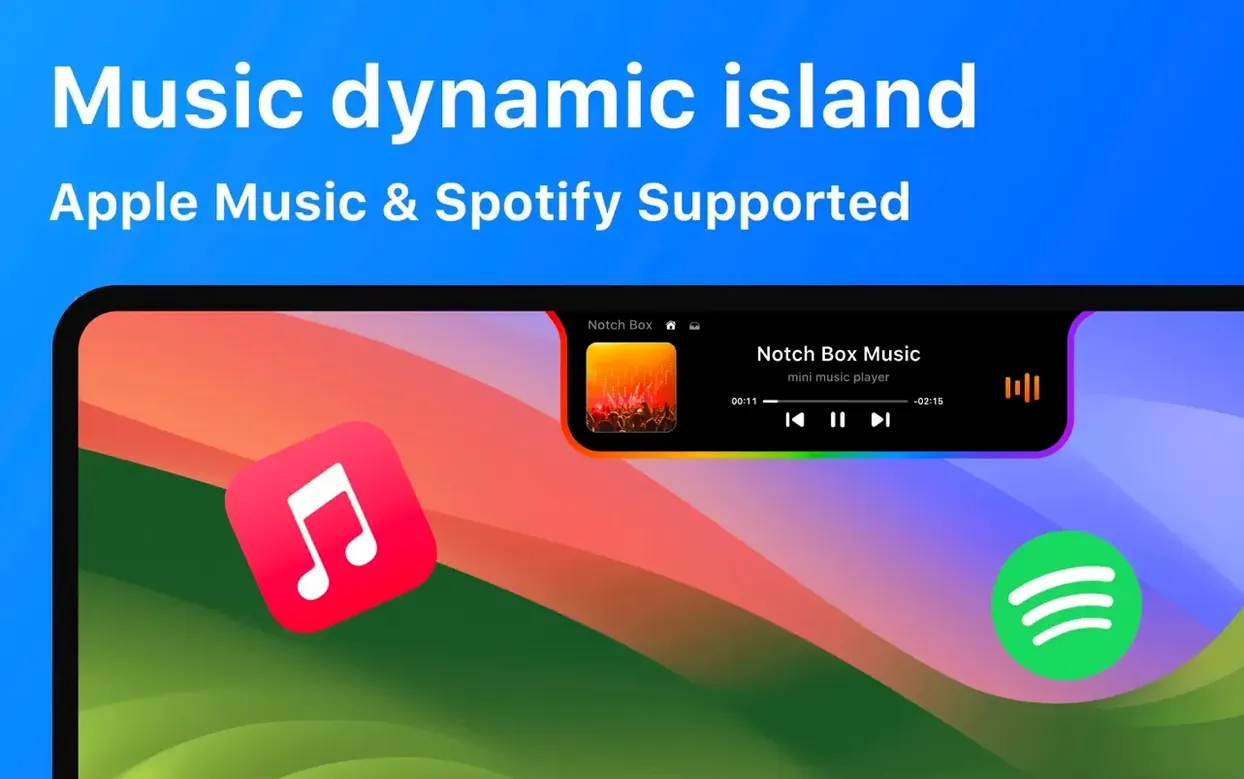
- Missing the music controls. Apple Music and Spotify integration is there, but it is not a full replacement for the Music or Spotify app. It handles play, pause, and track skip. Users who expect album art or playlist browsing inside the notch panel will be disappointed.
How NotchBox Fits with Other Apps and macOS Features
NotchBox does not try to replace Finder, the menu bar, or dedicated clipboard managers. It works best as a thin layer between them.
With Finder, the relationship is complementary. You still organise files in Finder; NotchBox handles the in‑transit moment — the five seconds between exporting a file and placing it somewhere. It is closer in spirit to a staging area than a file manager.
With AirDrop, NotchBox adds a visual drop target that the stock macOS interface lacks. Standard AirDrop requires you to right‑click a file, choose Share, and pick a device, or open an AirDrop Finder window. NotchBox turns the notch into a persistent AirDrop zone: drag a file there, and the transfer panel opens. It removes one step from the flow.
With Clipboard managers like Maccy or Paste, NotchBox does not compete on depth. It stores recent entries and lets you retrieve them quickly, but it does not offer search, pinning, or iCloud sync. Users who need those features often run both: a dedicated clipboard manager for archive and search, NotchBox for the last few items at a glance.
With music apps, the integration is lightweight. The notch shows the current track and gives you transport controls. It does not replace the full Apple Music or Spotify window, but it saves a trip to the Dock when you simply want to pause or skip.
With macOS Stage Manager, the utility fits naturally. Stage Manager hides the Desktop and reduces the visual weight of open windows. NotchBox gives you a small, always‑visible anchor for time, calendar, and file drops that does not compete with the Stage Manager strip on the left edge.
With menu bar utilities like iStat Menus
- macOS 13 or later
- Apple Silicon or Intel 64‑bit
Questions on file
Does NotchBox work on Intel Macs?
Yes. NotchBox supports both ARM and Intel 64-bit Macs running macOS 13 or later.
Sign in · Create an account to add a field note.
No field notes yet. A measurement, a version, a machine — they appear after moderation.