
Mac Apps
OK JSON - Viewer & Formatter 3.1.1
Mac AppsUpdated
| Requirement | On file |
|---|---|
| macOS | macOS 15 or later |
| CPU | Apple Silicon, Intel 64-bit |
| Download | 8 MB |
Version 3.0 rebuilt the text editor from the ground up. Syntax highlighting now works across the viewer, History, and Quick Look, and saved jq filters plus JSONPath queries stick around between sessions. Localisation also grew, adding Dutch, Italian, and Russian to the existing nine languages.
Instant JSON Previews Without a Code Editor
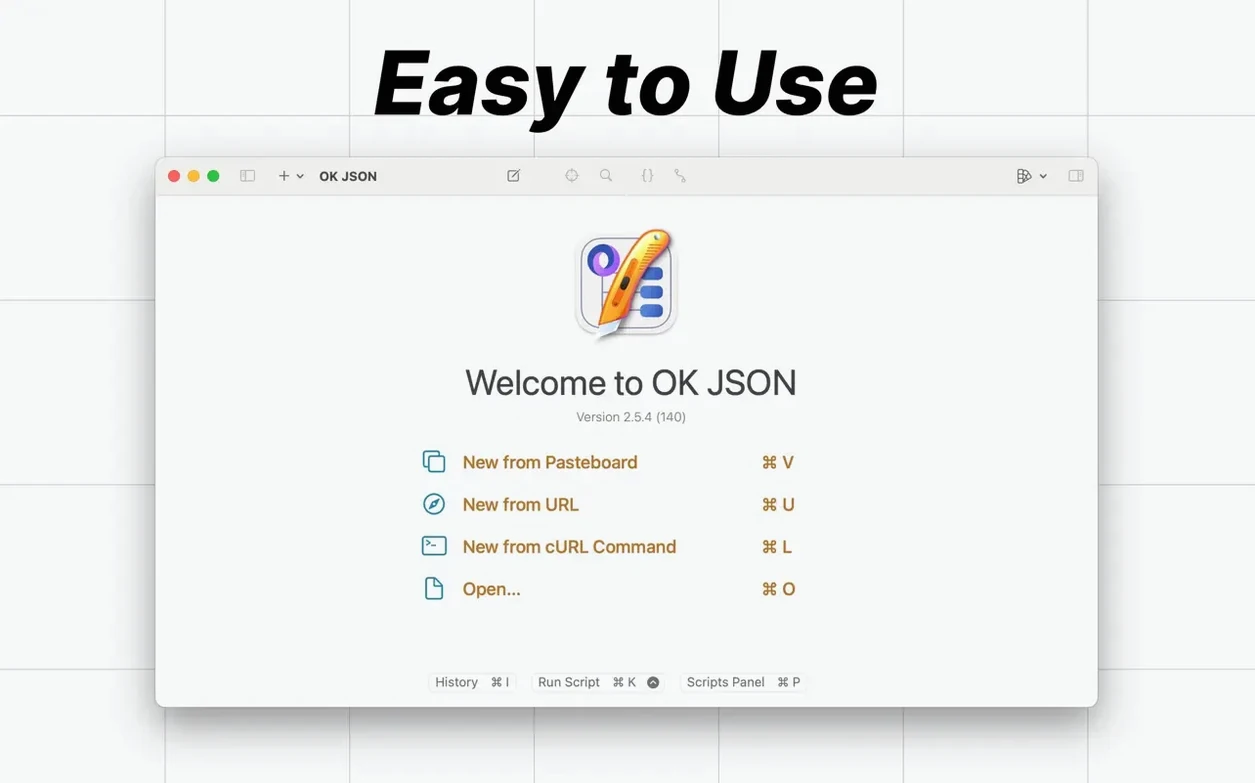
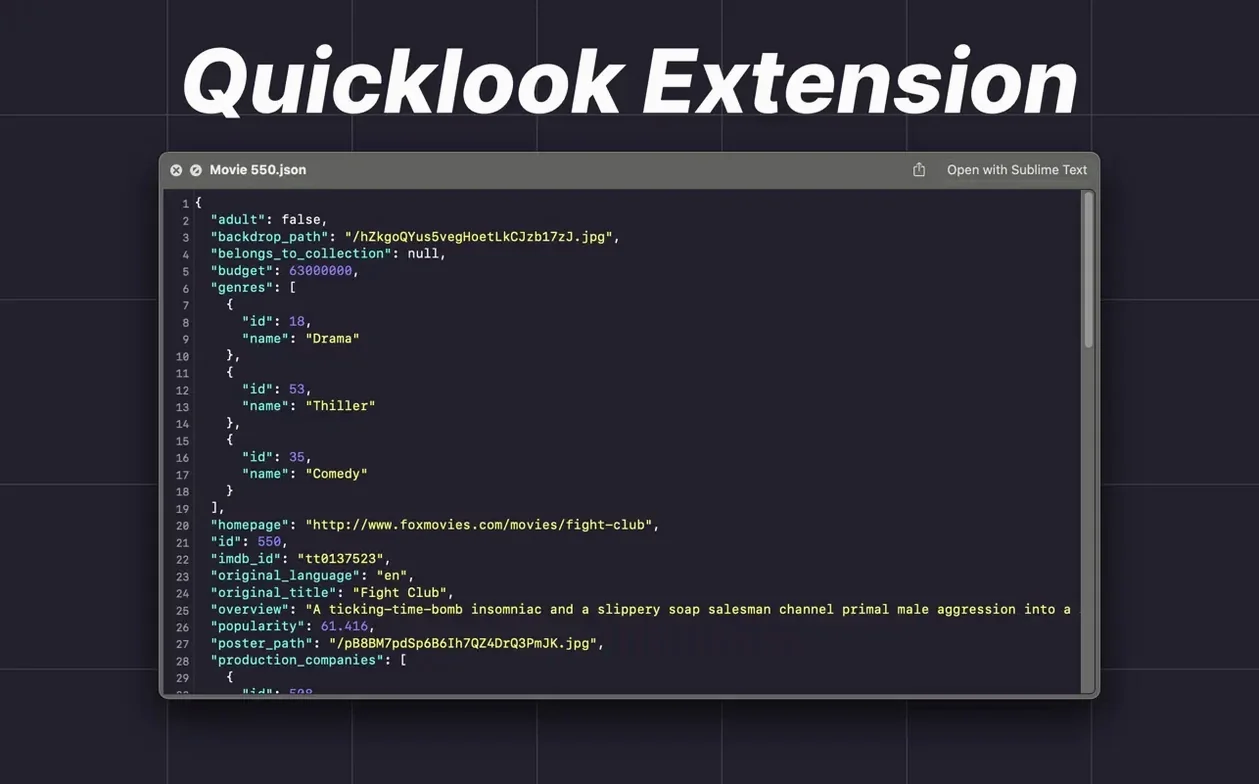
- Quickly inspecting a JSON file without launching a code editor — Quick Look integration or drag-and-drop gets you there.
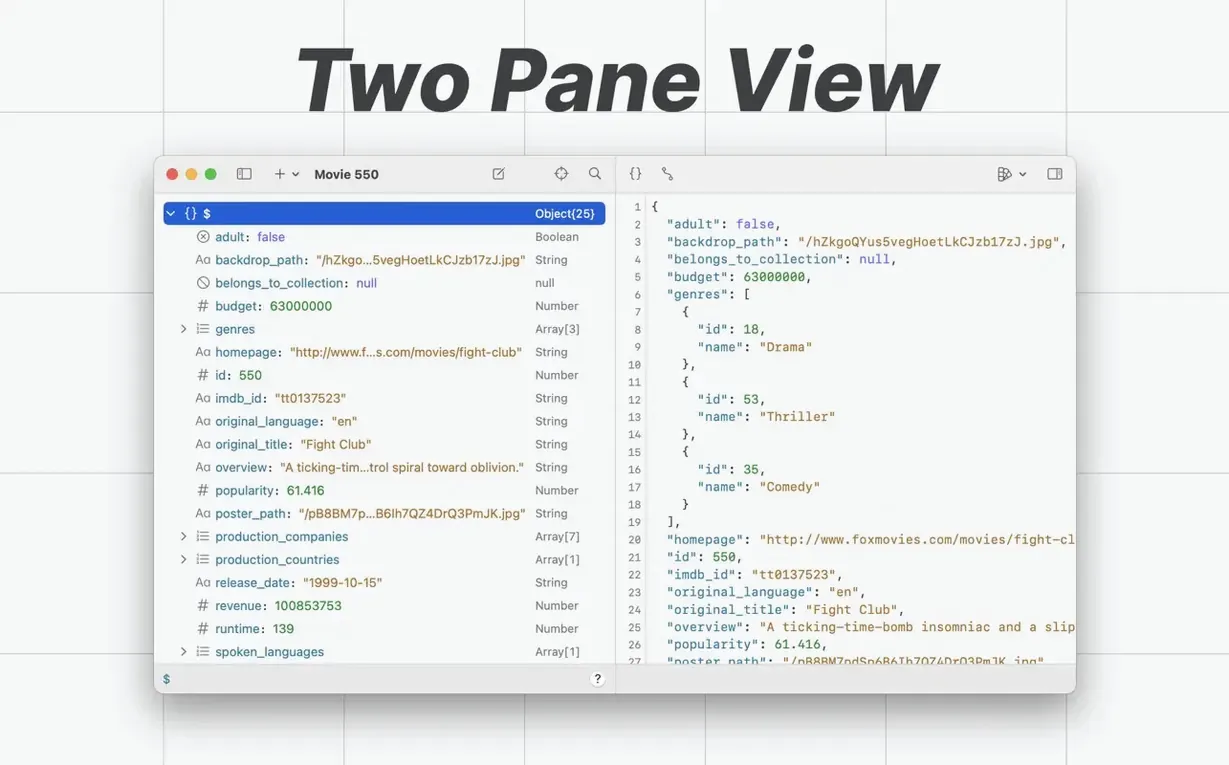
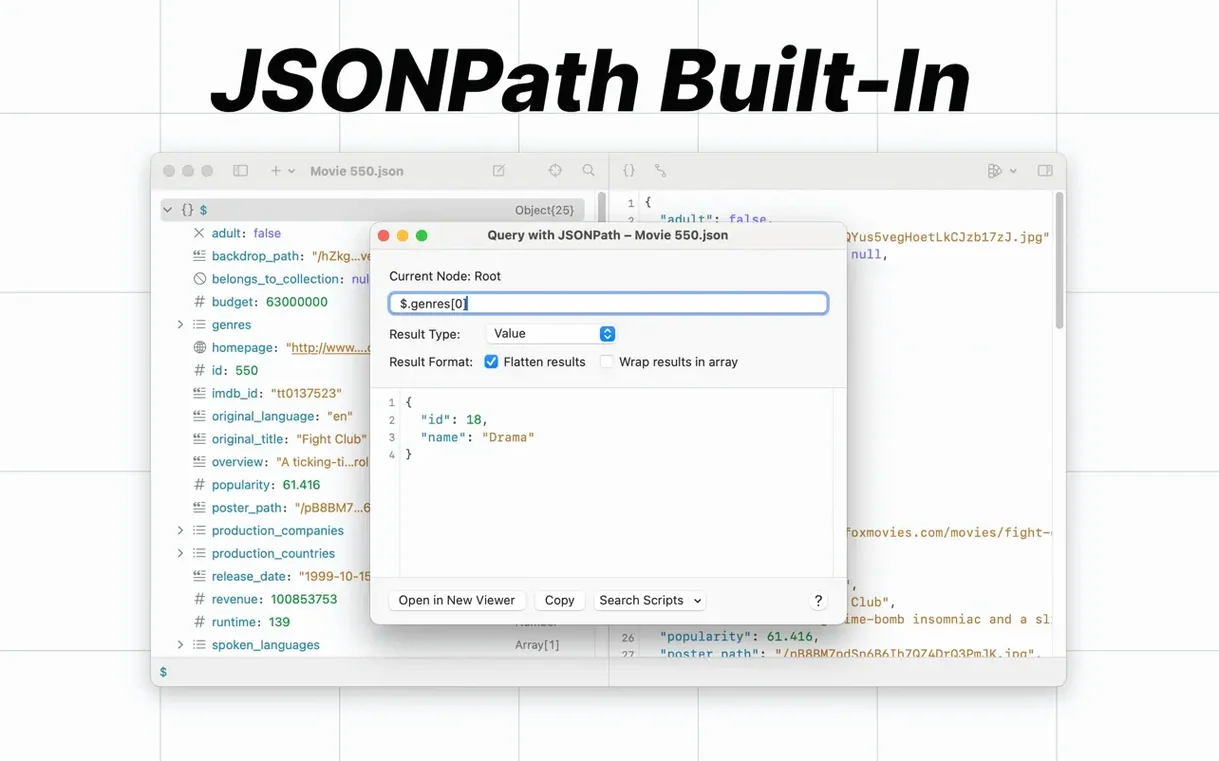
- Pulling out nested values with built-in JSONPath support instead of scrolling through thousands of lines.
- Opening plist files directly, which saves the extra conversion step when poking around macOS preferences.
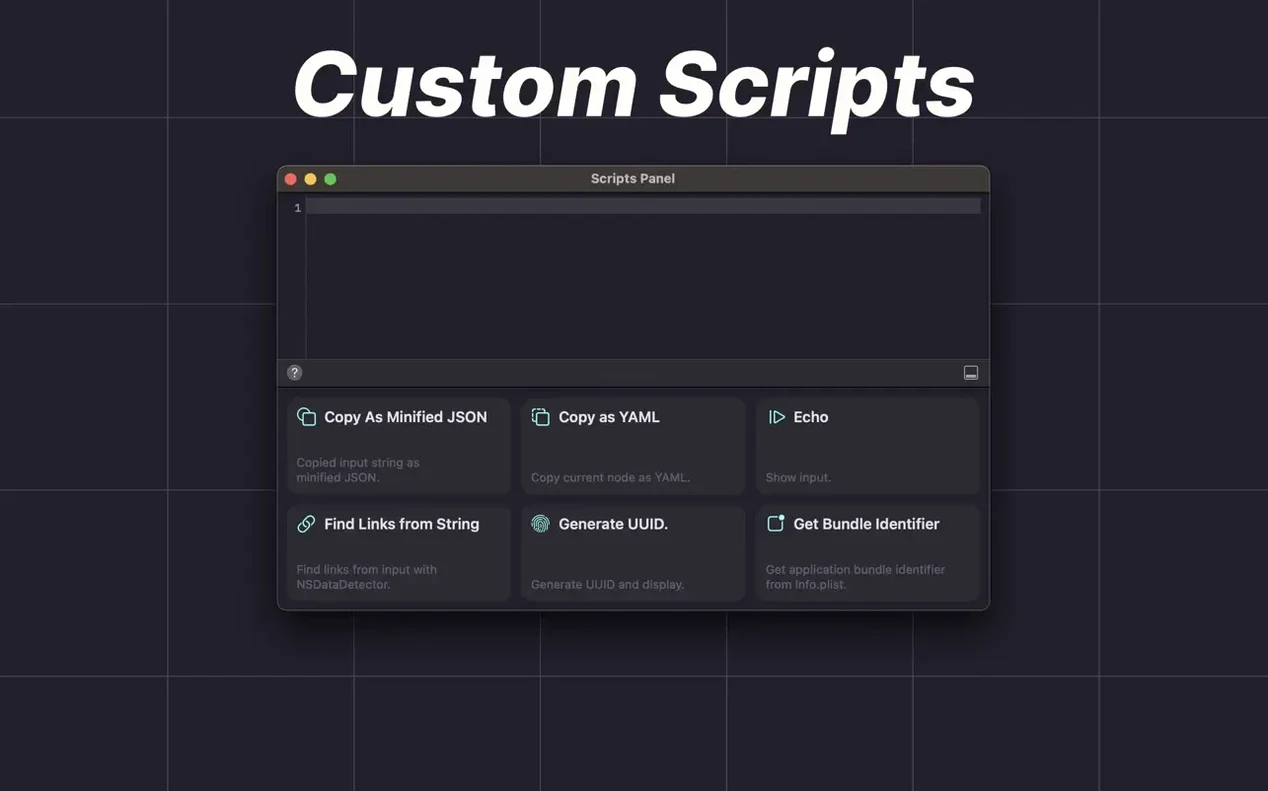
- Running custom processing scripts on JSON strings through JavaScriptCore, useful for one-off transformations that do not warrant a full script file.
- Firing commands from Raycast if that extension is already in your workflow.
macOS 15 Minimum and No Cross-Platform Builds
- Requires macOS 15 or later — older systems cannot run version 3.0.1.
- No Windows or Linux builds; this is a single-platform native app.
- JavaScriptCore scripts operate on the JSON string level, not on parsed objects, so complex structural changes need a different approach.
Strictly Local Processing With Zero Network Calls
One question that comes up repeatedly is whether the app phones home or collects any data. It does not. Processing stays entirely on your Mac — no analytics, no account, no network calls. If you work with sensitive payloads, that matters. Another common concern is file size limits. The 3.0 release specifically reduced memory pressure on large documents, and in practice files under 100 MB open without much ceremony. Beyond that, parse time depends more on structure depth than raw byte count. A 200 MB flat array of numbers opens faster than a 5 MB file nested ten levels deep.
People also ask about the jq integration — specifically whether it supports the full jq syntax or just a subset. The app bundles a complete jq 1.7 binary, so filters, functions, and modules all work as they would on the command line. The difference is that saved filters persist in the app's local database, so you can recall them across restarts without maintaining a separate dotfile. JSONPath queries get the same treatment: write one, name it, and it appears in the sidebar next time.
Some developers wonder whether the Quick Look extension conflicts with other JSON previewers. It registers for public.json and a few related UTIs, and macOS prioritises the most recently installed handler. If you already have a preferred Quick Look generator, launching OK JSON once and toggling the extension in System Settings settles the ordering.
A workflow: extracting data with JSONPath and jq
Suppose you have an NDJSON log file from a CI pipeline — about 80 MB across 40,000 lines — and you need to extract all build durations that exceeded 120 seconds, grouped by job name. You drop the file onto the app. The tree view opens with each line as a separate root node. Switching to the text view shows syntax-highlighted NDJSON, line numbers down the left gutter.
You try a JSONPath query first: $..jobs[*] to flatten the job objects across all lines. The result set appears in a split pane below, still in tree form. You notice the duration_seconds field sits two levels deeper than expected, so you refine to $..jobs[*].steps[*]. That gives you the step objects, but filtering by duration still means manual scanning.
You switch to the jq tab and type select(.duration_seconds > 120) | {job: .job_name, duration: .duration_seconds}. The output is clean and immediate. Since you will run this again on tomorrow's logs, you save the filter as "slow builds over 120s". Next time, selecting it from the saved list applies it before you finish dragging the file in.
Day-to-day behaviour
Launch time on Apple Silicon sits around one second cold, under half a second warm. The app uses roughly 80 MB of RAM at idle with a small file open, climbing to about 400 MB with a 150 MB JSON document fully expanded in tree view. That is modest compared to a full IDE under the same load. CPU use during parsing is brief — a single-core spike that lasts perhaps two seconds on a 50 MB file, then flatlines to near zero once the tree renders.
The Quick Look extension deserves a mention because it behaves like a system component. Pressing Space on a JSON file in Finder brings up syntax-highlighted, scrollable content inside the standard preview panel. No separate window, no launch delay, and it respects Dark Mode. When you deal with dozens of JSON files in a project folder, Quick Look eliminates most of the reason to open a dedicated viewer at all — at least until you need to query or export.
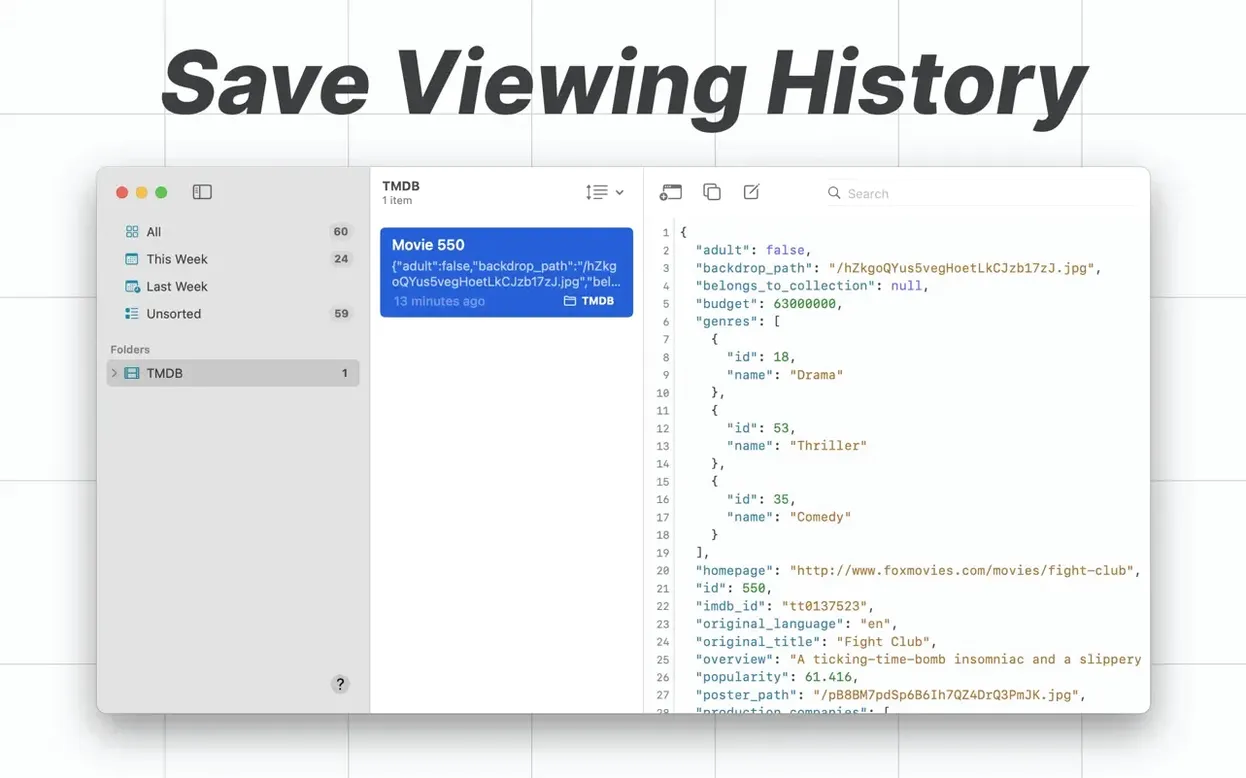
History persistence is backed by a local SQLite database stored in the app's container. Entries appear in reverse chronological order with a preview snippet and file path. Clicking any entry reopens the full document. The database grows slowly — around 2–3 MB after several months of daily use — and clearing it is a single button in preferences. No background process lingers after quitting; the app releases its memory promptly and does not install a launch daemon or helper.
- macOS: 15 or later
- Architecture: Apple Silicon, Intel 64-bit
Sign in · Create an account to add a field note.
No field notes yet. A measurement, a version, a machine — they appear after moderation.