Mac Apps
SSH Config Editor 2.6.12
Mac AppsUpdated
| Requirement | On file |
|---|---|
| macOS | macOS 14 or later |
| CPU | Apple Silicon, Intel 64-bit |
| Download | 9 MB |
Requires macOS 14.0 or later, runs natively on both Apple Silicon and Intel Macs. The editor manages the OpenSSH client configuration file—adding hosts, identities, and port forwarding rules through a native Mac interface rather than a text prompt. Version 2.6.12 is a maintenance release with no feature changes, which means the toolset you get today is the same one that has been building over the 2.6 cycle.
| Detail | Spec |
|---|---|
| Current version | 2.6.12 |
| macOS requirement | 14.0 (Sonoma) or later |
| Architecture | Apple Silicon, Intel |
| Interface language | English |
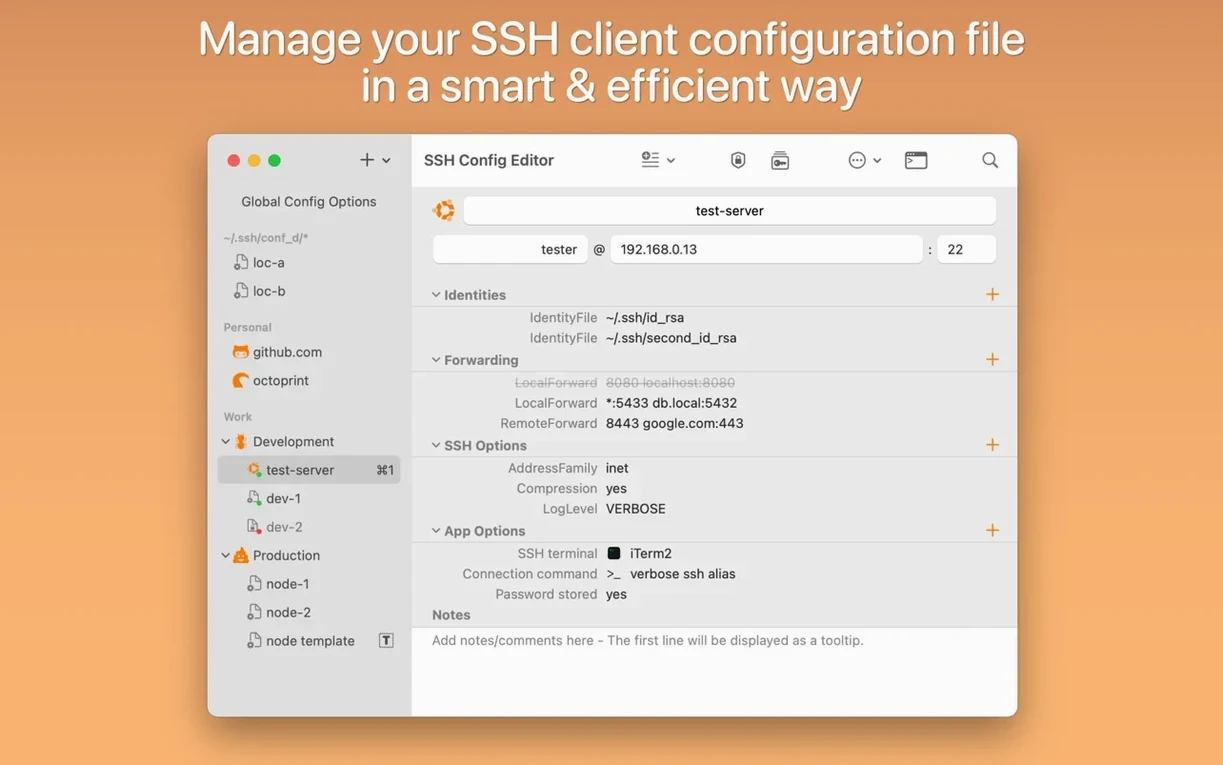
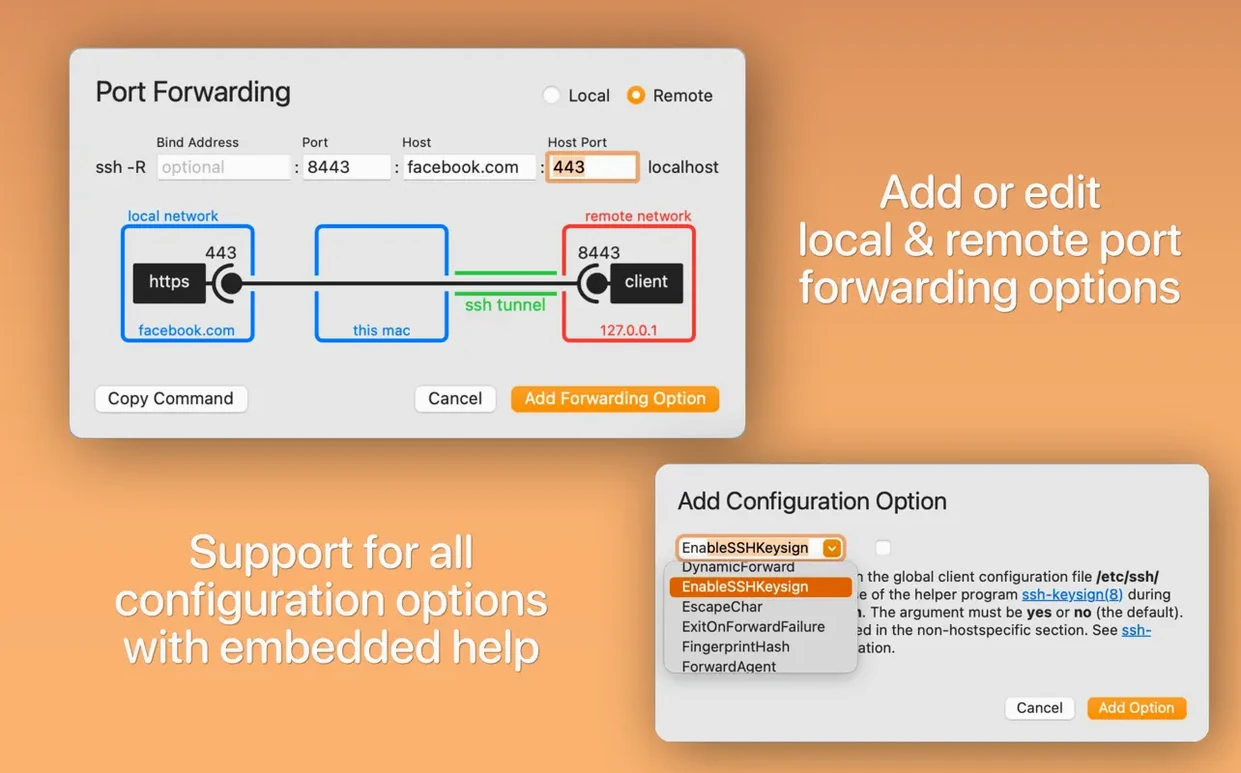
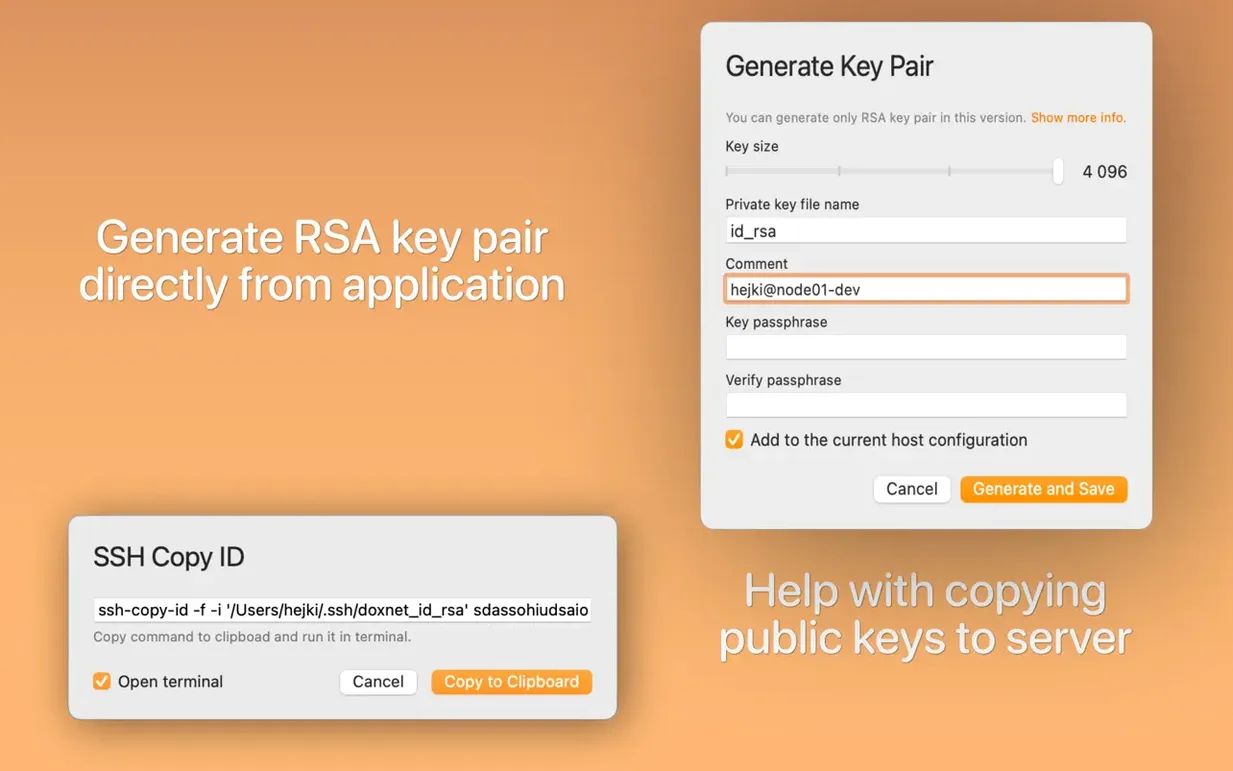
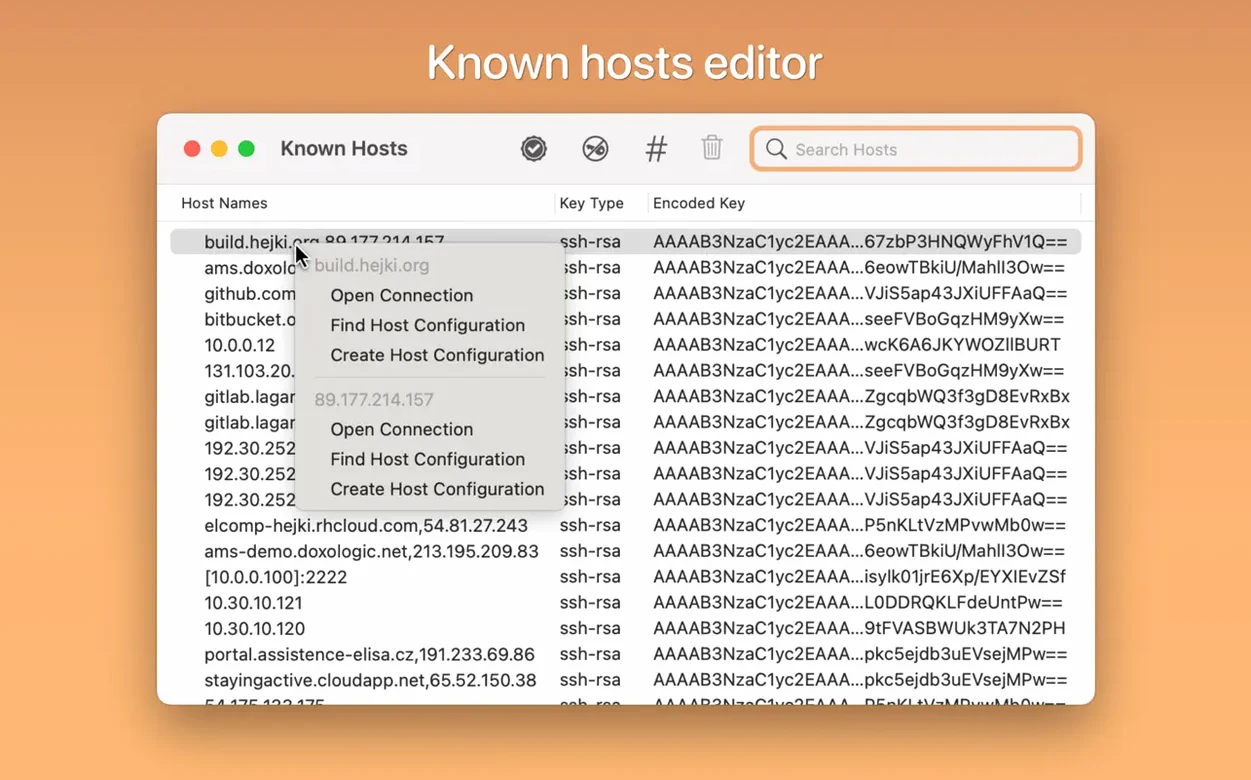
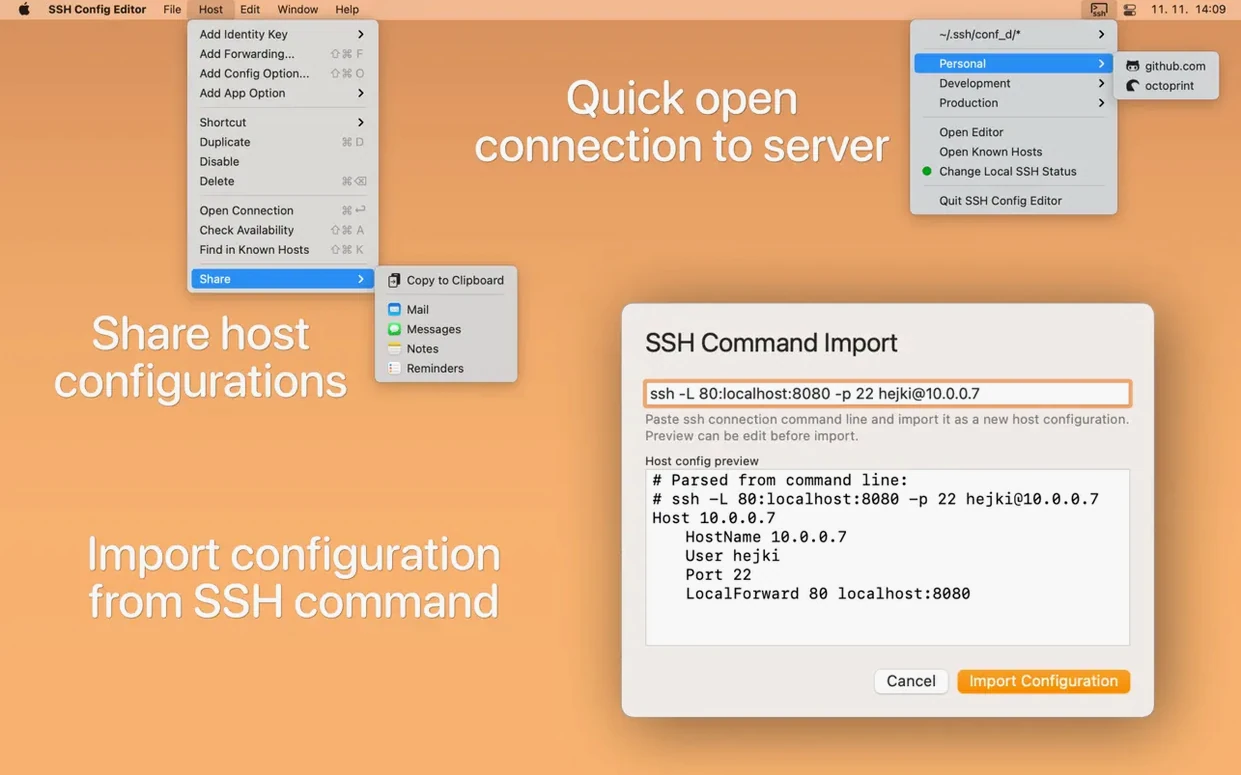
The editor treats each configuration block as a separate entry that can be grouped, disabled with a checkbox, or reordered without touching raw syntax. A graphical helper walks through local and remote port forwarding setups, reducing the chance of a mistyped directive. Identity files can be added or edited directly, and the app generates a ready-to-paste ssh-copy-id command for key deployment. Connection testing is built in: you can check an SSH port from inside the editor, or open a terminal session to a server from either the main window or the menu-bar icon. Dark Mode is supported.
Syntax Traps That Persist Despite Structured Fields
Most early errors with SSH Config Editor stem not from the app itself, but from the underlying config syntax it exposes. The editor prevents many of them through structured fields, yet a few patterns keep surfacing among people who treat it as a simple form-filler.
The biggest one is mixing up Host and HostName. The Host field is a label you type on the command line—ssh devbox—while HostName is the actual address the connection resolves to. Someone who enters an IP address into the Host field and leaves HostName blank will stare at a connection timeout with no obvious clue why. The editor does not force a HostName value because a wildcard pattern is legitimate, but the confusion is predictable.
Another common slip: adding an identity file without checking that its permissions are restrictive enough. OpenSSH will silently reject a key file with group or world-readable bits set. SSH Config Editor can point to the file and even generate the key pair, but it cannot repair filesystem permissions outside its own sandbox. A chmod 600 ~/.ssh/mykey in Terminal is still required when the key was created or copied by other means.
Port forwarding triples get botched regularly. The graphical preview clarifies direction, but a beginner sometimes swaps the local and remote bind addresses. Setting up a remote forward to localhost:3306 and expecting it to reach a database on their own machine is a classic—the remote end resolves localhost as itself, not as the client. The app's help text mentions this, but people skip it.
Ignoring the group feature is a quieter missed opportunity. New users often dump every host into a flat list, then scroll past thirty entries whenever they need the menu-bar quick-connect. Grouping by project, client, or environment—and collapsing the groups that are not active—turns the menu from a wall of text into something actually scannable.
The Narrow Band Between Text Editor and Connection Manager
Three alternatives tend to come up: editing ~/.ssh/config in a general-purpose text editor, using Termius, or using Royal TSX. They serve different philosophies, and SSH Config Editor occupies a narrow band between raw configuration and full-blown connection management.
VS Code or Sublime Text with the config file open. A text editor gives full control and syntax highlighting if you install the right plugin. What it lacks is structural awareness—there is no validation that a HostName directive actually sits inside a Host block, no graphical port-forwarding preview, and no key-generation pipeline. SSH Config Editor does not replace a text editor for bulk find-and-replace, but it eliminates the class of bugs where indentation or a missing directive name breaks a block silently. For someone who maintains more than five hosts, the structured view pays off within a week.
Termius. Termius is a cross-platform SSH client with its own host database, syncing, and a terminal built in. It can import from OpenSSH config files, but it does not treat the config file as the source of truth—it treats its own internal store as primary. SSH Config Editor takes the opposite approach: the config file is the truth, and the app is a window onto it. This matters for anyone who shares their config via dotfiles repositories, uses Ansible to deploy it, or wants tool-agnostic portability. The editor also handles port checking and ssh-copy-id generation, which Termius does not do from its config panel.
Royal TSX. Royal TSX is a heavyweight connection manager that handles RDP, VNC, and web interfaces alongside SSH. Its configuration lives in its own document format, not in ~/.ssh/config, and the feature set extends to credential vaults and team sharing. SSH Config Editor does none of that, but it also does not require learning a proprietary document model. For a sysadmin who already has an established SSH config and wants it more readable, the editor slots into an existing workflow without migration. Royal TSX asks you to adopt its ecosystem.
The distinguishing point is this: SSH Config Editor is the only one of the three whose output is a plain text file that any SSH client can consume. It adds structure, helpers, and a menu-bar launcher, then gets out of the way.
Checkbox Toggles That Speed Up Iteration
Several details are easy to overlook after the first launch, and they collectively change how fast the app feels day-to-day.
Disabling a configuration option without deleting it. Each directive has a checkbox next to it. Uncheck it, and the line stays in the config file but is commented out with a hash. This is useful for temporarily disabling a jump host or a port forward rule while troubleshooting, without losing the values you had dialled in. Re-checking the box restores the directive exactly as it was.
Quick port check from the host list. Right-click any host entry and select the port-check option. The app sends a TCP probe to the HostName and port defined in that block and reports whether the socket opened. It is not a full SSH handshake, but it is faster than opening a terminal and typing nc -zv yourself. This works from the main window and from the menu-bar dropdown.
Menu-bar connection launcher. The menu-bar icon is not just a shortcut to the app window. It lists every configured host—grouped if you have set up groups—and clicking one opens a Terminal session directly. No dock icon, no window-switching. Holding Option while clicking opens the host in the editor instead of connecting, which saves a trip through the full app interface when you only need to tweak one parameter.
ssh-copy-id command generation. In the identity-file section, selecting a public key and choosing the copy-id option puts a fully formed command onto the clipboard, with the target host and key path filled in. The command is not executed automatically—you paste it into a terminal—but the syntax is correct every time, which eliminates the common error of pointing ssh-copy-id at a private key by mistake.
Search-as-you-type in the host list. The main window has a filter field at the top. It matches against Host aliases and HostName values simultaneously, so typing 10.0 finds every configuration block that references an address on that subnet, regardless of how the Host label is worded.
Bastion-Host + Port Forward in One End-to-End Flow
Here is a task that combines several SSH Config Editor features into one end-to-end flow: configuring access to a PostgreSQL instance on a private subnet, reachable only through a bastion server.
1. Create the bastion host entry. Click the add-host button and fill in Host as bastion-prod, HostName as the public IP of the jump box, and User as ec2-user. Attach the identity file you use for the bastion by dragging it into the identity section or browsing from the file picker. Save the entry.
2. Create the target database host entry. Add a second host named db-prod. Set HostName to the private IP of the database server—10.20.30.40 in this example. Set User to postgres. This entry does not need its own identity file if the bastion forwards your local key, but you can attach one if key forwarding is not enabled.
3. Add the proxy jump directive. In the db-prod entry, open the SSH options helper and locate ProxyJump. Enter bastion-prod as the value. The editor writes the directive as ProxyJump bastion-prod, which tells SSH to route the connection through the first host before reaching the second.
4. Configure local port forwarding for the database port. Still on the Yes. Individual configuration entries can be toggled off with a checkbox, keeping the block in the file but inactive until re-enabled. It provides a graphical helper for adding local and remote port forwarding options, which writes the correct directives into the configuration file. Sign in · Create an account to add a field note. No field notes yet. A measurement, a version, a machine — they appear after moderation.db-prod entry, open the port forwarding helper. Choose Local direction. Set Listen address to localhost, Listen port to 5433 (a local port that does not conflict with a local Postgres install), Target host to localhost, and
Questions on file
Can SSH Config Editor disable a host block without deleting it?
Does the editor help with port forwarding setup?