Mac Apps
Sidebar 2.2.8
Mac AppsUpdated
| Requirement | On file |
|---|---|
| macOS | macOS 12 or later |
| CPU | Apple Silicon, Intel 64-bit |
| Download | 15 MB |
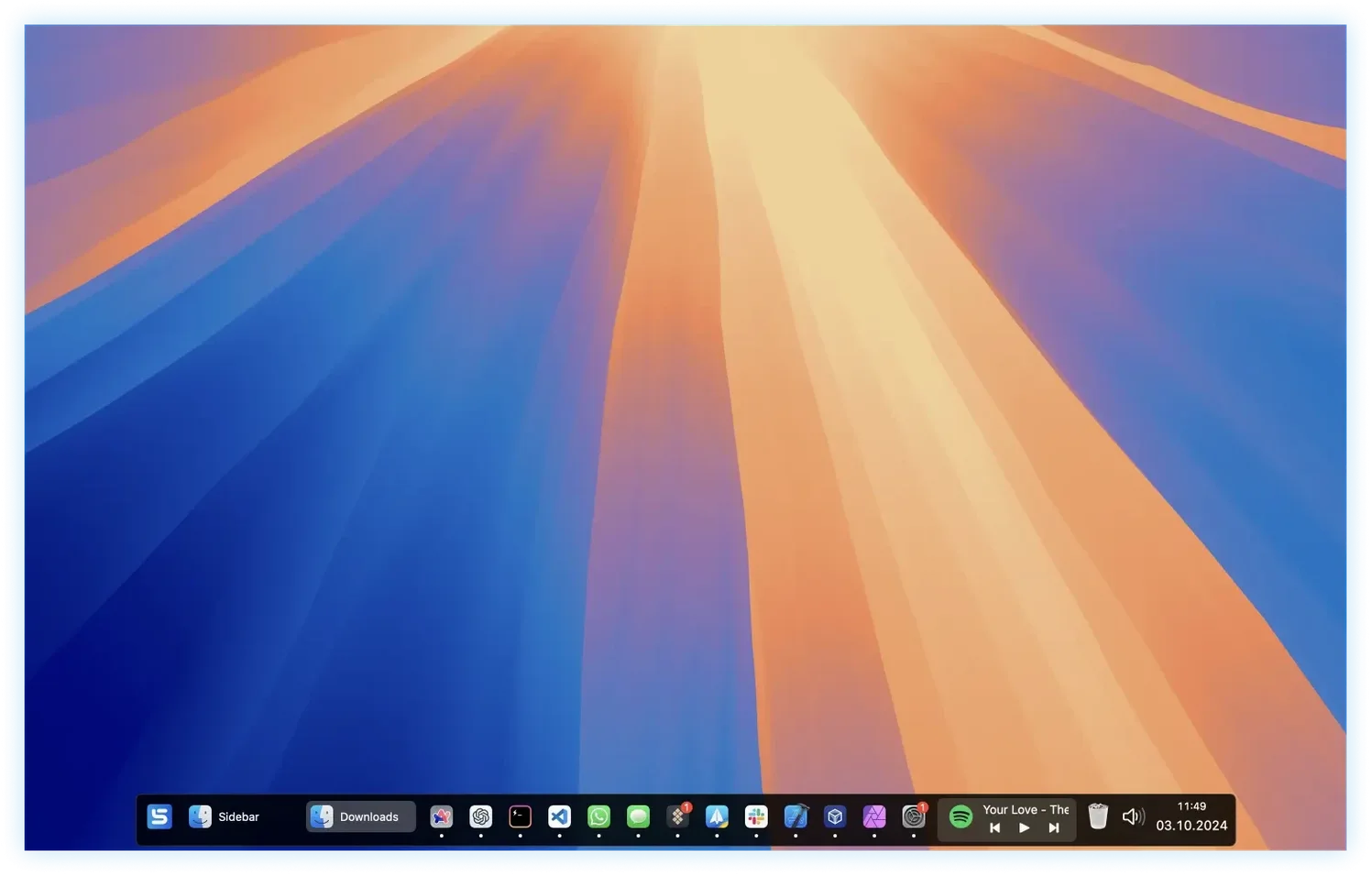
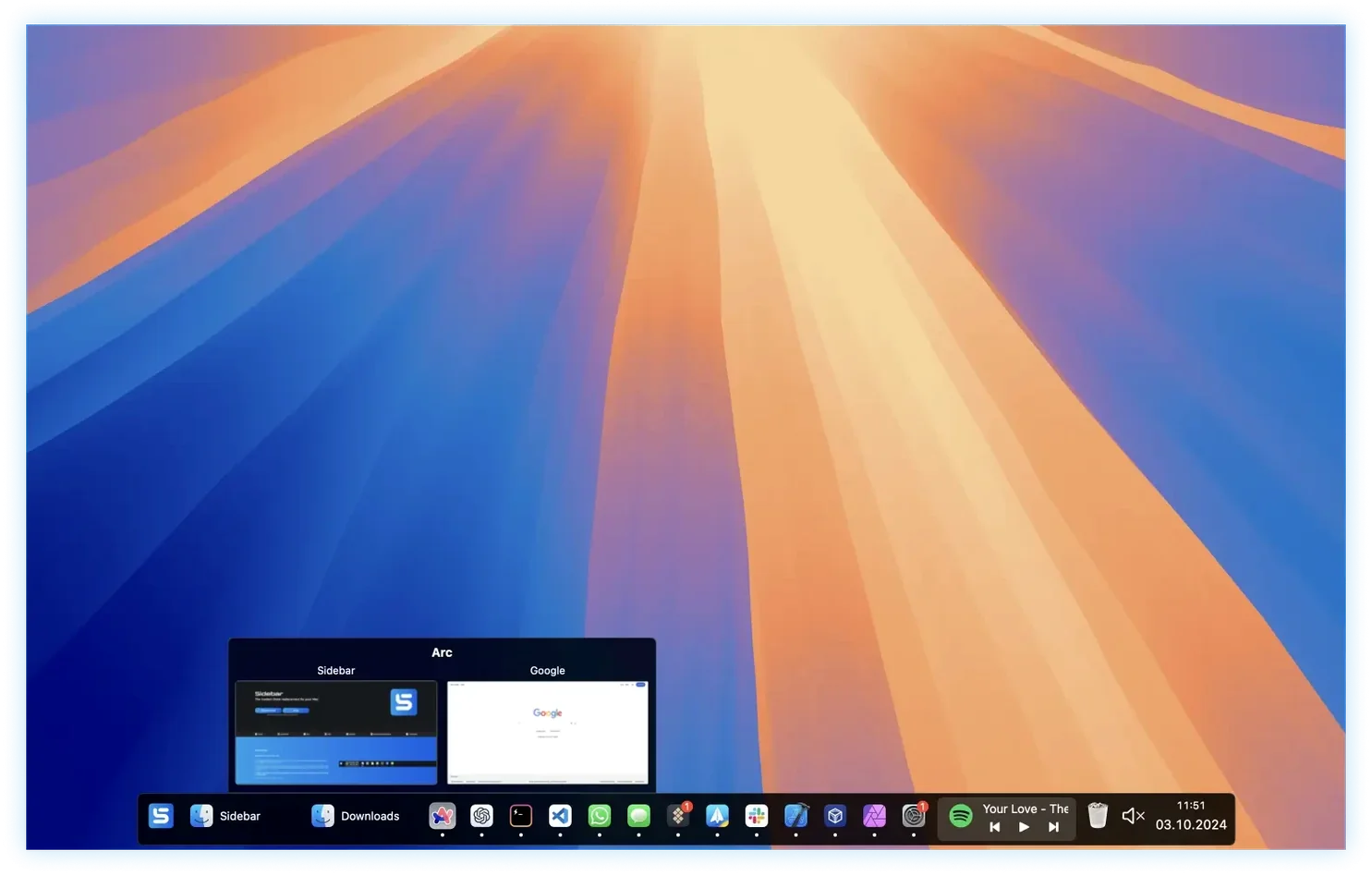
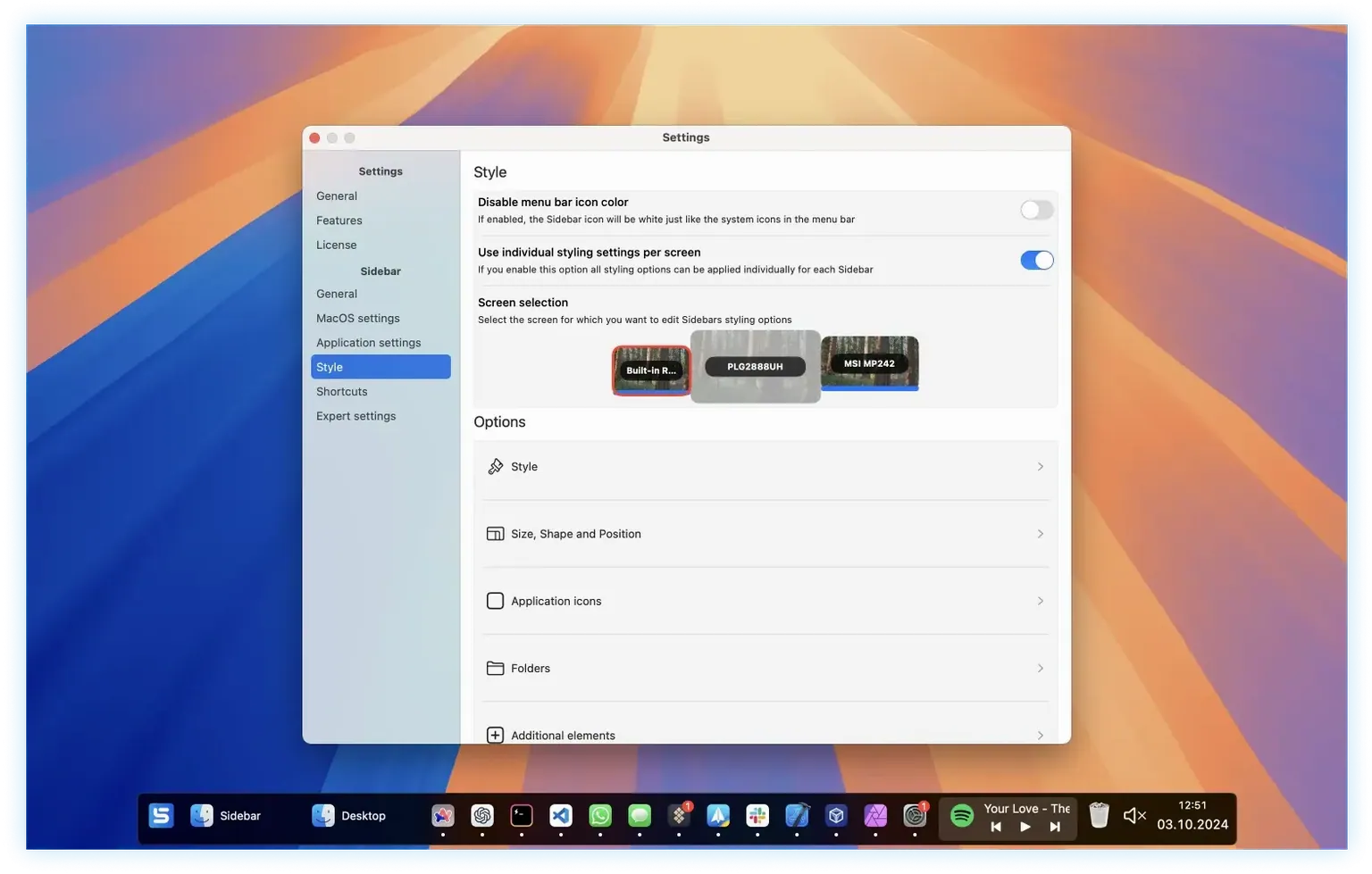
You plug a second monitor into your MacBook, arrange a few terminal windows, and realise the Dock is stranded on one screen while your panel stretches uselessly across the bottom of the other. Sidebar 2.2.5 steps into that gap. It parks a vertical control strip on any display edge, keeps app windows from overlapping it, and puts calendar, Trash, and keyboard-triggered stacks within a short cursor flick.
Multi-Screen Setups Missing a Dock
- Multi-screen setups where the native Dock sits on one display and leaves the others bare.
- Keeping a calendar visible while you work — the sidebar embeds a month view you can glance at without opening a separate app.
- Assigning global shortcuts to apps so a keystroke brings a specific tool to the front, regardless of the current Space.
- Grouping related apps and folders into stacks that expand on click, cutting down sidebar clutter.
- Reserving screen real estate so maximised windows stop flush against the sidebar instead of sliding behind it.
English-Only Dock Replacement
- Sidebar is designed as a Dock replacement — you will likely want to auto-hide the macOS Dock to avoid duplicate controls.
- The interface language is English only.
- System muting is a single click away, which is handy during screen shares but easy to hit by accident if you place the control prominently.
Side by side with other Mac launchers
A few apps compete for the same screen edge. uBar takes the Windows taskbar approach — horizontal, per-app progress bars, notification badges. It fits people who want a dense strip of running-app tiles with text labels. Sidebar goes vertical and adds calendar, Trash, and system controls directly into the panel. If you work on a 16:10 laptop screen, reclaiming vertical pixels matters; Sidebar shifts the controls to the left or right edge and keeps the full height for documents.
DragThing, long abandoned, let you build floating tabbed palettes anywhere. Sidebar inherits some of that spirit — per-screen configuration, reserved space, stacks — but adds modern macOS integration: window previews on hover, media playback controls, and a calendar widget that draws from the system calendar. DragThing never reserved screen space automatically; Sidebar pushes windows aside so nothing hides behind the panel.
Compared with the stock Dock, the difference is screen count. The Dock pins itself to one display and calls it done. Sidebar appears on every screen you assign it to, with independent contents per display. The Dock handles file drag-to-open; Sidebar handles that plus hover window previews and quick mute. The trade-off: Sidebar demands a few minutes of setup per display, where the Dock ships ready.
Snap-Back Fix for Asymmetric Displays
Version 2.2.5 shipped with stability fixes for multi-monitor arrangements where one display runs a different resolution or scaling factor. Earlier builds could misplace the sidebar after waking from sleep on an asymmetric setup; 2.2.5 snaps it back to the correct edge within a second of login.
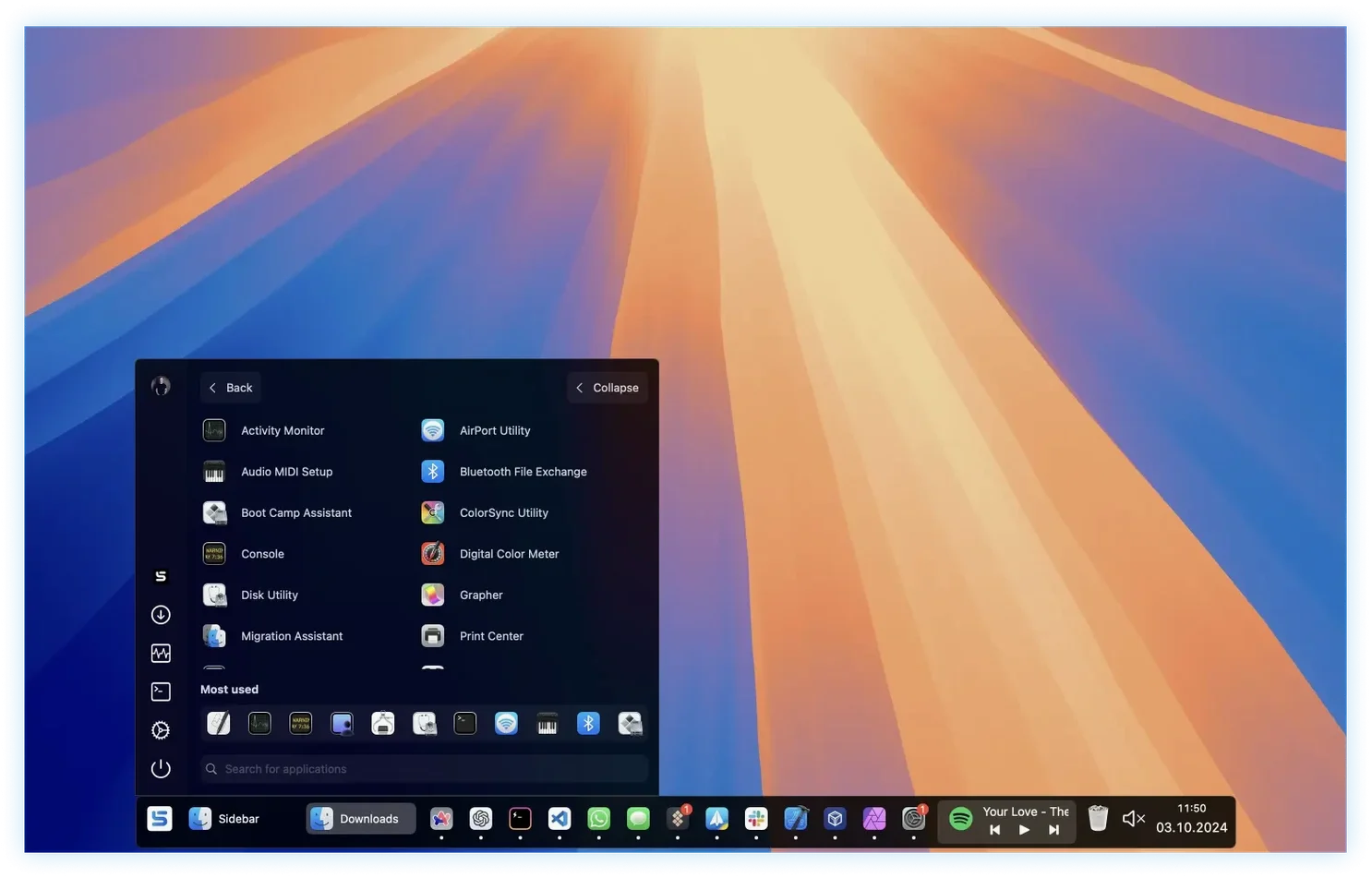
The 2.2.6 update — listed in the changelog — adds a System Controls widget. That pulls display brightness, keyboard backlight, and other toggles into the sidebar panel itself. Before this, Sidebar handled volume and mute only. The new widget means you can dim the screen without reaching for a keyboard function key or opening Control Centre, which helps on a Mac mini paired with a third-party display or a mechanical keyboard that lacks dedicated brightness keys.
Stacks also got tighter in the 2.2.x cycle. Earlier versions expanded a stack on click but left it open until you clicked again. The current behaviour closes a stack automatically when you click outside it or launch something, trimming one extra click from every stack interaction.
Workflow: building a multi-display writing setup
Imagine a Mac Studio driving a 27-inch main display and a vertical 24-inch side monitor for reference material. The goal is a sidebar on each screen, tuned to the work that happens there.
- On the main display, open Sidebar preferences and set the panel to the left edge. Tick Reserve screen space so your writing app — say, Ulysses — fills the remaining width without hiding behind the sidebar. Add a Calendar widget near the top, the Trash icon near the bottom, and a media playback control in the middle to manage background music from the panel.
- On the vertical monitor, set a separate sidebar instance to the bottom edge. Reserve screen space here too. Populate it with a Stacks folder containing Preview, a PDF reader, and a dictionary app — all reference tools. Add the new System Controls widget (if on 2.2.6) for quick brightness adjustment on that display.
- Assign shortcuts:
⌃⌥1for Ulysses,⌃⌥2for the dictionary. With those bound, switching context requires no mouse travel to either sidebar. - Auto-hide the macOS Dock in System Settings so only the sidebars appear. The result on the main display is a clean writing surface with a thin vertical command strip; on the side monitor, a low-profile reference bar that does not eat into the tall vertical document space.
Hovering over Ulysses in the main sidebar shows a preview of each open sheet — project notes, the current chapter, a scratchpad — so switching between them is a single click on the preview tile. When a screen share starts, one tap on the mute button kills the mic without hunting through the menu bar.
The whole arrangement adapts per-display: disconnect the vertical monitor, and only the main sidebar remains, still on the left edge, still reserving its slice of screen. Reconnect it and the reference bar reappears on the bottom edge automatically.
- macOS 12 or later
- Apple Silicon or Intel 64-bit processor
Questions on file
Can I run an app directly from Sidebar without the Dock?
Yes — Sidebar can launch any application from its panel, and you can assign a keyboard shortcut to open it instantly.
Sign in · Create an account to add a field note.
No field notes yet. A measurement, a version, a machine — they appear after moderation.