
Mac Apps
Screens 5 5.9.3
Mac AppsUpdated
| Requirement | On file |
|---|---|
| macOS | macOS 14 or later |
| CPU | Apple Silicon, Intel 64-bit |
| Download | 36 MB |
macOS 27 Support and a New Siri Shortcut Action
Edovia added support for the latest operating systems — macOS 27, iOS 27, iPadOS 27 and visionOS 27 — alongside a new Siri and Shortcuts action called Connect to Computer with Screens. A Quick Connect widget and custom grid ordering for saved connections round out the update.
Getting Connected: A Typical Workflow
- Install Screens Connect on the target computer. This free helper utility runs on the Mac, Windows or Linux machine you want to reach. It registers the computer with your account and keeps the address current when network details shift.
- Set up a password or use your Mac login. On a Mac, you can grant access through System Settings > Sharing > Remote Management. Screens can also connect over SSH to Linux and Raspberry Pi boxes.
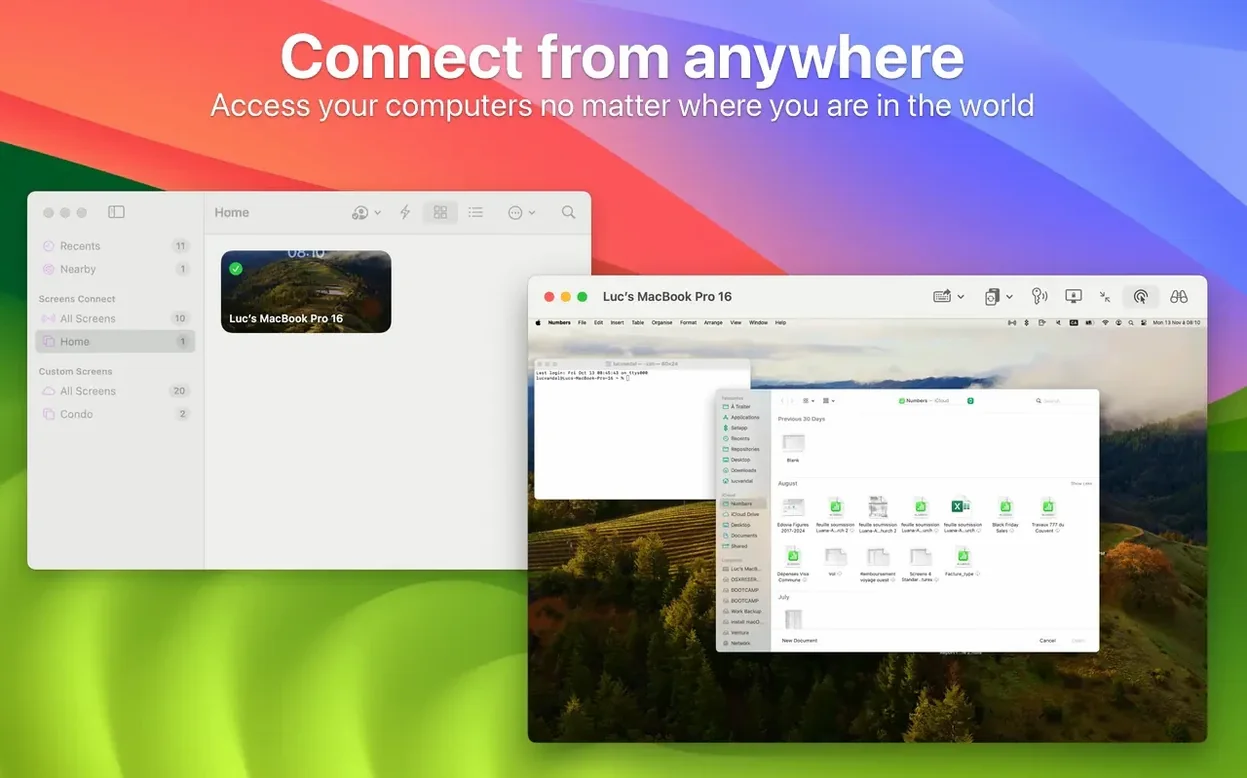
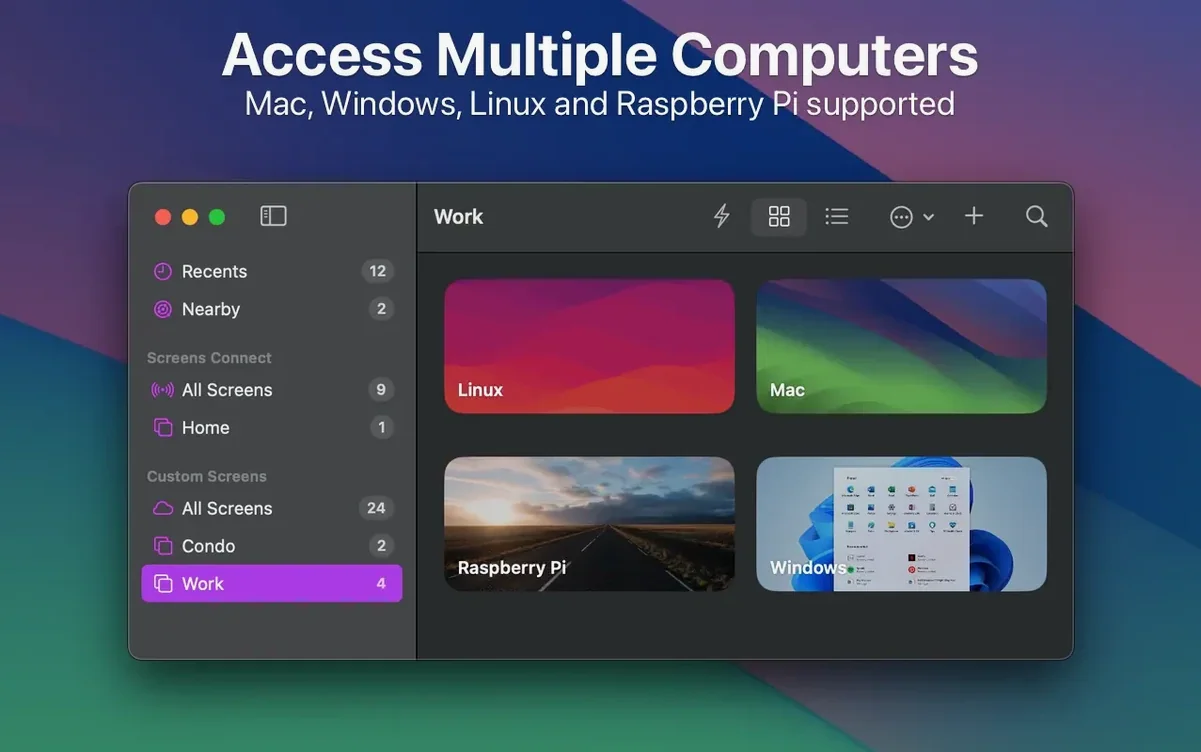
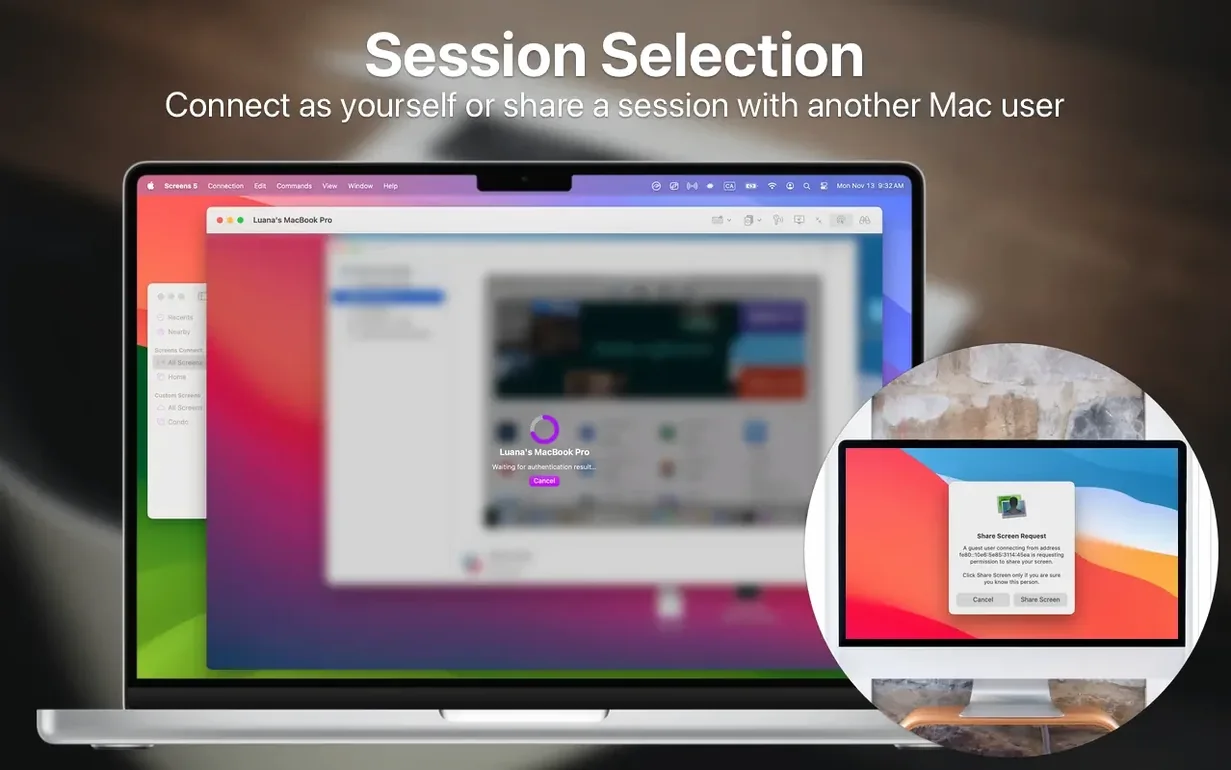
- Add the connection in Screens 5. The app discovers local machines automatically. For computers outside your network that run Screens Connect, simply sign into your Edovia account inside the app and they appear in the sidebar.
- Choose observe or control mode. Observe gives you a view-only window; Control hands you the keyboard and mouse. Flip between them anytime from the toolbar.
- Organise saved sessions. Drag connections into custom groups and arrange them in any order — the 5.9.2 update lets you reorder by dragging tiles right on the grid.
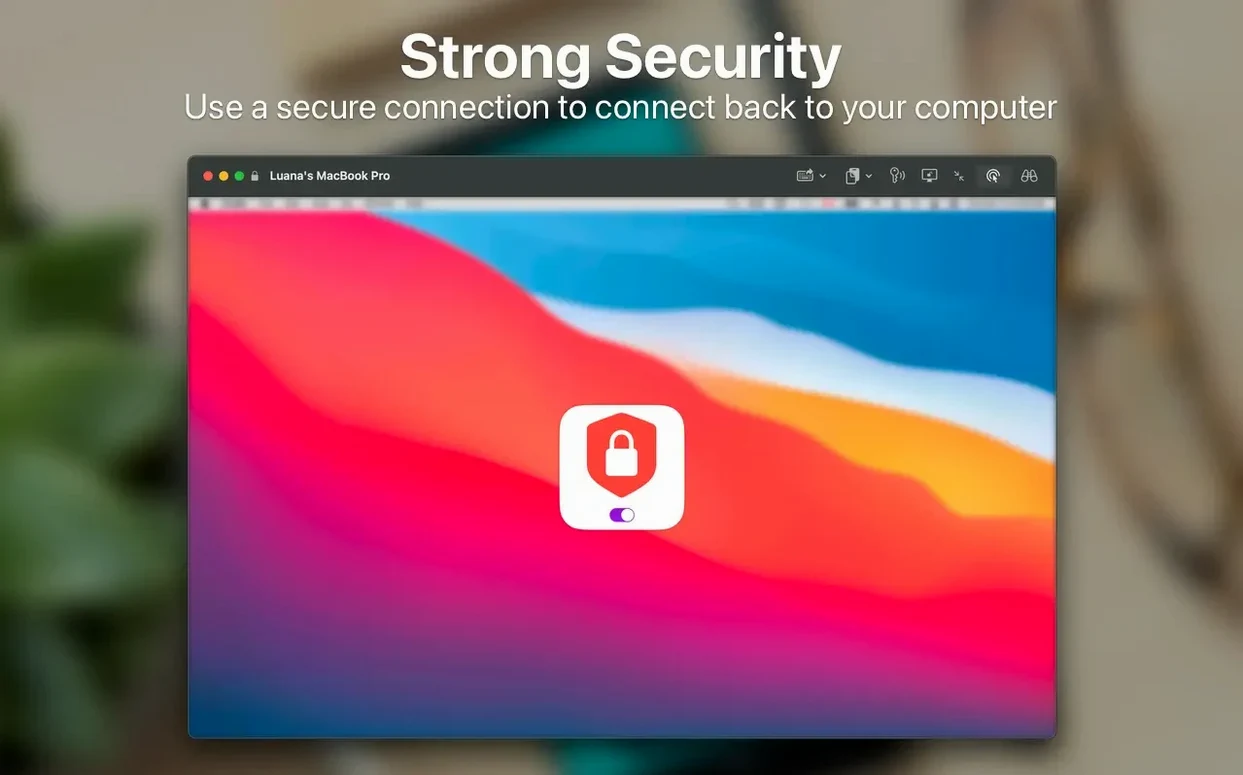
Once connected, the shared clipboard moves text, links and images between the local and remote machine. If the host has multiple displays, you can pick which one to show or switch mid-session. Active corners work on the remote Mac just as they do locally, and you can queue commands — sleeping the computer or logging out — that fire when you disconnect. The connection runs through a secure channel, whether you are on the same LAN or accessing a machine from the other side of the world.
One Connection Pathway at a Time
Leaving both Screens Connect and the built-in macOS screen sharing enabled simultaneously produces unpredictable port conflicts. Pick one pathway — Screens Connect for internet access, or the local Bonjour discovery for same-network work — and disable the other on the target Mac to avoid authentication loops.
Another common slip: entering the Mac account password instead of the Screens access password set under System Settings. A macOS user account password can work when VNC is properly configured, but a dedicated Screens password, set once in the Sharing pane, sidesteps keychain prompts that block the connection window.
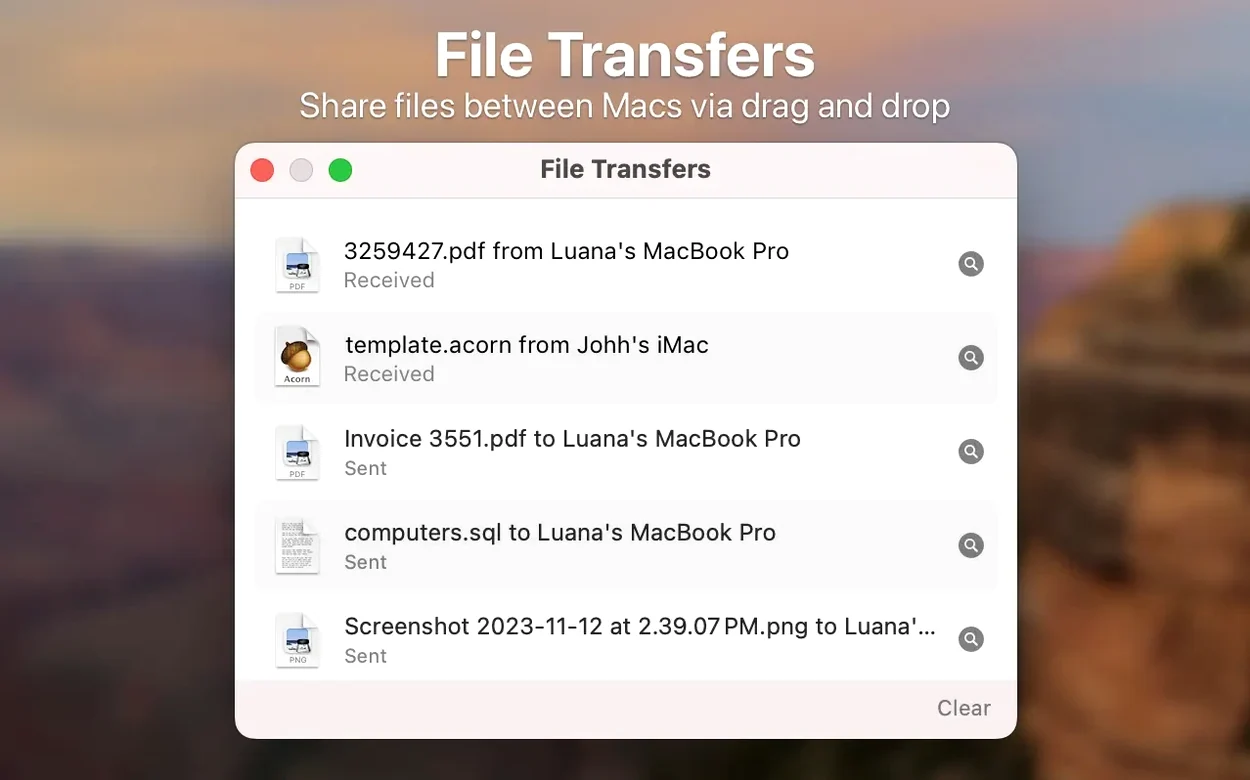
Beginners also overlook display selection when the host has more than one monitor. The default view grabs all displays as a single wide canvas, which is barely readable on a 14-inch MacBook Pro. Tapping the display icon in the toolbar and picking a single screen immediately sharpens text and cuts bandwidth use by half or more. Finally, people who drag a file from the remote Finder to the local desktop without waiting for the transfer progress bar to clear often end up with truncated copies — Screens 5 uses a pull-then-copy model, so closing the window too early aborts the operation.
Turn Your Desktop Into a Headless Server
Mac users who split time between a desktop workstation and a laptop form the core audience. The app turns an iMac in the office into a headless server reachable from a MacBook Air on the road, no VPN tunnel required. The adaptive quality engine adjusts compression on the fly, so even a hotel Wi-Fi connection stays usable for text editing and terminal work.
People providing informal tech support to family members benefit from the Screens Express companion. The remote person launches Express, reads out a short session code, and the helper gains a single-session control window — no account setup, no password exchange, no leftover access after disconnection. It is a cleaner handshake than walking a relative through System Settings over the phone.
Developers and tinkerers running headless Raspberry Pi units or Linux servers also extract real value. SSH key support means you can bypass password entry entirely for trusted machines, and the URL scheme lets you embed connection triggers in scripts or launcher apps. The Quick Connect widget added in 5.9 trims the process further: one click from Notification Centre opens the last-used host without opening the main app window first.
Window Dragging Stays One Frame Behind
On a local gigabit network, latency is perceptibly lower than most VNC-based alternatives — dragging a window on the remote desktop feels roughly one frame behind the local cursor, not three or four. The adaptive quality toggle, left on automatic, keeps the session responsive during heavy Finder operations by briefly dropping colour depth before resolution.
Over the internet, responsiveness depends entirely on the uplink of the host machine. With 10 Mbps up, a 2560 × 1440 display streams at about 15–20 fps during light use; a 5 Mbps connection forces the encoder down to 8–10 fps at reduced colour fidelity. The app never freezes outright — it scales back rather than dropping frames, so the session stays interactive even on poor links.
Memory usage on an Apple Silicon Mac sits around 180–220 MB during an active session with the clipboard sync engine running. On Intel hardware, the figure rises to roughly 240–300 MB. CPU load averages 8–12 % on M-series chips when streaming a single 4K display at full quality; older Intel i5 machines push closer to 18–22 %. The Screens Connect background daemon on the host is negligible — typically under 40 MB and less than 1 % CPU when idle. No kernel extensions or system-level hooks are involved, which keeps the install footprint clean and the uninstall a simple drag-to-Trash affair. A handful of users searching for a Screens 5 crack Mac build should verify that the binary still negotiates the Edovia secure connection channel — the stock build maintains end-to-end encryption without third-party patching, and that alone makes the difference on untrusted networks.
- macOS 14 or later
- Apple Silicon or Intel 64-bit processor
Questions on file
Can Screens 5 connect to a computer outside my local network?
Yes. Install the free Screens Connect utility on the Mac or Windows computer and sign into your Edovia account. The computer then appears in Screens 5 from anywhere with an internet connection.
Does Screens 5 support more than one display on the remote Mac?
It does. When the remote Mac has multiple displays attached, you can choose which one to view or switch between them during the session.
Sign in · Create an account to add a field note.
No field notes yet. A measurement, a version, a machine — they appear after moderation.