Mac Apps
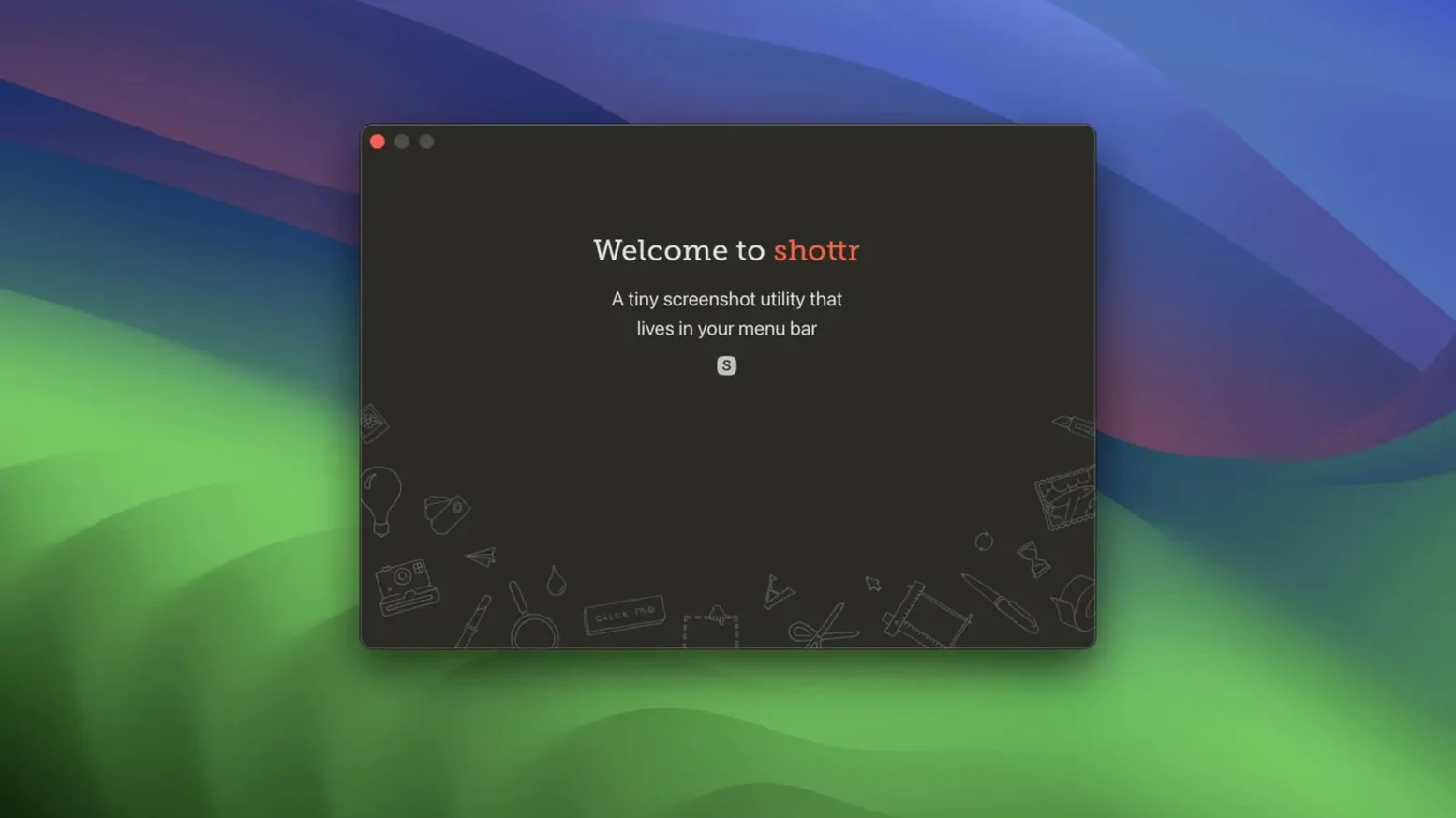
Shottr 1.9.3
Mac AppsUpdated
| Requirement | On file |
|---|---|
| macOS | macOS 10.15 or later |
| CPU | Apple Silicon, Intel 64-bit |
| Download | 4 MB |
Version 1.9.2 is a maintenance release, tightening up the performance of the existing toolkit without introducing new interface elements. For an experienced user, the value in Shottr lies not in flashy updates but in how its secondary functions integrate into a capture routine.
| Detail | Spec |
|---|---|
| Developer | Electric Endeavors |
| Current version | 1.9.2 |
| Minimum OS | macOS 10.15 Catalina |
| Architecture | Intel & Apple Silicon |
| Interface | English |
The OCR engine handles two distinct tasks that many screenshot utilities treat as an afterthought. Standard text recognition pulls copyable strings from any region of the screen, but the QR and barcode reader operates as a separate pass—point the viewfinder at a code and Shottr decodes the payload directly. The scrolling capture stitches together content from windows that extend beyond the viewport, such as long web pages or log files, into a single continuous image. A pixel-zoom mode magnifies the area under the cursor down to individual screen dots for alignment checks, while the built-in colour picker grabs the hex value of any pixel and copies it without opening a separate utility. Captures can be pinned as floating reference windows that stay layered above other applications, or pushed to a cloud endpoint for sharing. The result is a toolset aimed less at casual annotation and more at the person who reads a screenshot as data.
Where Shottr Lands Among Mac Screenshot Apps
Three native screenshot utilities tend to dominate macOS discussions outside the built-in tool: Shottr, CleanShot X, and Snipaste. They overlap in core capture and annotation features, but the differences show up once you look at what each one prioritises.
- Shottr vs CleanShot X — CleanShot X leans into media production workflows. Its screen recording with webcam overlay, scrolling capture with video export, and self-destructing file sharing target video creators and presenters. Shottr skips video entirely and instead deepens the still-image toolkit: the pixel-zoom mode, the ruler, and the QR scanner are functions CleanShot X does not offer. If your day involves inspecting UI alignment or decoding test barcodes, Shottr fills the gap without the recording overhead.
- Shottr vs Snipaste — Snipaste’s strength is pinning: it can place multiple floating image windows from clipboard history and supports customisable hotkeys for paste-as-float. Shottr also pins captures, but its differentiation sits in the OCR department. Where Snipaste offers no text recognition, Shottr handles both standard OCR and QR/barcode decoding in a single capture session. For a technical writer pulling error codes from alert dialogs, that dual-read ability removes a step from the workflow.
- Shottr vs macOS Screenshot.app — The system tool covers rectangle, window, and timed captures with basic markup. It lacks scrolling capture, OCR, colour picker, and floating pins. Shottr essentially layers a precision toolkit over the same capture primitives without replacing the system shortcuts unless you choose to remap them.
Fixing Scrolling Captures That Cut Off Too Soon
Most friction with Shottr shows up in the first few captures, and the fixes are usually straightforward once you know where to look.
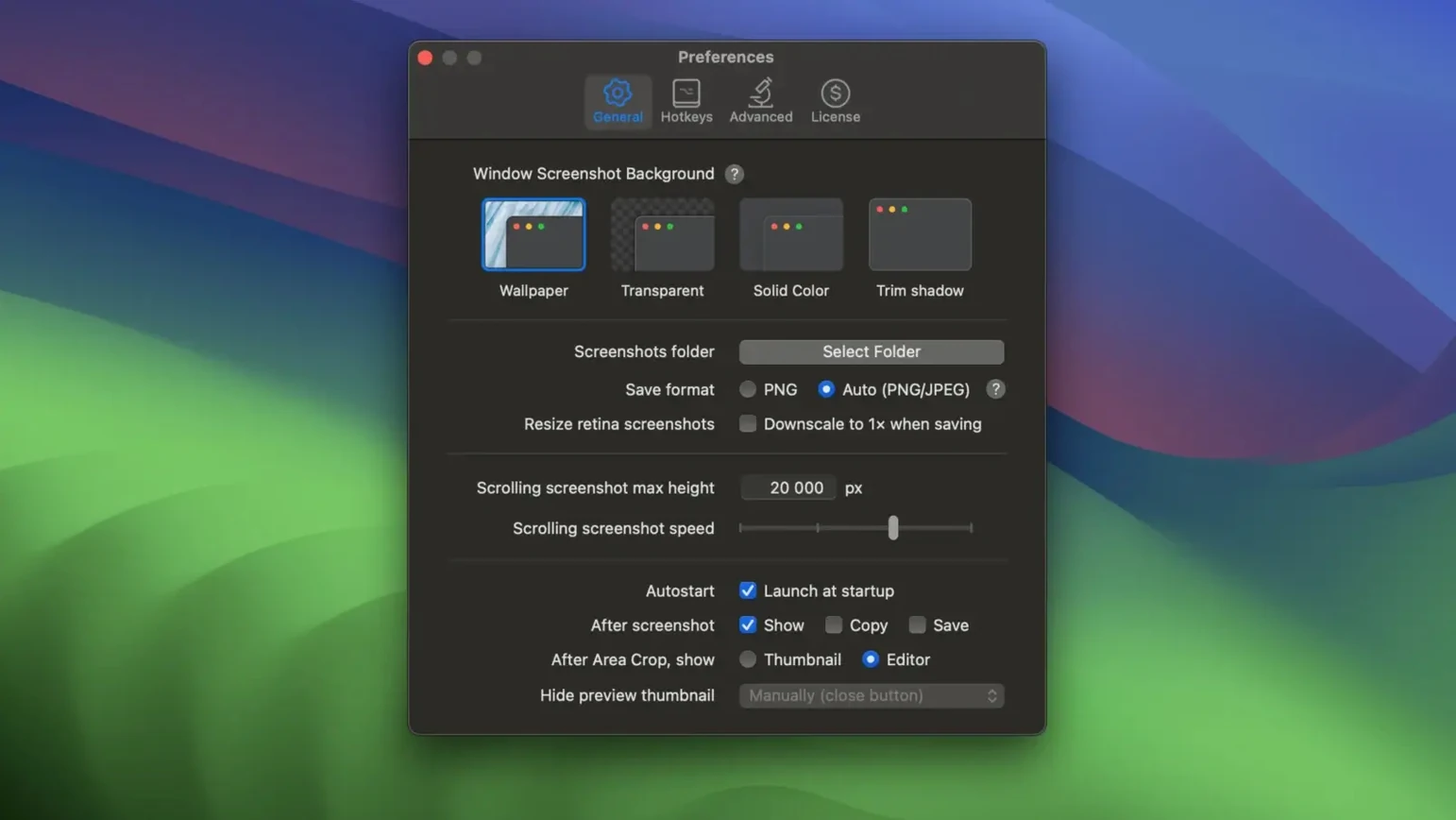
Scrolling capture stops short or misses content. This happens most often in apps that render content in virtualised lists—Xcode’s issue navigator or Electron-based editors, for example. Shottr scrolls by simulating input, and if the target window doesn’t respond to standard scroll events, the stitch will truncate. Workaround: switch to a native document view (a PDF or a long text file) or reduce the scroll speed in Shottr’s preferences to let slower-rendering windows keep up.
OCR fails to select text after recognition. Shottr performs OCR on the capture, but macOS’s text-selection behaviour in image views can interfere. If you cannot drag to copy recognised text, check that you are using Shottr’s own OCR overlay (the Text tab in the annotation toolbar) rather than Preview’s built-in text selection, which operates independently and often returns nothing for screen-captured type.
Cloud upload returns an error. The upload feature sends captures to a configured endpoint—typically a custom server or a service like Imgur. A silent failure usually means the endpoint URL has trailing whitespace in the preferences field or the auth token has expired. Trim the URL field and regenerate the token before retrying.
Floating pin disappears behind a full-screen app. Pinned windows sit at a standard window level, not above full-screen spaces. If you move to a full-screen app or a Space where Shottr isn’t assigned, the pin will not follow. Assign Shottr to “All Desktops” by right-clicking its Dock icon and selecting Options → Assign To → All Desktops to keep pins visible across Spaces.
Remapping the Default Hotkey Before It Fights macOS
A few deliberate choices in the first hour after installing will shape how the tool fits into daily use.
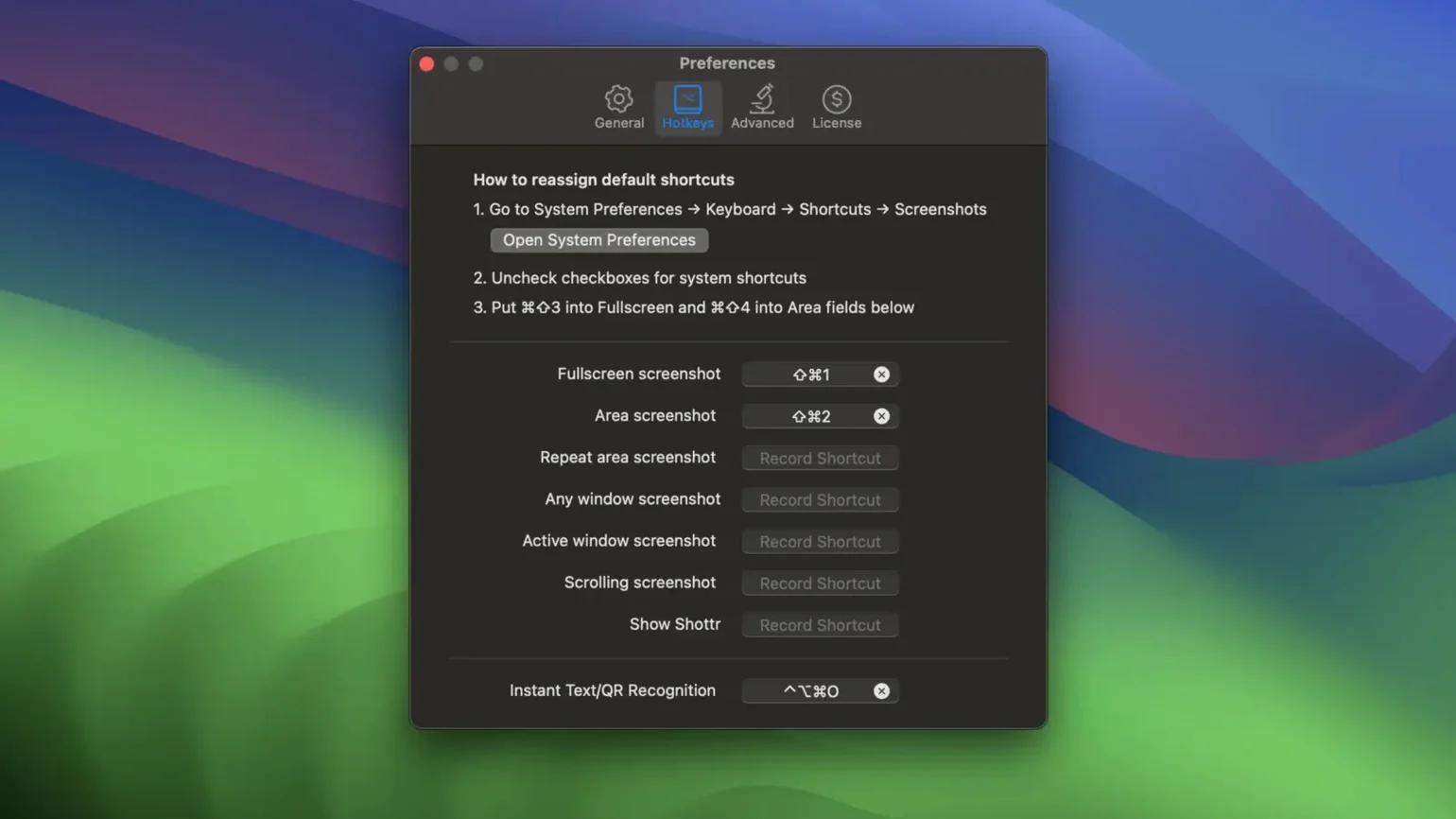
- Remap the default hotkey to avoid muscle-memory collisions. Out of the box, Shottr uses ⇧⌘5, which overlaps with macOS’s own screenshot toolbar. Open Preferences → Hotkeys and set a chord that doesn’t fight existing shortcuts—⌃⌥⌘5 or a single key like F13 tend to work cleanly on keyboards that have them.
- Set a default save folder immediately. Without a custom path, captures land in the system’s temporary directory and can be lost on restart. Use ⌘S on your first test capture, tick “Set as default location,” and point it to a project folder or a dedicated Screenshots directory.
- Turn the pixel-zoom trigger into a habit. Press Z while dragging a capture region to toggle the loupe. Use it for the first few captures even when you do not need it—building the reflex early means you will reach for it automatically when an alignment question comes up later.
- Test the ruler on a known element. Open a window with fixed-size UI—System Settings, for instance—and measure a sidebar or toolbar. Knowing the baseline accuracy of the on-screen ruler (it measures in points, not
Shottr 1.9.3 delivers the developer's most recent set of corrections and minor performance tweaks.
- macOS 10.15 or later
- Apple Silicon and Intel 64-bit
Sign in · Create an account to add a field note.
No field notes yet. A measurement, a version, a machine — they appear after moderation.